


Passwords play an essential role in our lives, whether for Facebook, Gmail, Online Graphics Editing Tools, Website Logins, Other Social Sites, and more. It’s no doubt for security reasons, we need to change the passwords over time, but have you ever thought, what about the previously saved password? Or it can be possible that you don’t intend to protect the password but did it mistakenly. Anyways, this article will show you how to delete saved passwords on Mac Chrome and how to manage saved passwords on a chrome Mac computer.
Nevertheless, it takes few minutes to delete the remove the saved passwords from Chrome on Mac. We have mentioned the path to paste into the Chrome tab directly and access the password settings to ease the process. If that doesn’t work, then follow the stepwise guide from beginning to end.
How to Remove Saved Passwords on Mac Chrome (See, Delete, Copy)
Steps to delete all saved passwords in Chrome at once on a Mac
Are you trying to remove all passwords from Chrome at once, on Mac or Windows? Fine, follow the steps given below and complete your task within half a minute.
- Open the Google Chrome browser on your Mac computer.

- Click on Google Chrome on the top menu bar.

- Select Clear Browsing Data… or use a Keyboard shortcut (Shift + Command + Delete Keys).

- Now, you will see a browser screen. On the Advanced tab, check the Passwords and passkey option, and keep all other checkboxes unticked.
Hint– scroll a little bit, in the Time range section, choose Last hour, Last 24 hours, Last 7 days, Last 4 weeks, and All time.
- Finally, click on Clear data.

Note – To clear browsing data from this device only, while keeping it in your Google Account.
So all your saved passwords and passkeys will be deleted.
Steps to Delete Saved Passwords on Mac Chrome (Single Password)
- Launch the Google Chrome web browser on your Apple Mac computer.
- Click on Chrome.
- Go with Settings… Or Preferences… (You can also access it with a keyboard shortcut (⌘,).

- Now, choose Autofill and passwords in the left sidebar.
- Click on Google Password Manager.

On this settings page, you can create, save, and manage your passwords so you can easily sign in to sites and apps.
- Click on the arrow icon (▶︎) to expand the menu next to the Saved Password you want to delete.

- A pop-up asks you to use Touch ID or enter your MacBook login password to allow this.

- Next, click on Delete. So your saved password is deleted, Mac Chrome gives a few seconds to undo the action if the saved password is deleted accidently.
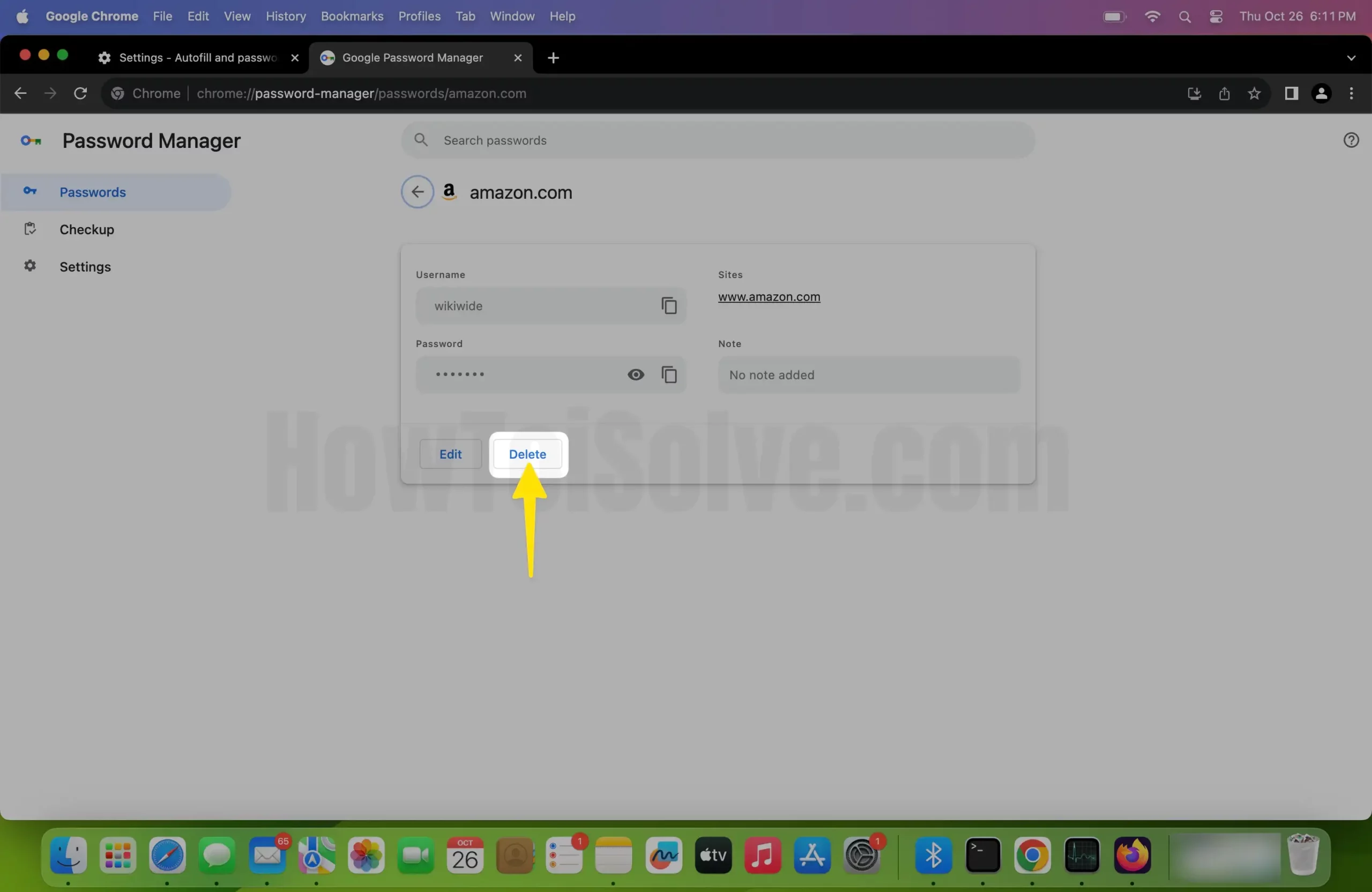
- Copy password: If you want to note the password, click copy password. For security reasons, Chrome will ask you to enter the Admin Username and Password.

- Details: In the Details section, Chrome displays the website name, Username, and Password.

- Delete: Lastly, if you don’t need a saved password, click on Remove to delete the saved password on Chrome MacBook/Mac.
- See: Chrome shows the password, when we click on the eye icon next to the password, thought for confirmation, you’ll be asked to enter the Mac admin username and password.

(Online Method) – How to Manage/Delete Saved Password from Google Account Mac
If you have synced the password across the Google Account, try these alternate steps to delete the saved passwords on Mac from the Google Account.
- Visit the passwords,google.com.
(This is Google’s official website and will let you go directly to Google’s Password Manager settings, where you can view and manage your saved passwords.)

- Sign in to your Google Account or another Gmail account where you want to delete the stored password. So, enter the correct password to proceed. No password on hand, go with Forgot password? Option.
- Next, click on a specific username or portal and see the saved password to delete it.

- Click on the Delete button.

- A pop-up asks you, Delete. Are you sure you want to delete your apple.com password from your Google Account? Google will no longer be able to assist you with signing in. Click on Delete to confirm.

That’s it.






