

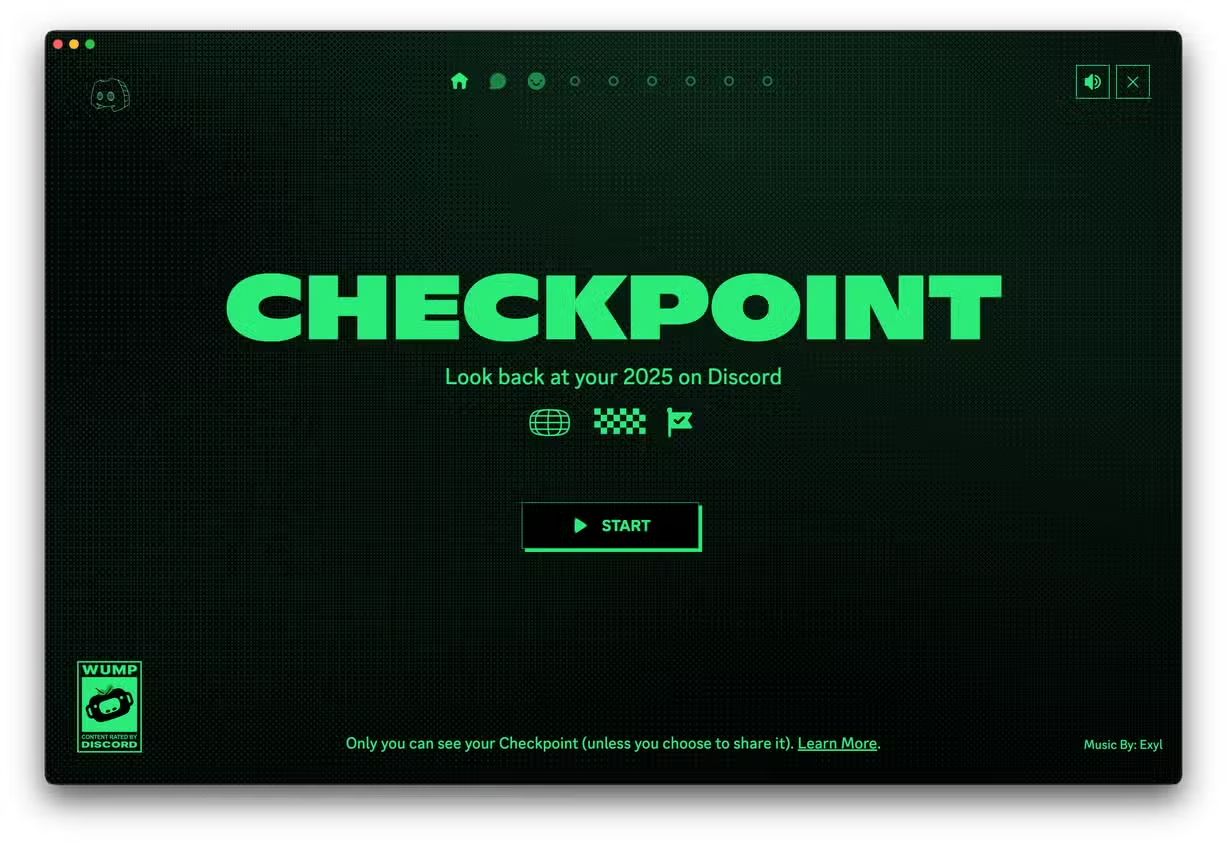
If your Discord Checkpoint / Discord Wrapped Recap 2025 is not showing, don’t worry—thousands of users are experiencing the same issue. The new recap feature is rolling out gradually, and in most cases, it doesn’t appear because your app isn’t updated or a required setting is turned off.
How to see Discord Checkpoint: Update your Discord app to the latest version, enable “Use data to personalize my Discord experience” under Privacy & Data settings, and then access your Checkpoint from the U Tab (mobile) or Flag Icon (desktop).
How to See Discord Checkpoint Quickly (Short Guide)
- Update Discord to the newest version
- Enable Use data to personalize my Discord experience
- Restart the app
- Open U Tab → Tap Checkpoint Banner
- Or on desktop: Click the Flag Icon
- View and share your 2025 Discord recap
Follow this, and 95% of users will immediately see Checkpoint appear.
Below is a complete guide explaining why Discord Checkpoint isn’t showing, what you must enable, the official requirements, step-by-step fixes, and a troubleshooting graph/table for quick comparison.
Why Discord Checkpoint Is Not Showing – Main Reasons
Discord Checkpoint 2025 may be missing due to one or more of these reasons:
- 🚧 Feature is still rolling out gradually
- ❌ Using an outdated Discord app version
- 🔒 “Use data to personalize my Discord experience” is turned off
- 💤 Not enough activity on your account in 2025
- 🔁 Cache issues or old app data stored
- 📱 An unsupported or outdated OS
- 🌐 Network issues are blocking the recap banner
The good news? Most issues can be fixed in minutes.
✅ Discord Checkpoint Requirements (Must-Have Before It Appears)
To receive your Discord recap, your account must meet these requirements:
| Requirement | Needed for Checkpoint? | Notes |
|---|---|---|
| Latest Discord app version | ✔ Required | Update via Play Store / App Store / Desktop |
| Data personalization enabled | ✔ Required | Must be ON for tracking activity |
| Active usage during 2025 | ✔ Required | Discord won’t generate a recap with low activity |
| Stable internet connection | ✔ Important | Recap banner loads online |
| OS compatibility | ✔ Required | Extremely old OS versions may miss the update |
| Logged into correct account | ✔ Important | Check if you’re using your main Discord account |
If any requirement is missing → Checkpoint will not show.
How to Fix Discord Checkpoint Not Showing (Complete Solutions)
Complete Guide on how to see Spotify-style Discord Recap.
1. Update Discord to the Latest Version
The Checkpoint recap only appears in the newest update.
On iPhone/Android
- Open App Store / Google Play Store
- Search Discord
- Tap Update if available
On Desktop
- Discord auto-updates, but you can manually refresh:
Press: CTRL + R (Windows) or CMD + R (Mac)
2. Enable “Use Data to Personalize My Discord Experience”
This is the MOST important fix. If this setting is turned off, Discord cannot create your recap.
How to turn it on:
- Open Discord
- Tap your Profile Icon
- Go to Settings
- Scroll to Privacy & Data
- Turn ON: Use data to personalize my Discord experience
Without this toggle ON → You will NOT get Discord Checkpoint 2025.
3. Check for the Checkpoint Banner
Where to find it:
On Mobile (iOS/Android)
- Go to the U Tab (bottom right)
- Tap the Checkpoint banner when available
On Desktop
- Look for the Flag Icon at the top-right corner
If the icon/banner isn’t showing yet, it may still be rolling out.
4. Clear Cache (Mobile Only)
Sometimes the banner doesn’t load due to cached old UI.
Android
Settings → Apps → Discord → Storage → Clear Cache
iPhone
Reinstalling Discord clears cache:
- Hold the app → Remove App → Reinstall from App Store
5. Log Out and Log Back In
This resets the user session and forces Discord to refresh the UI.
6. Switch Networks (Wi-Fi ↔ Mobile Data)
Some users report the Checkpoint banner finally appears after switching internet.
7. Wait for Rollout Completion
Discord confirmed on Instagram that Checkpoint 2025 is:
“Rolling out over the next few days.”
If your account meets all requirements but you still don’t see it, it’s simply not activated for your region or device yet.
Discord Checkpoint Troubleshooting Graph/Table
Below is a quick guide showing problem → reason → solution:
| Issue | Likely Cause | Solution |
|---|---|---|
| Checkpoint not showing anywhere | Update not available yet | Wait for rollout; check daily |
| Banner missing from U Tab | Can’t find the recap in settings | Update Discord |
| No recap generated | Activity too low | Increase activity next year |
| Can’t find recap in settings | Data tracking off | Enable personalization |
| App glitching / blank screen | Cache issue | Clear cache or reinstall |
| Desktop icon not visible | Outdated UI build | Refresh Discord (CTRL/CMD + R) |
Bonus Fix: Make Sure You’re Logged In With Your Primary Account
Many users have multiple Discord accounts and accidentally check the wrong one.
Go to:
Profile → Account → Email
Confirm you’re viewing your main account — not an alt.
Final Thoughts
If Discord Checkpoint 2025 is not showing, don’t panic—it’s almost always due to an outdated app, disabled data tracking, or the slow rollout. Once you update the app and turn on data personalization, the Checkpoint banner should appear on mobile or desktop in a few days.
Discord’s first-ever recap feature is highly anticipated, so once it arrives, you’ll be able to see:
- Your total messages
- Top friends
- Most active servers
- Favorite emojis
- Top games
- Yearly activity breakdown






