Estimated reading time: 4 minutes
Key Takeaways
- The ‘Set time zone automatically’ feature may be grayed out due to disabled Location Services or lack of admin rights.
- To fix this, enable Location Services in Privacy settings. Ensure apps have access to your location.
- If you’re on a non-admin account, log in as an administrator or contact your IT for work devices.
- Use the Registry Editor to set the ‘Start’ value to 3 if the option remains unavailable after enabling Location Services.
- As a last resort, use the Control Panel to manually set the time zone if other methods don’t work.
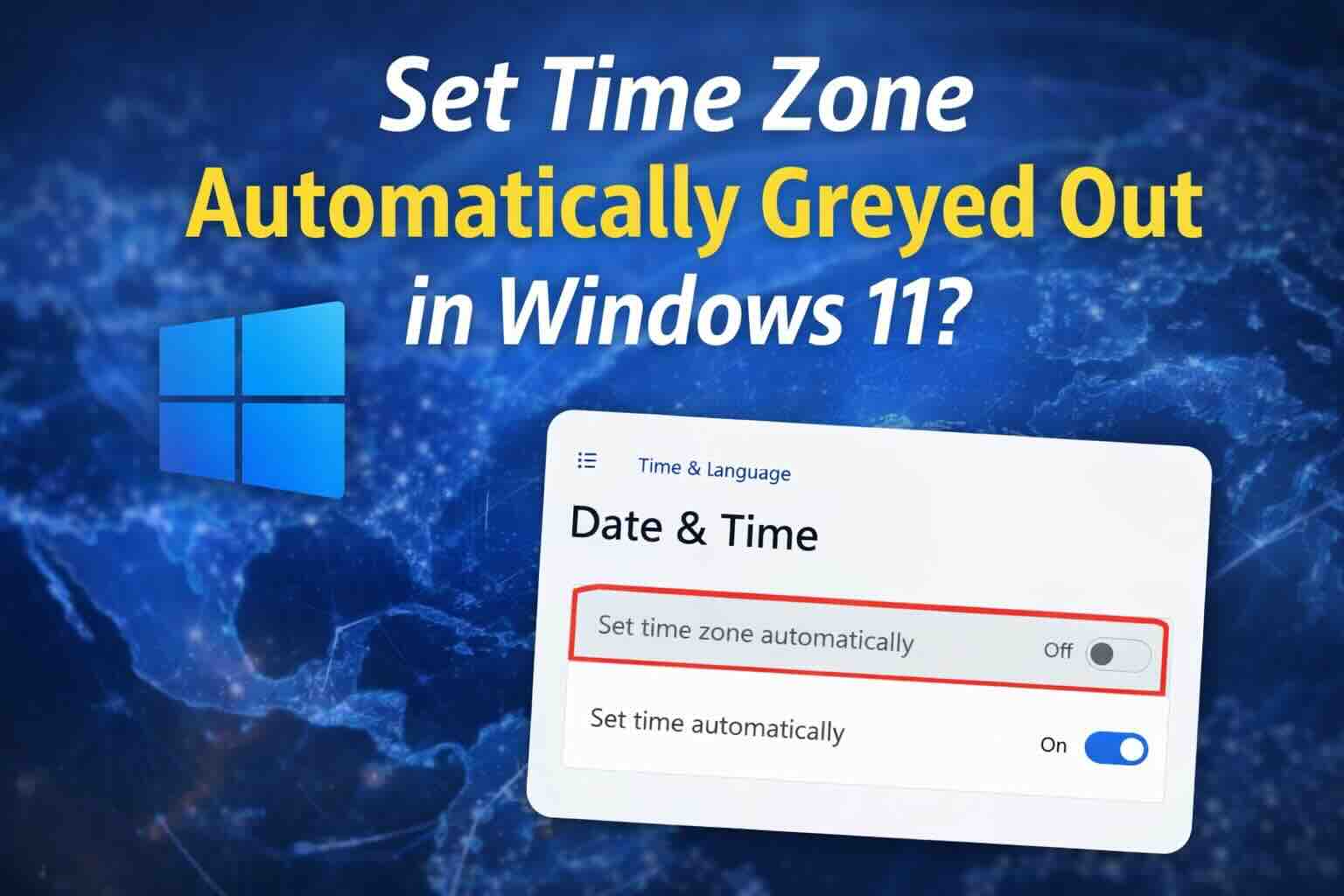
In Windows 11, the “Set time zone automatically” feature relies on Location Services to determine your time zone. If location access is turned off, the setting will be grayed out. Another common reason for this issue is if you’re logged in with a non-administrator account or if the setting is locked by an organization’s Group Policy.
Solution 1: Enable Location Services (Most Common Fix)
To enable the Set time zone automatically option, the Location Services feature must be turned on. Here’s how I do it:
- Open Settings by pressing Windows key + I.
- Navigate to Privacy & security.
- Under the Location section, click on it.
- Toggle Location services to On.
- Ensure Let apps access your location is also toggled On.
- In the list of apps, find Host Process for Windows Services and make sure it’s enabled.
Once you’ve completed these steps, go back to Settings > Time & language > Date & time and see if the Set time zone automatically option is no longer grayed out.
Solution 2: Check Administrative Rights
In some cases, Windows 11 restricts non-administrator accounts from changing system-wide settings like time zones.
- Log in as an Administrator: Make sure you’re using an administrator account to modify this setting.
- Work/School Devices: If you’re using a work-managed laptop or a school device, your organization may have locked this setting using Group Policy. In this case, you’ll need to contact your IT administrator for assistance.
Solution 3: Registry Editor Fix
If Location Services are enabled and you have administrative rights but the issue persists, you can use the Windows Registry Editor to force the setting to enable. Here’s how I do it:
- Press Windows key + R to open the Run dialog.
- Type
regeditand press Enter to open the Registry Editor. - Navigate to the following path:
HKEY_LOCAL_MACHINE\SYSTEM\CurrentControlSet\Services\tzautoupdate - In the right pane, double-click the Start entry.
- Change the Value data to 3 to enable automatic time zone setting. If you want to disable it, set the value to 4.
- Click OK, then restart your computer.
This should resolve the grayed-out issue and allow you to set the time zone automatically.
Solution 4: Manual Workaround (Using Control Panel)
If the Settings app is still not working, you can use the classic Control Panel to set your time zone manually. Here’s how I do it:
- Press Windows key + R to open the Run dialog.
- Type
timedate.cpland press Enter to open the Date and Time settings. - Click on Change time zone…
- Select the correct time zone from the list.
- Click OK to save the changes.
Although this doesn’t solve the root cause, it’s a good workaround if you need to set the time zone manually.
Final Thoughts
If the Set time zone automatically option in Windows 11 is grayed out, enabling Location Services, ensuring you have administrative rights, and using the Registry Editor should solve the issue in most cases. If all else fails, the Control Panel workaround allows you to set the time zone manually.
If you continue having trouble, you might want to check if your PC is managed by an organization or if there are group policies restricting the setting. If you’re using a personal PC, these solutions should work to restore the functionality.
Let me know if you need help with any of the steps, or if you’re using a work-managed laptop—I’m happy to guide you further.