Screen sharing on Discord Mobile is one of the best ways to show friends your gameplay, walk someone through a tutorial, or collaborate on a project. Whether you’re using an iPhone or Android, the process is simple — and this guide walks you through every step, with clear instructions based on how Discord’s mobile interface works today.
Before You Start
You’ll need:
- The latest version of the Discord app
- A stable internet connection
- A voice call or voice channel to join
Screen sharing only works inside a call — you cannot start it from the chat screen.
How to Screen Share on Discord Mobile (iOS & Android)
Follow these easy steps to start sharing your screen with others.
Step 1: Open Discord
Launch the Discord app on your iPhone or Android device.
Step 2: Join a Voice Call or Voice Channel
To start screen sharing, you must be in a call.
You can do either:
- Join a private 1-on-1 or group call, OR
- Enter a server and join a voice channel
Example:
Tap the server → tap the desired Voice Channel → tap Join Voice.
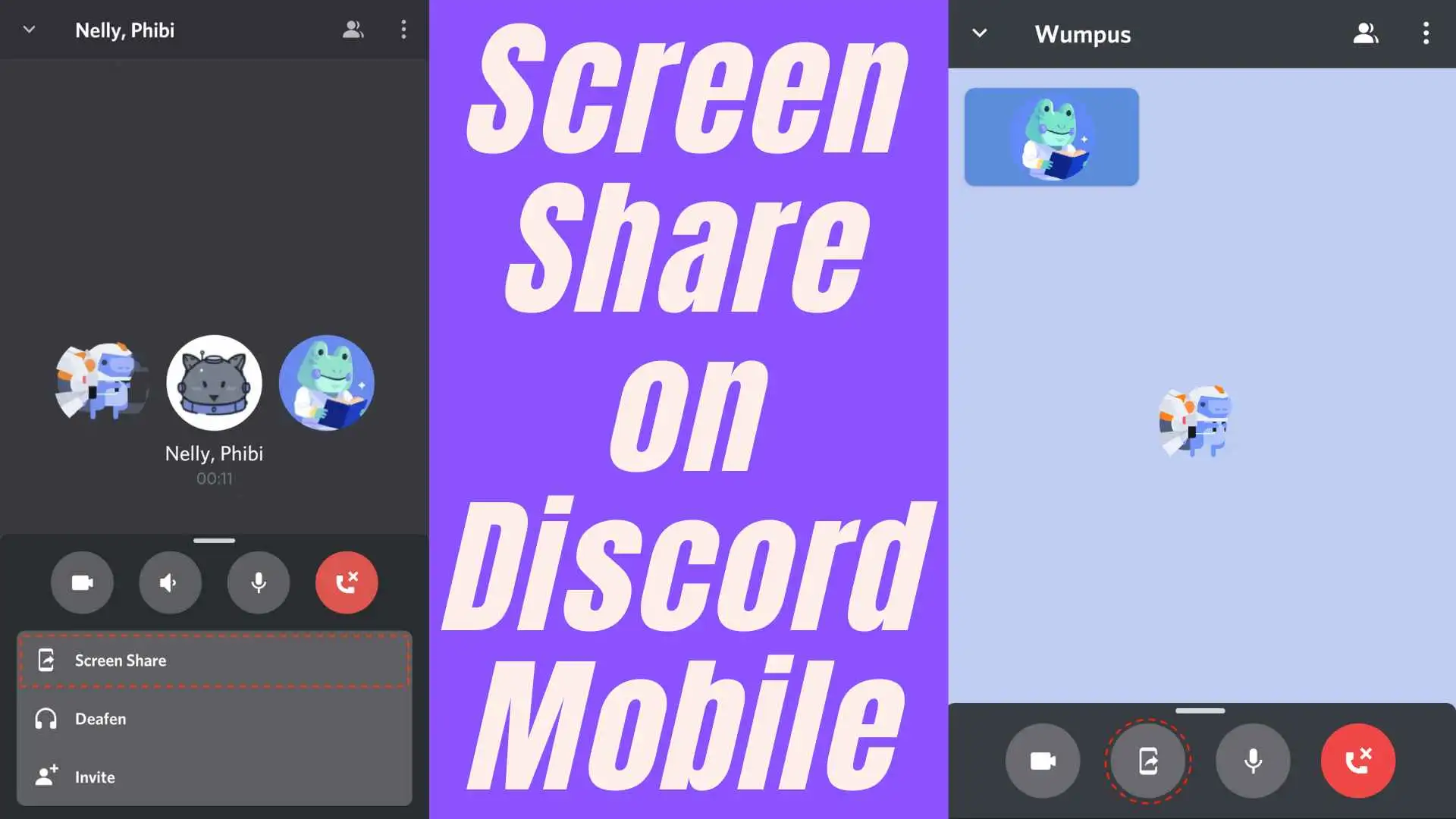
Once you join, you’ll see the call interface with several control icons at the bottom.
Step 3: Swipe Up to Reveal More Options
At the bottom of the call screen, you’ll see a row of icons.
Swipe up on that bottom toolbar to reveal additional options.
You will now see the “Share Your Screen” option.
Step 4: Tap “Share Your Screen”
Tap the Share Your Screen button.
If you’re on iPhone (iOS):
A system popup will appear from Apple called “Start Broadcast.”
If you’re on Android:
A similar pop-up will appear, asking for permission to capture your screen.
Step 5: Confirm to Start Broadcasting
On iPhone → tap Start Broadcast.
On Android → tap Start Now (or the equivalent permission button).
A 3-second countdown will begin.
Once the countdown finishes, your screen is officially being shared.
Step 6: Navigate to Any App You Want to Share
After the broadcast starts:
- You can leave Discord
- Open any app
- Show videos, browser pages, games (depending on your device), or anything else
Discord will continue sharing everything on your screen.
Indicators That You’re Sharing:
- On iPhone: a red glowing bar/indicator at the top
- In Discord: a message that says “You’re sharing your screen”
- A small icon next to your username shows that screen-sharing is active
Step 7: Stop Screen Sharing
When you’re done, return to Discord.
You can stop sharing in two ways:
Option A:
Tap Stop Sharing in the call menu.
Option B:
Tap the red or active-screen icon at the top of your device → tap Stop.
Screen sharing will immediately turn off, and you will return to the normal call view.
That’s It! Screen Sharing is Now Active
Discord makes mobile screen sharing incredibly simple.
You can use it to:
- Show a tutorial
- Share gameplay
- Review documents
- Present artwork
- Help someone troubleshoot their device
It works great on both iPhone and Android with almost identical steps.
Troubleshooting Tips
If screen sharing isn’t working:
- Update the Discord app
- Restart your device
- Allow screen recording permissions
- Disable Screen Time restrictions (iOS)
- Close apps that block screen capture (Android)