Wondering how to get the best equalizer settings for Spotify with AirPods? This tutorial will help you find the ideal EQ settings for both iPhone and Android devices. The default settings aren’t always the best, as everyone has their preferences—some enjoy heavy bass while others prefer an acoustic sound. With Apple’s AirPods and AirPods Pro, you can mix and match EQ settings for impressive audio quality in any environment.
When you customize or modify the EQ settings on your iPhone, they are restricted to the Music app only, excluding third-party music applications. Nevertheless, we have provided a comprehensive guide on the best EQ Settings for your AirPods within the Spotify music app, which is widely used by users globally.
How to Optimize EQ Settings for Your AirPods in the Spotify App?
Apple or Spotify can’t ask everyone which EQ settings they would like to have on AirPods, so there is no perfect definition for the best EQ settings for your AirPods on the Spotify app. Everybody’s affinity varies from person to person, so you have to find the best equalizer on the Spotify app on the iPhone.
- Navigate to the Spotify app on your iPhone.
- Tap on Settings (Gear icon) at the top of the screen.
- Go to the Playback.
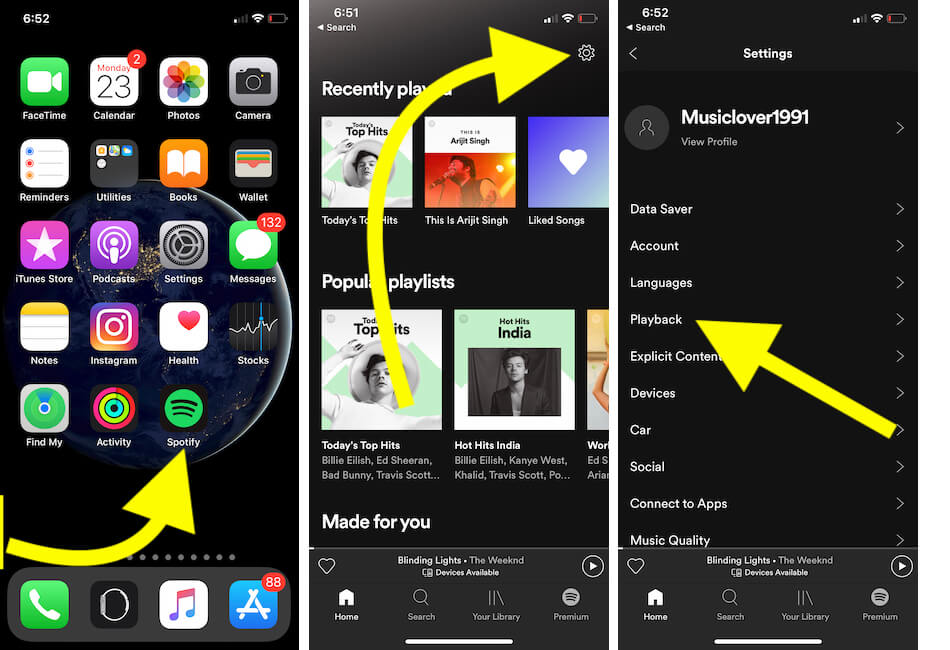

You will find a long list of options, like:
- Vocal Booster
- Bass Booster
- Dance
- Deep
- Hip-Hop
- Piano
- Small Speakers
- Spoken Word
- Rock
If you’re unhappy with Spotify’s default equalizer settings on your AirPods, you can adjust them by moving the white dot up or down to find your preferred sound. This may take some trial and error, so consider doing it in a quiet place for better listening.
10 Tricks to Boost Your Spotify Sound From AirPods Pro
Video Time Frame:
- 00:15 | Remove Volume Limit
- 01:01 | Headphone Accommodations
- 01:30 | Change and Set AirPods Pro EQ for Spotify
- 02:13 | Set High-Quality Sound In Spotify App
- 02:41 | Turn off Data Saver on Spotify Music app
- 02:57 | One of my AirPods is Low or No Sound
- 03:26 | Clear Spotify App Cache
- 03:54 | Reset All Settings on iPhone
- 04:13 | Reset AirPods Pro
- 04:42 | Update iOS and AirPods Firmware
Best iPhone EQ Settings for AirPods 3/ AirPods Pro – Apple Music Music App
The above EQ customizations were related to the Spotify app, but this is a tip that will help you change the EQ settings for AirPods on iPhone for a Music app. Compared to the Spotify app’s EQ settings, Apple has given quite more pre-default options to choose from,
- Acoustic
- Bass Booster
- Bass Reducer
- Deep
- Hip Hop
- Late Night
- Piano
- Loudness
- Pop
- Jazz
- Flat etc.
- Open the Settings app on the iPhone.
- Scroll down and tap Music.
- Go for EQ.

Looking for the most competent EQ Settings for AirPods on iPhone? Personally, I’d recommend you to go for Late Night EQ. That one will definitely deliver the desired sound on AirPods.
Airpods pro equalizer android For Spotify
Spotify Equalizer settings directly use your Android Mobile’s sound settings. So, the System sound automatically overrides Spotify and Other Music apps to Boost the sound quality on AirPods or Other Third-Party AirPods. Follow the below settings,
- Open Settings on your Android mobile.
- Next, Tap on Sounds and vibration.

- Scroll to the option “Sound quality and effects” and Find the Equalizer Settings. Tap on it to see the Different Default EQ Settings: Normal, Pop, Classical, Jazz, Rock, and Custom. The custom option allows a user to change the EQ setting as per output.


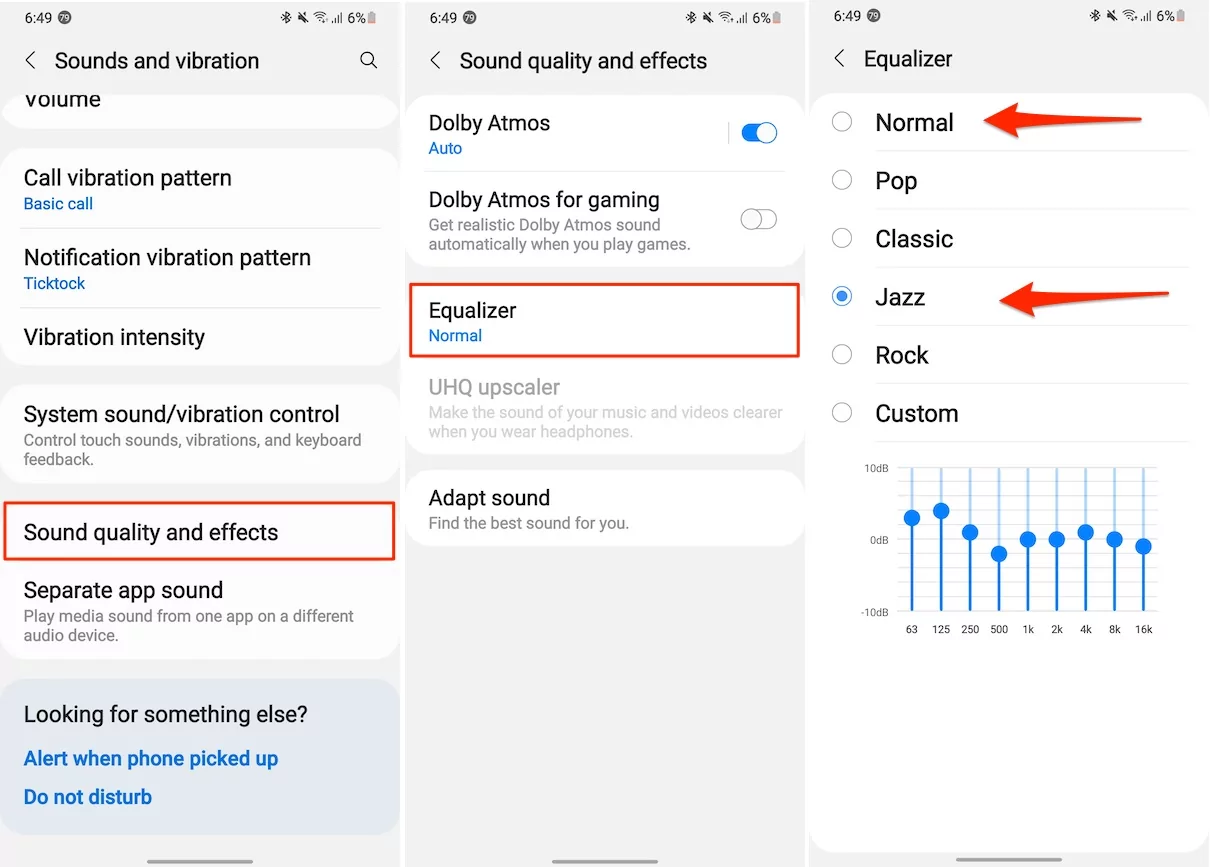
The default option in EQ Settings for Spotify on Android is Normal.
If AirPods Pro Sound Quality is Low! Get the best iPhone Eq Setting for Airpods pro
Check the Video Below for Increase Sound on AirPods
Thanks.