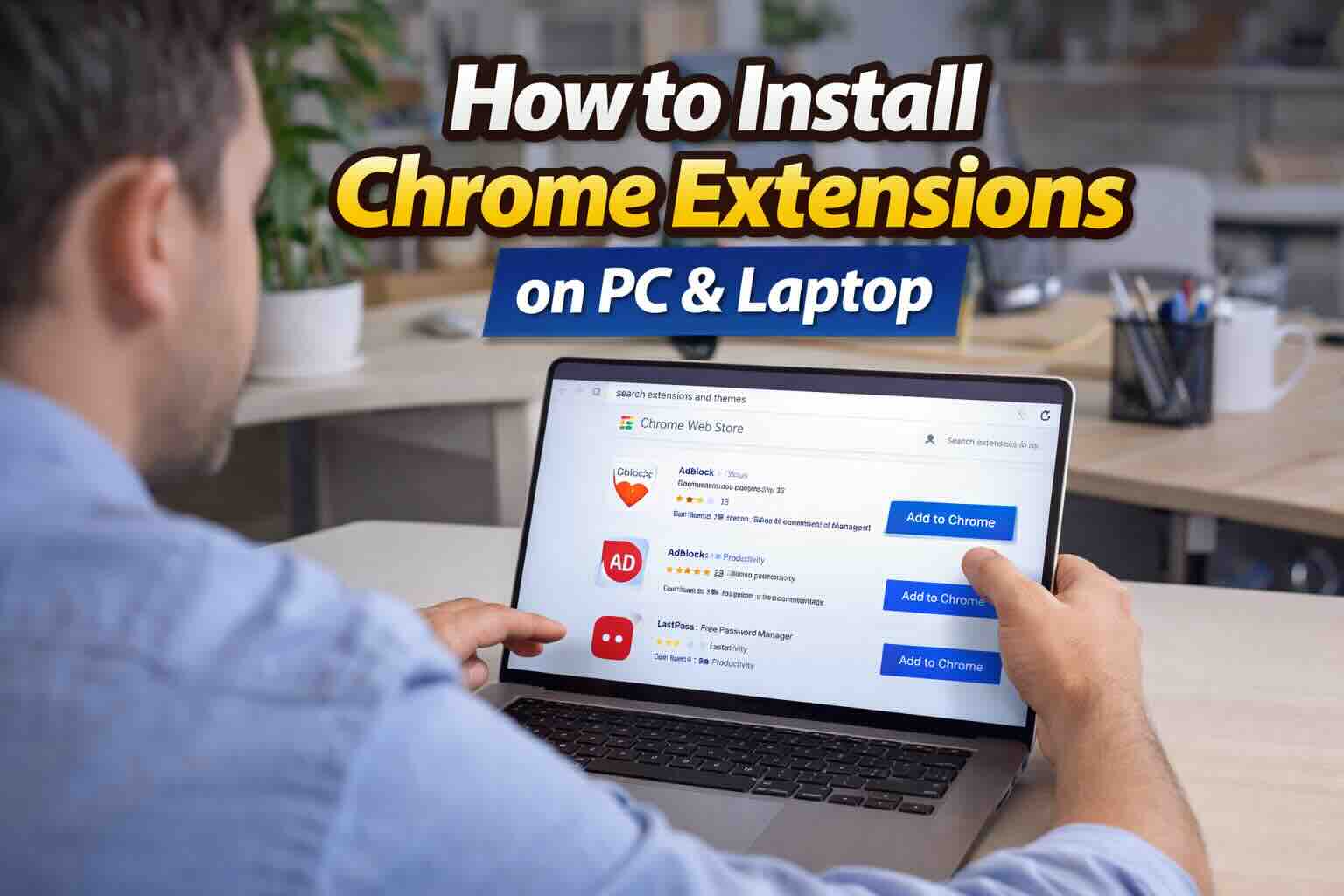
Adding extensions to Google Chrome is one of the easiest ways to improve your browsing experience. Whether you want ad blockers, grammar tools, password managers, or productivity add-ons, Chrome extensions can instantly add powerful features to your PC or laptop.
In this guide, you’ll learn how to install Chrome extensions safely from the official store and manually using Developer Mode.
What Are Chrome Extensions?
Chrome extensions are small software tools that customize your browser. They can:
- Block ads
- Save passwords
- Improve writing
- Take screenshots
- Boost productivity
- Enhance accessibility
Installing them takes less than a minute.
Method 1: Install Extensions from the Chrome Web Store (Recommended)
This is the safest and easiest method. The Chrome Web Store verifies listed extensions for security.
Step 1: Open Google Chrome
Launch Chrome on your PC or laptop.
Step 2: Go to the Chrome Web Store
Type this in the address bar:
chrome.google.com/webstore
Press Enter.
Step 3: Search for an Extension
Use the search bar to find what you need, or browse categories such as:
- Productivity
- Accessibility
- Developer Tools
- Shopping
Step 4: Review Extension Details
Click on the extension to check:
- Description
- User reviews
- Ratings
- Privacy practices
- Required permissions
This step helps you avoid unsafe tools.
Step 5: Click “Add to Chrome”
Click the Add to Chrome button.
A pop-up will appear showing required permissions.
Click Add extension to confirm.
The extension will install automatically.
Example
Let’s say you want a grammar checker for writing emails.
You search for “Grammarly” in the Chrome Web Store, read reviews, click Add to Chrome, confirm permissions, and within seconds the extension appears in your toolbar.
That’s it.
Method 2: Manual Installation Using Developer Mode
Use this method if you have:
- A .crx file
- An unzipped extension folder
- A custom extension downloaded from GitHub
⚠ This method is for advanced users. Only install files from trusted sources.
Step 1: Open Extensions Page
Type the following in Chrome’s address bar:
chrome://extensions/
Press Enter.
Step 2: Turn on Developer Mode
Toggle Developer mode in the top-right corner.
New options will appear.
To Install an Unzipped Folder
- Click Load unpacked
- Select the extension’s root folder
- Click Open
The extension will install immediately.
To Install a .crx File
Simply drag and drop the .crx file onto the Extensions page.
Chrome will prompt you to confirm installation.
How to Manage Chrome Extensions
After installing extensions, you can control how they appear and behave.
Pin Extensions to Toolbar
- Click the Extensions icon (puzzle piece)
- Click the Pin icon next to the extension
This keeps it visible in your browser toolbar.
Change Extension Settings
- Right-click the extension icon
- Select Manage Extension
From here you can:
- Adjust site access
- Allow in Incognito mode
- Review permissions
Remove an Extension
If you no longer need an extension:
- Right-click its icon
- Click Remove from Chrome
- Confirm removal
Important Note for Work or School PCs
If you’re using a company or school laptop, your administrator may block certain extensions for security reasons.
In this case, you may see:
- “Blocked by administrator”
- Disabled Add button
You’ll need permission from your IT department.
Quick Comparison Table
| Method | Best For | Difficulty | Safety Level |
|---|---|---|---|
| Chrome Web Store | Depends on the source | Easy | High |
| Developer Mode | Custom or advanced tools | Advanced | Depends on source |
Final Thoughts
Installing Chrome extensions on your PC or laptop is a quick way to improve your browsing experience. For most users, the Chrome Web Store method is the safest and easiest option.
If you’re installing manually, make sure the file comes from a trusted source to avoid security risks.
With just a few clicks, you can customize Chrome to match your workflow and boost productivity instantly.