

Estimated reading time: 3 minutes
Key Takeaways
- You can add a Google Chrome shortcut to your Windows desktop using three simple methods: Windows Search, drag and drop from the Start Menu, or creating a shortcut for a specific website.
- Method 1 involves searching for Chrome, opening its file location, and sending it to the desktop.
- Method 2 allows you to visually drag the Chrome icon from the Start Menu to your desktop.
- In Method 3, open a website in Chrome and create a shortcut directly for easy access later.
- Creating a shortcut offers faster browser access and convenience for everyday users.
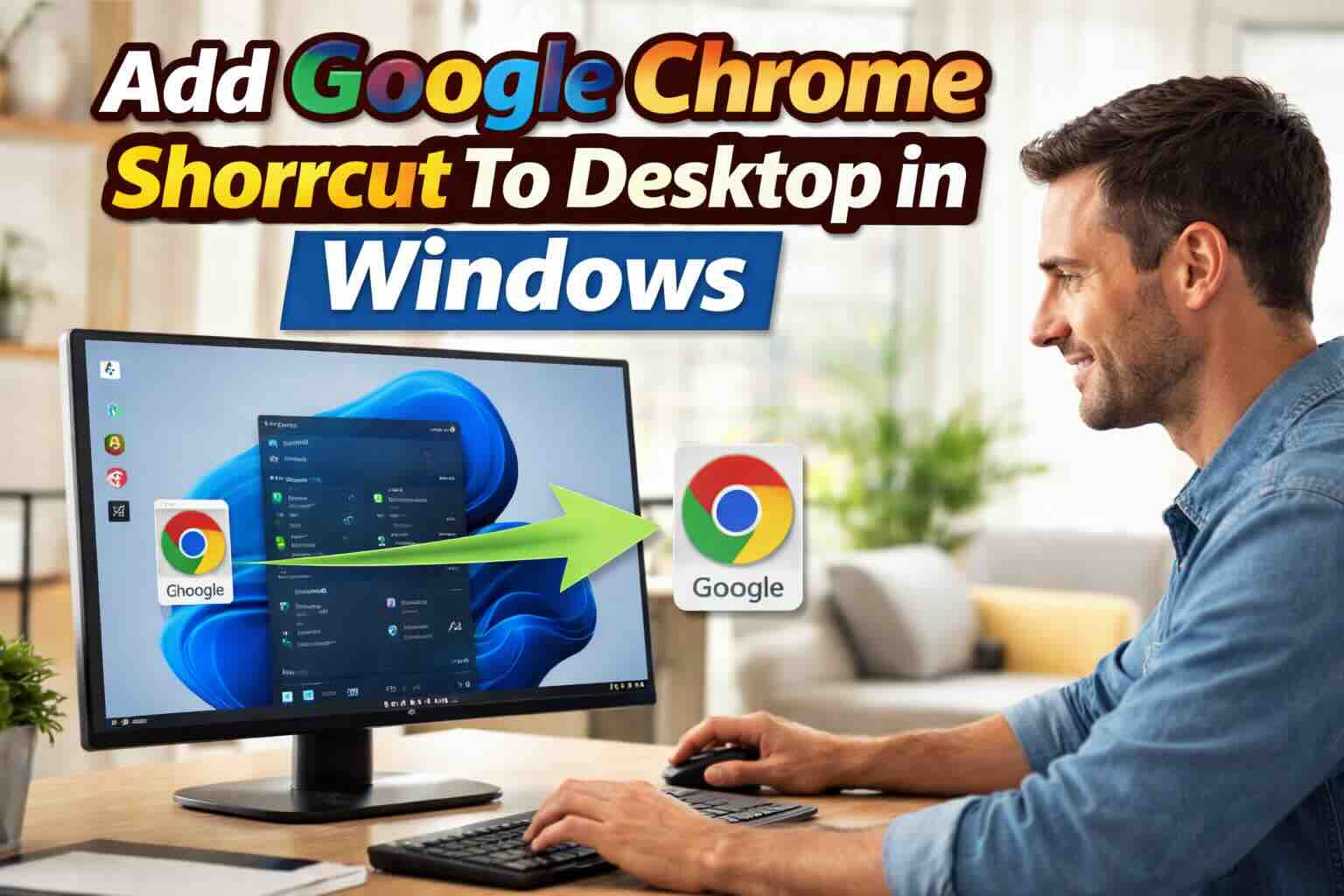
Adding a Google Chrome shortcut to your desktop in Windows 11 or Windows 10 makes it faster and easier to open your browser without searching for it every time.
There are several simple ways to create a Chrome desktop shortcut. This guide walks you through each method step by step.
Method 1: Using Windows Search (Best for Windows 10 & 11)
This is the easiest and most reliable method.
Step 1: Search for Chrome
- Click the Start button or the search bar on your taskbar.
- Type Google Chrome.
You should see Chrome appear in the search results.
Step 2: Open File Location
- Right-click Google Chrome in the results.
- Select Open file location.
A folder will open showing the Chrome application icon.
Step 3: Create the Desktop Shortcut
For Windows 10:
- Right-click the Chrome icon.
- Hover over Send to.
- Click Desktop (create shortcut).
For Windows 11:
- Right-click the Chrome icon.
- Select Show more options.
- Click Send to.
- Choose Desktop (create shortcut).
That’s it. You’ll now see the Chrome icon on your desktop.
Example
Let’s say you just installed Chrome on your new Windows 11 laptop, but you don’t see it on your desktop. You use Windows Search, open the file location, create the shortcut, and now Chrome is one click away anytime you turn on your computer.
Method 2: Drag and Drop from the Start Menu
This method works well if you prefer a visual approach.
- Click the Windows icon.
Step 2: Find Google Chrome
- On Windows 11, click All apps.
- Scroll down until you find Google Chrome.
Step 3: Drag It to the Desktop
- Click and hold the Chrome icon.
- Drag it directly to your desktop.
- Release the mouse button.
A shortcut will automatically be created.
Method 3: Create a Desktop Shortcut for a Specific Website
You can also create a shortcut that opens a specific website directly, like Google.com or YouTube.
Step 1: Open the Website
- Launch Chrome.
- Go to the website you want.
Example: google.com
- Click the three vertical dots in the top-right corner.
Step 3: Create the Shortcut
- Select Cast, save, and share.
- Or in some versions, select More tools.
- Click Create shortcut.
Step 4: Confirm
- Type a name for the shortcut.
- Click Create.
An icon will now appear on your desktop that opens that website directly.
Example
If you visit Gmail every day for work, you can create a Gmail shortcut on your desktop. Clicking it will instantly open Gmail in Chrome without typing the address.
Why Create a Desktop Shortcut?
Here are a few benefits:
- Faster access to Chrome
- Easy to find for new users
- Convenient for seniors or shared computers
- Quick access to favorite websites
Troubleshooting Tips
If you do not see the shortcut appear:
- Make sure Chrome is properly installed.
- Restart your computer.
- Check if your desktop icons are hidden.
- Right-click your desktop and choose Refresh.
Final Thoughts
Adding a Google Chrome shortcut to your Windows desktop takes less than a minute and makes daily browsing much easier. Whether you use Windows 11 or Windows 10, the process is simple and beginner-friendly.






