


You probably like the sleek, customizable Control Center and the useful Menu Bar icons if your MacBook is running macOS Tahoe. But things can get messy sometimes. For example, icons might disappear, widgets might not work right, or your Control Center might not work right. The good news is You can reset or refresh these to get them back to normal.
This short guide will show you exactly how to reset the Control Center and Menu Bar on your MacBook with macOS Tahoe. This will help you get rid of any strange bugs and get everything back to normal.
Why Reset Control Center or Menu Bar?
Here are a few reasons why you might want to do this:
✅ Icons that are missing: The menu bar sometimes loses the Bluetooth, Wi-Fi, or battery icons.
✅ Control Center that doesn’t respond: Clicking does nothing, or settings don’t load right.
✅ Bad preferences: User preference files can get messed up over time.
✅ You want a blank slate: You might have changed it a lot and want to start like new.
How to Reset Control Center & Menu Bar on macOS Tahoe
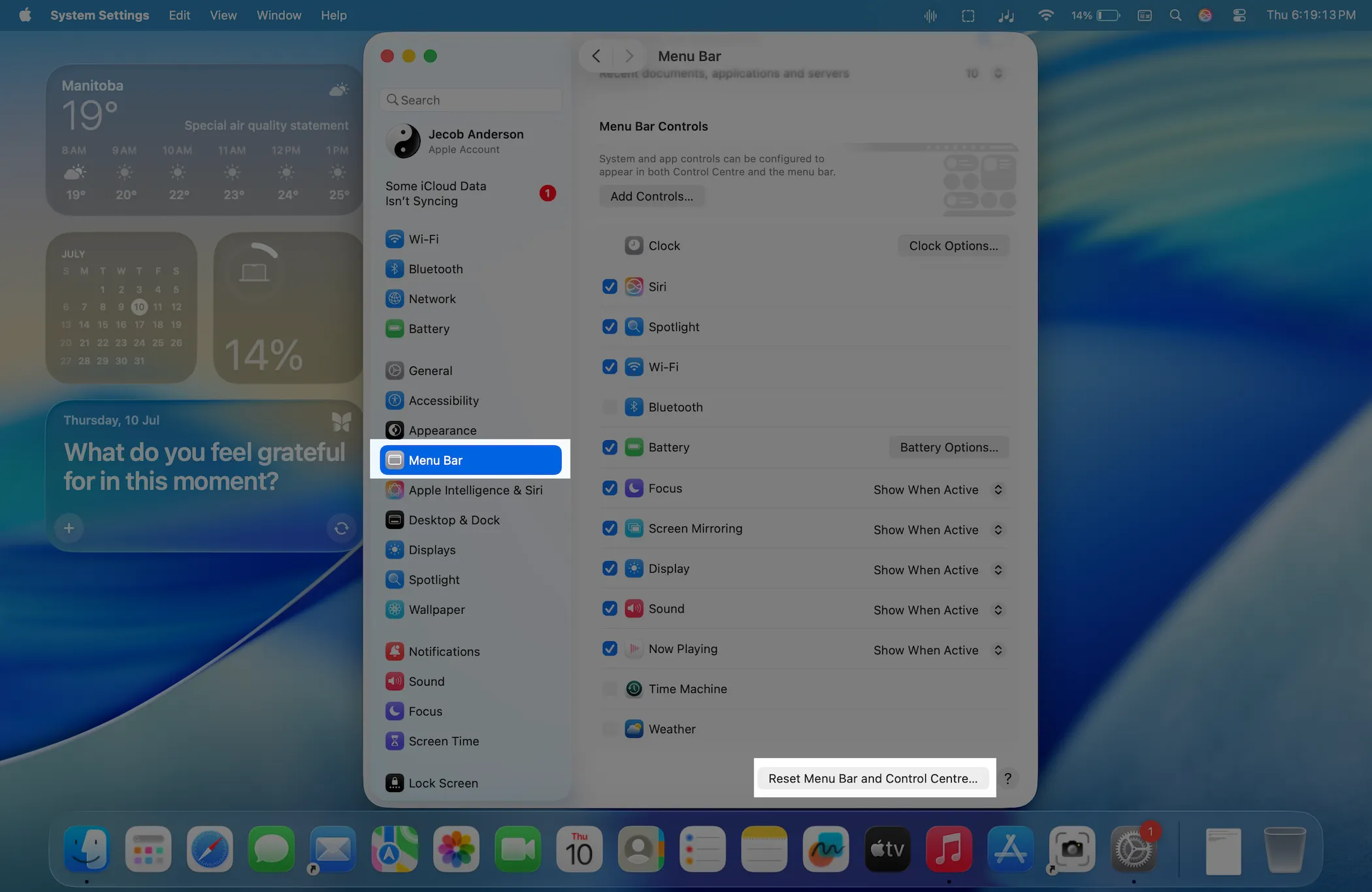
Step 1: Click on the Apple logo in the top menu, then select System Settings.

Step 2: Select Menu Bar > Scroll to the last and check the option for the “Reset menu bar and control center”.
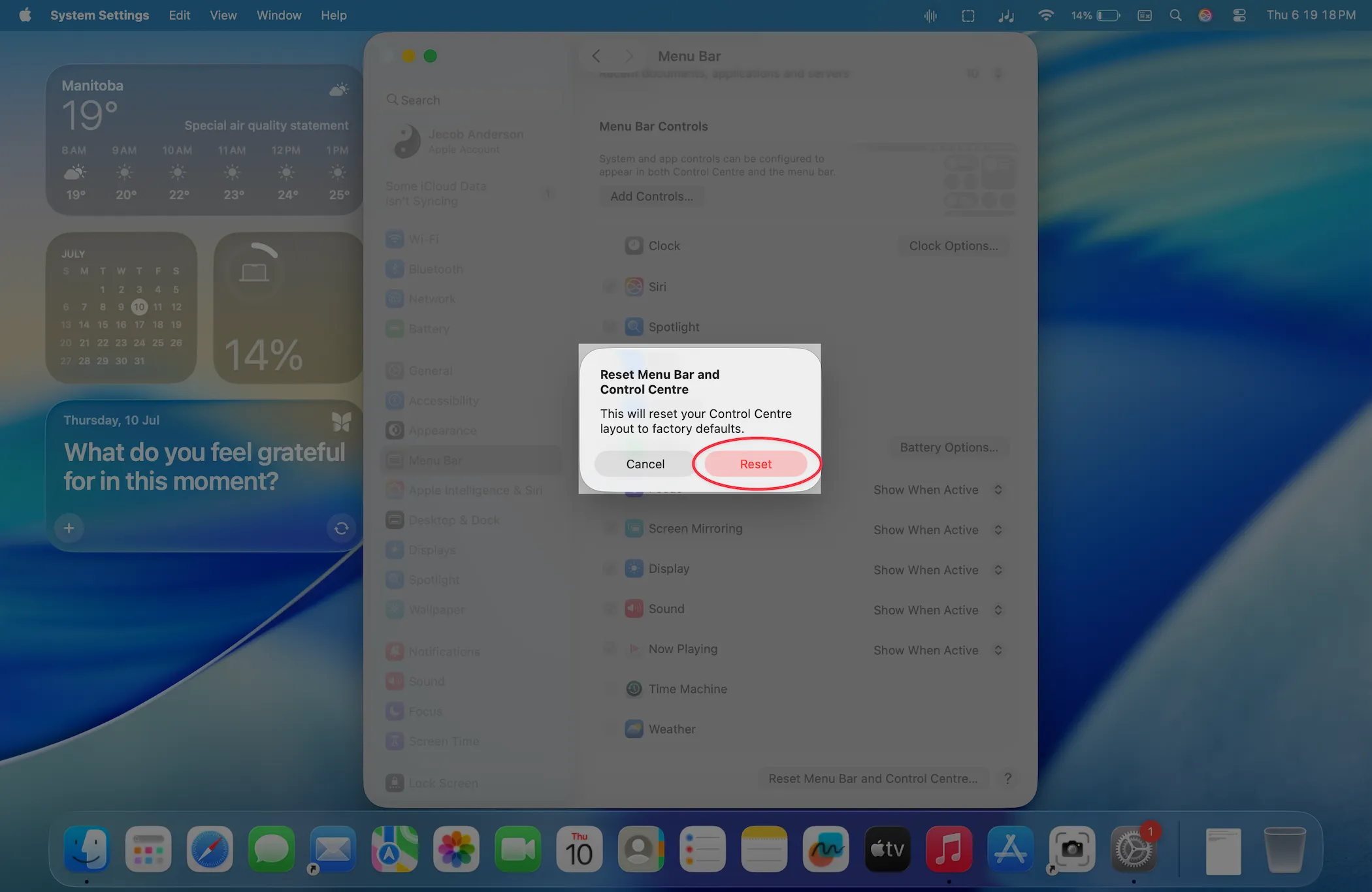
Again, confirm with the confirmation popup on the screen; it can’t be undone.
if the reset button doesn’t work due to an internal software glitch and bug. Follow the manual method.
Solution 1. Restart Your Mac (Basic First Step)
Before trying anything else, give your Mac a restart. It’s surprising how often this fixes minor glitches.
- Click the Apple menu in the top-left corner.
- Select Restart.
- Wait for your Mac to boot back up and check if the issue’s resolved.
Solution 2. Remove System UI Preferences (to Reset Control Center & Menu Bar)
If restarting doesn’t help, you can reset the preferences that handle your Control Center and Menu Bar. Here’s how:
1️⃣ Open Finder, then in the top menu, click Go > Go to Folder…
2️⃣ Type this and press Return:
~/Library/Preferences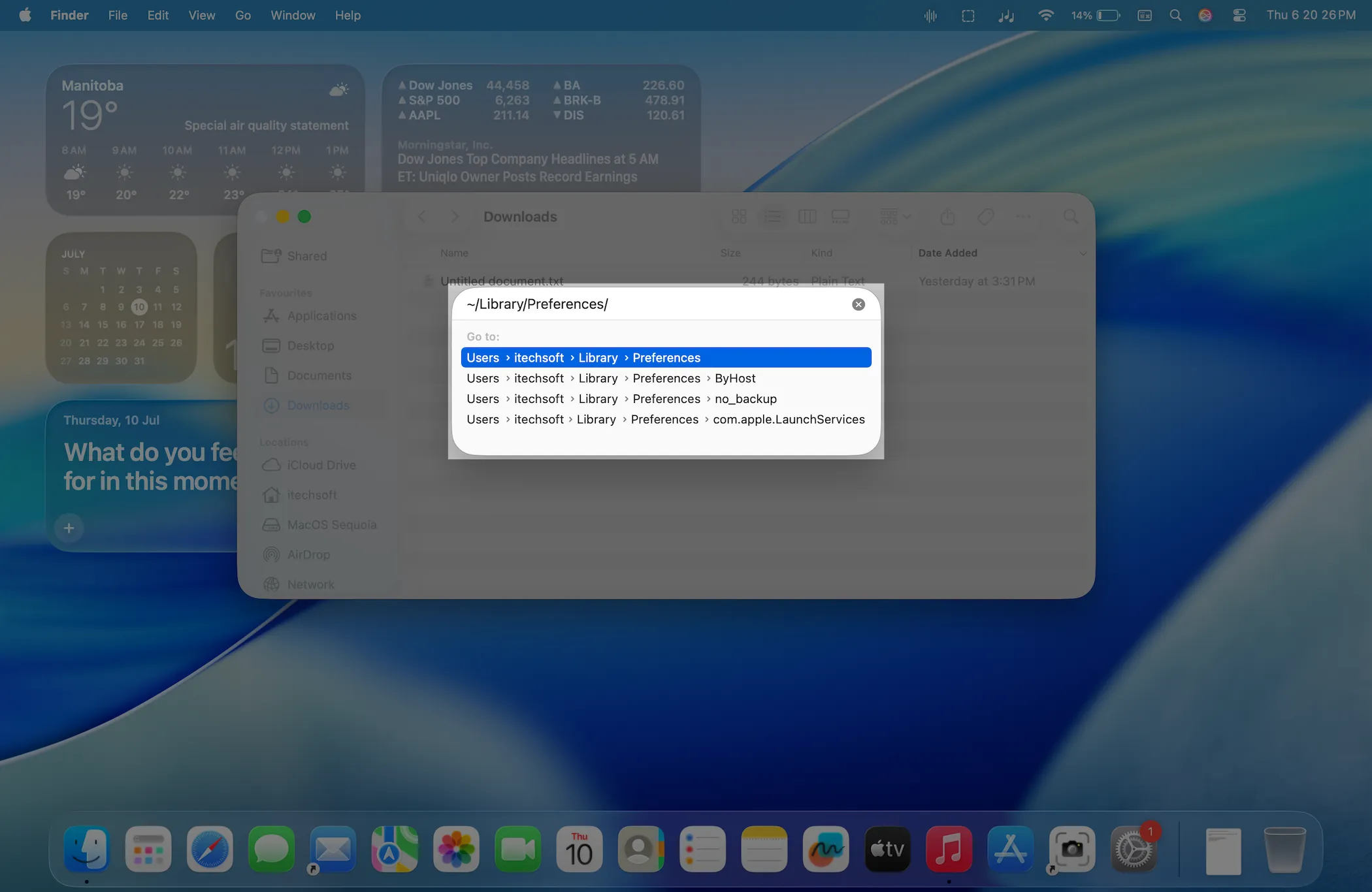
3️⃣ Look for these files:
com.apple.controlcenter.plist
com.apple.systemuiserver.plist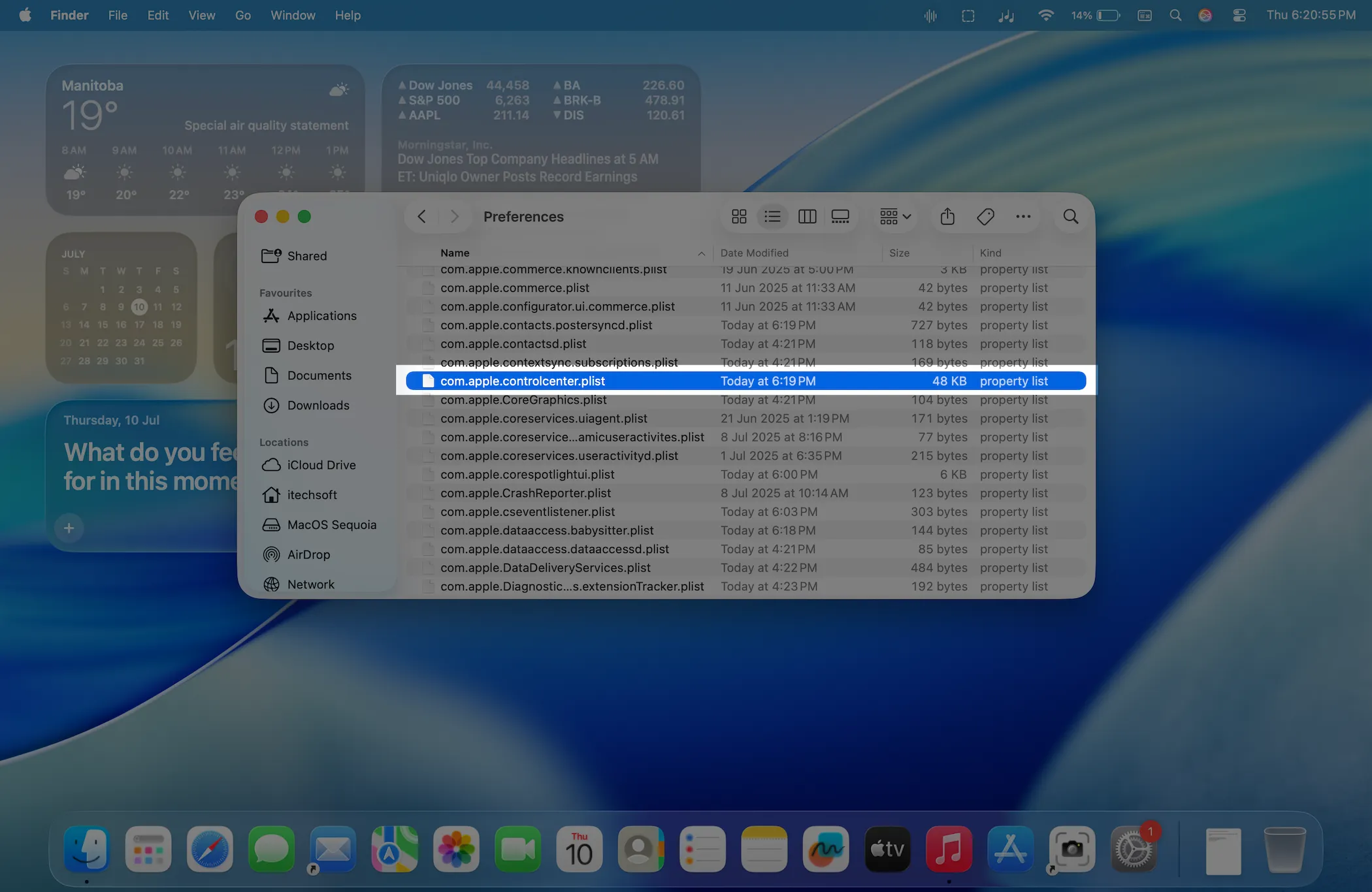
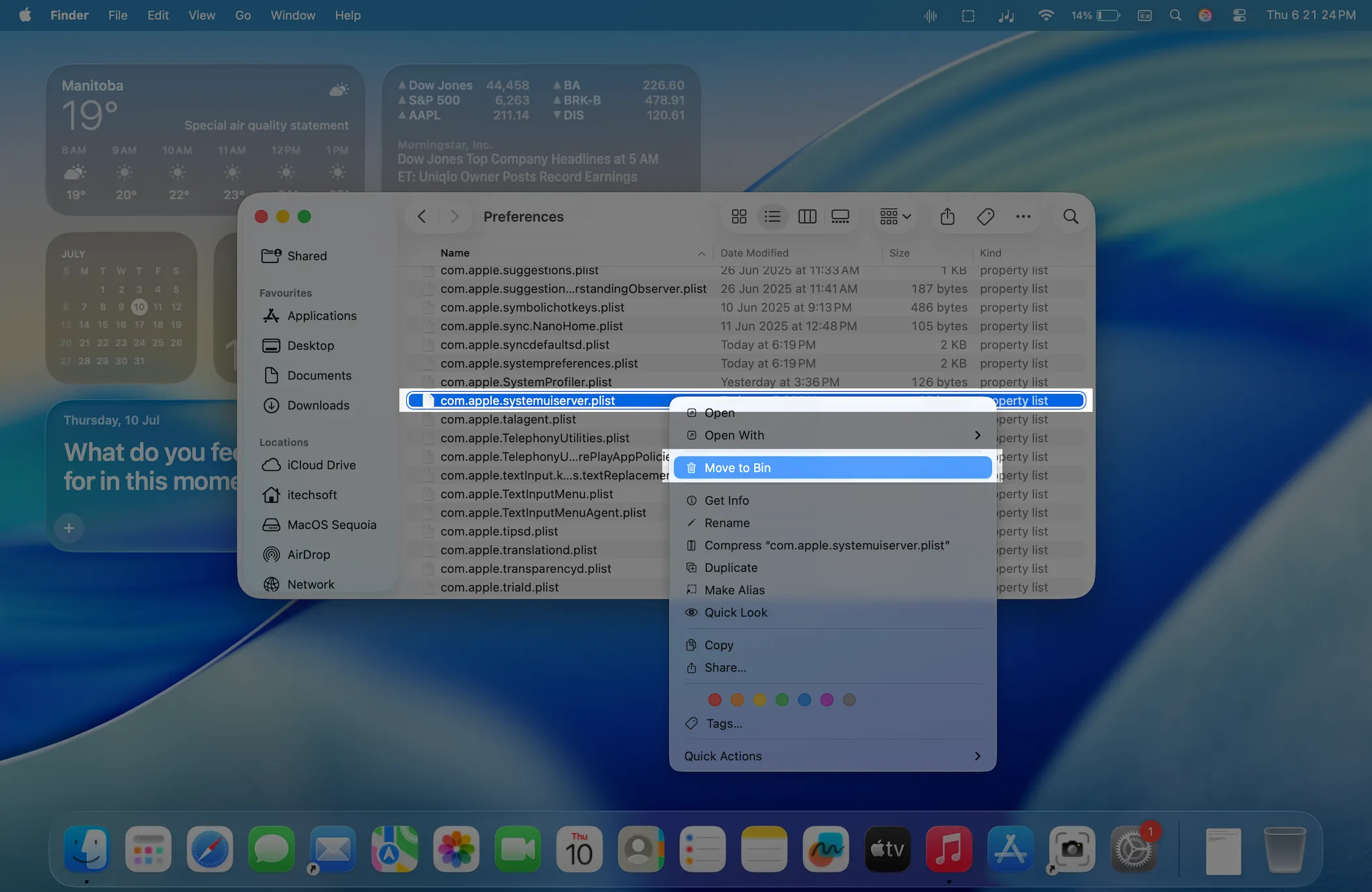
(You might not have both. That’s okay.)
4️⃣ Move these files to your Desktop (or Trash if you’re confident — moving them first is safer so you can restore them if needed).
5️⃣ Now restart your Mac. It will recreate fresh default versions of these files, resetting your Control Center and Menu Bar settings.
Solution 3. Relaunch SystemUIServer (Quick Refresh)
You can also simply restart the process that controls your Menu Bar and Control Center.
- Open Terminal (find it via Spotlight or in Applications > Utilities).
- Type:
killall SystemUIServer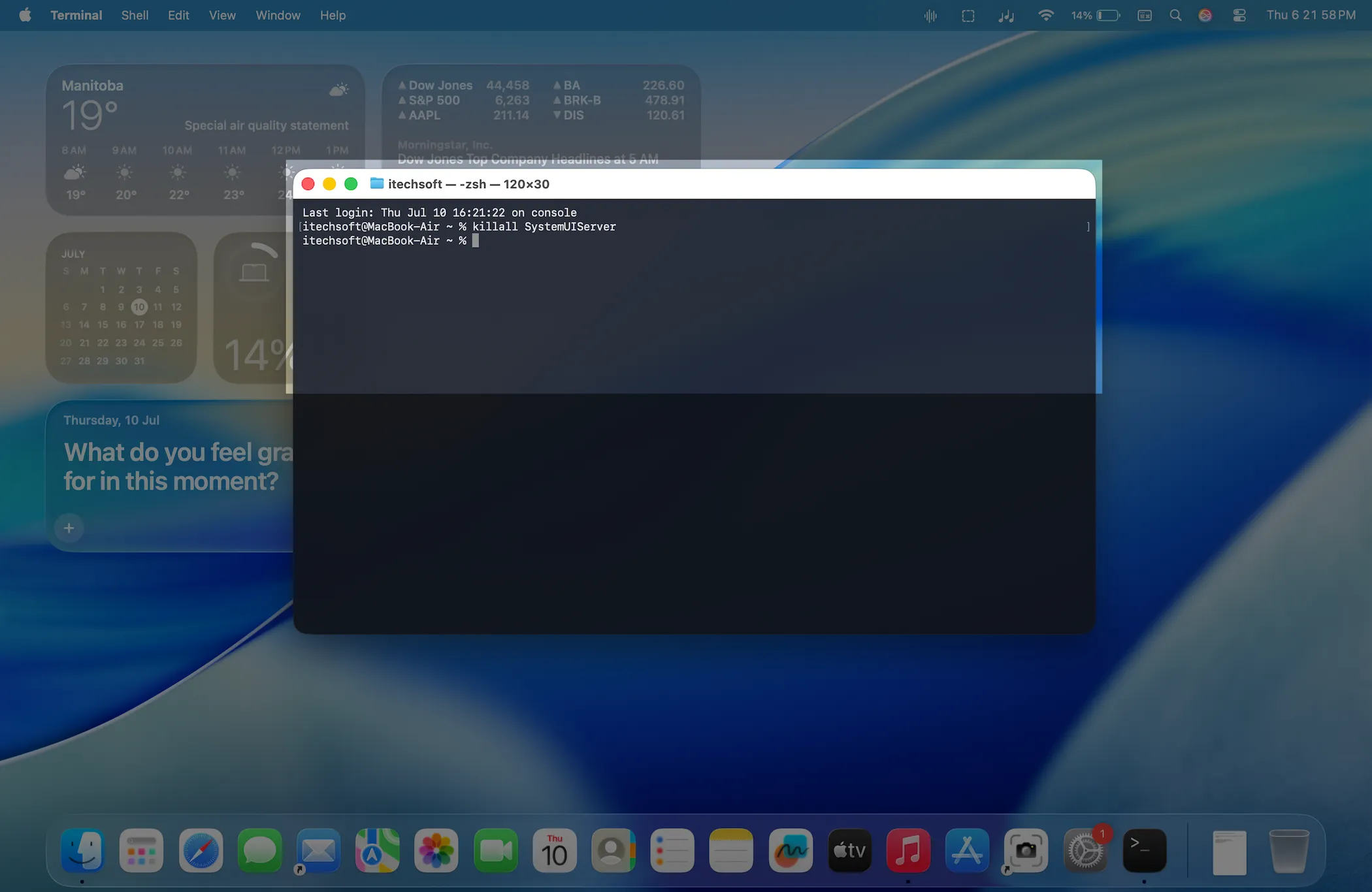
- Press Return.
This command forces the UI to restart immediately — your Menu Bar and Control Center will refresh on the spot.
Solution 4. Re-Add Icons to the Menu Bar
After resetting, you may notice some icons are missing. It’s easy to add them back:
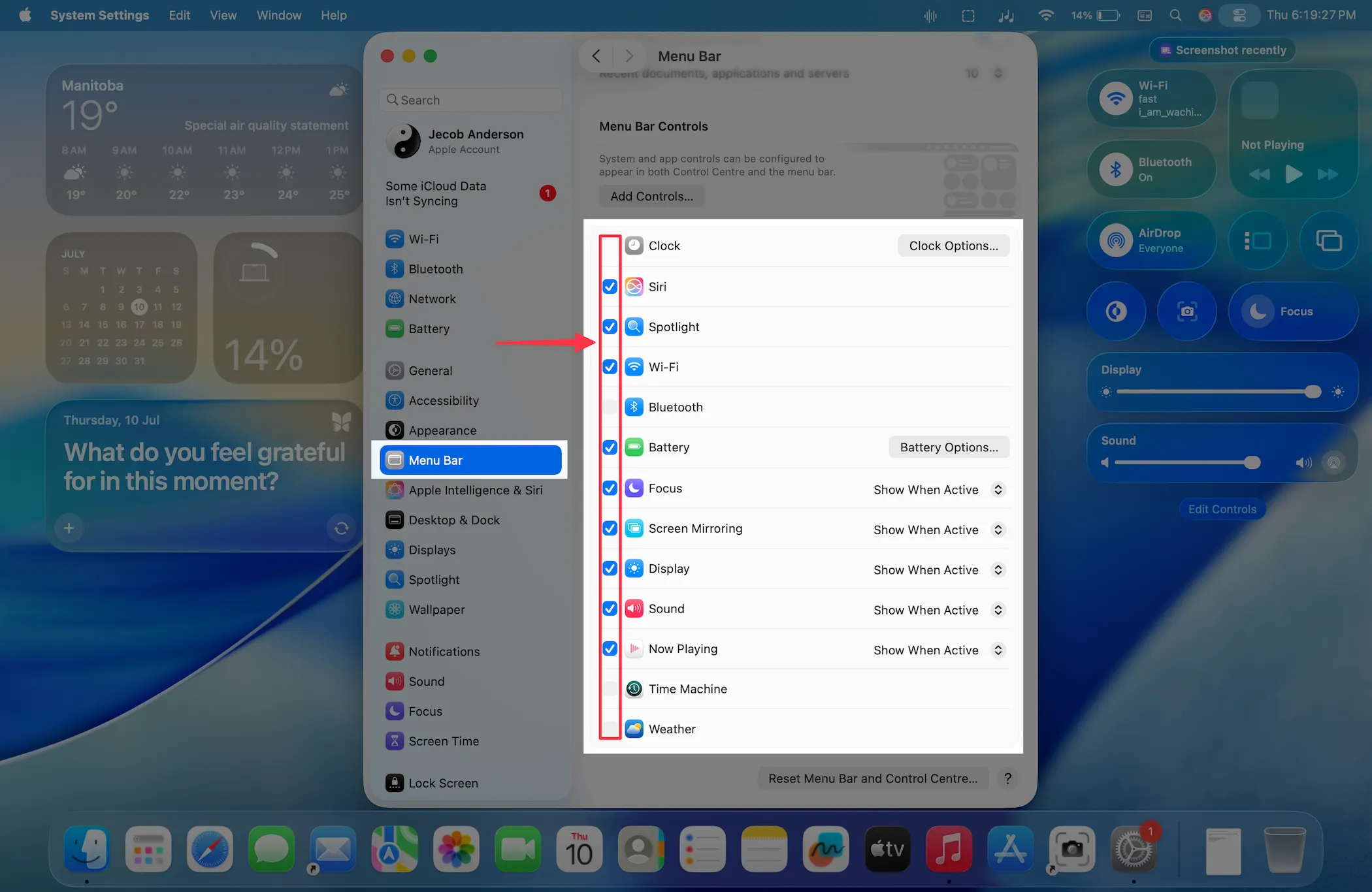
- Go to Apple menu > System Settings > Menu Bar.
- Under each module (like Wi-Fi, Battery, Clock), choose “Show in Menu Bar.”
- Customize it to your liking.
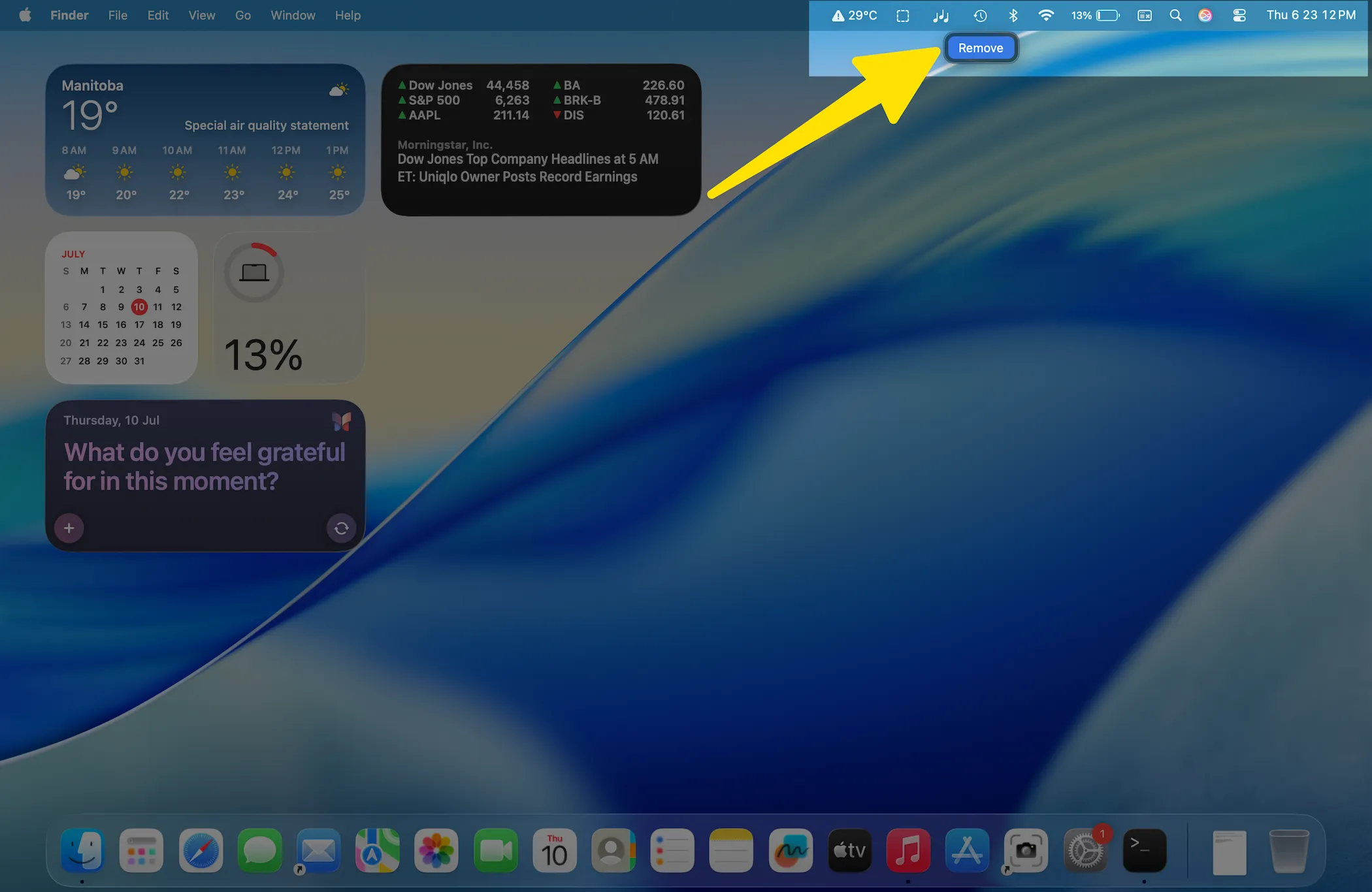
Right-click on the menu icon to remove…
Wrap-Up: Back to Normal
And that’s it! Your Control Center and Menu Bar should now be back to default — clean, responsive, and ready for your customization.
If problems keep popping up, you may also want to run a quick check for macOS updates under Apple menu > System Settings > General > Software Update, just to rule out bugs fixed in newer versions.
💡 Pro Tip:
If you often tweak these settings, keep a little list or screenshot of your favorite configuration. That way, after a reset, you can set everything back exactly how you like it without guessing.






