

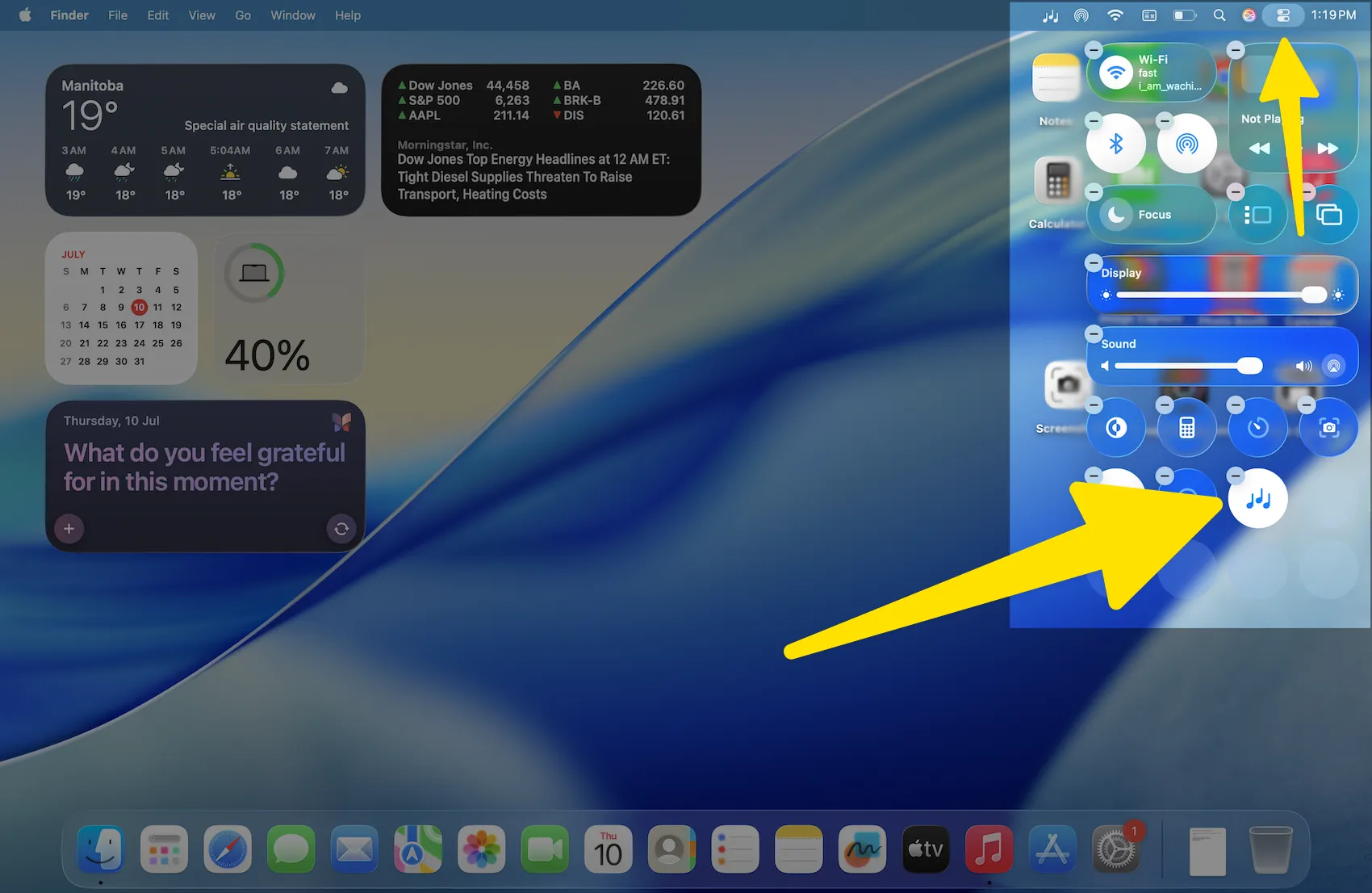
MacOS Tahoe (macOS 15) offers it easy to set a timer for background sounds, like on iPhone’s BG sound with Timer, which help you focus, relax, and sleep. For studying or bedtime, this feature lets you set a timer to cease the sounds.
Step-by-step instructions for setting a Background Sounds timer on a MacBook running macOS Tahoe are below.
Why use a timer for background sounds?
Background Sounds play soothing ocean waves, rain, or white noise from your Mac. But sometimes you don’t want them running forever. A timer lets you:
- Stop the sounds automatically when you sleep.
- Keep them on solely for work.
- Avoid depleting your battery by forgetting to turn them off.
How to set a timer for Background Sounds on MacBook (macOS Tahoe)
Follow these simple steps:
Step 1: Click on the Apple menu at the top left of your screen and select System Settings.

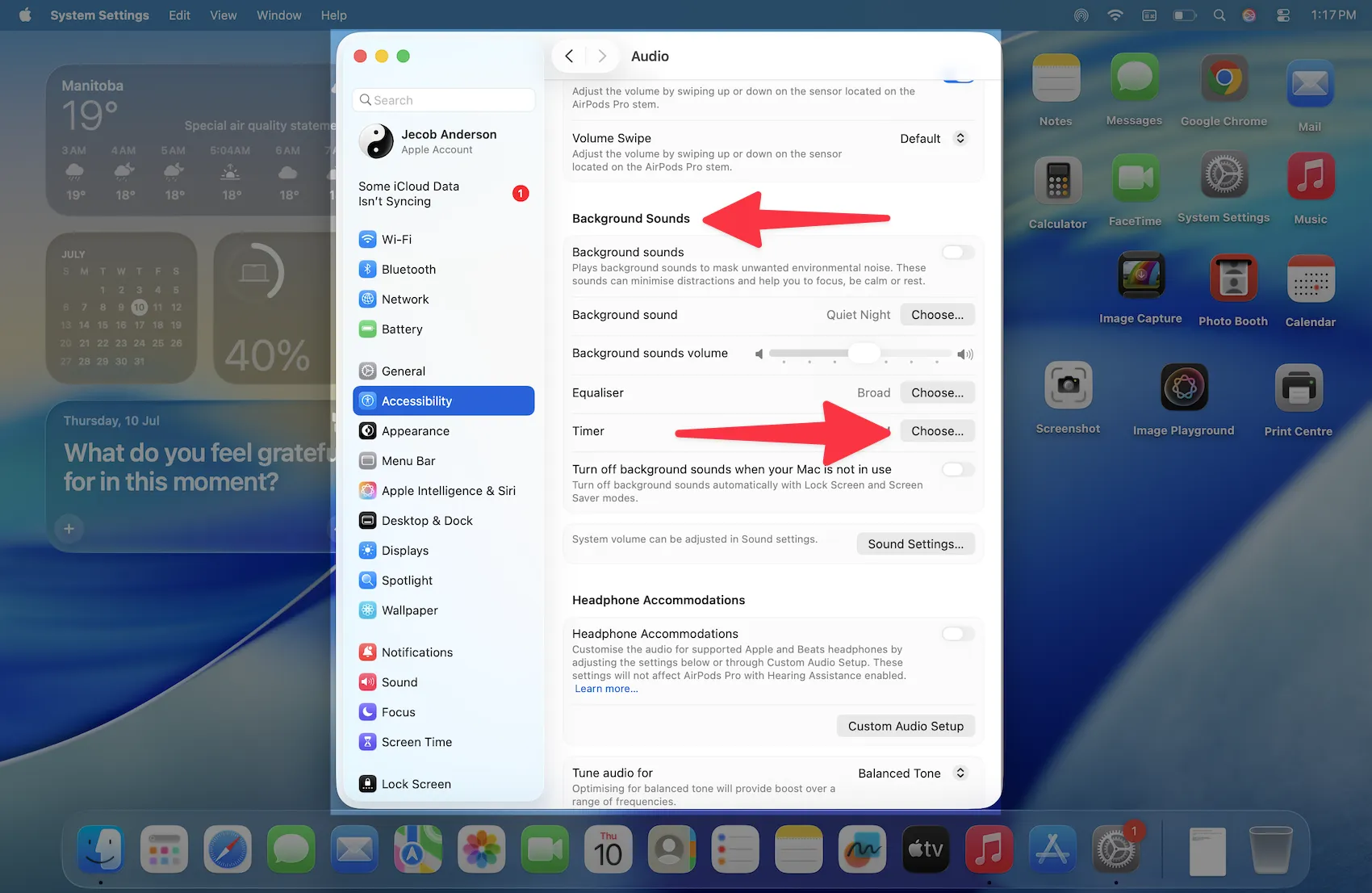
Step 2: In the left sidebar, scroll down and click on Accessibility > Audio.

Step 3: Under the Background Sounds section, select Timer.
Step 4: Turn on the Timer toggle and choose “At a Specific Time” or “After an Amount of Time“. You can stop after 15, 30, or 60 minutes.
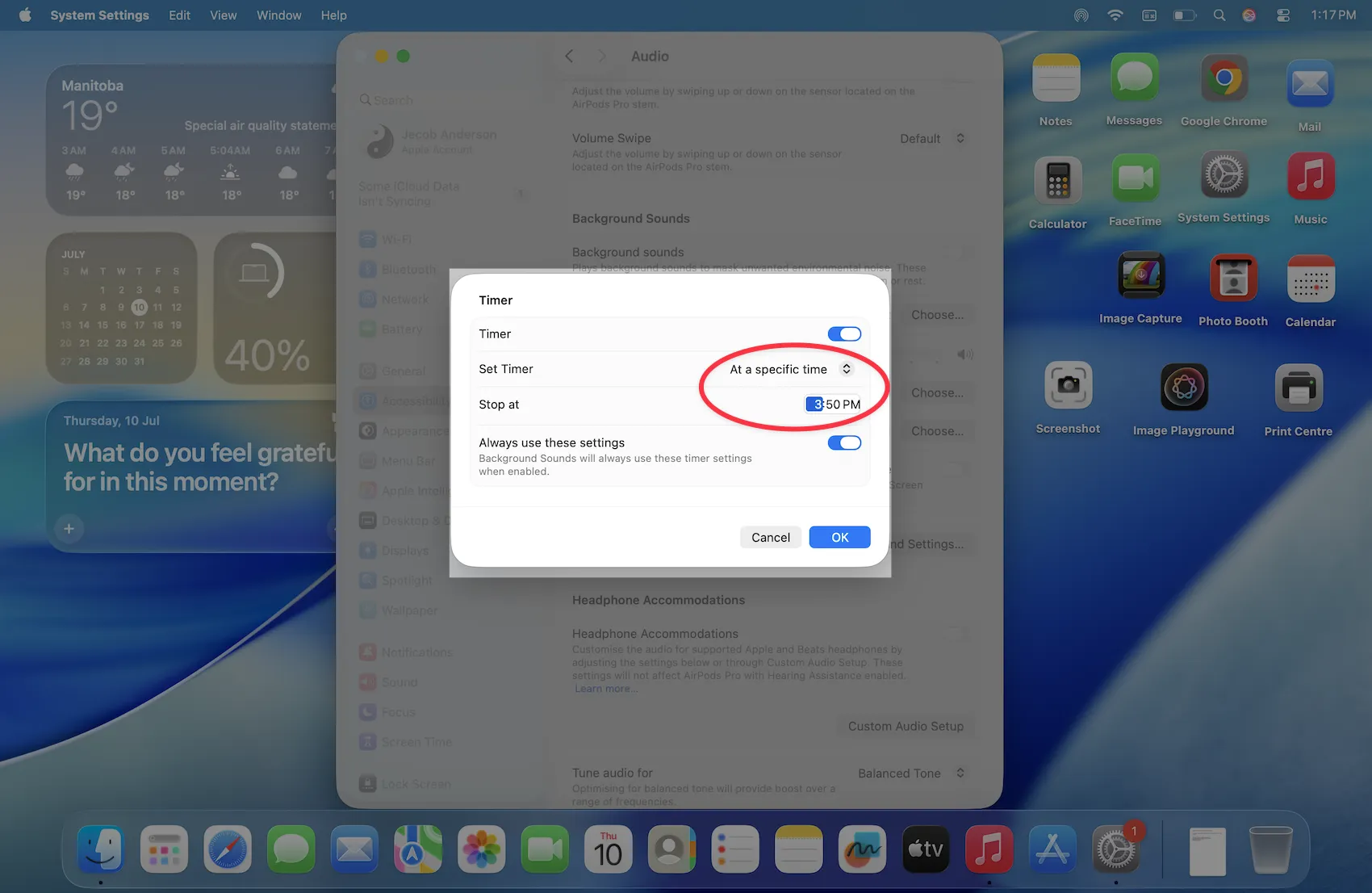

Step 5: You can also enable “Always Use These Settings“. On Mac, enable background sounds with Timer.
Enjoy now. If background sounds are not already on, enable them using the timer. Choose your favorite sound—Rain, Stream, or Balanced Noise.

Please select the duration that best suits your needs. Once done, your Mac will automatically stop playing background sounds after that period.
Bonus: Quick Control from Control Center
macOS Tahoe also lets you add Background Sounds directly to the Control Center, so you can quickly start or stop them, change sounds, or adjust volume without digging into settings. To add it:
- Go to System Settings > Menu Bar > Add Controls.
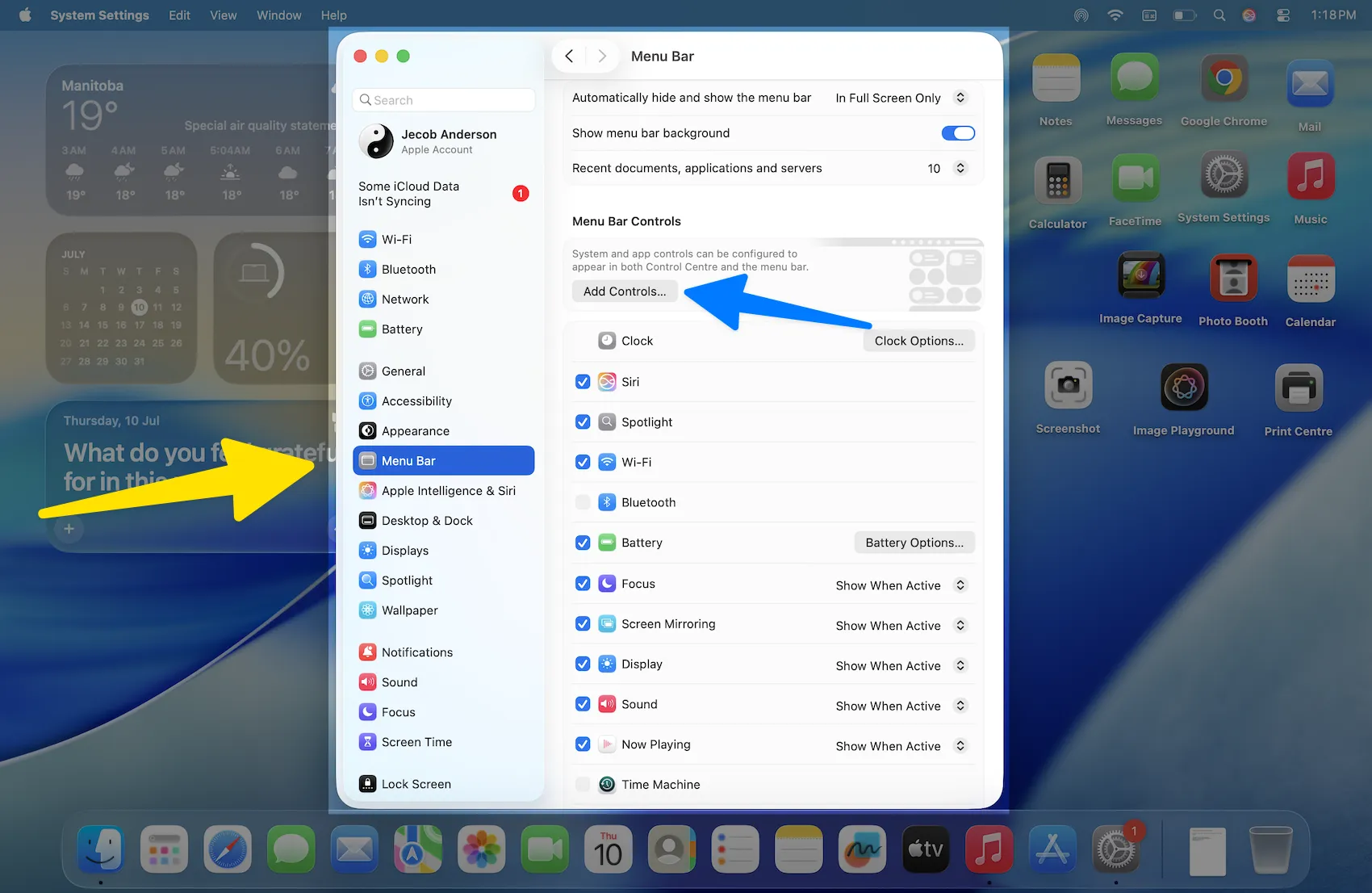
- Look for “Background Sounds” and add it. Click on it and choose either “Add to Control Center” or “Add to Menu Bar.”
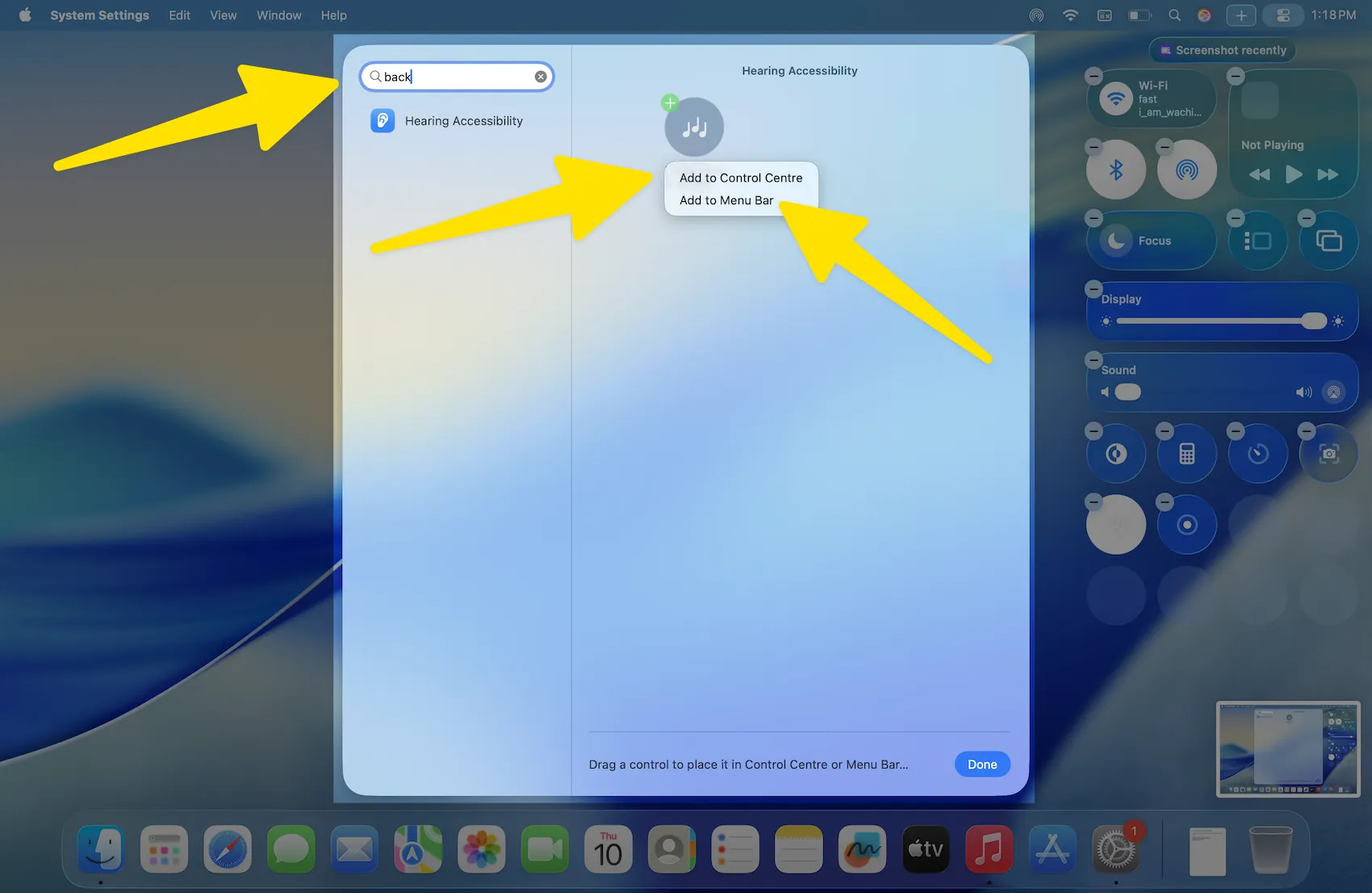
This way, you can manage background sounds and their timer even faster.
Wrap Up
Finished! You now know how to set a Background Sounds timer for your MacBook running macOS Tahoe. Using them for concentration, meditation, or sleep? Set a timer to stop them without clicking.
If you liked this guide, leave a comment or share it with someone who needs more Mac quiet. 🎧💻






