


Is your iPhone refusing to unlock with Touch ID? and Popping up “Unable to activate Touch ID on this iPhone”, New Touch ID set up Fail in settings. Or maybe it’s not letting you approve App Store purchases or autofill passwords. Don’t worry — you’re not alone. Many iPhone users run into Touch ID problems from time to time.
In this guide, we’ll show you the common reasons why Touch ID stops working and the practical solutions you can try to get it back on track.
Why is Touch ID Not Working on Your iPhone?
There are several reasons why Touch ID might stop working. Some of the most common include:
✅ Dirty or wet fingerprint sensor: Sweat, oil, lotion, or dirt on your finger or the sensor can prevent proper scanning.
✅ Software glitches: A buggy iOS update or temporary system hiccups can interfere with Touch ID.
✅ Incorrectly registered fingerprints: Your fingerprints might have been poorly captured during setup.
✅ Hardware issues: Drops, cracks, or internal component failures could affect the sensor.
How to Fix Touch ID Not Working on iPhone
Here’s what you can do step by step.
1. Clean Your Home Button and Fingers
Start simple. Use a clean, lint-free cloth to wipe your Home button (or the top power button on iPads with Touch ID). Make sure your fingers are dry and clean. Even a small amount of moisture or grime can cause scanning failures.
2. Restart Your iPhone
Minor software bugs can often be resolved with a quick restart.
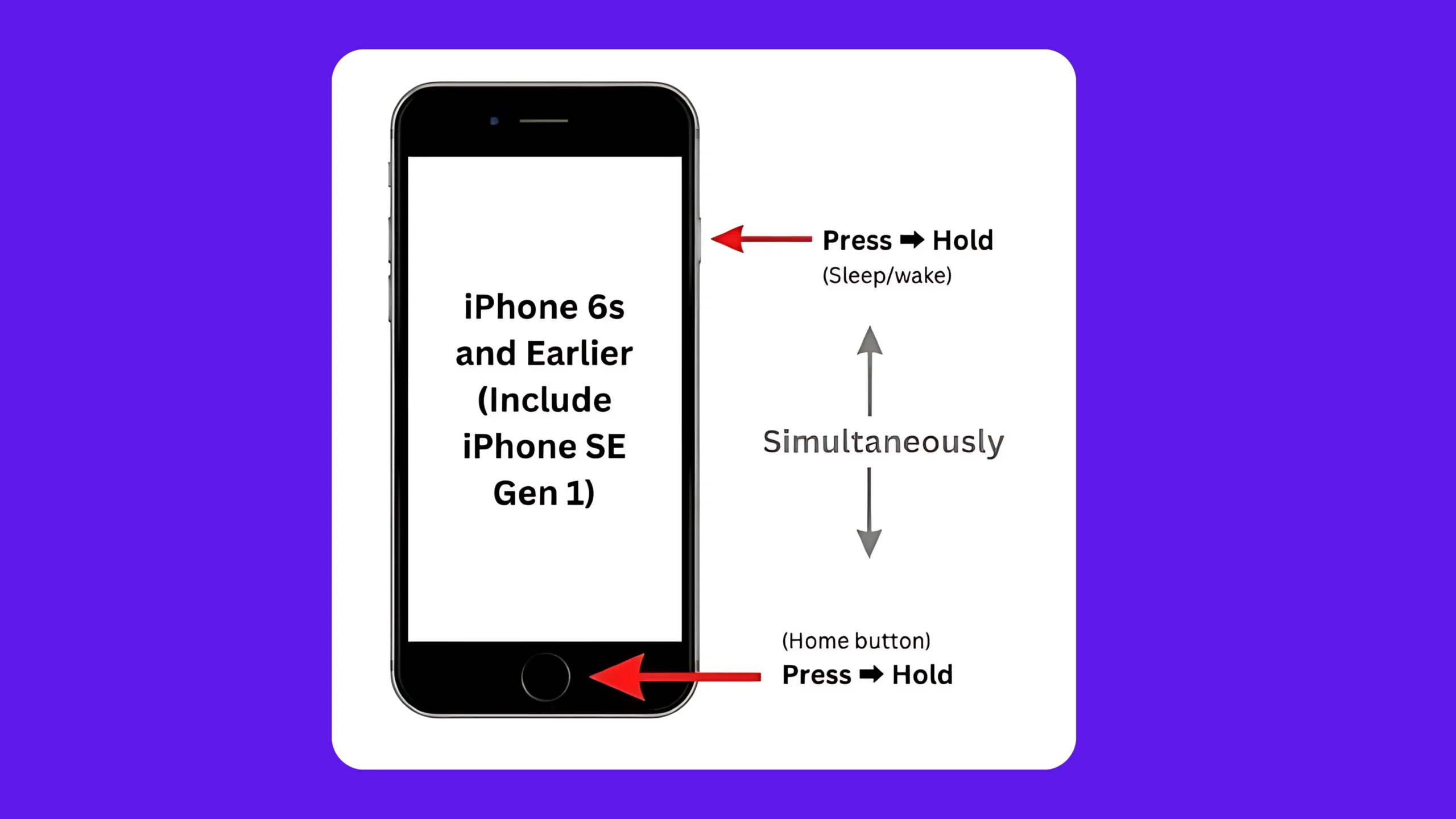
- For iPhones with Home button (iPhone 6S & Earlier with iPhone SE 1): Press and hold the power button, then swipe to power off.
- For newer models (iPhone SE 2 – 2022): Press and hold the side + volume up or down button until the slider appears.
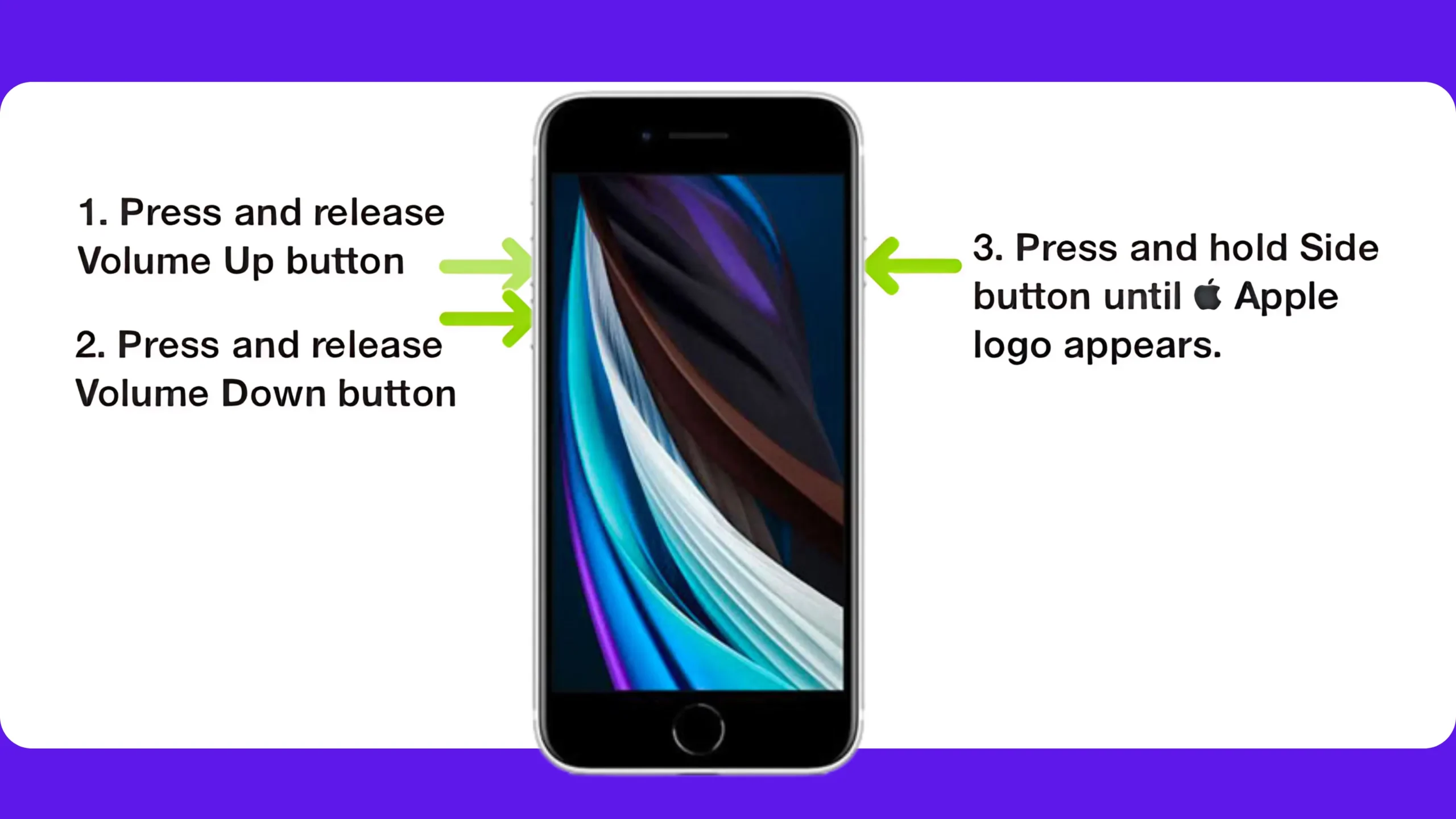
Wait 10 seconds, then turn it back on.
3. Check Touch ID Settings
Make sure Touch ID is properly set up.
- Go to Settings > Touch ID & Passcode.
- Enter your passcode.
- Ensure that iPhone Unlock, iTunes & App Store, and any other options you want are enabled.
- Tap Add a Fingerprint to re-register a fingerprint if needed.
4. Delete & Re-add Fingerprints
If your existing fingerprints aren’t working, it’s best to remove them and start fresh.
- Go to Settings > Touch ID & Passcode.
- Tap on each fingerprint and select Delete Fingerprint.
- Tap Add a Fingerprint to register your finger again. Try using different angles and edges of your finger.
5. Update Your iPhone
Sometimes iOS updates include fixes for Touch ID bugs.
- Go to Settings > General > Software Update and install any available updates.
6. Reset All Settings
This won’t erase your data, but it will reset system settings like Wi-Fi passwords and wallpapers.
- Go to Settings > General > Transfer or Reset iPhone > Reset > Reset All Settings.
7. Check for Hardware Issues
If your iPhone was recently dropped or exposed to water, the Touch ID sensor might be damaged. In this case:
- Try using another registered finger.
- If it still doesn’t work, contact Apple Support or visit an Apple Store for a hardware diagnostic.
Extra Tips
👉 Use the Assistive Touch Button as Home Button of your iPhone. Activate the Touch Button: Go to Settings > Accessibility > Touch > Assistive Touch > Enable the Toggle Assistive Touch. Now, set the Home button for single tap.
👉 Make sure your iPhone’s screen protector or case isn’t interfering with the sensor.
👉 Avoid registering wet, oily, or injured fingers.
👉 If your finger changes (cuts, dryness, swelling), try adding a new fingerprint.
👉 Contact Apple Support for physical repair and free replacement under warranty.
Wrapping Up
Touch ID is super convenient — until it stops working. Fortunately, in most cases, cleaning your sensor, updating your iPhone, or re-adding fingerprints does the trick. If all else fails, Apple Support is just a call away.
✅ Have you fixed your Touch ID issues?
Drop a comment below and share what worked for you!





