Quick Checklist (1-Minute Fix)
- ✅ Replace batteries
- ✅ Try another USB port
- ✅ Re-pair Bluetooth mouse
- ✅ Reinstall mouse driver
- ✅ Disable USB power saving
- ✅ Turn off Fast Startup
Is your wireless mouse not working on Windows 11—not moving, not clicking, or suddenly disconnected? You’re not alone.
This is a common Windows 11 issue, and in most cases, the cause is simple: power problems, USB receiver issues, Bluetooth pairing errors, or driver conflicts. The good news is that you can fix it yourself in just a few minutes.
This guide walks you through every proven solution, from basic checks to advanced system fixes—using the latest Windows 11 troubleshooting methods.
Why Wireless Mouse Stops Working in Windows 11
On Microsoft Windows 11, wireless mouse problems usually happen because of:
- Dead batteries or low charge
- USB receiver not detected
- Bluetooth pairing failure
- Corrupted or outdated mouse drivers
- USB power-saving settings
- Fast Startup conflicts after updates
Let’s fix them in the correct order, starting with the easiest.
Step 1: Basic Hardware Troubleshooting (Most Important)
Before changing any settings, rule out simple hardware issues.
Check Mouse Power
- Flip the mouse over and confirm the power switch is ON
- Replace the batteries or fully charge the mouse
- Look for a blinking LED, which indicates power or pairing mode
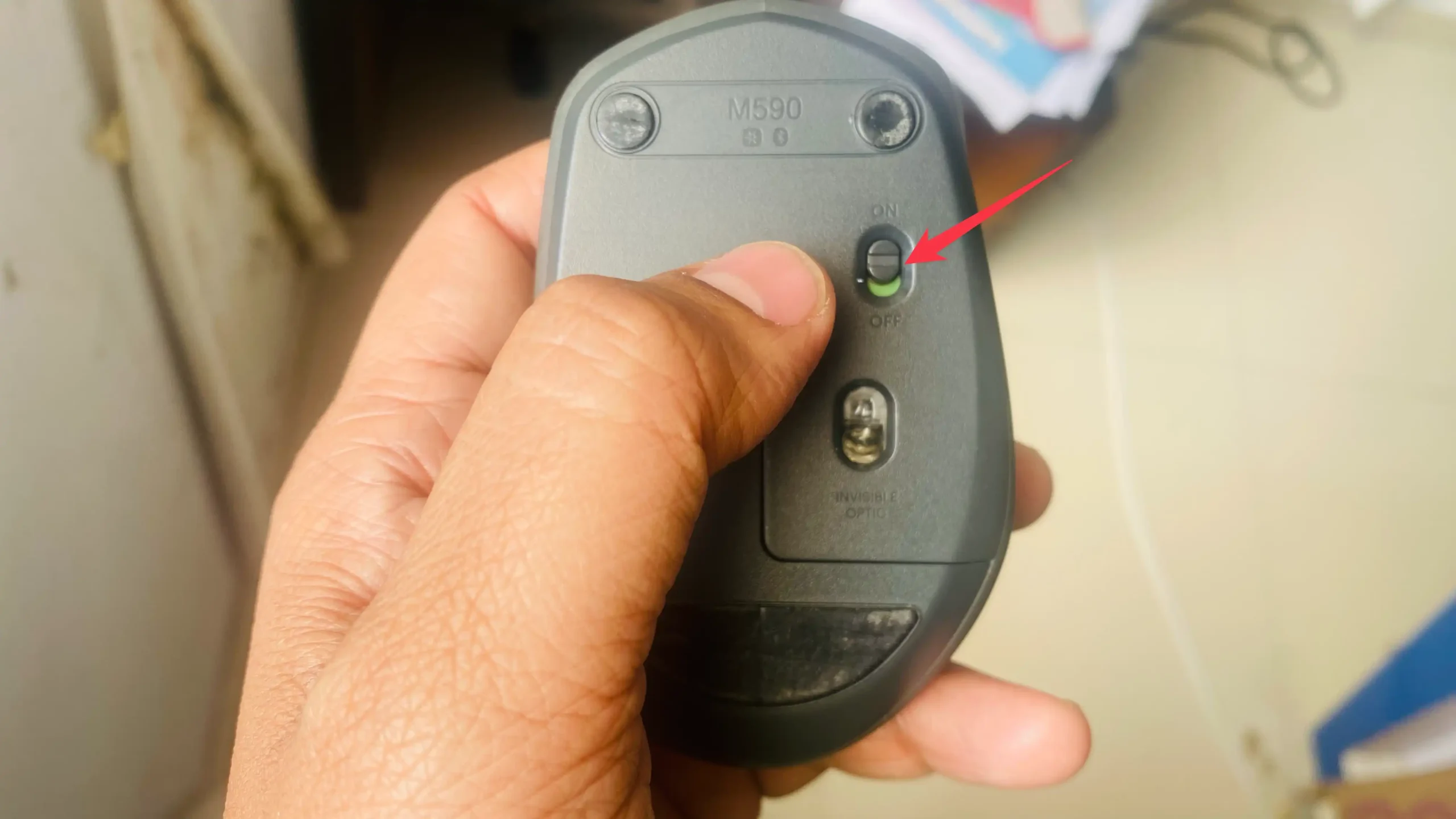
Example:
If your mouse worked yesterday but stopped today, 7 out of 10 times it’s just drained batteries.
Reconnect the USB Receiver
- Unplug the wireless USB dongle
- Wait 10 seconds
- Plug it into a different USB port
- Prefer a port directly on the PC (avoid USB hubs)
This forces Windows 11 to re-detect the device.
Re-pair Bluetooth Wireless Mouse
If you’re using a Bluetooth mouse:
- Open Settings
- Go to Bluetooth & devices
- Turn Bluetooth ON
- Press and hold the mouse’s Pair / Connect button
- Select the mouse when it appears
Move the mouse closer to your laptop or PC during pairing.
Remove Wireless Interference
- Keep the mouse within 1–2 feet of the receiver
- Move away from routers, metal objects, or other wireless devices
- Avoid placing the receiver behind the PC case
Step 2: Fix Mouse Driver Issues (Keyboard-Only Method)
If the mouse still doesn’t work, the driver may be corrupted.
Open Device Manager Using Keyboard
- Press Win + X
- Use arrow keys to select Device Manager
- Press Enter
Reinstall Mouse Drivers
- Use arrow keys to find Mice and other pointing devices
- Press the Right Arrow to expand
- Select your mouse and press Enter
- Go to the Driver tab
- Select Uninstall device
- Restart your PC
Windows 11 will automatically reinstall the driver after reboot.
Update Mouse Drivers
- In the same menu, choose Update driver
- Select Search automatically for drivers
This pulls the latest compatible driver from Microsoft.
Step 3: Fix USB & Power Settings (Very Effective)
Windows 11 aggressively saves power—and that can break wireless devices.
Disable USB Power Saving
- Open Device Manager
- Expand Universal Serial Bus controllers
- Select USB Root Hub
- Open Properties
- Go to Power Management
- Uncheck
Allow the computer to turn off this device to save power - Click OK
Repeat this for all USB Root Hub entries.
Disable Fast Startup (Clean Boot Fix)
Fast Startup can prevent hardware from loading properly.
- Open Control Panel
- Go to Power Options
- Click Choose what the power buttons do
- Select Change settings that are currently unavailable
- Uncheck Turn on fast startup
- Save changes and restart
Step 4: Run Windows Hardware Troubleshooter
Windows still includes a hidden but powerful troubleshooter.
- Press Win + R
- Type:
msdt.exe -id DeviceDiagnostic - Press Enter
- Follow on-screen instructions
This automatically detects and fixes hardware recognition issues.
Step 5: Brand-Specific Fixes (Highly Recommended)
Some wireless mice need their own software.
- Logitech
→ Logitech Unifying Software - Dell
→ Dell Peripheral Manager
These tools help:
- Re-pair receivers
- Update mouse firmware
- Fix connection bugs after Windows updates
Example: Common Windows 11 Mouse Issue
Problem:
The wireless mouse works in BIOS but not in Windows 11
Fix:
Disable Fast Startup + reinstall mouse drivers
This resolves most post-update mouse failures.
Final Thoughts
A wireless mouse not working in Windows 11 can feel frustrating—but in most cases, it’s easy to fix once you follow the correct order.
Start with power and pairing, then move to drivers and power settings. These steps cover nearly every real-world scenario reported by Windows 11 users.