If the Network and Sharing Center is not opening in Windows 11, you’re not alone. Many users report that clicking the option does nothing, crashes, or freezes. This issue is usually caused by:
- Corrupted system files
- Disabled network services
- Broken Control Panel components
- Recent Windows updates with interface bugs
In this complete SEO-friendly troubleshooting guide, you’ll learn proven methods to fix Network and Sharing Center not opening in Windows 11.
Why Network and Sharing Center Won’t Open in Windows 11
Although Windows 11 emphasizes the new Settings app, the classic Network and Sharing Center still exists inside Control Panel. If it refuses to open, it typically means:
- Background discovery services are not running
- Windows system files are corrupted
- Network components are misconfigured
- Group Policy restrictions are blocking access
Let’s fix it step by step.
1. Force Open Network and Sharing Center via Command Line
Sometimes the interface is unresponsive, but the tool still works internally. You can bypass the broken shortcut.
Steps:
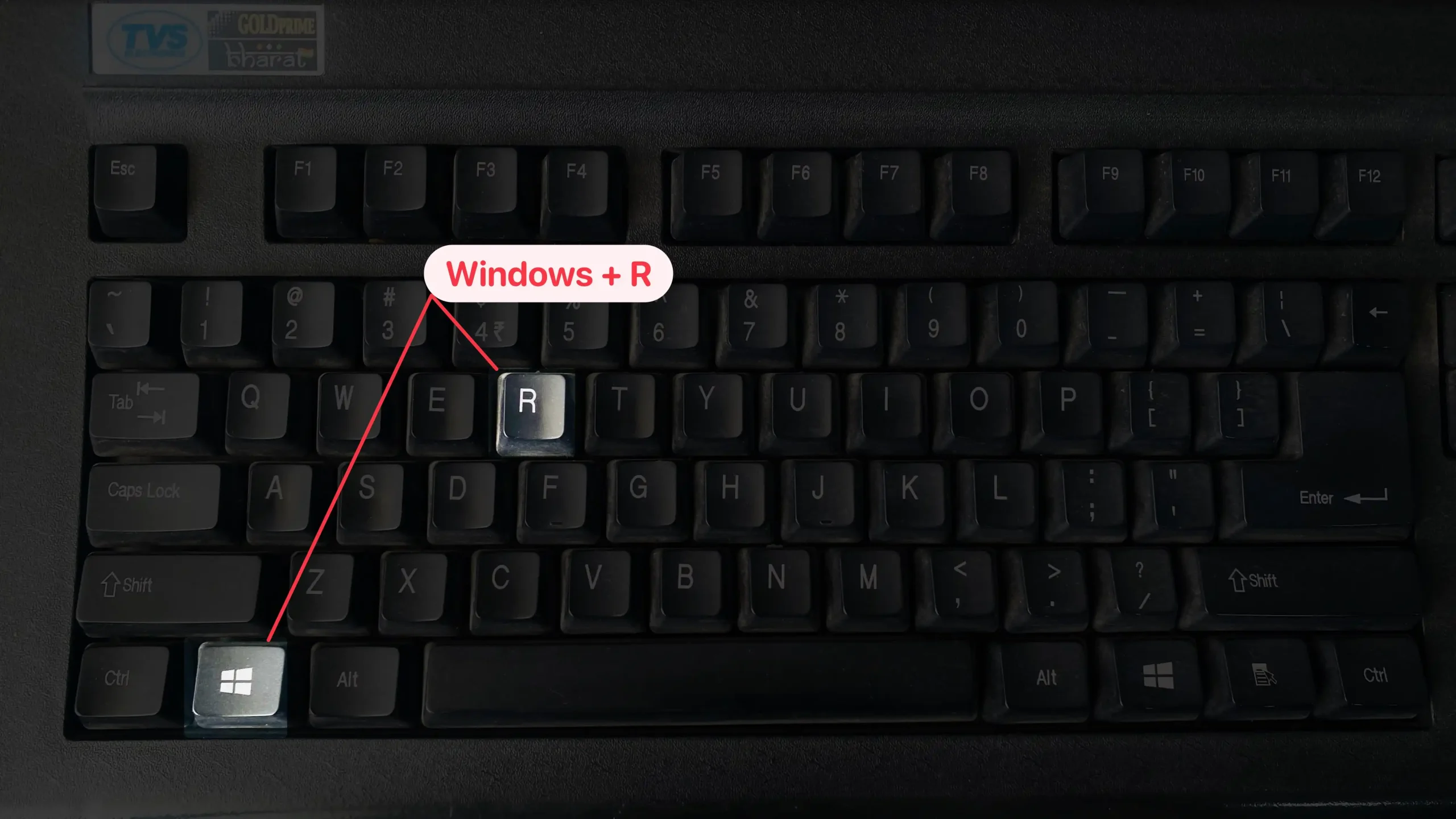
- Press Win + R
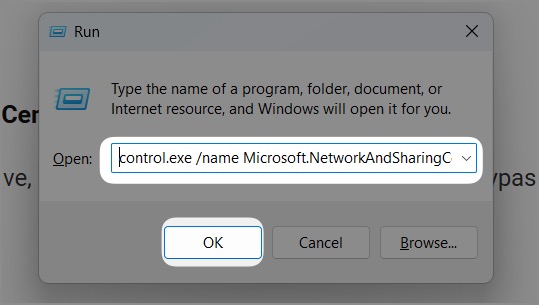
- Type the command below: control.exe /name Microsoft.NetworkAndSharingCenter
- Press Enter or click on OK.
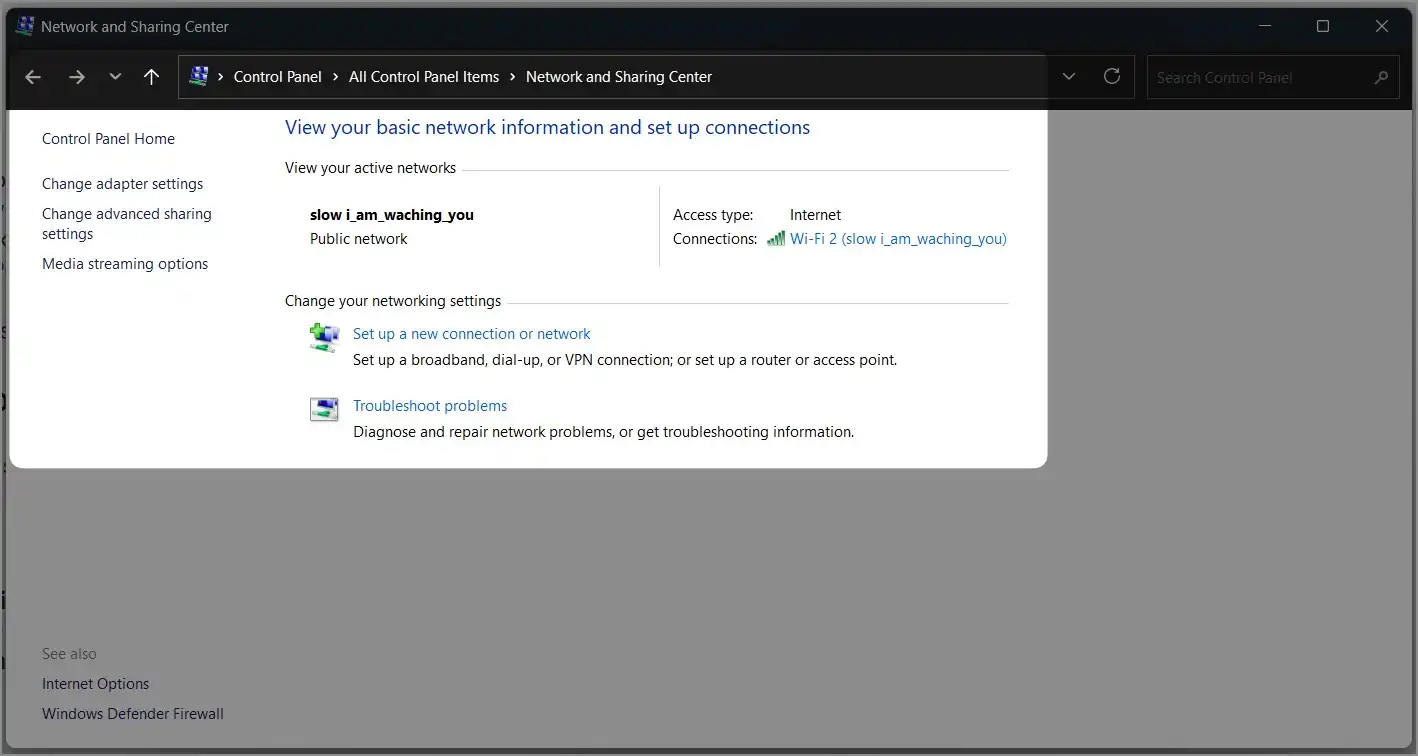
If it opens, the issue is likely just a shortcut or Settings app glitch.
2. Restart Essential Network Services
The Network and Sharing Center depends on several background services. If they’re stuck, the window won’t load.
Steps:
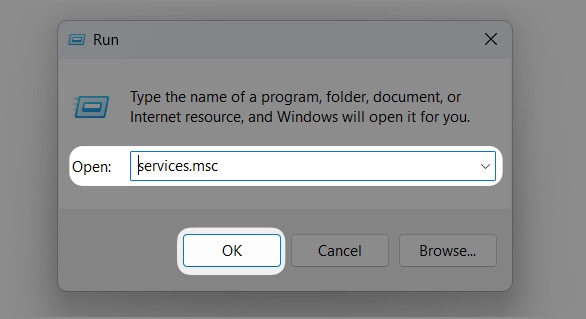
- Press Win + R
- Type: services.msc
- Press Enter or Ok button on-screen.
Now go ahead and find the following services in the list, just like shown in the example screen:
- Function Discovery Provider Host
- Function Discovery Resource Publication
- SSDP Discovery
- UPnP Device Host
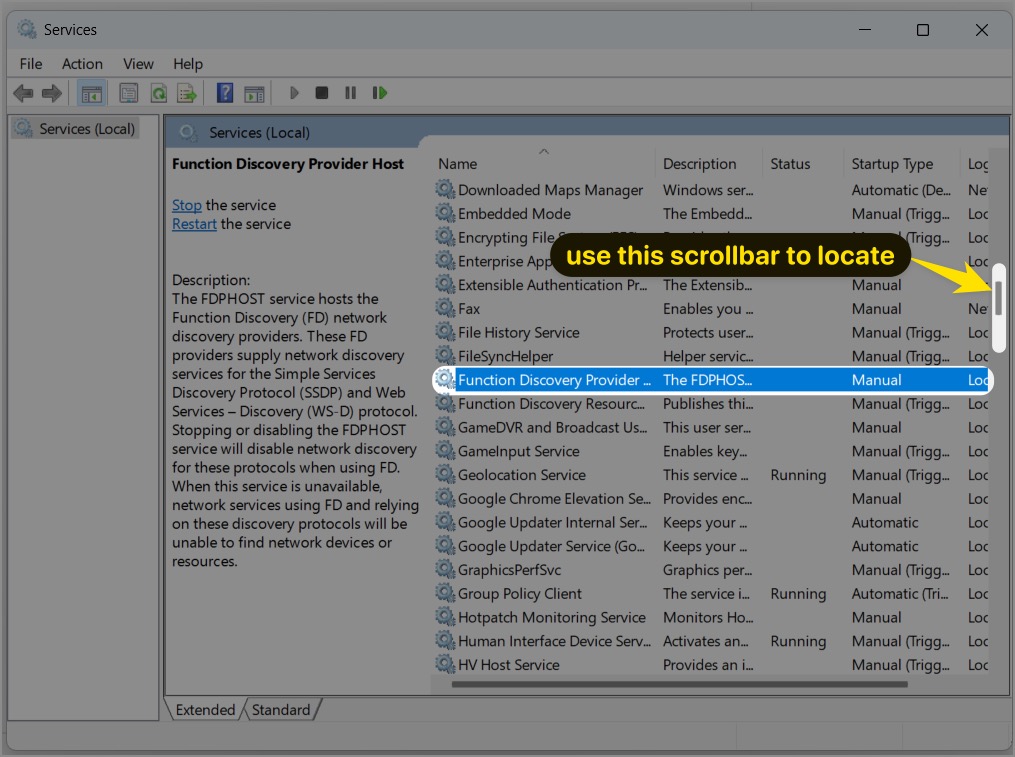
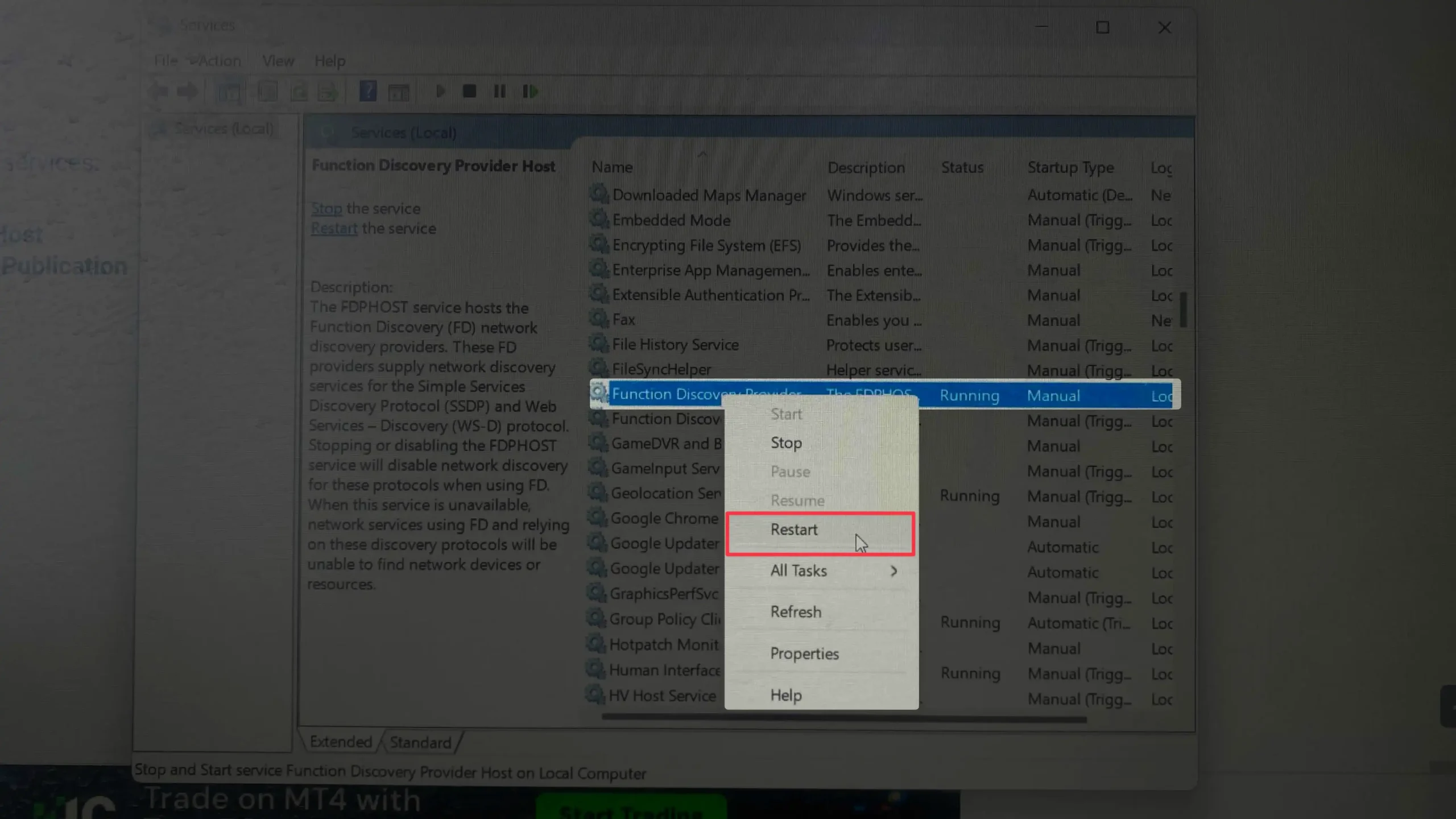
👉 For each service, follow these steps:
- Click on the service name
- Right-click on it
- Select Restart
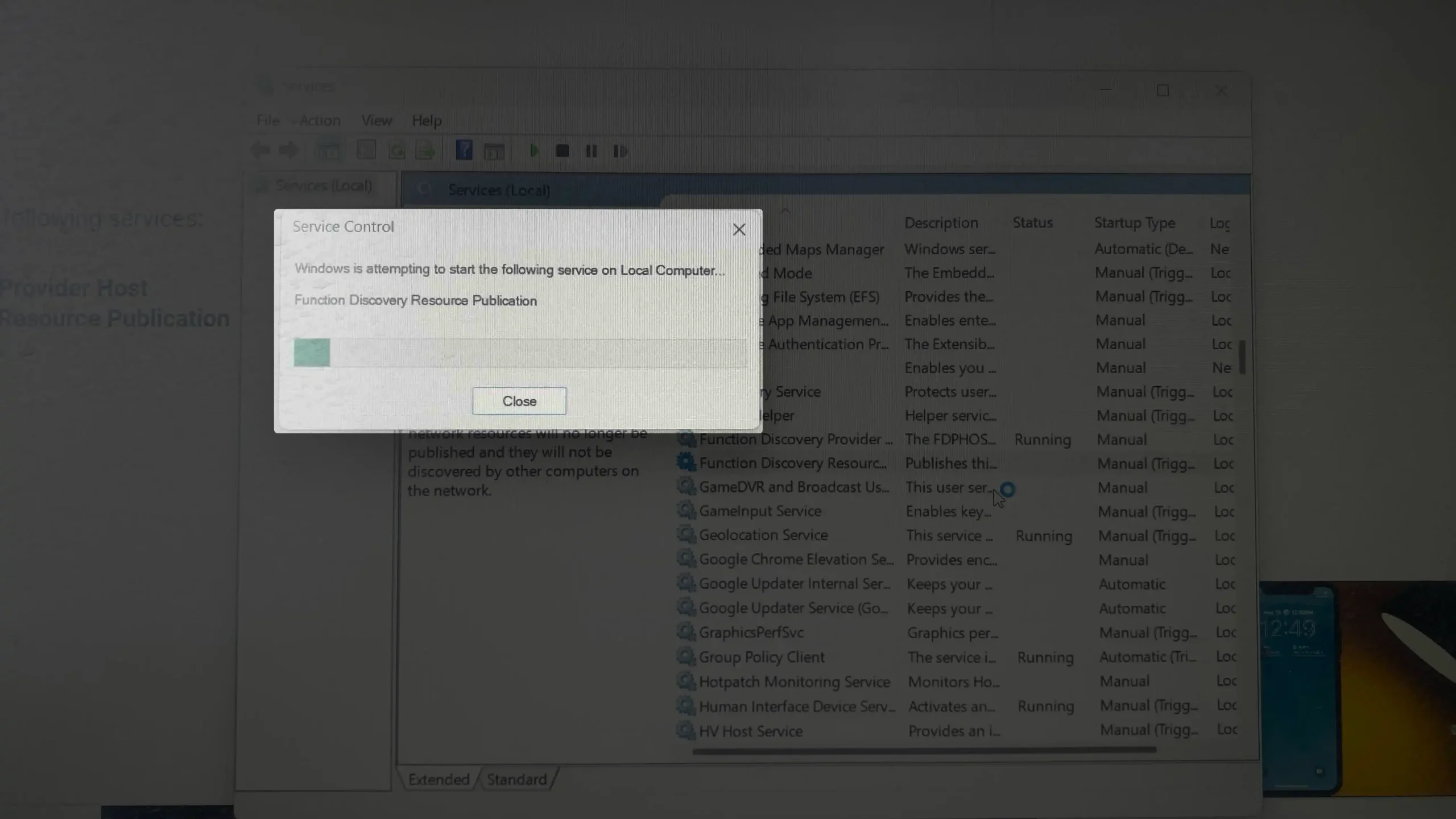
👉 If the service is not running:
- Click Start instead
👉 Then make sure it starts automatically:
- Right-click the service again
- Click Properties
- Set Startup type to Automatic
- Click Apply, then OK
🔁 Repeat these steps for all the services listed above.
⚠️ Important:
After you finish, restart your PC to apply all changes properly.
3. Use the Network Reset Tool (Advanced Fix)
If the problem persists, Windows 11 may have corrupted network configurations.
Steps:
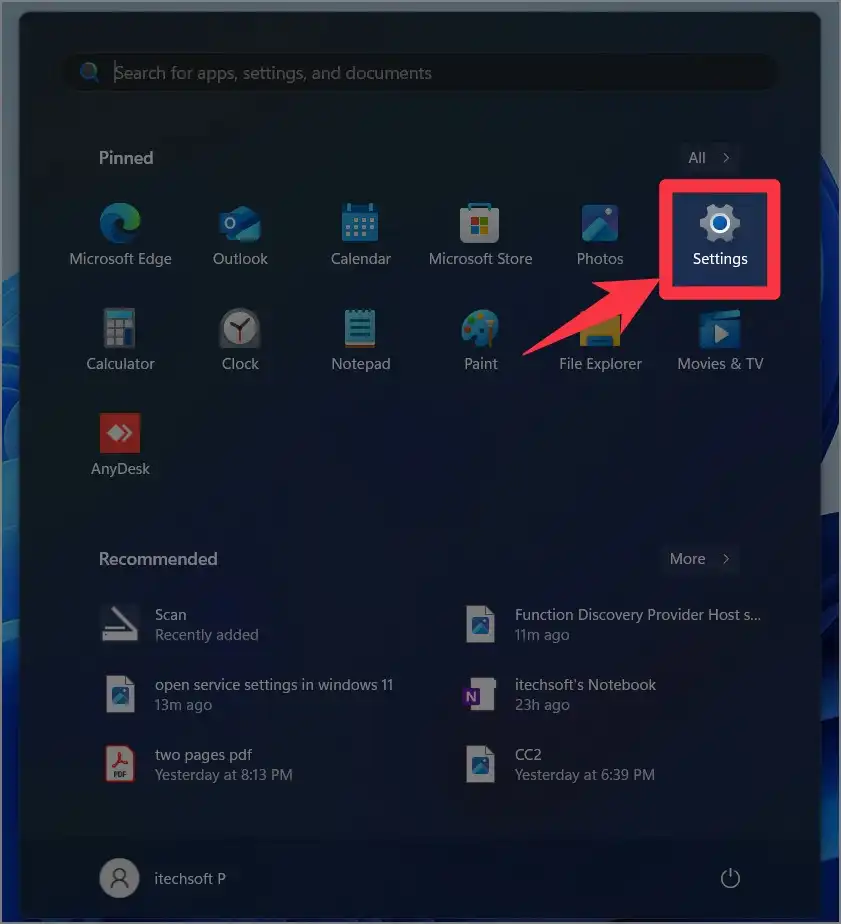
- Go to: Settings
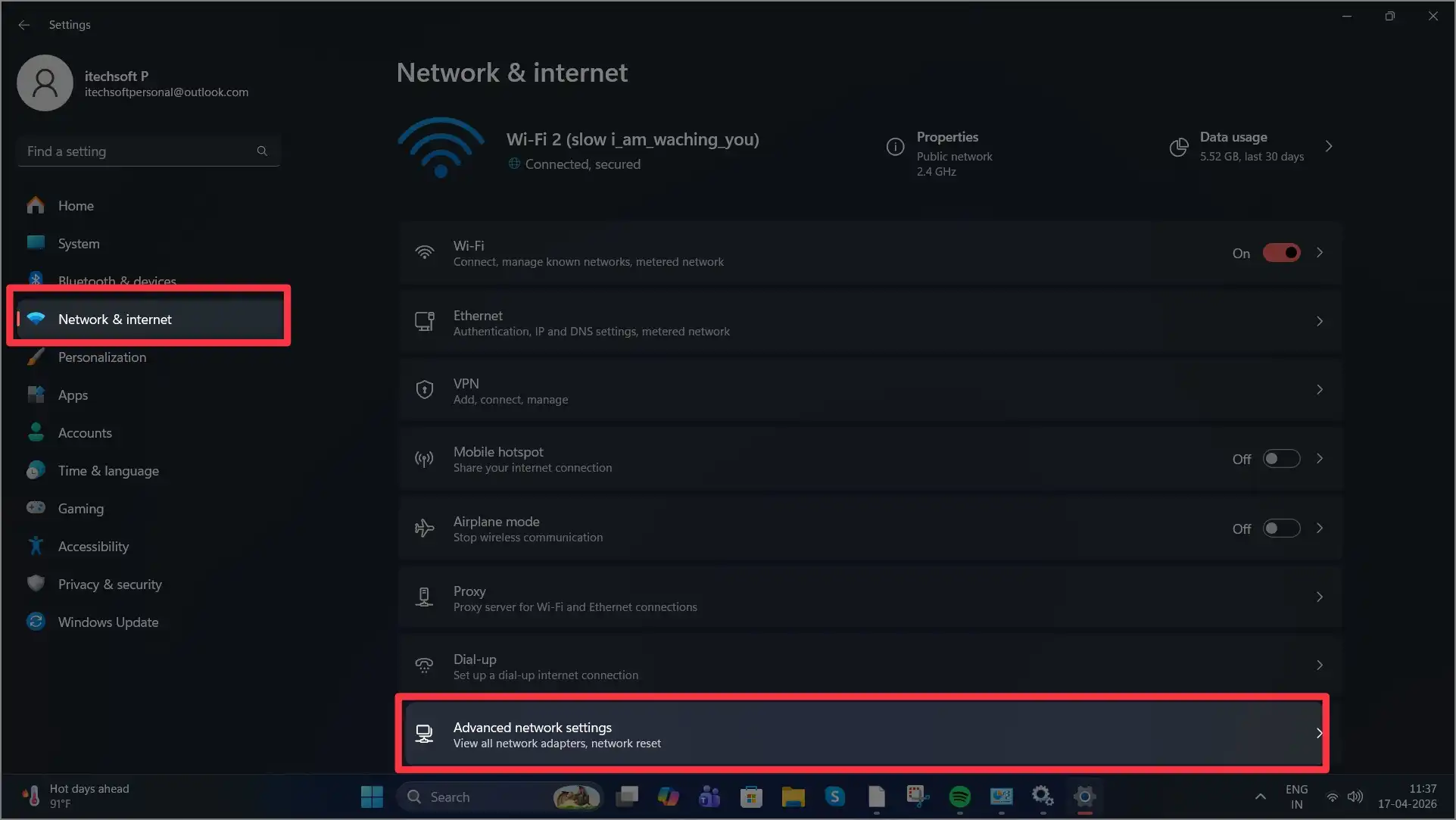
- Click on Network & Internet → Select Advanced network settings
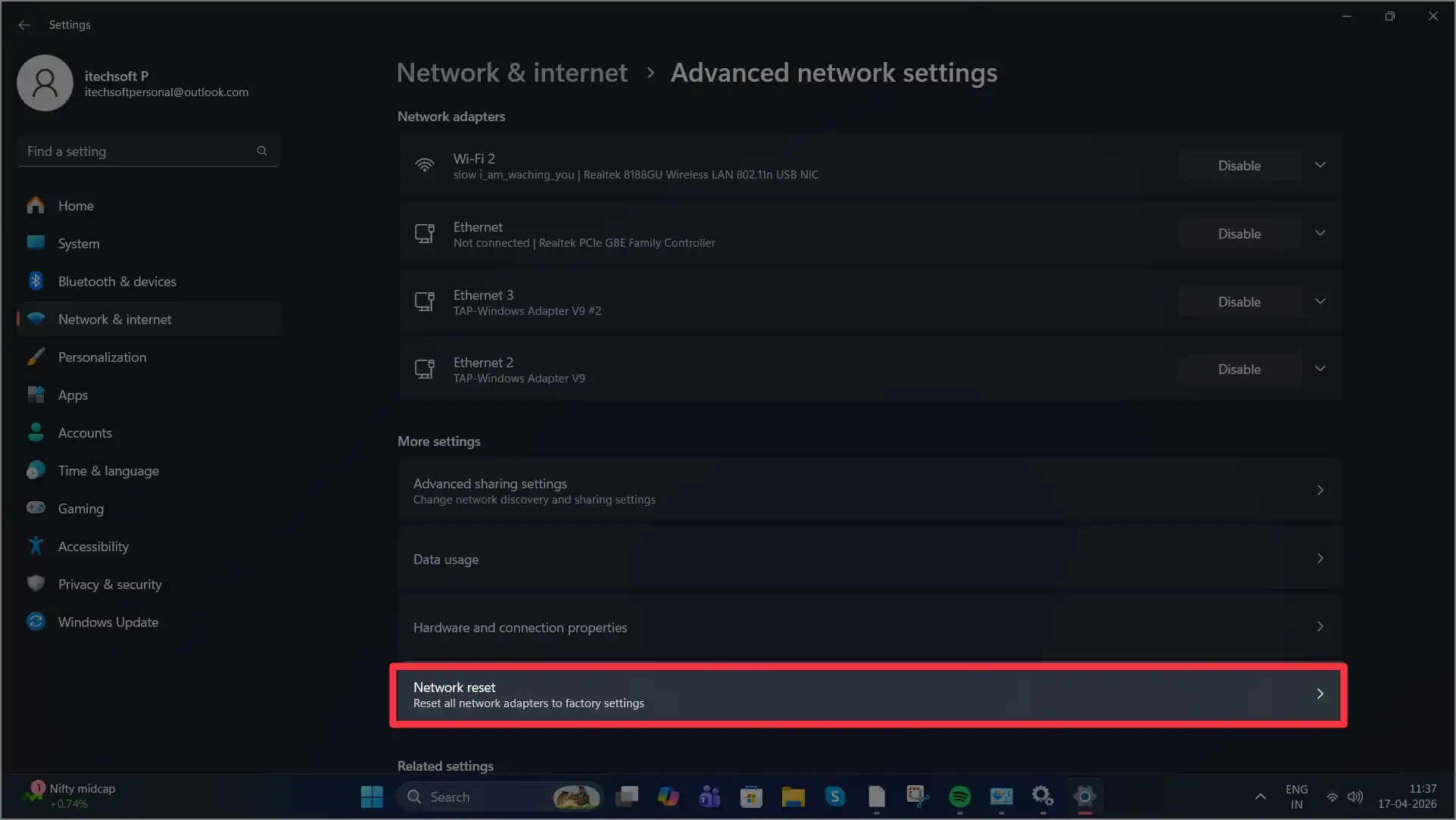
- Click Network reset
- Select Reset now.
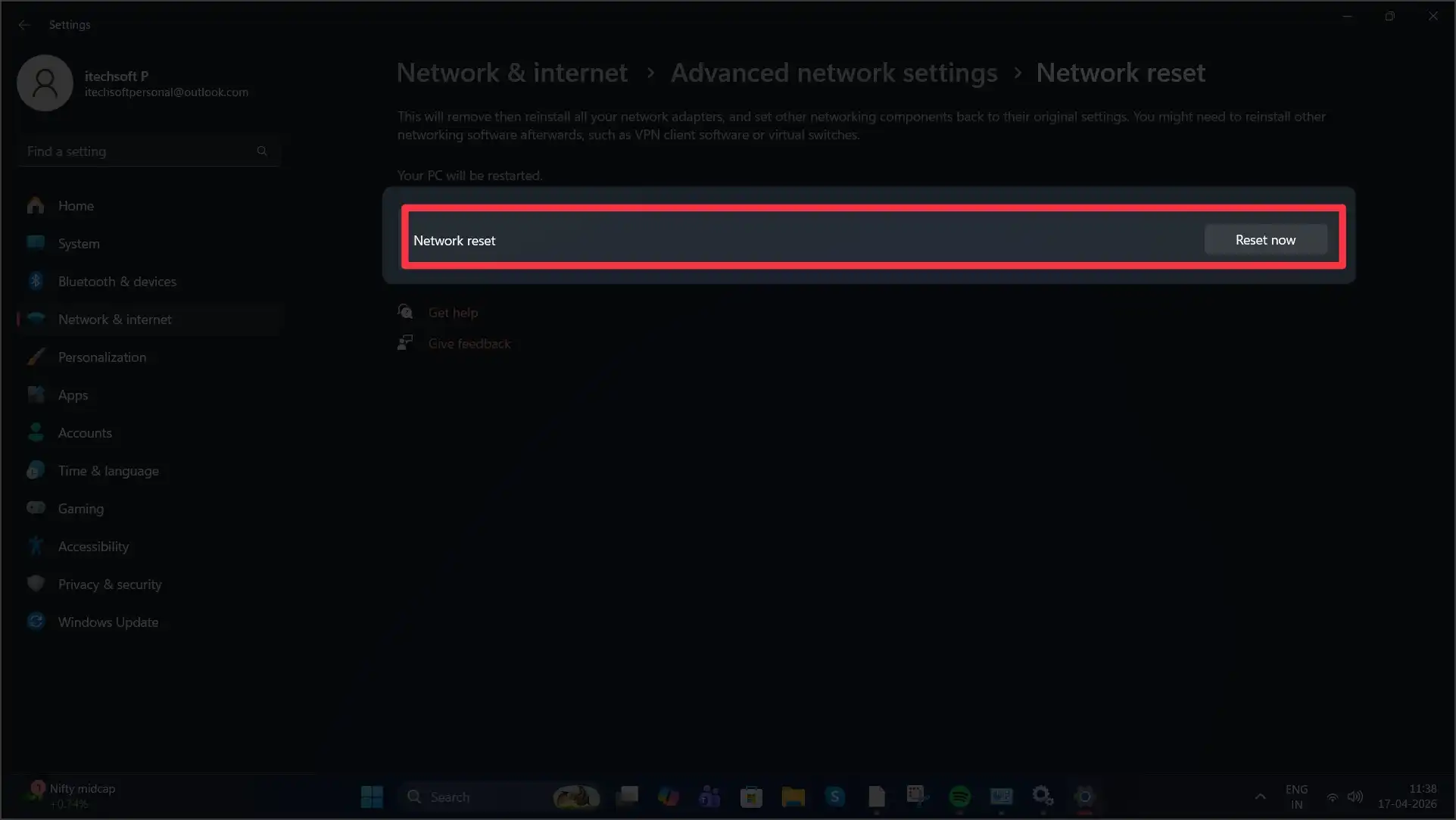
- A confirmation pop-up appear Are you sure you want to reset your network settings? click Yes.
- Wait for your PC to restart.
⚠️ Note: This will reinstall network adapters and remove saved Wi-Fi networks.
4. Run System File Checker (SFC Scan)
Corrupted system files often cause Control Panel components to crash.
Steps:
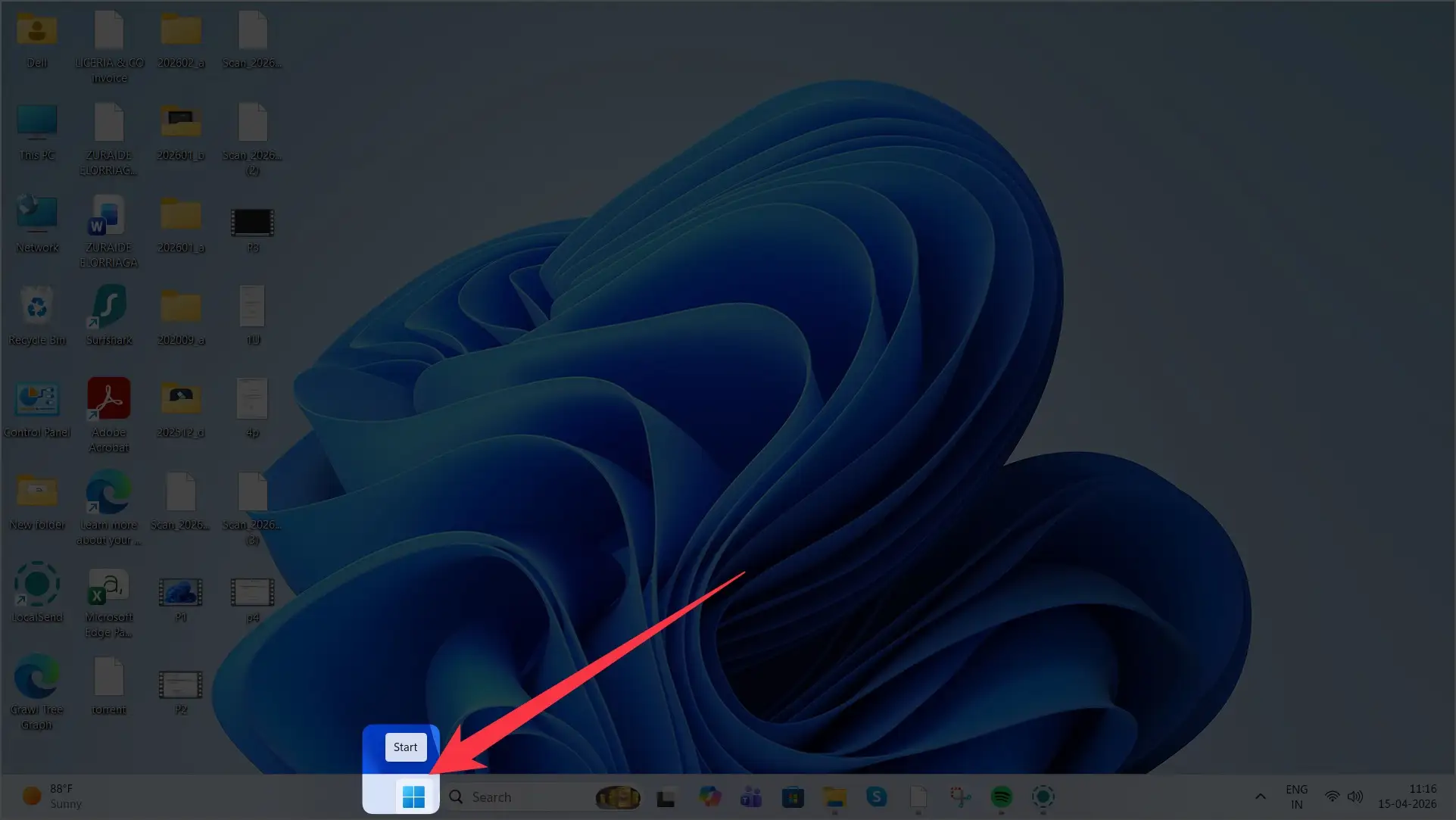
- Click on windows logo on bottom bar.
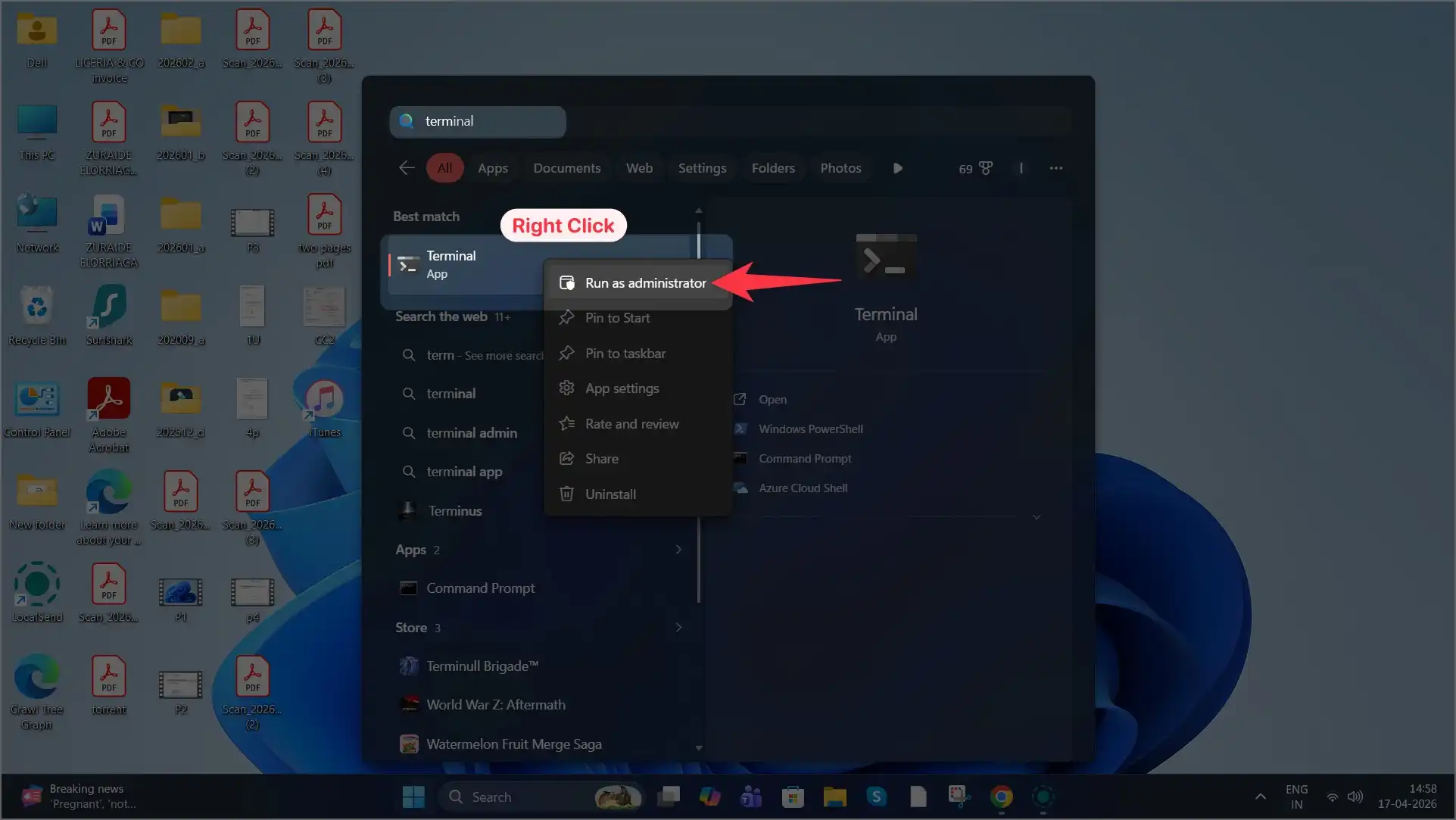
- Search for Terminal (Admin) and right click on it.
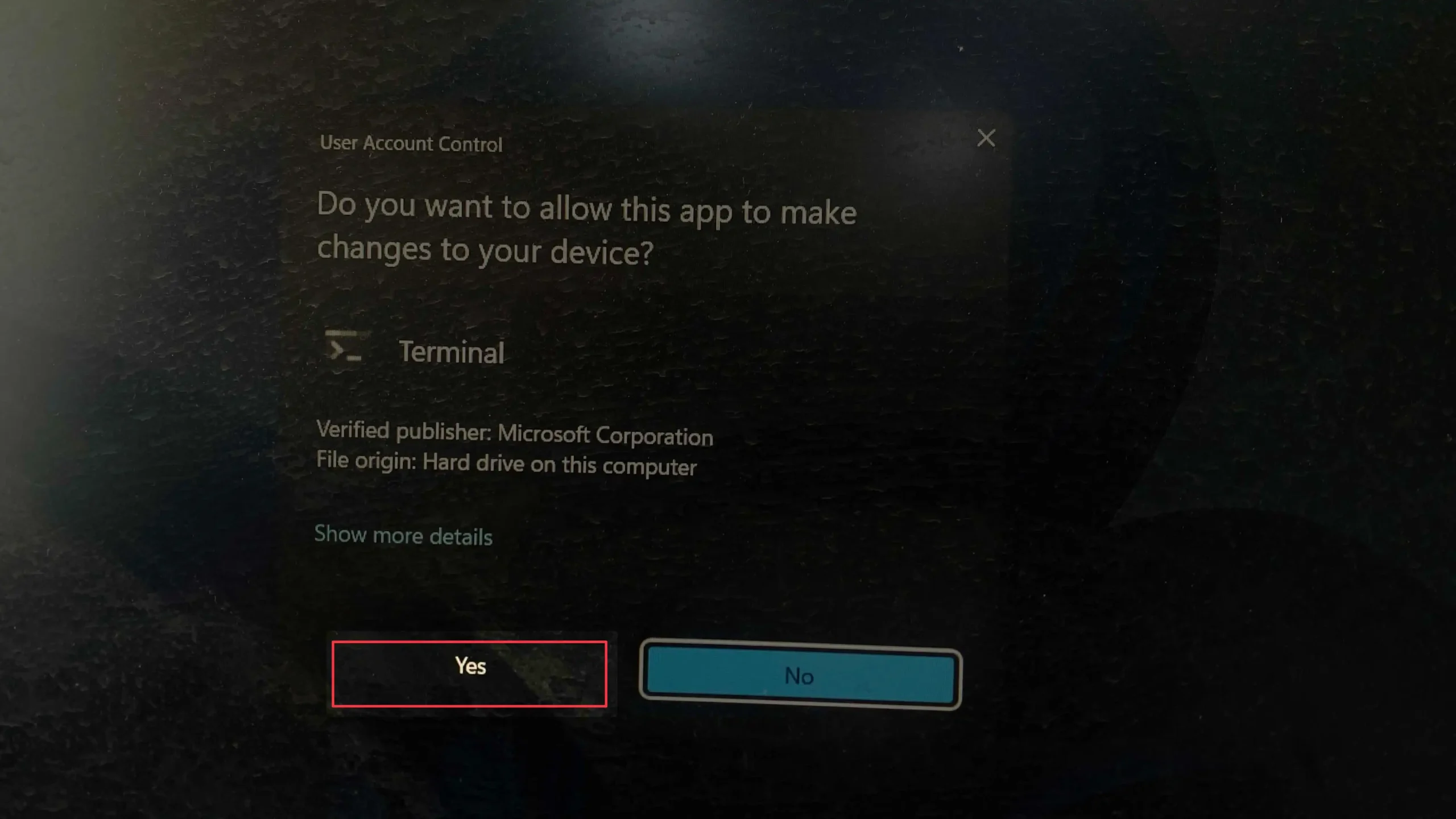
- A pop-up ask you please go with Yes.
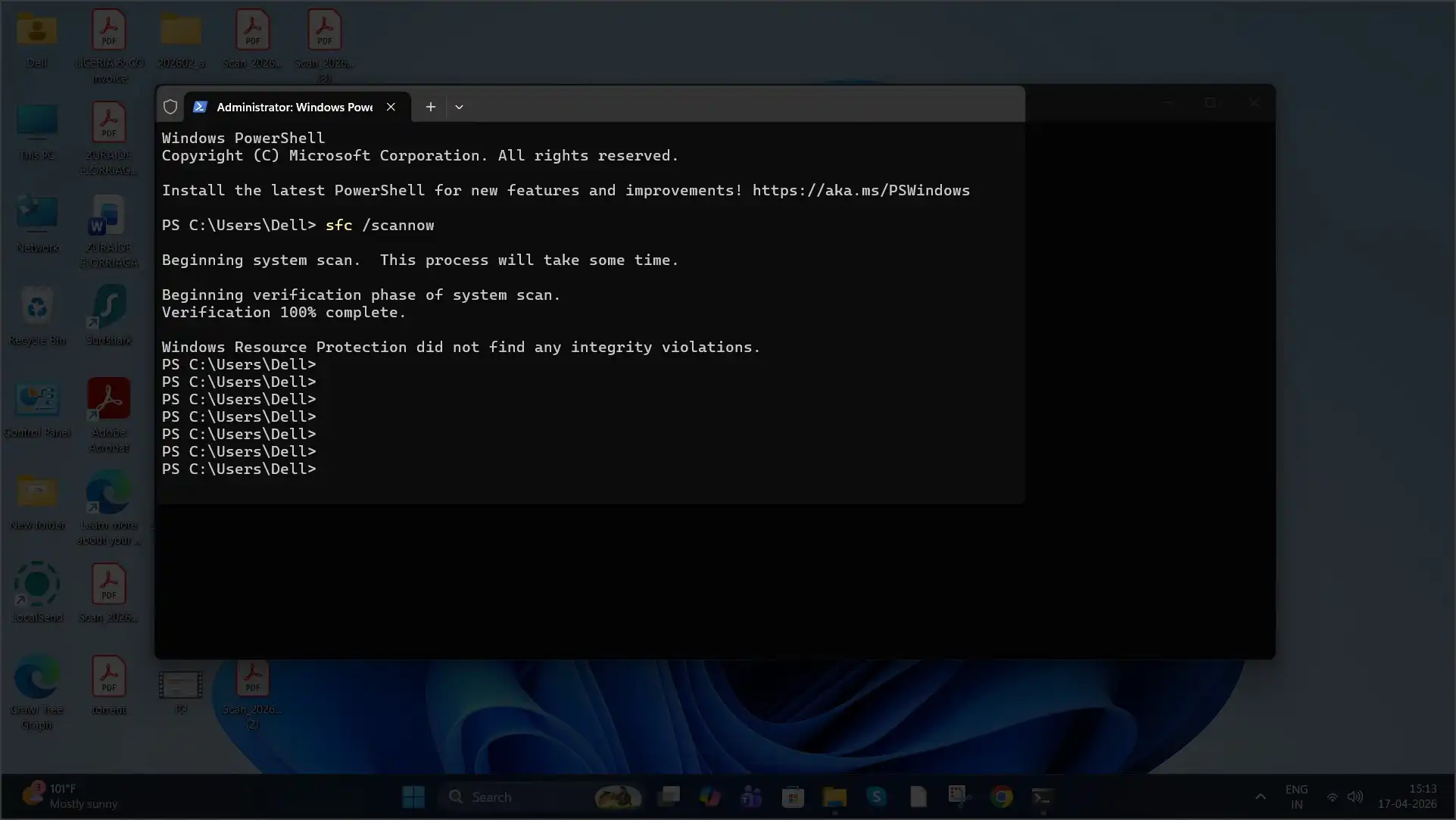
- Type: sfc /scannow and Press Enter
- Wait for the scan to complete
Windows will automatically repair damaged system files.
5. Check Group Policy (Pro & Enterprise Only)
If you’re using a work or school PC, Group Policy settings may block access.
Steps:
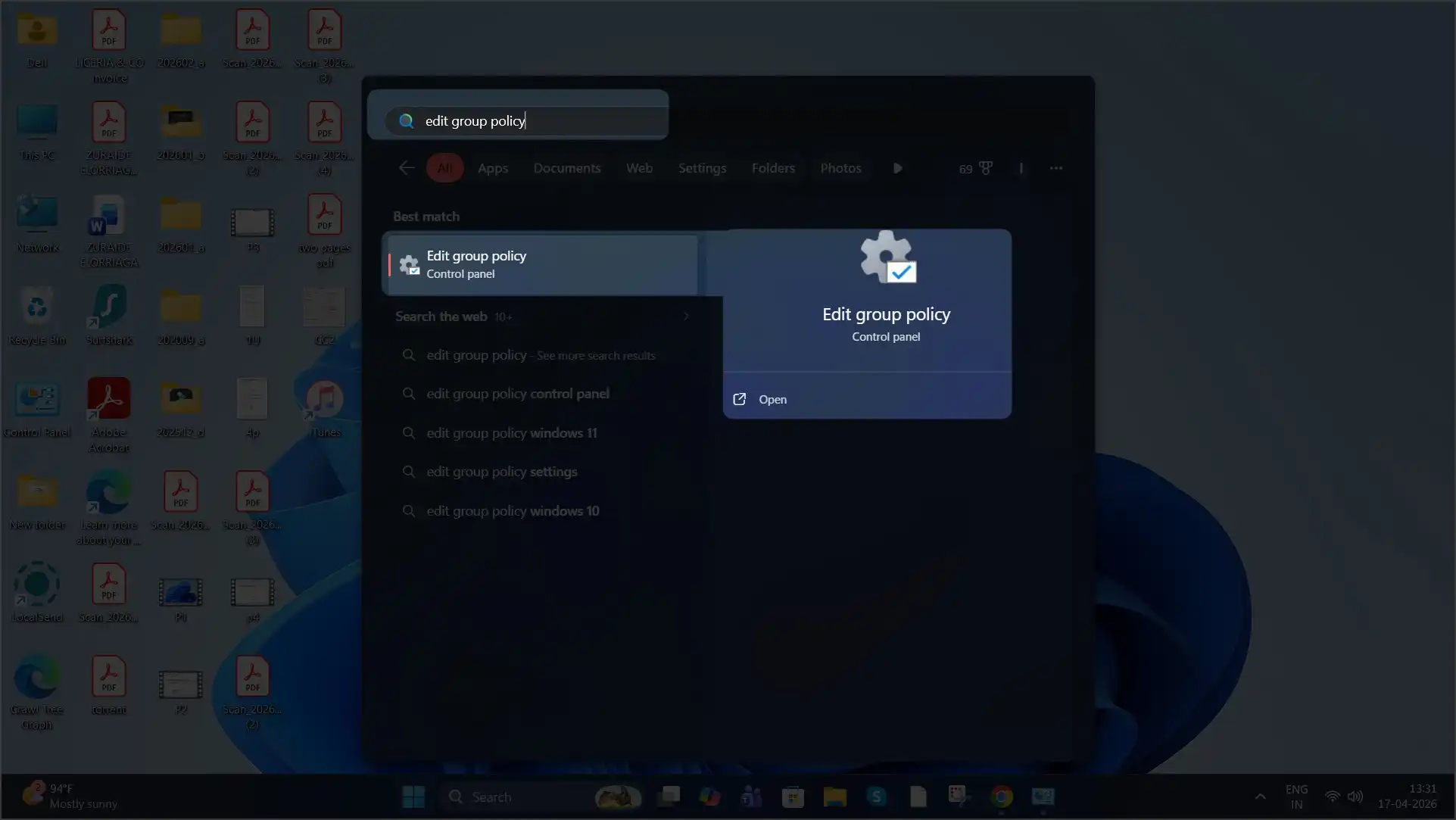
- Click the Start button (the Windows logo) located on the bottom-left corner of your screen.
- Search for Edit group policy
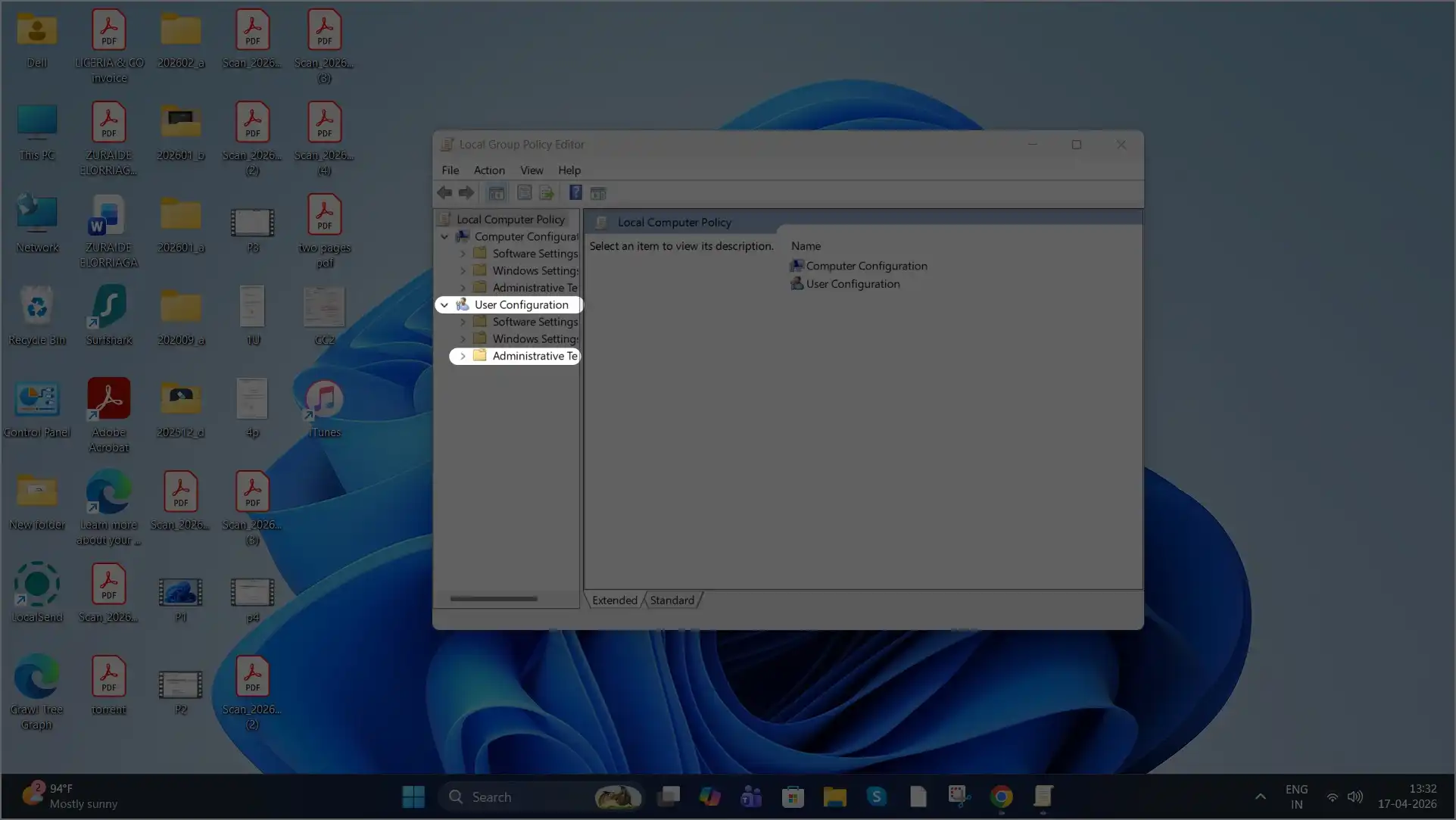
- Navigate to: User Configuration → Administrative Templates
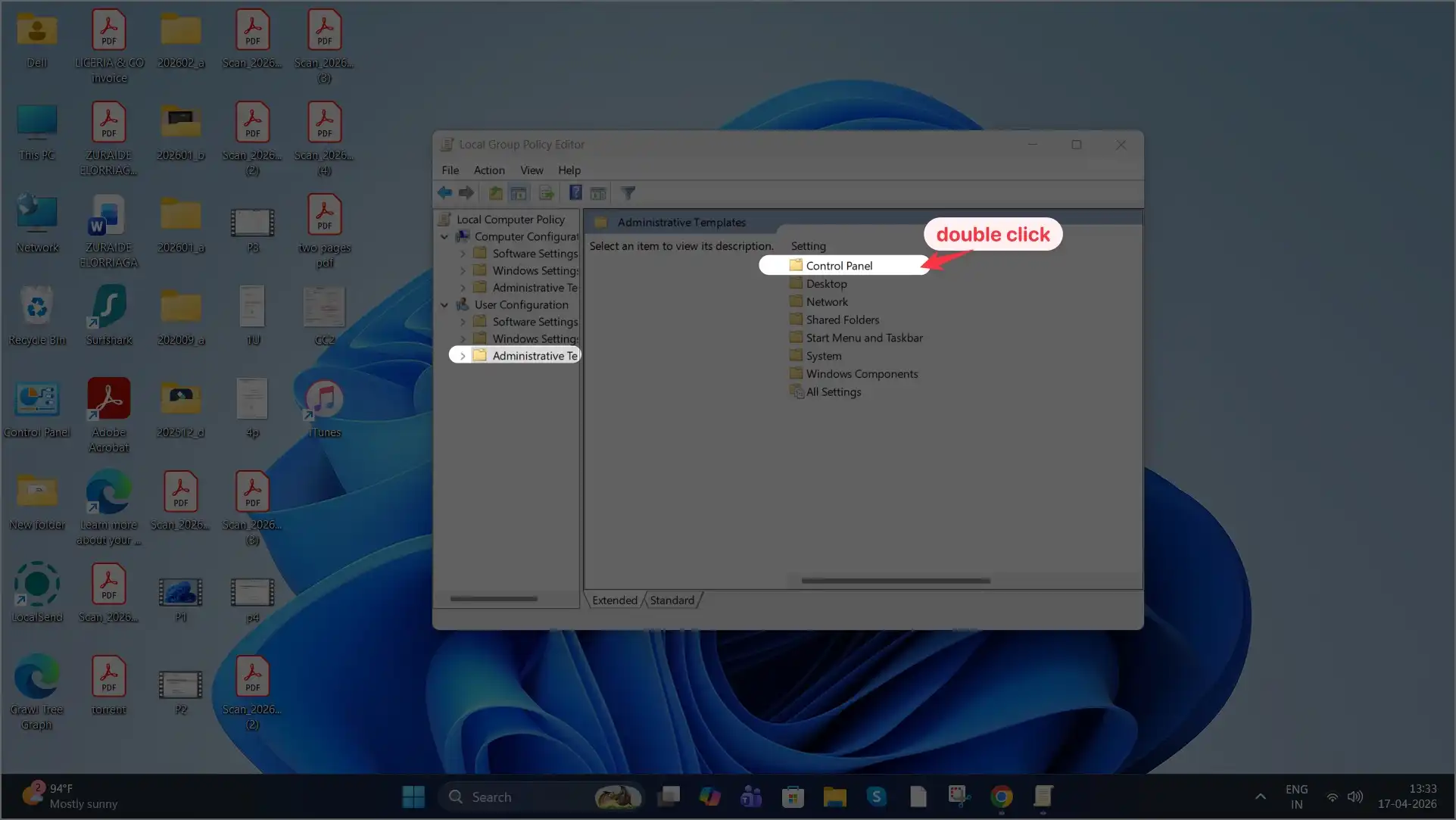
- click on Control Panel in right side panel.
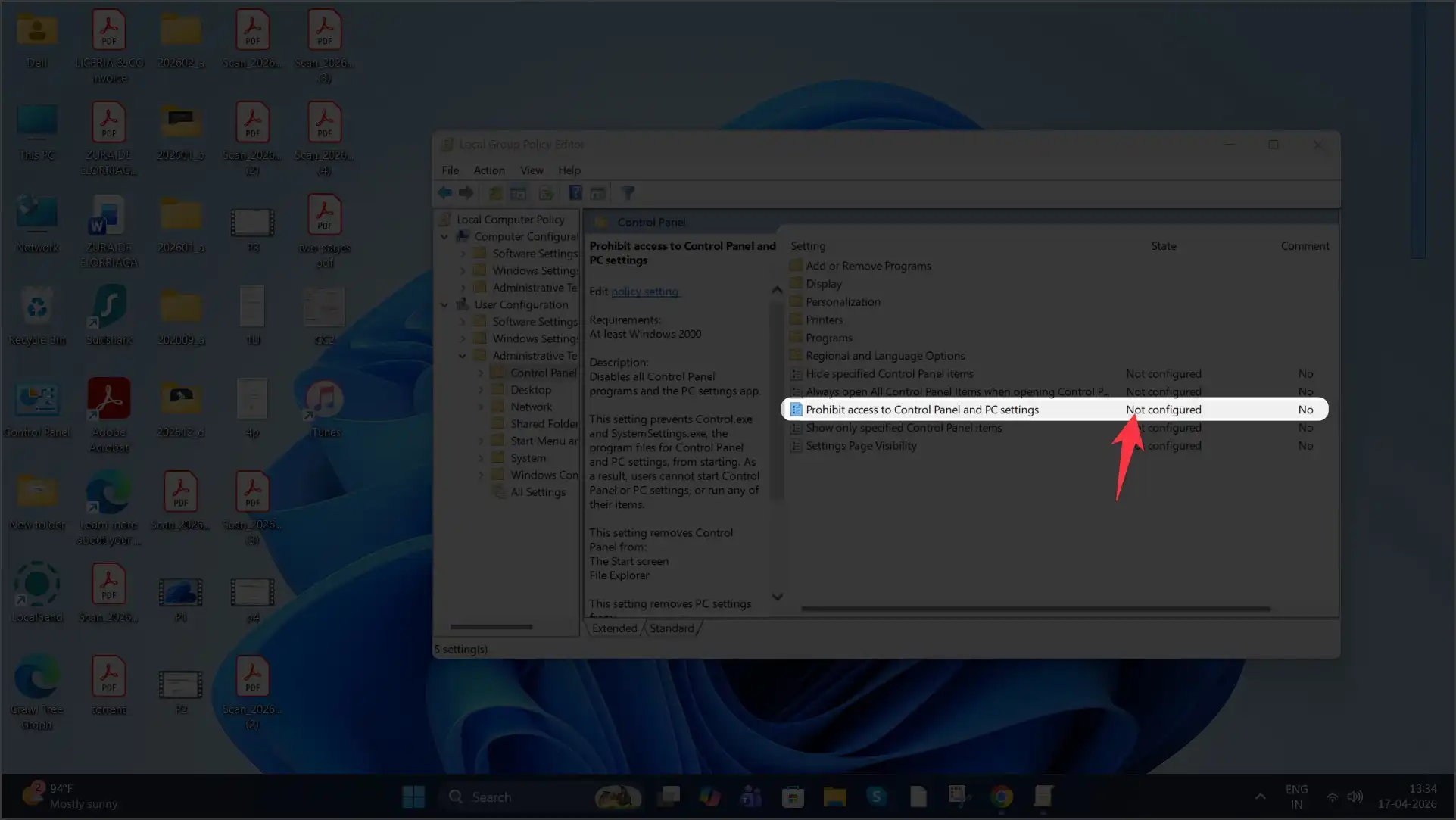
- Double-click – Prohibit access to Control Panel and PC settings
- Set it to: Not Configured
Restart your PC.
Additional Fixes (If Still Not Working)
If the Network and Sharing Center still refuses to open, you can try:
🔹 Reinstalling the Settings App via PowerShell
This can repair broken UI components.
🔹 Checking for Recent Windows Updates
Go to:
Settings → Windows Update → Update history
Uninstall any update installed just before the issue started.
🔹 Troubleshooting File Sharing Issues
If the window opens but sharing doesn’t work, the issue may be with network discovery settings or firewall rules.
Final Thoughts
When the Windows 11 Network and Sharing Center is not opening, the issue is usually service-related or caused by corrupted system files.
Start with the quick Run command fix, then move to service restarts, Network Reset, and SFC scan if needed.
These methods solve the issue in most cases without requiring a full Windows reinstall.