Keeping drivers updated in Windows 11 is essential for system stability, hardware compatibility, and performance optimization. Outdated drivers can cause issues such as device malfunctions, performance drops, display errors, and even system crashes.
Many users search for a single Command Prompt command that updates all drivers instantly. However, Windows 11 does not provide one native CMD command that automatically scans and installs every hardware driver at once.
That said, you can achieve nearly the same result using built-in tools such as WinGet, PowerShell, and PnPUtil. Below is a complete technical guide covering each method.
Can You Update All Drivers Using One CMD Command?
Short answer: No.
Windows 11 does not include a single built-in Command Prompt command that updates all system drivers automatically.
However, you can:
- Update third-party drivers using WinGet.
- Update Windows-certified system drivers using PowerShell.
- Install downloaded driver packages manually using PnPUtil.
Let’s examine each method in detail.
Method 1: Update Apps and Some Drivers Using WinGet
Windows Package Manager, known as WinGet, is built into Windows 11. It can update most third-party software and certain vendor drivers such as Nvidia, Intel, or AMD packages.
Command
winget upgrade –all
How to Use It
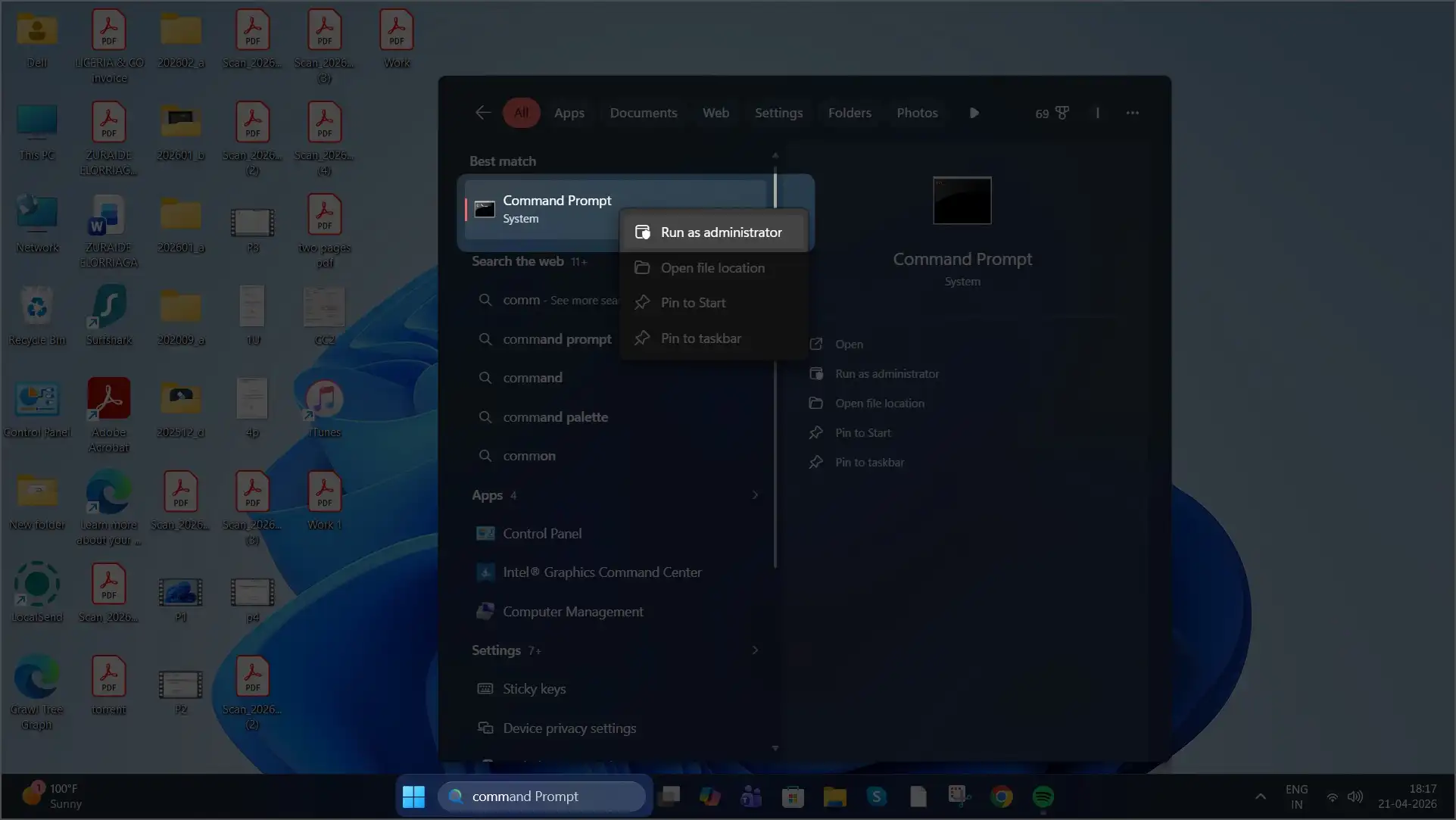
- Open Command Prompt as Administrator.
- Type: winget upgrade –all
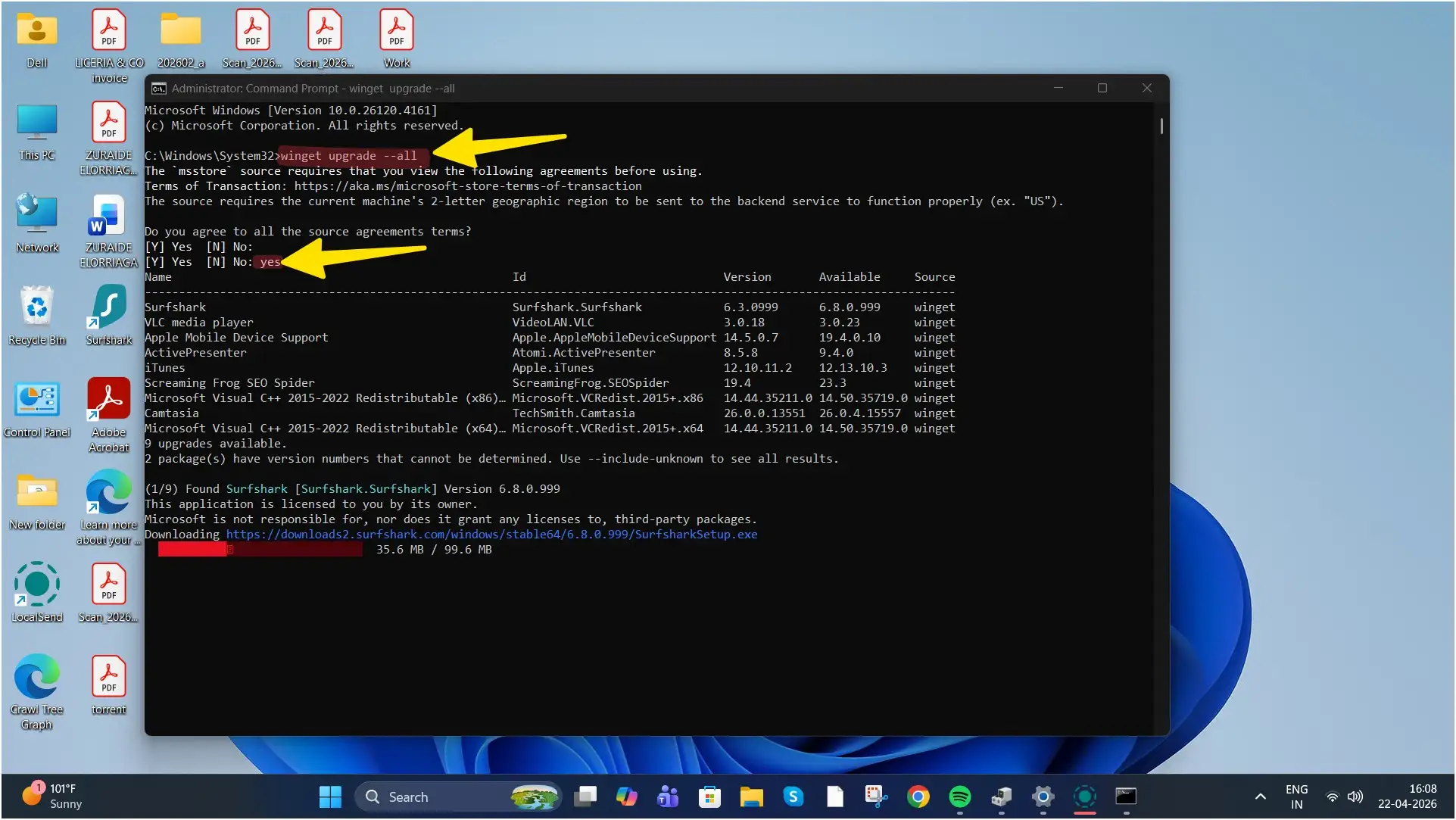
- Press Enter.
- If prompted, type y to accept the terms and proceed.
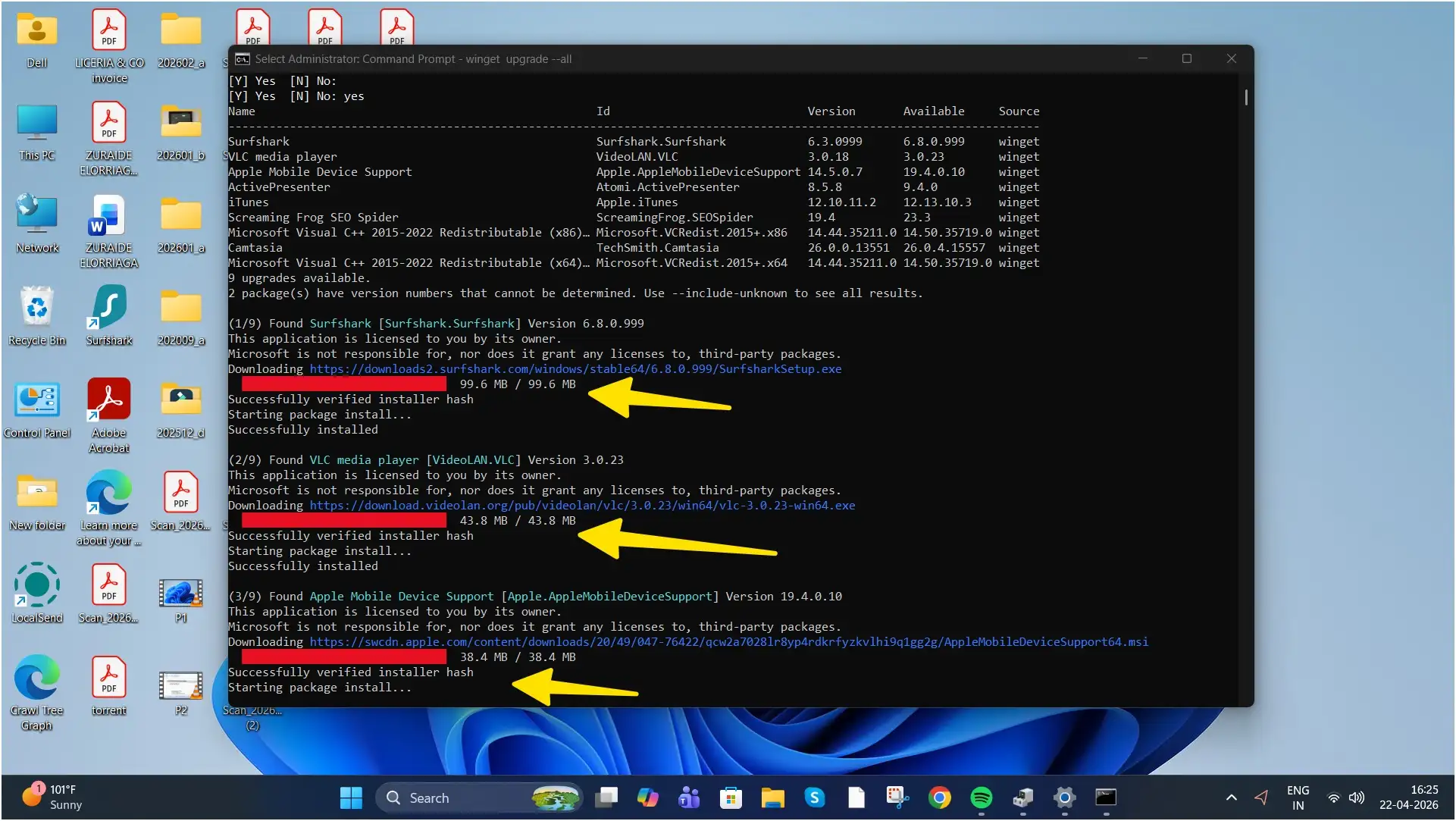
What This Does
- Updates supported third-party applications.
- Updates certain driver-related software packages.
- Does not update core system-level drivers managed by Windows Update.
This method is fast and useful for keeping vendor utilities current.
Method 2: Update System Drivers via PowerShell (Recommended for Core Hardware)
For comprehensive system driver updates, PowerShell provides better coverage than CMD.
Windows Update manages most core drivers such as:
- Chipset drivers
- Network adapters
- Storage controllers
- Audio drivers
- Integrated graphics
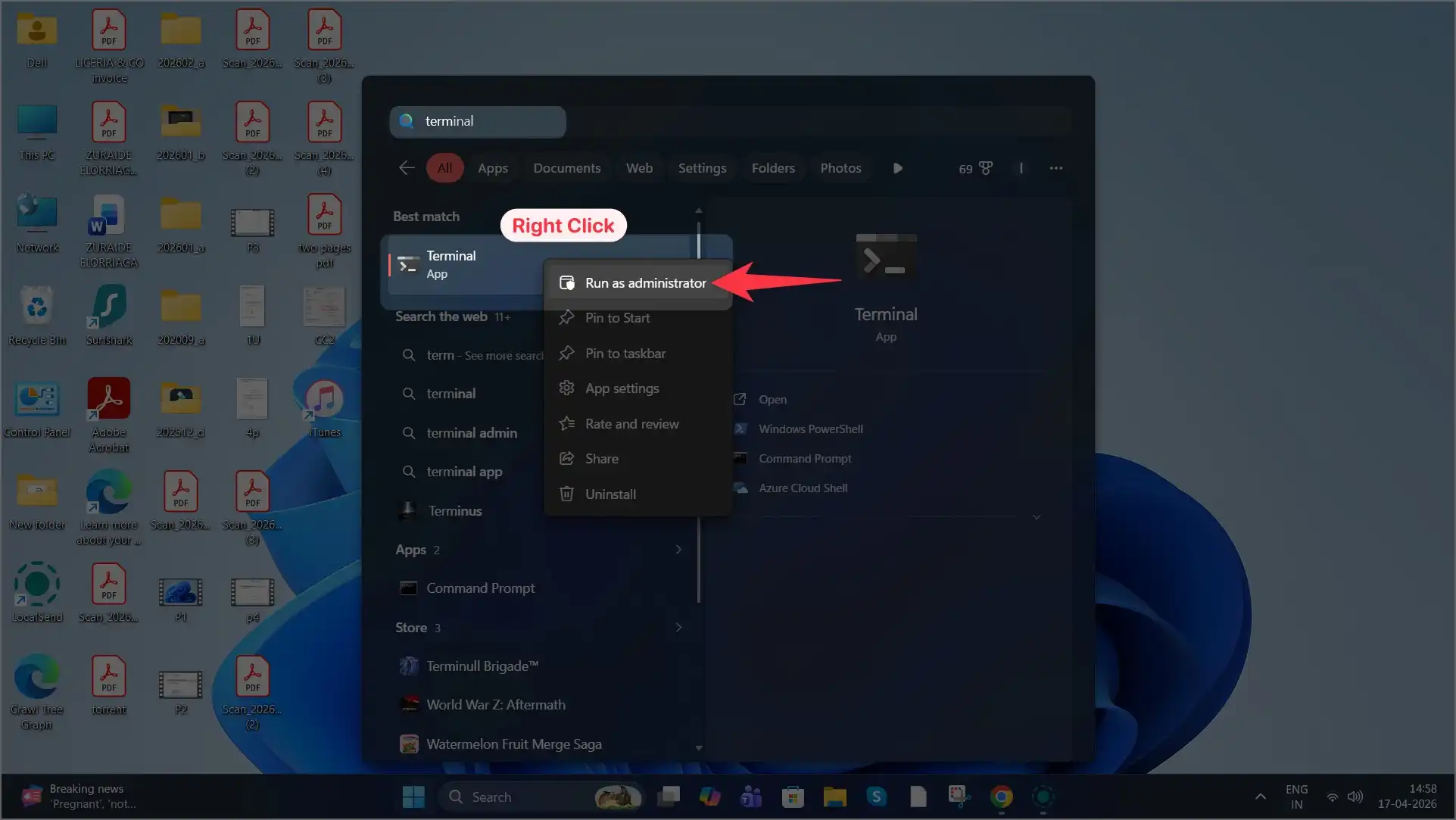
Step 1: Open PowerShell as Administrator
Right-click Start and select Windows Terminal (Admin), then switch to PowerShell if needed.
Step 2: Install the Windows Update Module (One-Time Setup)
Install-Module PSWindowsUpdate
Press Y if prompted to confirm installation.
Step 3: Run the Driver Update Command
Get-WindowsUpdate -Install -AcceptAll -AutoReboot
What This Does
- Scans for all available Windows updates.
- Installs system and driver updates.
- Automatically reboots if required.
This is the closest method to a comprehensive “update all drivers” command.
Method 3: Install Drivers Manually Using PnPUtil
If you have downloaded driver files from a manufacturer website, you can install them manually using PnPUtil.
This method requires driver files in INF format.
Command
pnputil /add-driver “C:\PathToDrivers*.inf” /subdirs /install
Example
If your drivers are located in:
C:\Downloads\IntelDrivers
You would run:
pnputil /add-driver “C:\Downloads\IntelDrivers*.inf” /subdirs /install
What This Does
- Scans all INF files in the folder.
- Installs compatible drivers automatically.
- Useful for offline or enterprise deployments.
Recommended Method: Update Drivers via Windows Settings
Although command-line tools are powerful, Microsoft recommends using the graphical interface for the safest and most stable updates.
Steps
- Open Settings.
- Go to Windows Update.
- Click Check for updates.
- Select Advanced options.
- Click Optional updates.
- Review available driver updates and install them.
This method ensures compatibility and reduces the risk of driver conflicts.
Which Method Should You Use?
For quick updates of third-party tools
Use winget upgrade –all
For comprehensive system driver updates
Use PowerShell with PSWindowsUpdate
For manual enterprise or downloaded driver installations
Use pnputil
For the safest one-click solution
Use Windows Update in Settings
Important Considerations
- Always run commands as Administrator.
- Create a restore point before large updates.
- Avoid third-party “driver updater” software unless verified.
- Restart your PC after updates to apply changes fully.
Final Thoughts
While Windows 11 does not offer a single CMD command that updates every driver automatically, you can combine WinGet and PowerShell commands to achieve nearly the same result in a safe and efficient way.
For most users, Windows Update remains the most reliable method. Advanced users and IT professionals can leverage PowerShell and PnPUtil for more granular control.
Keeping your drivers updated improves stability, performance, and security.
If you found this guide helpful, please consider leaving a comment with your experience and share this article with others who may benefit from it. Driver maintenance is often overlooked, but it plays a critical role in maintaining a healthy Windows system.