

If your Windows 11 setup is stuck at “Checking for updates 100%”, don’t panic. This issue is common and usually happens because of:
- Slow or unstable internet
- Frozen update services
- Corrupted update cache files
- Background Intelligent Transfer Service (BITS) errors
- Connected USB devices are interfering with the setup
This guide will show you simple fixes first, then advanced technical solutions if needed.
Why Windows 11 Setup Gets Stuck at 100%
Even when it shows 100%, Windows may still be:
- Verifying downloaded files
- Installing background components
- Checking system compatibility
- Validating update signatures
Sometimes the percentage freezes visually, but the system is still working.
Immediate Fixes (Try These First)
1️⃣ Wait Patiently (Very Important)
Before doing anything:
👉 Wait at least 1–2 hours.
Large updates can take time depending on:
- Internet speed
- SSD vs HDD
- CPU performance
Real-Life Example
If you’re installing Windows 11 on an older laptop with an HDD and 8GB RAM, updates can appear stuck even though they are processing in the background.
Force Restart (If Stuck Over 4 Hours)
If it’s been stuck for more than 4 hours:
- Hold the Power button for 10 seconds
- Turn the PC back on
In many cases, Windows resumes or repairs automatically.
Check Internet Connection
A weak or unstable internet connection can cause update verification to freeze.
- Restart your router
- Switch from Wi-Fi to Ethernet
- Avoid using VPN during setup
Advanced Technical Fixes
If the problem continues, follow these steps.
Fix 1: Run Windows Update Troubleshooter
Windows includes a built-in repair tool that helps fix common system issues automatically. It can scan for errors, repair corrupted files, and restore system stability. You can access it through troubleshooting settings or Command Prompt tools like SFC and DISM.
Steps:
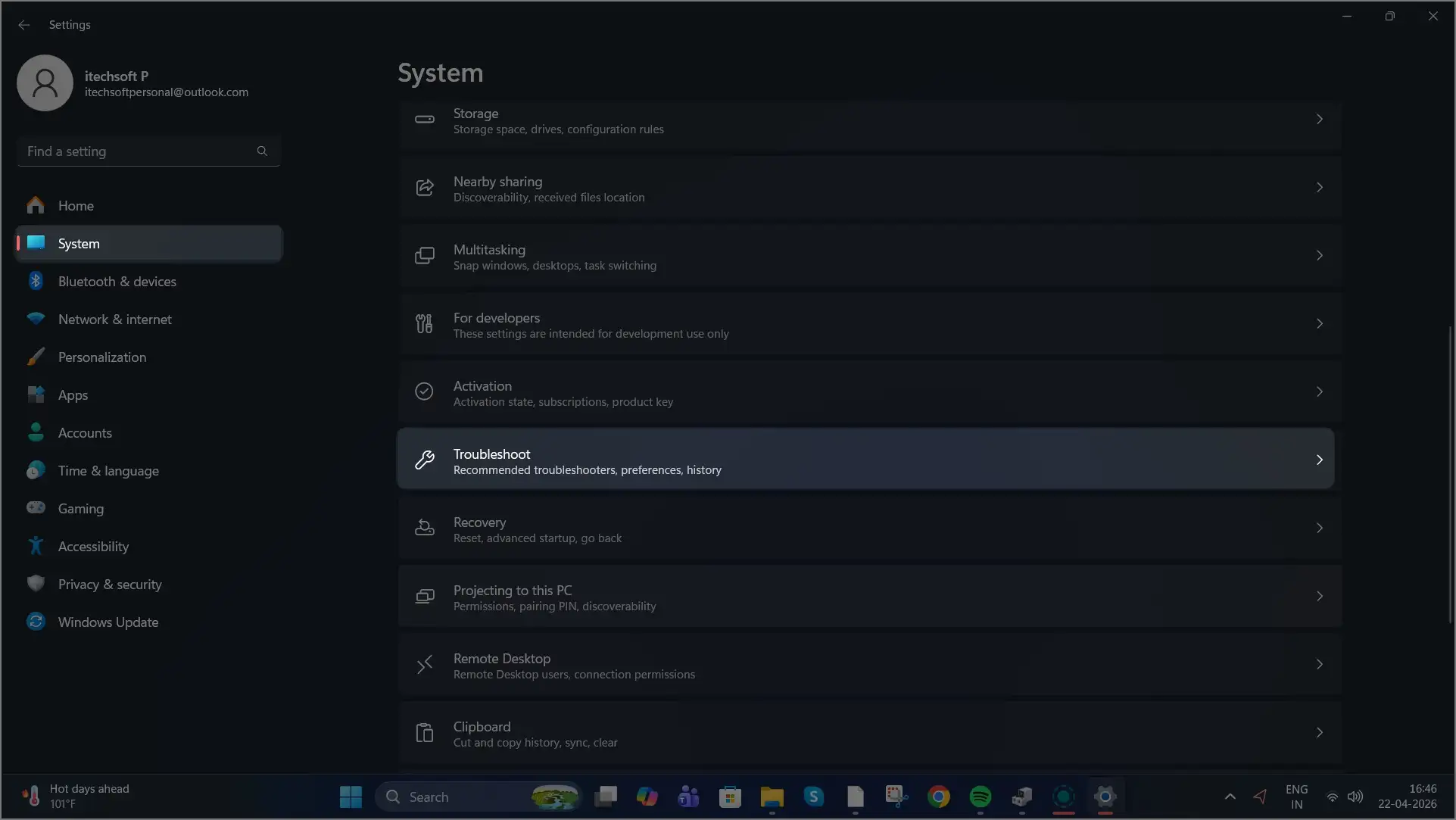
- Press Win + I
- Go to System
- Click Troubleshoot
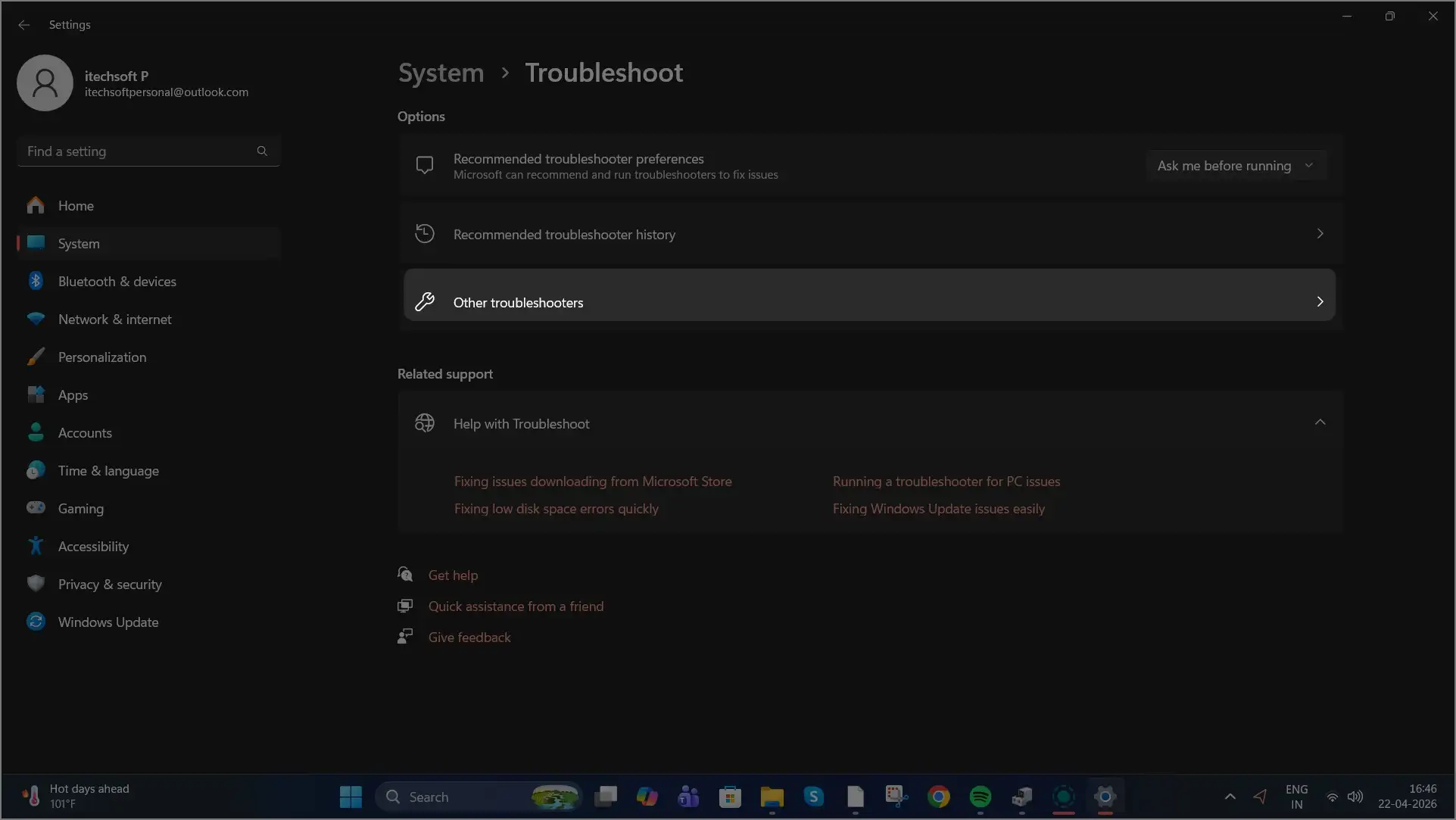
- Select Other troubleshooters
- Run Windows Update
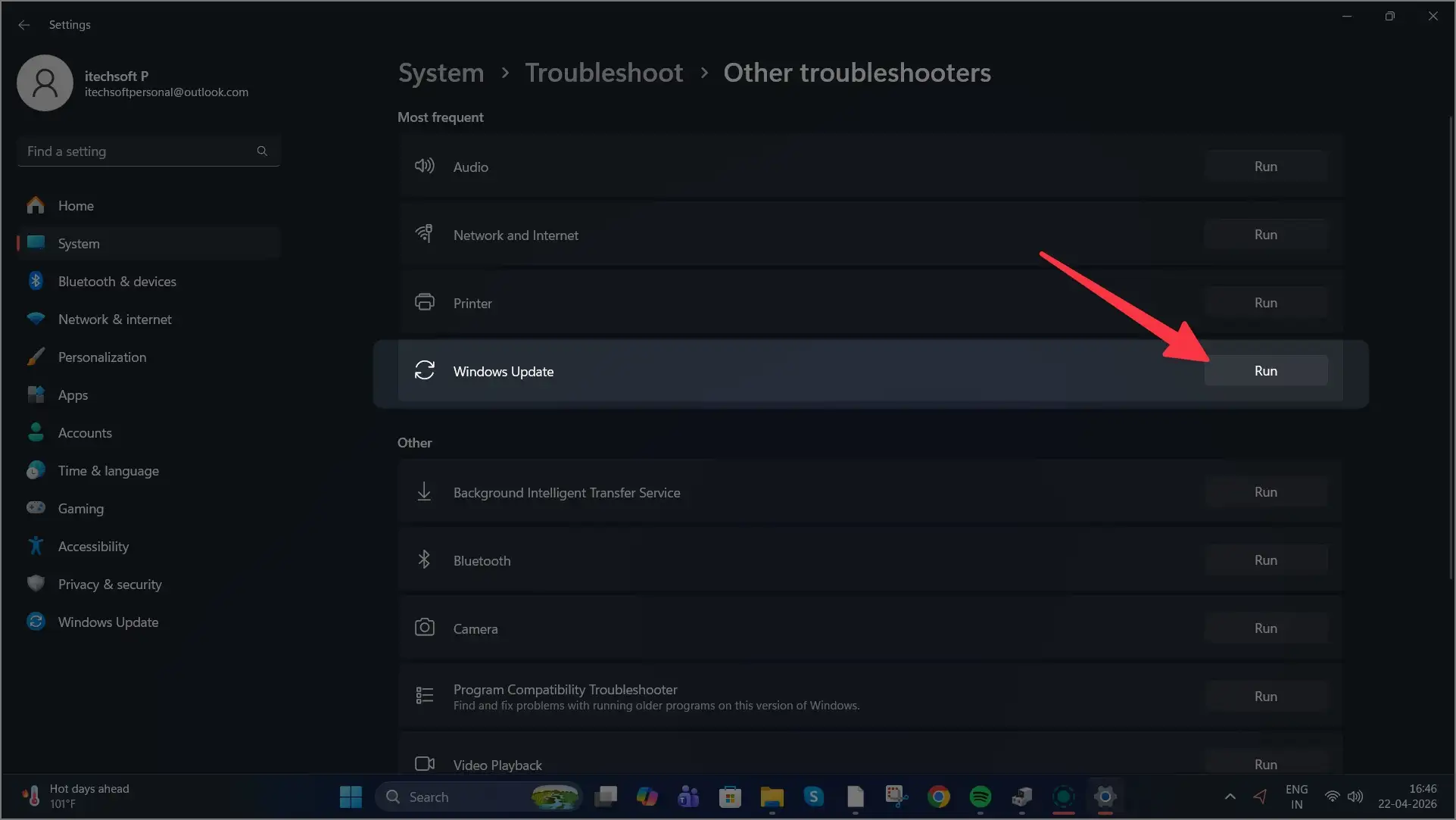
This tool automatically:
- Repairs corrupted files
- Resets update components
- Restarts update services
Fix 2: Restart Windows Update Services
Sometimes, update services freeze in the background.
Steps:
- Press Win + R
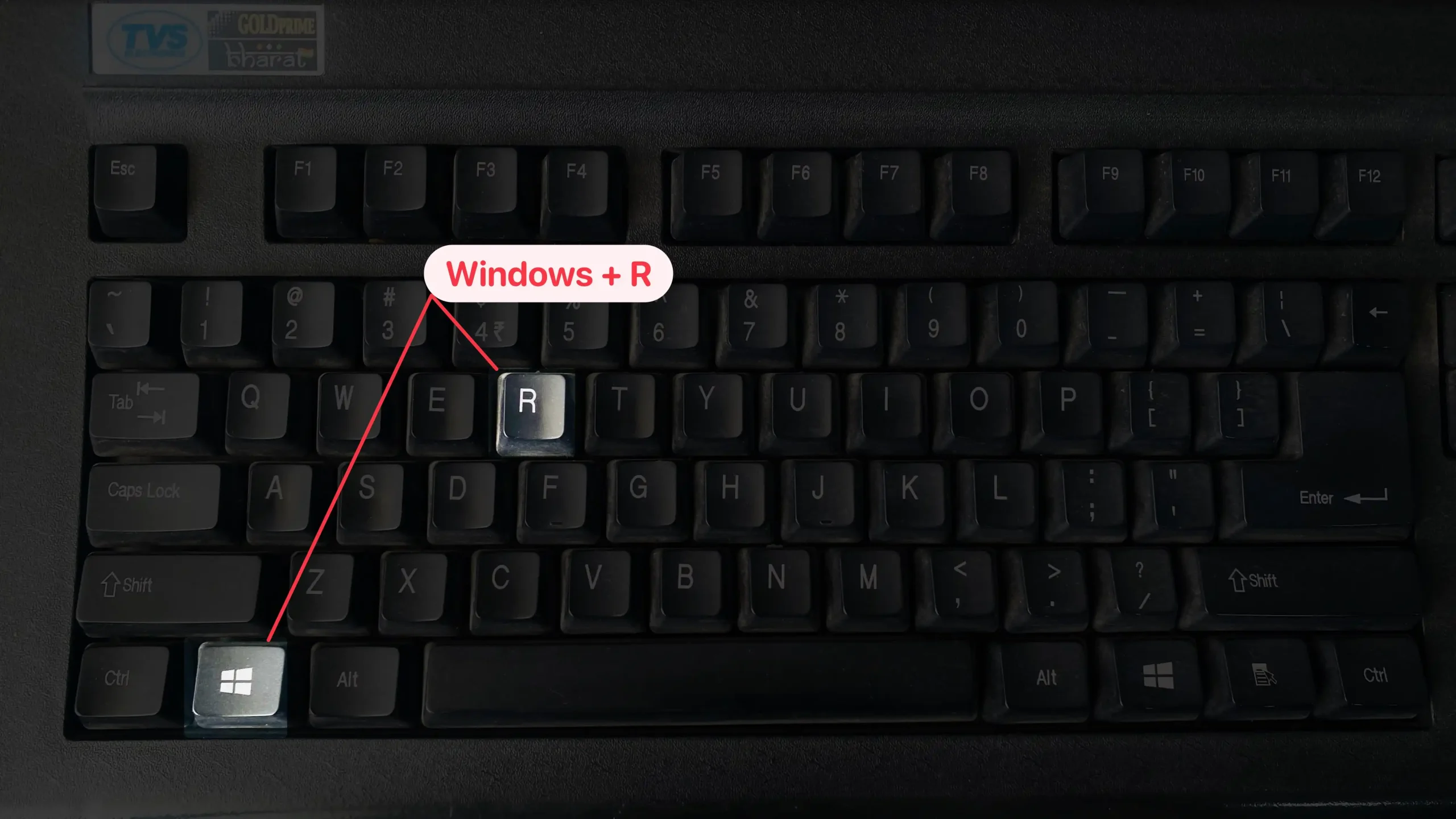
- Type
services.msc
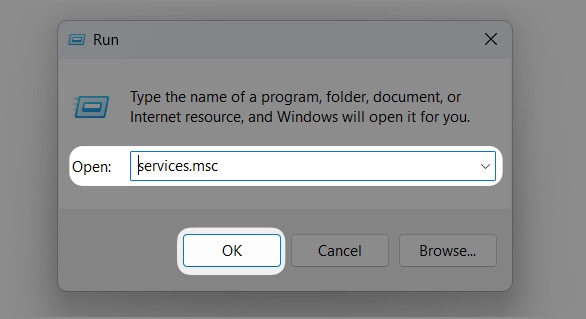
- Press Enter
Now find:
- Windows Update
- Background Intelligent Transfer Service (BITS)
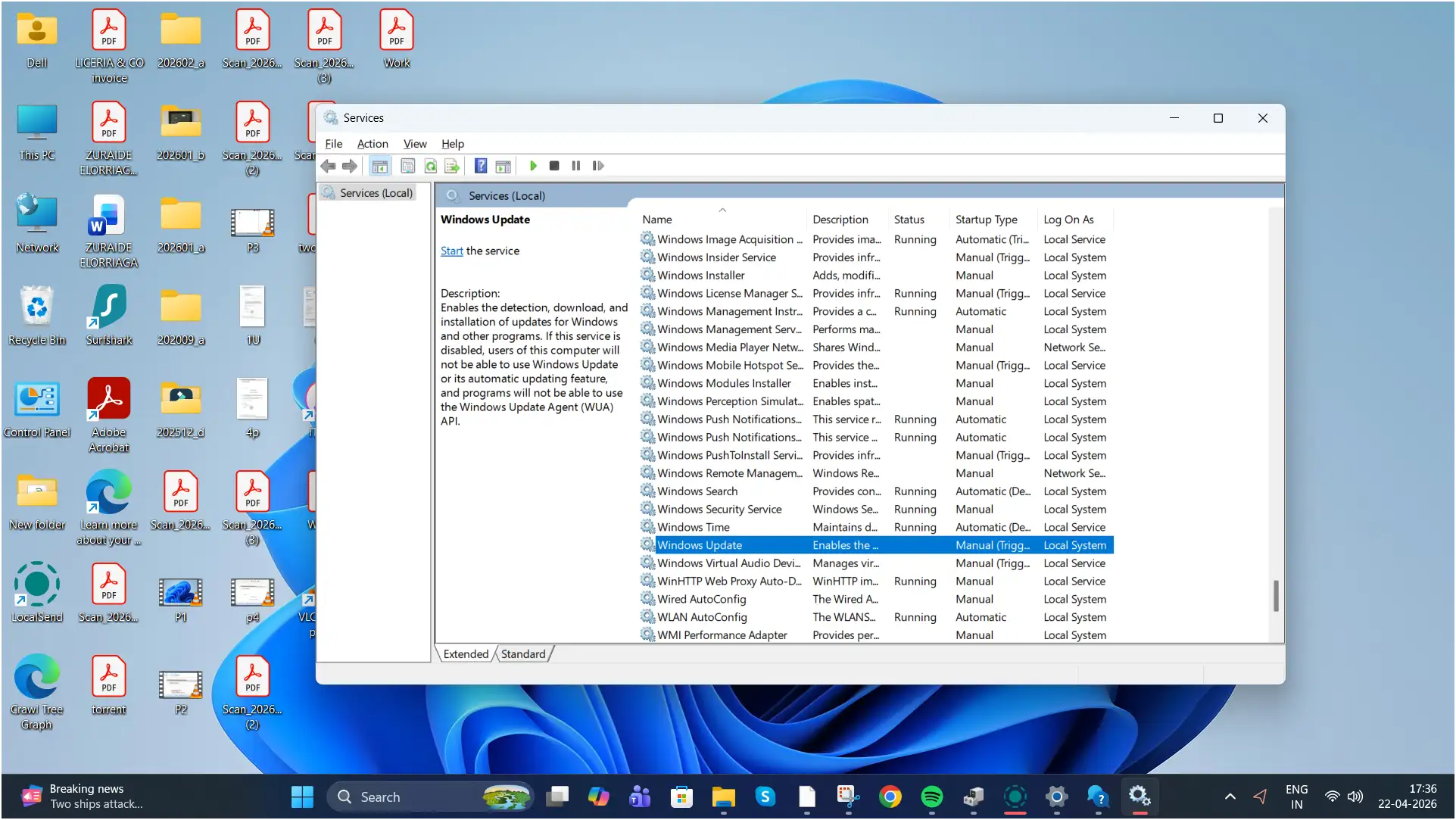
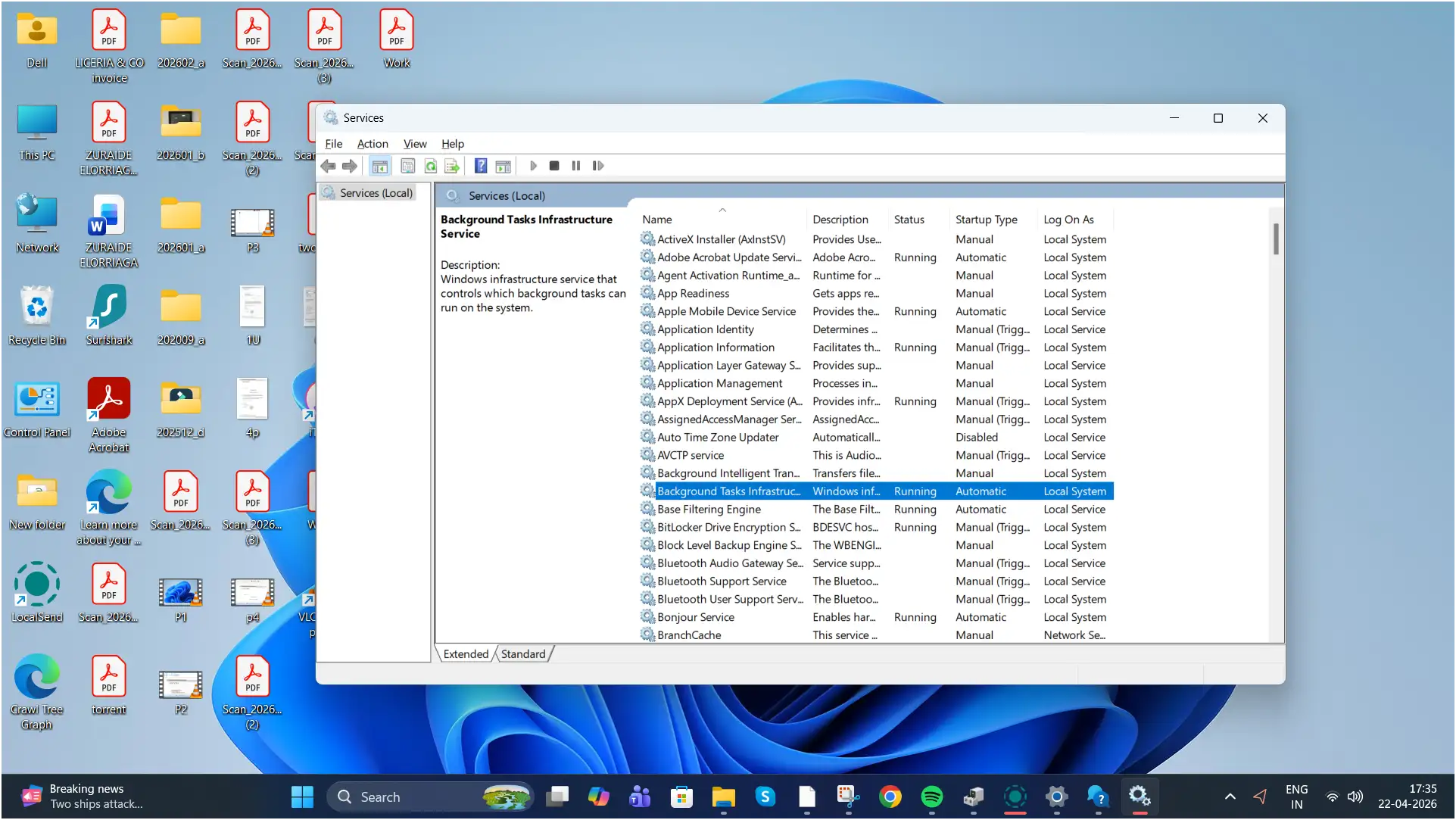
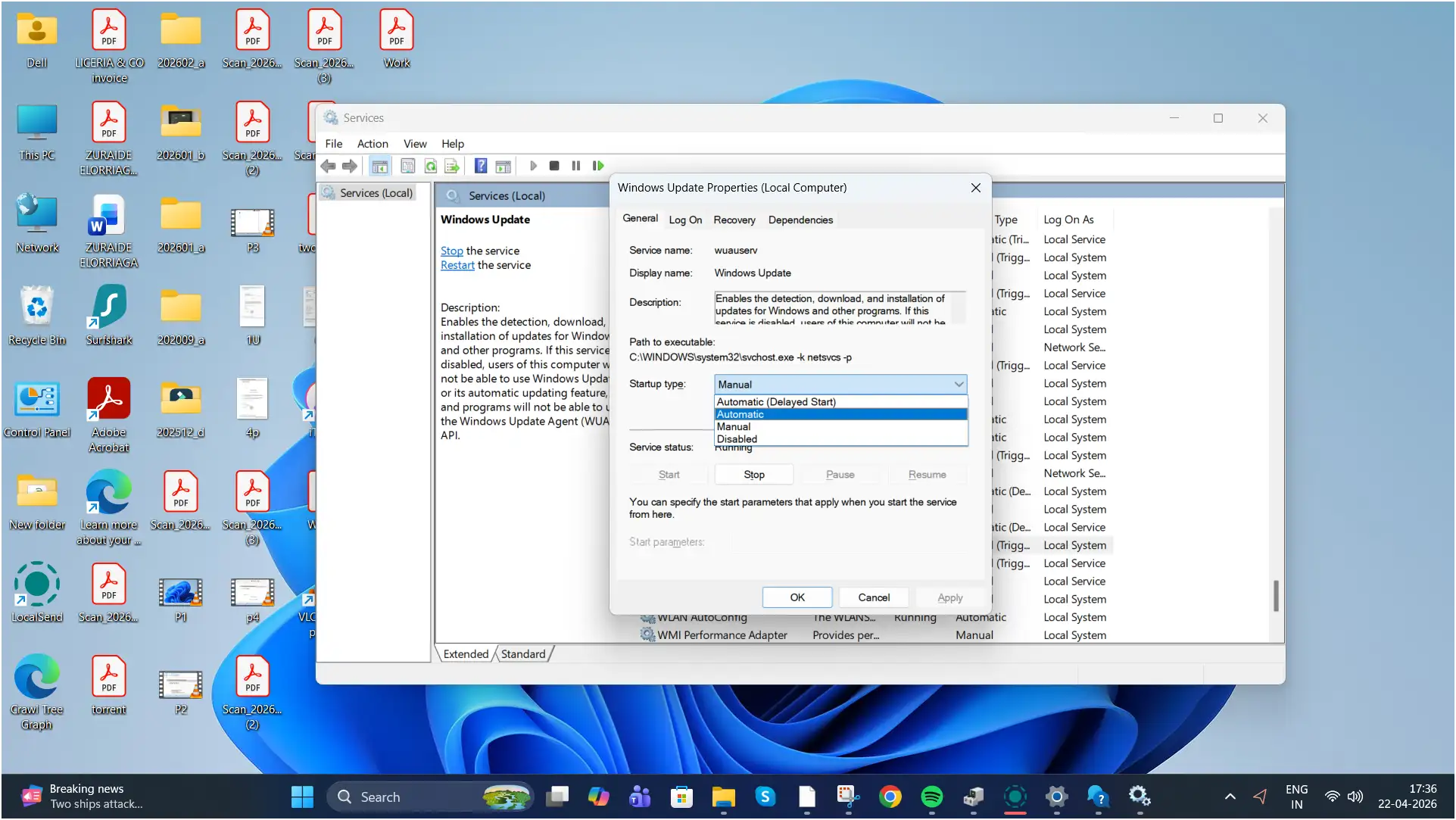
For both:
- Set Startup type to Automatic
- Click Restart
Fix 3: Clear Windows Update Cache (Most Effective Fix)
Corrupted update files often cause the 100% freeze.
Step 1: Stop Update Services
Open Command Prompt as Administrator and run:
net stop wuauserv
net stop bits
Step 2: Delete Update Cache
Go to:
C:\Windows\SoftwareDistribution
Delete all contents inside the folder.
Then go to:
C:\Windows\System32\catroot2
Delete contents (if allowed).
Step 3: Restart Services
In Command Prompt:
net start wuauserv
net start bits
Restart your PC and try setup again.
Fix 4: Disconnect All USB Devices
Remove:
- External hard drives
- USB flash drives
- Printers
- Bluetooth dongles
Keep only:
- Keyboard
- Mouse
Peripheral conflicts can freeze setup.
Quick Fix Comparison Chart
| Fix Method | Difficulty | Effectiveness | Recommended Order |
|---|---|---|---|
| Wait 1–2 Hours | Easy | Medium | 1 |
| Restart PC | Easy | High | 2 |
| Run Troubleshooter | Easy | High | 3 |
| Restart Services | Medium | High | 4 |
| Clear Cache | Advanced | Very High | 5 |
| Remove USB Devices | Easy | Medium | Anytime |
Pro Tips for Better User Experience
✔ Always use a stable internet during setup
✔ Disable VPN temporarily
✔ Use SSD instead of HDD if possible
✔ Keep at least 25GB of free disk space
✔ Update BIOS if installation repeatedly fails
When to Reinstall Windows
If nothing works:
- Create a fresh Windows 11 installation USB
- Perform a clean install
This is the last resort.
Final Advice
Most of the time, this issue is caused by:
- Corrupted SoftwareDistribution folder
- Frozen Windows Update service
- Slow internet
Start with simple fixes before advanced ones.






