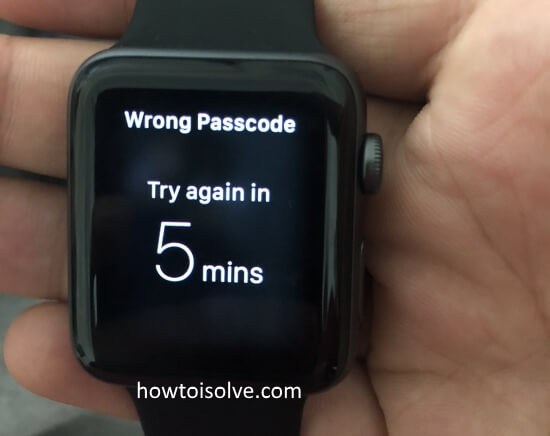
If your Apple Watch says “Wrong Passcode, Try Again in 1 Minute” — or even worse, 5 minutes or 15 minutes — you’re not alone. This message shows up when your watch locks itself after multiple wrong passcode attempts. Don’t worry, you can fix it quickly. Let’s break it down and get your watch working again.
Why You’re Seeing the “Try Again” Message
Apple Watch temporarily locks after several incorrect passcode entries to protect your data. This often happens when:
- You enter the wrong passcode repeatedly
- Sweat, moisture, or accidental wrist taps trigger wrong inputs
- Your kid or someone else tries to unlock your watch
- You just forgot your passcode after not using it for a while
- You installed a recent watchOS update and it caused a software glitch
Step 1: Wait Out the Timer
If your Apple Watch says “Try again in 1 minute”, just relax and wait. Don’t keep pressing numbers — it’ll only make the timer increase to 5 or 15 minutes. Once the time runs out, carefully enter the correct passcode.
Step 2: Unlock with Your iPhone
If your watch is paired, you might be able to unlock it directly from your iPhone.
- Keep both devices close together.
- Open the Watch app on your iPhone.
- Tap My Watch → Passcode → Unlock with iPhone and toggle it on.
- Now, unlock your iPhone. Your Apple Watch should unlock automatically.
This feature saves you if you keep forgetting your watch passcode.
Step 3: Restart Both Devices
Sometimes, a simple reboot clears the glitch.
- On your Apple Watch: press and hold the side button → slide to power off → turn it back on.
- On your iPhone: restart normally.
Then try unlocking again.
Step 4: Forgot Your Passcode? Reset the Watch (Directly)
If you really can’t remember it, reset your Apple Watch.
- Place the watch on its charger.
- Hold the side button until Power Off appears.
- Press and hold the Digital Crown until you see Erase all content and settings.
- Tap Reset → Reset again to confirm.
Once done, pair it again with your iPhone. You can restore your data from a backup.
Step 5: Reset from Your iPhone (Easier Way)
If your watch is still paired with your iPhone:
- Open the Watch app → My Watch → General → Reset.
- Tap Erase Apple Watch Content and Settings.
- Confirm to erase everything.
This removes the passcode and allows a clean setup again.
Step 6: Still Locked? Contact Apple Support
If none of these steps work, your Apple Watch might be locked under Activation Lock. In that case, you’ll need to:
- Visit Apple Support
- Verify your Apple ID and ownership
- Provide purchase proof if required
Apple can remotely help you unlock your watch once verified.
How to Prevent Future Lockouts
Here’s how you can avoid this problem again:
- Use a short, easy-to-remember passcode.
- Enable Unlock with iPhone from Watch settings.
- Clean your screen and wrist to avoid ghost touches.
- Keep your watch updated with the latest watchOS version.
- Disable passcode entirely if you don’t store sensitive data.
FAQs
| Question | Answer |
|---|---|
| Can the Apple Store unlock my watch? | It starts with 1 minute, then increases to 5 or 15 minutes after each failed try. |
| Can I unlock without my iPhone? | Only if you remember the passcode or erase it completely. |
| Will erasing delete my health data? | Yes, unless it’s backed up to iCloud or your iPhone. |
| Yes, but you’ll need proof of purchase or verification of your Apple ID. | Only if you remember the passcode or erase it. |
Final Thoughts
That’s all it takes to fix the Apple Watch Wrong Passcode Error — whether it’s a 1-minute or 15-minute lockout. Patience and proper reset steps are key. If you ever forget your passcode again, use Unlock with iPhone to make your life easier.