In Short
- Edit your Profile on your Bumble app and Set any of your Photo as the Main Photo to Change the Profile Photo.
- We can Upload up to 6 Photos in our Profile, Select any Of them, and Set them as a Main Photo (Profile Picture).
Whether you’re a beginner or want to improve your Bumble profile, this article will show you how to change your profile photo in the Bumble App on iPhone, iPad, and Android. A profile picture is all you have to make a first impression and attract people; therefore, always keep the profile neat by uploading pictures that meet Bumble Photo Guidelines and their Criteria.
We’ve prepared a short tutorial to help you add multiple photos, rearranging them, deleting outdated ones, and getting your profile picture verified by the Bumble admin team. Make sure you already have the photos stored on the device before proceeding with these steps unless you’re adding them from a social account like Facebook or Instagram.
How to Add Photos in Bumble on iPhone, iPad, and Android
Before Start! Bumble Photo Guidelines and Criteria
Bumble won’t let you post any random pictures, instead, the Bumble moderators have the right to moderate the pictures you upload. In addition, you can verify the pictures too.
1. Erotic Content
If you’re using Bumble, then make it clear that Bumble doesn’t allow any erotic content like Dirty Photos or Nudity.
For instance, photos of you in Swimwear, Bikini, or Underwear that clearly exploit Bumble’s policy won’t be approved. However, if you’re lying in the pool, it might be possible moderators will approve the photo.
2. You can’t post photos of underage people
Posting solo photos of under 18 is not allowed, though, if you’re standing beside your kid then there won’t be any problem.
3. Post Clear Photos
Make sure to post photos that clearly show your face; blurry pictures are not allowed.
How to Add or Change Photos on Bumble
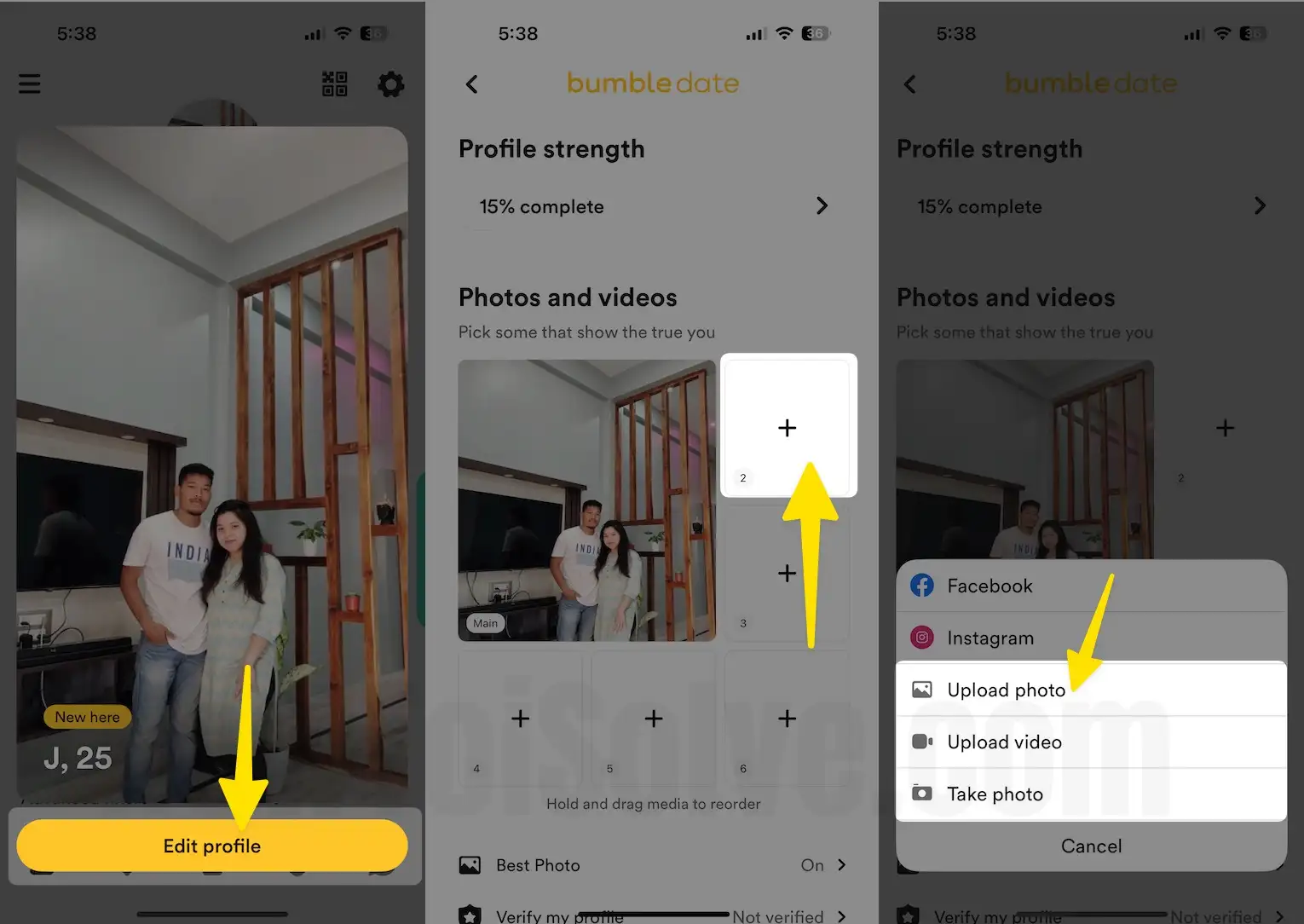
- Launch the Bumble App on your phone.
- Click the Profile Icon at the top bottom left corner of the screen.
- Tap on Profile Picture.

- choose Edit Profile.
To Change Your Photos on Bumble,
- You can choose up to 6 photos, including 1 Profile Picture and 5 Additional Photos. If you haven’t added all the photos, you will see “+”; tap on it to add more photos.
- There will be three options to choose the photos and add to the Bumble profile,
- Import from Facebook
- Take a Photo
- Choose From Library
- You can rearrange the photos by dragging and dropping gestures. The photo in the first position will be visible to everyone.
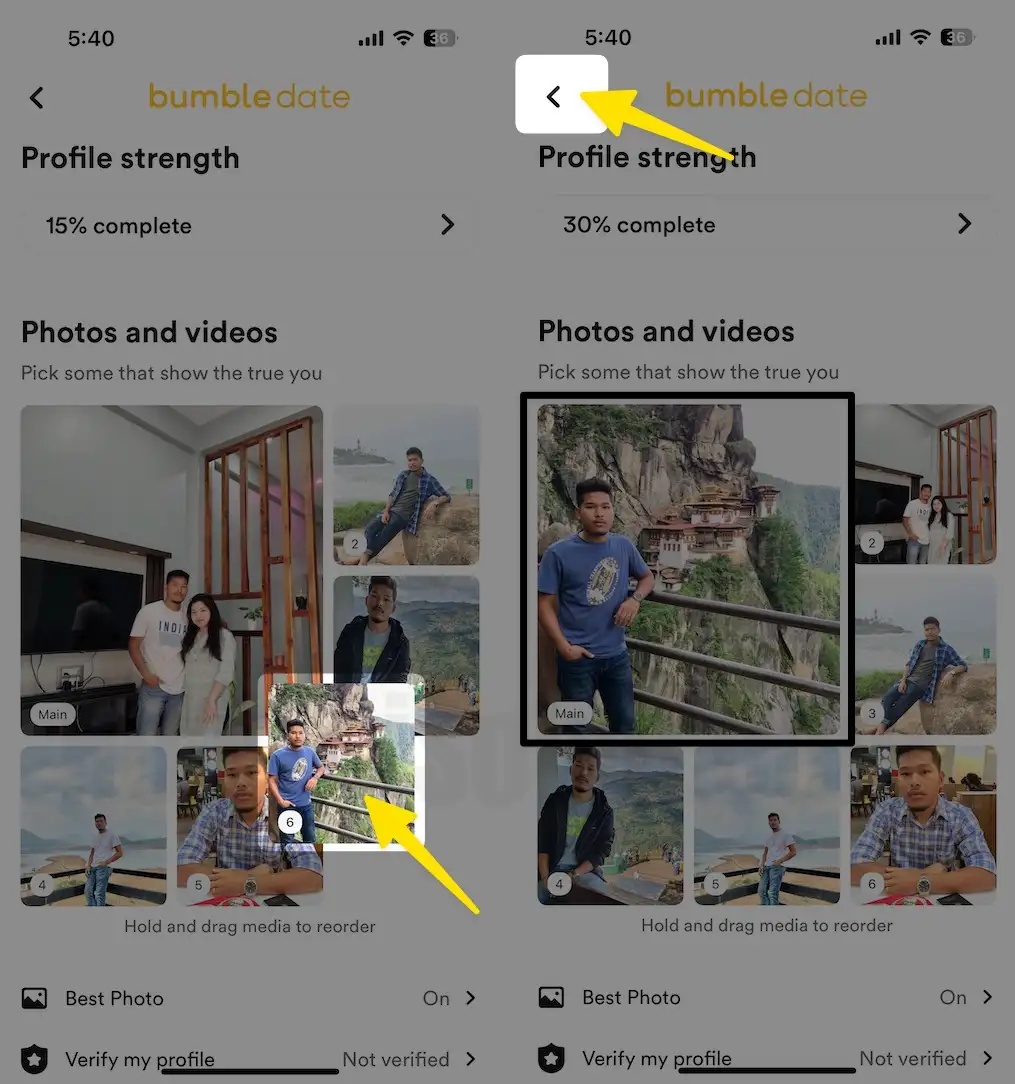
- Adding 6 photos is not necessary, but at least one photo is compulsory to keep the Bumble profile active.

How to Delete a Photo from a Bumble Profile
1. Launch the Bumble App on your phone.
2. Click the Profile Icon at the top bottom left corner of the screen.
3. Tap on Profile Picture.

4. Tap on Edit profile from the bottom of the screen.
5. Select the Photo.
6. Choose Delete photo.

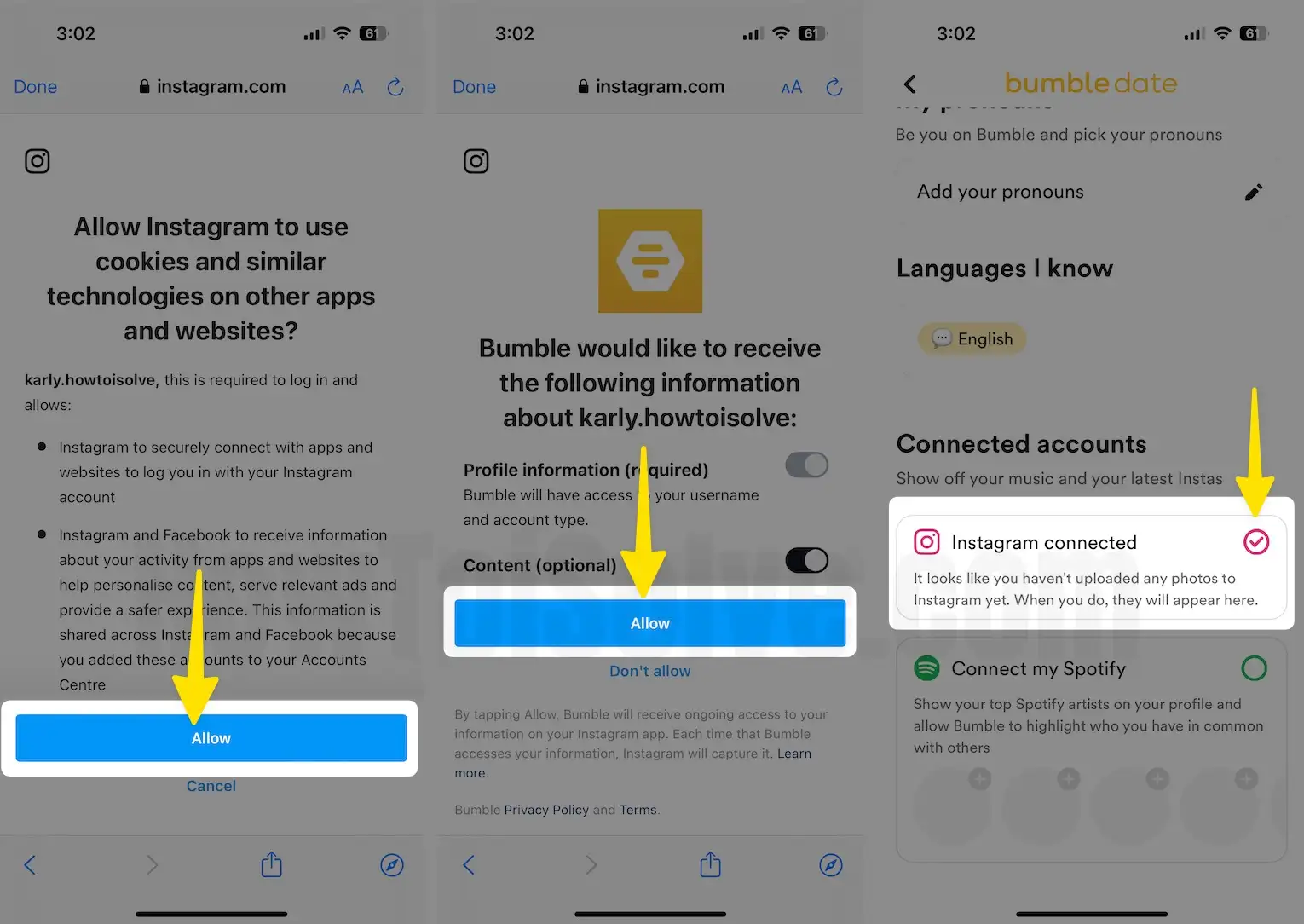
How to Link Bumble with Your Instagram Profile
1. Launch the Bumble App on your phone.
2. Click the Profile Icon at the top bottom left corner of the screen.
3. Tap on Profile Picture.
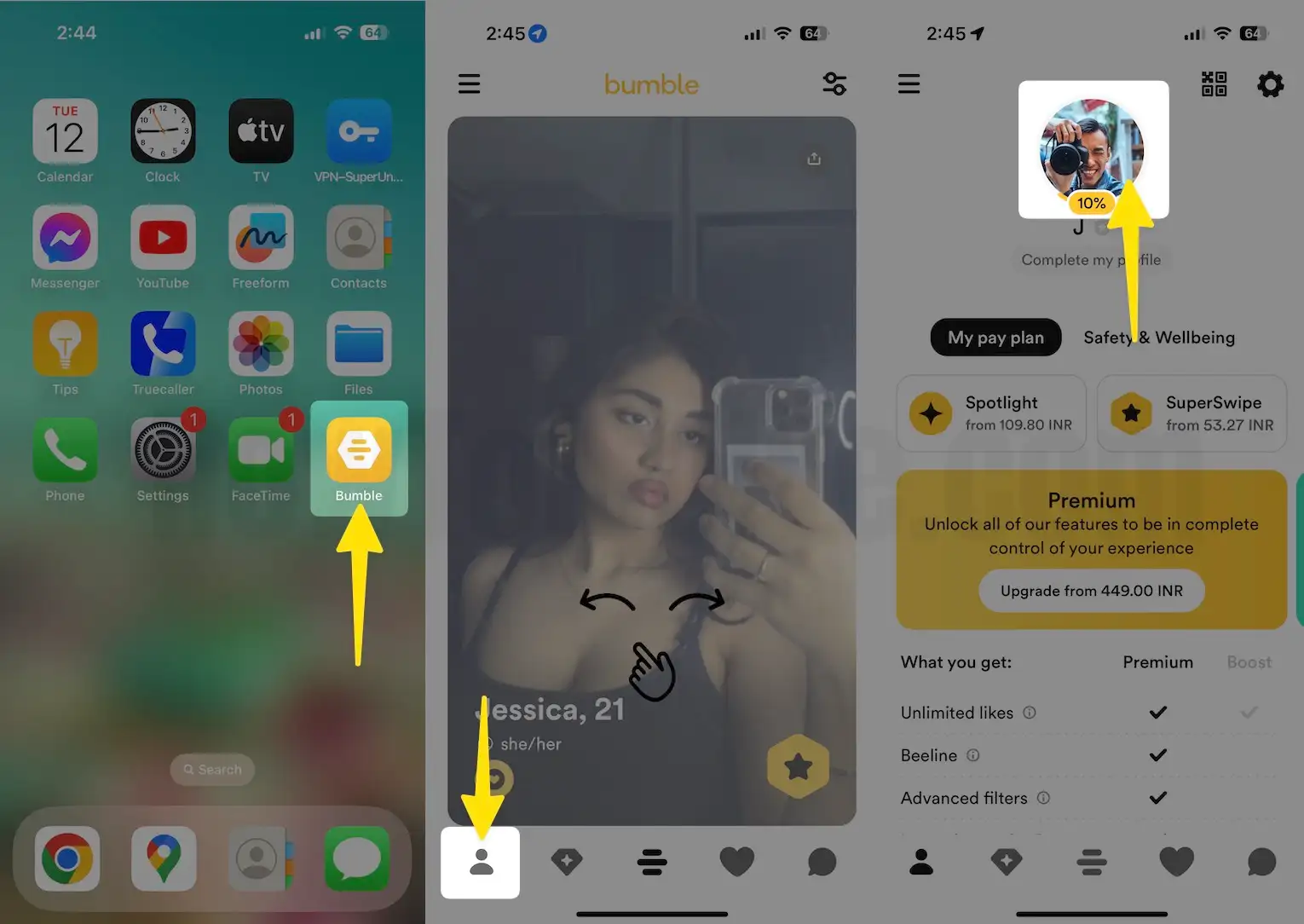
4. Hit the dropdown button on the upper-left side and tap on Edit Profile.
5. Scroll down the Profile page until you see Connect Your Instagram.
6. Enter your Email address and Password, then tap on login.
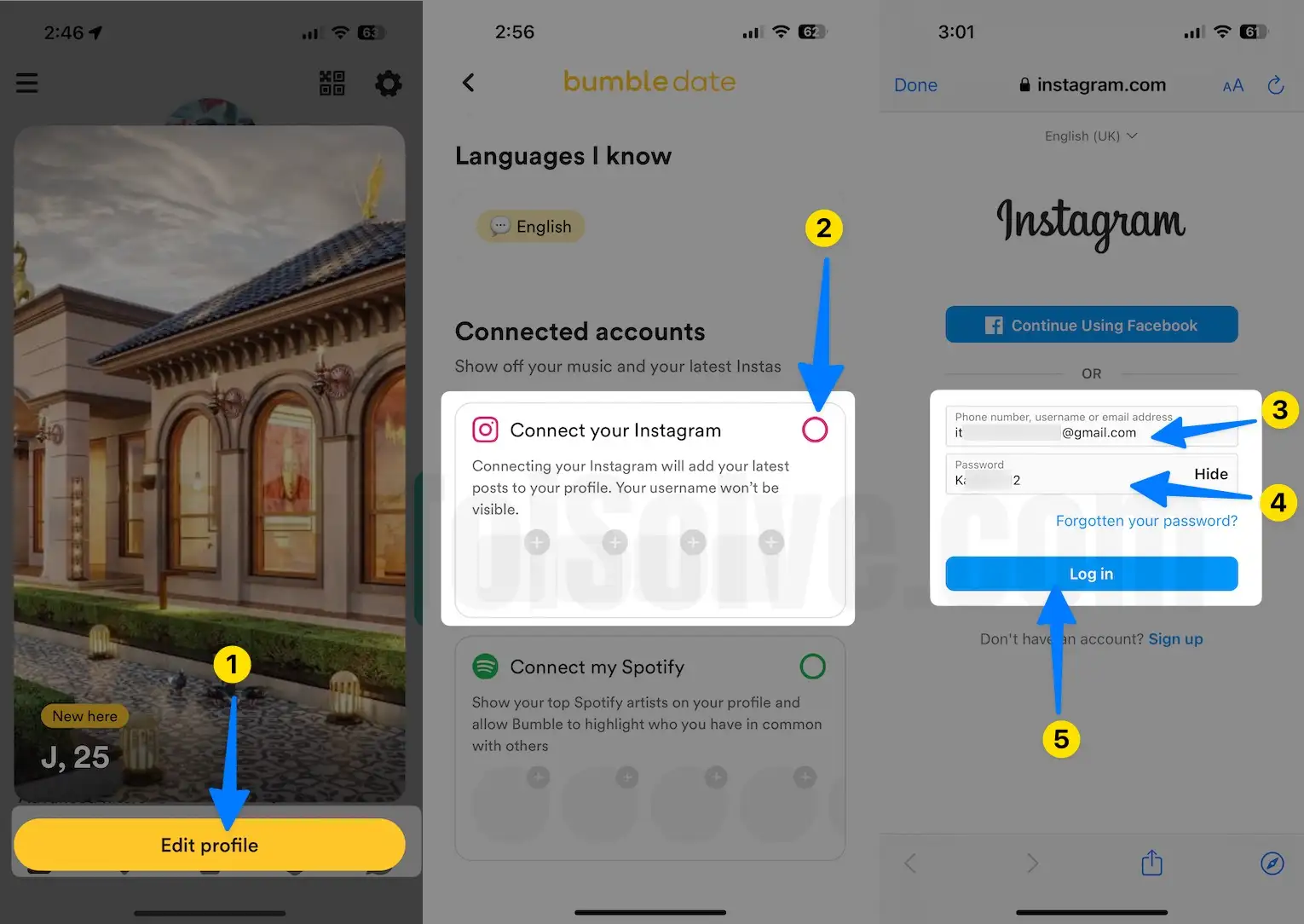
7. Tap on Allow.
8. Again tap on Allow.
9. Connected Instagram account on Bumble app.
How to Change Bumble Profile on Mac or PC: No Mobile App
The Bumble People Finder app allows users to manage their Bumble profiles by scrolling through all devices, either mobile or Desktop. So, we can do it from the Desktop Browser.
- Open bumble.com on a desktop browser.
- Then, log in to your Bumble account correctly using your Login details or Phone number.
- Click on your Profile icon at the top left corner of the screen, then
Stay Safe on Bumble with Photo Verification
Social platforms are full of fake users, and it’s impossible to differentiate between Real and Fake people when it comes to Bumble. To overcome this problem, Bumble has added a Photo Verification option. Before making a connection with anyone, always look for the Photo Verification symbol.
Moreover, you can also manually verify the photo, to do so, tap on the Verification button on your Bumble profile, take Selfie, and leave it up to the Bumble administrator, they will determine and make your profile verified.