Your Mac has a built-in feature that allows you to convert Mail to PDF directly. Use the Apple Mail app on Mac and follow the instructions. You can also convert email to PDF using Gmail web interface. Use Command + P or Export as PDF & Save.
For further reference, we’ve also made a YouTube video, attached at the end of the article. Have a look at how to save email as PDF on Mac instantly.
How do I save an email as a PDF on a Mac from Apple Mail App and Gmail Web Browser?
How to Save Email as PDF on Mac (It Contains Option to Make Password Protected PDF)
When you follow this stepwise guide to export mail as PDF on MacBook or Mac, you’ll have the advantage of adding security and make PDF password protected.
- Launch the Mail app on your Mac.
- Open the Mail that you would like to convert into PDF.
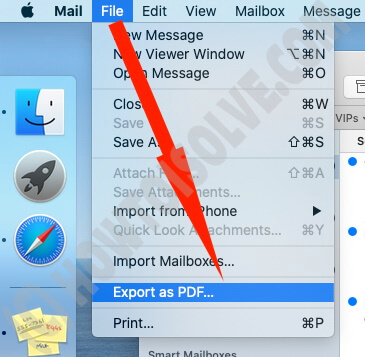
- Now, click on File located in the menu bar or press the Command+P keys on your mac keyboard.


How to Export Mail as a PDF in Mac (Doesn’t Have an Option of Password Protection on PDF)
Unlike the above method, you won’t get an option to set a password on PDF after exporting email. So, if you don’t need password protection on PDF, then follow these steps.
- Navigate to the Mail app on Mac.
- Open the specific Mail to convert it into PDF.
- Click on File at the top menu bar or use keyboard shortcut Command+P.

How to Convert Gmail Email to PDF on Mac From Browser
Just like a traditional app, the Gmail Web browser also allows you to Print mail only. We have a great option to Print any mail for all pages or Selected Pages at once. Also, with the Flexible option for Password Protection or Without Password Protection.
Of course, Gmail also provides the same functionality as Apple’s stock Mail app. Here’s a quick guide on how to save Gmail email to PDF on Mac.
- Navigate to any web browser and sign in to Gmail.
- Click and open an email just like in the below screen, to convert to PDF.
- Press the Command+P or click on the Print option as shown in the image.


Above are the solutions to Convert the Apple Mail app into PDF file in different techniques that are used for business or personal use. Let’s comment on the problem with us and don’t miss to watch my video that recorded for Any mail Save into PDF on MacBook.