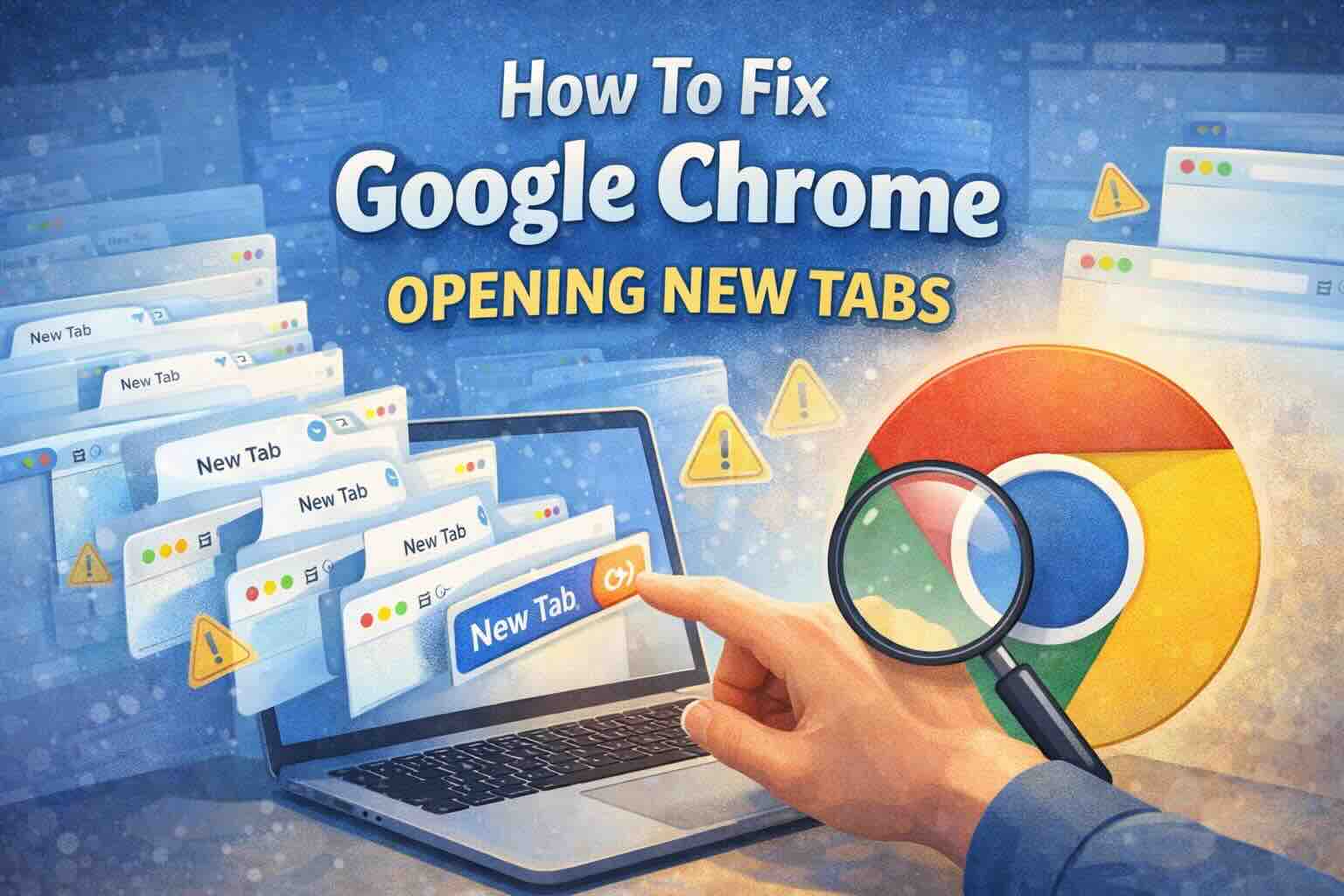
If Google Chrome keeps opening new tabs without your permission, it’s usually caused by a specific Chrome or Google Search setting, a bad browser extension, or unwanted background activity.
This guide walks you through every proven fix, starting with the most common cause and ending with deeper system checks.
Why Chrome Keeps Opening New Tabs
Chrome doesn’t randomly open tabs on its own. This behavior is usually triggered by:
- A Google Search setting that forces results to open in new tabs
- Startup pages set to load automatically
- Malicious or poorly coded extensions
- Background apps or malware
- Hardware issues like stuck keyboard keys
Let’s fix it step by step.
Fix 1: Turn Off “Open Search Results in New Window” (Most Common)
If every link you click in Google Search opens in a new tab, this setting is almost always the cause.
How to Turn It Off
- Open Google in Chrome
- Scroll down and click Settings (bottom right)
- Select Search settings
- Click Other settings in the left menu
- Find Results in a new window
- Toggle it Off
Example:-
You search for “best laptops under $1000”. Every result opens in a new tab instead of the same page.
Turning this setting off immediately fixes it.
Fix 2: Change Chrome Startup Settings
If Chrome opens unwanted tabs every time you launch the browser, your startup settings may be the issue.
How to Check Startup Pages
- Open Chrome
- Click the three dots (top right)
- Go to Settings > On startup
- Select Open the New Tab page
- If Open a specific page or set of pages is enabled:
- Remove any URLs you don’t recognize
Example
Chrome opens shopping sites or random pages every morning when you start your computer.
Removing those URLs stops the tabs instantly.
Fix 3: Check for Malicious Chrome Extensions
Bad extensions are one of the top reasons Chrome opens tabs by itself.
How to Find the Problem Extension
- Type
chrome://extensions/in the address bar - Turn off all extensions
- Restart Chrome
If the problem stops:
- Re-enable extensions one by one
- The tab-opening extension will reveal itself
Tip
Remove any extension you:
- Don’t remember installing
- Don’t actively use
- That has poor reviews
Fix 4: Reset Google Chrome Settings
If none of the fixes above work, a reset is the fastest way to eliminate hidden configuration issues.
⚠️ This will reset:
- Startup behavior
- Extensions
- Search settings
It will not delete bookmarks or saved passwords.
How to Reset Chrome
- Go to Settings
- Select Reset settings
- Click Restore settings to their original defaults
- Confirm Reset settings
Fix 5: Hardware & Background System Checks
If Chrome still opens tabs, check these often-overlooked causes.
Check for Stuck Keyboard Keys
- A stuck Ctrl or Shift key can force links to open in new tabs
- Try a different keyboard or gently clean the keys
Disable Background Apps
- Go to Chrome Settings
- Open System
- Turn off Continue running background apps when Google Chrome is closed
This ensures Chrome fully shuts down.
Run a Malware Scan
Use a trusted tool to rule out deeper infections:
- Microsoft Safety Scanner
- Malwarebytes
Malware can hijack browsers and force tab redirects.
Fix for Android Users
If this happens on Android, pop-ups and redirects are usually the cause.
What to Check
- Open Chrome on Android
- Go to Settings > Site settings
- Tap Pop-ups and redirects
- Make sure it’s set to Blocked
Also, review installed apps and remove any unfamiliar ones.
Final Thoughts
When Google Chrome opens new tabs automatically, the cause is almost always a setting, extension, or background process—not the browser itself.
Start with Google Search settings, then move through startup pages, extensions, and system checks. In most cases, the issue is fixed within minutes.