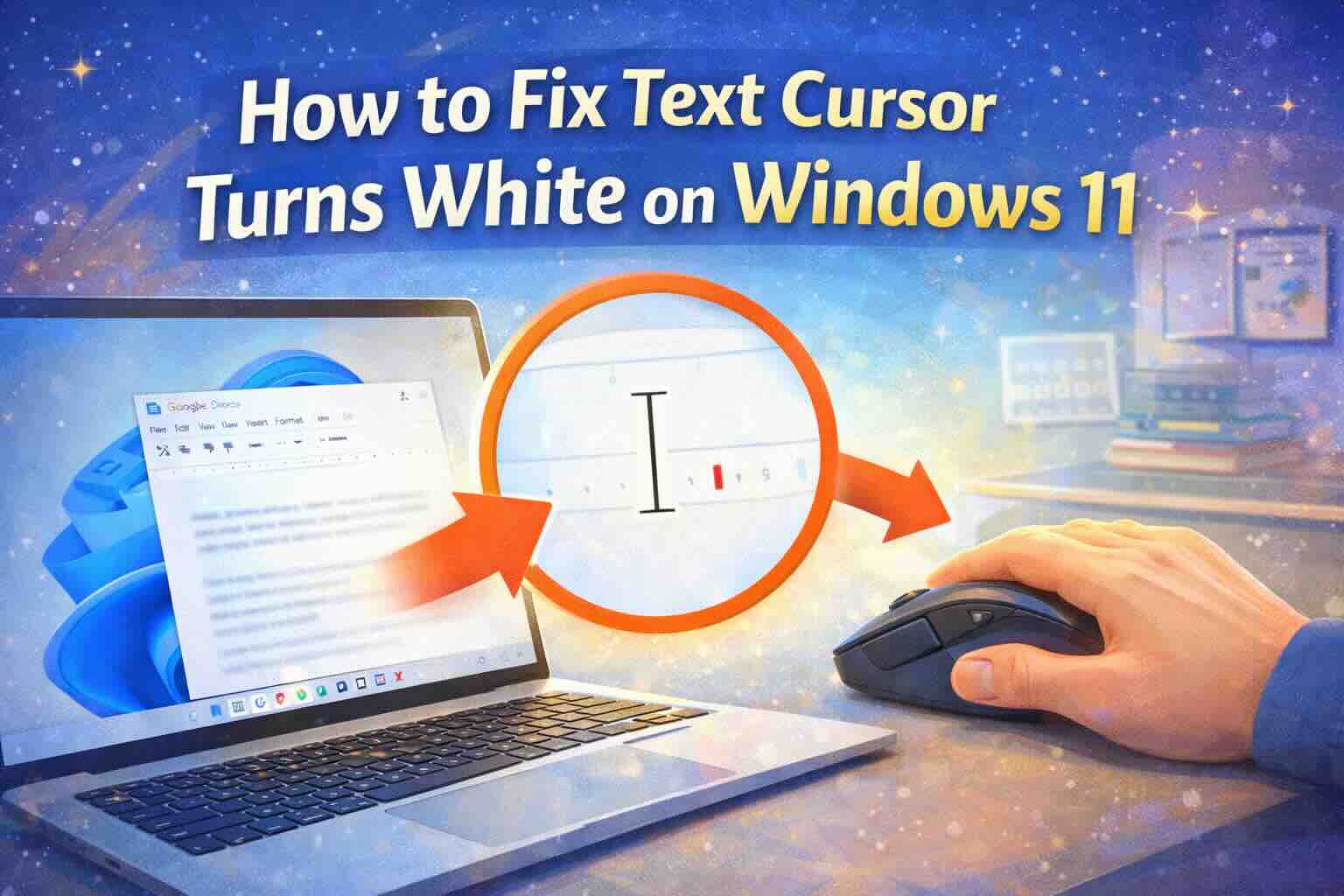
If your text cursor suddenly turns white or disappears while typing on Windows 11, you’re not imagining things. Many users describe it as a “ghost cursor”—especially when typing in Chrome, Edge, Discord, or Microsoft Office.
This issue is most common on Windows 11 systems using Nvidia or AMD graphics cards and is often caused by a conflict between Windows graphics handling and certain drivers.
The good news? You can fix it. Let’s walk through the most reliable solutions, starting with the easiest.
Why the Text Cursor Turns White in Windows 11
On Microsoft Windows 11, this bug usually appears when:
- Hovering or typing in text fields
- Using Chromium-based apps (Chrome, Edge, Discord)
- Working in Word, Excel, or Outlook
The most common technical cause is a Multiplane Overlay (MPO) conflict with your graphics driver. MPO is meant to improve performance, but in some setups, it breaks cursor rendering.
Top Fix: Change the Text Select Cursor (Works for Most Users)
This is the fastest and safest fix, and it solves the problem for many people immediately.
Steps to Change the Text Cursor
- Press Win + R
- Type main.cpl and press Enter
- In Mouse Properties, open the Pointers tab
- Under Customize, click Text Select
- Click Browse
- Select beam_r.cur
- This is a built-in Windows cursor with better visibility
- Click Open → Apply → OK
Example
Before: Cursor turns white on white backgrounds in Google Docs
After: Cursor stays visible and stable while typing
Permanent Fix: Disable Multiplane Overlay (Advanced but Very Effective)
If the cursor still flickers or disappears, this fix targets the root cause.
⚠️ Note: This uses the Registry. Follow the steps exactly.
Steps to Disable MPO
- Press Win + R
- Type regedit and click OK
- Navigate to:
HKEY_LOCAL_MACHINE\SOFTWARE\Microsoft\Windows\Dwm - Right-click the Dwm folder
- Select New > DWORD (32-bit) Value
- Name it:
OverlayTestMode - Double-click it and set the Value data to 5
- Click OK
- Restart your computer
Why This Works
Disabling MPO prevents Windows from using a rendering method that causes the white cursor bug—especially on Nvidia and AMD systems.
Quick Workarounds (If You Need an Immediate Fix)
These won’t fix the root issue but help right away.
Option 1: Disable Pointer Shadow
- Open Mouse Properties
- Go to Pointers
- Uncheck Enable pointer shadow
- Click Apply
Option 2: Turn On Text Cursor Indicator
This adds a colored marker so you never lose the cursor.
- Open Settings
- Go to Accessibility
- Select Text cursor
- Turn on Text cursor indicator
- Choose a bright color (blue or green works best)
Option 3: Disable Hardware Acceleration (Browser Only)
If the issue only happens in Chrome or Edge:
- Open browser Settings
- Go to System or Performance
- Turn off Hardware Acceleration
- Restart the browser
Does This Affect All Windows 11 Users?
No. This issue mainly affects:
- PCs with dedicated GPUs
- Systems using newer graphics drivers
- Users running Chromium-based apps
Keeping your graphics drivers updated from Nvidia or AMD can also help—but MPO is still the most common trigger.
Final Thoughts
A white or invisible text cursor on Windows 11 is frustrating—but it’s a known issue with proven fixes.
For most users:
- Changing the Text Select cursor solves it instantly
- Disabling Multiplane Overlay (MPO) is the permanent fix
Once applied, typing feels normal again—no more guessing where your cursor went.