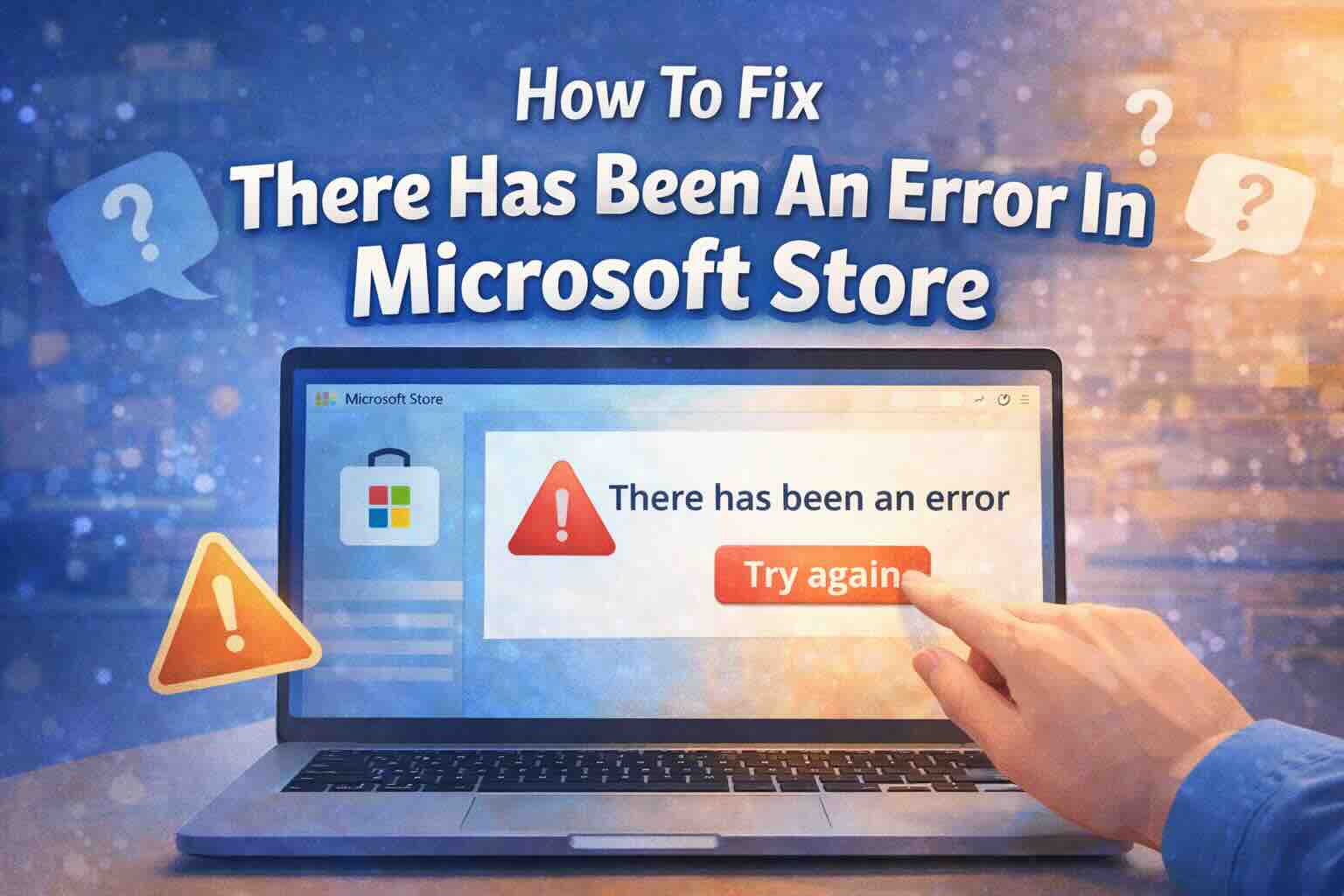
Seeing the “There has been an error” message in the Microsoft Store can be frustrating—especially when apps won’t download, updates get stuck, or the Store refuses to open.
The good news? This is usually a cache, settings, or background service issue, and you can fix it yourself in just a few minutes. Below is a step-by-step guide, written for all U.S. Windows users, with a clear real-world example so you know exactly what to expect.
Why This Microsoft Store Error Happens
This error typically appears due to:
- Corrupted Microsoft Store cache
- A broken Store app installation
- Incorrect date, time, or region settings
- Disabled background services
- Network blocks caused by VPNs or antivirus software
Most users fix it using the first two methods below.
Step 1: Clear the Microsoft Store Cache (WSReset)
This is the most common and effective fix for Microsoft Store errors related to downloads, updates, or launching.
What This Does
It clears temporary Store files without deleting apps or purchases.
Steps
- Press Windows Key + R to open the Run dialog box
- Type wsreset.exe
- Press Enter
A blank Command Prompt window will open.
Do not close it.
After a few seconds, the window will close automatically and the Microsoft Store will reopen with a fresh cache.
Example
If the Store shows “There has been an error” when downloading Netflix or updating an app, WSReset often fixes it instantly.
Step 2: Repair or Reset the Microsoft Store App
If clearing the cache doesn’t work, repairing or resetting the app usually does.
On Windows 11
- Open Settings
- Go to Apps > Installed apps
- Find Microsoft Store
- Click the three dots > Advanced options
- Click Repair first
- If the issue continues, click Reset
On Windows 10
- Open Settings
- Go to Apps > Apps & features
- Select Microsoft Store
- Click Advanced options
- Choose Reset
⚠️ Resetting signs you out of the Store but does not delete installed apps.
Step 3: Check Date, Time, and Region Settings
Microsoft Store relies on accurate system settings for security certificates.
Steps
- Open Settings
- Go to Time & Language > Date & Time
- Turn Set time automatically ON
- Turn Set time zone automatically ON
Then:
- Go to Language & Region
- Make sure your Region is set correctly (for U.S. users, select United States)
Example
If your PC’s clock is even a few minutes off, the Store may fail to connect and show a generic error.
Step 4: Run the Windows Store Apps Troubleshooter
Windows includes a built-in tool that automatically detects and fixes Store problems.
Windows 11
- Go to Settings > System > Troubleshoot
- Select Other troubleshooters
- Find Windows Store Apps
- Click Run
Windows 10
- Go to Settings > Update & Security > Troubleshoot
- Select Additional troubleshooters
- Run Windows Store Apps
Let the tool complete and apply any suggested fixes.
Step 5: Restart Microsoft Store Services
Sometimes the Store fails because required background services aren’t running.
Steps
- Press Windows Key + R
- Type services.msc
- Press Enter
- Find Microsoft Store Install Service
- Right-click it and select Restart
- Ensure Startup type is set to Automatic
Restarting this service often resolves persistent Store errors.
Fixing Specific Error Codes (Like 0x80072EFD)
If you see specific error codes or the Store won’t connect at all:
- Temporarily disable your VPN
- Pause third-party antivirus software
- Restart your PC and try again
Some security tools block Microsoft Store network connections.
Still Not Working? What to Do Next
If none of the steps above fix the issue, you may need to:
- Re-register Microsoft Store using PowerShell
- Follow advanced troubleshooting from Microsoft Support
These are typically only required for severe system corruption.
Final Thoughts
The “There has been an error” message in Microsoft Store is almost always fixable without reinstalling Windows. In most cases, WSReset or resetting the Store app solves the problem in minutes.