


Searching for “why is my Word document black”? a “word document black with white text” Not a Dark Mode fan? Would you rather not use Dark Mode in Word, Excel, and PowerPoint? Most Windows, Mac, iPhone, and other users love Dark Mode because it saves battery and reduces eye strain. Since you’re reading the guide, you probably dislike dark mode too. It only takes a few seconds to disable dark mode on Word or other Microsoft Office products like Excel, PowerPoint, etc., or re-enable it if it’s not working. properly following the procedure.
MacOS handles Dark Mode on Microsoft Office Apps differently from Windows PCs. After Apple released macOS Mojave, Microsoft added dark mode support to Word, Excel, and PowerPoint.
How to Disable Dark Mode on Word on Mac & Windows
If you want to turn off dark mode only for Microsoft Word on Mac, then these are the steps you should follow. By following this, you’ll be able to disable Dark Mode for Word in Mac, but not the other Microsoft apps.
This solution is also helpful for Dark Mode not working on Word, Excel, or PowerPoint documents on Mac or how to change Word to light mode on Mac. Just turn on the given dark mode settings, and dark mode will be disabled permanently, and then you re-enable system-wide dark mode on Mac.
1. Open the Microsoft Word app on your Mac.
2→ Click on the Word in the top menu bar.
3→ Click Settings or Preferences.

4→ Select General.
5→ Under Personalize, tick mark the check box next to Turn off Dark Mode.

6→ That’s it. Your Word appearance will look like normal even if Dark Mode is turned on on your Mac.

On Windows:
Step 1: Open the document on your Windows PC or laptop.
Step 2: File > Account > Office Theme > Select the “White” or “Color” theme option. to turn off dark mode in an MS document file.
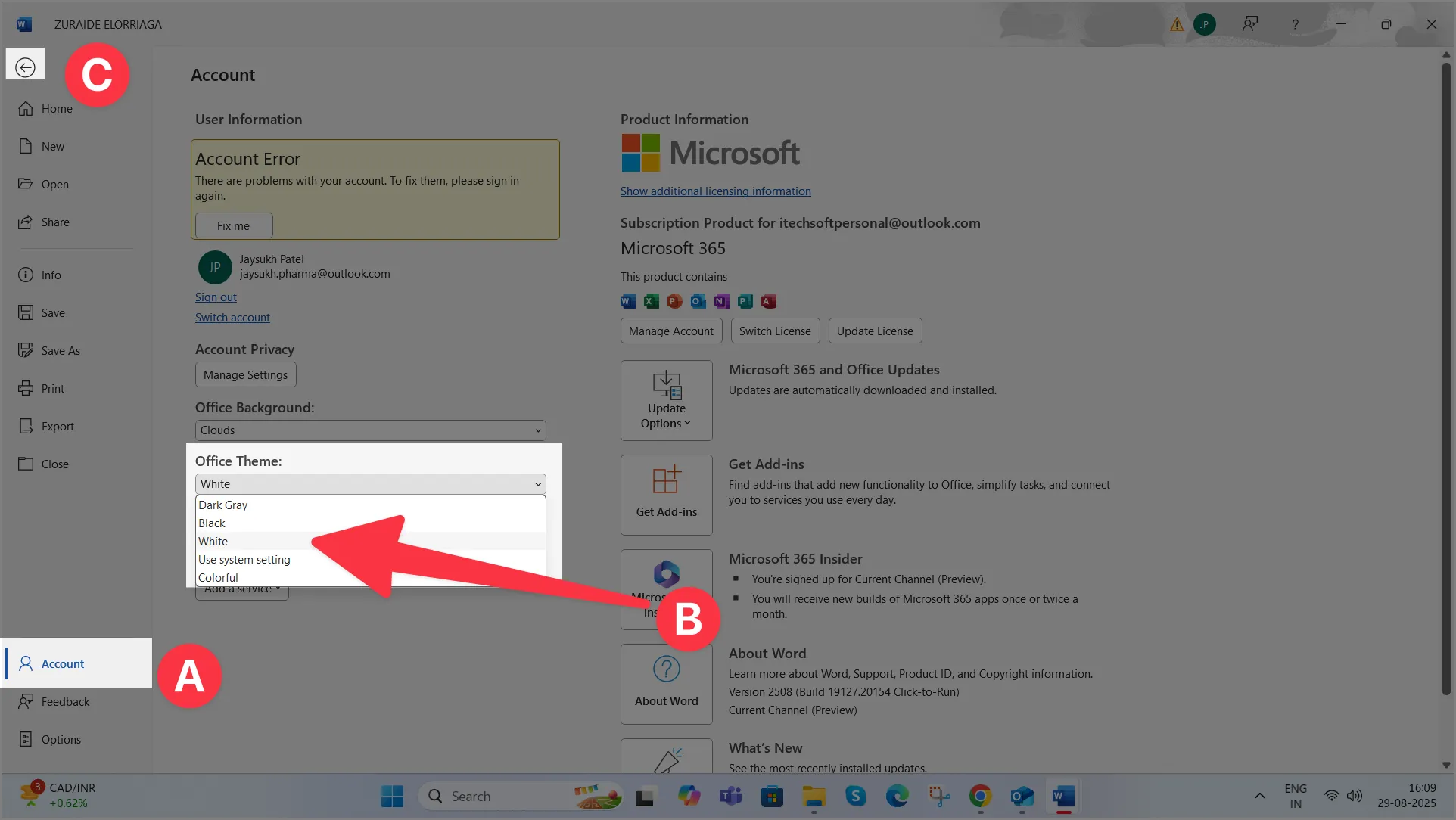
Microsoft Word Black Background White Text Mac
If you want your MS Word document to have a dark page background in dark mode, then select the below option, “Dark Mode has a dark page color.”
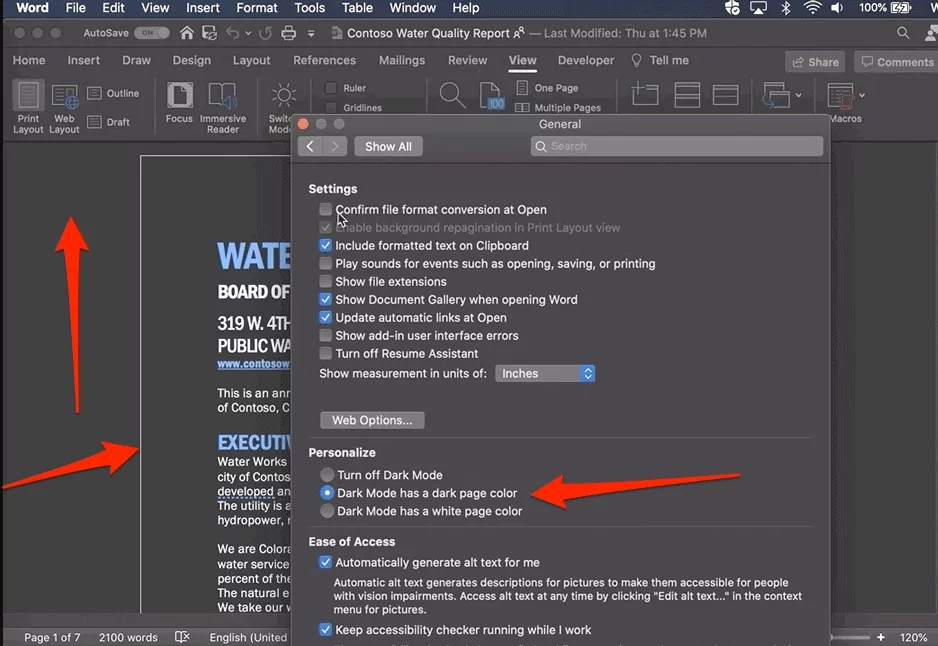
Microsoft Word Dark Mode White Page
If you want to keep your MS Word document page in white color in the dark mode of MS Word. Then keep selected, “Dark Mode has a white page color.“

How to Disable Dark Mode for All Office Apps in Mac
The latest macOS version features built-in Dark Mode. When you use Dark Mode for Mac, the system automatically enables it for the compatible apps, including Microsoft Word for Microsoft 365 or 2019. Not to worry, you can disable the dark mode across all of Microsoft Office using the same step given before in one go by disabling the dark mode on the Mac.
On MacOS Ventura
- Go to the Apple logo from the top menu > System Settings.
- Click on Appearance > Choose System-Wide dark mode settings [Light, Dark, and Auto], and that applies to all installed software like Microsoft Document. if it’s selected with System Dark mode settings.

- That’s it.

On MacOS Monterey & Earlier
- Click on the Apple logo from the top menu.
- Select System Preferences.
- Select General.
- If the Dark mode is set for Appearance, select Light or Auto, depending on your requirements.

- This will turn off dark mode for Microsoft Office apps along with all the apps compatible with dark mode.
- If you work during night hours too, then set it to Auto, as during nighttime,macOS will automatically enable Dark Mode for the compatible apps, including Microsoft Word. Though, you’ll find this option only in macOS Catalina or newer.
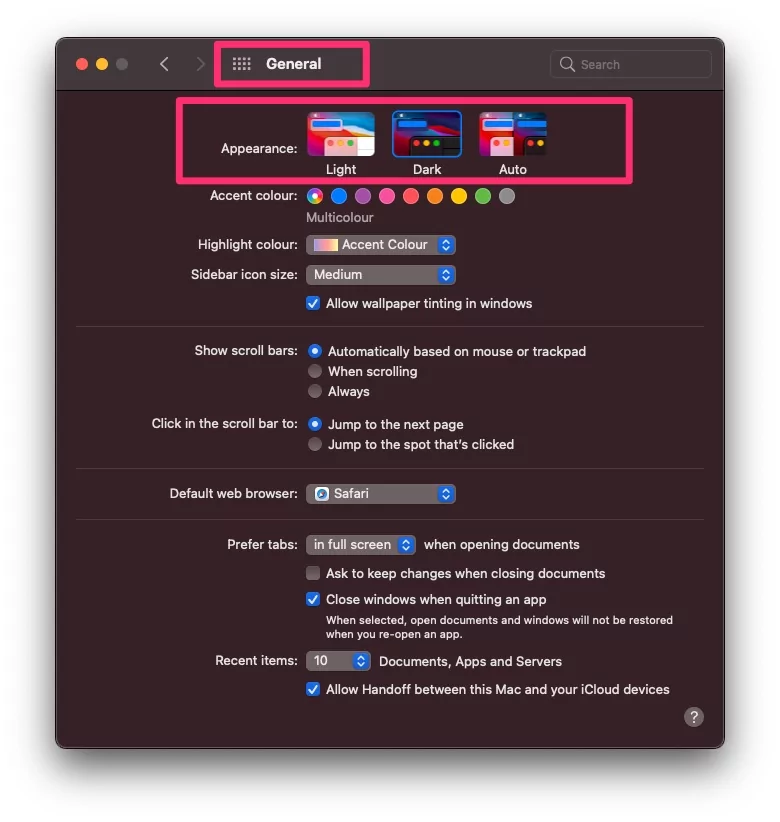
Or Turn on or Turn off system-wide dark mode. From Mac’s Control centre
- Click on the Control center icon from the top Mac menu

- Click on Display Section > Click on Dark mode.

- The dark mode is enabled.


That’s it. But if the dark mode is disabled for particular Microsoft Documents’ preference settings, then dark mode will be turned on all the time.
How to Disable Dark Mode on Word in Windows PC or laptop
How to Turn off Dark Mode in the Office Document, Follow my bottom steps to disable dark theme in word Canvas.
1. Open the Word app [Office Document] on a Windows PC or laptop.
2→ Click on the File option from the top menu bar.
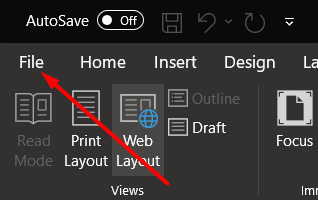
3→ Now click on Account.

4. On this page, under that Office Theme section, click on the dropdown arrow and choose Use System Settings.
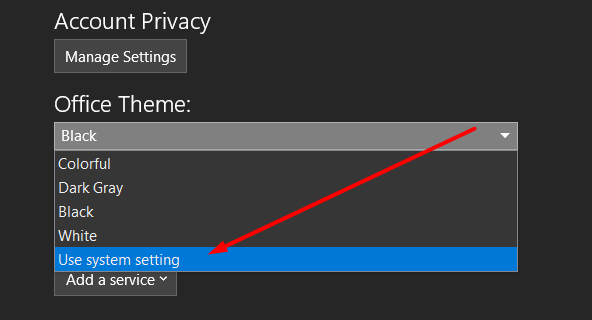
With this option, when your entire system runs in dark mode, at that time your Word switches to dark mode; when your system runs on a light theme, at the same time the Word canvas converts into the white theme. In short, this is a hassle-free setting for you. To learn more about Windows Office dark mode, click here to get extra information.






