


There are many reasons why users want to change the name of their email address or inbox, so before proceeding, it’s essential to know those “Why.”, explained in the last.
How to Change the Name of Your Email Account in the Mail App
The procedure for changing the name in the sidebar is different from the name you want to replicate to the recipients. So clarify your need and check MacOS, then follow the steps below accordingly.
1. Change The Display Name That Email Recipients See
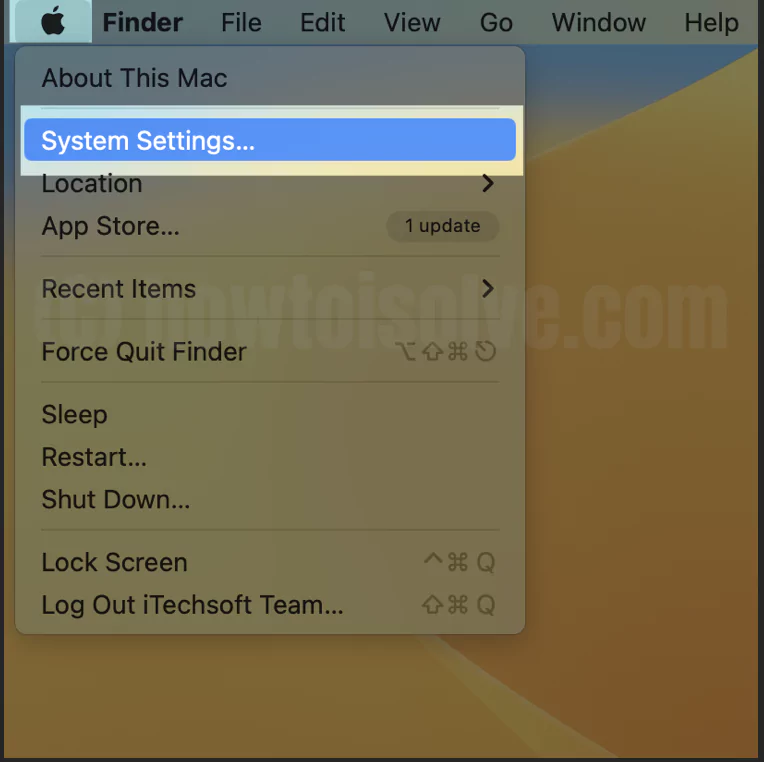
1→ Go to the Apple Logo.
2→ Select System Settings…
3→ Click on Internet Accounts from the left sidebar.
4→ Then choose the Internet Account for which you want to change the mailbox name.

5→ Select Details…

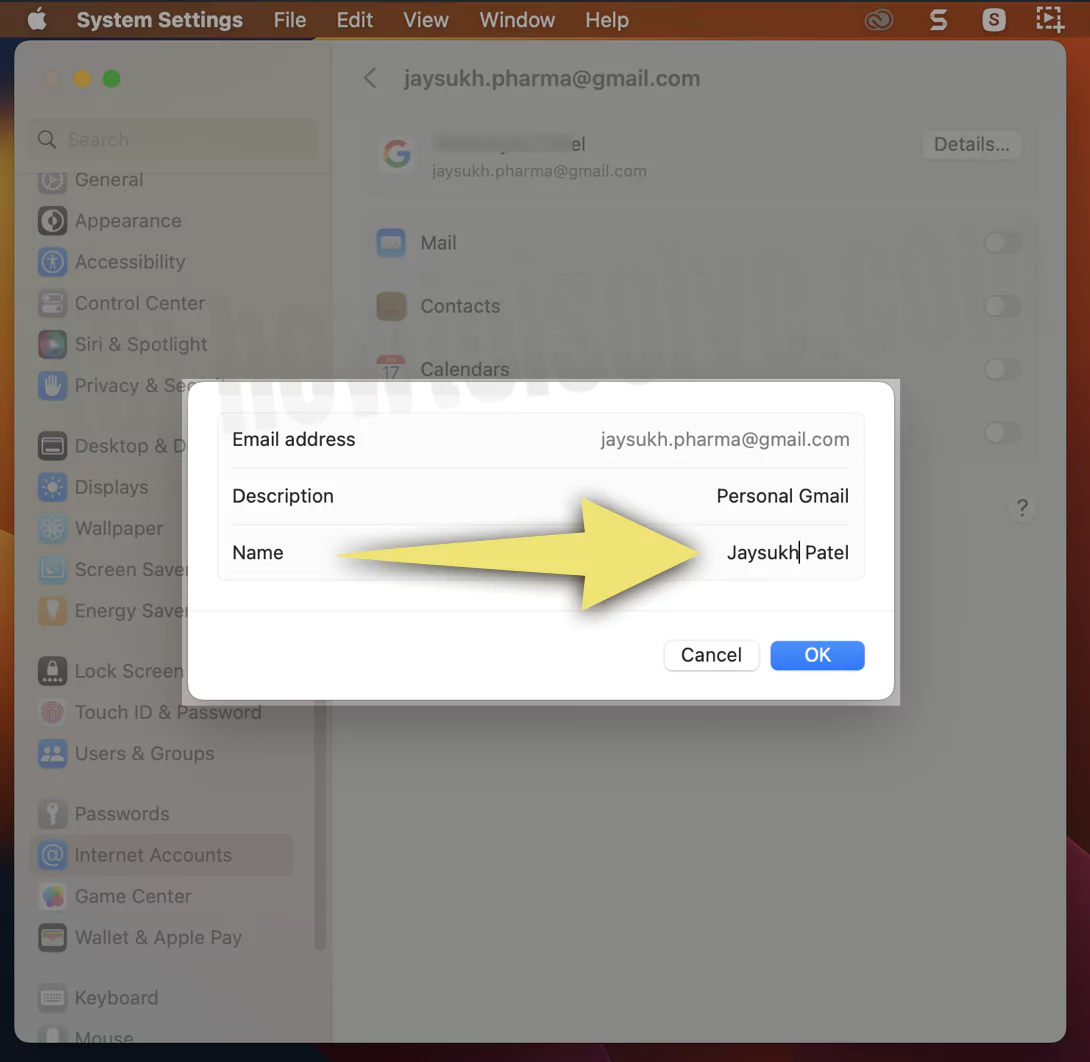
6→ In the next prompt, change the name present in the Full Name field and click on an OK button for confirmation.
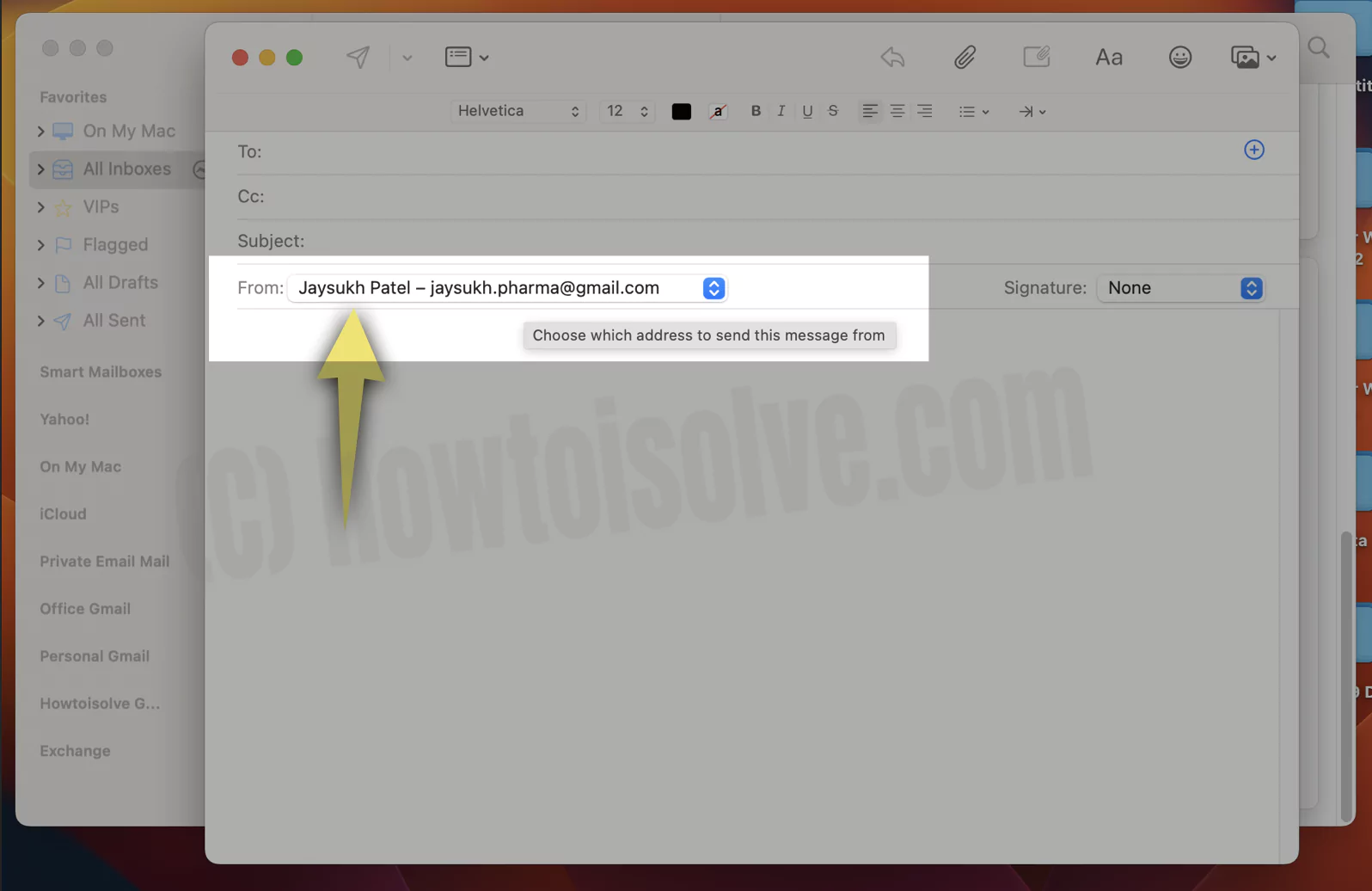
7→ To check the changes, open the mail app and select New Message from the toolbar. Further, click on From Drop-down, and there you will see a changed email display name.
2. Rename Mailboxes In Mail On Mac
1→ Go to the Apple Logo.
2→ Select System Settings…
3→ Click on Internet Accounts from the left sidebar.
4→ Then choose the Internet Account for which you want to change the mailbox name.
5→ Select Details…
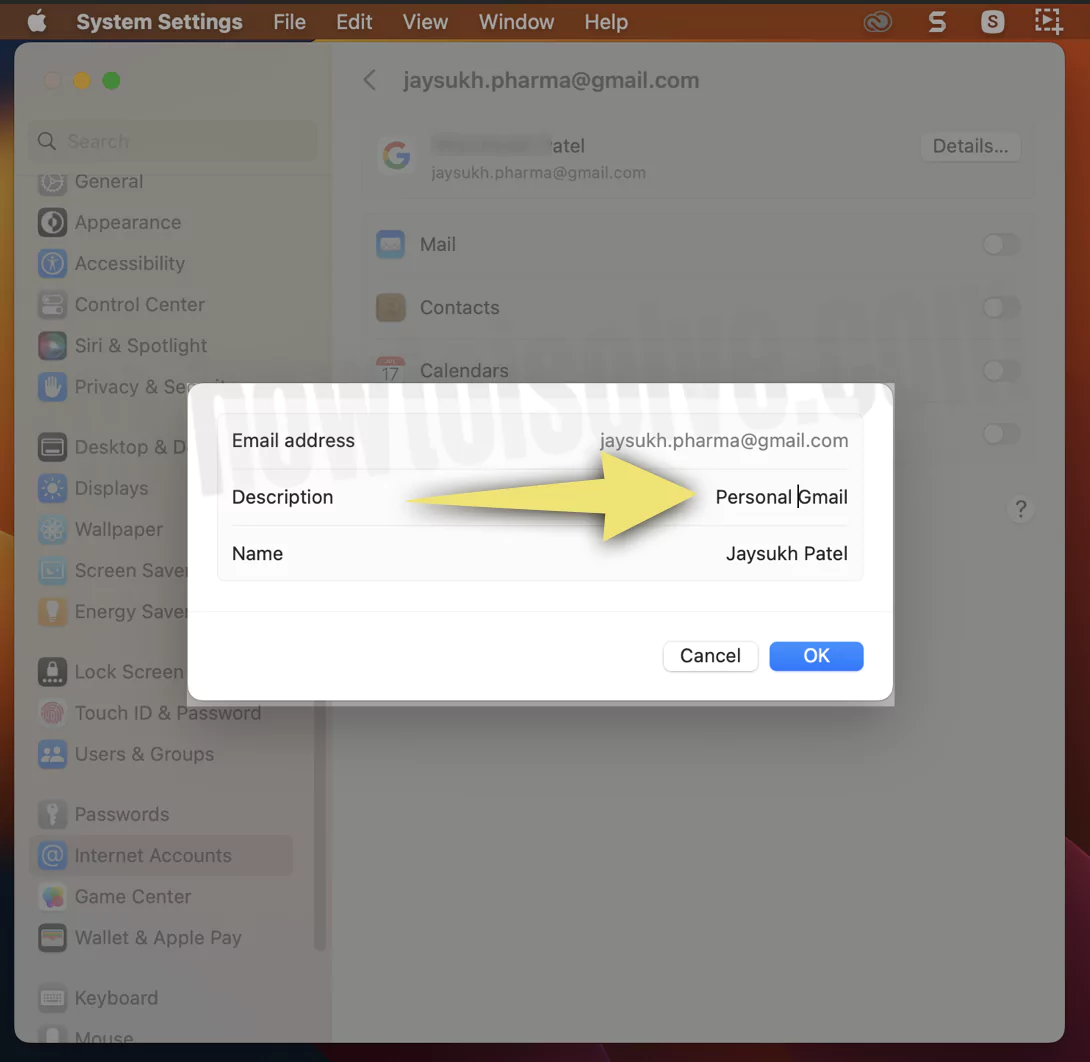
6→ In the next pop-up, change the name present in the Description Field, and click on the OK button.
7→ Now navigate back to Apple Mail, where the changes are applied in the sidebar.

8→ That’s it.
What Happens If You Change Your Email Account Name In Mail App?
There are two different types of names in Apple Mail. One is mentioned in the description field, and another is in the Full Name field, as shown above. So when you change the Description Name, the name of the selected email address will change in the sidebar. And that for Full Name, the changed name will be shown to the receiver.
Email Address Name Won’t Change In Mail App
- Disable And Enable Mail Toggle
- Head to the Apple Logo.
- Select System Settings… (System Preferences…for macOS Monterey And Earlier).
- Choose an Internet Account.
- Select the Email Address to which you changed the name.
- Next, Disable and enable the toggle next to the Mail.
- Force Quit Mail App
- Navigate to the Apple Logo.
- Click Force Quit.
- Select Mail from the list.
- Lastly, click Force Quit Button.
- Restart Mac Computer: Click on the Apple Logo > Restart. Let the restart procedure finish, and then check for the problem.
Why Should I Change The Name Of Email Account
There are specific reasons why people may want to change their name, but the most common ones are mentioned below.
- Name not visible in sidebar: Users found it complicated when reading too-long names in the sidebar. So, to make the name fully visible in the Apple Mail sidebar, it’s best to keep it with fewer characters.
- Having multiple email addresses with the same name: If you have different email addresses with the same name for professional and personal usage, there are instances when you send a message from the wrong address due to the same name.
- Professionalism: If you are using Apple Mail for professional purposes, it is vital to keep a name that matches your company’s role. An ordinary or funny name can create a bad impression.
- Privacy: If privacy is your priority, keeping the nickname instead of your real name is better.
- Rebranding: If you are rebranding your business name, customizing Apple Mail will help establish a consistent brand identity.
Final Thought!
With this straightforward procedure, you can change the name of your choice for a desired email address on the Apple Mail App. Please share the post if you genuinely believe it is functional.






