


If you frequently answer similar emails on Outlook Mail, then templates will significantly help. Composing email from scratch each time is tedious, and that too is for repetitive email.
You can save your replays as templates and access them whenever you need them. Templates also save time and allow you to use predefined text messages with a single click. Thus, they can increase efficiency and optimize your emailing tasks.
My templates are available in the mailbox so that you can access them on any device.
You can use templates only in the body of your mail; you must add everything else manually, like the recipient name, attachment, and subject.
Must Know: Best Microsoft Outlook Keyboard Shortcuts
How to Add/Enable My Templates in Outlook (Add-ins Missing)
Before creating/using a template in Outlook, you must ensure that “My Templates” is added from Add-ins. Here are the steps to add it if you don’t see My Templates in the toolbar of your message window.
Also for the Outlook app, we have other third-party add-in templates in the Outlook store. Let’s see how to find them and add new free templates for Outlook mail.
For Mac,
- Open Outlook Mac > Compose a New Message. Click on More (…) from the top toolbar > Get Add-ins. Find the My Templates add-in and add it to the Outlook app. Now, use it while composing a new message in Outlook from the top toolbar.
For Windows,
Step 1: Open Outlook, then click on the Home tab.
Step 2: Select Get Add-ins (right side) from the toolbar
Step 3: Click on My Add-ins (Left Side)
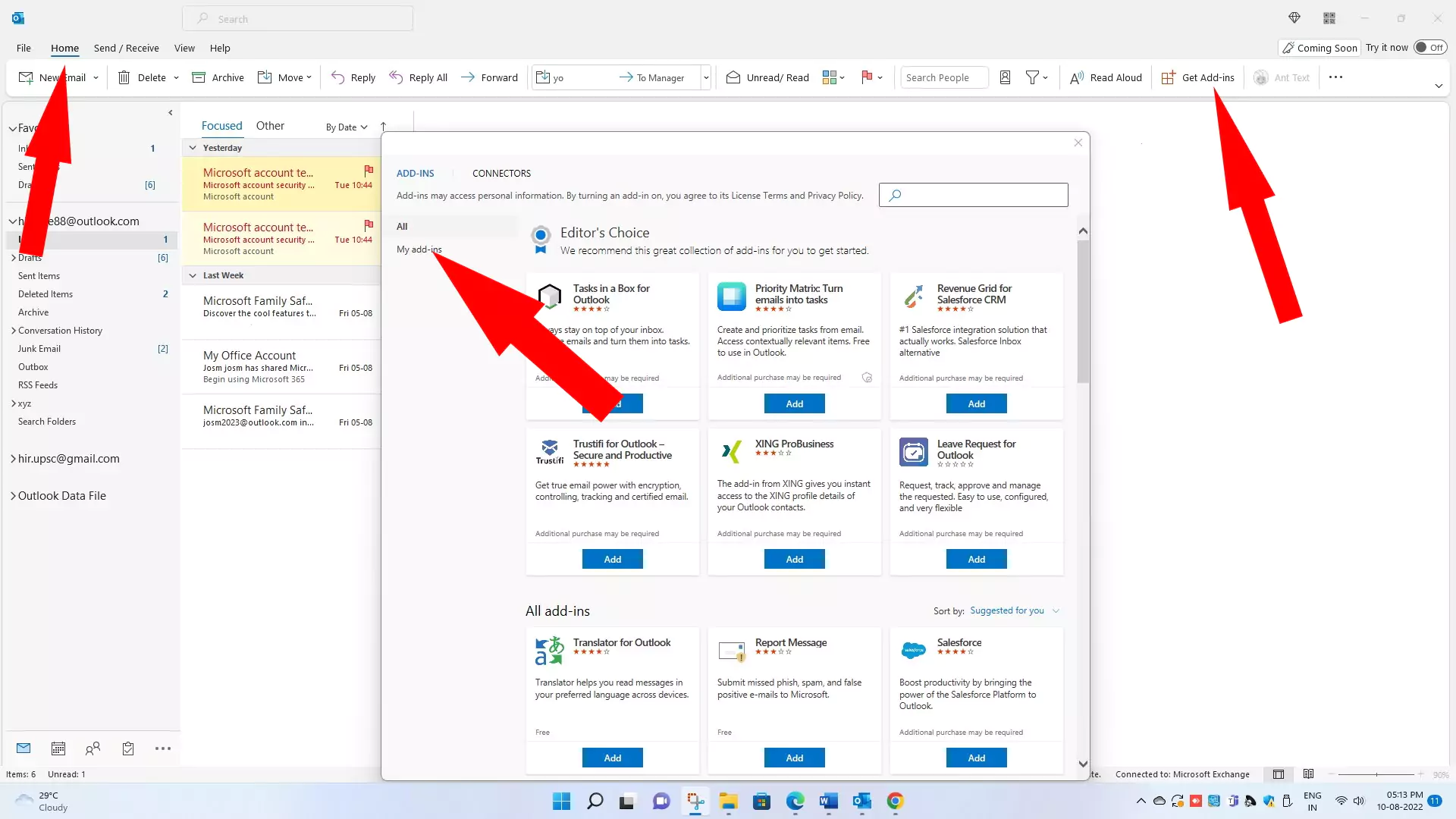
Step 4: Search for My Templates or Search More Templates using the Search Add-ins box.
Step 5: Now click on Add, and the templates are added.
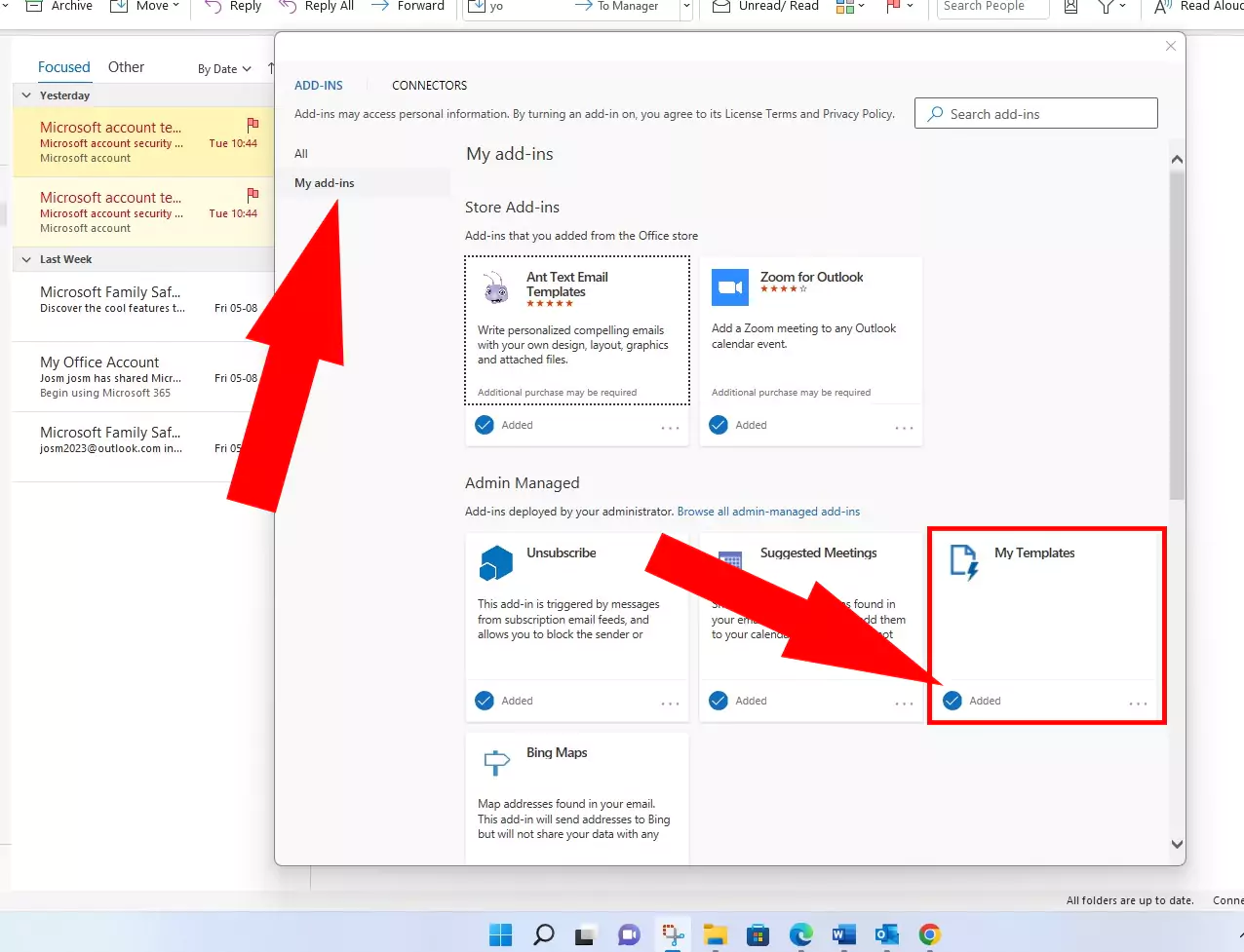
Now you will see My Templates on the toolbar of the message window.
How to create an Email Template on Outlook Windows (Office 365/Outlook 365)
By default, some templates are already available, but you can customize your templates.
Here is the simple step-by-step procedure for creating the template.
Step 1 → Open the Outlook app on your PC.
Step 2 → Select the Home tab
Step 3 → Click on New Email or Ctrl+N

Step 4 → Select View Templates from the toolbar.
Step 5 → Click on + Template to create new templates

Step 6 → A new “My Templates” form will open. In the first text box, add the title of your template, and in the second text box, write the content of your template.

Step 7→Click on Save
The formatting option is not available in the new template form, so a better option is to first write the whole template in Microsoft Word and then copy and paste it into the new template’s content box.
Seldom does it add an extra line break into your content, so it is better that you verify it after pasting content into the template box.
Sometimes you get an error like “This template is too large to save” or “You couldn’t save your template; please try again later,” because its limited size is 32 kb. You can create a customized template of a limited size of 32 KB.
How to use email templates in Outlook windows (office 365/Outlook 365)
You can use any templates out of the default templates or customize templates according to your needs by following the mentioned steps.
Step 1: Open the Outlook app, then select Home from the menu bar
Step 2→ Click on New Email or Ctrl+N

Step 3→ Select View Templates from the toolbar
My templates list will appear on the right side.
Step 4→ Click on the desired Template from the My templates list
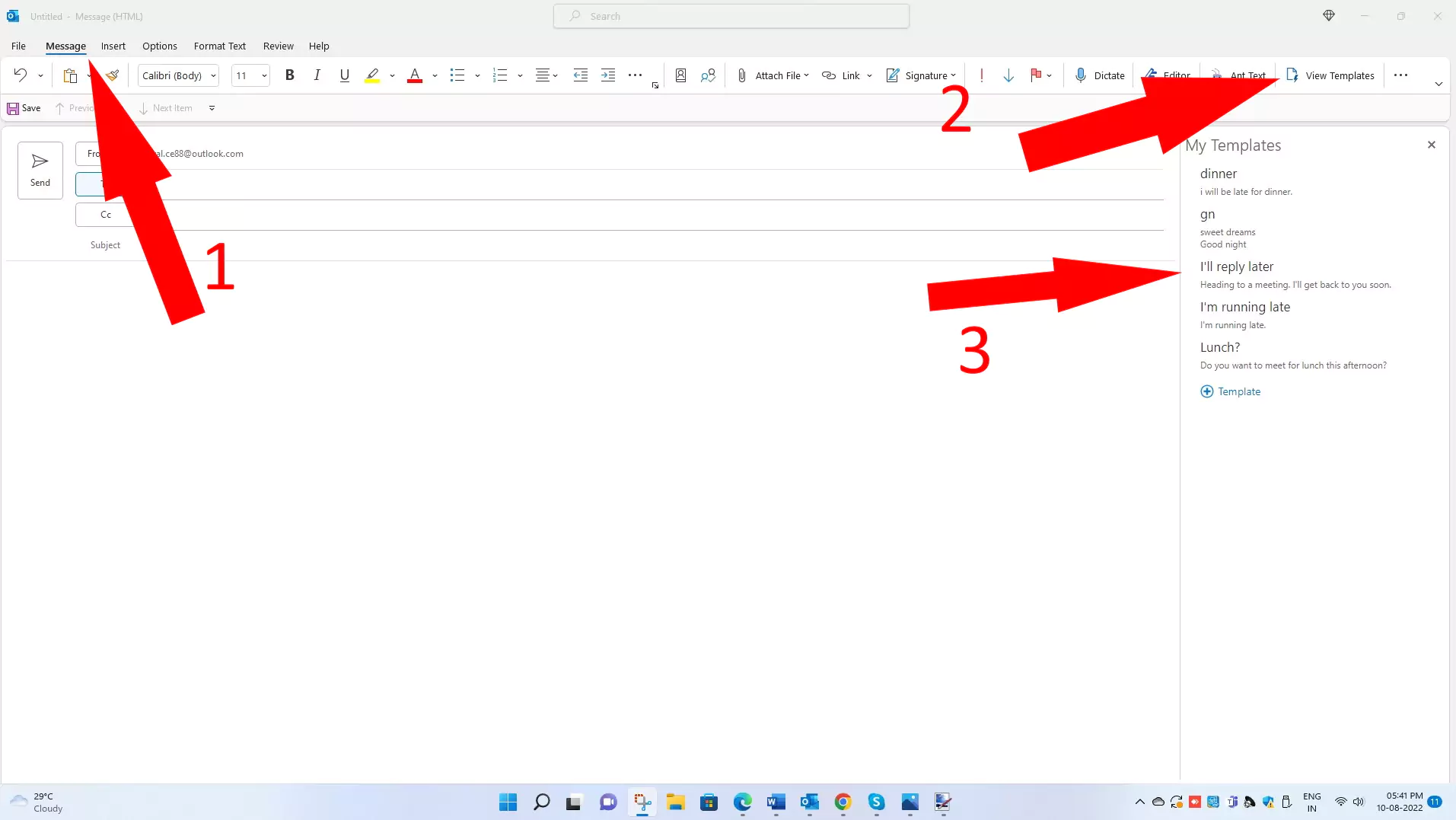
Now you can check that your desired Template gets inserted into the message body of your email
How to create an Email template in Outlook Mac (Office 365/Outlook 365)
Creating templates on Outlook Mac is almost like Windows and the web.
Here are the steps to do so.
Step 1 → Open the Outlook app on a mac device
Step 2 → Click on New message
Step 3 → Select three dots from the message window toolbar.
Step 4 → Select My templates
My templates list will appear on the right side.
Step 5 → Click on + Template to create new templates

Step 6 → The new “My Templates” form will open. Now, add the title of your template in the first text box. Write the content of your template in the second text box.

Step 7 → Click on Save
Now you can see your customized template will get added to the list of my templates, which you can use when you need it.
How to use Email Templates in Outlook Mac (Office 365/Outlook 365)
Follow the steps below to use templates on Outlook Mac easily.
Step 1 → Open the Outlook app on a Mac device
Step 2 → Click on the new message.
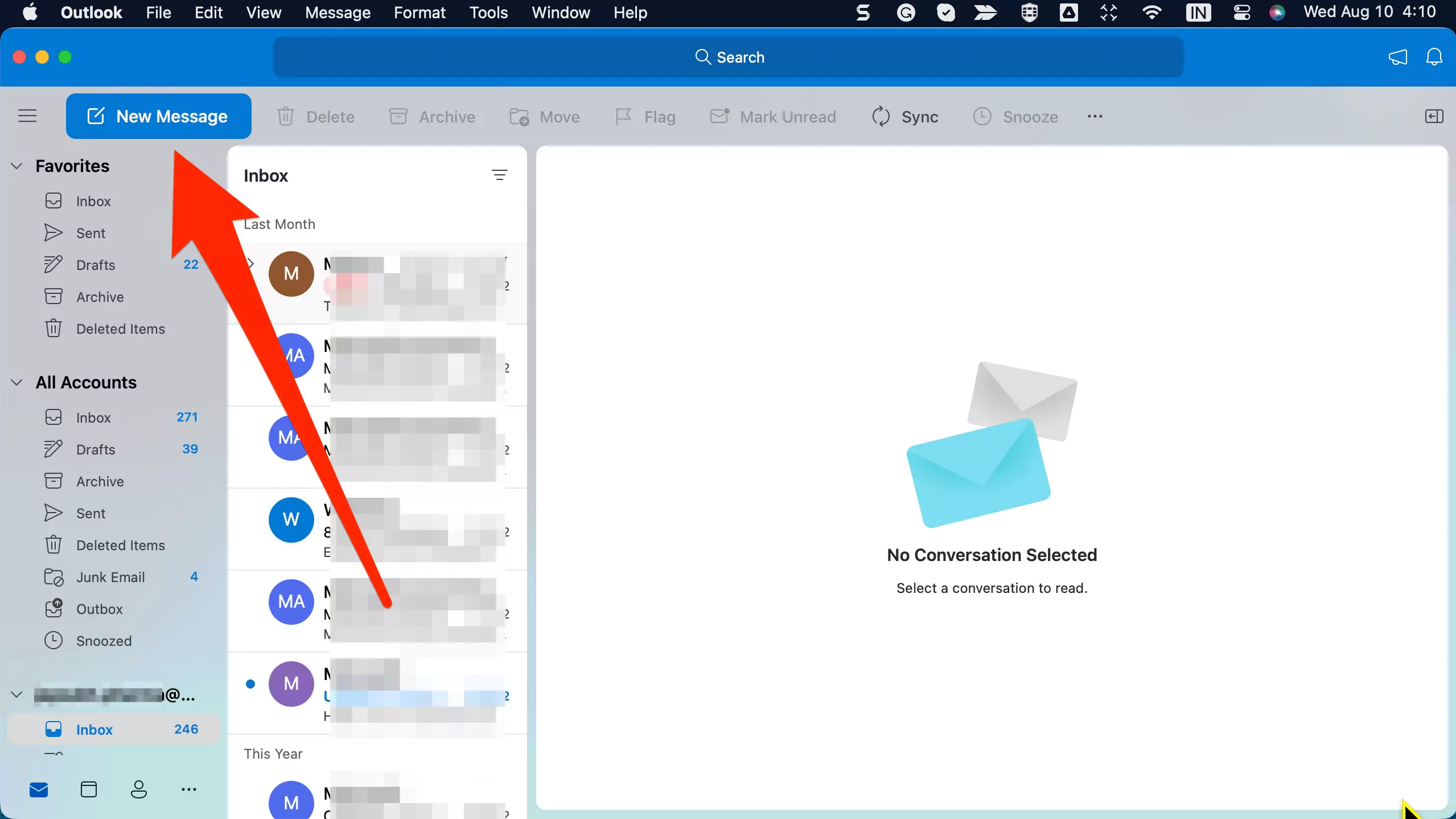
Step 3 → Select three dots from the message window toolbar.
Step 4 → Select My templates
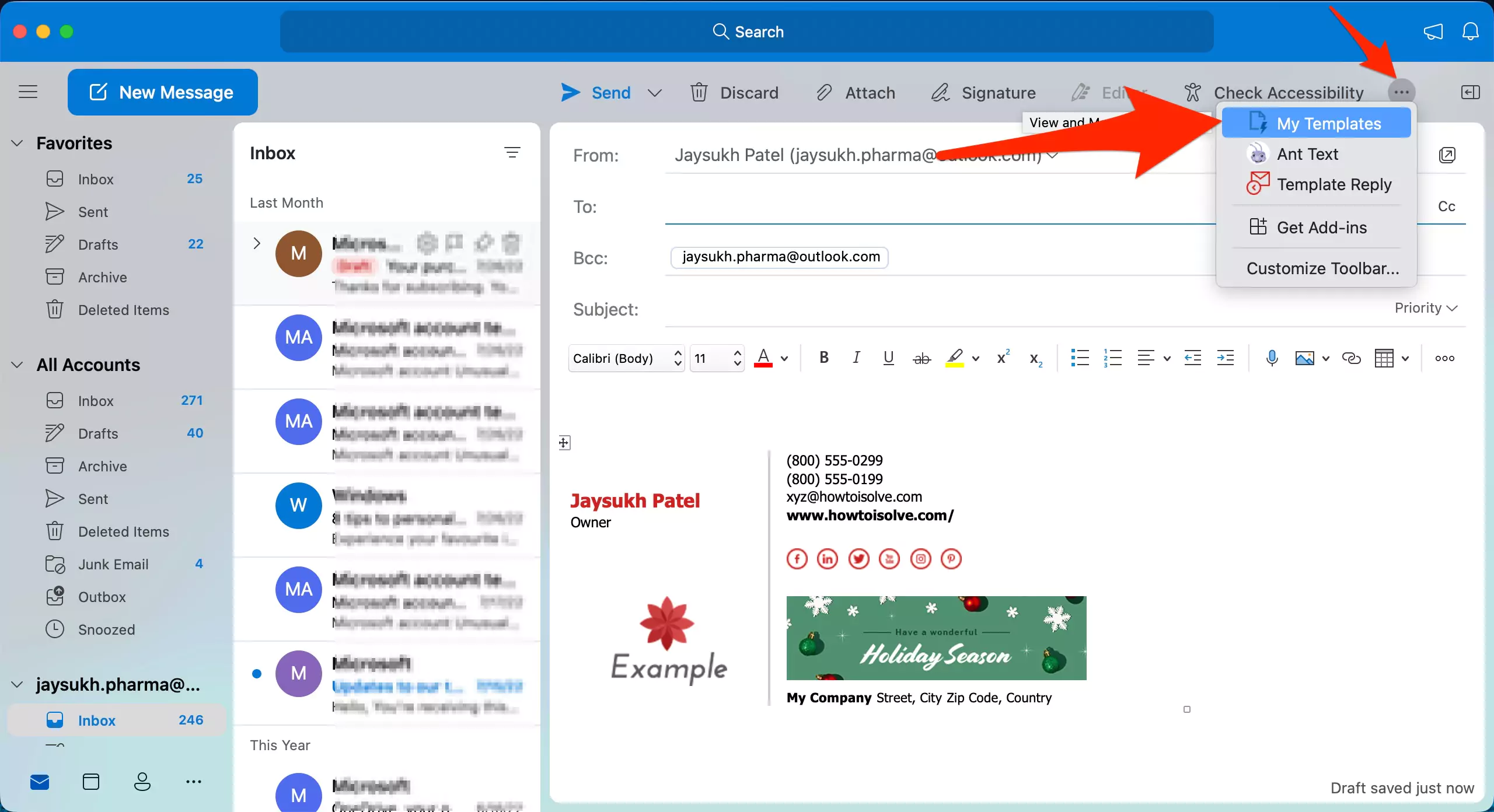
My templates list will appear on the right side.
Step 5 → Click on the desired Template from the My templates list
This way, your template is added to the message body with a single click, which ultimately saves your time.
Edit or Delete Template
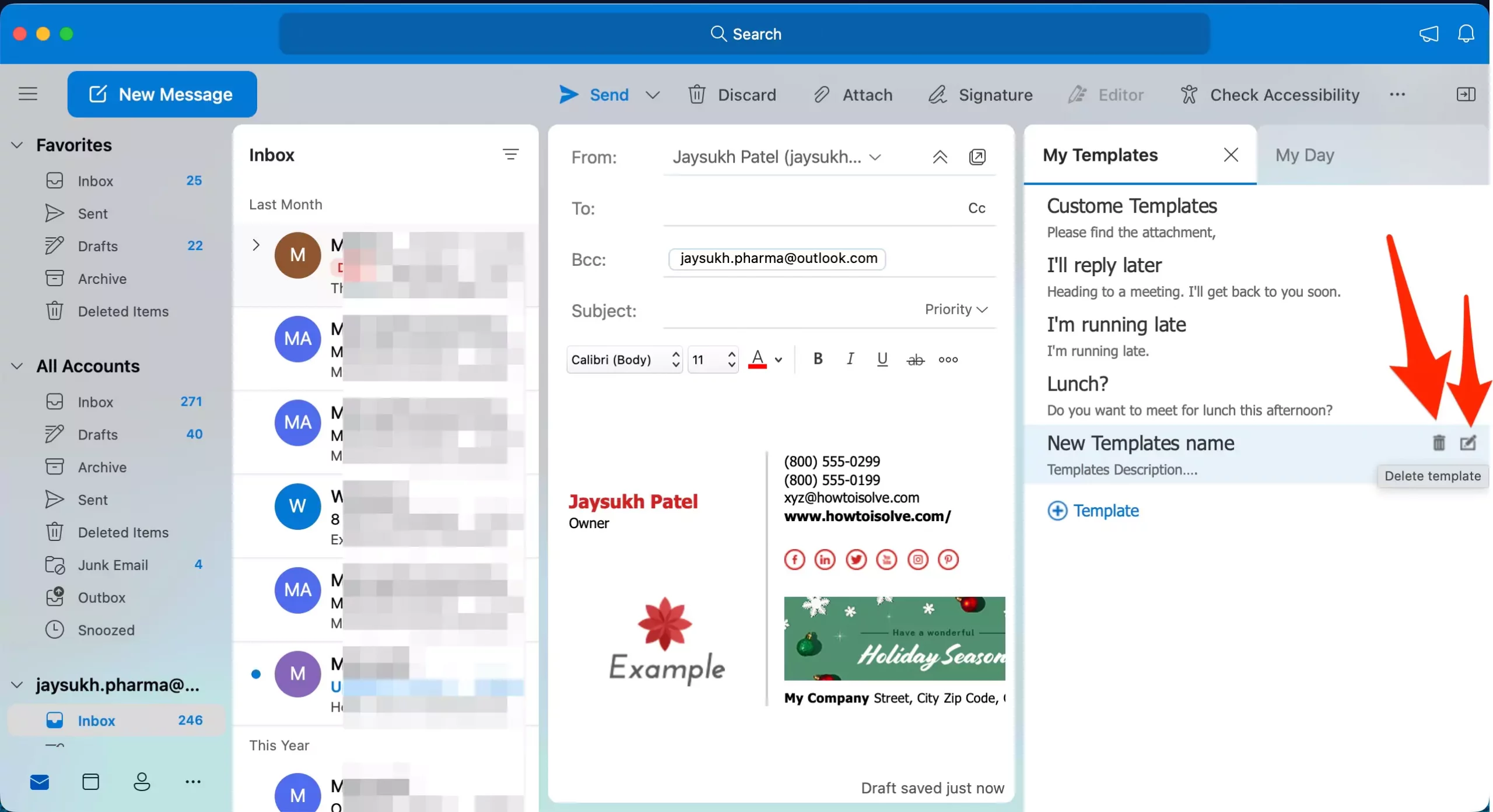
To edit or delete the template, move the cursor over a particular template on which you want to do the operation delete or edit, then click on either the edit or delete icon present at the right end.
How to Create an Email Template on Outlook Web (Office 365/Outlook 365)
It is as simple as Windows; follow the steps below.
1) Open the Outlook web app, then log in
2) Select New message
Make sure my templates are already added in Get Add-ins.
3) Click on the three dots near the send button
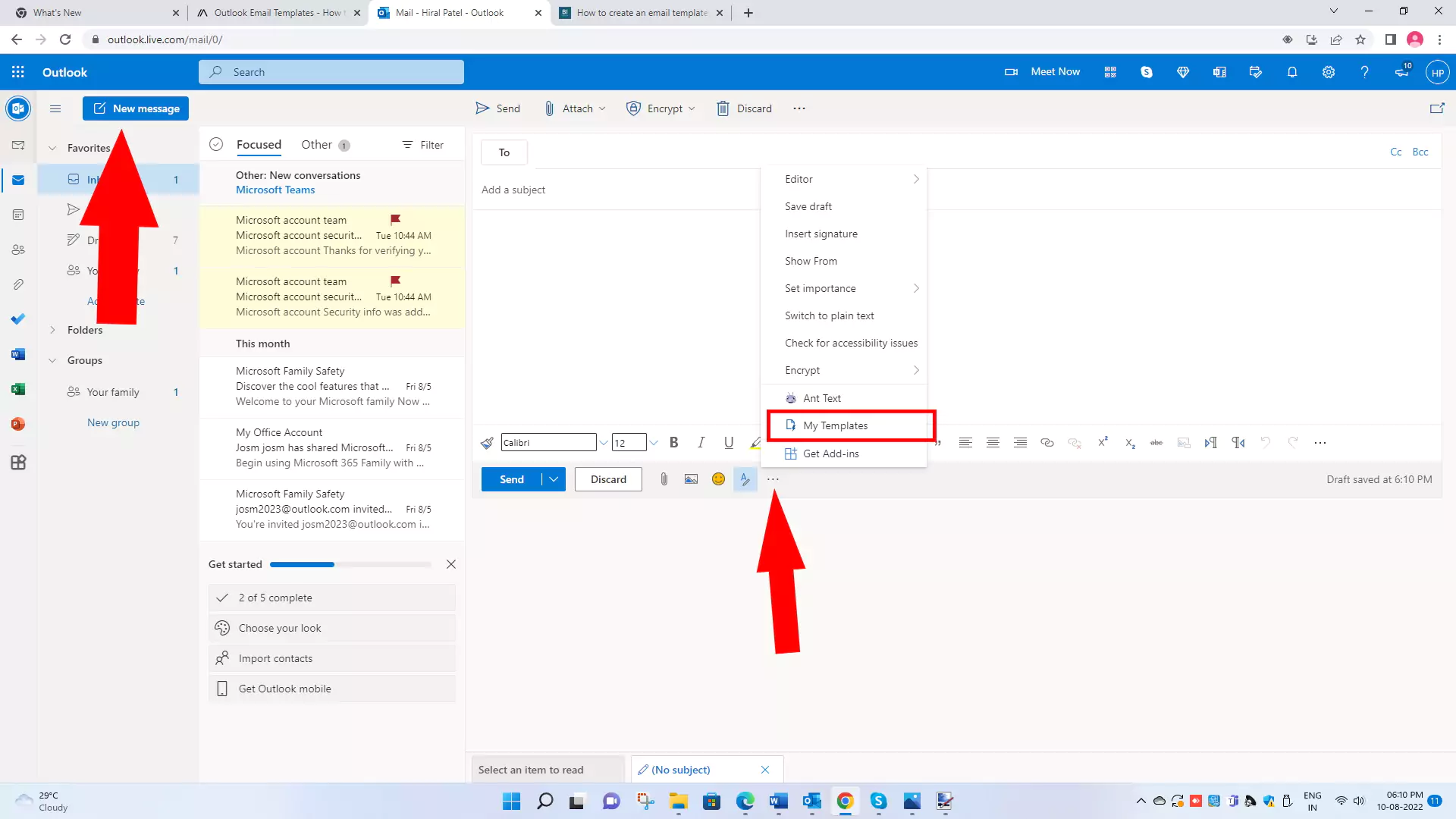
4) Now select My templates
5) Click on + Template to create new templates
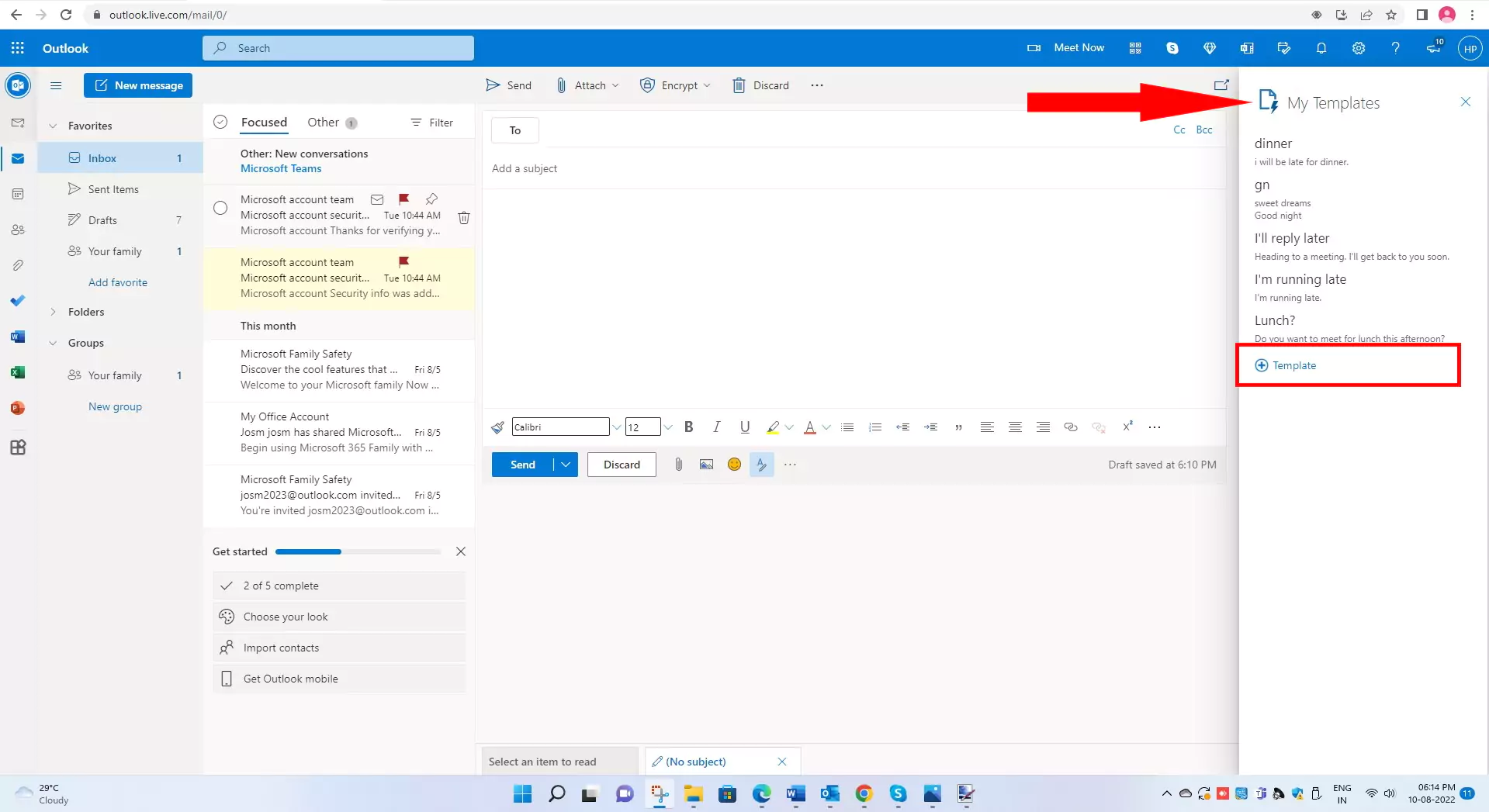
6) A new “My Templates” form will open. In the first text box, add the title of your template, and in the second text box, write its content.
7) Click on Save
Now you can check that your customized template gets added to the list of my templates.
How to use Email Templates in Outlook Web (office 365/Outlook 365)
Templates are synced on all your Microsoft accounts, be it Windows (desktop) or web (online). It means if you have added new templates to your Windows account, you can also use them on the web account. In simple words, it is accessible on both versions of Outlook.
Here are the steps to use or create templates on Outlook Web.
1) Open the Outlook web app, then log in
2) Select New message
Make sure my templates are already added in Get Add-ins.
3) Click on the three dots near the send button
4) Now select My templates
My templates list will appear on the right side.
5) Click on the desired template from the My templates list.
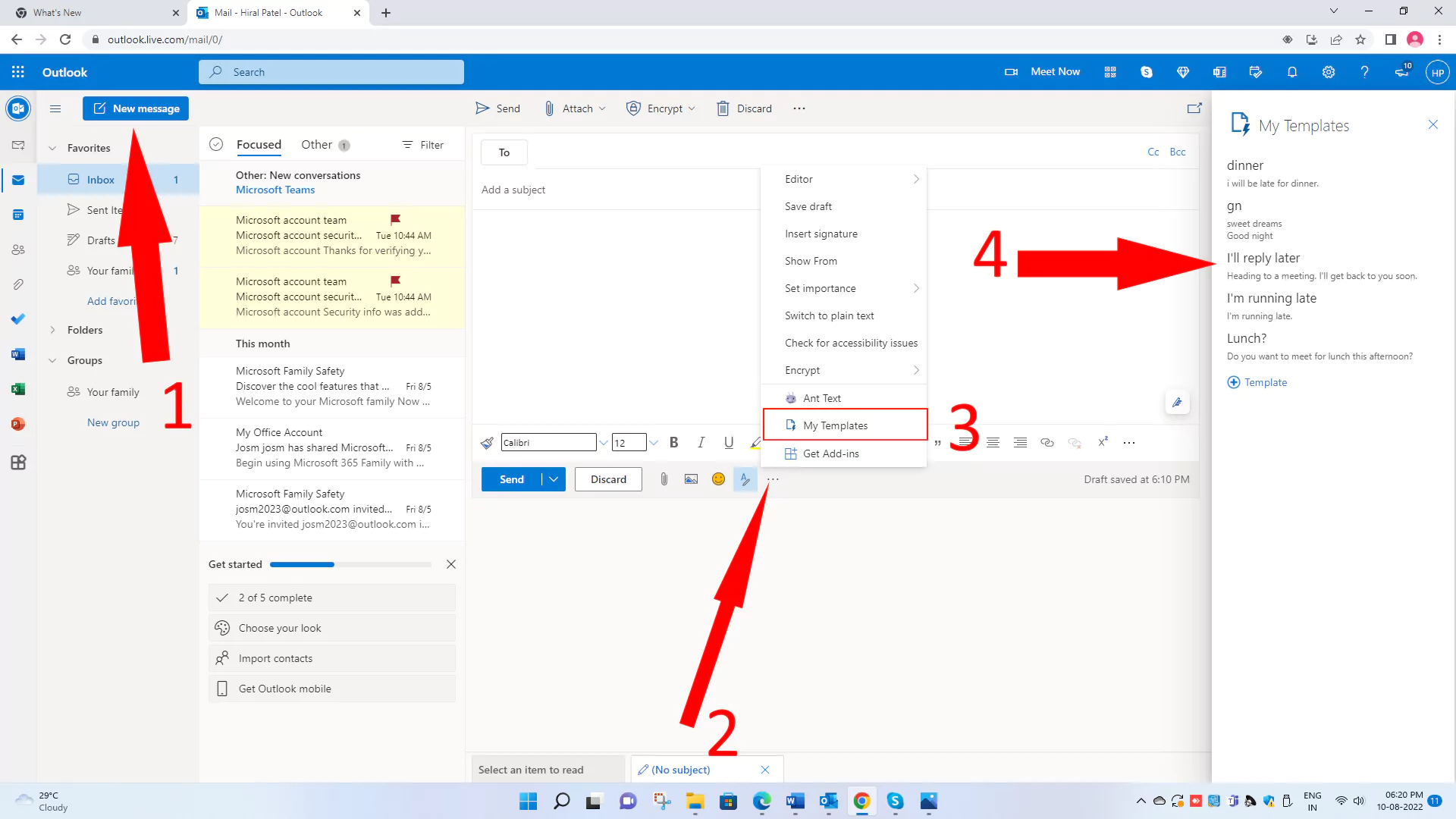
The steps to create/use a web template are almost like those for Windows. The only difference is that the My Templates tab is in a different place.
There are no keyboard shortcuts for using this email template. Review the manual steps and find a beautiful email template for student, HR, business, and personal use.






