

“Are you tired of constantly being bombarded with auto-playing YouTube videos on your iPhone or web? Take control of your viewing experience by following these simple steps to turn off autoplay. Say goodbye to unwanted distractions and hello to a more personalized YouTube experience.”
Stop Autoplay Videos On iPhone & Web With YouTube Settings
To turn off Autoplay on the YouTube app for iPhone, follow these steps assertively:
1. Open the YouTube app.
2. Play a video of your choice.
3. Access the video player interface.
4. Look for the “Autoplay” toggle and firmly tap on it.
5. Ensure that the toggle changes its appearance to indicate that Autoplay is disabled.
6 . Confirm that Autoplay is off by playing a video and checking if it transitions to another video at the end. If it doesn’t, Autoplay has been successfully disabled.

Take control of your YouTube experience and turn off Autoplay now!
It’s important to note that the interface of the YouTube app may differ slightly depending on the iOS operating system and app version. If the steps provided don’t match what you see exactly, don’t worry. The general process should still be similar. All you need to do is open a video, locate the autoplay toggle in the video player interface, and turn it off.
Steps to Stop AutoPlay YouTube video on the Web Desktop
Hey there! If you’re looking to turn off autoplay on YouTube, no worries; it’s a quick and easy process. Just follow these simple steps:
1. Head over to YouTube and open on the Safari app.
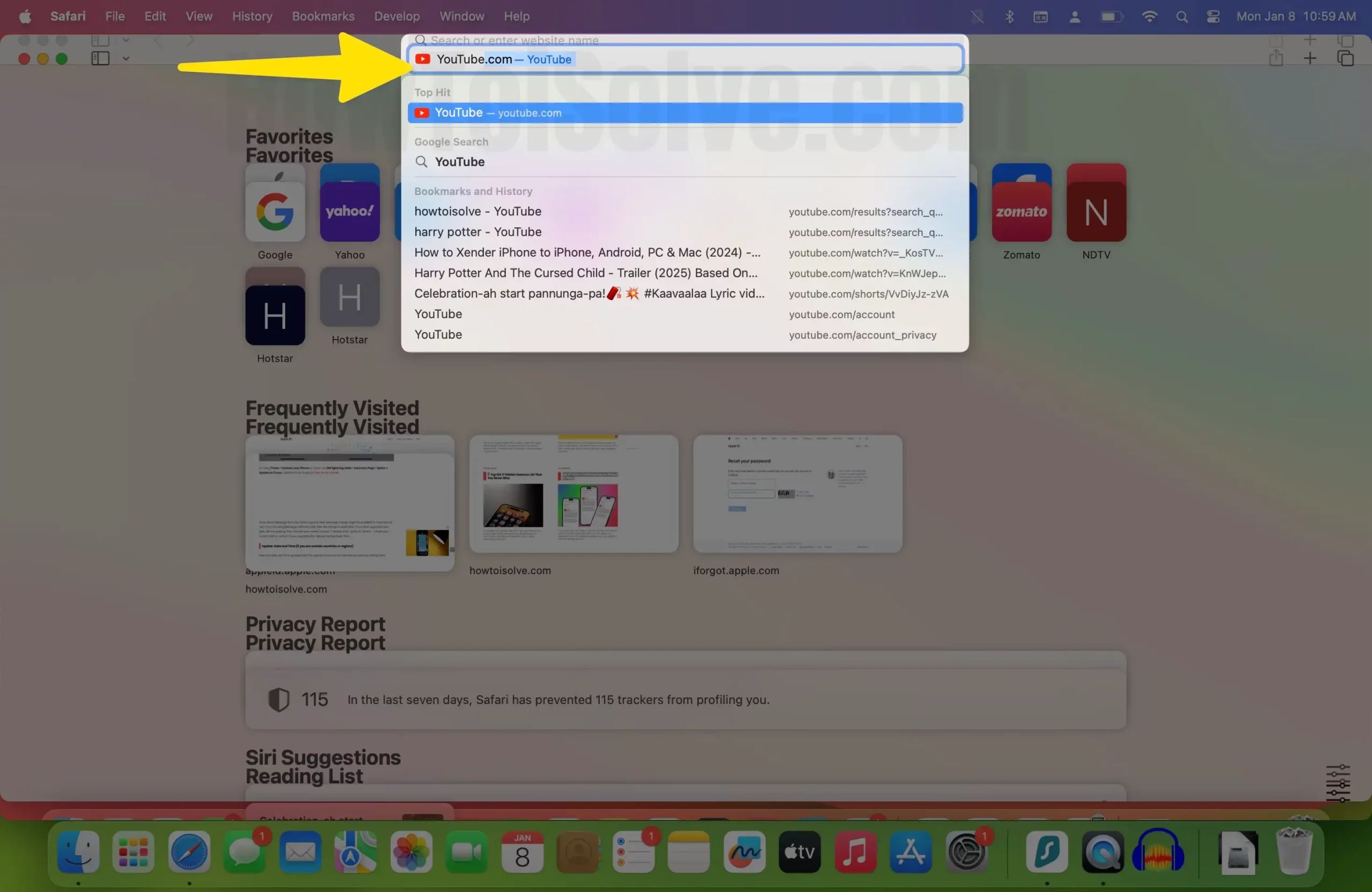
2. Pick any video you’d like to watch.
3. While the video is playing, keep an eye out for the Autoplay switch. It’s usually located on the right side of the screen, above the list of suggested videos.

4. Click on the Autoplay switch to turn it off. You should see the switch change color or display a visual indicator when it’s off.
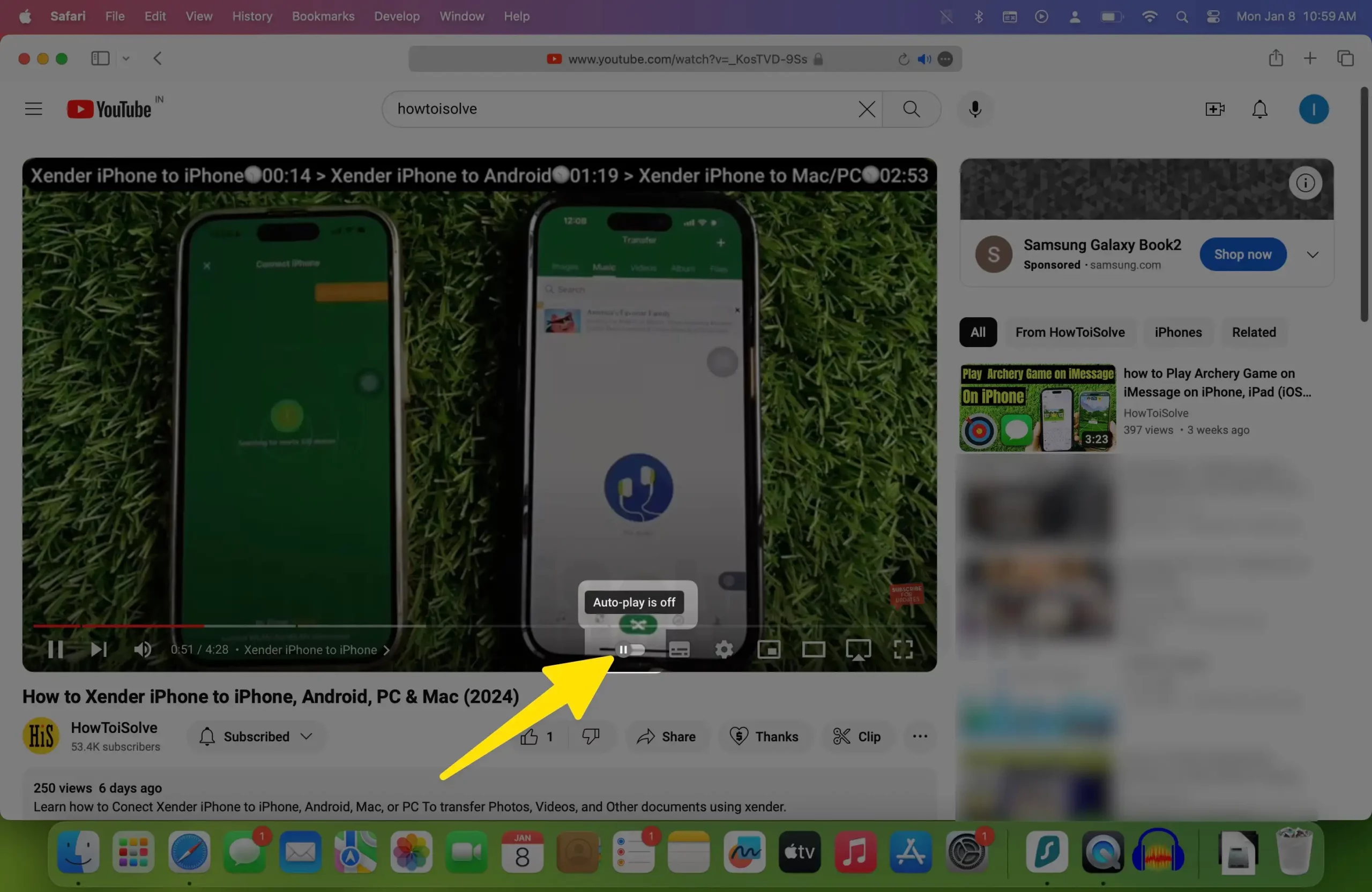
To make sure it worked, simply watch the end of the video. If another video doesn’t automatically start playing, you’re all set!
Please note that the Autoplay switch may look slightly different depending on the browser you’re using or updates made to the YouTube interface. However, it’s typically located close to the video player or the suggested video list. If you’re having difficulty locating it, make sure your web browser is up to date, as this may impact how website features are displayed.






