Want to install or reinstall Windows 11 25H2? This guide explains how to create a Windows 11 25H2 bootable USB using Rufus in just a few minutes. Rufus is a free, lightweight tool that creates bootable USB installation media quickly and reliably. Whether you’re performing a clean installation, upgrading your PC, or repairing Windows, Rufus makes the entire process simple and efficient.
What is Rufus?
Rufus is a free and open-source utility that creates bootable USB drives from ISO files. It is one of the most widely used tools for installing, reinstalling, or repairing operating systems such as Windows and Linux.
In addition to creating Windows installation media, Rufus can also be used to:
- Create bootable Linux USB drives
- Build antivirus rescue disks
- Create system recovery USB drives
- Format USB flash drives
- Bypass Windows 11 TPM, Secure Boot, and RAM requirements (optional)
Rufus supports both UEFI and legacy BIOS systems, making it compatible with almost all modern and older computers.
What you’ll need
Before creating your Windows 11 installation USB, make sure you have:
- USB flash drive (at least 8GB or 16GB of storage)
- A Windows computer
- The latest Windows 11 25H2 ISO file
- Current version of Rufus
- A stable WiFi or internet connection
Important Note: Creating a bootable USB will erase all existing data on your USB drive. Be sure to back up any important files before proceeding.
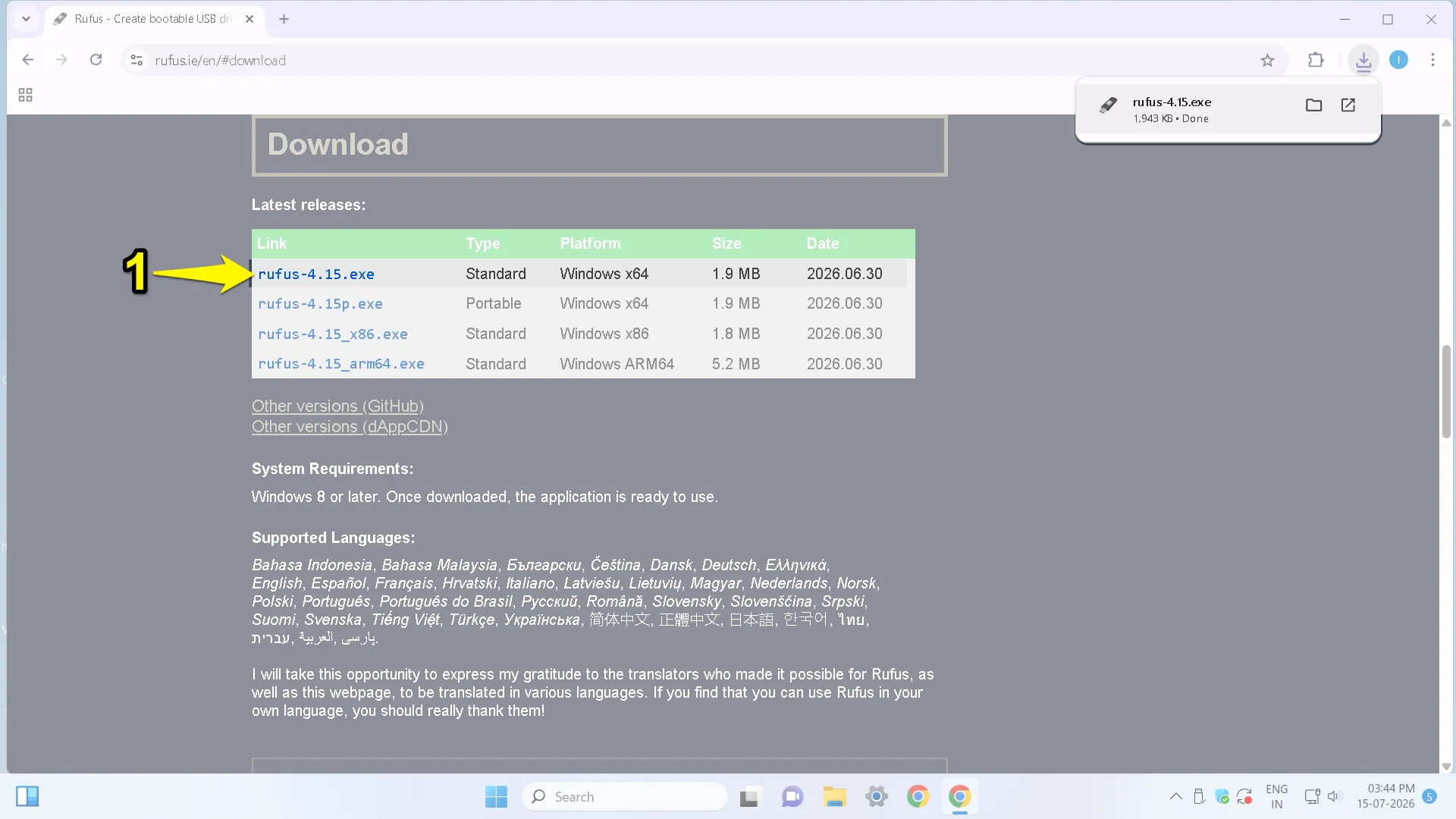
Step 1: Download Rufus
- Open the web browser.
- Next, visit a trusted & official Rufus website.
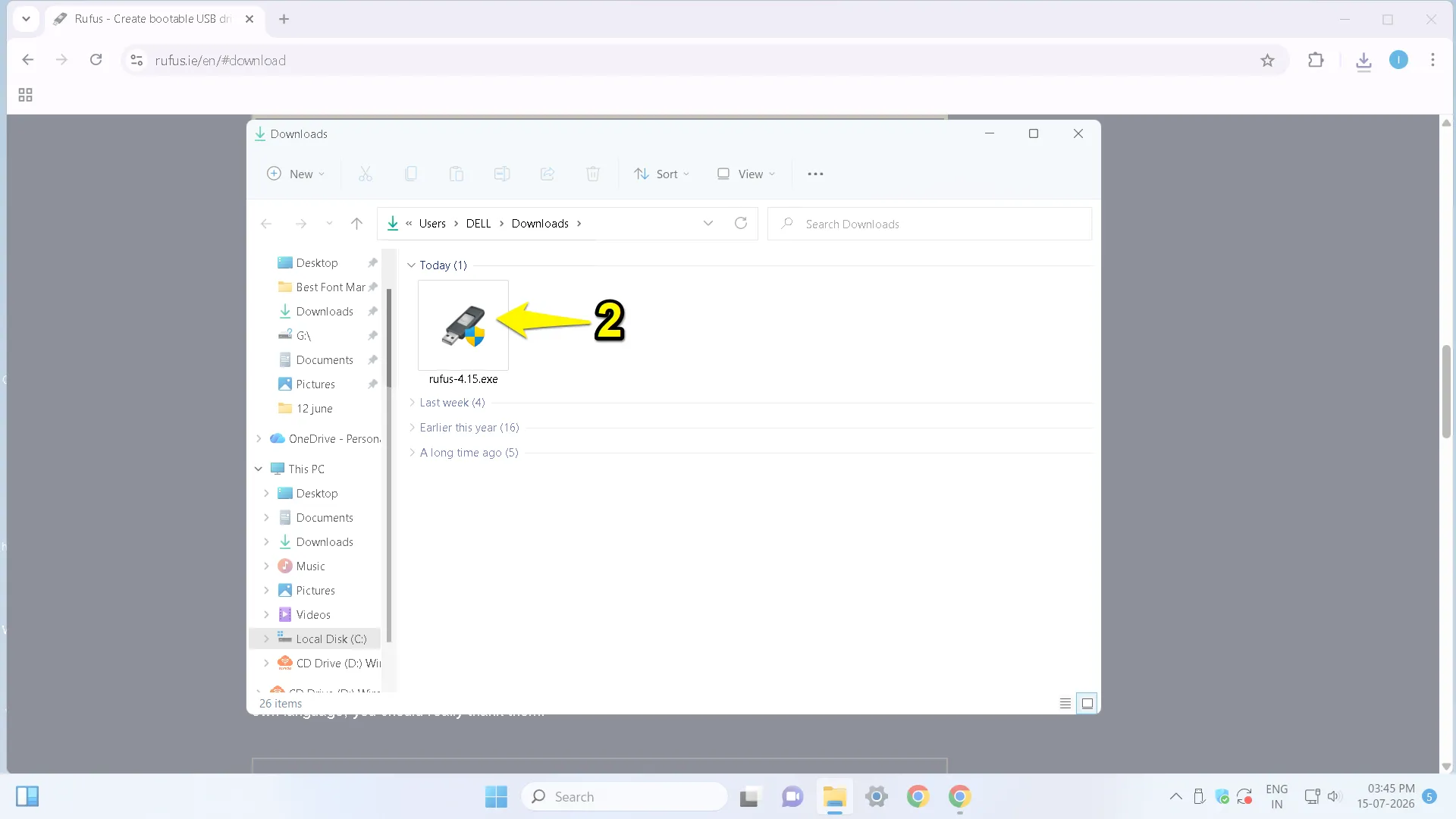
- Once you have downloaded it, open the executable file.
Since Rufus is portable, you don’t need to install it.
Step 2: Download the Windows 11 25H2 ISO file.
- Go to the official Microsoft download page.
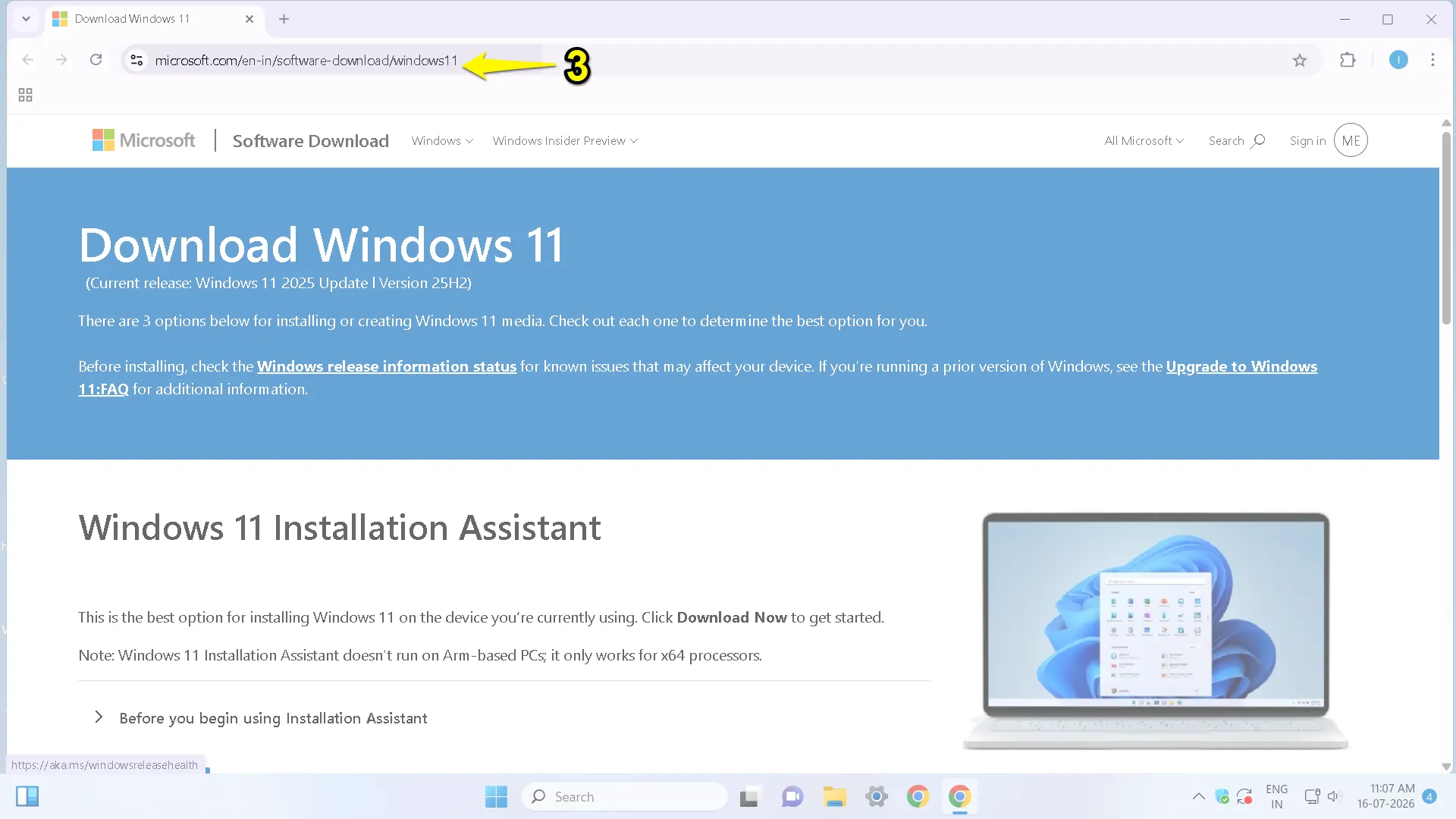
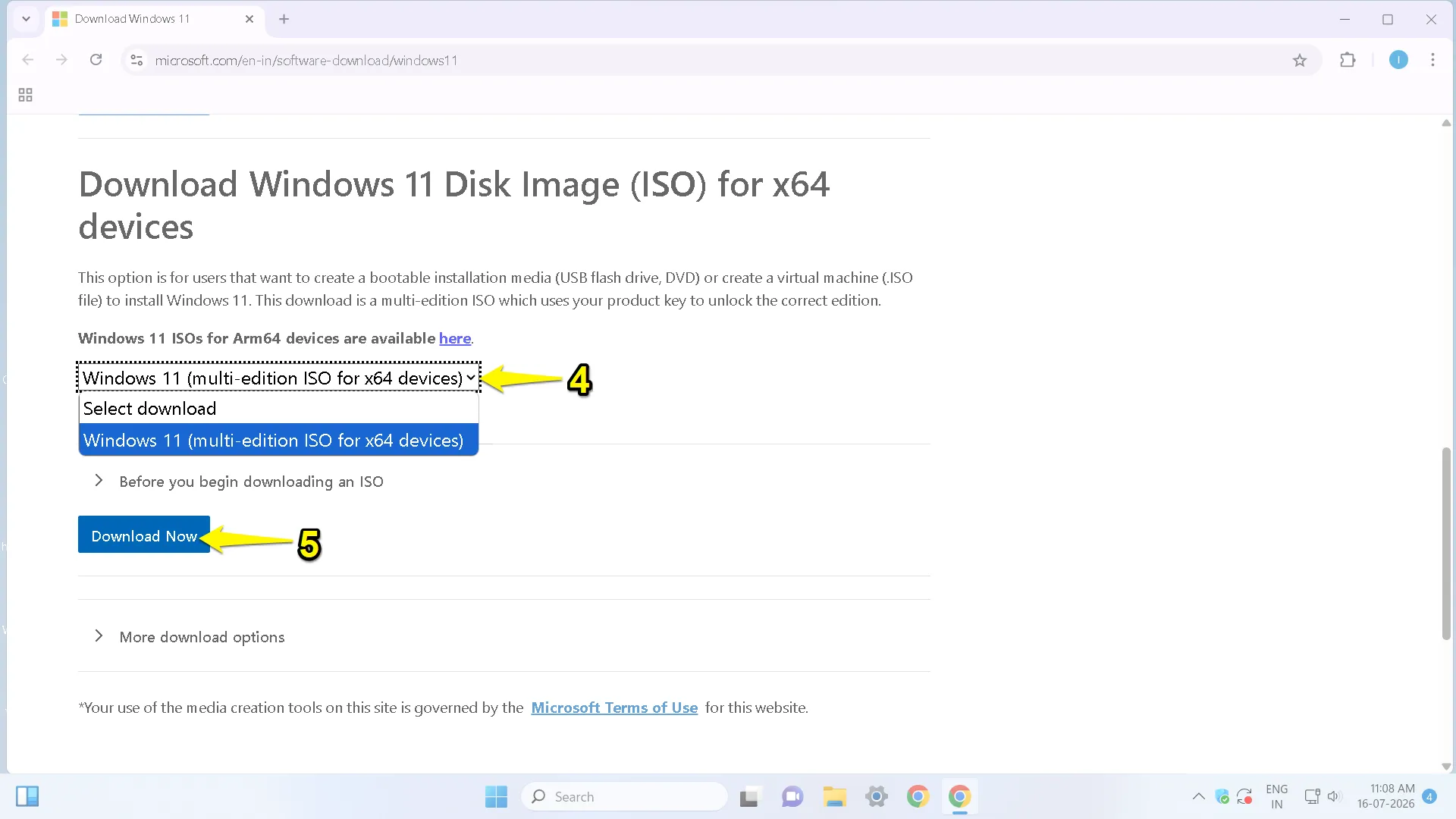
- On that page, scroll to “Download Windows 11 Disk Image (ISO) for x64 devices.”
- Select Windows 11 (multi-edition ISO).
- Click the Download button.
- After that, choose your language and click the confirm button.
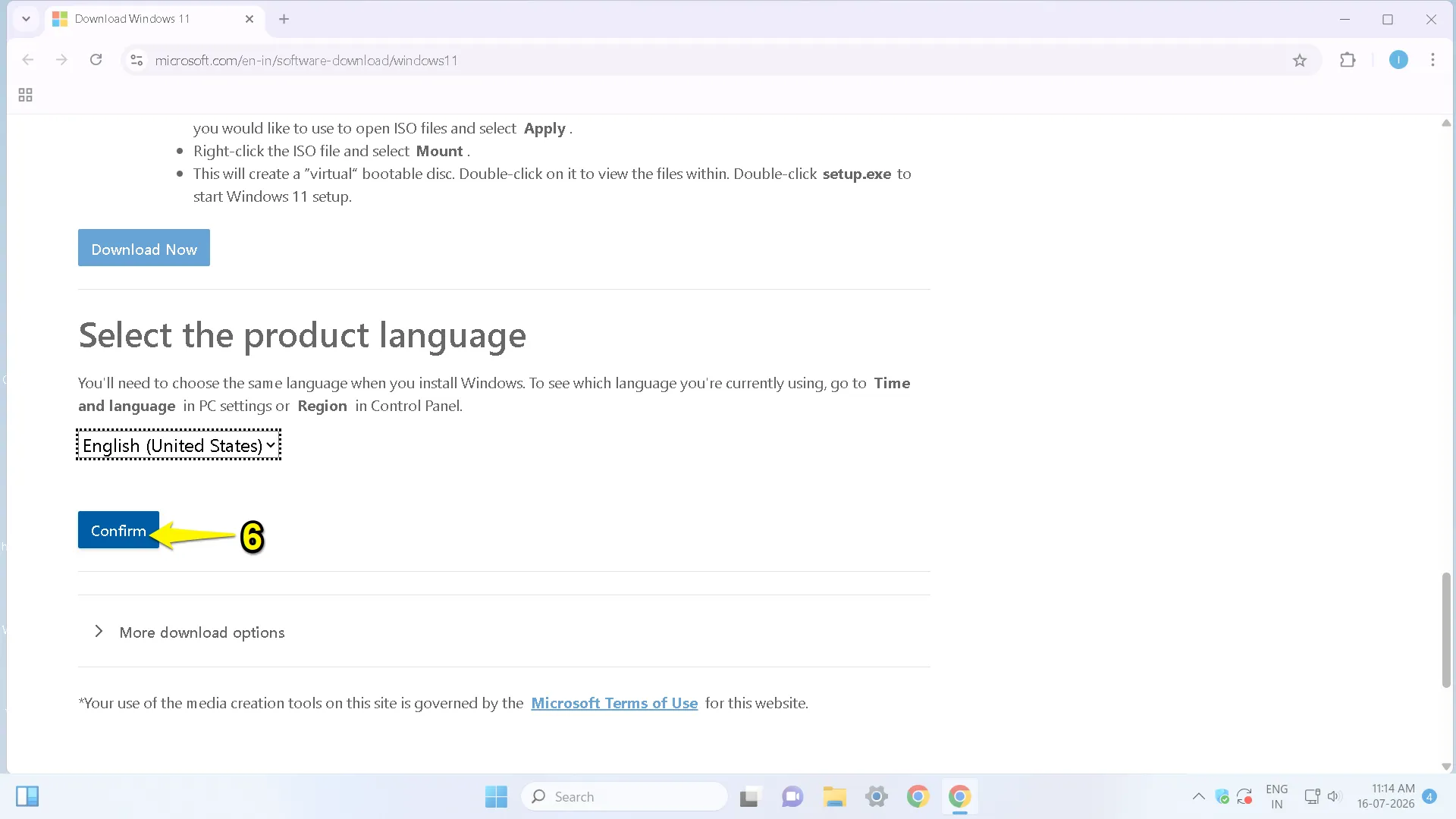
- Finally, download the 64-bit ISO (about 6-7 GB).
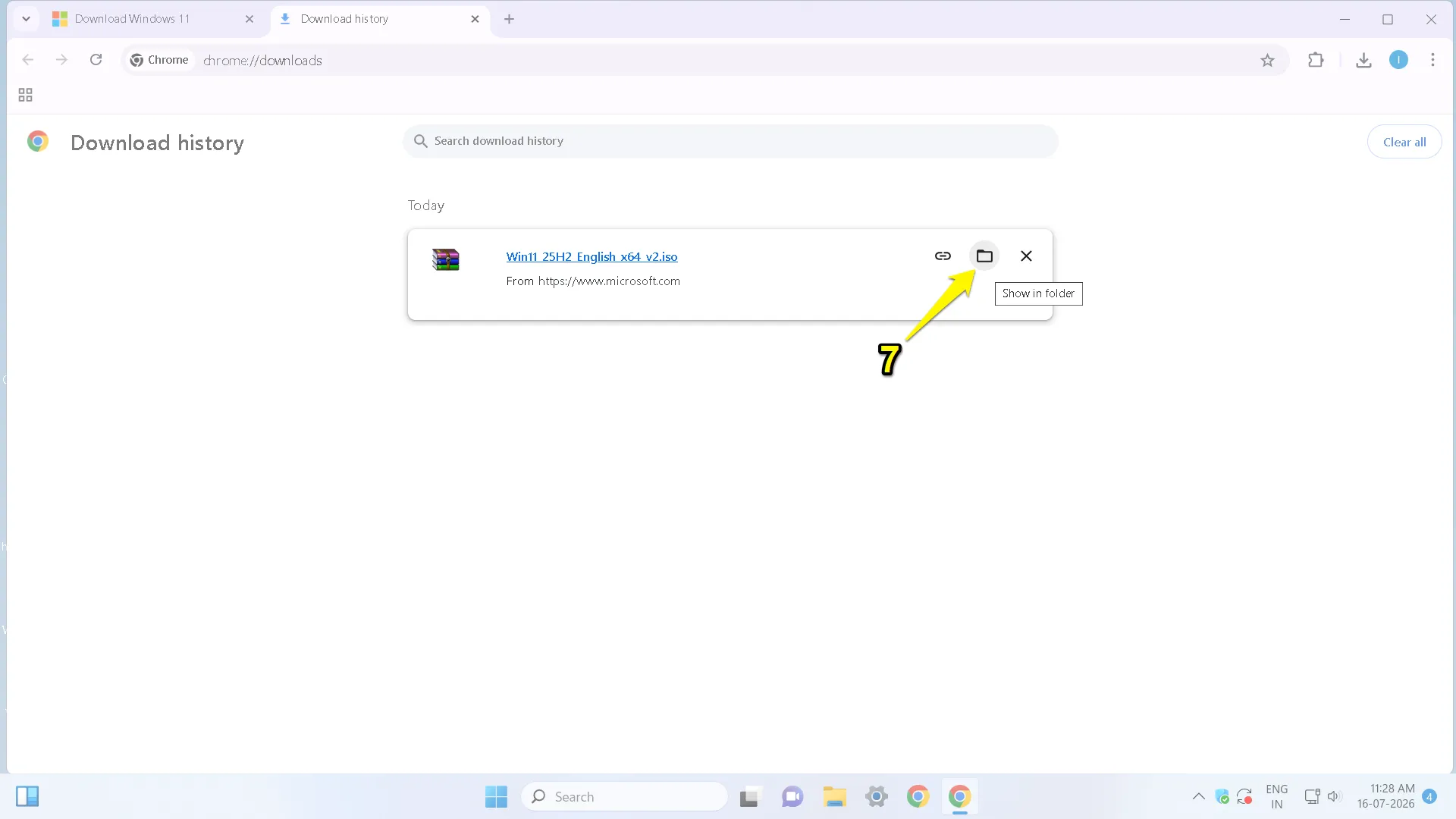
- Wait for the download process.
- Save it in Downloads or an easy-to-locate folder.
Step 3: Connect your USB drive.
Connect your USB flash drive to your Windows PC, and wait until it is recognized. You can view your USB drive by clicking on “This PC.”
Step 4: Launch Rufus
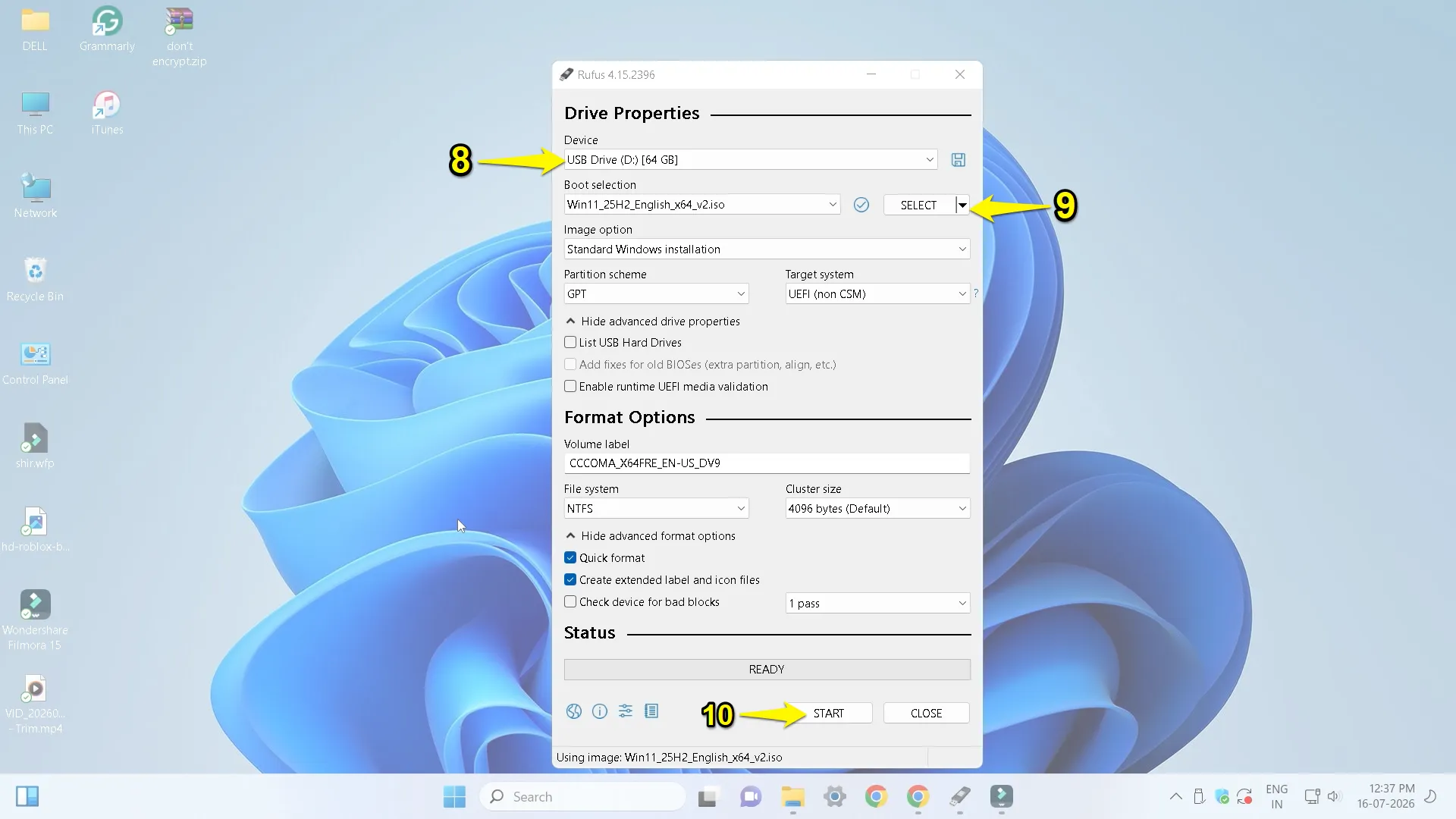
Launch the Rufus tool. By default, it automatically detects your USB drive. However, if multiple USB drives are connected, select the correct one from the Device drop-down menu.
Step 5: Select the Windows 11 ISO
Under the Boot selection,
- Click on Select.
- Browse to the Windows 11 25H2 ISO file.
- Select the ISO.
- Click Open.
Afterward, Rufus automatically configures the settings.
Step 6: Configure Rufus Settings
Before proceeding, please review and verify the following settings:
- Device: Select USB flash drive.
- Boot Selection: Windows 11 25H2 ISO file.
- Image Option: Choose Standard Windows Installation.
- Partition Scheme: Select GPT for UEFI-based PCs.
- Target System: Leave it as UEFI when using GPT.
- Volume Label: Keep the default name or enter a custom name.
- File System: Leave it set to NTFS
Step 7: Create the Bootable USB
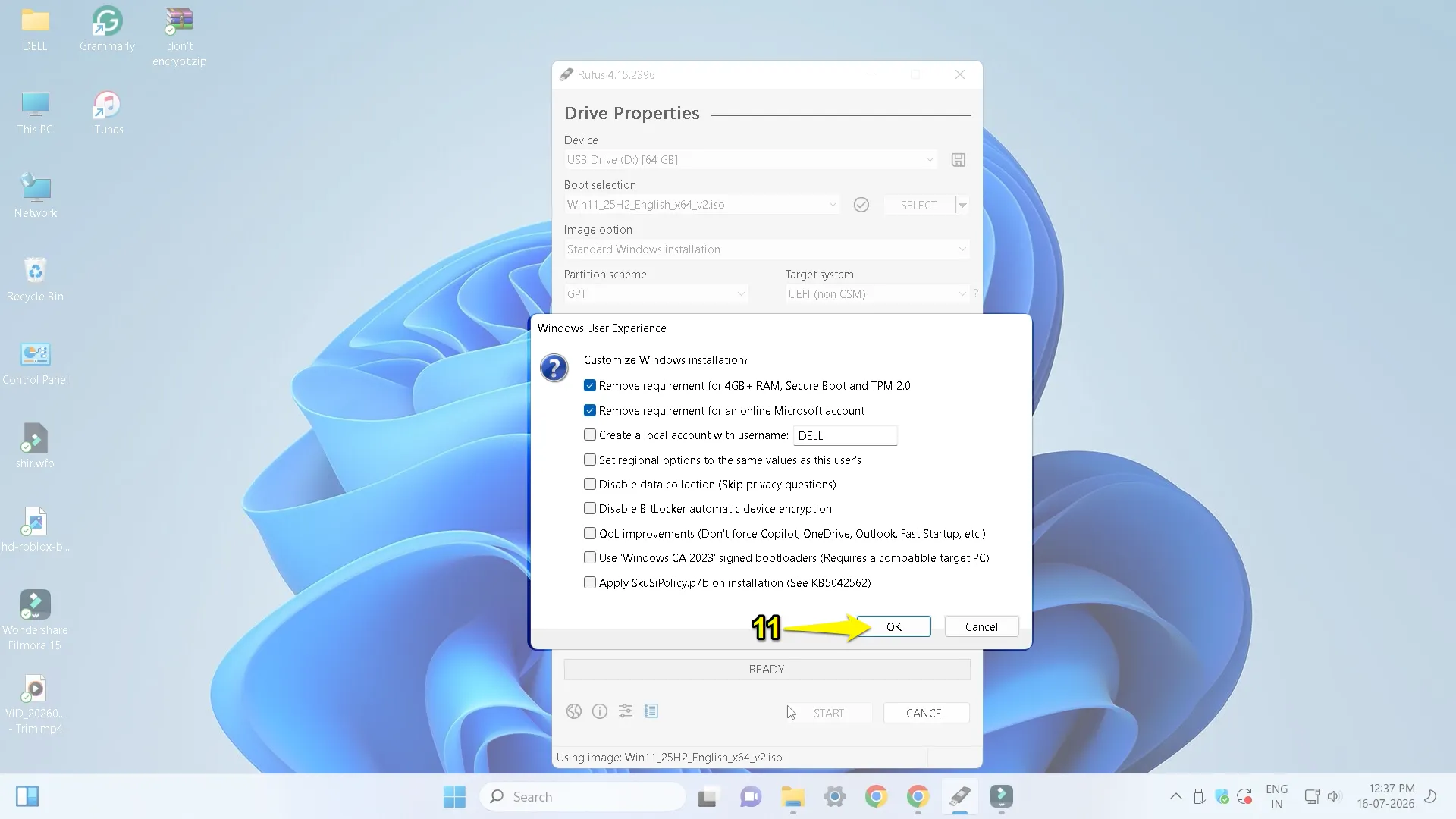
Click on the Start button. If prompted, Rufus displays Windows customization options. Then, select the option you want and hit the ok button.
Step 8: Confirm USB Formatting
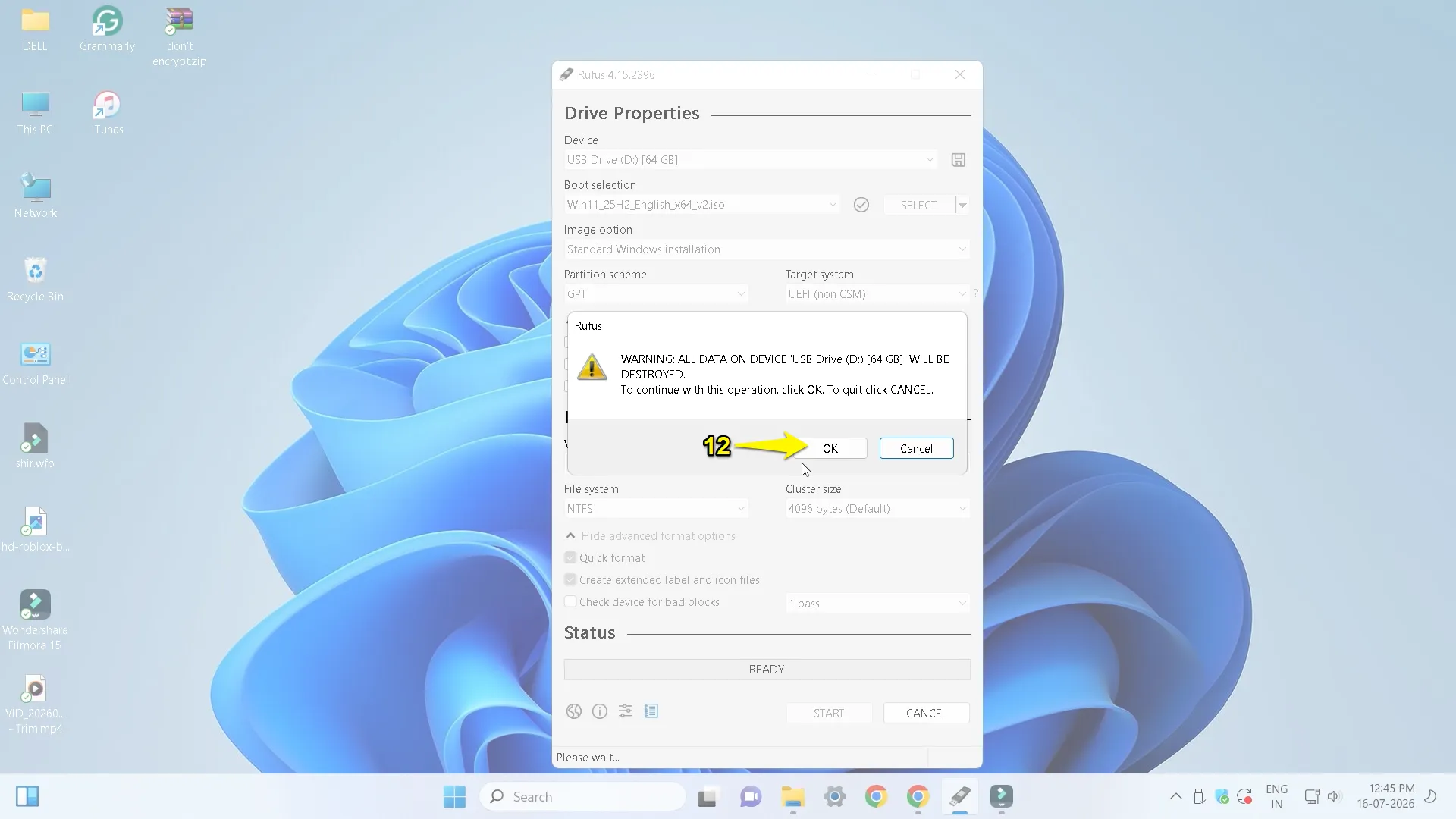
Rufus displays a warning message that all the data on the USB drive will be deleted. Therefore, make sure you’ve backed up any important files. Once you’re ready, click OK.
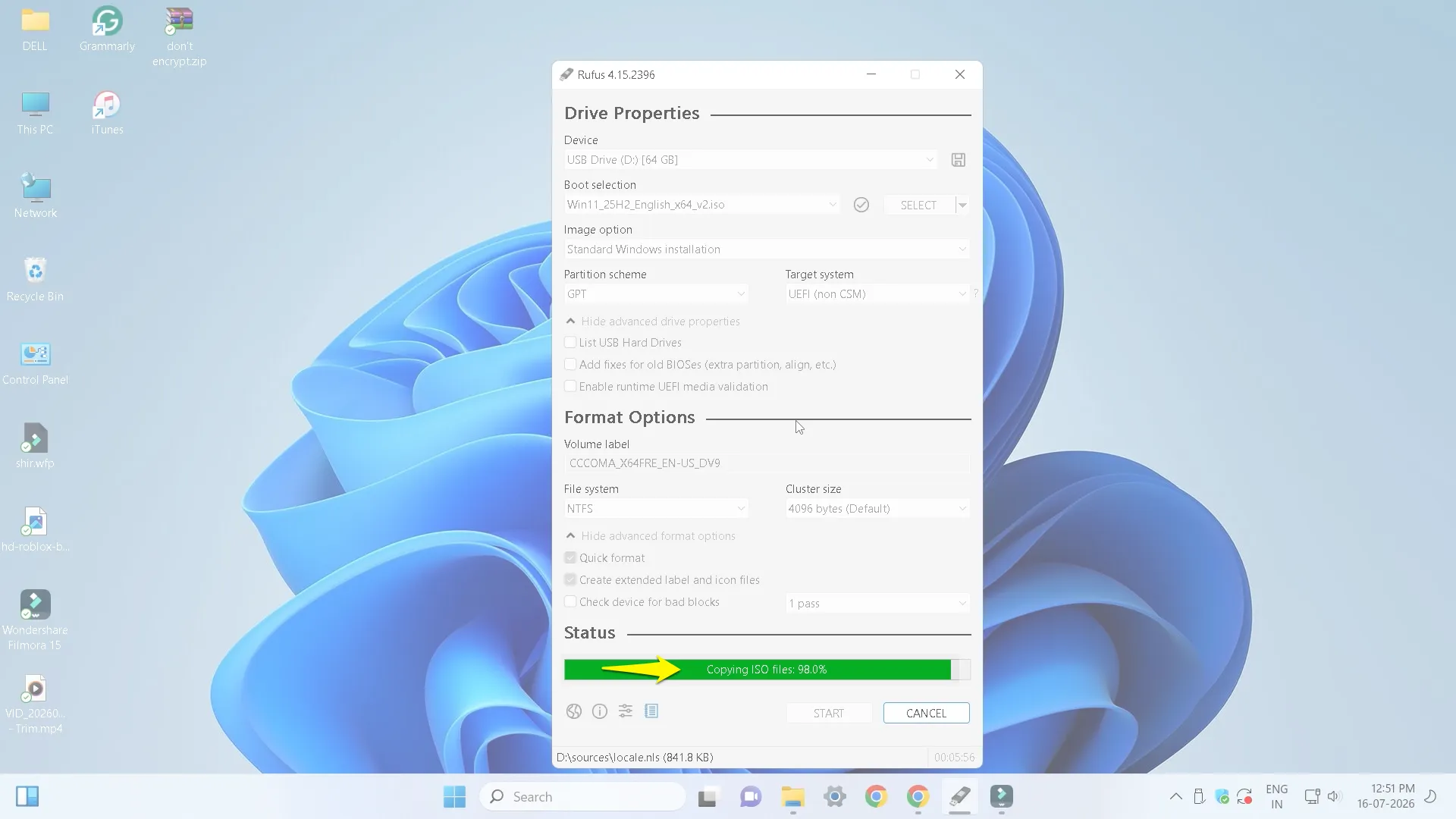
Step 9: Wait
The process usually takes 5 to 15 minutes. Meanwhile, avoid removing the USB drive or closing it.
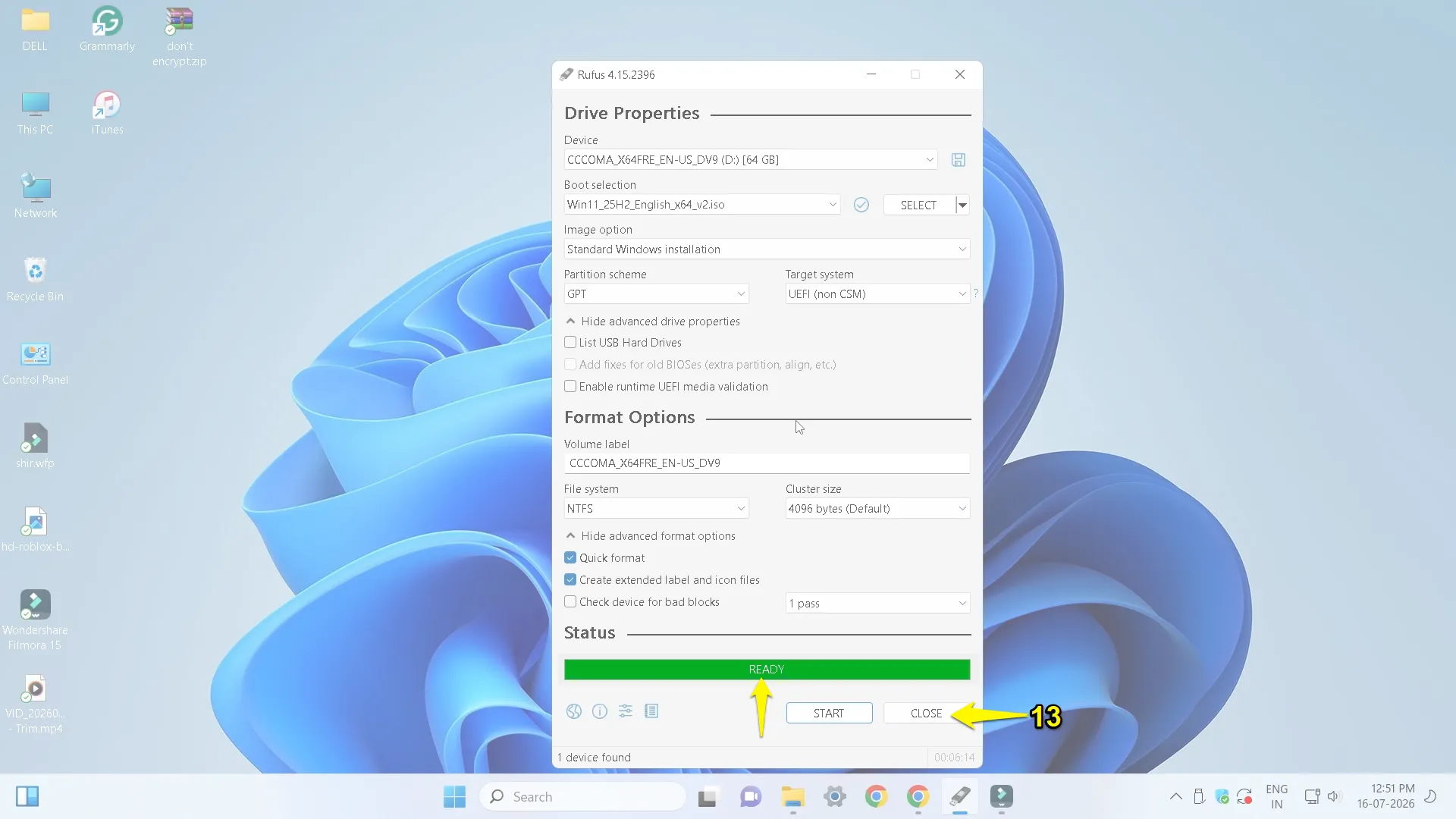
Once the status changes to Ready, your bootable USB has been successfully created. So, click the Close button.
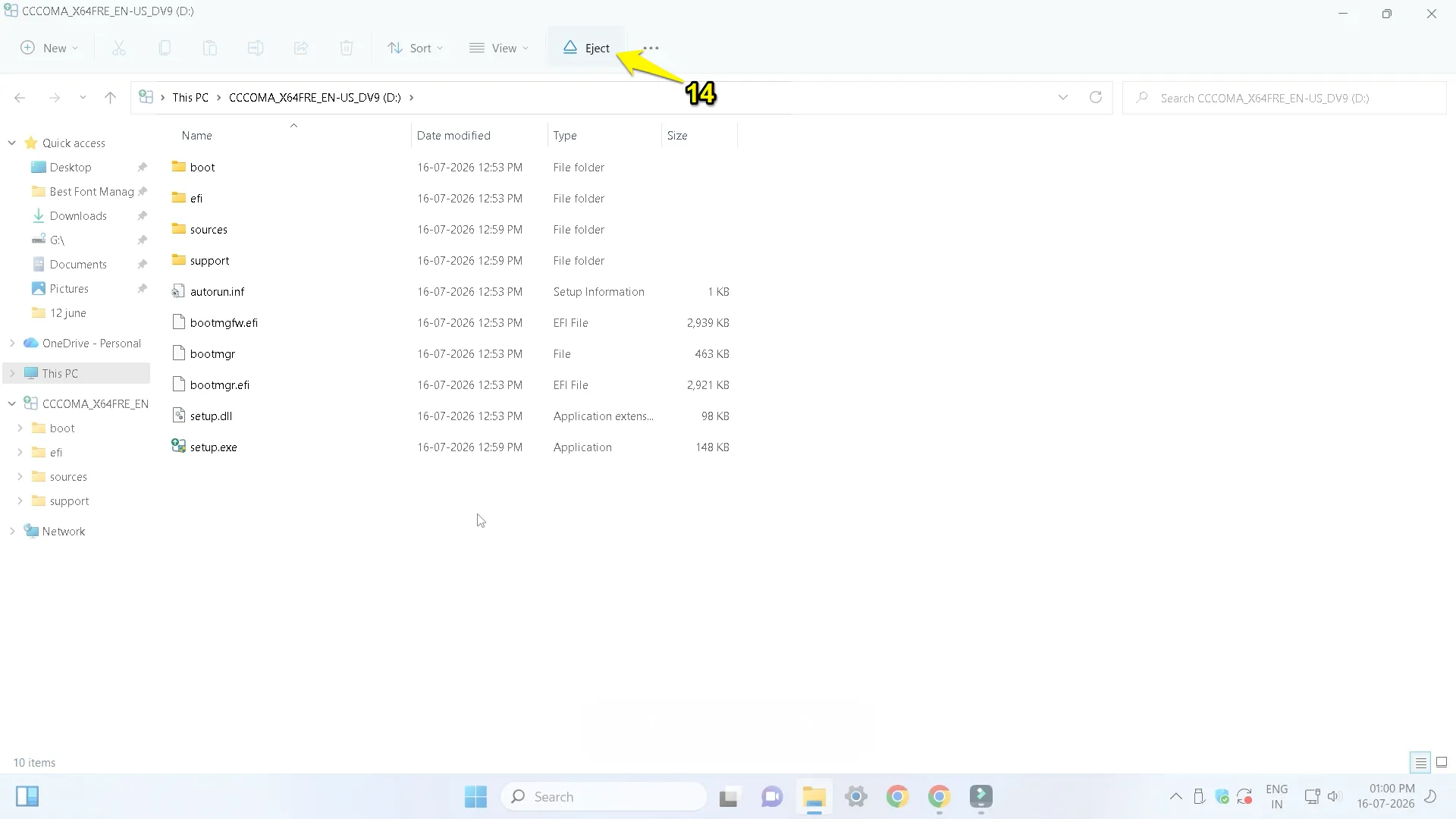
Step 10: Safely remove the USB drive
Finally, safely eject your USB drive from your computer. Your Windows 11 25H2 bootable USB is now ready to install, reinstall, repair, or upgrade Windows.
Troubleshooting
Rufus Doesn’t Detect USB drive
If Rufus doesn’t detect your USB drive, try reconnecting it or using another USB port. Additionally, run Rufus as administrator. If the issue persists, restart your PC and try again.
ISO Image is corrupted
Please delete the previously downloaded ISO files. Then download the fresh copy from Microsoft’s official website.
This PC Doesn’t Meet Windows 11 Requirements
Recreate the bootable USB using Rufus. During the setup process, enable the options to bypass TPM 2.0, Secure Boot, and RAM requirements.
FAQs
1. Is Rufus Free?
Yes, Rufus is a completely free and open-source utility.
2. Can I use a 4GB USB drive?
No, Windows 11 installation media requires at least 8 GB, but a 16 GB or larger USB drive is recommended for better compatibility and future use.
3. Which partition should I choose?
GPT is recommended for modern UEFI computers and MBR for older legacy BIOS systems.
4. Can I reuse the USB drive later?
Yes, you just have to format the USB drive in File Explorer or Disk Management after installing Windows.
5. Which file system should I choose: NTFS or FAT32?
For Windows 11 installations, NTFS is the suitable choice because it supports large install files. Rufus automatically recommends the relevant file system if necessary.
Conclusion
Rufus is one of the easiest and most reliable tools for creating a bootable Windows 11 25H2 USB installer. It also offers useful customization options, including bypassing TPM 2.0 and Secure Boot requirements on unsupported PCs. With your bootable USB ready, you’re all set to install Windows 11 25H2 quickly and efficiently on your compatible PC.
If you’re installing Windows 11 25H2 on unsupported hardware, Rufus makes it easy to bypass TPM, Secure Boot, and Microsoft account requirements, giving you a smoother installation experience.