Are you trying to find your iPhone backup folder on your Windows PC? iTunes hides the backups in a hidden folder by default. So, finding out the location helps you copy, delete, move, or restore your backups.
In this guide, you’ll learn exactly where iTunes backups are stored on your Windows computer.
Where are iTunes backups stored on Windows 11?
The backup location depends on how you installed iTunes.
If you have installed iTunes from Apple’s website,
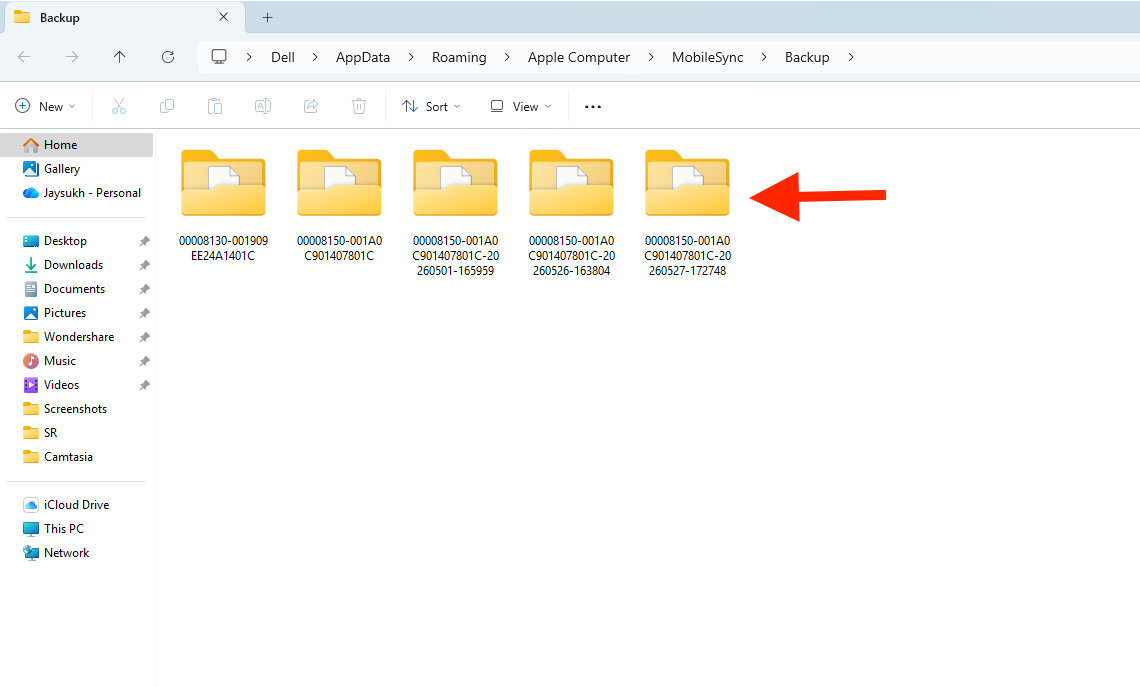
Open File Explorer and go to the given path.
C:\Users\YourUsername\AppData\Roaming\Apple Computer\MobileSync\Backup
Open File Explorer and navigate to the specified path if you installed iTunes from the Microsoft Store.
C:\Users\YourUsername\Apple\MobileSync\Backup
How to Find the iTunes Backup Folder
Method 1: Using the Run Command
- Press Windows + R to open the Run dialog.
- Type the following command:
For the Apple Website Version:
%APPDATA%\Apple Computer\MobileSync\Backup
For the Windows Store Version:
%USERPROFILE%\Apple\MobileSync\Backup
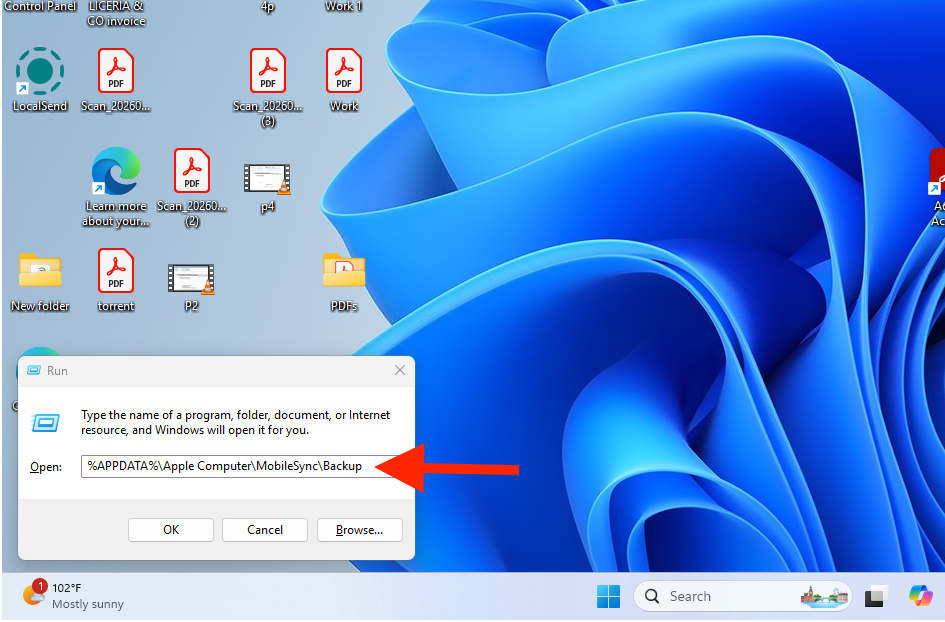
- Click the ok button.
- Open the backup folder.
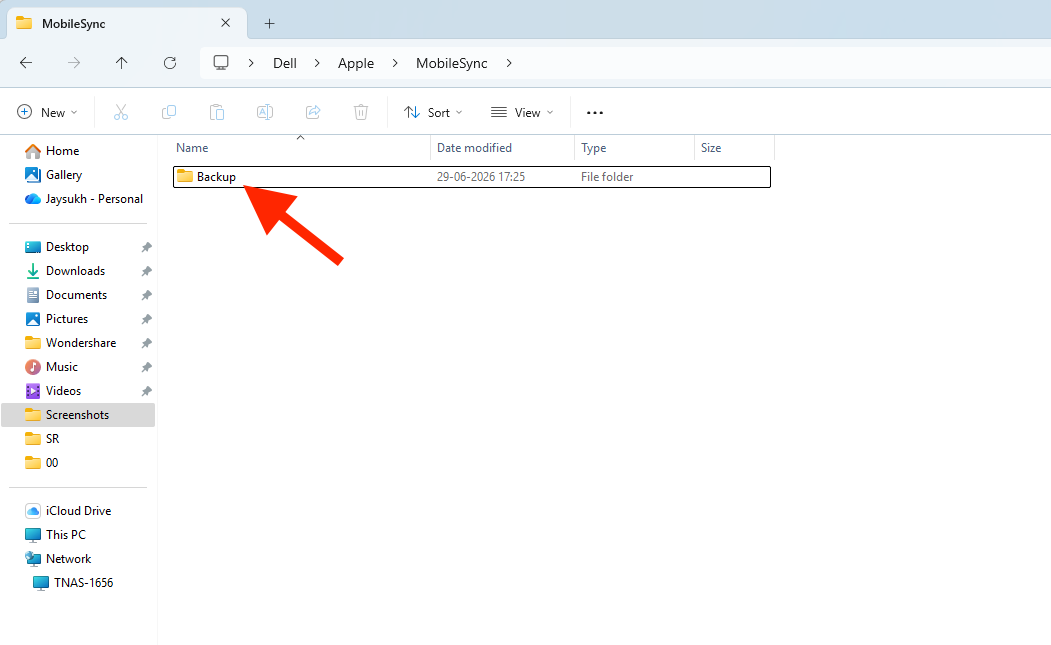
Method 2: Using File Explorer
- Open the File Explorer
- Enable hidden items from the view menu if the AppData folder is hidden.
- Navigate to the appropriate folder based on your iTunes installation.
Method 3: Search for the backup folder
- Open the File Explorer
- Search for Backup or MobileSync.
The windows will display the folder if it exists.
What’s Inside the Backup Folder?
Inside the backup folder, you will see one or more folders with long names made up of letters and numbers. Each folder contains your iPhone or iPad backup files. Don’t rename or edit these folders; otherwise, iTunes may not recognize the backups.
These backup folders include the following data:
- Photos
- Messages
- Notes
- Wifi Settings
- Call History
- Device Settings
- App Data
- Health Data (if encrypted)
- Contacts
These files can’t be opened because they’re stored in database format. You can’t even edit them.
Can you open iTunes backup files?
No. You can’t view the iTunes backup files directly. To access the data, you need to restore the backup to an iPhone or iPad using iTunes or the Apple Devices app.
Furthermore, use third-party backup extraction software to view specific files.
How to Check the Backup Date?
Follow the steps:
- Open the backup folder
- Right-click on it
- Select properties
- Verify the Modified date
In this context, the last modified date typically refers to your most recent backup data.
Can we move the iTunes backup folder?
Yes. If your C: drive is running out of storage, you can move your backup folder to another drive. Since iTunes doesn’t provide a direct way to move your backup, you need to create a symbolic link or junction to redirect future backups.
Why can’t I find the backup folder?
- Make sure you have created at least one backup.
- Verify if you have installed iTunes from the Apple website or the Microsoft Store.
- Enable the hidden files and folders in File Explorer.
- Use the Run command to locate the Backup folder.
FAQS
Can I copy the backup folder to another PC?
Yes. You can copy the entire backup folder to the same location on another Windows computer. So, iTunes will recognize it.
Are iTunes backups encrypted?
If you’ve enabled the “Encrypt local backup” option in iTunes, your backup will encrypt sensitive data, passwords, Wi-Fi settings, and more.
How much storage do iTunes backups use?
The iTunes backup storage depends on the amount of data stored on your iPhone or iPad. Generally, the backups can range from a few gigabytes to over 100 gigabytes for devices with multiple photos, videos, and apps.
How do I know if my iPhone backup was successful?
After completing the backup process, check the latest backup date and time in iTunes. Alternatively, open the backup folder and check if its contents are updated.
Will uninstalling iTunes delete my backups?
No. The backup files remain in the backup folder until you delete them.
Is it safe to delete old iTunes backups?
If you’re sure and no longer need the old backups, deleting them will free up the space on your drive. But once you delete them, you won’t be able to restore your device from old backups.
Conclusion
So, finding the iTunes backup folder on Windows is straightforward. Whether you install it from the Apple website or the Microsoft Store, your backups are stored in the MobileSync Backup folder. Knowing the backup location makes it easier to manage storage on your PC as well as copy and move backups to another drive whenever needed.