If your Windows has low storage space due to multiple backups and large amounts of data, in this guide, you’ll learn how to change the iTunes backup location on your Windows laptop or desktop PC.
By default, iTunes stores backup files on the C: drive, which can fill up your system storage in a short time, especially when you have large amounts of data and backups. To fix this, you can move your iTunes backup folder to another location, like D: or an external SSD. These changes will never affect the backup process.
Why change the iTunes backup location?
Changing the iTunes backup location may help you resolve the following things:
- Free up space on the C drive.
- Stores backups on a larger internal drive.
- Improves Windows performance by reducing storage usage.
- Stores backups in a custom folder or an external SSD or HDD.
Before you change the backup location,
- Ensure the iTunes app is completely closed.
- Your iPhone and iPad are not connected to the computer.
- Your Drive has enough free storage space.
- You have administrator access to Windows.

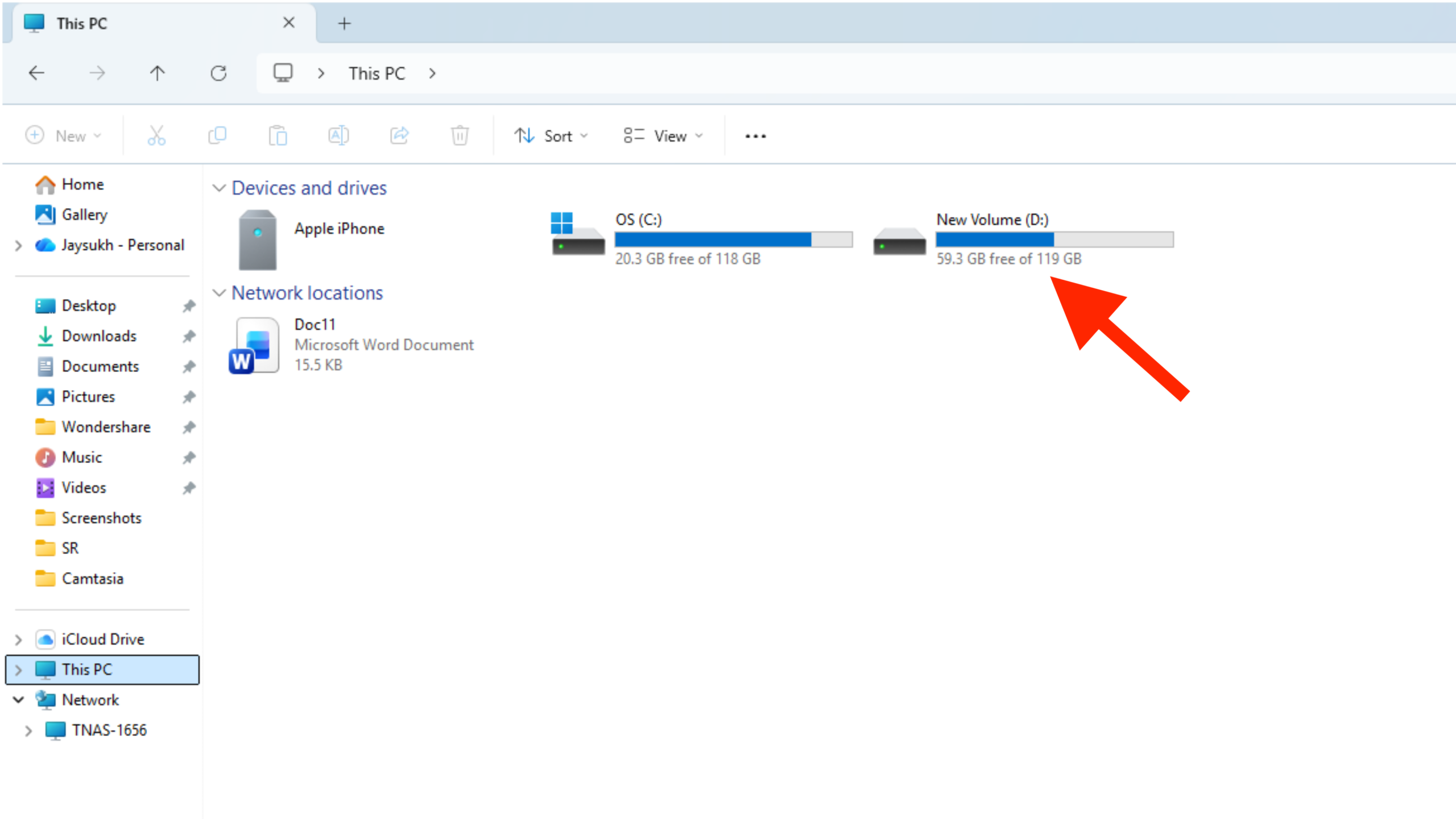
Change the iTunes backup location using a symbolic link.
iTunes doesn’t offer a way to change the backup location, so the safest method is to create a symbolic link.
Step 1: Close iTunes
First, close the iTunes app.
Step 2: Go to Original Backup Folder
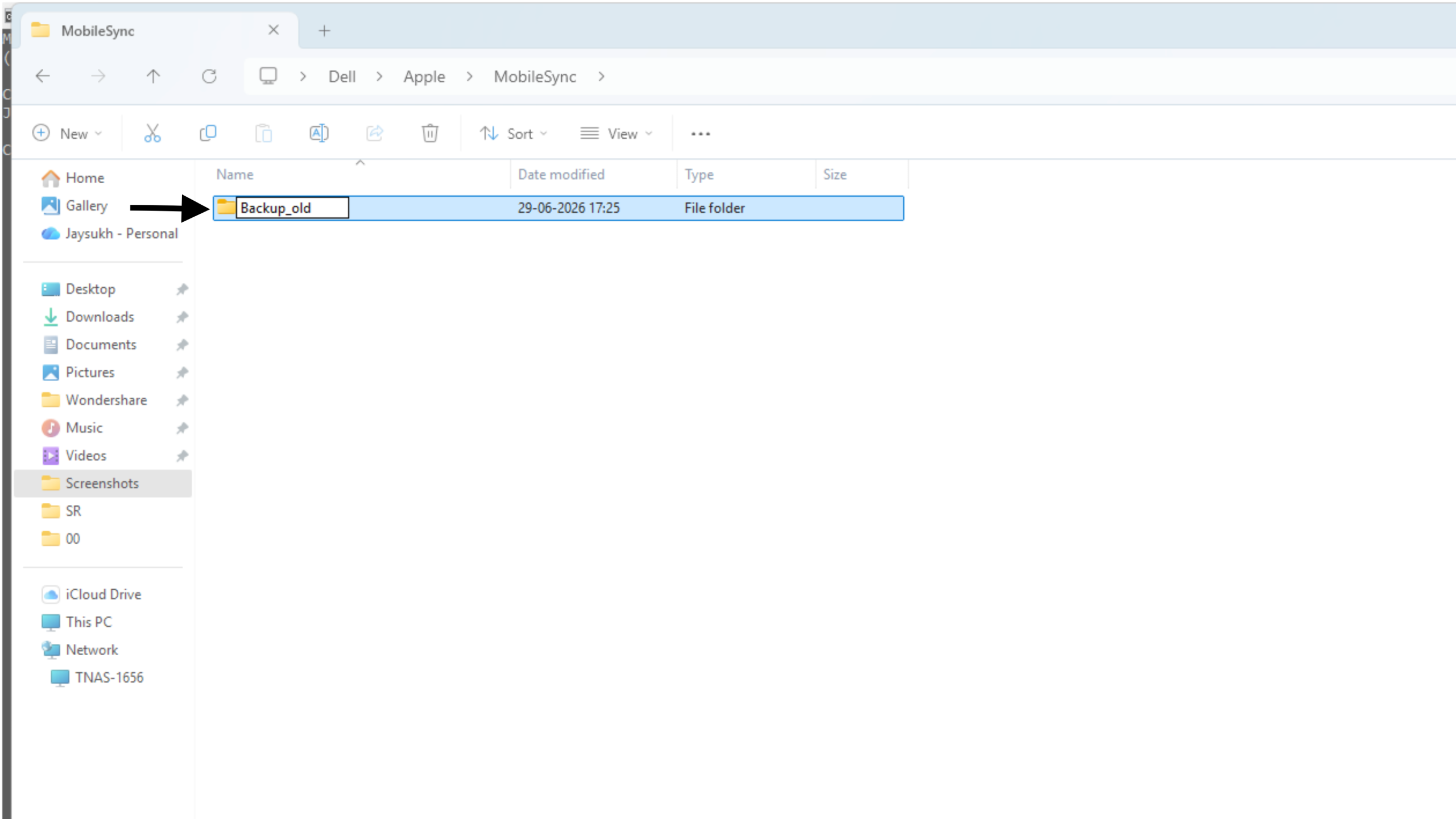
Open the Run window by pressing the Windows + R keys together. Then, go to the backup folder.
If you have installed iTunes from the Microsoft Store, use the given path.
%APPDATA%\Apple\MobileSync\Backup\
If you have installed iTunes from the Apple website, use the following path.
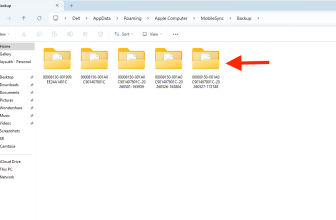
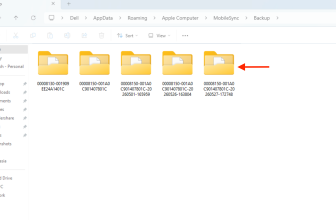
“%APPDATA%\Apple Computer\MobileSync\Backup”
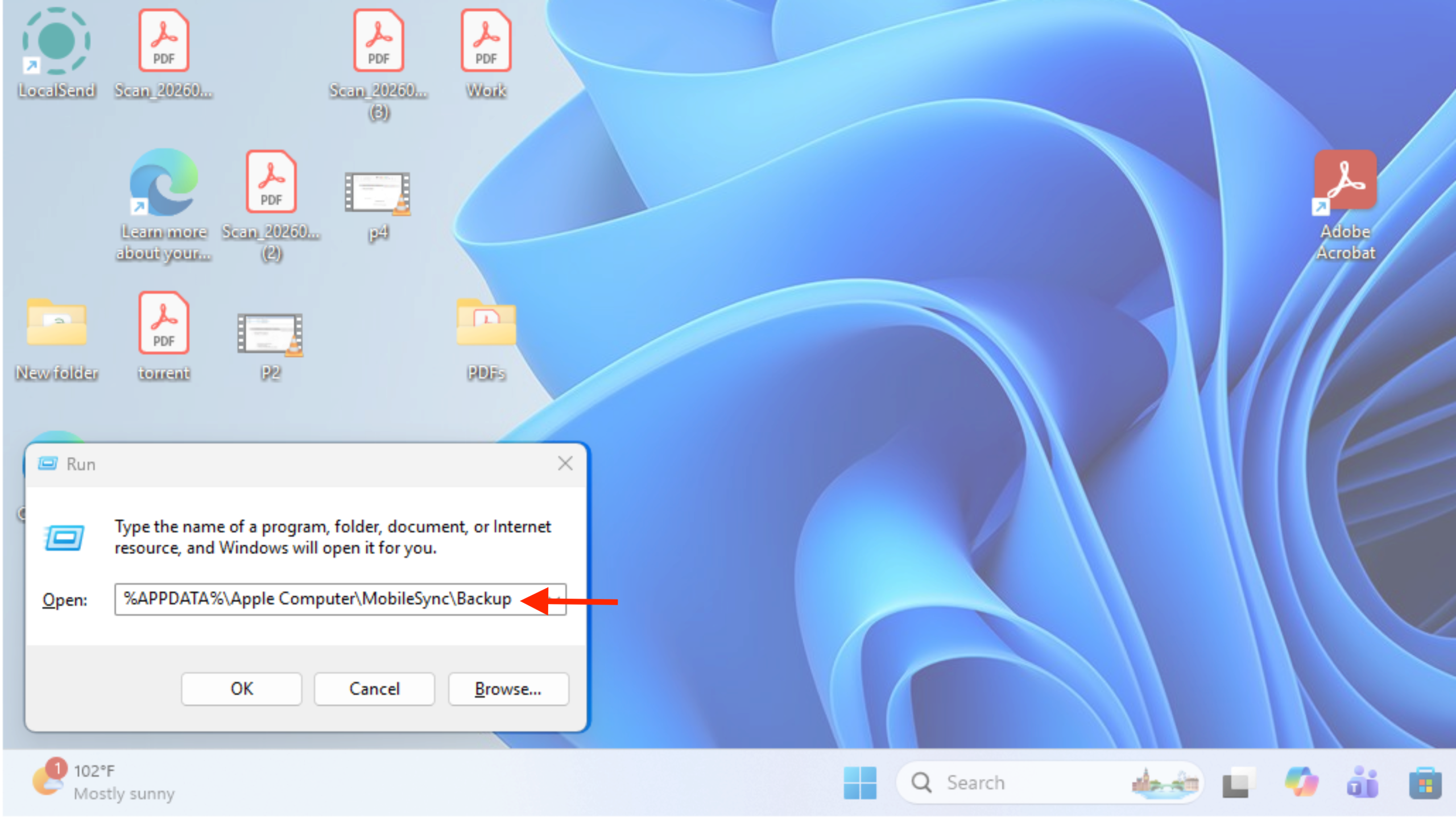
Replace “Username” with your Windows account name
If you see a folder named “Backup,” rename it to “Backup Old” or “OldBackup.”
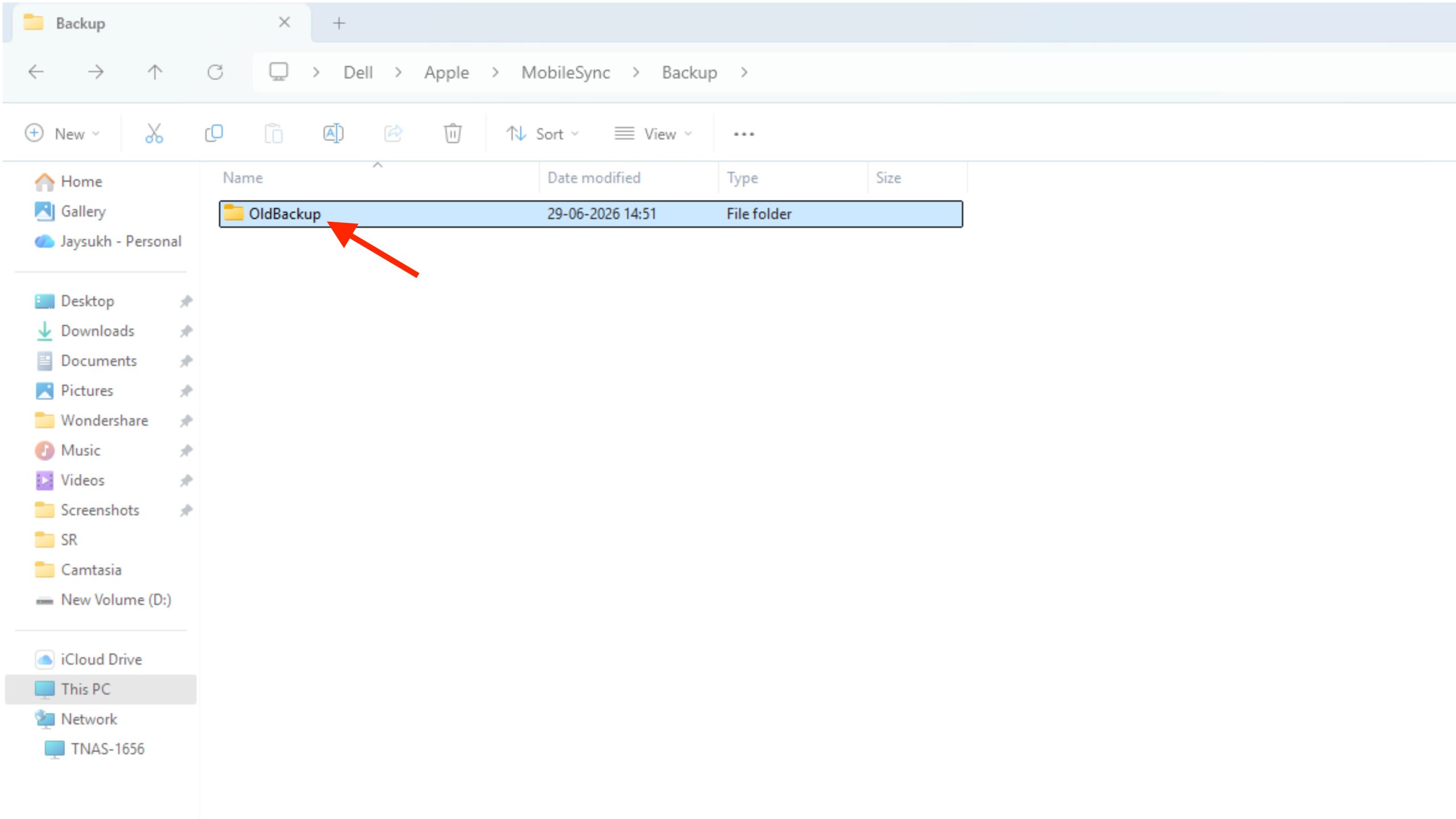
You can move the “OldBackup” folder to a new location.
Step 3: Create a New Backup Folder
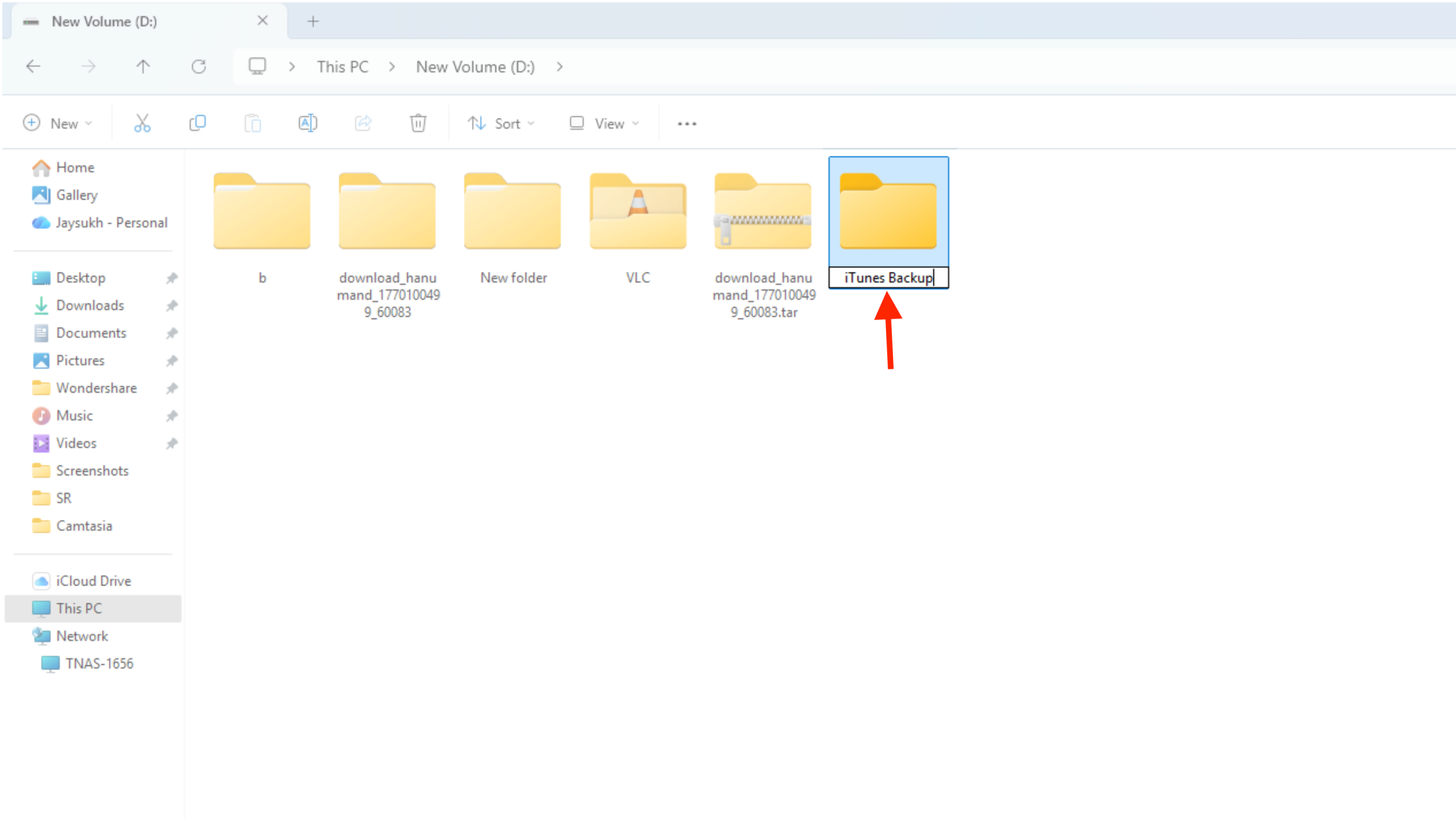
Now, go to the new location where you want to store your backup file and create a new folder named “iTunes Backup.” “iTunes Backup.”
Step 4: Create the Symbolic Link (Junction)
Open the command prompt and run it as an administrator. Allow the permission, and then run the command.

For Microsoft Store iTunes
mklink /J “%USERPROFILE%\Apple\MobileSync\Backup” “D:\iTunes Backup\Backup”
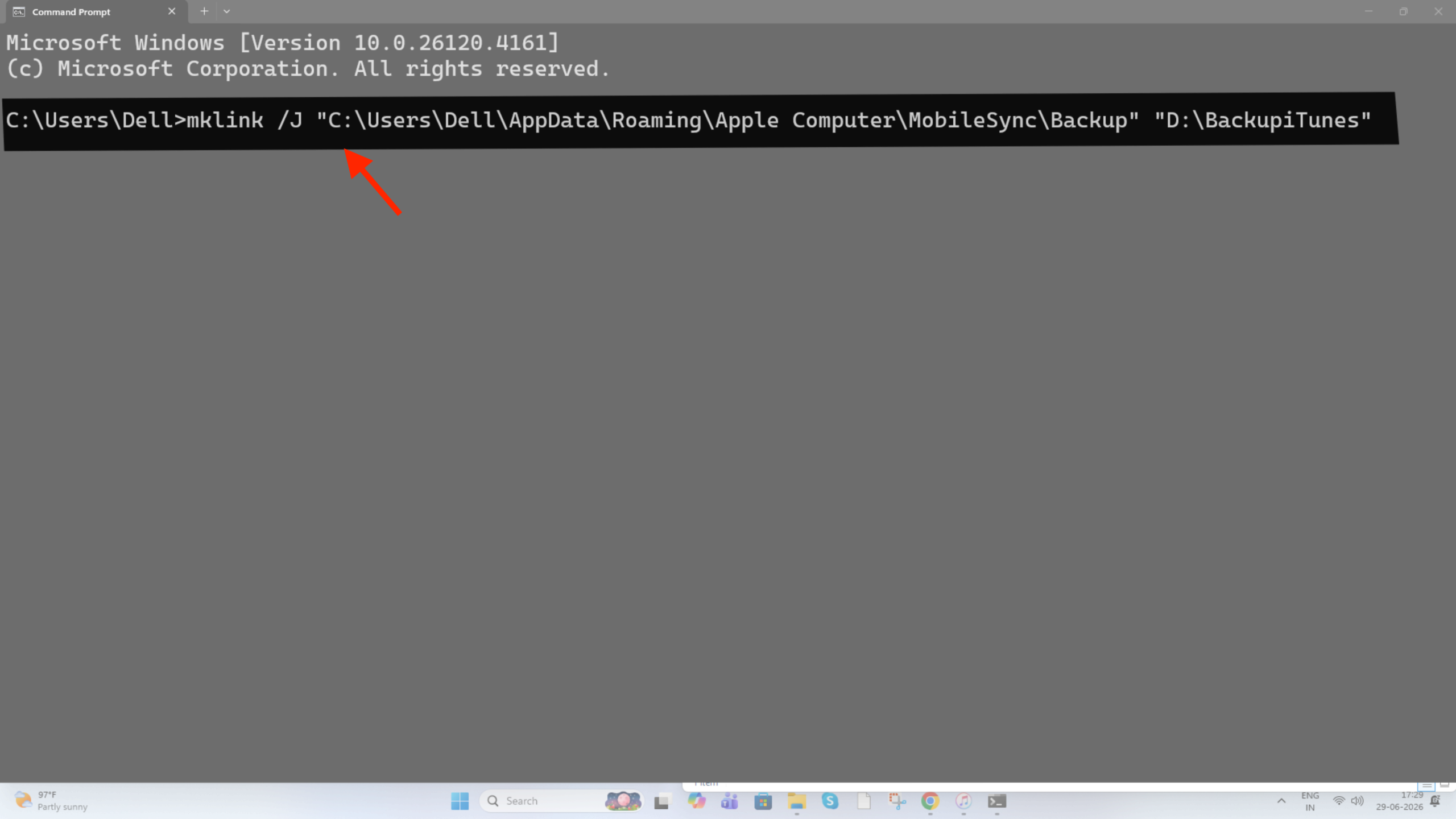
For Apple’s Website Version
mklink /J “%APPDATA%\Apple Computer\MobileSync\Backup” “D:\iTunes Backup\Backup”
If successful, your windows will display the junction created for the backup message.

Step 5: Open iTunes
Launch iTunes and connect your iPhone. Create a new backup. iTunes points to its default folder, and Windows automatically redirects the backup to a new location.
Please open your new backup folder and refresh it. Your newly created backup shows up in a new location.
Common Problems and Fixes
“Cannot create file”
If your command prompt shows an error message like “Cannot create a file when that file already exists,” don’t worry. Most people face this problem because Windows found an existing file. Don’t worry. Most people encounter this problem because Windows has detected an existing file.
To solve this problem, remove or rename the backup folder before creating the junction.
If the Original Backup Is Already a Junction,
Open the Command Prompt as an administrator and run:
dir “%USERPROFILE%\Apple\MobileSync”
If backup appears like this
<JUNCTION> Backup
Delete only the junction, not the backup data.
rmdir “%USERPROFILE%\Apple\MobileSync\Backup”
Then, create the new junction again.
FAQs
1. Can I change the default backup location in iTunes?
No, iTunes doesn’t have any built-in setting to change the backup location. However, you can only redirect the backups to another drive using a Windows symbolic link (junction).
2. Is it safe to move my iTunes backup folder to another drive?
Yes, it’s safe to move the entire backup folder to another drive. For that, you just need to create a symbolic link correctly.
3. Can I save iPhone backups to an external hard drive or SSD?
Yes, you can store your iPhone backups to an external hard drive or SSD. Make sure the drive is connected before opening iTunes and starting a backup.
4. What should I do if I get an “Access Denied” error?
If you encounter an “Access denied” error, run Command Prompt as administrator. Ensure that you have permission to access the original and new backup folders.
5. Can I use a USB flash drive for iTunes backups?
Yes, you can use the USB flash drive for iTunes backups, but it’s not recommended. USB flash drives are less reliable than external hard drives and SSDs, especially for large iPhone backups.
6. Can I change the backup location back to the default folder later?
Yes, simply delete the symbolic link and move the backup folder back to its original location. Then iTunes will resume storing backups in the C: drive.
Conclusion
Changing the backup location on Windows is a practical way to manage and free up the storage space on your system drive. Once you successfully redirected the backups to another drive using a symbolic link, all future backups will be saved to the new location. With the backup location changed, you’ll have better control over storage and can manage your iPhone backups efficiently.