


As an iPhone user, I’ve been waiting for the Auto-Translation feature in Safari App for a long time, but it seems like it’ll come around with the new iOS. This tutorial is all about the Google Translate App, which is available for iOS and Android. Its web interface is much easier to use but won’t let you download languages for offline translation, and most importantly, you cannot use it offline. That’s why an App is needed to translate offline on Google Translate. In many instances, we’ve to travel around the world, mostly to unfamiliar places, where it’s a bit challenging to understand their people, and languages, and communicate with them.
On another note, you don’t know which area has a good signal and where your phone’s network signal will disappear. In such a situation, if you are well-prepared, communication gets more comfortable in a foreign language. Here Google Translate’s offline translation feature comes into the picture. You can download any language from the extensive database to the Google Translate App for offline use. Plus, we can convert Documents, Banners & Holdings text using the Camera or Voice input offline. For once, to download the language package, you would need an internet connection.
How to Use Google Translate Offline When You Travel
We have pictured the steps using the iPhone & Android Google Translate App. However, the settings and app interface are dissimilar. Google Translate app supports Camera Photo [Live Convert], Handwriting, Conversation, and Voice. So This Offline Google Translate App becomes handy for Students under Internet Restrictions, Travel Time, or Business & Personal talk.
How to Use Google Translate Offline on iPhone
It would be best if you had a time internet connection to make this feature is enabled. So first you have to download Data from the internet, and After that, it will work offline.
Step 1: Connect your iPhone to Wi-Fi or Cellular Data > Launch the Google Translate App on your iPhone > Tap on the Profile icon at the top-right Corner.
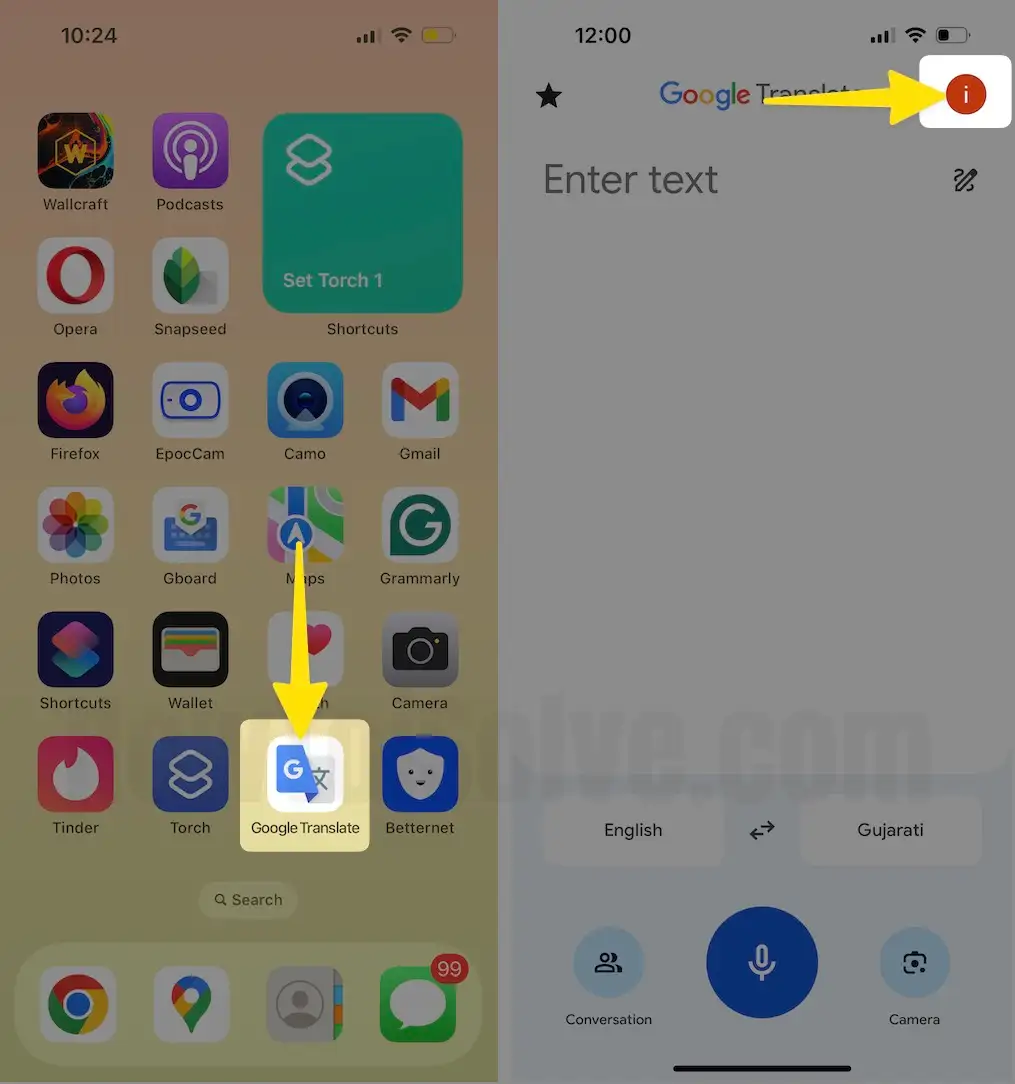
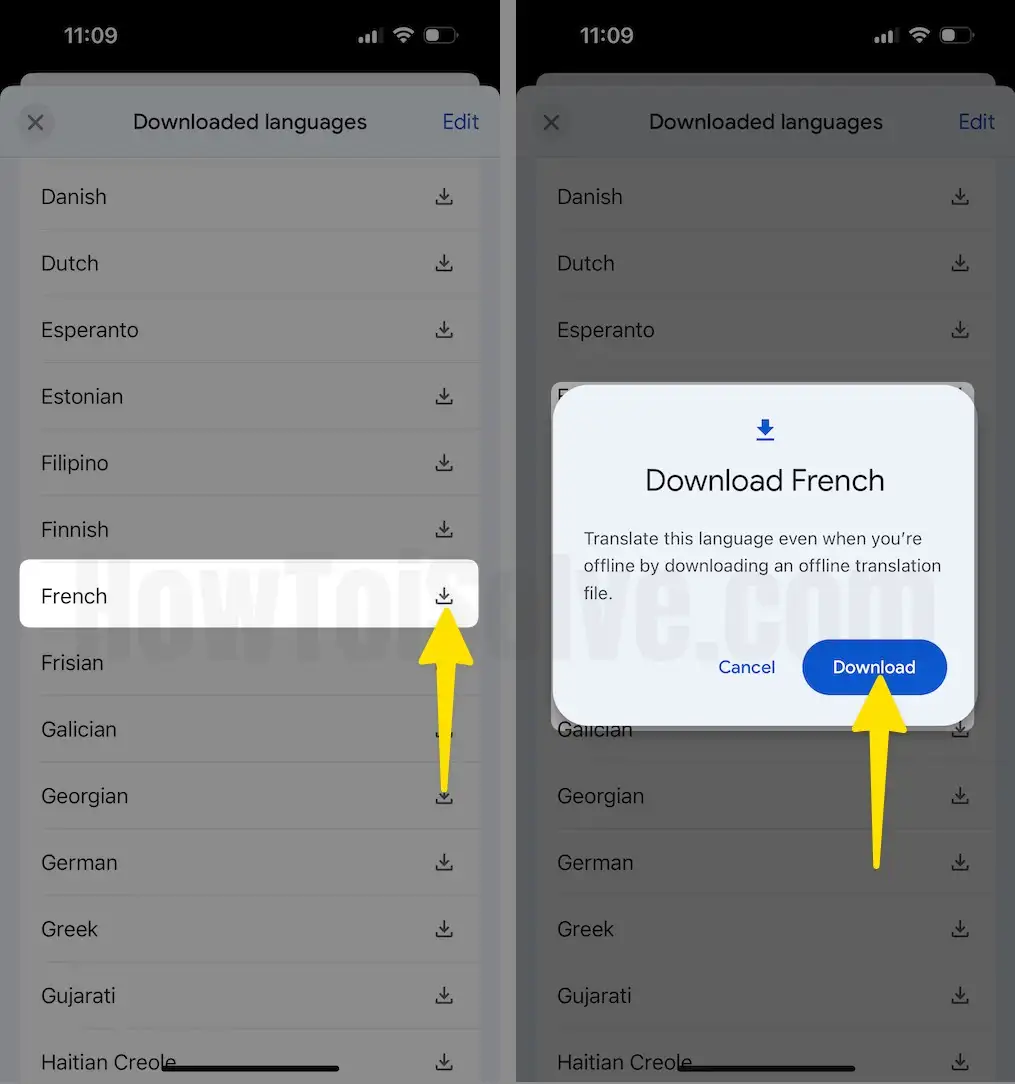
Step 2: Select Downloaded Languages > Swipe Down the Screen to Select the Language.

Step 3: Tap on the Download icon next to the Selected Language > From the Prompt, Select Download for Confirmation.
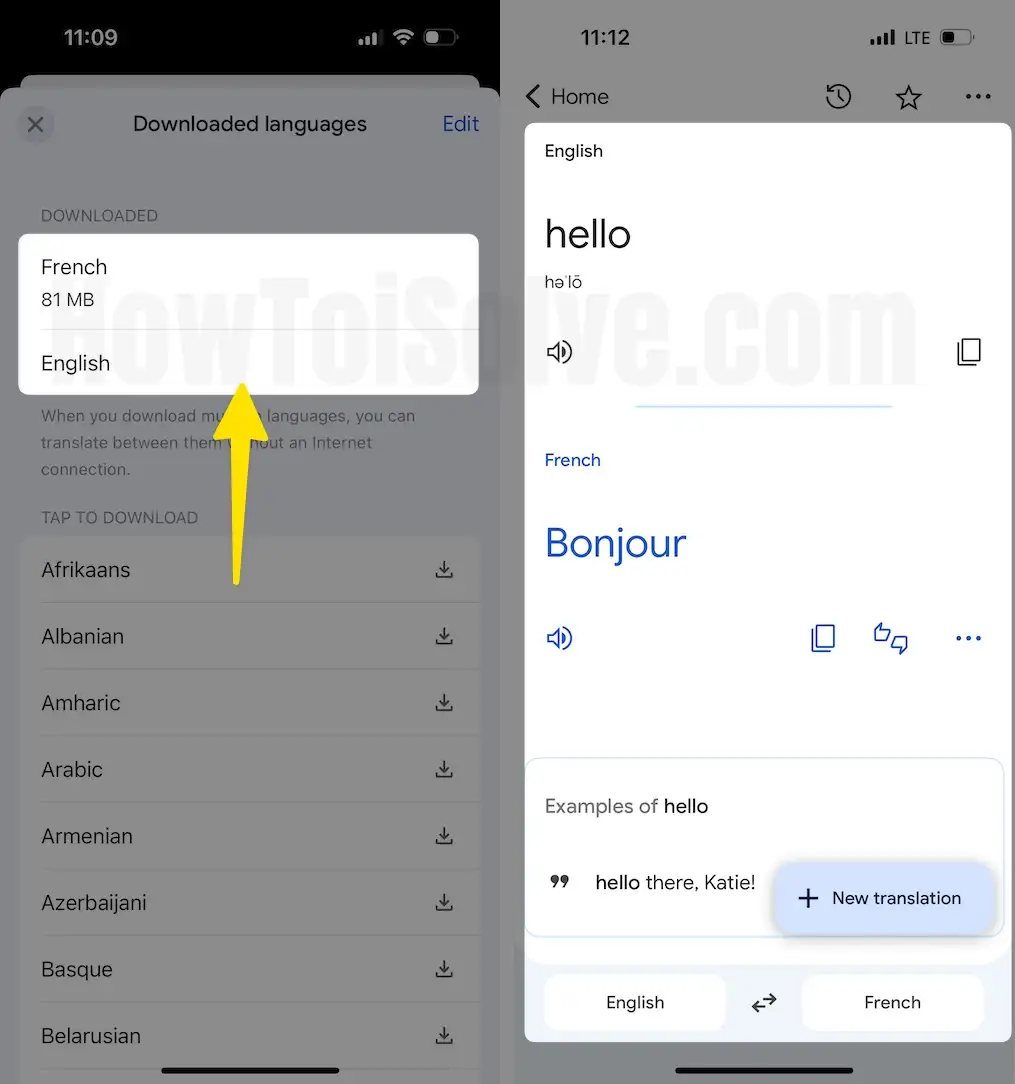
Step 4: See the Downloaded Languages Section > Disable the internet connection, and try to translate offline to the language that you’ve downloaded.
How to Use Google Translate Offline on Android
Step 1: Connect your Android Phone to Wi-Fi or Cellular Data > Launch the Google Translate App on your Android Phone > Tap on the Profile icon at the top of the right Corner.

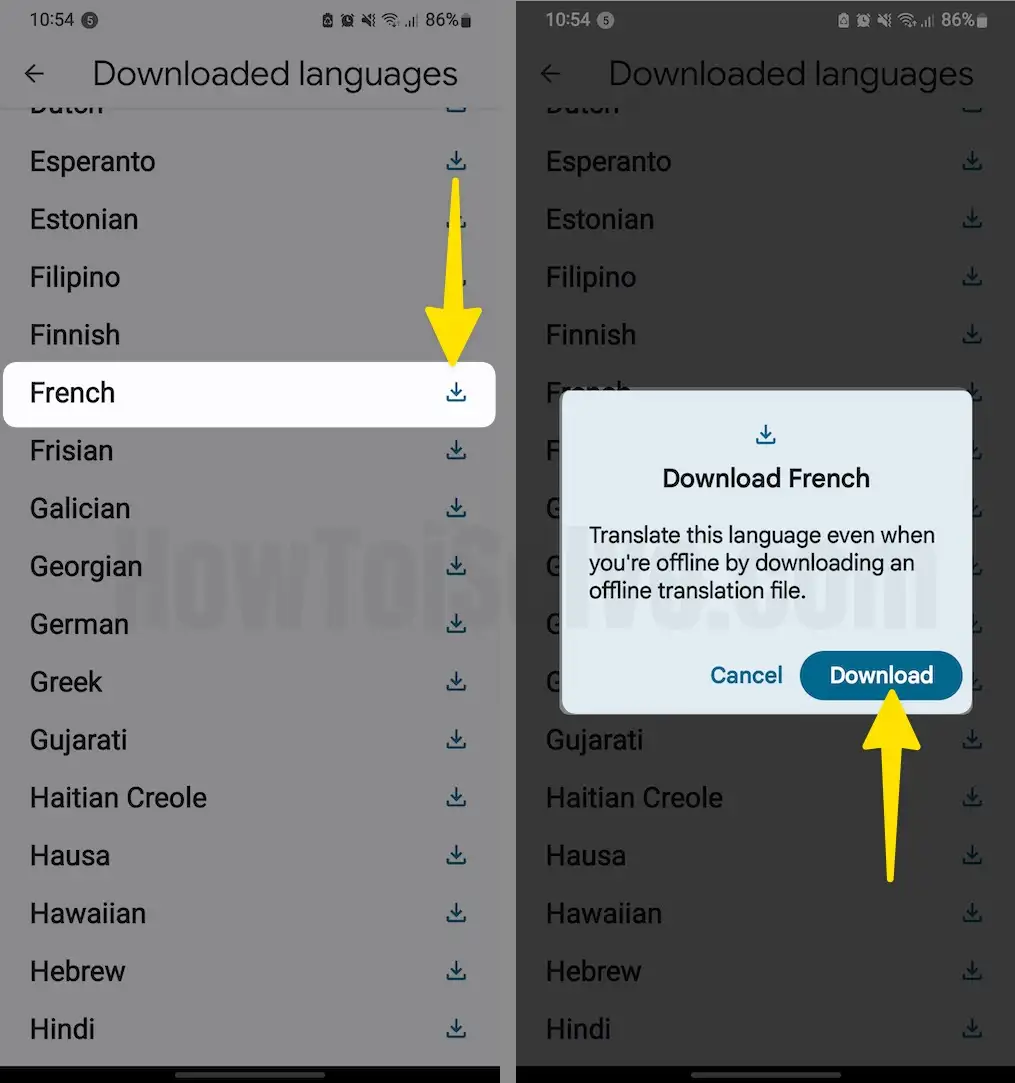
Step 2: Tap on Downloaded Languages > Swipe Down the Screen to Select the Language.

Step 3: Tap on the Download icon next to the Selected Language > Again, Select Download For Confirmation.
Step 4: See the Downloaded Languages Section > Disable the internet connection, and try to translate offline to the language that you’ve downloaded.

How to Update Google Translate Downloaded Languages
Google keeps releasing updates for the language packages to fasten offline translation, maintain accuracy, and introduce new features. So whenever you open the Translate app, update the downloaded language packages before using it.
Step 1: Launch the Google Translate App on your iPhone > Tap on the Profile icon at the top-right corner.
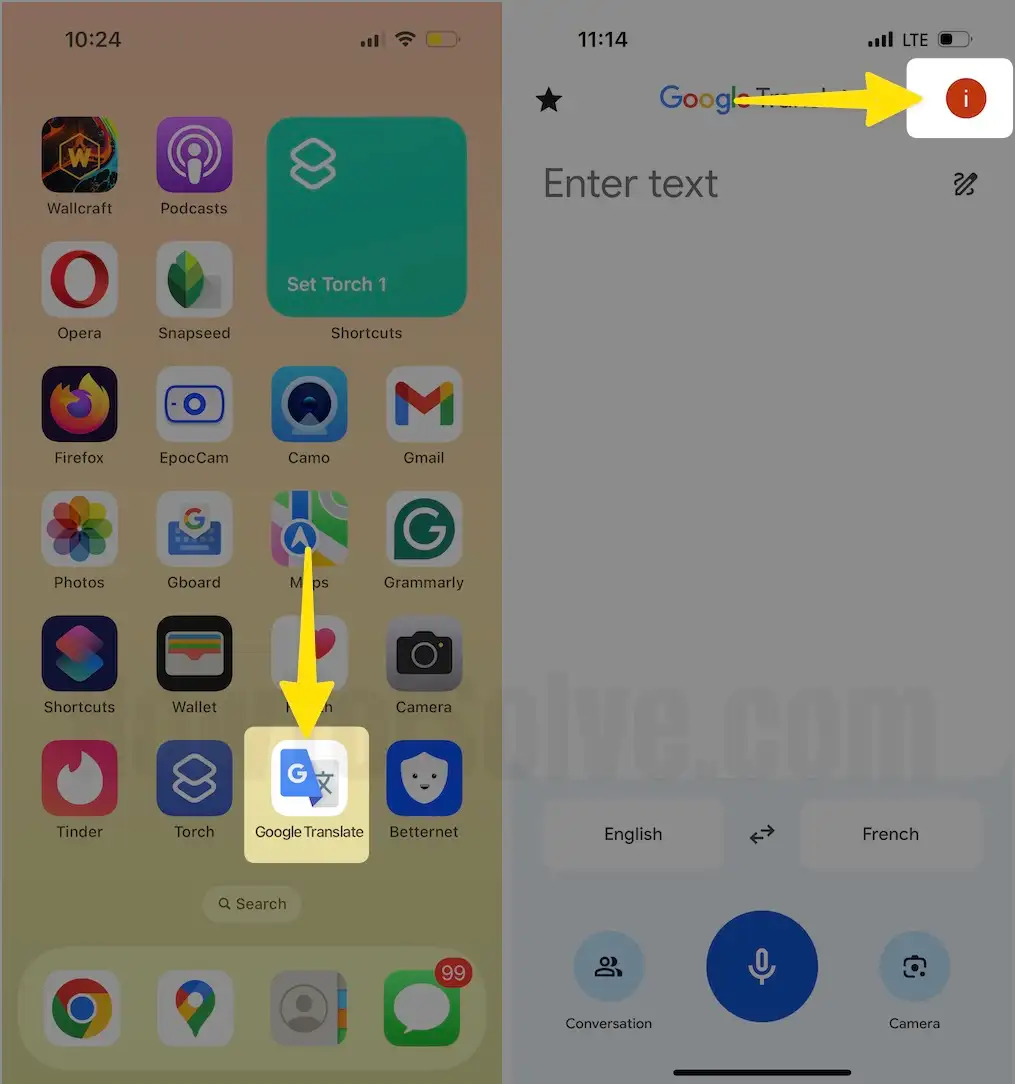
Step 2: Select Downloaded Languages > You’ll see the Download icon next to each language package. tap Download individually.

How to Delete Language from the Google Translate
If you are done with the downloaded language, then delete the language and free up the iPhone storage. And Turn off Offline Translalte on Google Transplate app.
Step 1: Connect your iPhone to Wi-Fi or Cellular Data > Launch the Google Translate App on your iPhone > Tap on the Profile icon at the top-right Corner.

Step 2: Click on Downloaded Languages > Tap on Edit.
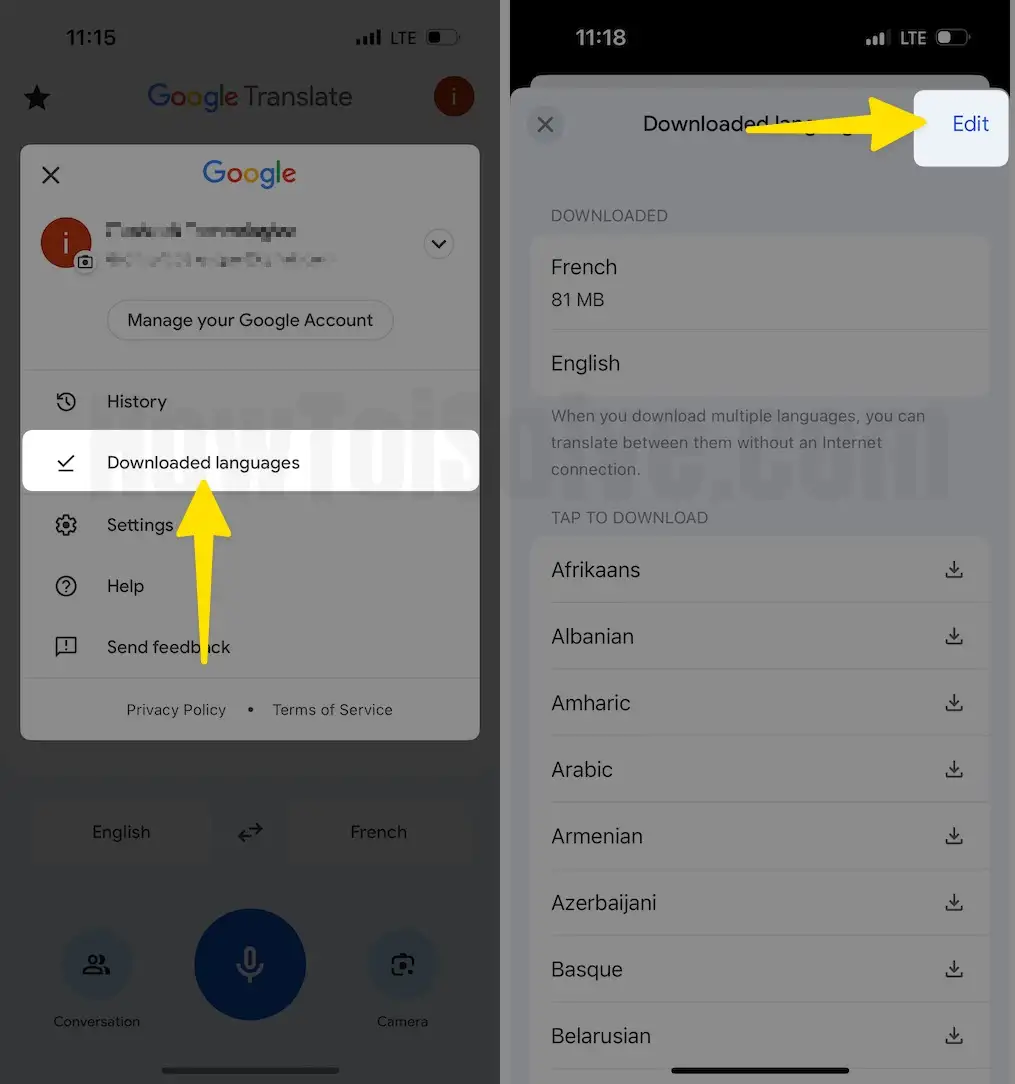
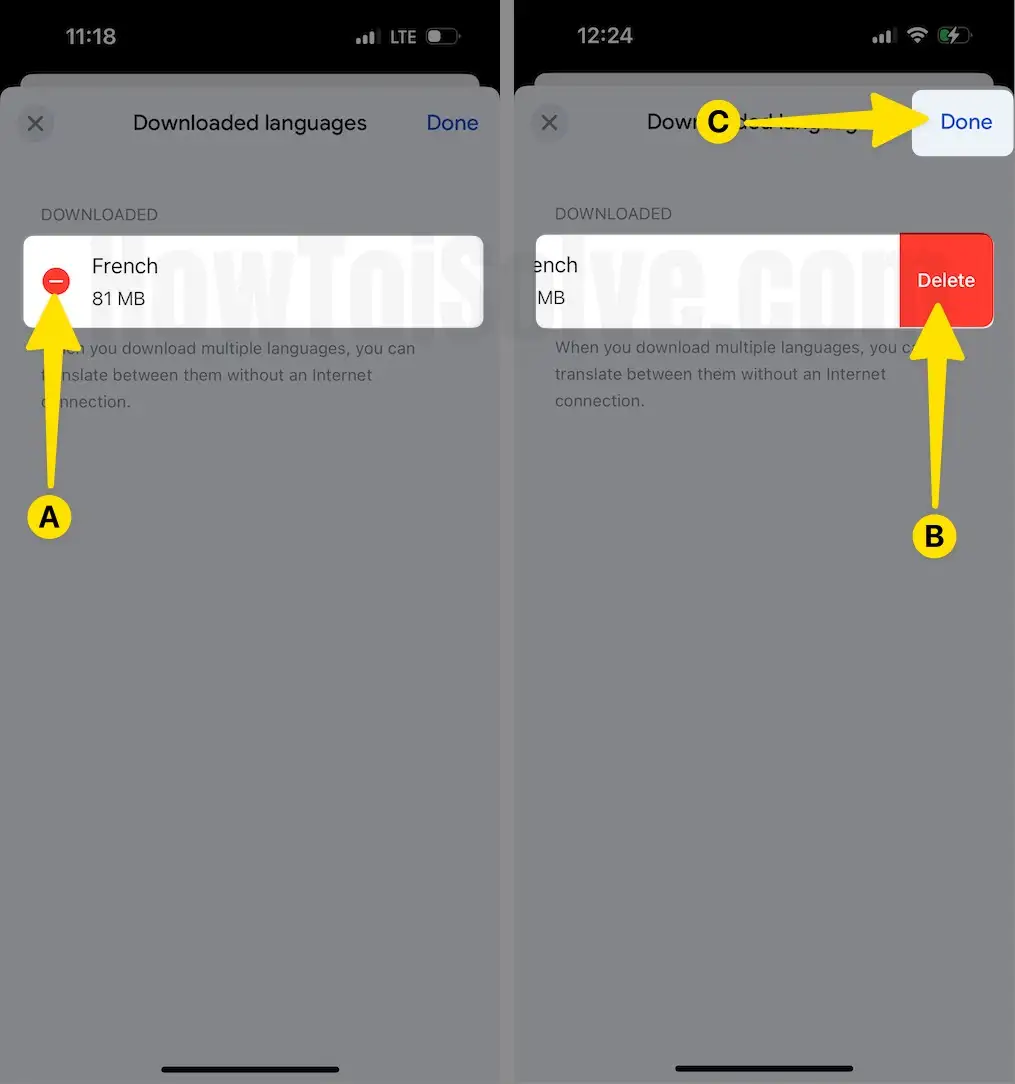
Step 3: Tap on the (-) Button next to each downloaded language to Delete the Language > Select Delete > Click on Done.
That’s it.
These are essential tips to convert or Translate an Unknown language into a Known language using the iPhone or Android Google Translate app free. So keep this Google Translate app updated to find new features.






