


People who use Instagram tend to spend most of their time watching stories updated by others. And usually, when doing Instagram stories, we like to spice things up and make them more entertaining by adding Music or stickers.
This blog will teach you how you can successfully add your favourite piece of Music to your Instagram stories, whether a picture or video. Also, this trick works for both Android as well as iOS.
Adding Music To Your Instagram Story through The Music Sticker
The first and easiest method to add Music to your Instagram story is using the music sticker.
Here is the complete step-by-step guide that you can follow:
Step 1: If you are using the older version of Instagram, then it is advised to update it first. After updating, open your Instagram account and click on the top left section where your profile picture shows. Along with your picture, you will see a little plus sign which indicates that you can add your photo and video from here.
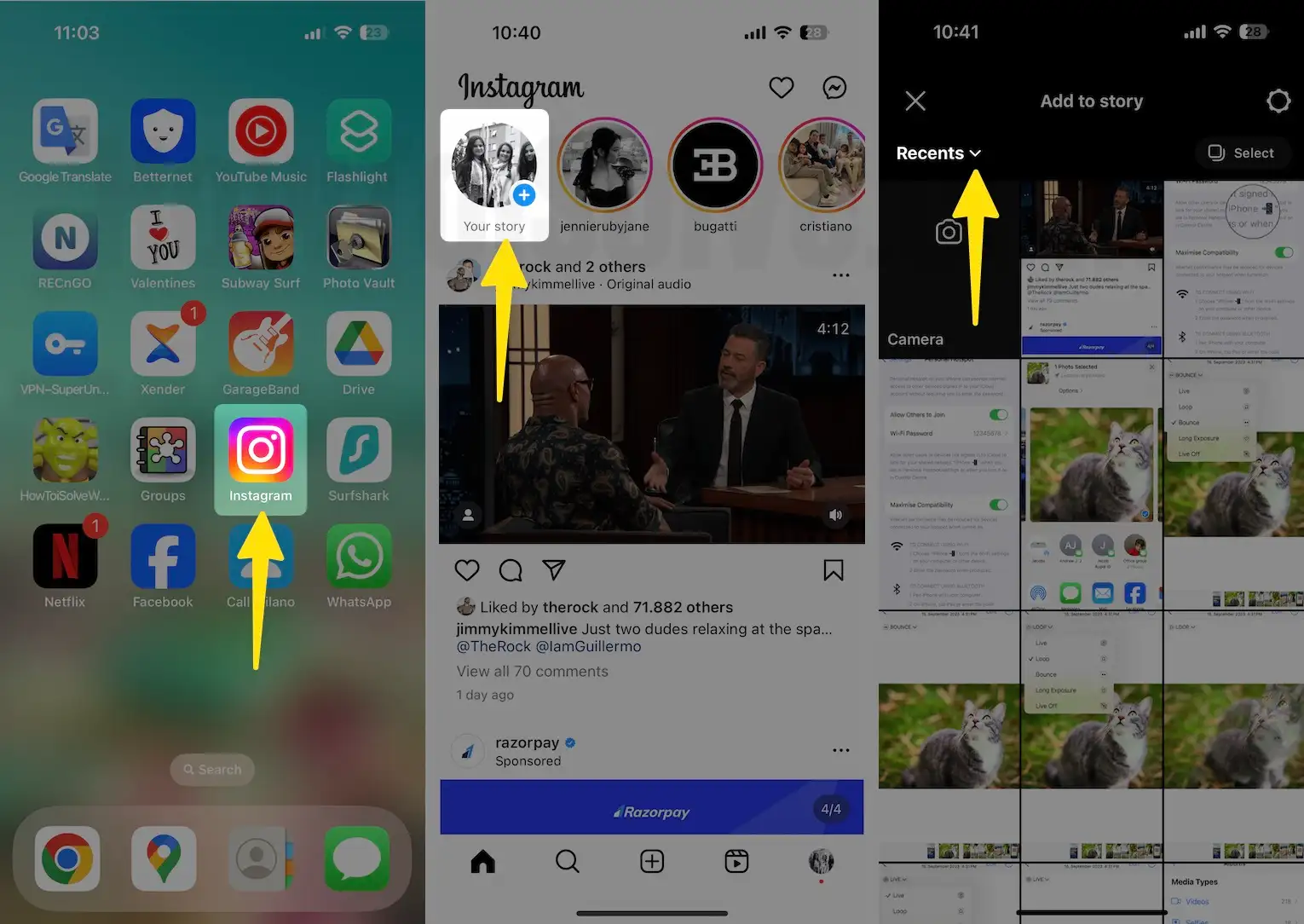
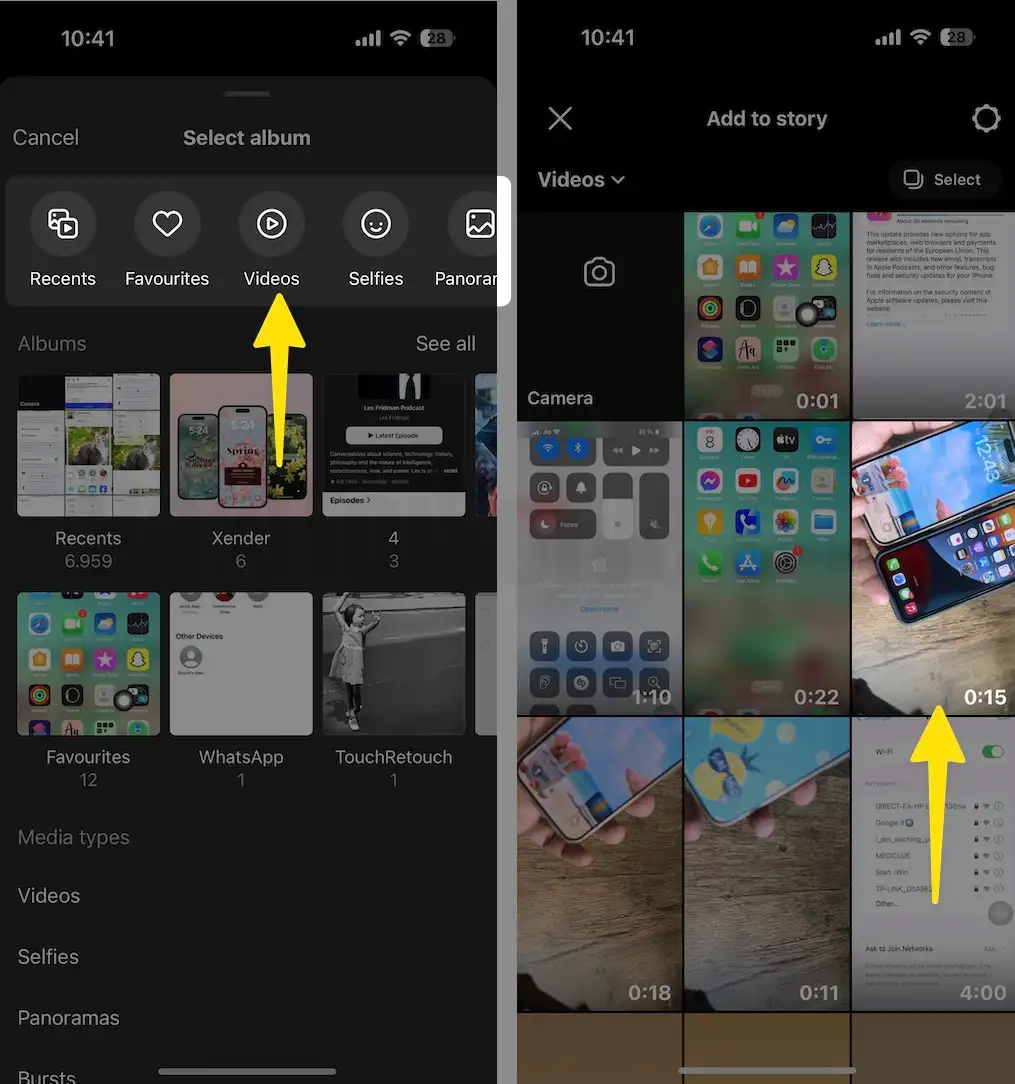
Step 2: When you click on it, it will give you two options, either you can click a picture at that moment or upload an existing photo or video from your gallery. You are free to choose any file you want.
Step 3: Tap on Done. Once you have selected the file you want to put on the status. Tap on the square smiley sticker option, which is available on the upper side (Add Sticker if you would).
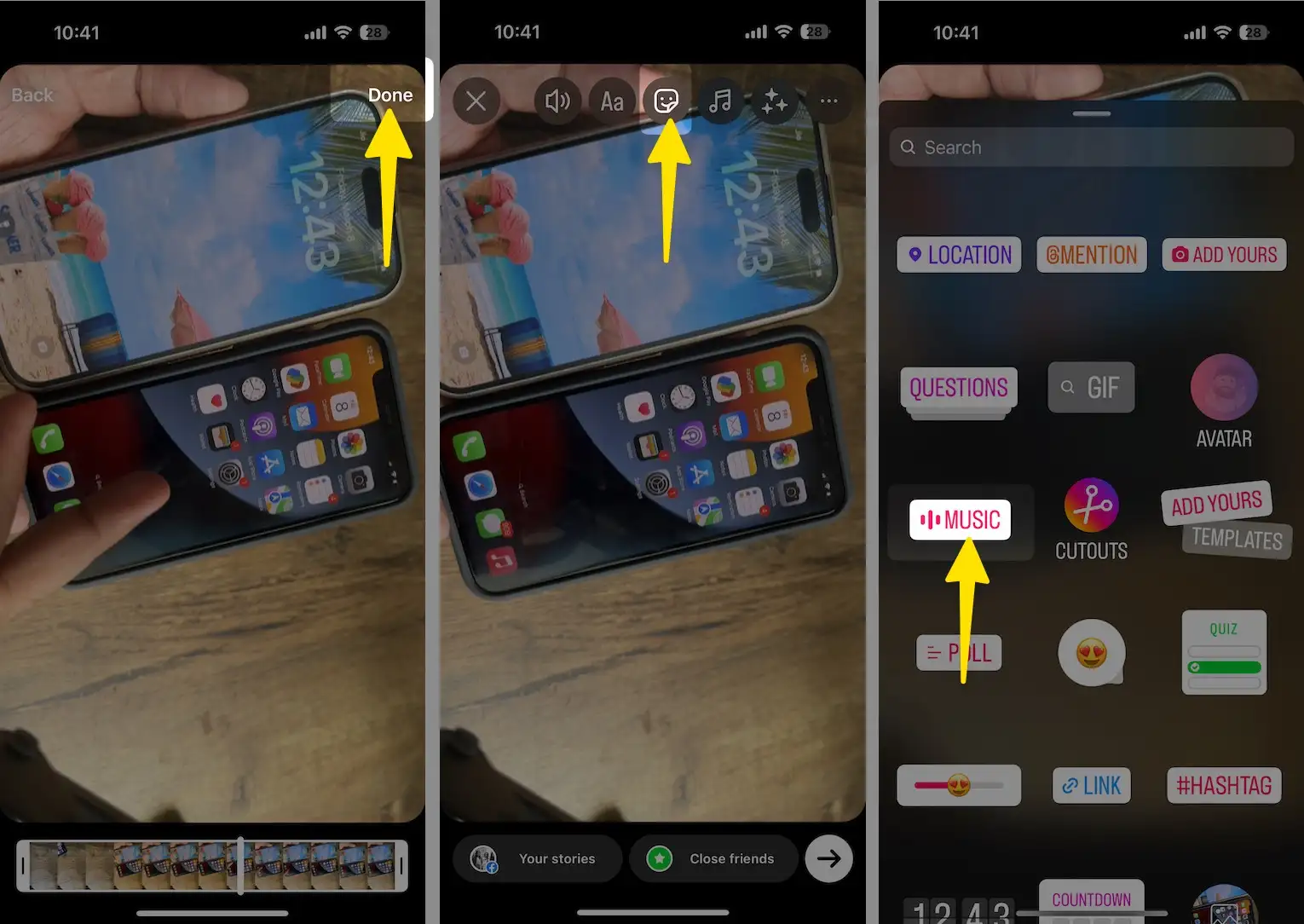
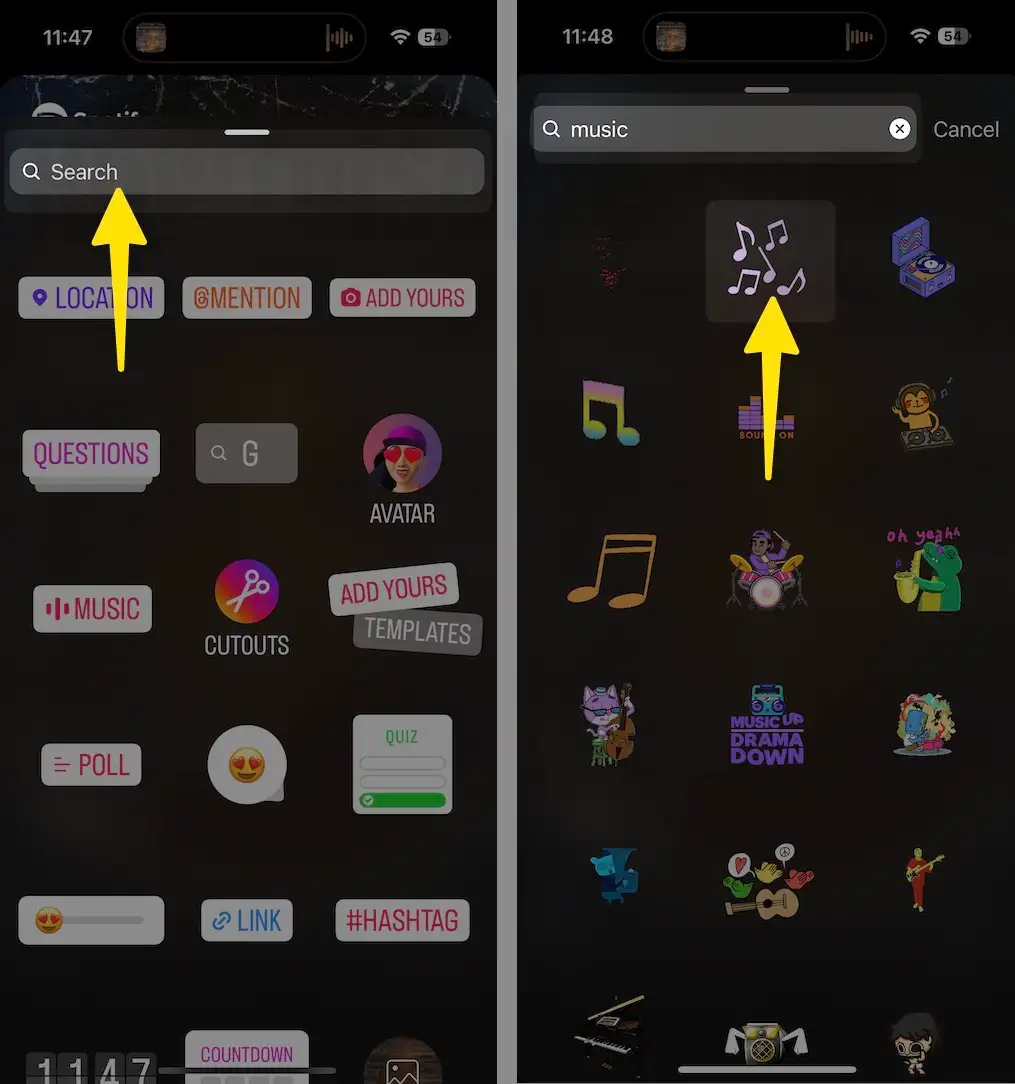
Step 4: A pop-up menu on your screen with a search bar and other options. From which, you have to select the music sticker.
It is usually on the pop-up menu, but if you can’t find it, search for it.
Step 5: You now have a menu where you have to select the song of your choice. Just type in the Music you want; once it appears, click on it. There will be a list of suggestions and also a search option.
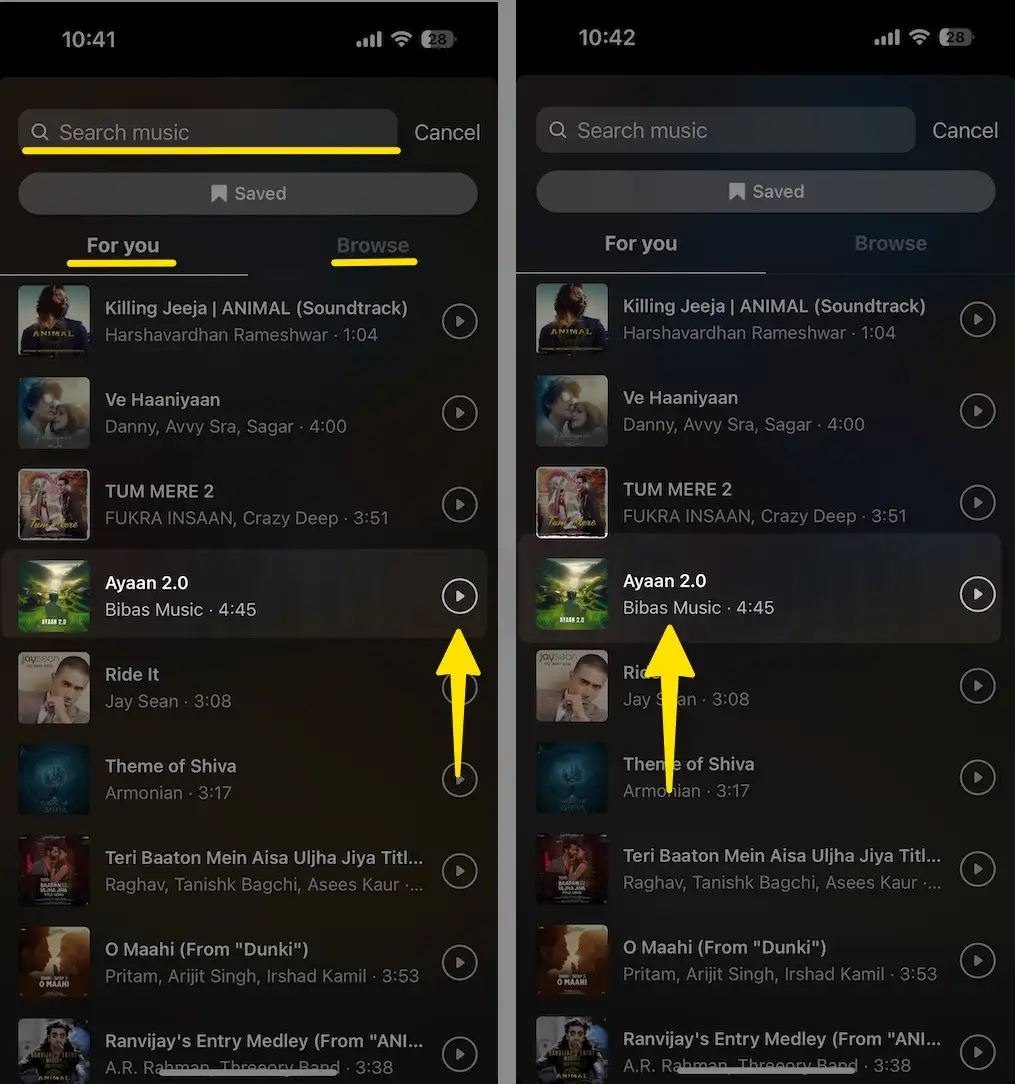
Step 6: Once you select the song, it will be added to the photo and video you want to upload. Instagram lets you add 15 seconds of audio to your status.
Step 7: Now here you can do some modifications. You can select the part of the song you want to add from the timeline, which is displayed at the bottom.
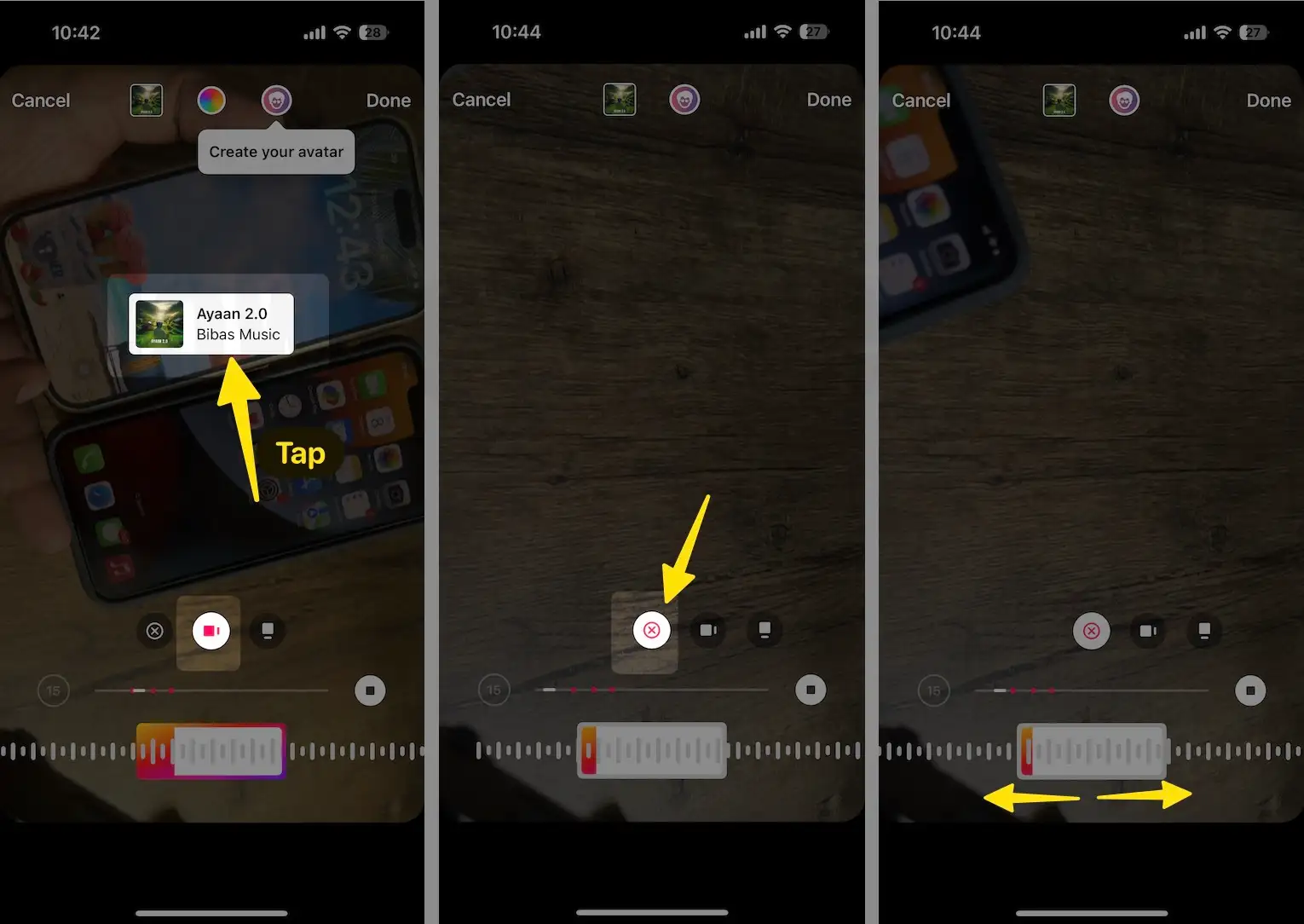
Step 8: You can also add song lyrics to your status if you wish to. Once you make the changes, tap on Done. Wait for a while, and your status is updated along with the song of your choice > Send for Story.
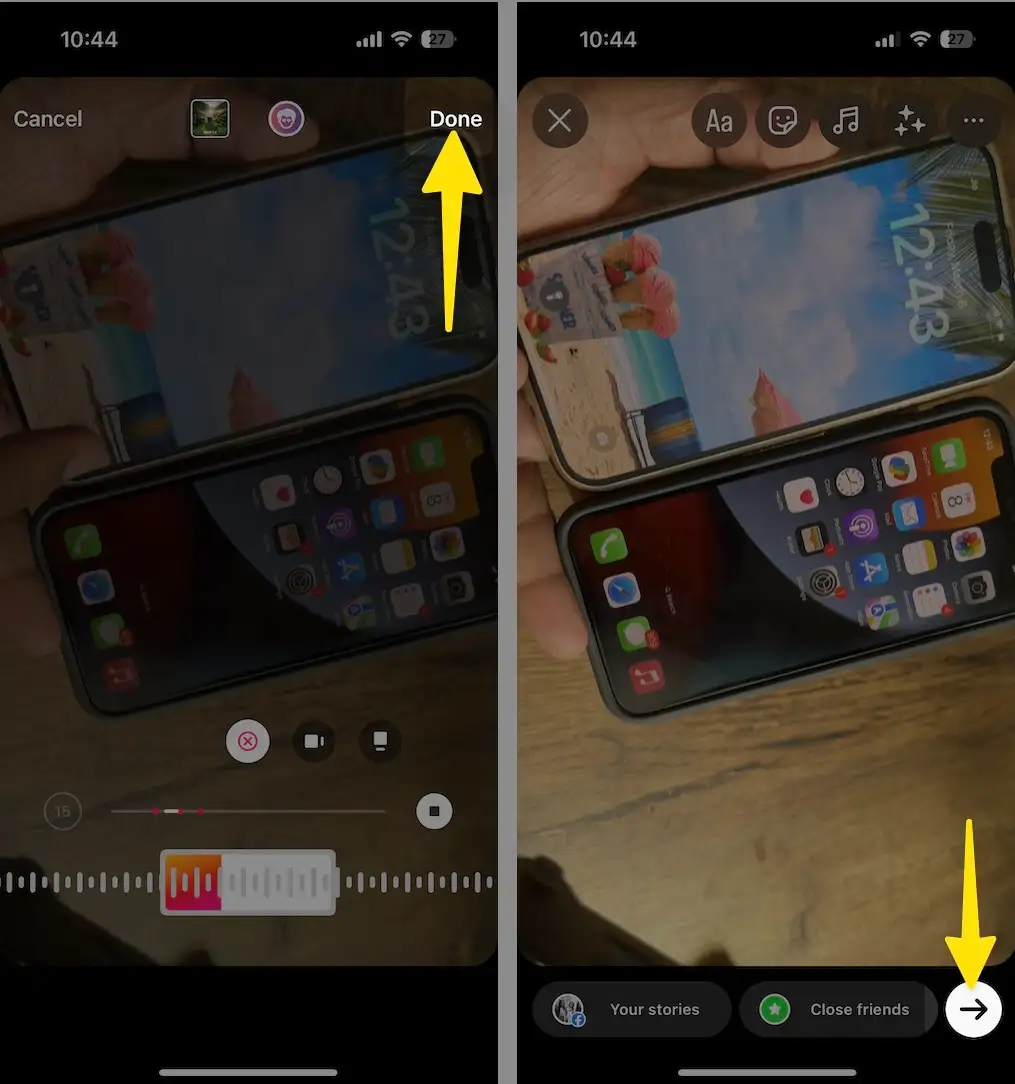
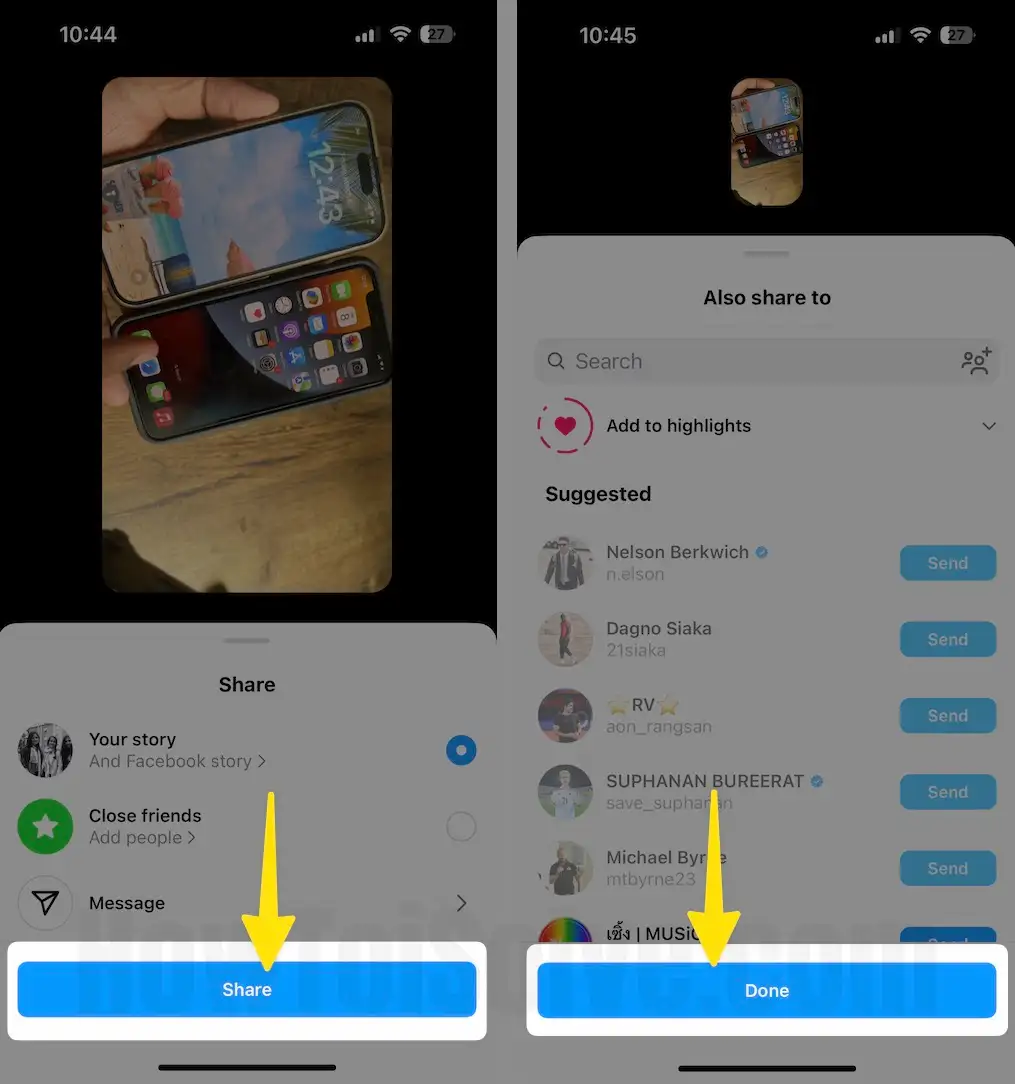
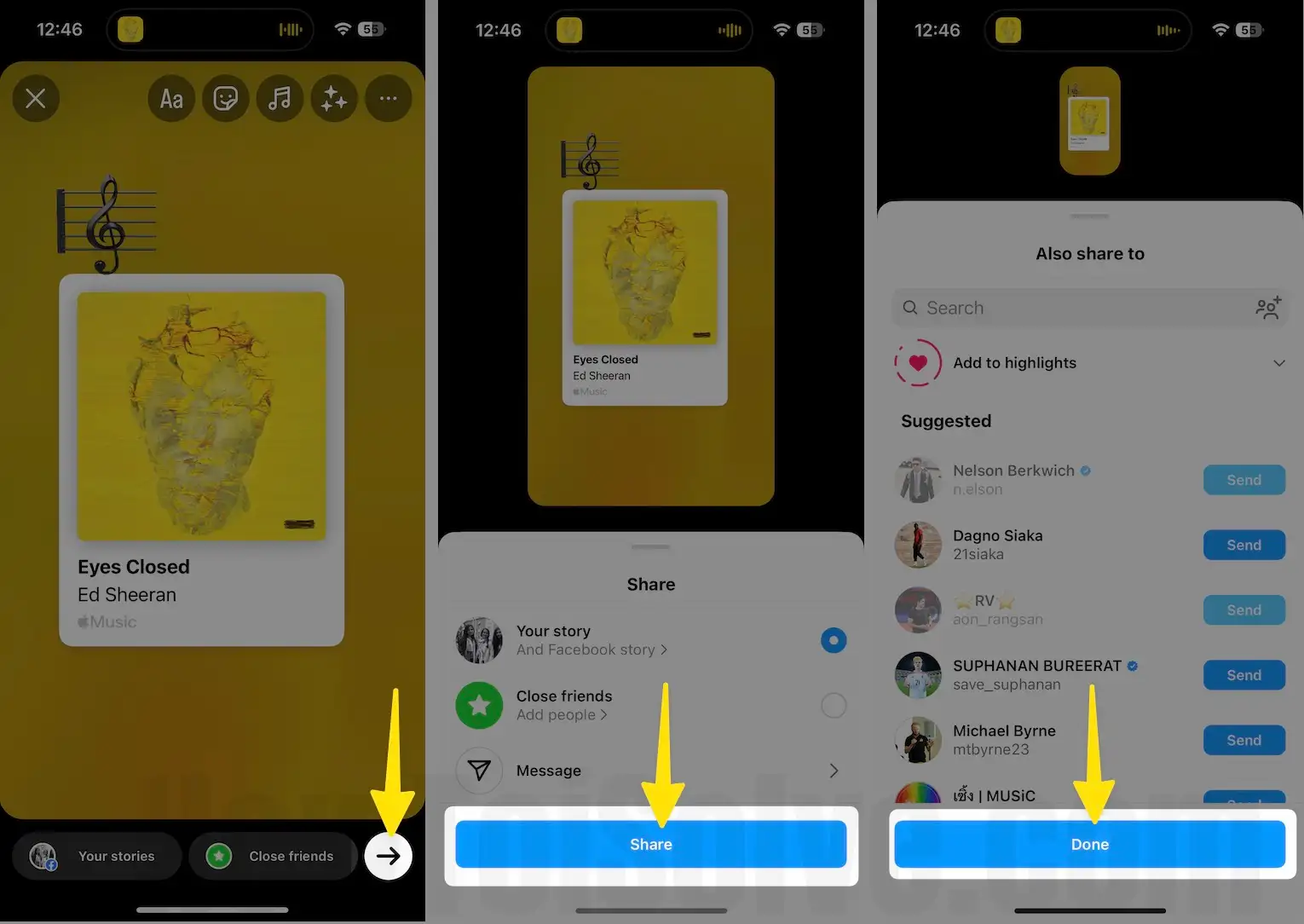
Now, Tap on Share Option with option for send to suggested Instagram Friends > Done.
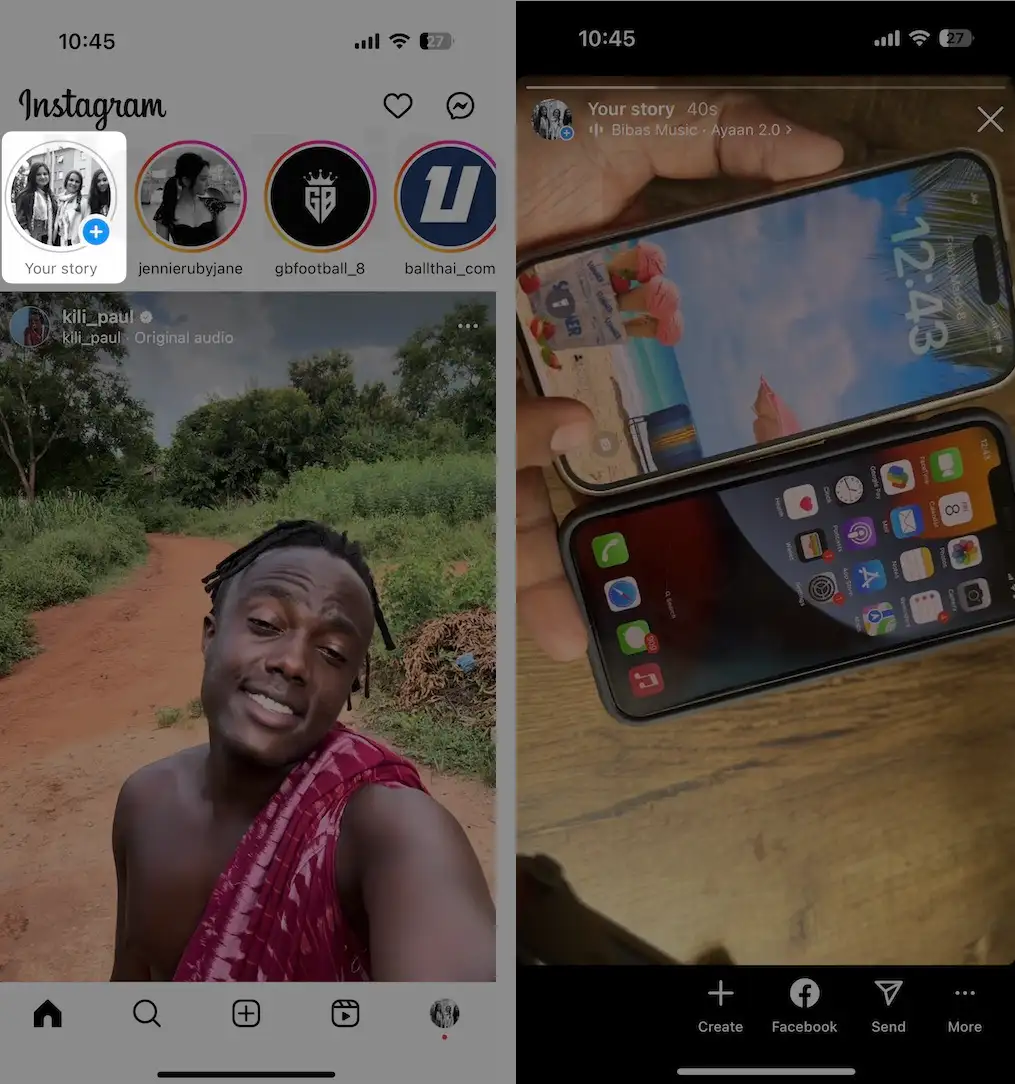
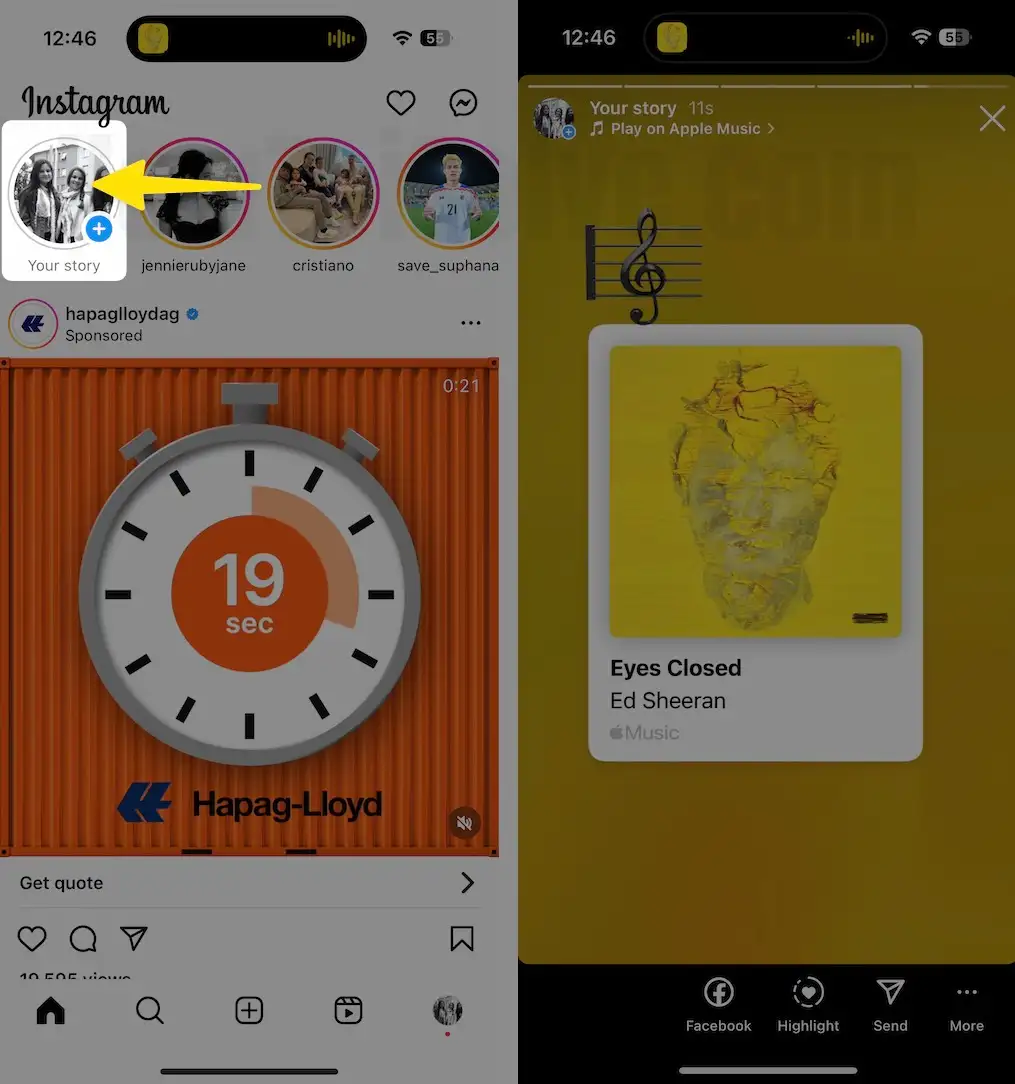
To View Uploaded Your Instagram Stories: Tap on your Profile (Your Story),
So far, we have talked about how to use Instagram to add Music, but what if you want to do it alternatively using other music streaming applications? Luckily there is a way to do that.
Let’s learn how to use famous online Music streaming platforms like Spotify and SoundCloud to add Music to your Instagram status.
How To Add Music From Spotify?
As Spotify teamed up with Instagram, you no longer have to screenshot a song to share. You can upload a preview of a song that you like.
Follow these steps, and you will find out how you can do it.
Step 1: Open the Spotify app, and find the song you want to share. Then, hit the screen’s share button in the bottom right corner.
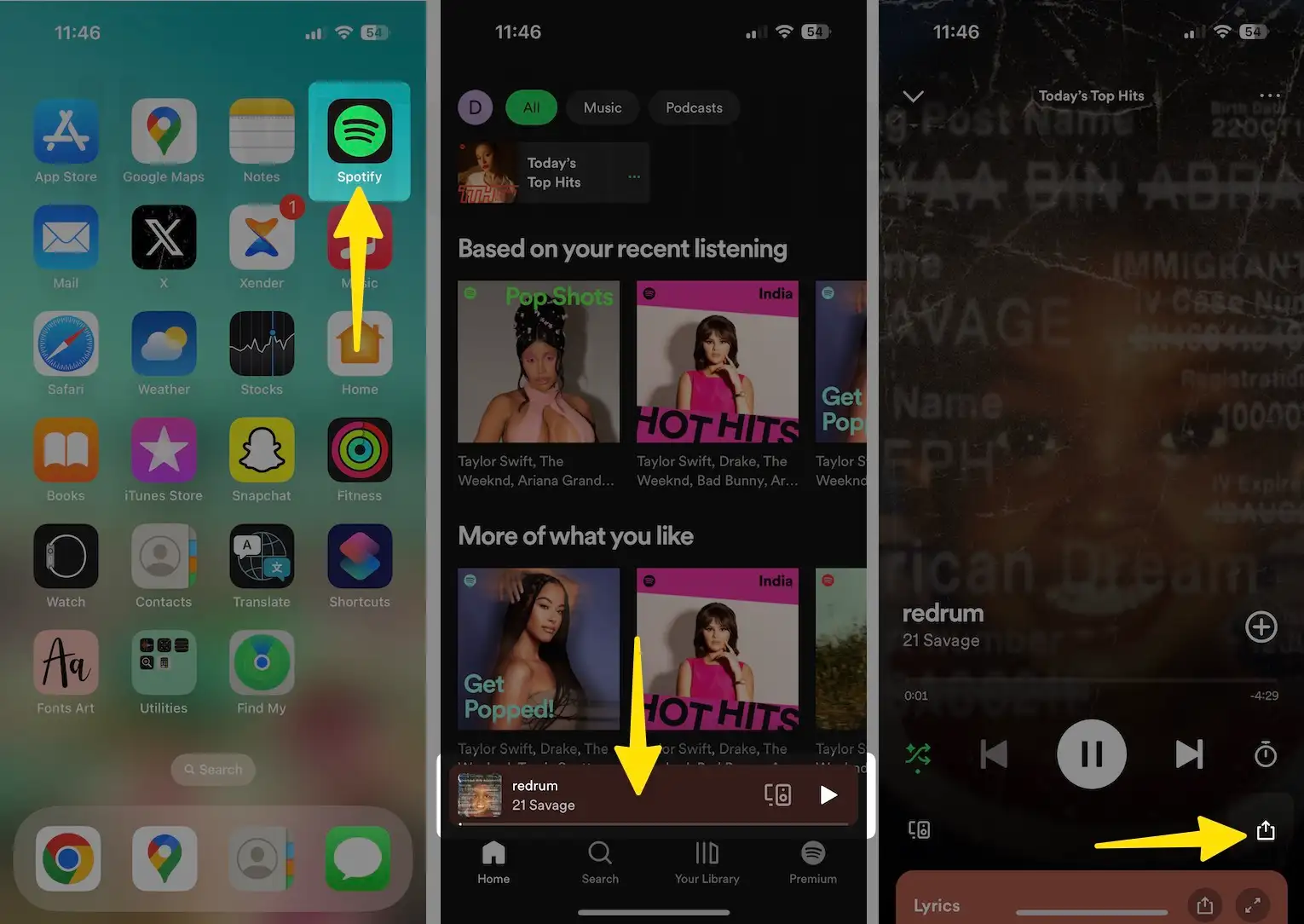
Step 2: Select the Instagram stories option, and you will be automatically moved to an Instagram story window.
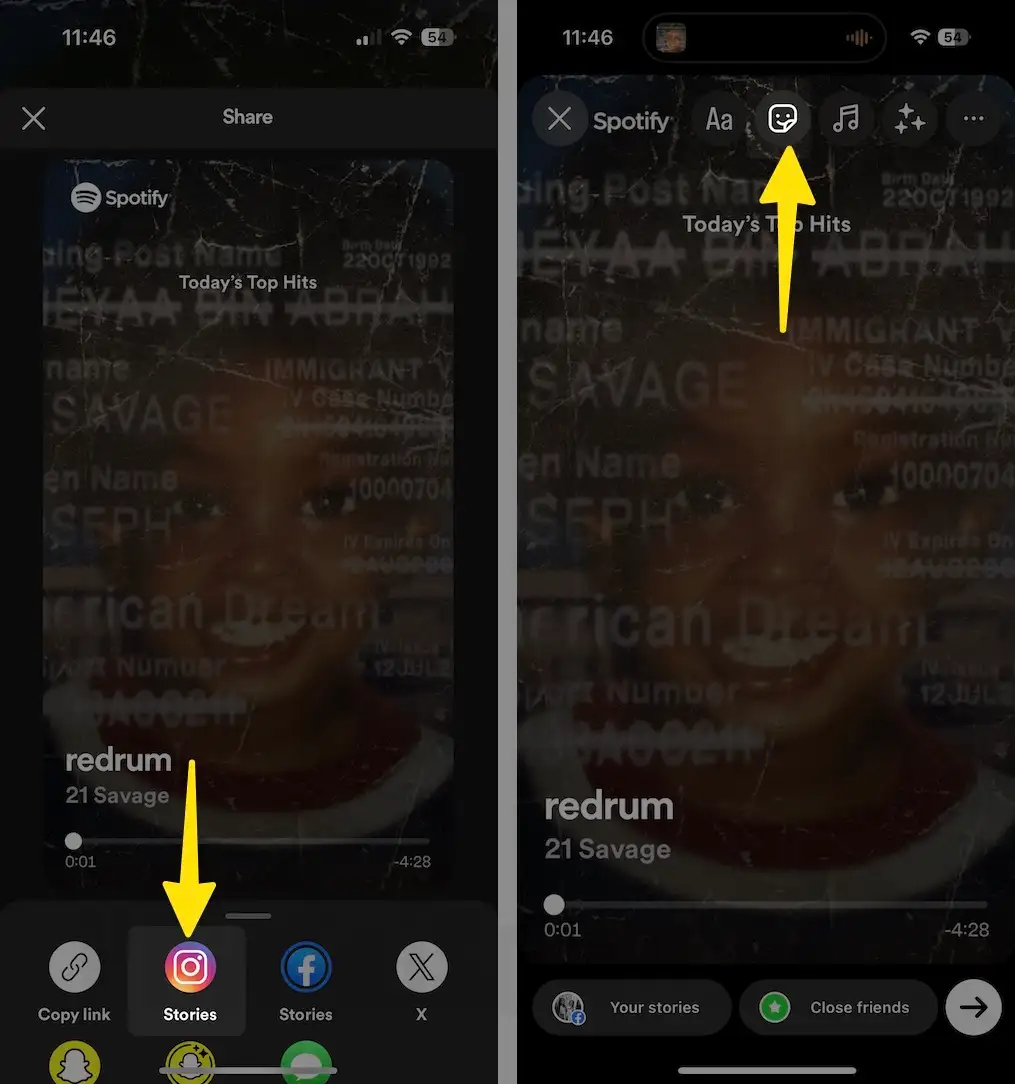
Step 3: Remember that you can edit your story by inserting stickers, text or drawing something on it.
Step 4: Once your post is ready, tap on done, and now it is shared with everyone.

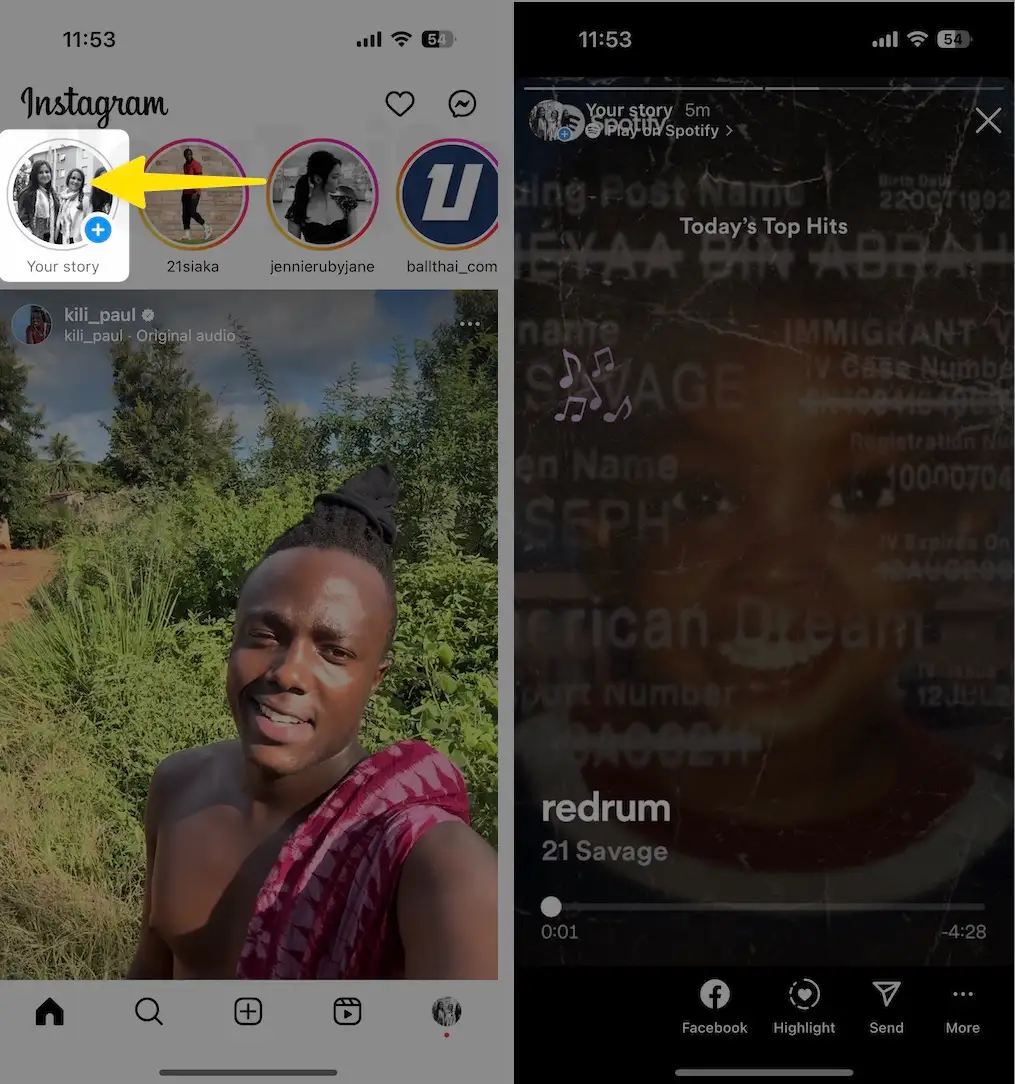
To View Spotify Story on Instagram:- Tap on Profile Picture (Your Story).
How To Add Music From SoundCloud?
SoundCloud is a worldwide popular online music streaming platform with millions of users; if you are a SoundCloud user and want to share your favorite song on your Instagram story, follow these simple steps.
- Launch SoundCloud app on your iPhone.
- Select Music.
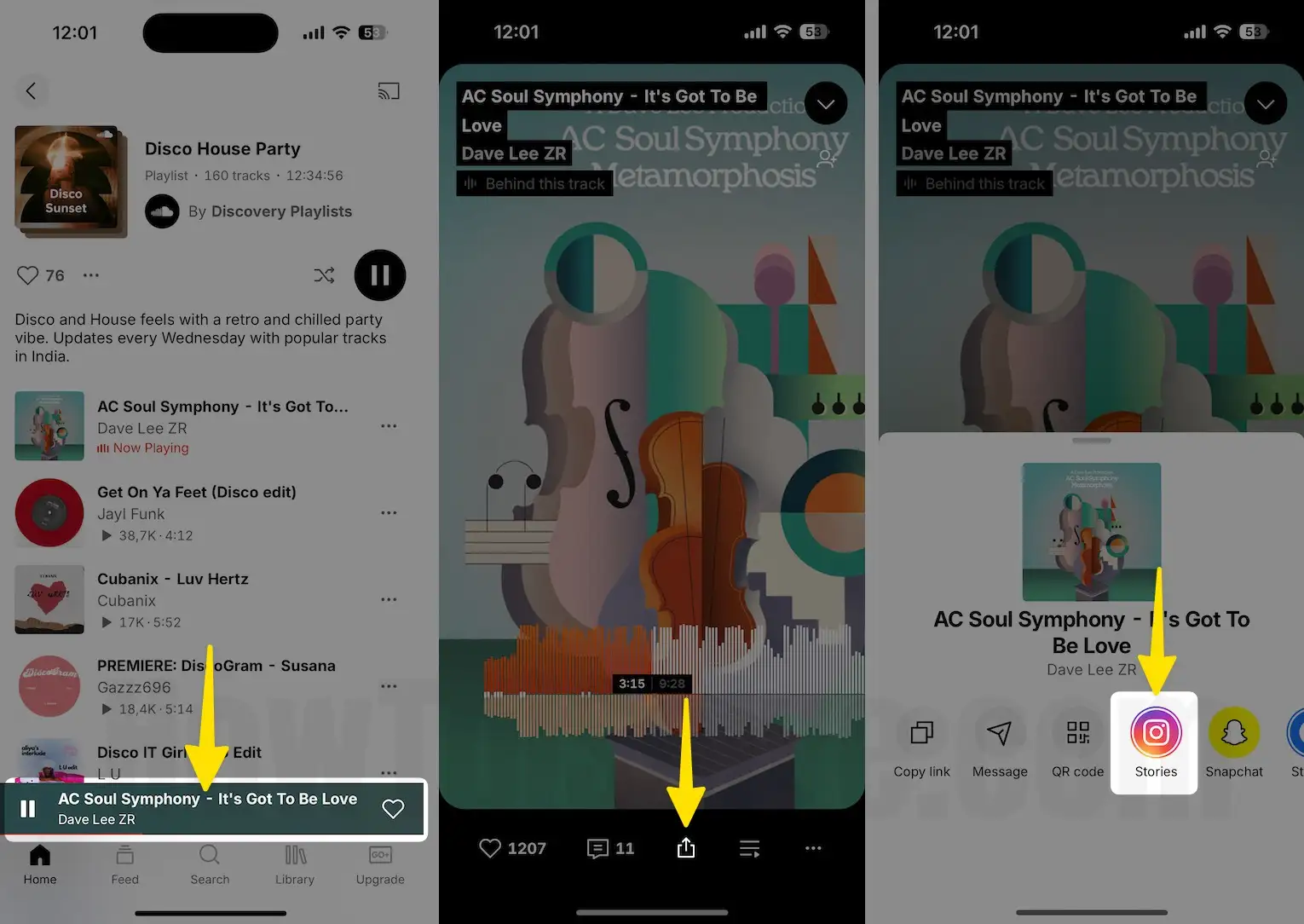
- Play Music to see Music Player.
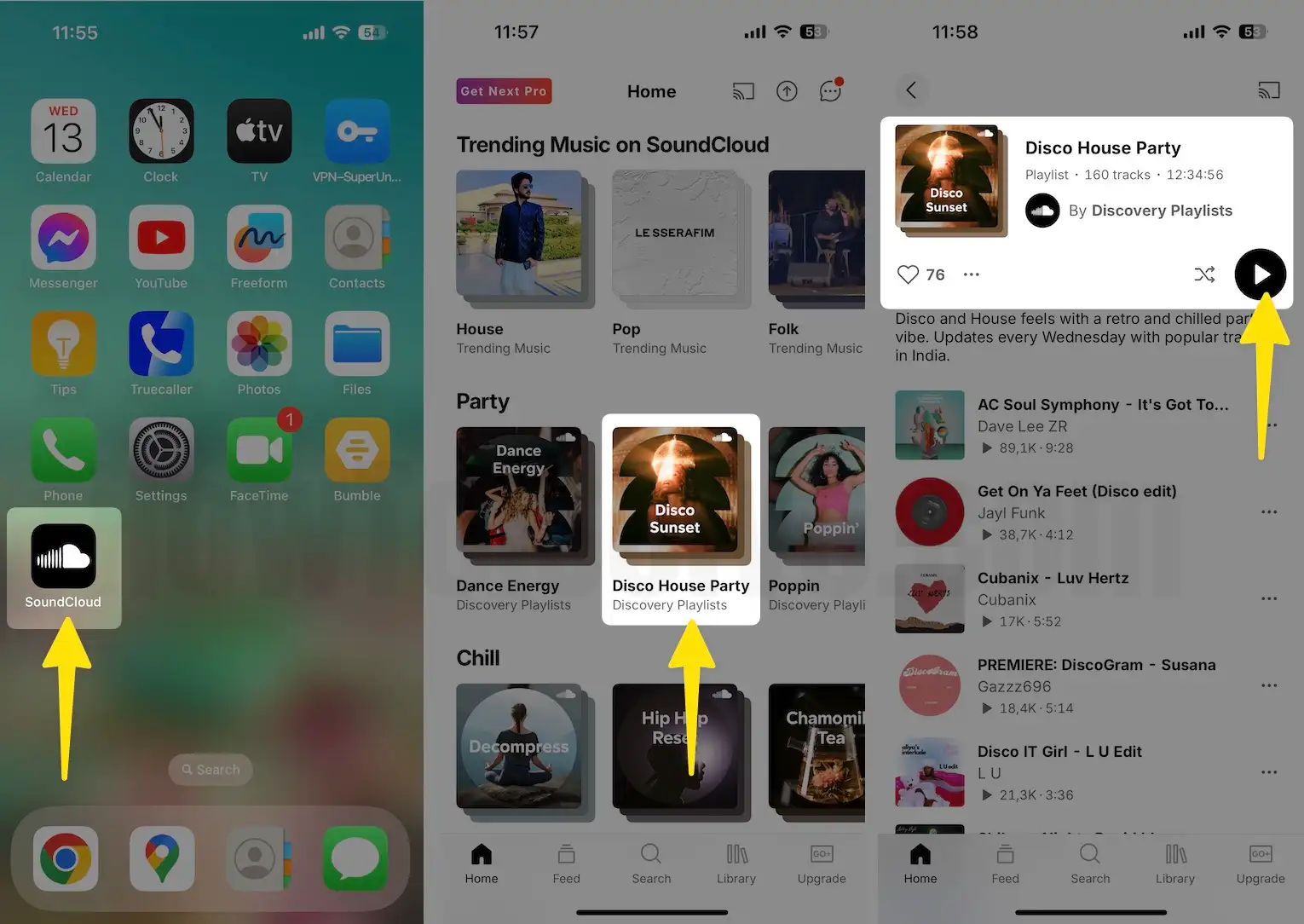
- Tap on Share Icon.
- Select Stories.
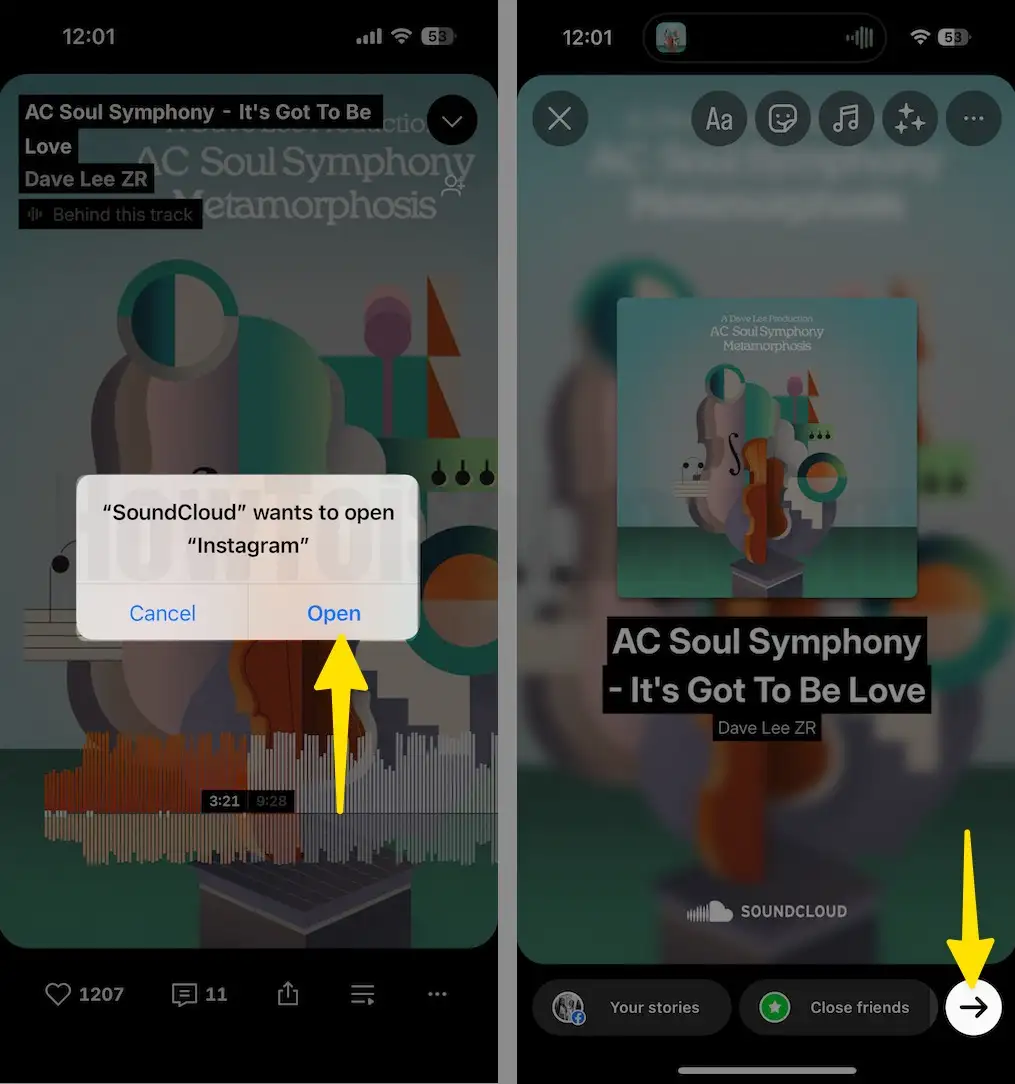
- Tap on Open for the permission.
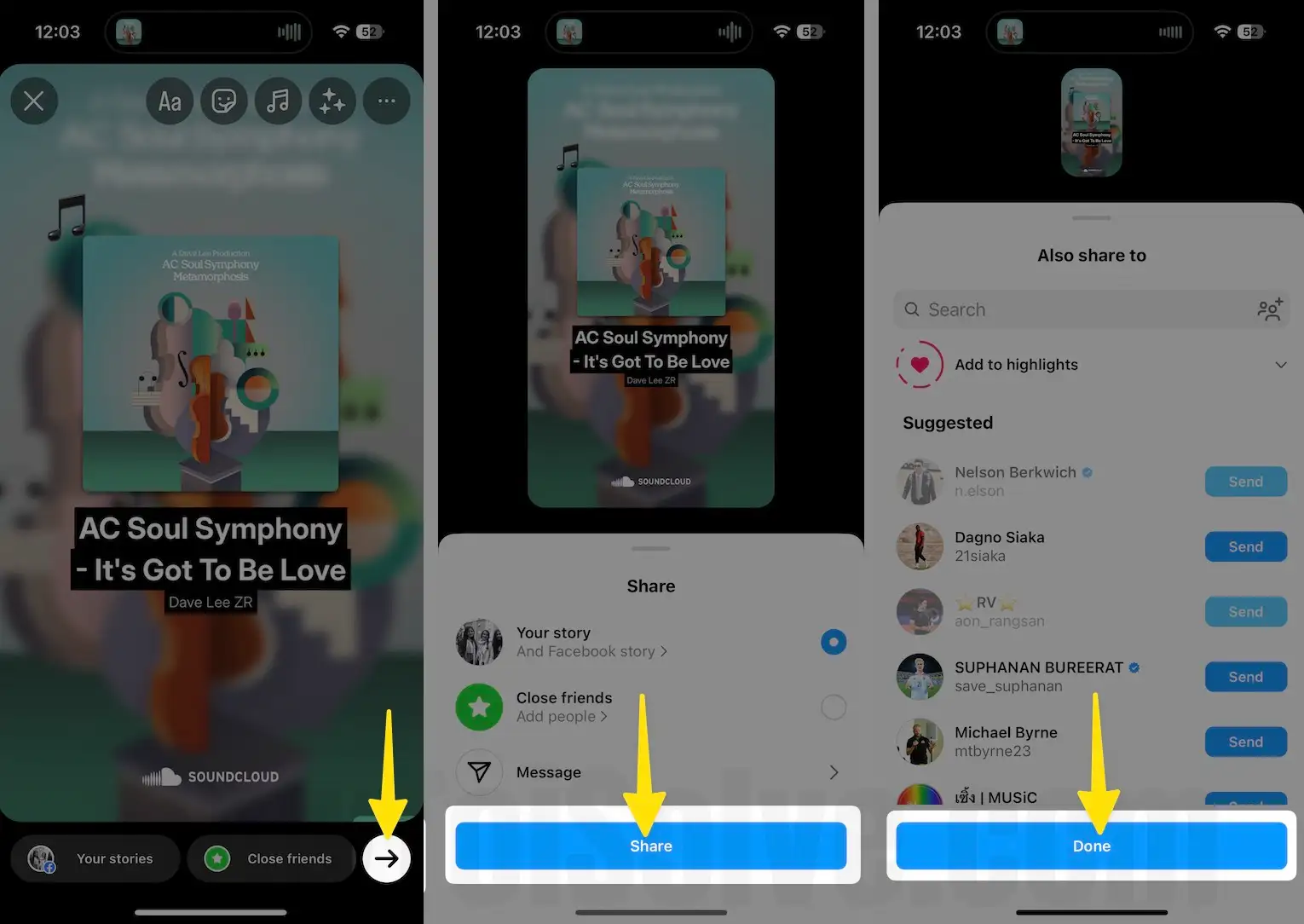
- Tap on Share button to start sharing soundcloud music on your instagram Profile as a story.
- Get option to add sticker to make it attractive.
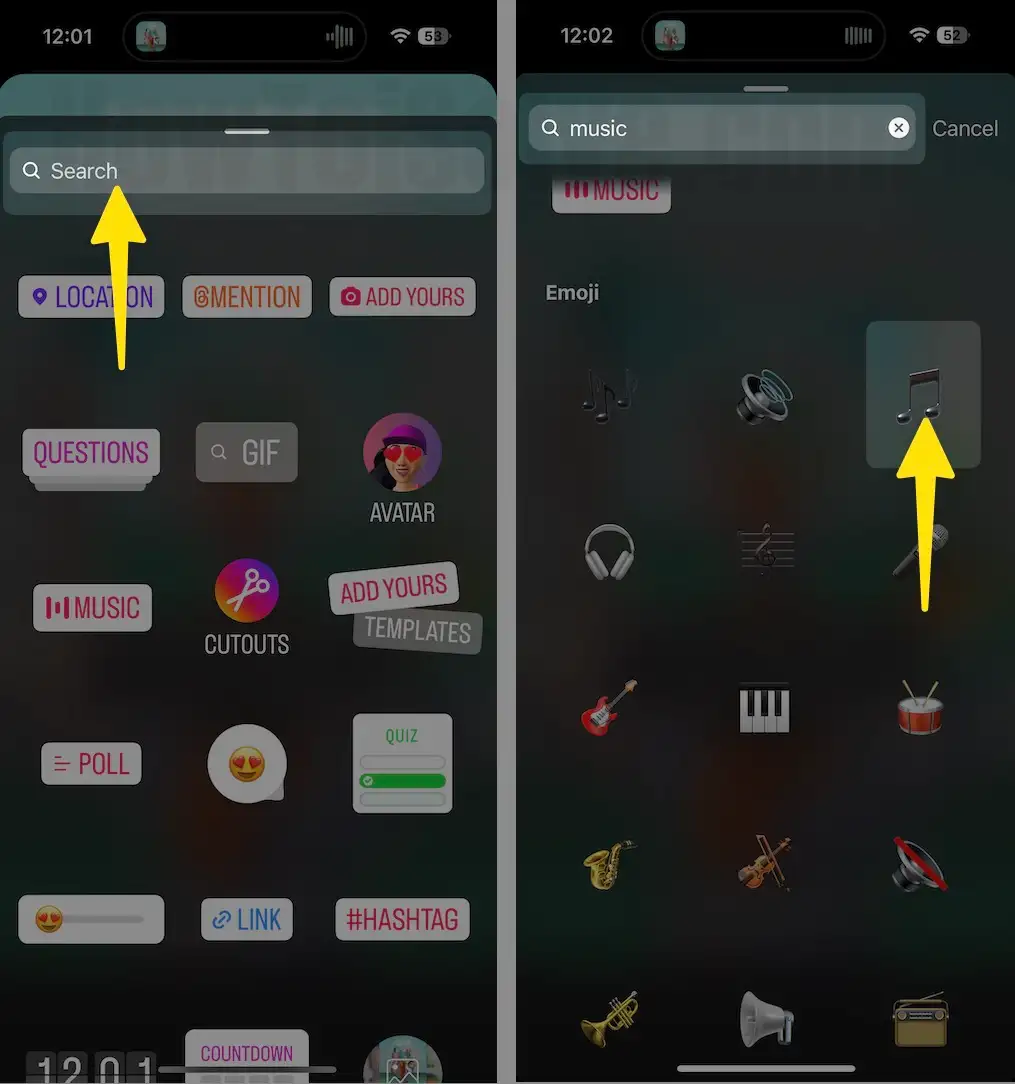
- Tap on Done > Share. If you add a particular piece of Music to your Instagram story, then it makes it more attractive. Now you know how to do it, so grab your phone and start posting some stories along with great Music.
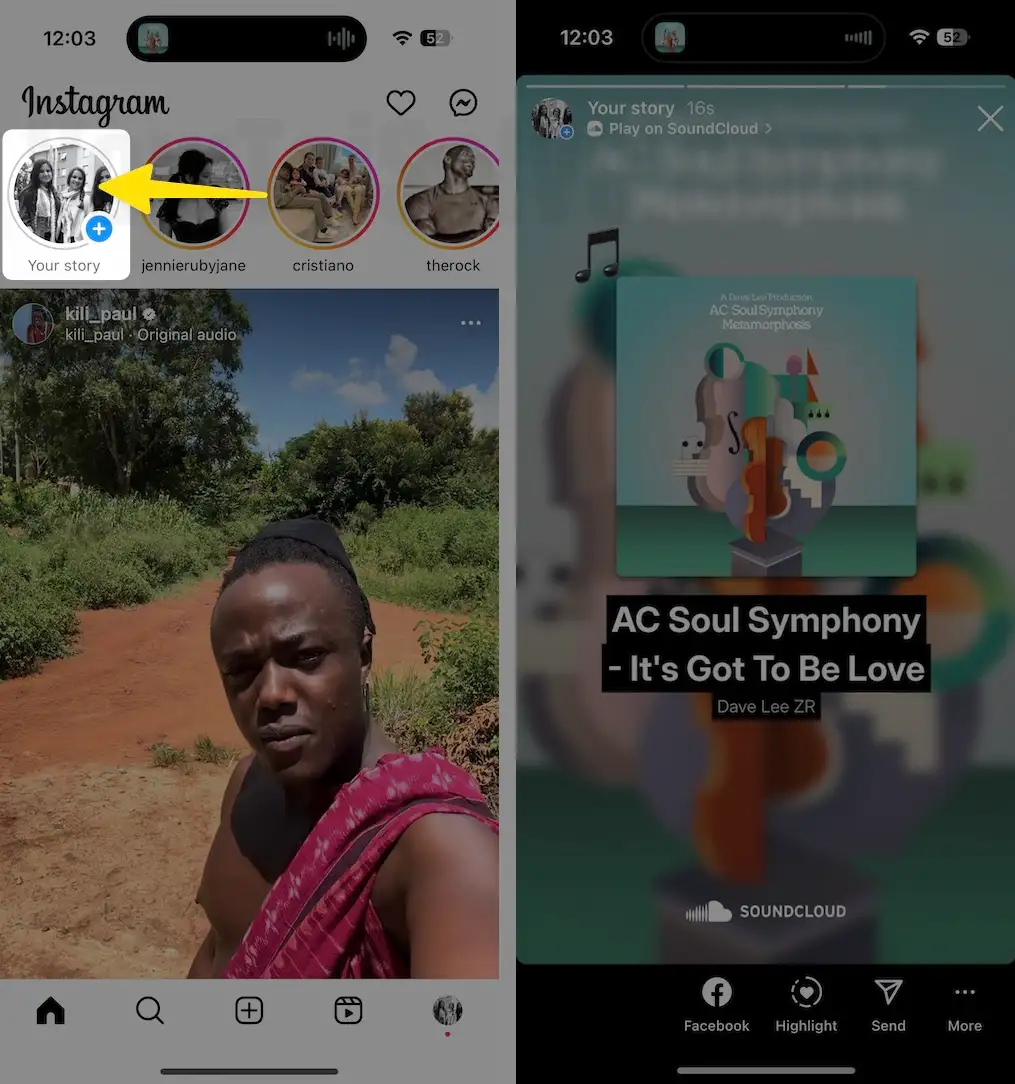
To View Soundcloud Story on Instagram: Tap on Your Story in your instagram account at top left corner.
Instagram App’s most utilized feature Called ‘’Instagram Stories’’ now offers a pretty cool add-on that is to Add Soundtracks to Instagram Stories. Since now 400 M Instagram Stories, users can Add Soundtracks from the Insta app’s huge library, besides Apple Music and Spotify Music to Instagram Story Photo on iPhone and iPad.
Tip to Add Music to Instagram Stories on iPhone or iPad
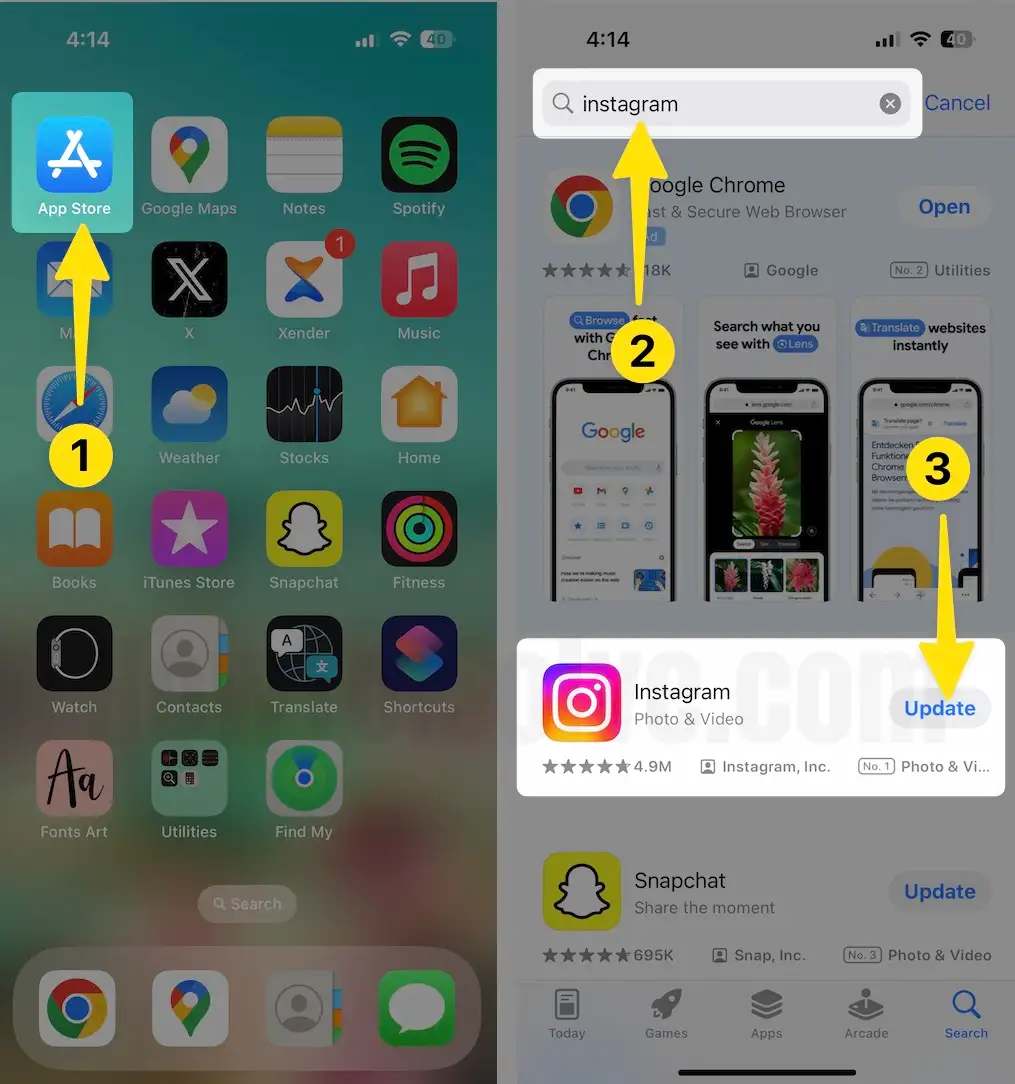
Before following the guide, you make sure that your Phone Instagram App is the latest version. if isn’t updated; then go to App Store → Tap Updates tab and click the Update button next to Instagram App.
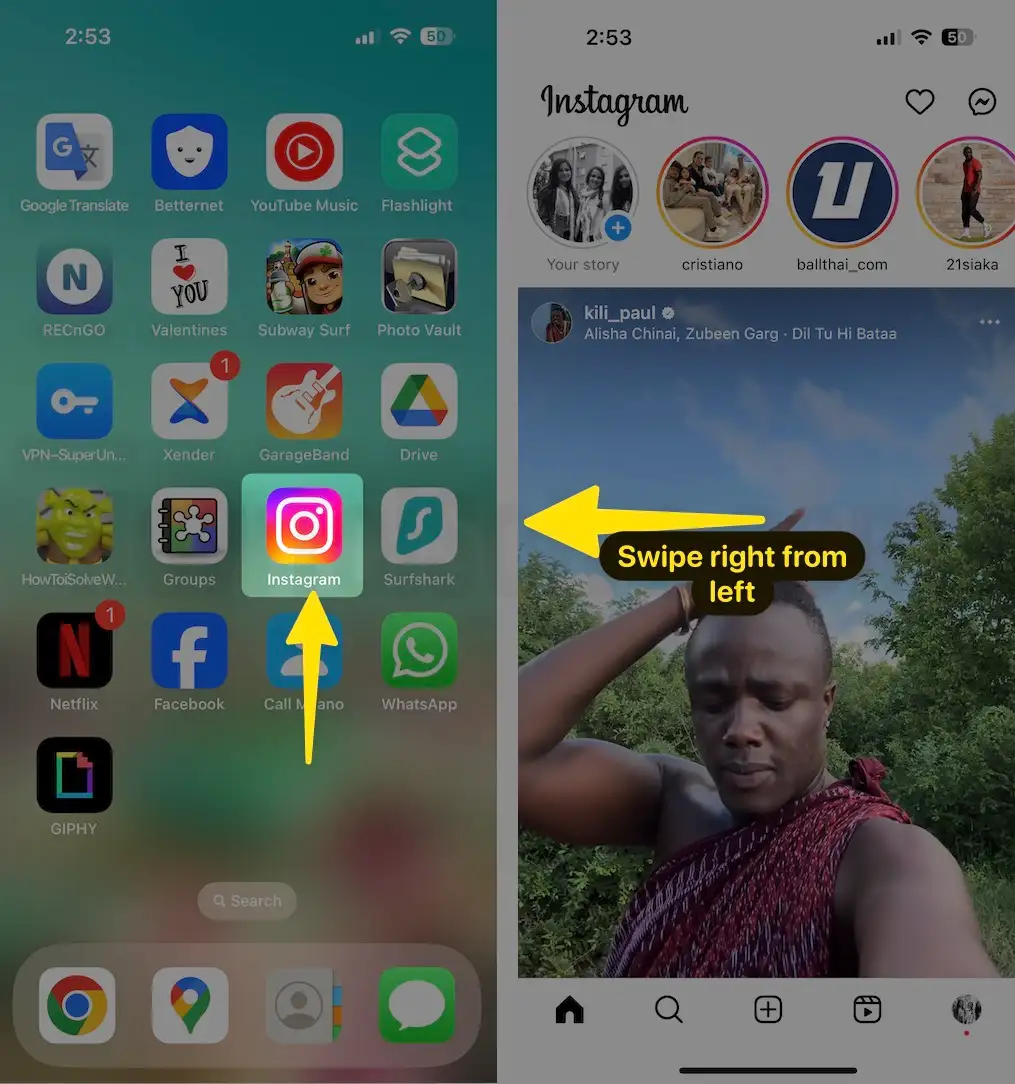
Step #1. Fire up Instagram on your iPhone or iPad.
Note: There are two ways to Post Music to your story and that you can do before or after capturing a video clip.
Just open the Camera app by swiping right from the left of the screen and then pick the new “Music” option tab under the record button.
The latest Instagram app will also allow you to add a Music track after capturing a shot or story. To get the Music icon tap on Sticker tab that appears on top of the App bar.
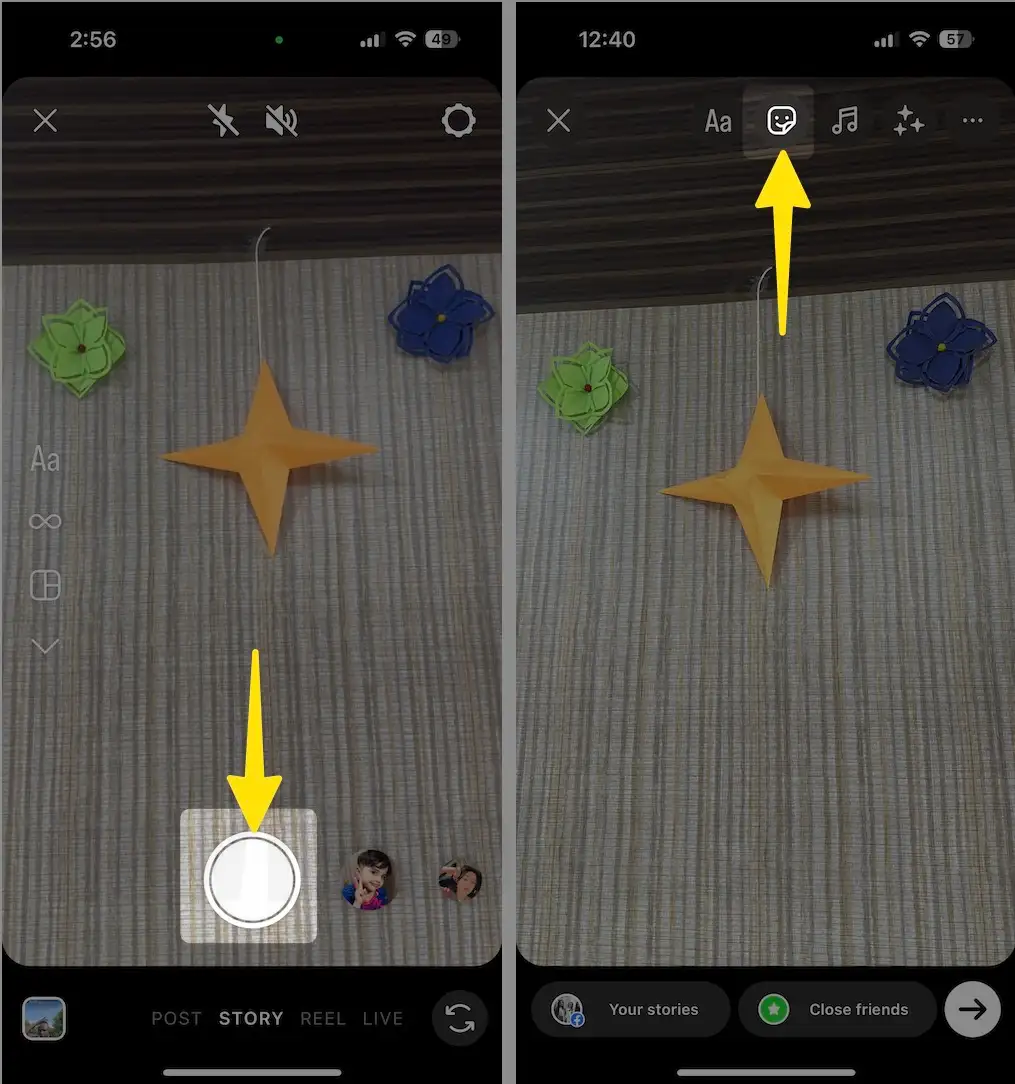
Step #2. You can see the Music library of tons of songs soundtrack clip will be on your card.
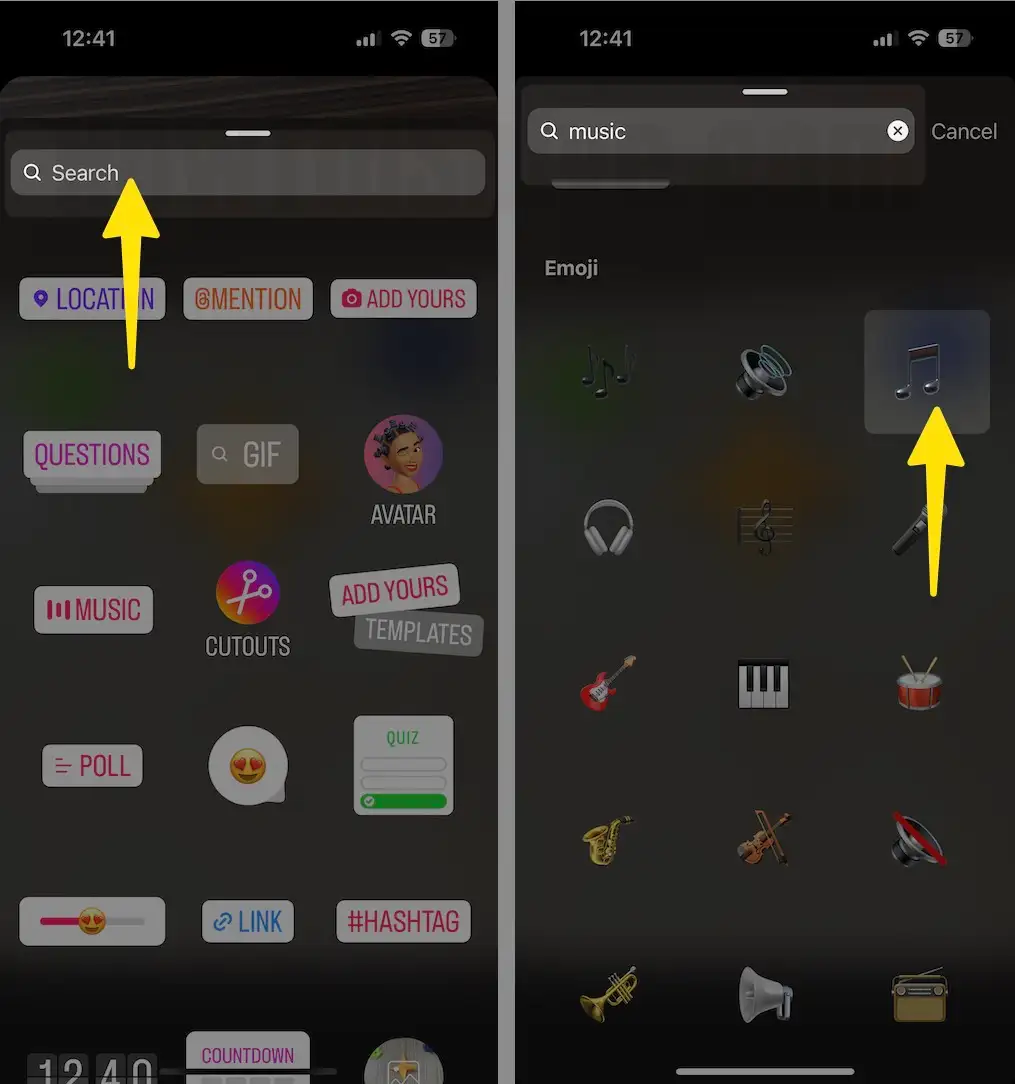
Using the Search bar, you can find a popular song, Music by Mood, besides the Genres category-wise. In more, you can listen to a Preview, by tapping on the Play button.
Step #3. Once you have picked up your Audio Song, easily adjust it. For instance, you can fast-forward it or rewind the whole track to select the specific segment part that can go nicely with your Instagram story.
Step #4. After you are satisfied with Add background Music to Instagram Stories, then share it as usual.
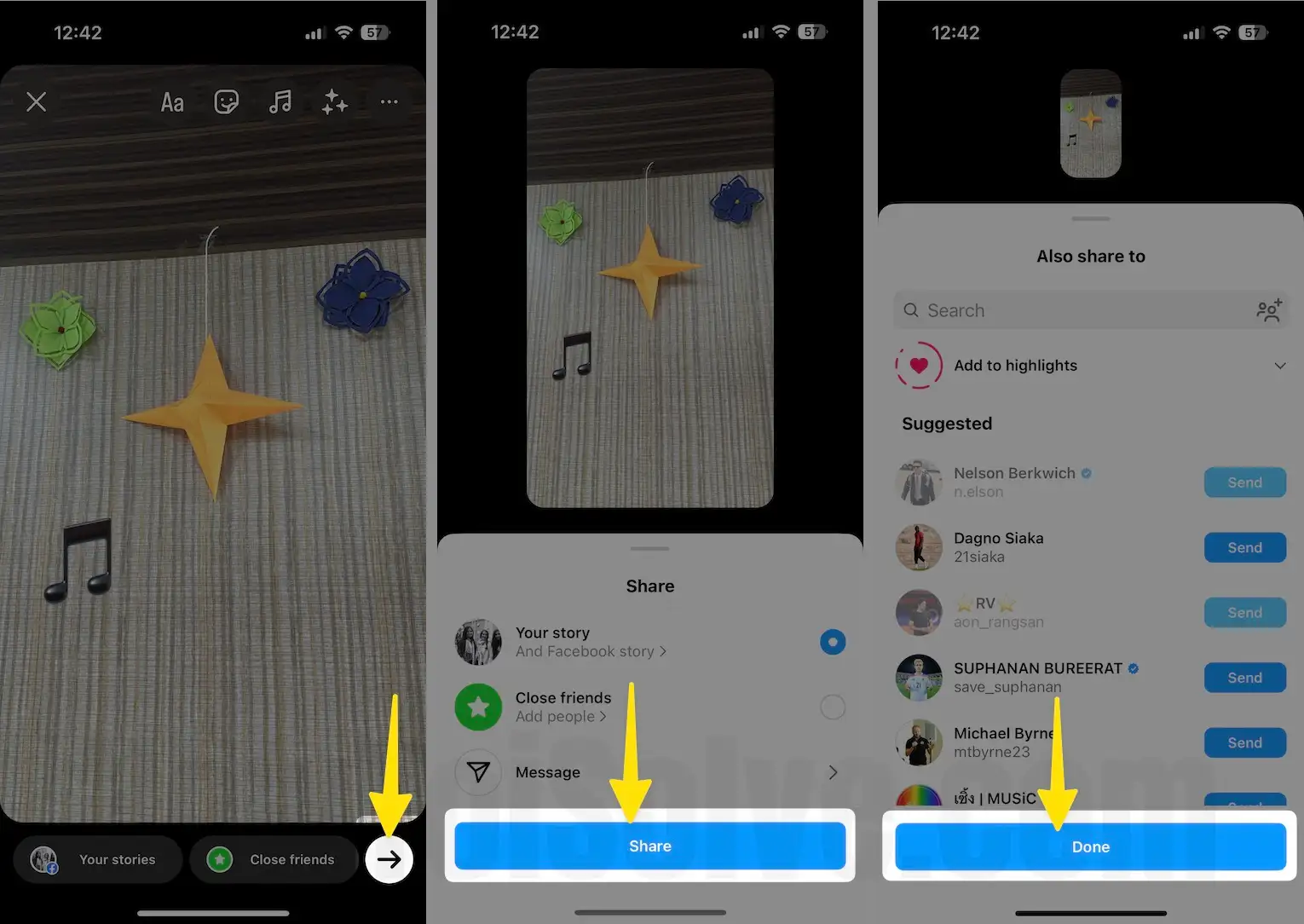
Now, you can review your story, besides, whenever your followers and friends will play the story then they will hear the Music Track. In addition, they will also see a Sticker emoji with the Song track title and artist name, too.
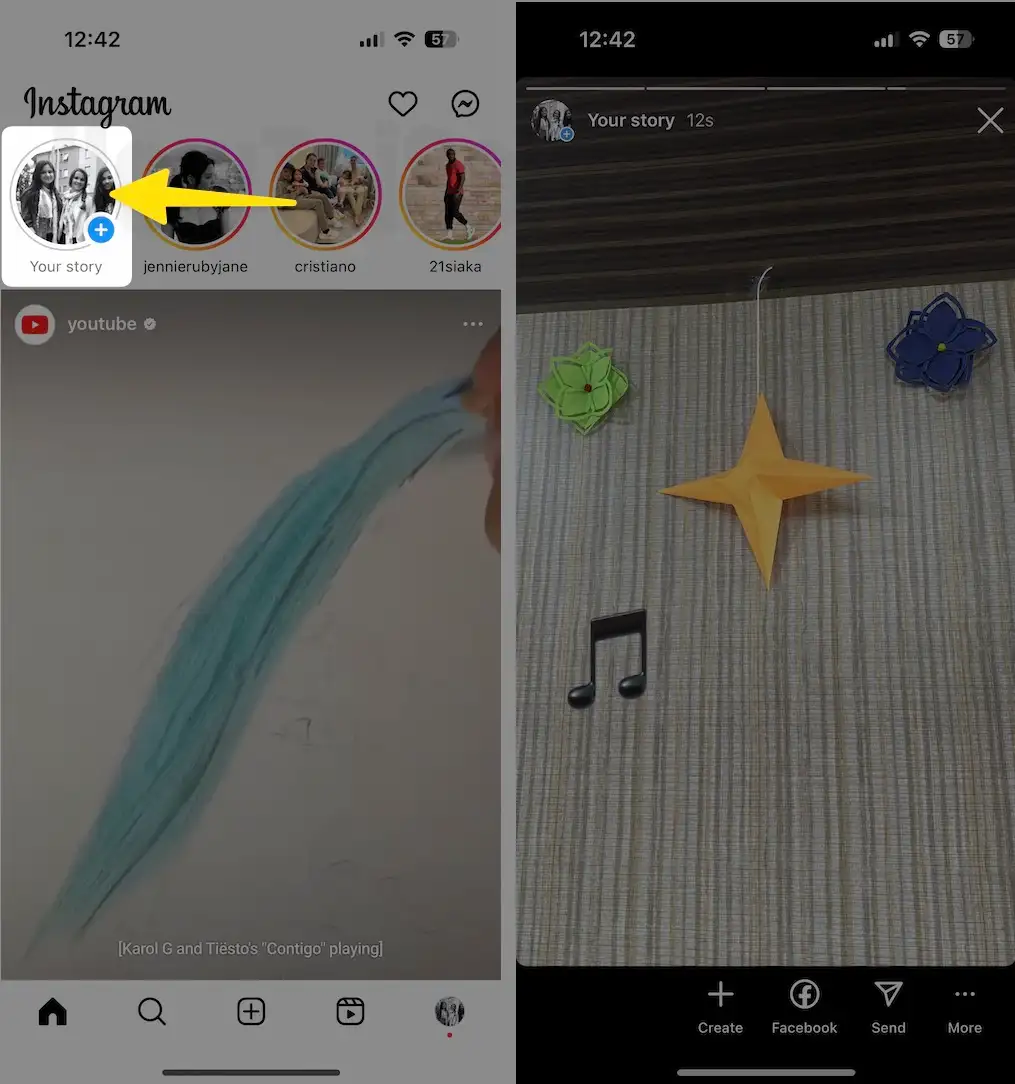
If you’re a user to Add Music to Instagram Story Picture using the Spotify app or add personal Music to Instagram Stories on your iPhone.
How to Post a Song on Instagram Story on an iOS device
Step #1. Launch the Apple Music app on your iDevice. Then you need to select the audio song you want to add to your story picture. Then, tap on it.
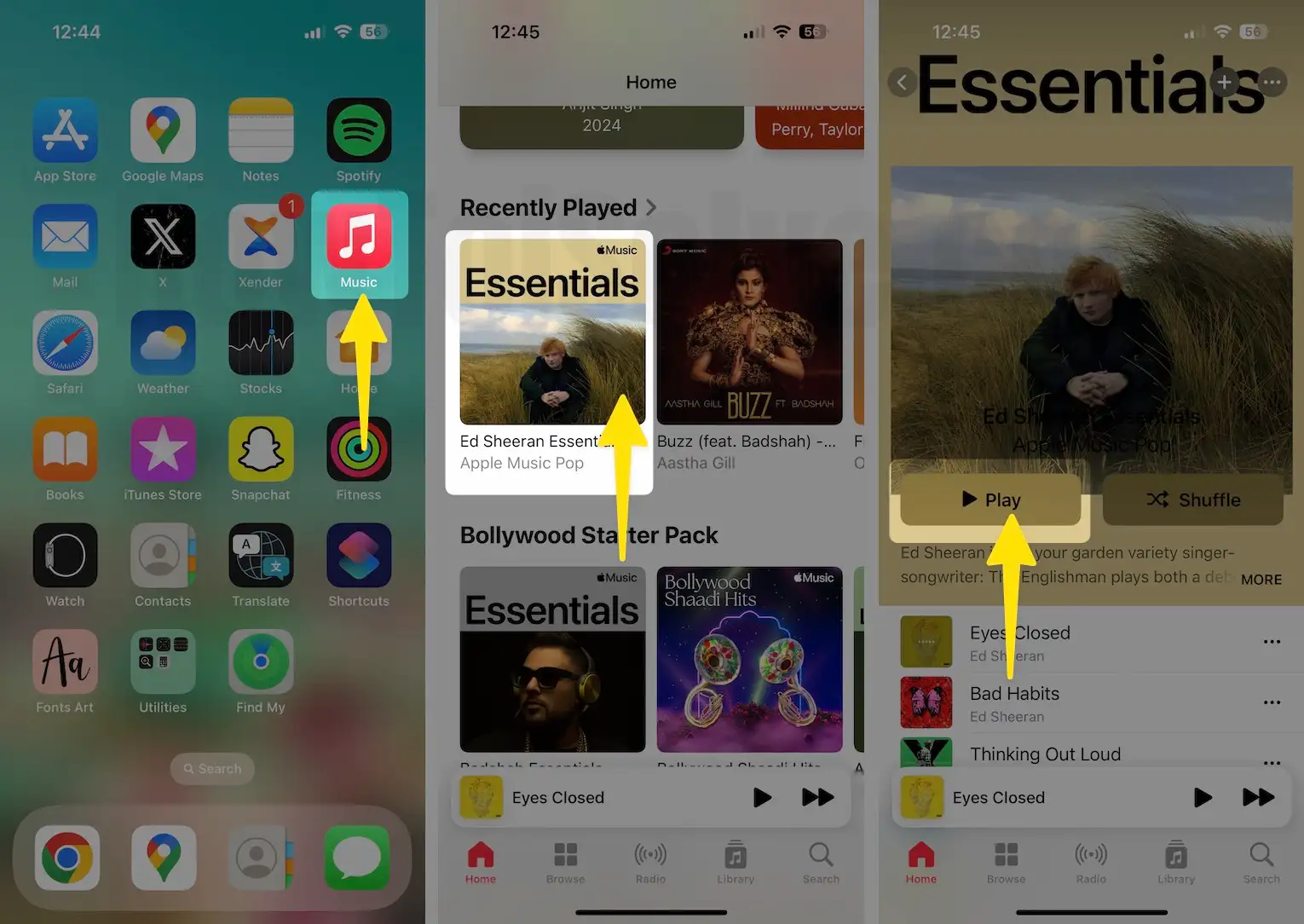
Step #2. Next, Tap on More > Share Song…
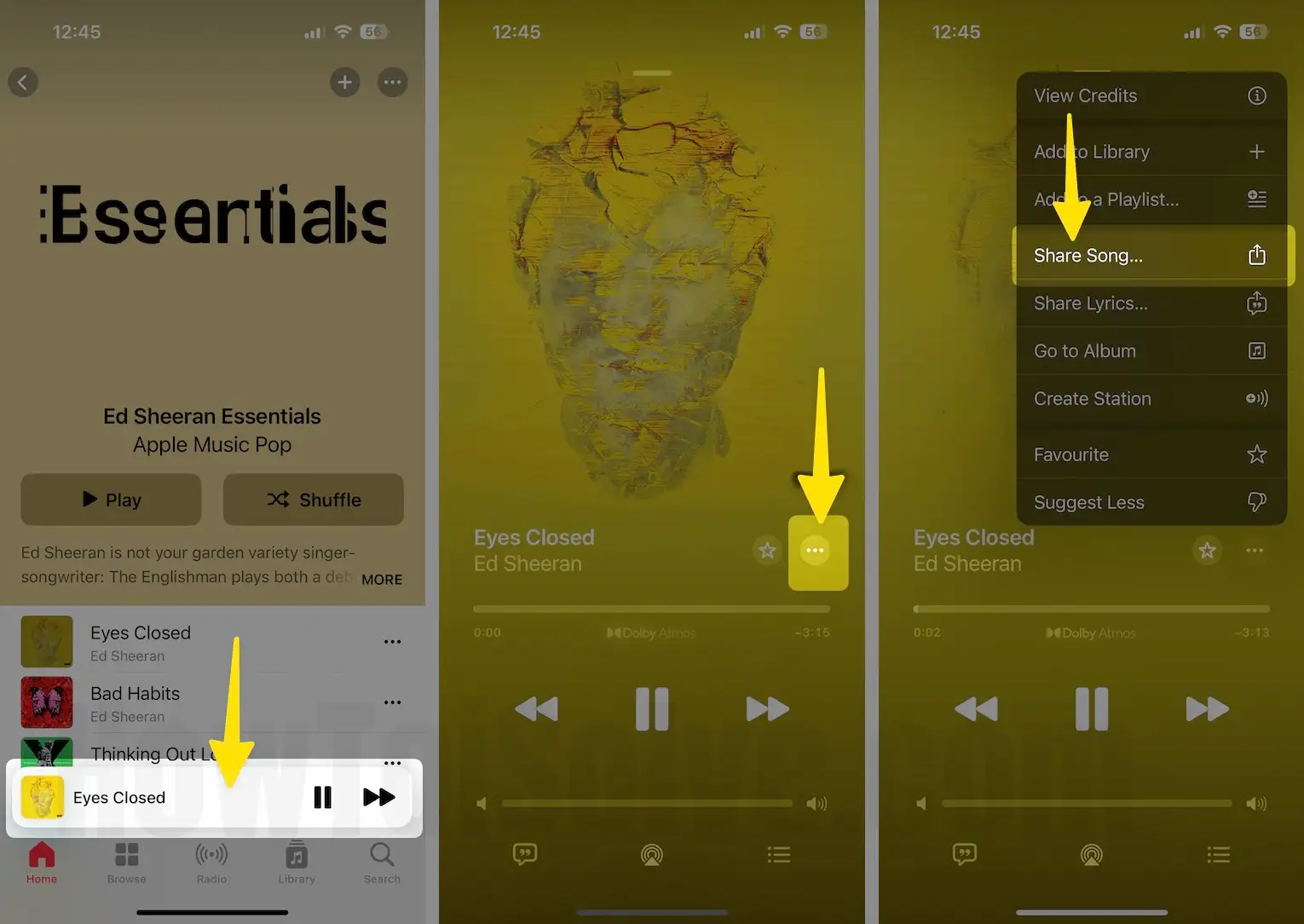
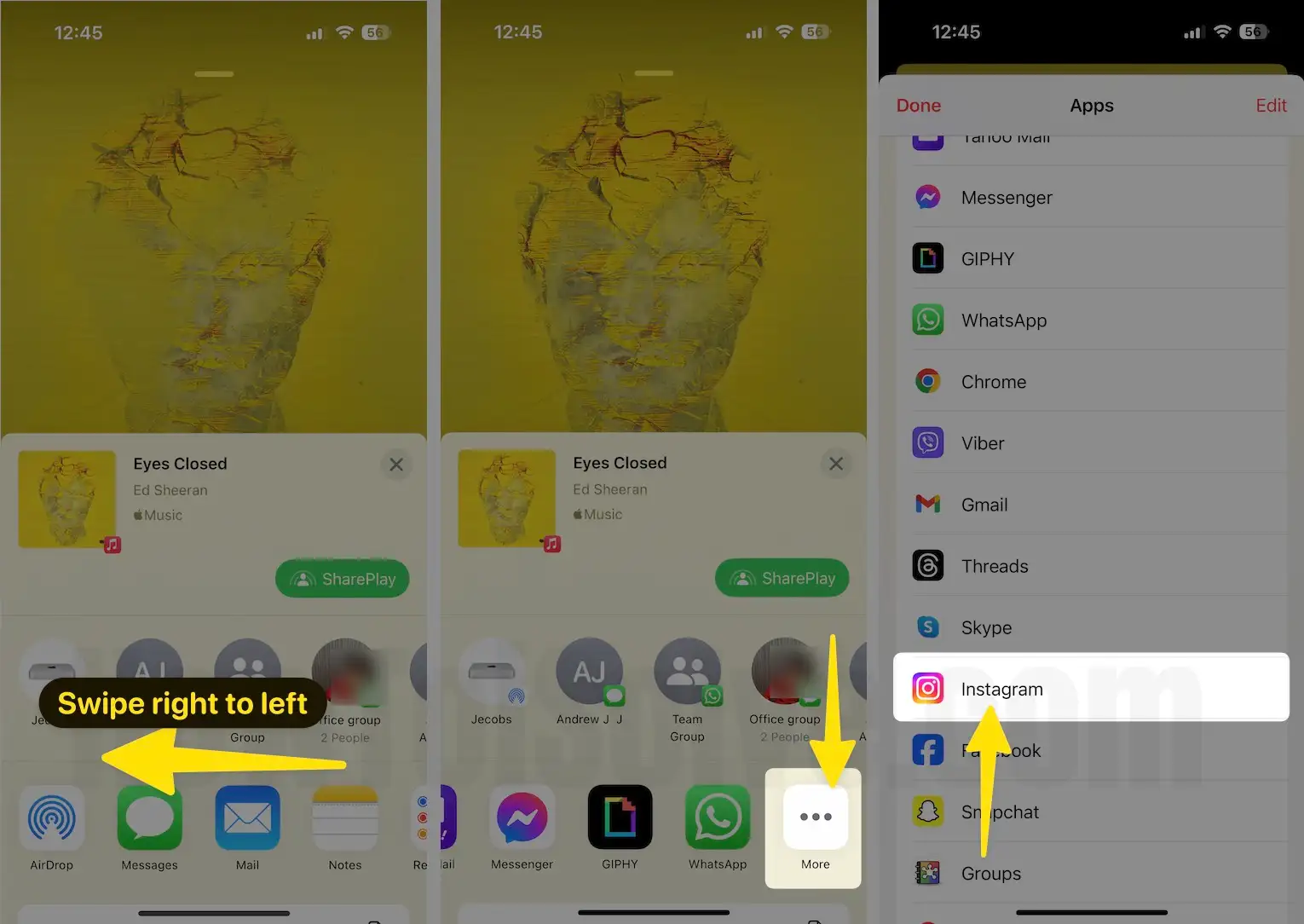
Step #3. Select Instagram from the share sheet.
Step #4. If you don’t see it in the list, then Find it under the More option.
Step #5. Tap on send button > Share > Done.
Step #6. See the Recently posted story from apple music on Instagram. At the top tap on Your Story and see the preview.
That’s it!
You have productively added Song to your Instagram story. Use this cool tip to make your Instagram story more interesting and attract your fans.






