If you’re using a second monitor in Windows 11, you may notice that the usual brightness slider doesn’t work. That’s because Windows typically only controls brightness for built-in laptop displays, not external monitors.
Don’t worry—there are multiple ways to adjust brightness on your second screen. In this guide, we’ll cover easy to advanced solutions so you can fix it quickly.
Why You Can’t Adjust Second Monitor Brightness Normally
Windows 11 doesn’t directly control external monitor brightness because:
- External monitors have their own hardware controls
- Brightness is managed via monitor firmware (not Windows)
- Not all monitors support software-based brightness control
1. Use Monitor Physical Buttons (Fix Rate: 100%)
This is the most reliable and fastest method.
👉 Steps:
- Locate buttons on your monitor (side, bottom, or back)
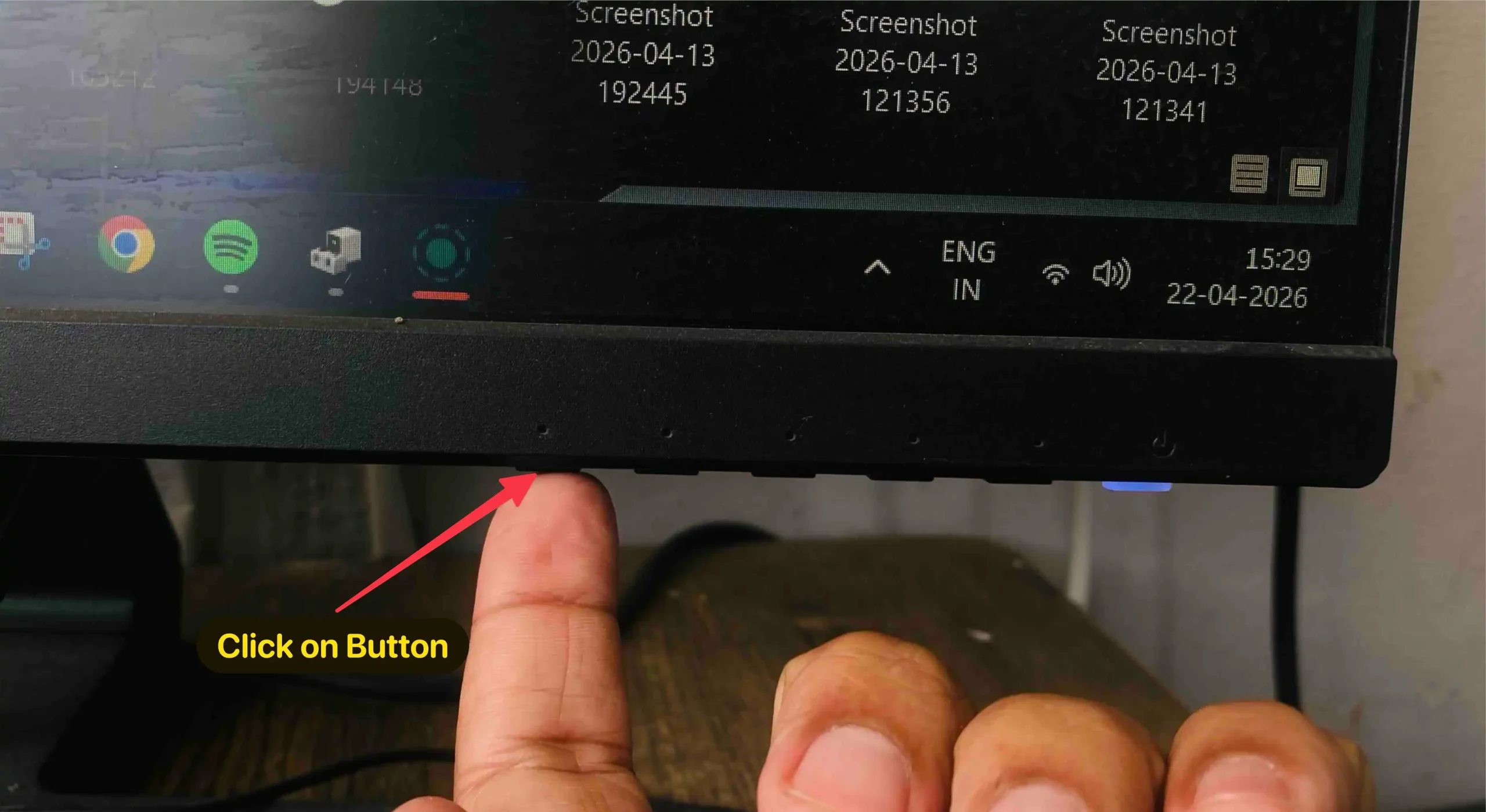
- Press the Menu button
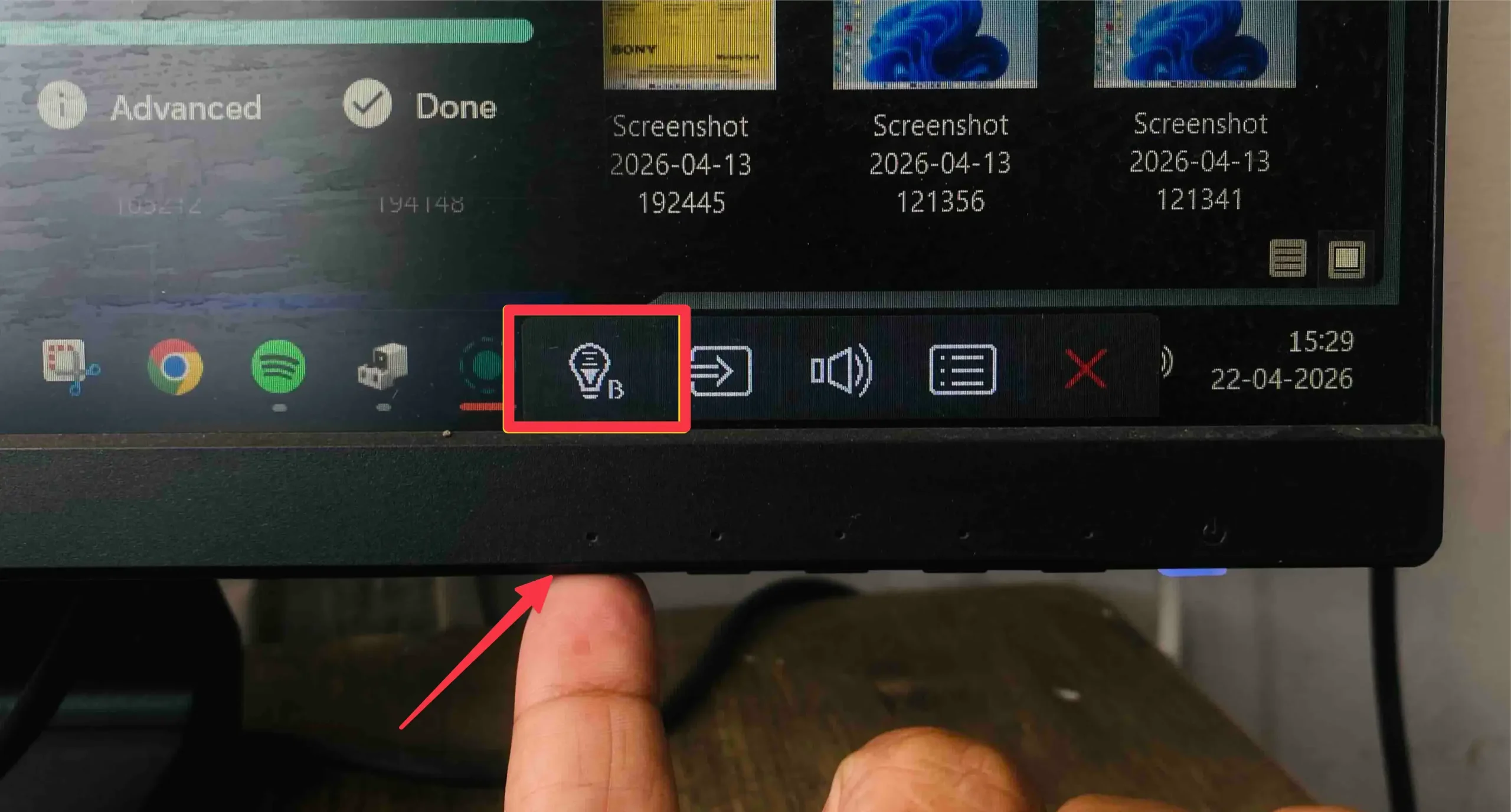
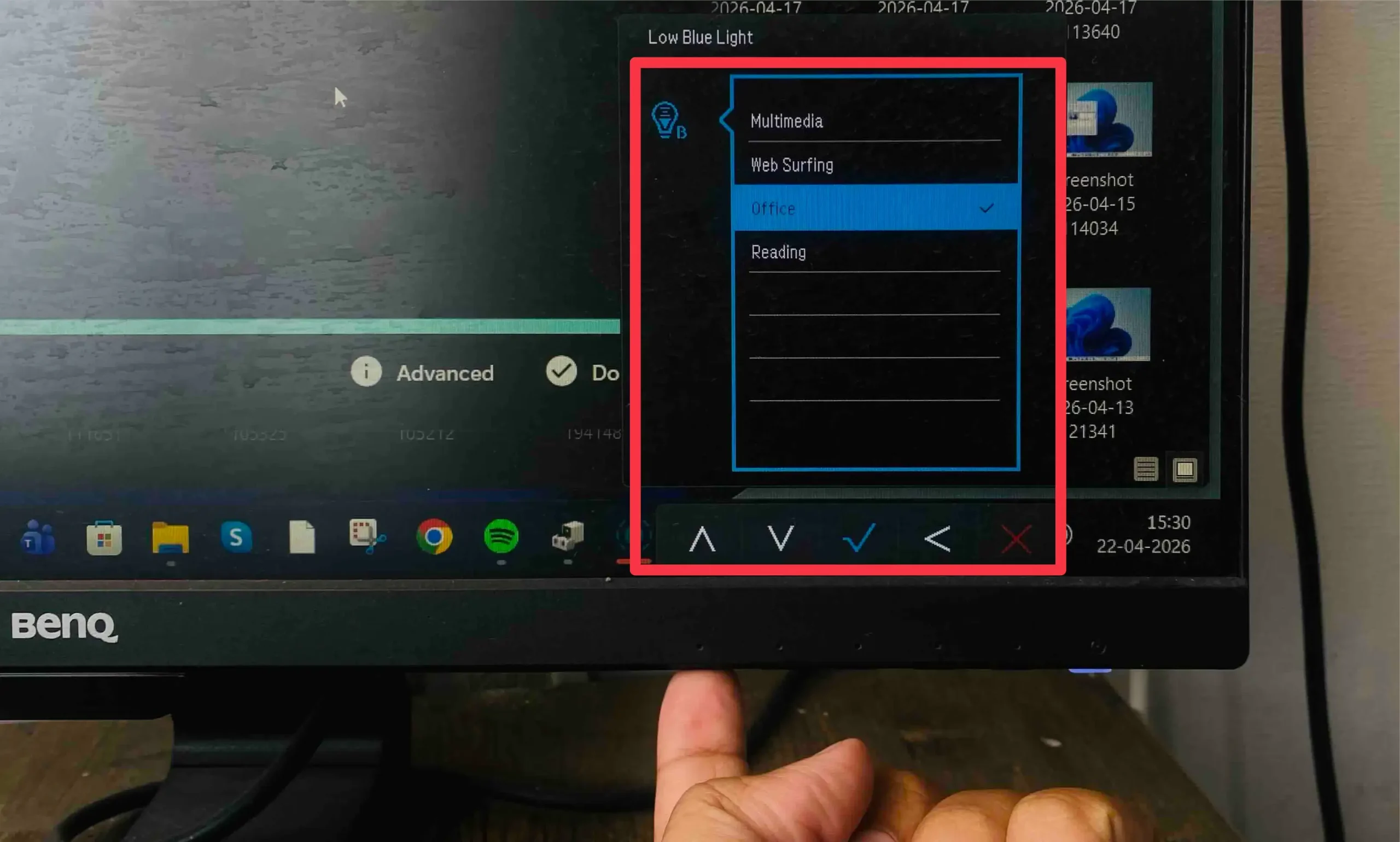
- Navigate to Brightness settings
- Adjust using arrow buttons
📌 Every monitor has built-in controls—this always works.
2. Use Monitor Control Software (Fix Rate: 85%)
Some monitors support software control via DDC/CI.
👉 Steps:
- Download apps like:
- Monitorian
- Twinkle Tray (very popular)
- Install and open the app
- Adjust brightness using slider
📌 These apps allow you to control multiple monitors easily.
3. Enable DDC/CI on Your Monitor (Fix Rate: 80%)
For software control to work, DDC/CI must be enabled.
👉 Steps:
- Open monitor menu using physical buttons
- Look for DDC/CI setting
- Turn it ON
Without this, apps won’t detect your monitor.
4. Use Graphics Control Panel (Fix Rate: 70%)
Depending on your GPU, you can adjust brightness via:
Intel Graphics:
- Right-click desktop → Intel Graphics Settings
- Go to Display → Color Settings
NVIDIA:
- Right-click desktop → NVIDIA Control Panel
- Adjust Desktop Color Settings
AMD:
- Open AMD Radeon Software
- Go to Display → Color
📌 This adjusts brightness digitally (not true hardware brightness).
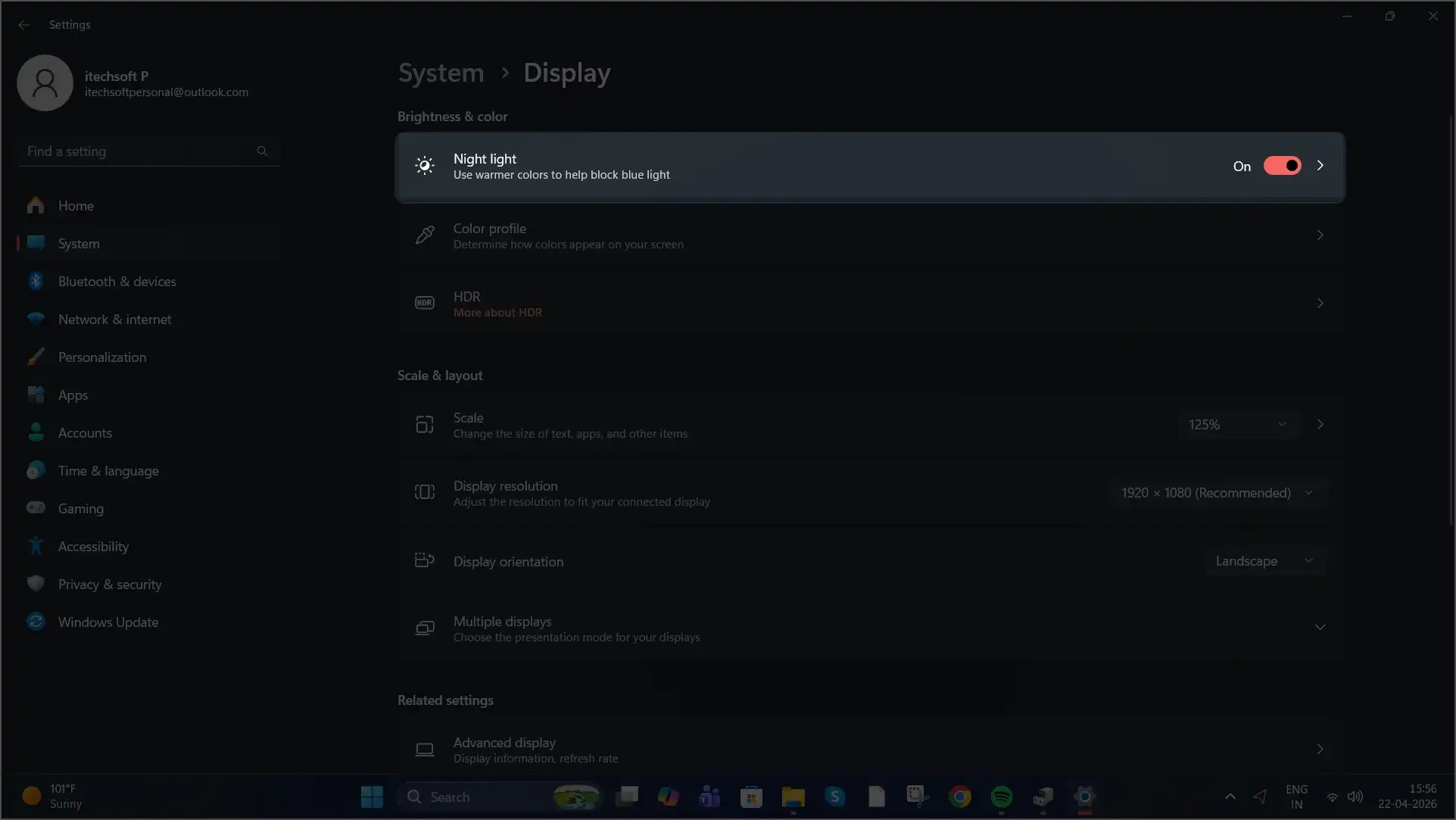
5. Use Night Light or Color Filters (Fix Rate: 60%)
This doesn’t change brightness directly but reduces eye strain.
Steps:
- Go to Settings → System → Display
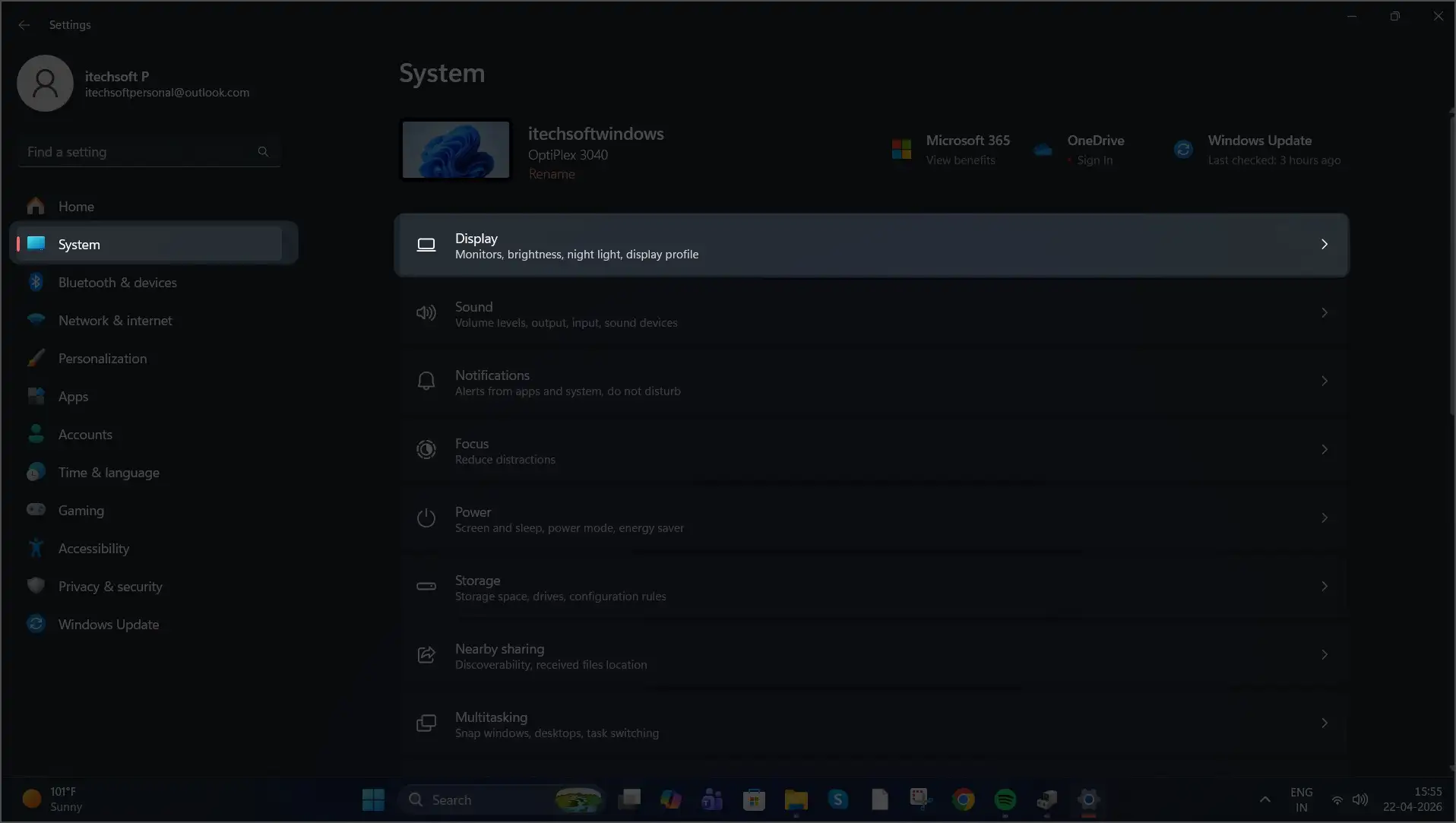
- Turn ON Night Light
6. Update Display Drivers (Fix Rate: 65%)
Outdated drivers can limit brightness control.
Steps:
- Open Device Manager
- Expand Display Adapters
- Right-click → Update Driver
Common Issues & Fixes
❌ Brightness slider not showing
- Normal behavior for external monitors
❌ Apps not detecting monitor
- Enable DDC/CI
- Use HDMI/DisplayPort (not VGA)
❌ Brightness not changing
- Try another app (Twinkle Tray recommended)
- Restart system
Pro Tips
- Use Twinkle Tray for best experience on Windows 11
- Keep monitor firmware updated if supported
- Use consistent brightness across monitors to reduce eye strain
Best Method Recommendation
👉 For most users:
- Use monitor buttons OR
- Install Twinkle Tray (best software solution)
FAQ:
Because external monitors use their own hardware controls.
Only for laptop screens, not external monitors (unless using apps).
A feature that allows software to control monitor settings.
Conclusion
Changing brightness on a second monitor in Windows 11 may seem tricky, but it’s easy once you know the right method.
- Use physical buttons for guaranteed results
- Use software tools for convenience
- Enable DDC/CI for full control