

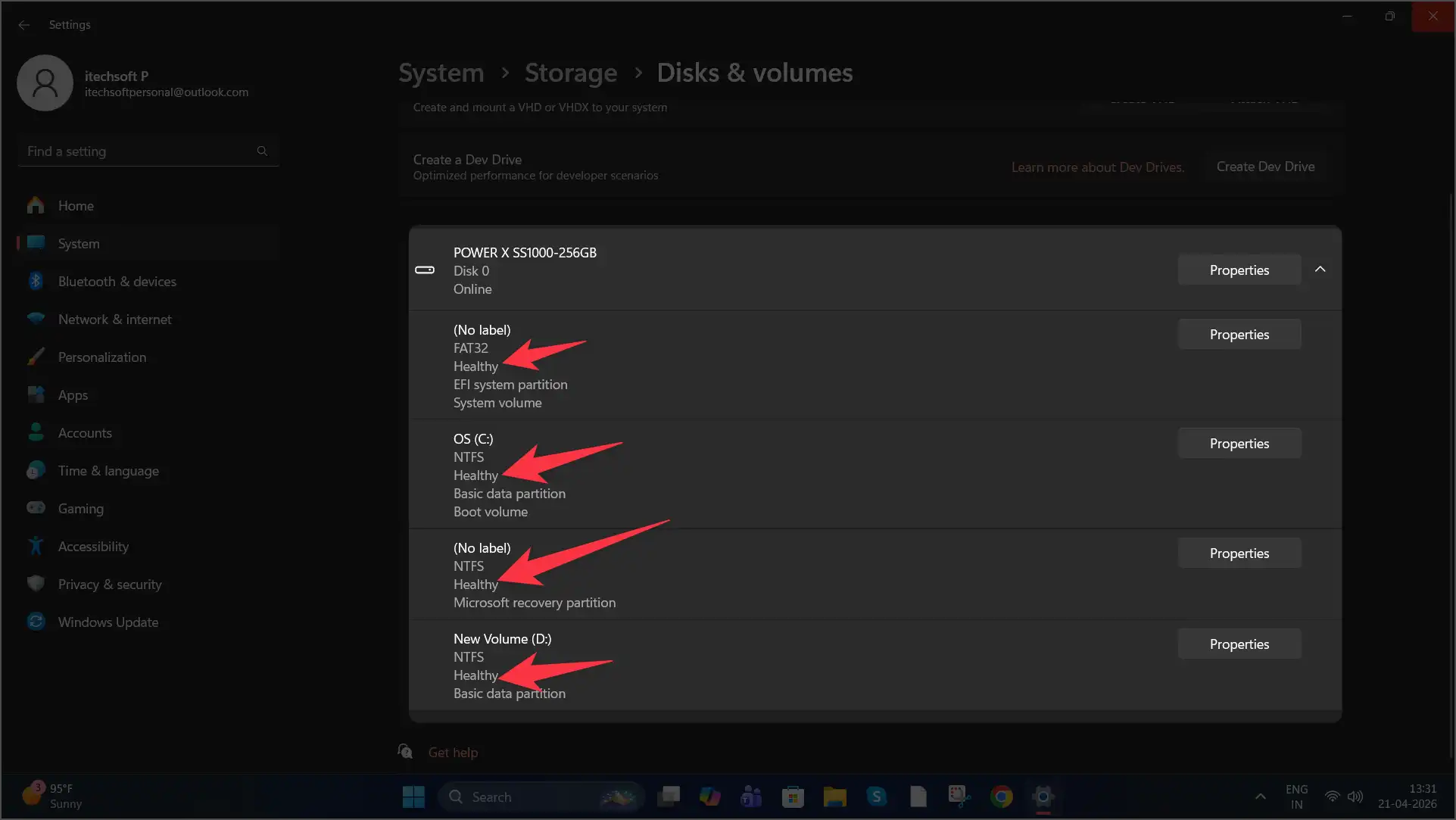
Keeping an eye on your hard drive health is important to avoid sudden data loss or system crashes. In Windows 11, you can easily check your drive’s condition using built-in tools or free software.
Here are the best methods to check your hard drive health.
Method 1: Check Drive Health Using Settings (Easiest Way)
This is the simplest method, especially for SSD and NVMe drives.
Steps:
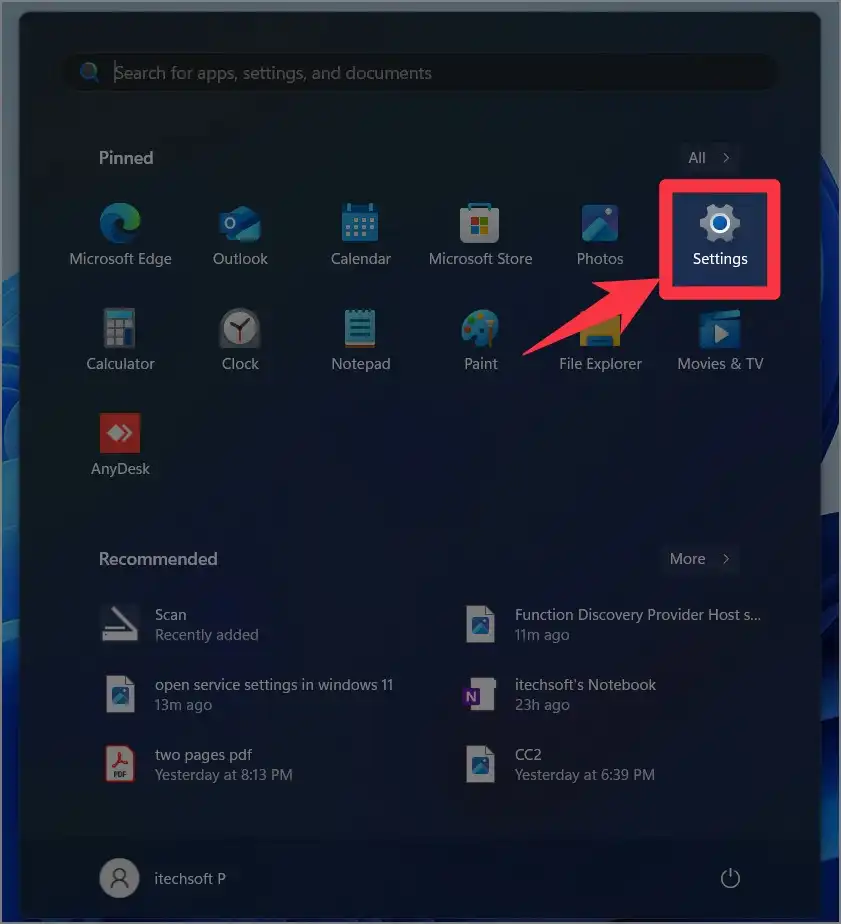
- Click on the Start button
- Open Settings
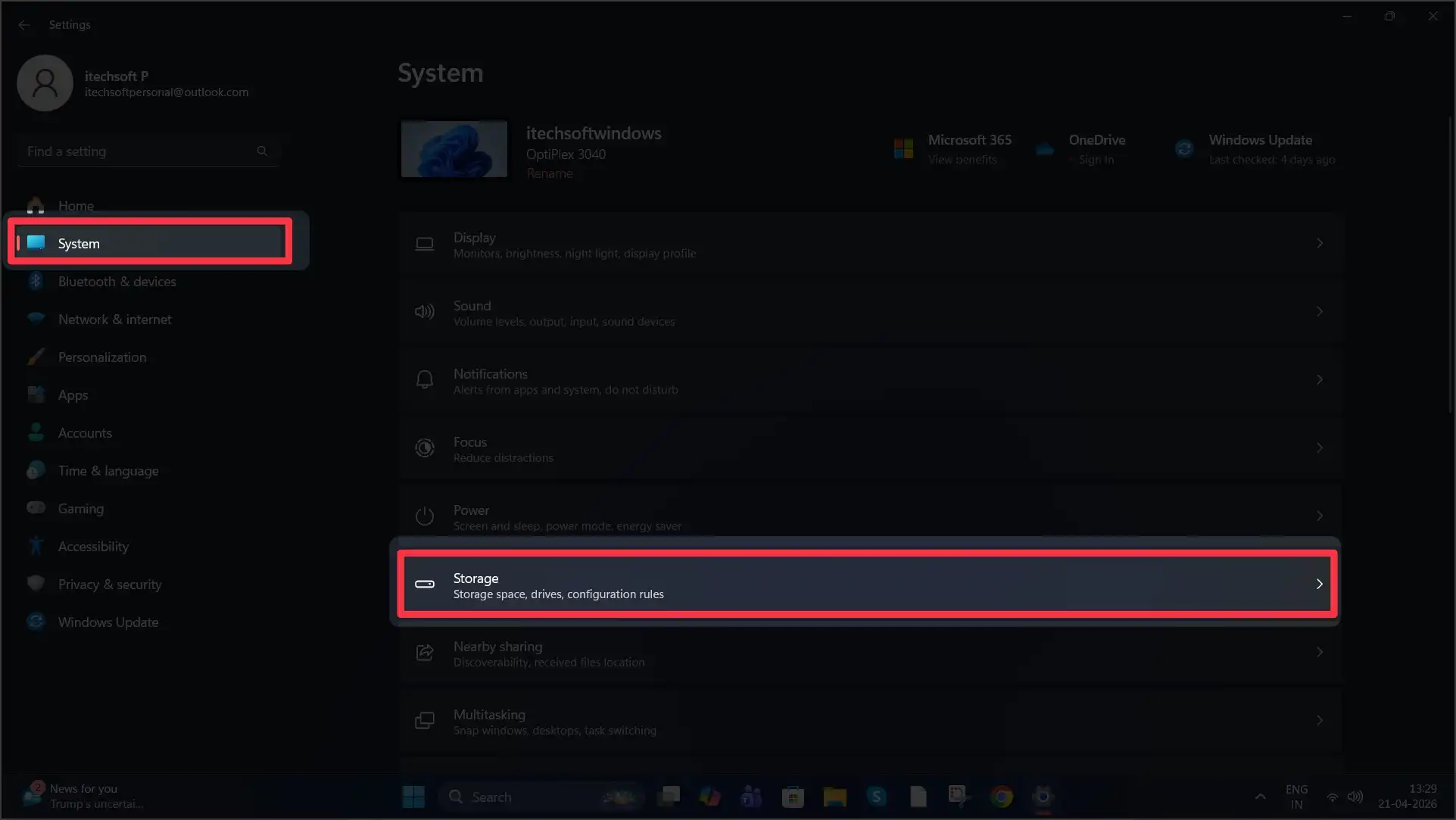
- Go to System
- Click on Storage
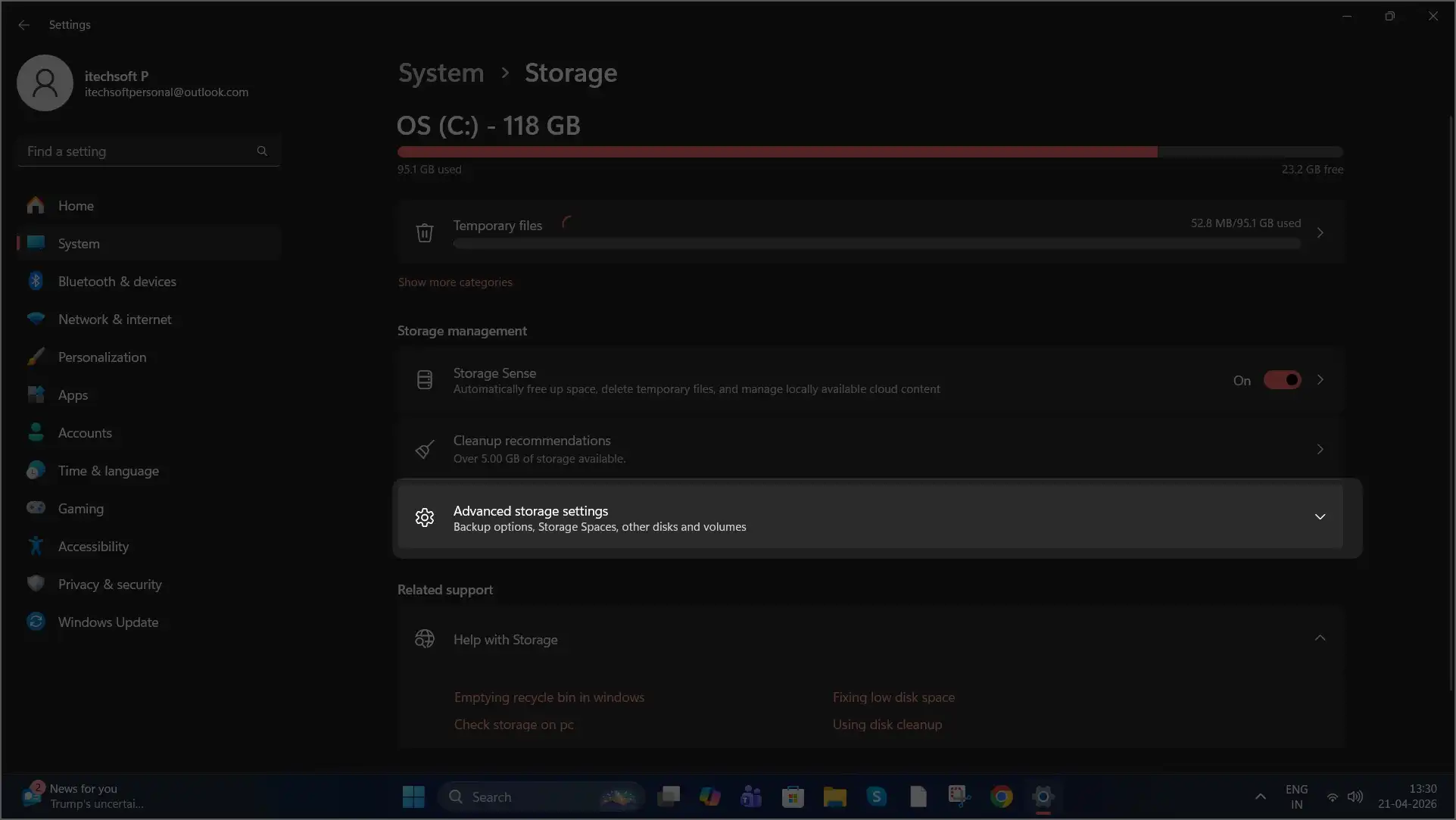
- Select Advanced storage settings
- Click Disks & volumes
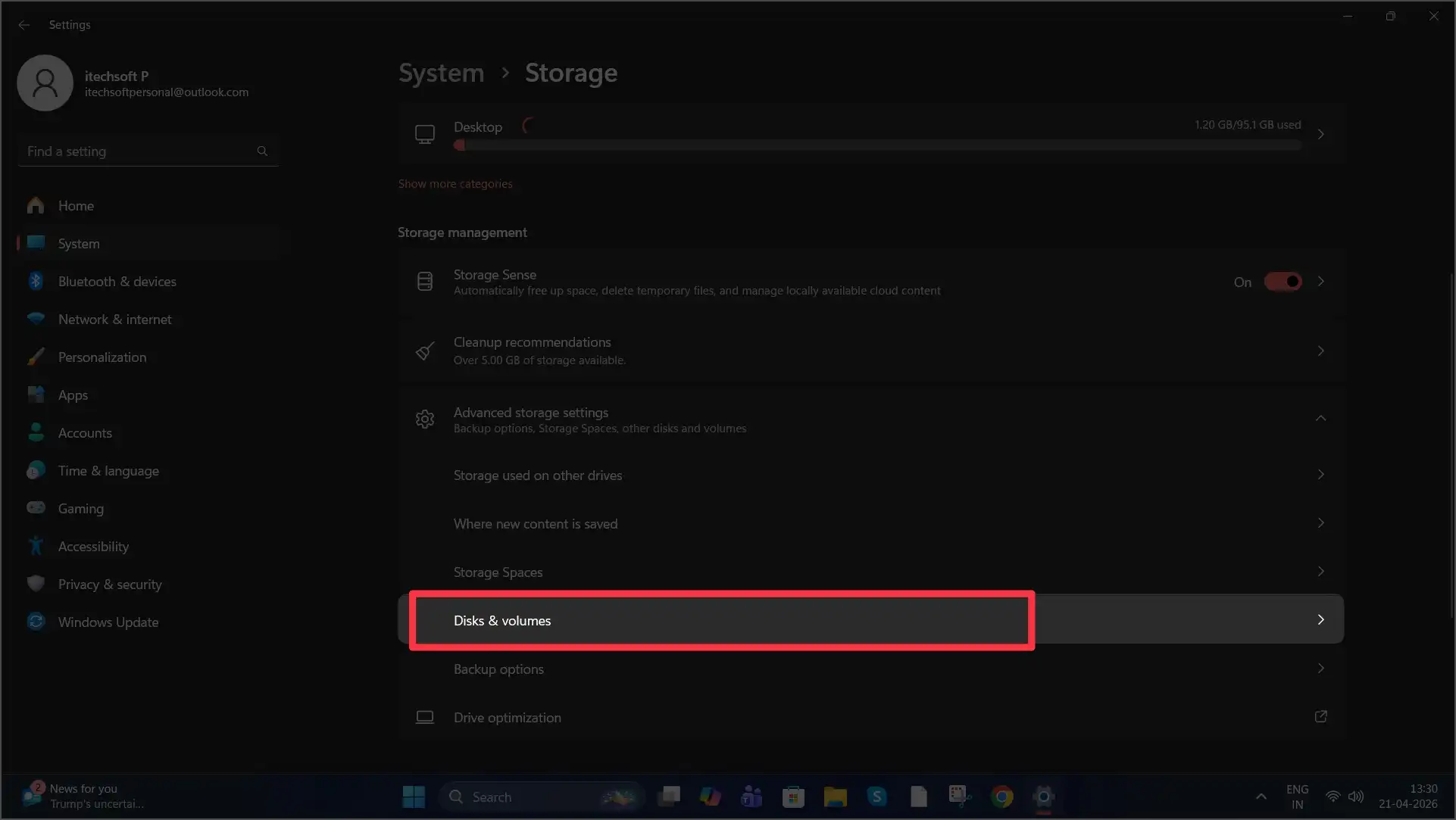
- Choose your drive and click Properties
👉 Here you can see:
- Drive health status
- Estimated remaining life
- Temperature
This method gives a quick overview of your drive’s condition.
Method 2: Use Command Prompt (CHKDSK Scan)
This method checks for file system errors and can repair them.
Steps:
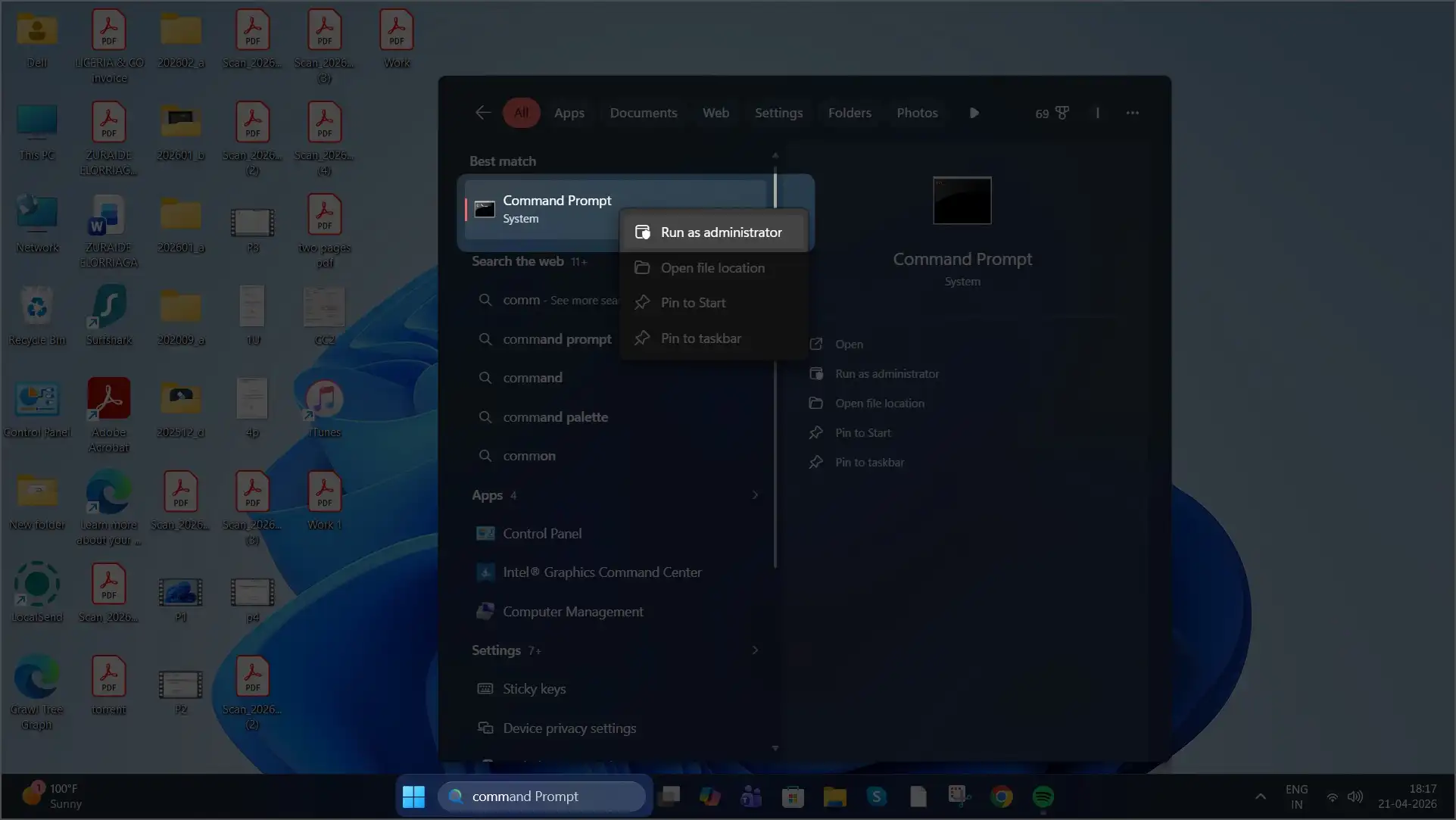
- Search for Command Prompt in the Start menu
- Right-click it and select Run as administrator
- Type the following command and press Enter:
chkdsk
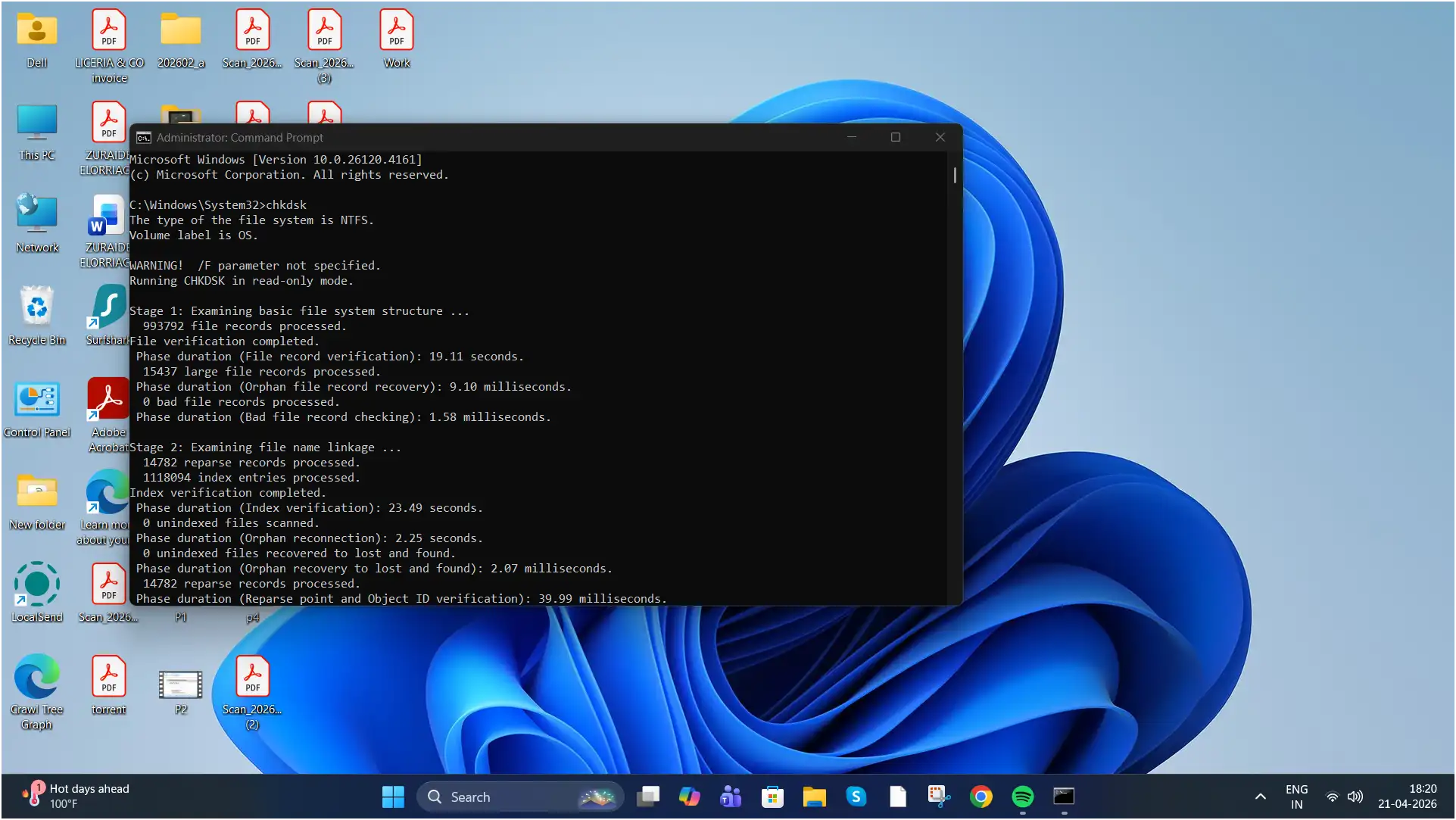
👉 To scan and fix errors, use:
chkdsk C: /f /r /x
(Replace C: with your drive letter)
- If it’s your main drive, type Y and restart your PC
This scan will run during reboot and fix disk issues automatically.
Method 3: Use Third-Party Tool (CrystalDiskInfo)
For more detailed information, you can use a free tool like CrystalDiskInfo.
What it shows:
- SMART health status
- Temperature
- Drive performance details
- Early warning signs of failure
👉 It’s one of the most popular tools for advanced users.
Key Hard Drive Health Indicators
When checking your drive, look for these:
✅ Healthy
- Drive is working properly
- No immediate issues
⚠️ Warning / Error
- Drive may fail soon
- Backup your data immediately
📉 Percentage Remaining (SSD)
- Shows lifespan left
- Lower percentage = aging drive
Bonus: Check Disk Status Using WMIC
You can also use a quick command to check basic health status.
Steps:
- Open Command Prompt as Administrator
- Type:
wmic diskdrive get status
👉 Results:
- OK = Drive is healthy
- Pred Fail = Possible failure detected
When Should You Be Concerned?
Watch out for these signs:
- Slow performance
- Frequent crashes
- Unusual noises (HDD)
- File corruption
👉 If you notice these, backup your data immediately.
Final Thoughts
Checking your hard drive health in Windows 11 is quick and can save you from major data loss. Regular monitoring helps you stay ahead of problems and keep your system running smoothly.






