


Figuring out how to download a YouTube video isn’t a big issue; click the download option right below the Video, and your work is done. Additionally, there are many Youtube Downloaders for Mac available.
But there are times when you want to download YouTube videos on Mac Storage and eventually end up with a big question in mind about how to do so. Unfortunately, there is no official trusted way to do so.
Here in this article, we will highlight six tested and trusted ways to download Youtube videos on Mac computers so that you can watch offline and save your favorites for evermore.
The trick to Download Youtube Videos on your Mac or Windows PC
Bitter Truth! But it needs to be accepted; Youtube won’t offer the ability to download directly from on-device storage. Obviously, it leads to installing untrusted extensions or applications that might cause malicious activities on your Mac.
Nonetheless, many different and trusted ways allow you to watch YouTube videos on Mac offline. So let’s explore it!
Steps To Download 4K Quality YouTube Video
The 4K Video downloader is majorly designed to download 4K Quality Video from well-known platforms like Instagram, YouTube, TikTok, etc. However, you can download 1080p YouTube videos on Mac one by one by adding the link in the app. That’s For Free!
So, in case you have made up your mind to download high-quality YouTube videos on your Mac, here are the steps you need to follow.
Note: In a day, you can download up to 30 Videos. If you want to download a YouTube video on Mac Safari, don’t worry; this application is compatible with it apart from Chrome.
Step 1: First of all, Download and Install the 4K Video Downloader. Keep note this application is compatible with macOS 10.23 and later.
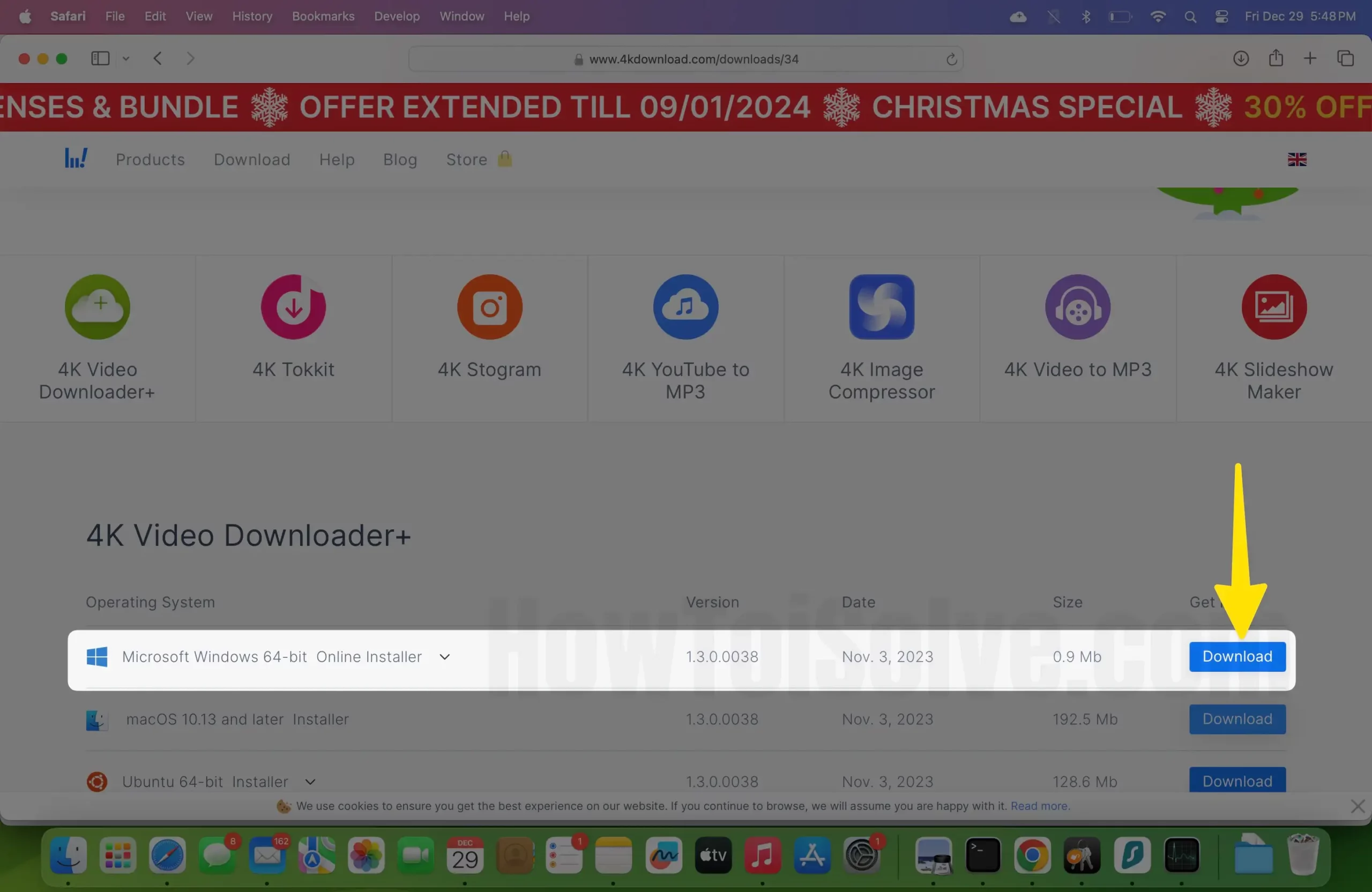
Step 2: After the completion of the downloading procedure, open the app and click on Accept.

Step 3: Now, copy the link to the Video from YouTube.

Step 4: Once you have done so, head back to the application and click on the “+ Paste” Icon, next, you will receive a pairing screen.
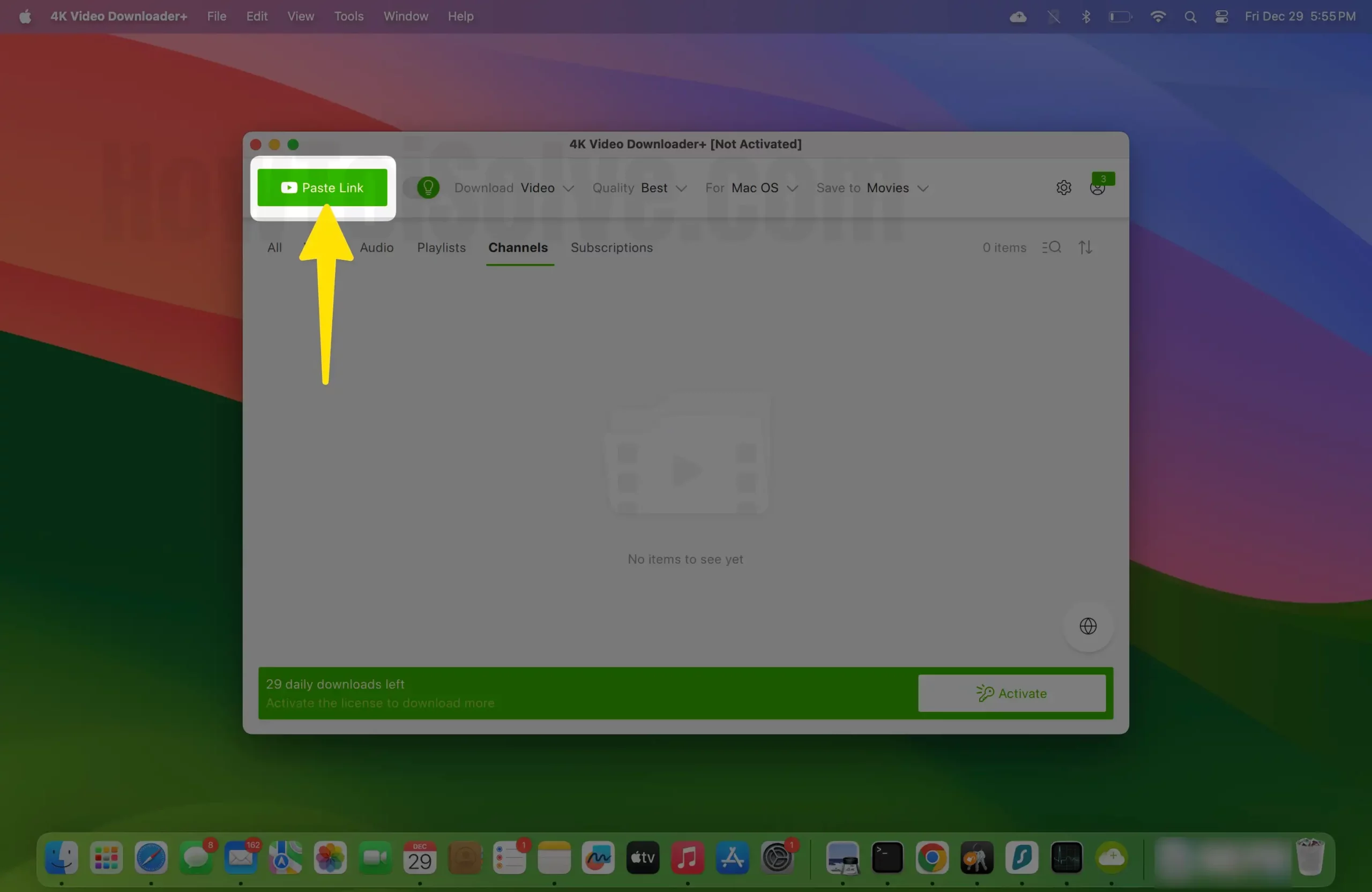
Step 5: Now choose the Video Quality you want to download on your Mac.
Tip: To download YouTube videos as MP4 onto Mac, select Format Drop down from the Download Clip screen and choose MP4.
Step 6: And click on Download.

Moreover, you can also download recent or newly added videos from your favorite channels. Follow the steps below.
Step 7: On YouTube, navigate to the channel and copy the link.
Step 8: Head to the application and click the Subscription Button in the top right corner. Doing so will automatically fetch the channel details and access Subscription Settings.

From the next window, select Format, Subtitles, and Quality. When all is done, select Subscribe. That’s It!
And if money doesn’t matter, you can firmly use the pre-defined subscription feature to download YouTube without any input link. Furthermore, you can download Watch Later. You can learn more about its capabilities and download YouTube videos in different Resolutions, Formats, and Subtitles.
Besides, you can also access the blocked Video using 4K Video downloader built-proxy settings.
How To Download A YouTube Video Mac Chrome
Suppose you haven’t downloaded Chrome on Mac; first of all, Download Chrome On Mac. Then, if it’s not already installed, follow the steps below.
To download YouTube videos on Mac for free, download Foxified. That’s because the extension is equipped with advanced features, and the most admirable on my side is that it lets you download audio from a YouTube video on a Mac.
Besides this, you will receive features such as Thumbnails, Take Screenshot, Switch between Modes, Enable Cinema Mode, Picture-In-Picture Mode, and Floating Video Player within the extension. What’s great is that you can access those settings directly below the YouTube video.
Step 1: To add the extension, click on this link.
Step 2: Click on Youtube Video Downloader and choose Add To Chrome.

Step 3: From the pop-up, click on Let’s Go.
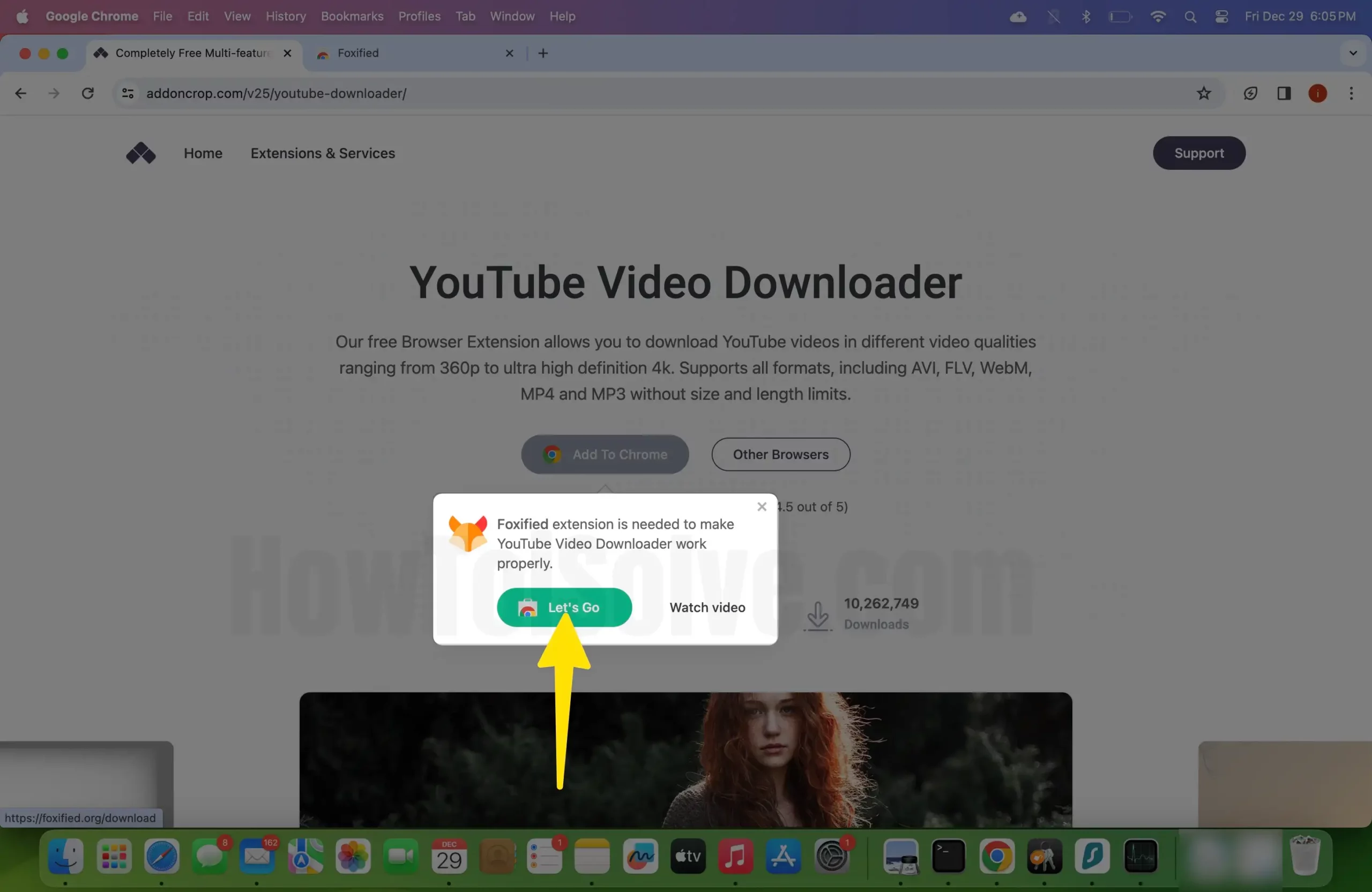
Step 4: Click on Add To Chrome Google Chrome app.

Step 5: Click Add Extension, and you will navigate to the Downloading screen.

Step 6: Let it finish, and lastly, choose Allow Permission.

How To Download A YouTube Video Mac Online
Another way to download a YouTube video on Mac Safari or Google Chrome is using the online platform 9xbuddy! However, you won’t be able to download high-quality YouTube videos on a Mac, and it isn’t a trusted website to go with.
Step 1: Navigate to the YouTube channel and copy the link of the preferred Video.
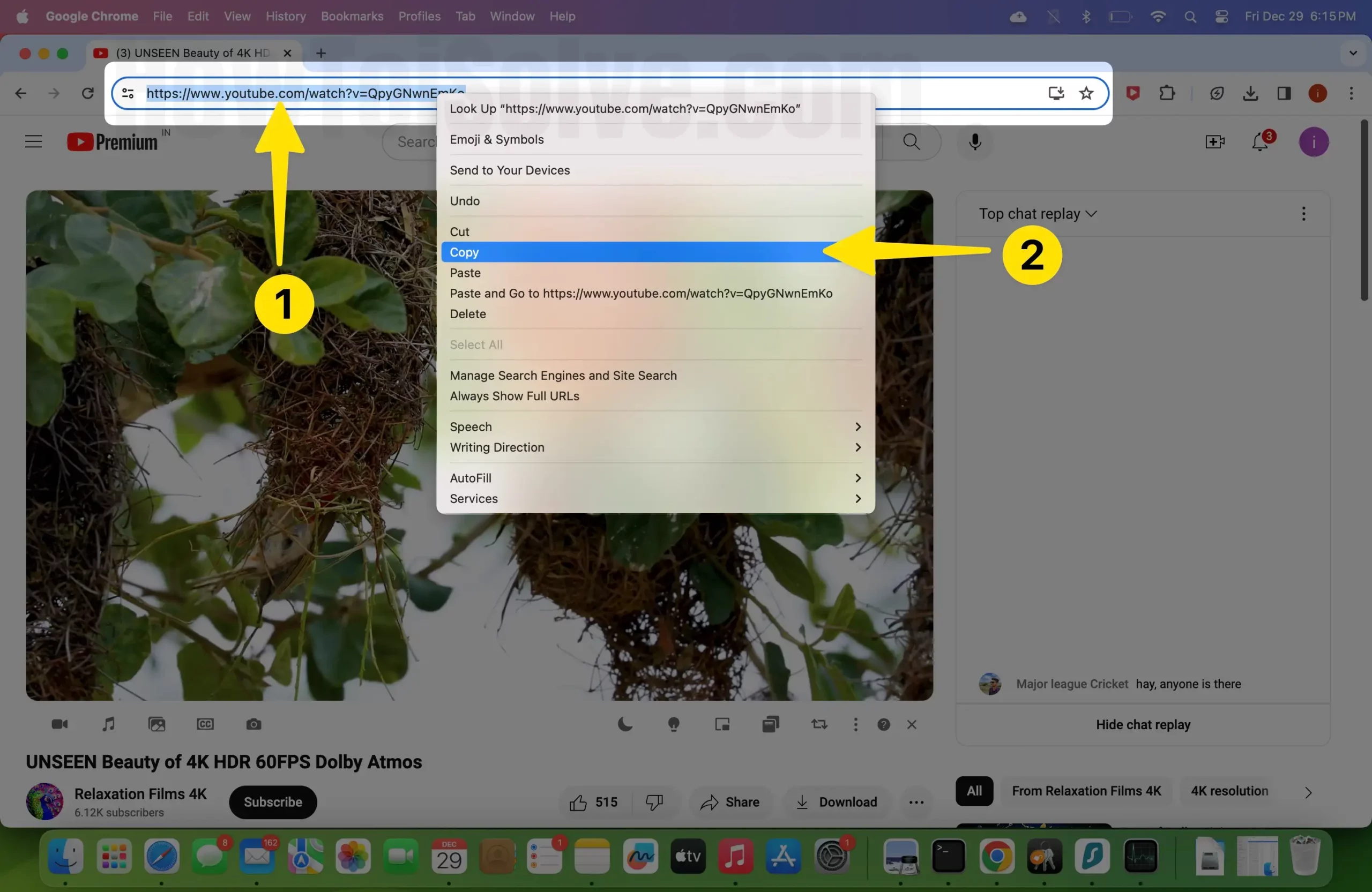
Step 2: Head to 9xBuddy and paste the link in the Search or Enter Any URL To Download and next click on download.

Step 3: Scroll down and choose the Video. Select the preferable video resolution and choose Download Now.
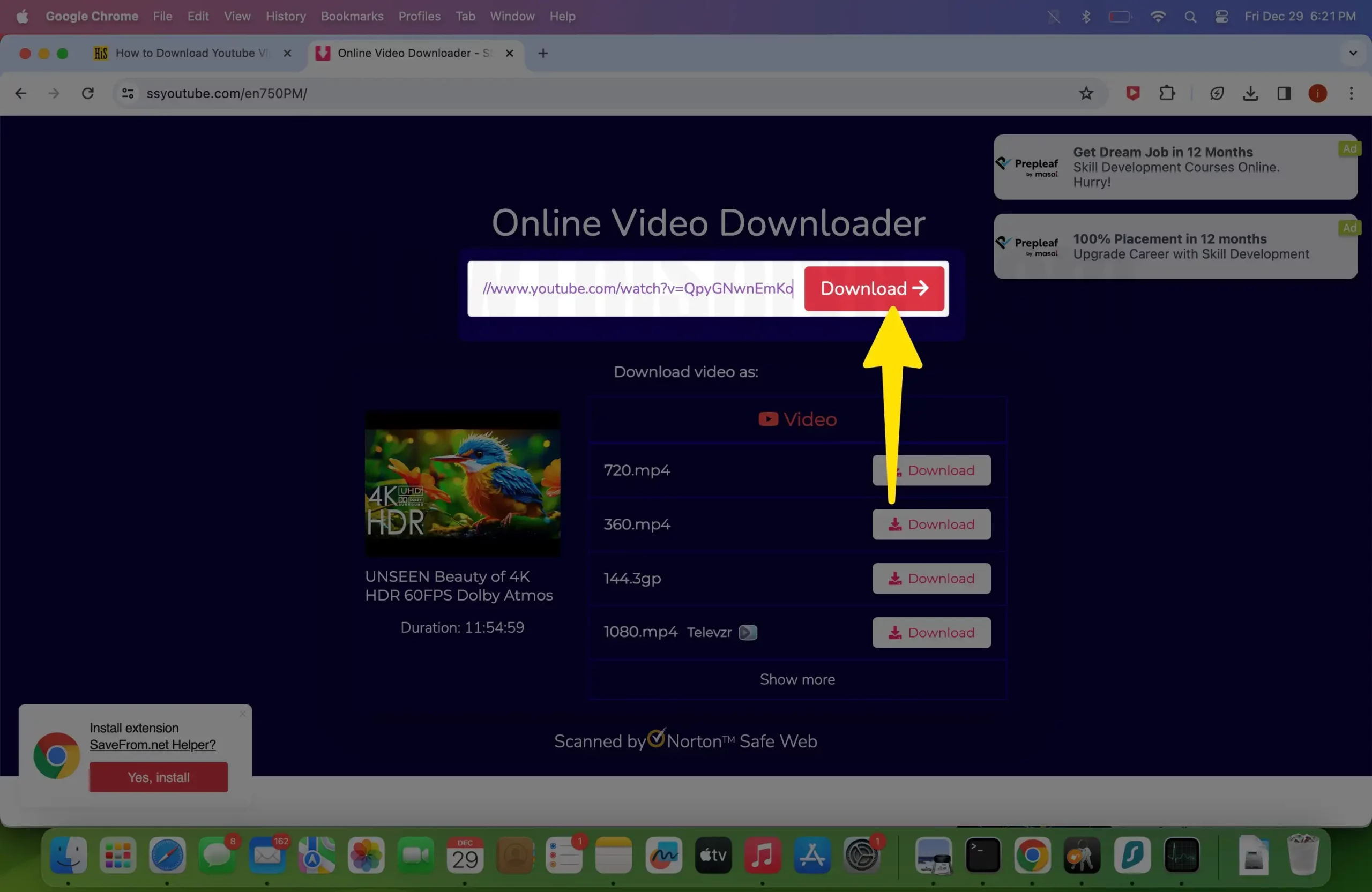
Step 4: If you want to download Audio from a YouTube video Mac, select Audio instead of Video.
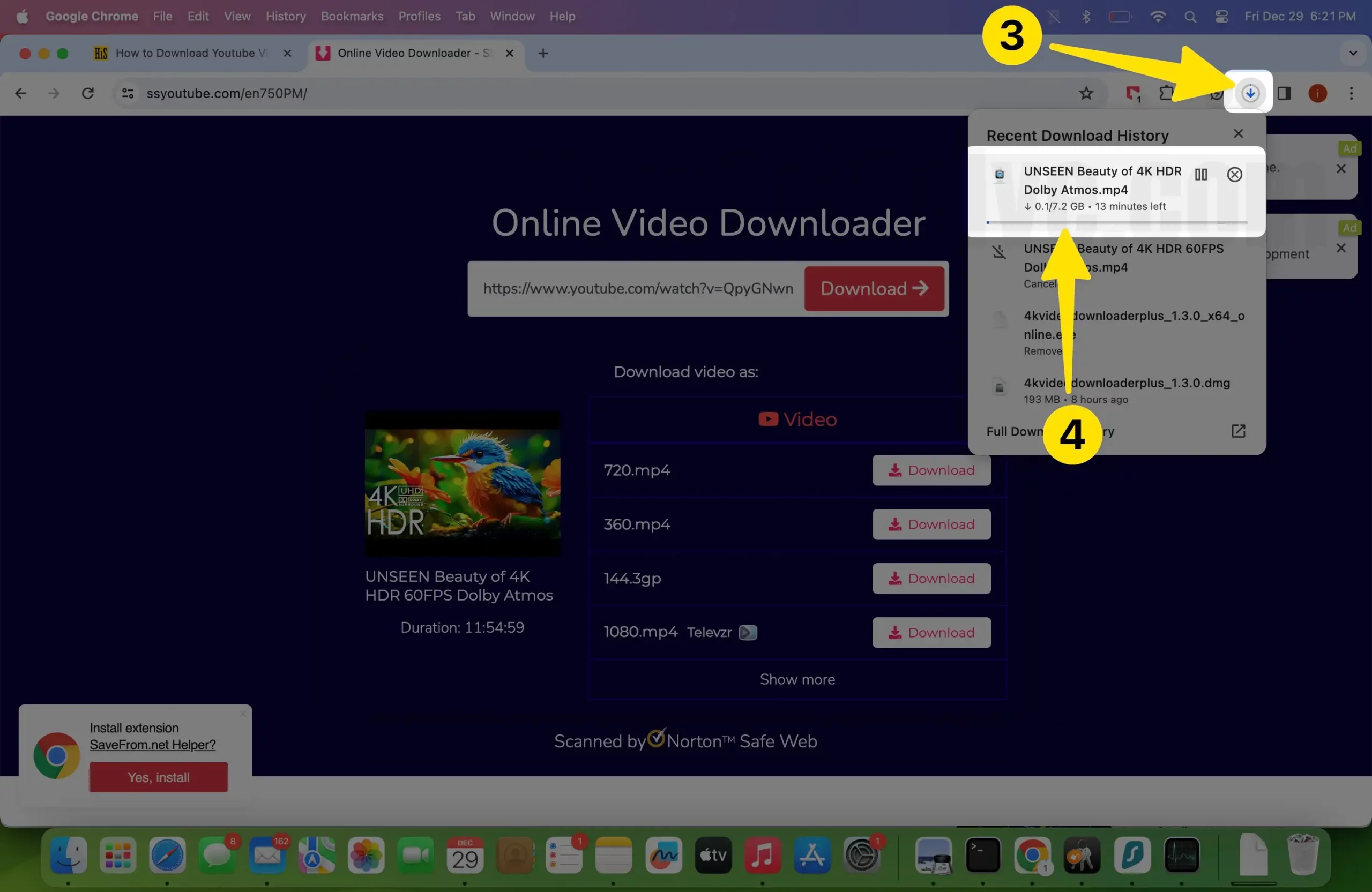
Note: Ignore clicking on Extract Link, which can lead to inevitable crashes, warning windows, or random pages. If the Video starts playing on Safari or Chrome after clicking on Download Now, click on the Three-Vertical Dot at the bottom of the Video and choose Download.
Once the download is finished, the Video will be stored in the default download location on Mac.
How To Download YouTube Videos On Mac Using VLC
The VLC is free to install and open-source as it is compatible with various OS. With it, you can download YouTube videos, and at the same time, you enjoy watching videos and Audio from multiple sources such as Discs, External Drives, etc.
Undoubtedly the VLC is one of the most powerful, yet many users are stuck with Is VLC Safe? Yes, it’s safe to download YouTube videos on a Mac legally. So let’s discuss how to do so.
Step 1: First, download and install VLC on Mac (If it is already installed, skip this step). Copy the YouTube URL.
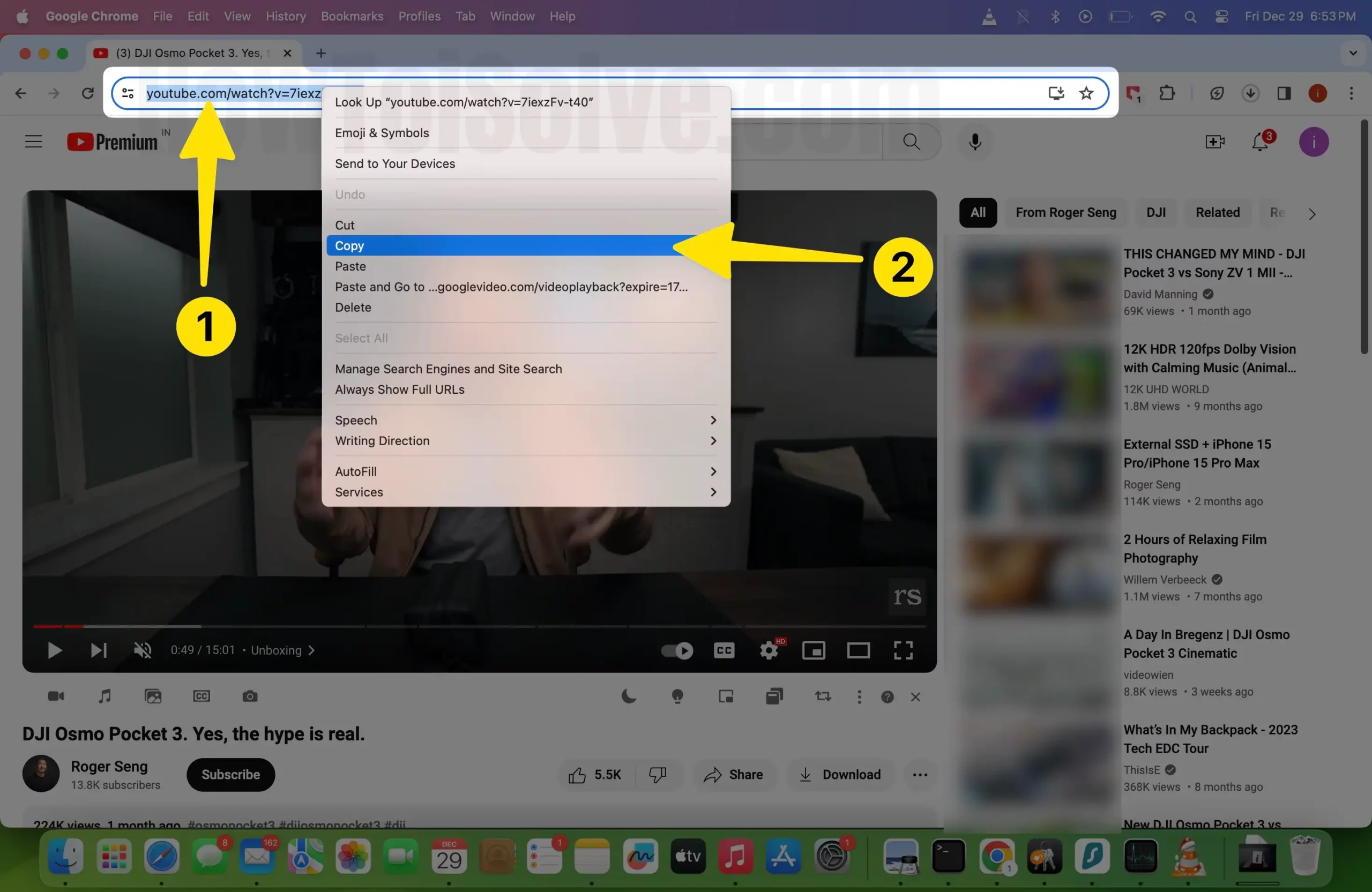
Step 2: Next, open it, and then choose File from MenuBar.
Step 3: Select Open Network…(Command + N).

Step 4: Choose the Network Button and paste the copied URL in the URL Option. Now, click on Open, and right after this, YouTube Video will start streaming.

Step 5: Move to the menu bar and choose Window.
Step 6: From the Window Dropdown, select Media Information… (Command + I).
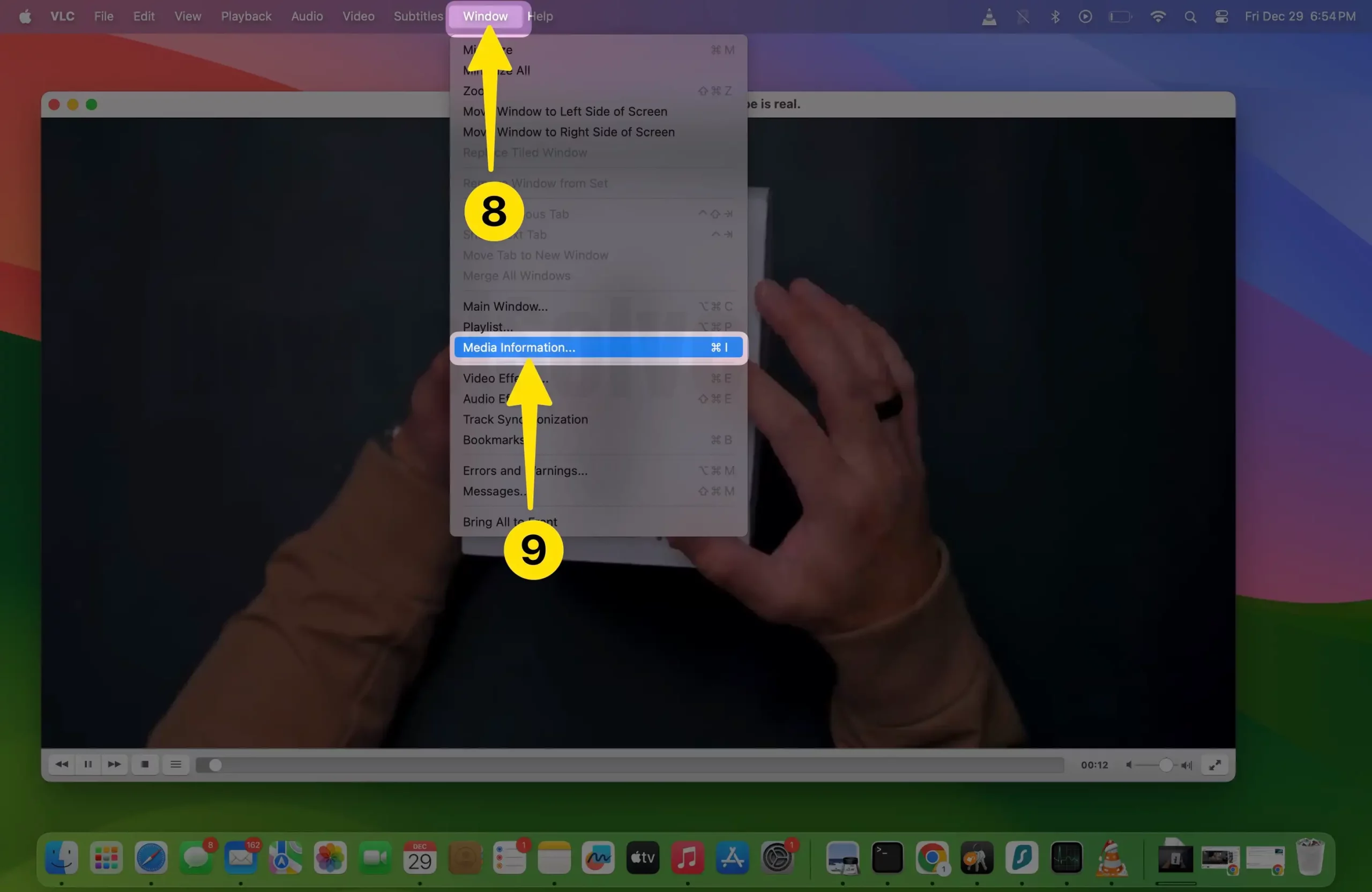
Step 7: From there, select General and paste the URL in the Location Section.
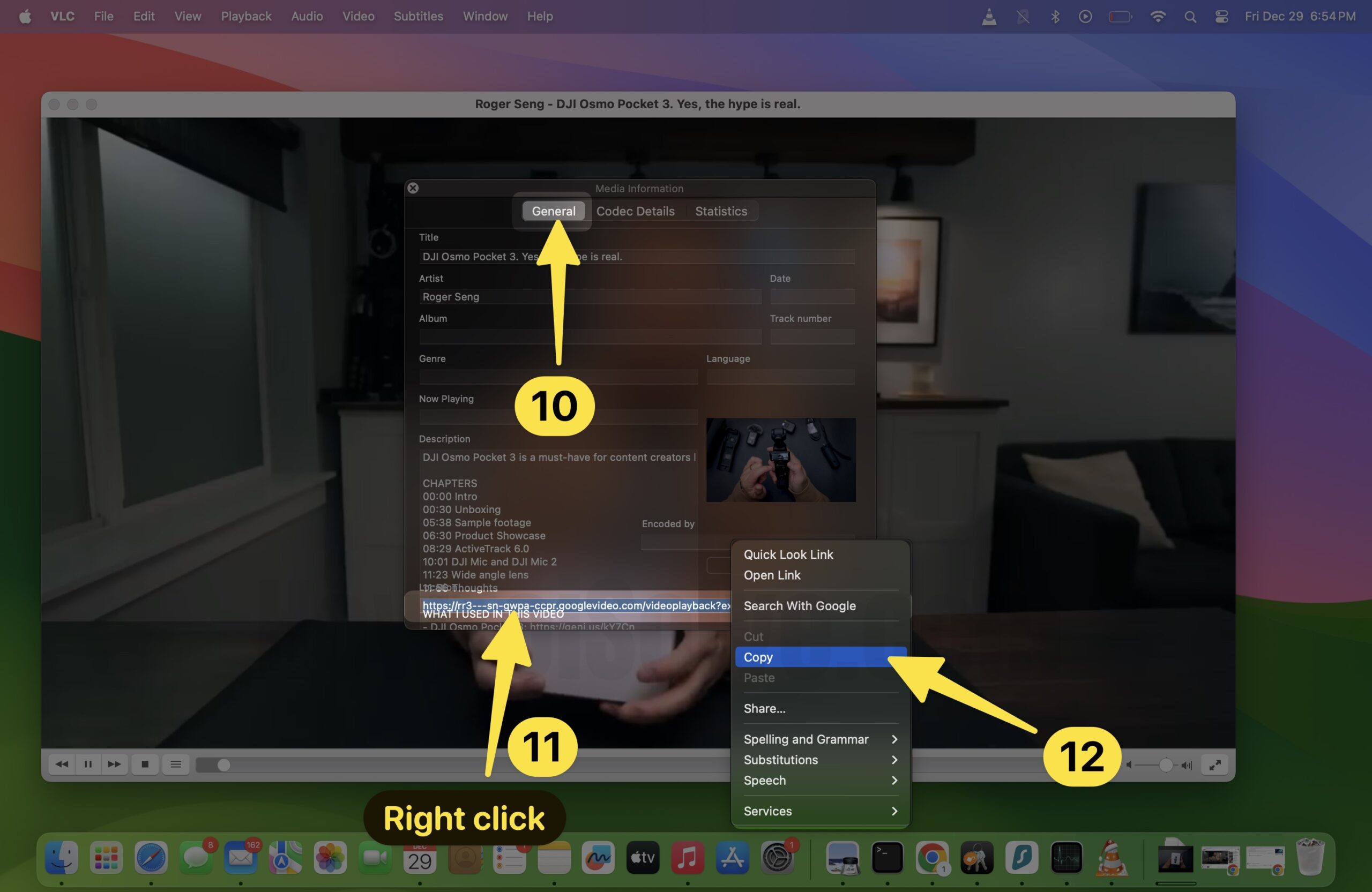
The same Video will begin streaming on the browser; navigate to the browser, right-click on the YouTube video, and choose Save Video As.
How To Download Youtube Videos Premium On Mac
If money doesn’t matter and it’s essential for you to download Videos, go for YouTube Premium. The service only costs a few bucks, and in return, it gives ad-free surfing and allows downloading videos without any extra software.
Not to mention you can also download the offline Video using the basic version. But with YouTube Premium, you can download such videos with the Download Option Greyed Out. So when you decide to download long YouTube videos on Mac, YouTube Premium Is Worth It!
How To Download YouTube Videos On Mac Without Software
Say nothing; as a Mac user, you might be familiar with QuickTime On Mac. If not, I will let you know about it. With QuickTime, you can record a video and Take A Screenshot On a Mac.
However, it is not conventional, but when it comes to downloading YouTube videos on a Mac without Software, it’s a better option to go as it’s the best way to download YouTube videos on a Mac for free.
Press the Shift + Command + 5, and from the QuickTime Menu on the center of the screen, select either Record Entire Screen( click on the screen to start recording screen after choosing this option) or Record Selected Portion.
In the Record Selected Portion, crop the Youtube Screen and choose the Record Button. When recording over, click on the Stop Icon beside the Control Center in Menu Bar.
Bottom Line
That’s It! These are trusted and efficient when downloading and saving YouTube videos on a Mac. Let us know the best way you rate in the comment box below.
Can You Download Youtube Videos To Watch Offline On Mac?
Yes, you can download YouTube videos on Mac using the VLC and many other Software and web pages. To learn it, follow our guide.






