

If your mouse is lagging, freezing, disconnecting randomly, or not responding properly, the issue is often related to an outdated or corrupted driver in Windows 11.
Updating your mouse driver is simple — and in this guide, I’ll show you 4 easy methods, with real-life examples so you can understand exactly when to use each one.
Why You Should Update Your Mouse Driver
You may need to update if:
- Cursor movement feels slow or jumpy
- Mouse clicks are not registering
- Scroll wheel stops working
- Gaming mouse side buttons don’t work
- Windows update caused compatibility issues
Method 1: Update Using Device Manager (Recommended)
This is the easiest and safest method for most users.
Steps:
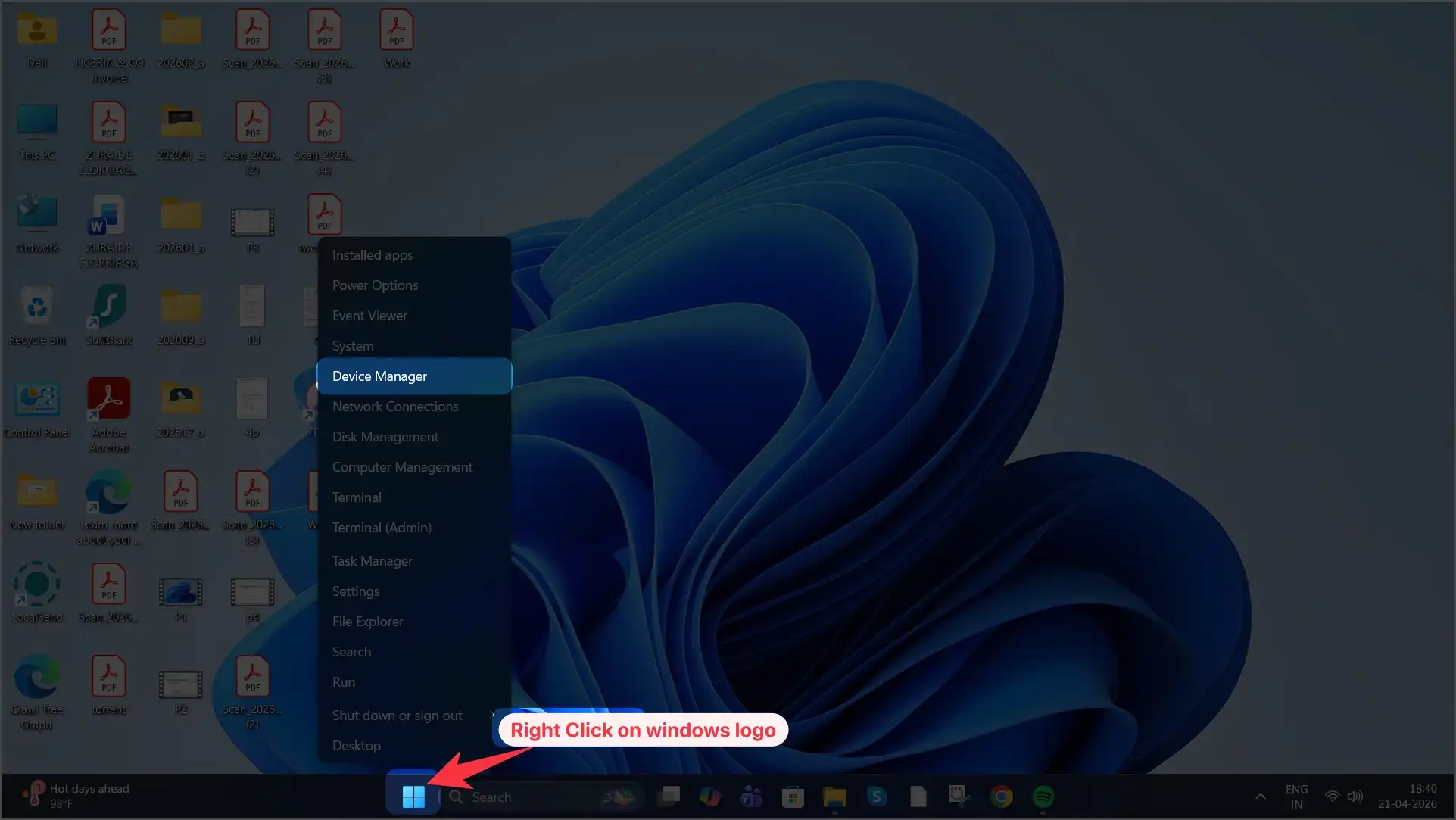
- Right-click the Start button
- Select Device Manager
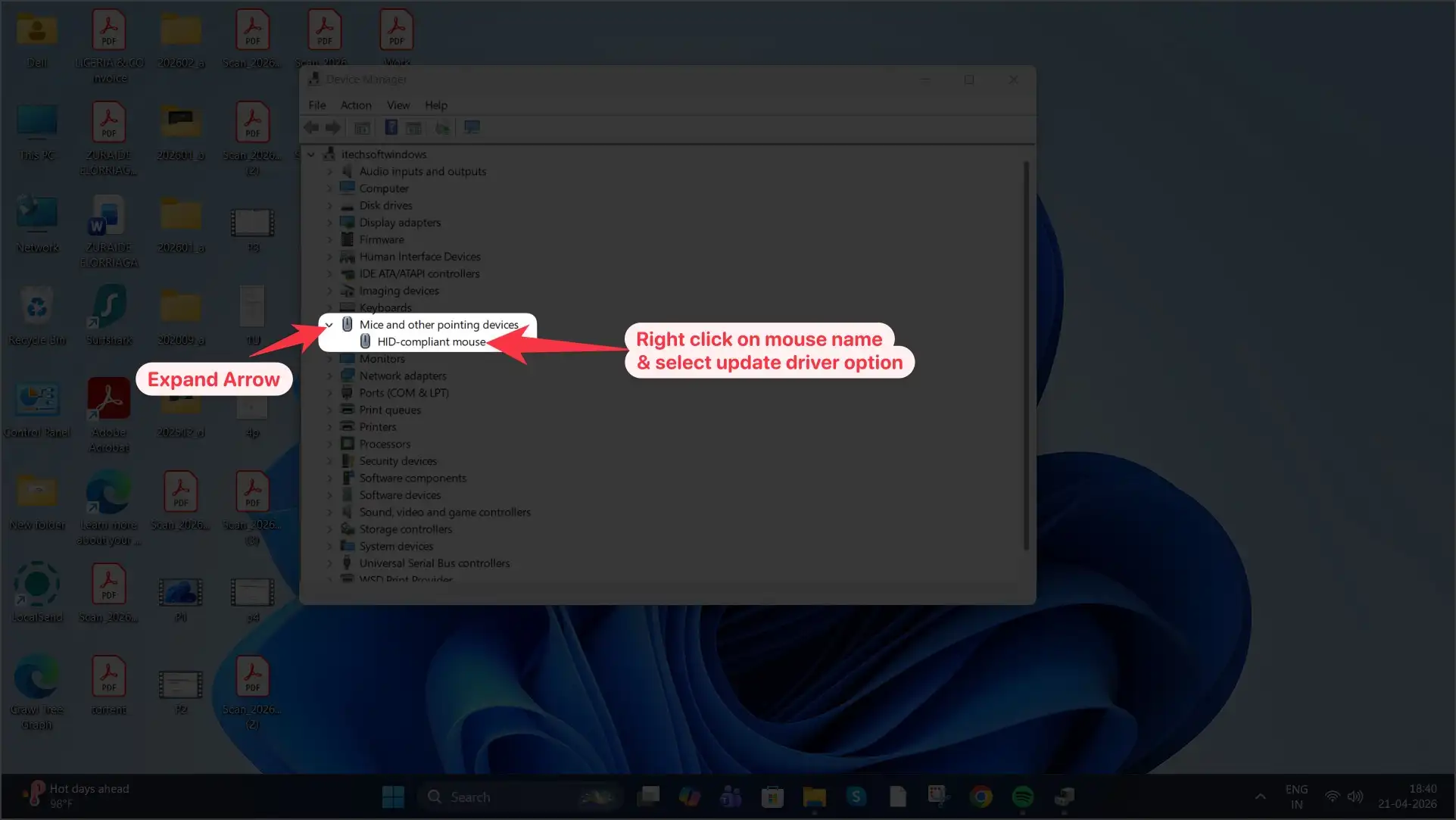
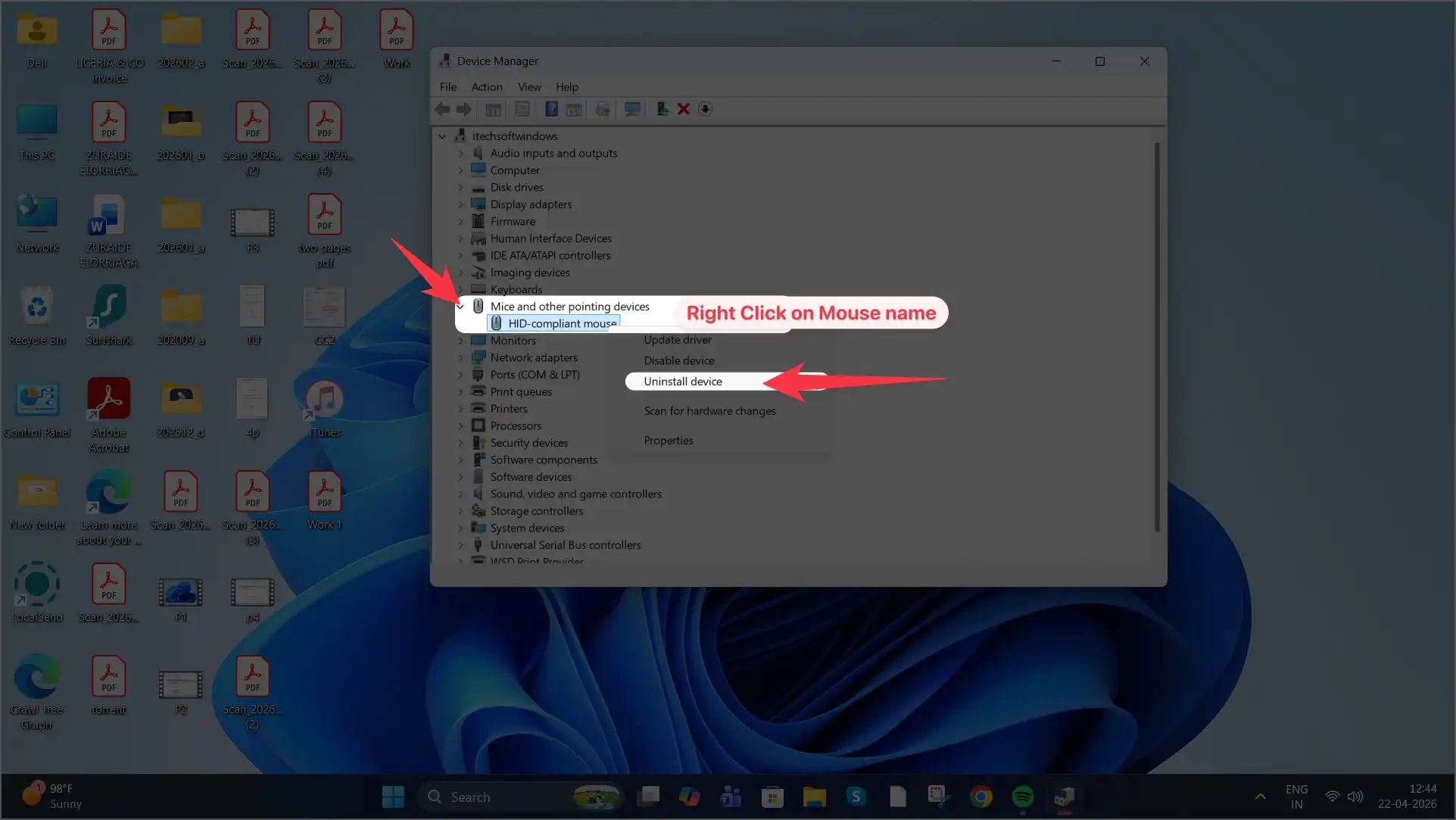
- Expand Mice and other pointing devices
- Right-click your mouse (for example, “HID-compliant mouse”)
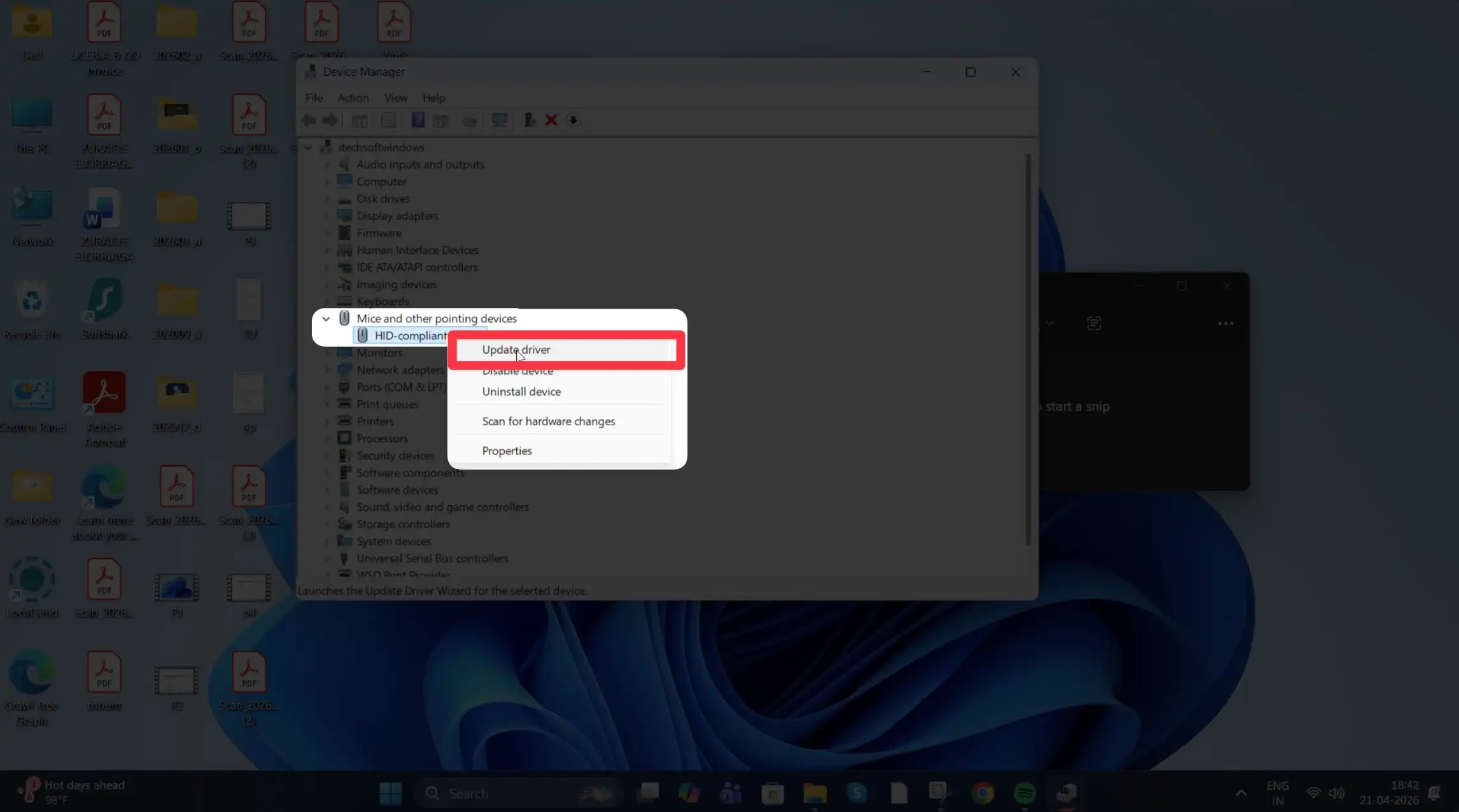
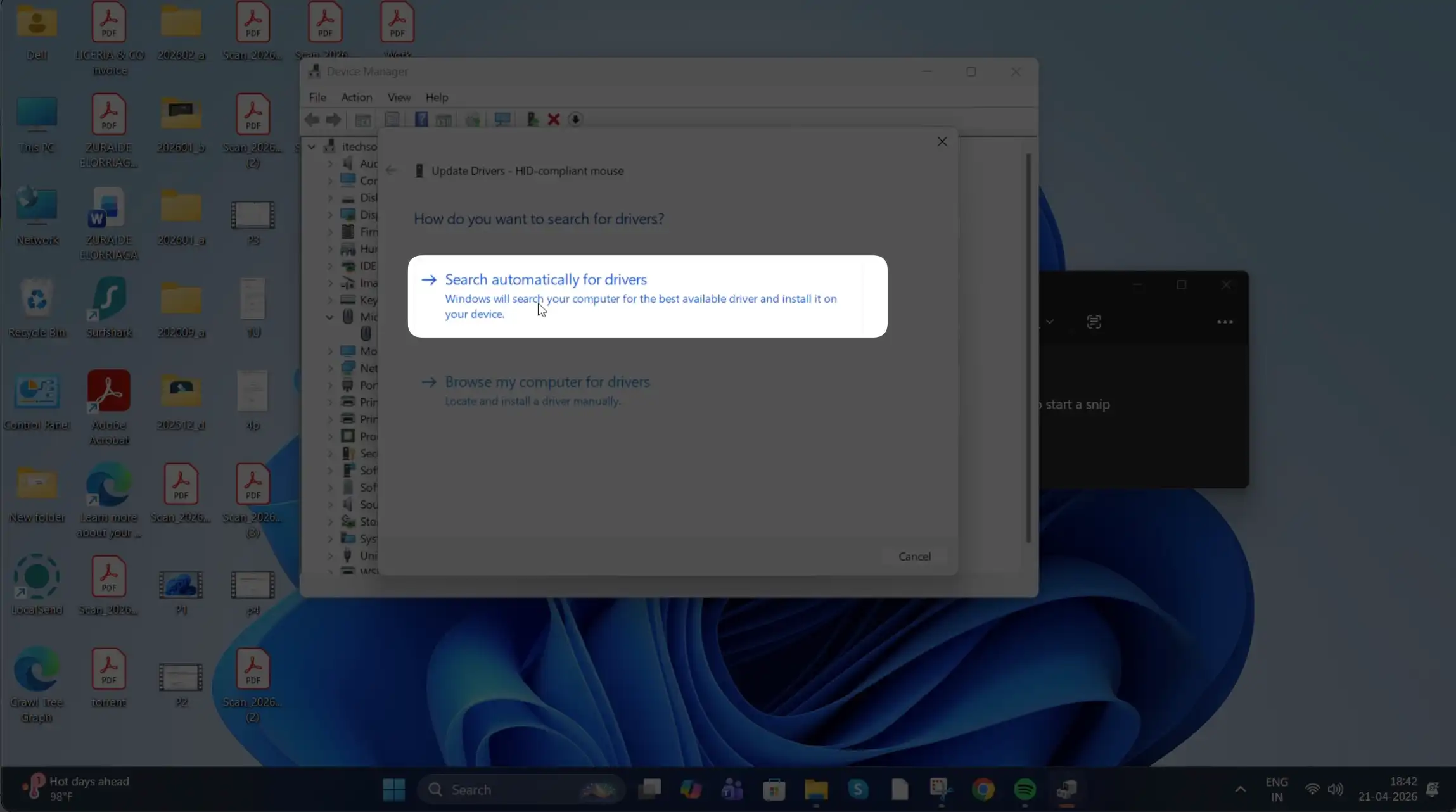
- Click Update driver
- Select Search automatically for drivers
- Restart your computer.
Windows will search and install the latest available driver.
Real-Life Example
Imagine your cursor suddenly starts freezing while browsing Chrome. You open Device Manager, update the driver, restart the PC, and the problem is fixed.
This works in most cases.
Method 2: Update Through Windows Update
Sometimes, mouse drivers are included in system updates.
Steps:
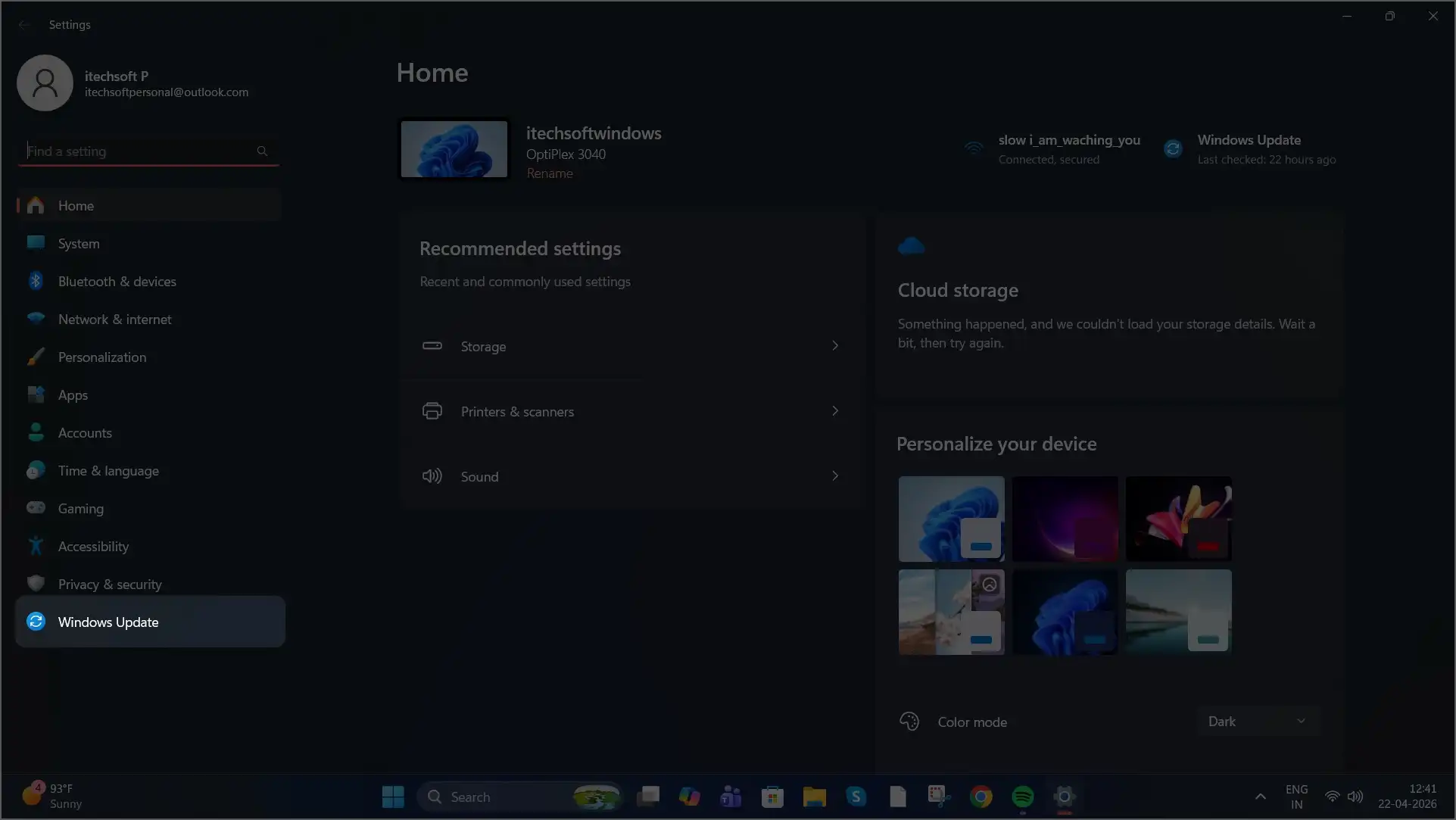
- Press Win + I to open Settings
- Click Windows Update
- Click Check for updates
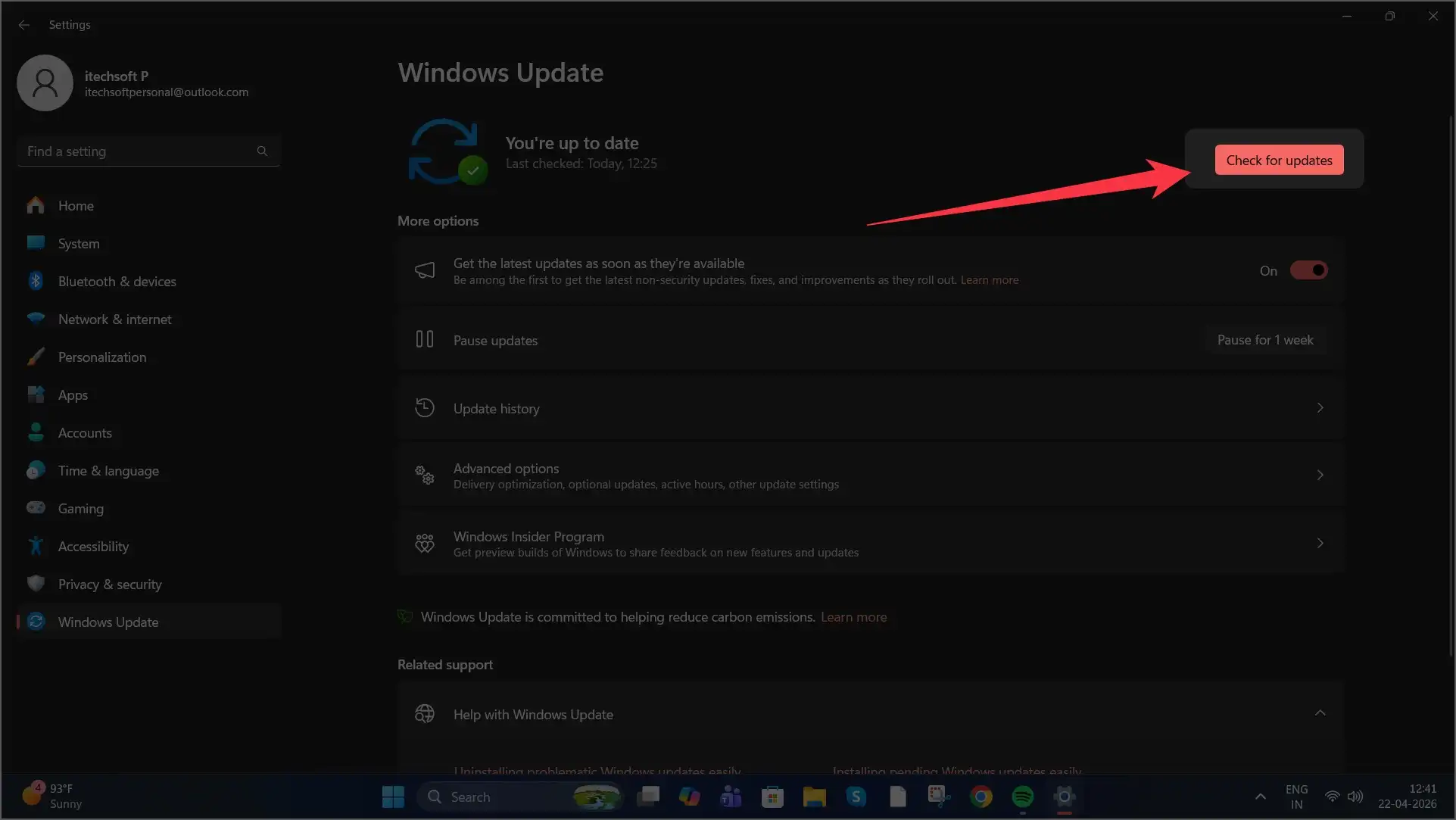
- If available, install updates
- For optional drivers:
- Click Advanced options
- Select Optional updates
- Expand Driver updates
- Check your mouse driver
- Click Download & install
Real-Life Example
After installing a Windows update, your wireless mouse stops scrolling.
You check Optional updates and find a driver update listed — install it, restart, and scrolling works again.
Method 3: Update from Manufacturer Website (Best for Gaming Mice)
If you use a branded or gaming mouse, this method is better.
Examples:
- Logitech
- Razer
- Dell
Option A: Manual Download
- Visit the official support website
- Search your mouse model
- Download the latest driver
- Install and restart
Option B: Use Dedicated Software
Many brands provide software:
- Logitech Options
- Razer Synapse
- SteelSeries Engine
These tools automatically manage driver updates.
Real-Life Example
You buy a gaming mouse, but the RGB lighting and side buttons don’t work. After installing Razer Synapse and updating the drivers, all the features start working. For gaming mice, it’s best to use the official software.
Method 4: Reinstall the Driver (If Mouse Is Failing)
If updating doesn’t fix the issue, try a fresh reinstall.
Steps:
- Open Device Manager
- Expand Mice and other pointing devices
- Right-click your mouse.
- Select Uninstall device
- Restart your PC.
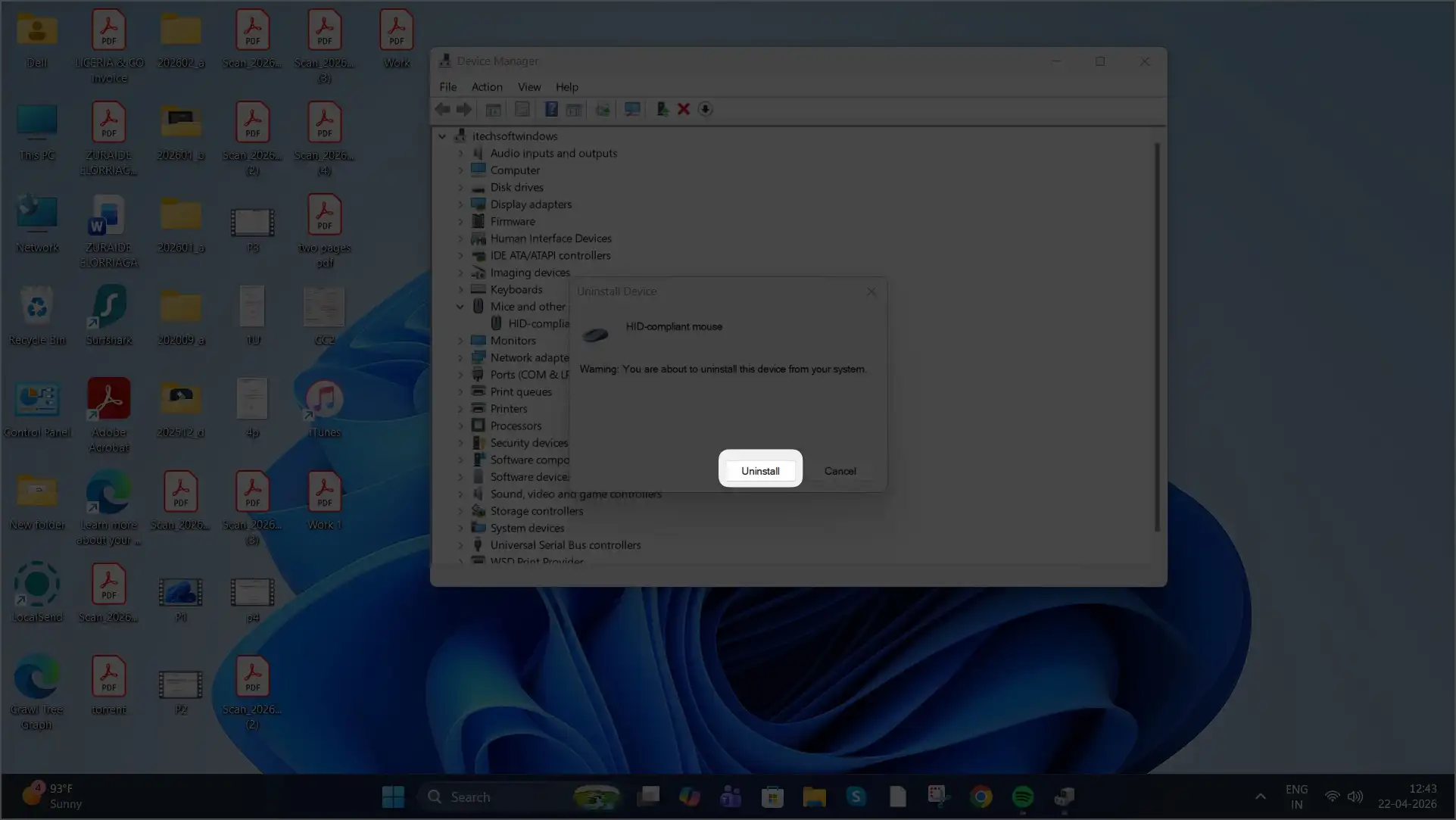
Windows will automatically reinstall the driver.
Real-Life Example
If your mouse keeps disconnecting randomly and updating the driver doesn’t resolve the problem, uninstall the driver and restart your computer. Windows will automatically install a clean driver, which often fixes the issue.
Which Method Should You Use?
| Situation | Best Method |
|---|---|
| Basic mouse lag | Device Manager |
| After Windows update issue | Windows Update |
| Gaming mouse features not working | Manufacturer software |
| Driver corruption | Reinstall driver |
Pro Tips
✔ Always restart computer after updating
✔ Use official manufacturer websites only
✔ Avoid third-party “driver booster” tools
✔ Keep Windows updated
Final Advice
For most users, Device Manager → Search automatically is enough.
If you’re using a gaming mouse, always use the manufacturer’s official software for the best performance.






