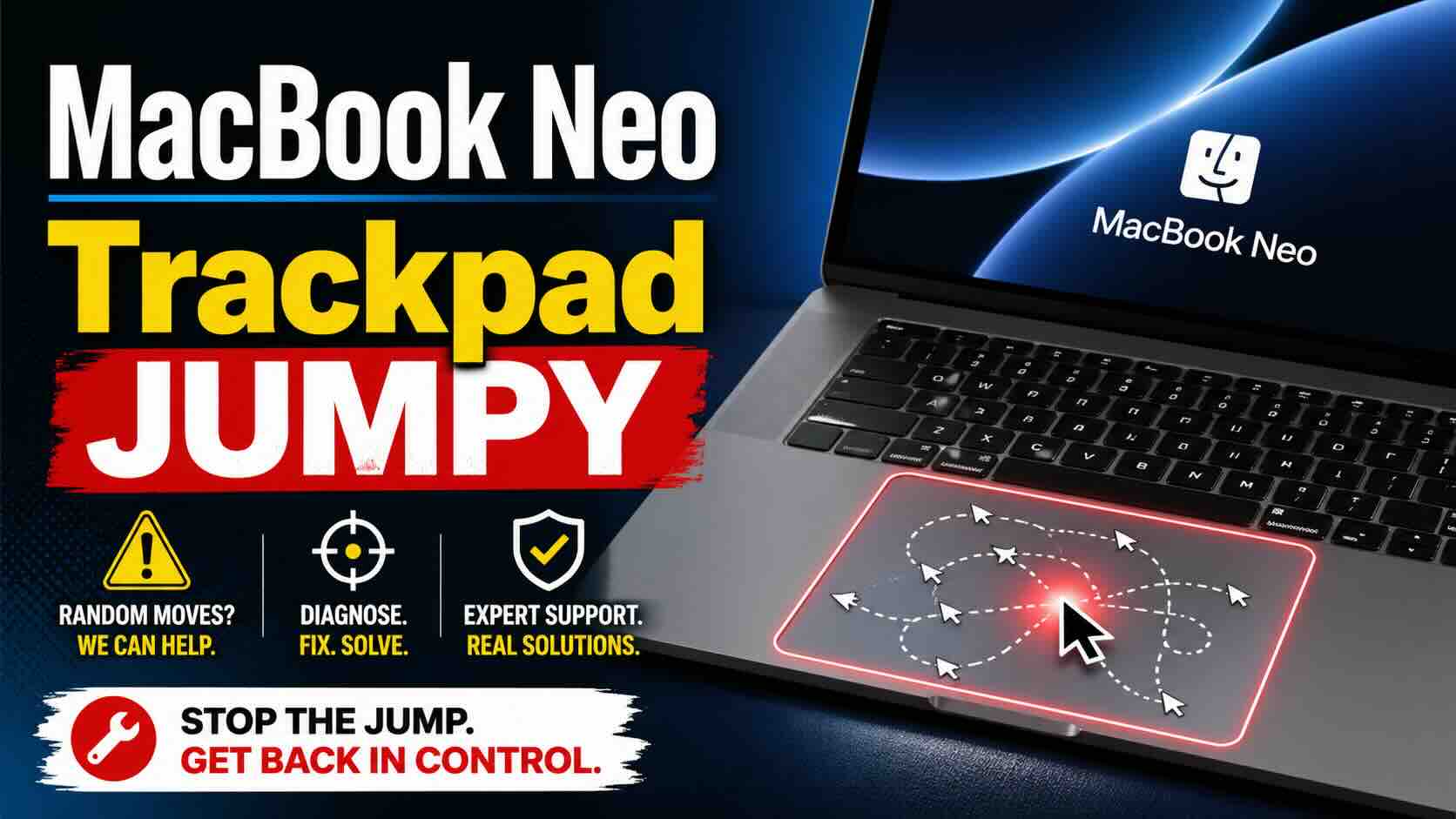
If your MacBook Neo trackpad feels jumpy, less smooth, or not as precise as your MacBook Pro, you are not the only one noticing the difference. Many users coming from a MacBook Air or MacBook Pro may immediately feel that the Neo trackpad behaves differently.
The short answer is: your MacBook Neo may not be defective, but it uses a different type of trackpad compared to higher-end MacBooks.
Apple lists the MacBook Neo with a Multi-Touch trackpad, while many MacBook Air and MacBook Pro models use a Force Touch trackpad with pressure-sensing features. Apple’s own comparison page separates the Neo’s Multi-Touch trackpad from the Force Touch trackpad used on other MacBook models.
Why the MacBook Neo Trackpad Feels Different
The MacBook Neo trackpad is a mechanical Multi-Touch trackpad. That means it has a real physical clicking mechanism underneath.
Because of this, it may feel:
- slightly louder
- less refined
- less smooth than a MacBook Pro
- less precise when clicking near certain areas
- different when scrolling or dragging
This does not always mean something is broken. It may simply be the difference between a budget MacBook trackpad and Apple’s higher-end Force Touch design.
A hands-on review also notes that the MacBook Neo uses a mechanical switch-style Multi-Touch touchpad instead of the haptic Force Touch trackpads used on more expensive Macs.
MacBook Neo Trackpad vs MacBook Pro Trackpad
The main difference comes down to how the click works.
The MacBook Neo uses a mechanical Multi-Touch trackpad. It physically moves when you click it. It still supports normal macOS gestures like scrolling, swiping, pinching, tapping, and dragging.
The MacBook Pro uses Apple’s Force Touch trackpad. This trackpad does not physically click in the same way. Instead, it uses haptic feedback to simulate a click. It also supports pressure sensitivity, Force Click, and a more uniform feel across the surface.
Apple describes Force Touch trackpads as supporting pressure-sensing features like Force clicks, accelerators, pressure-sensitive drawing, and Multi-Touch gestures. The Neo’s trackpad is listed as supporting Multi-Touch gestures, but not those Force Touch pressure features.
So if you are moving from a MacBook Pro to a MacBook Neo, the Neo may feel like a downgrade in smoothness and precision.
Is a Jumpy MacBook Neo Trackpad Normal?
A slightly different click feel is normal.
But a truly jumpy MacBook Neo trackpad is not something you should ignore.
If the cursor randomly jumps, skips, becomes erratic, or does not follow your finger smoothly, that may be a real problem. The trackpad should still provide precise cursor control and support standard gestures, according to Apple’s MacBook Neo support page.
So the key question is:
Does it only feel different, or is it actually behaving incorrectly?
If it just feels less premium than your MacBook Pro, that may be normal. If it feels unstable, inaccurate, or hard to control, it may be defective.
How to Check If Your MacBook Neo Trackpad Is Defective
The easiest way is to compare it with another MacBook Neo.
Visit an Apple Store, Best Buy, or another retailer and test the display model. Use the same gestures you use on your own MacBook:
Try scrolling slowly. Move the cursor in small circles. Drag windows around. Tap and click in different parts of the trackpad. Open Safari and scroll through a webpage.
If the display model feels the same, your trackpad may simply be normal for the MacBook Neo. If the display model feels smooth and your MacBook Neo feels jumpy or erratic, then your unit may have a hardware issue.
What to Do If Your MacBook Neo Trackpad Feels Jumpy
First, restart your MacBook Neo. Sometimes trackpad issues can happen because of a temporary software glitch.
Next, check for macOS updates. Apple may release updates that improve performance, stability, or input behavior.
You can also check your trackpad settings:
Go to System Settings > Trackpad
Then adjust:
- Tracking speed
- Click pressure
- Tap to click
- Scroll direction
- Dragging settings
If the cursor still jumps after changing settings, test the trackpad on a clean surface and make sure your fingers are dry. Moisture, oil, or dirt can sometimes affect touch accuracy.
When You Should Return or Replace It
If your MacBook Neo trackpad is jumpy and you recently bought the device, do not just “get used to it.”
If you are still within the return window, compare your MacBook Neo with another unit. If yours clearly behaves worse, return it or exchange it.
Apple generally offers a short return window for products bought directly from Apple, and after that, hardware issues are usually handled under warranty or AppleCare. Since return rules can vary by country, retailer, and purchase method, check your receipt or Apple order details.
If you are outside the return window, book a Genius Bar appointment or contact Apple Support. Apple can inspect the unit and confirm whether the trackpad is defective.
Quick Answer: Is the MacBook Neo Trackpad Supposed to Feel Like MacBook Pro?
No, the MacBook Neo trackpad is not expected to feel exactly like a MacBook Pro trackpad.
The Neo uses a more basic Multi-Touch trackpad, while the MacBook Pro uses Apple’s premium Force Touch trackpad. That difference can make the Neo feel less smooth or less refined.
But it should not feel broken, random, or uncontrollable.
Final Verdict
If your MacBook Neo trackpad feels jumpy compared to MacBook Pro, the first thing to understand is that the Neo uses a different trackpad design. A less premium click feel can be normal.
However, if the cursor is actually jumping, skipping, or behaving erratically, that is not something you should ignore. Compare it with another MacBook Neo, update macOS, adjust trackpad settings, and if the issue continues, contact Apple or return the device while you still can.
In simple words: different feel is normal, but unstable performance is not.