

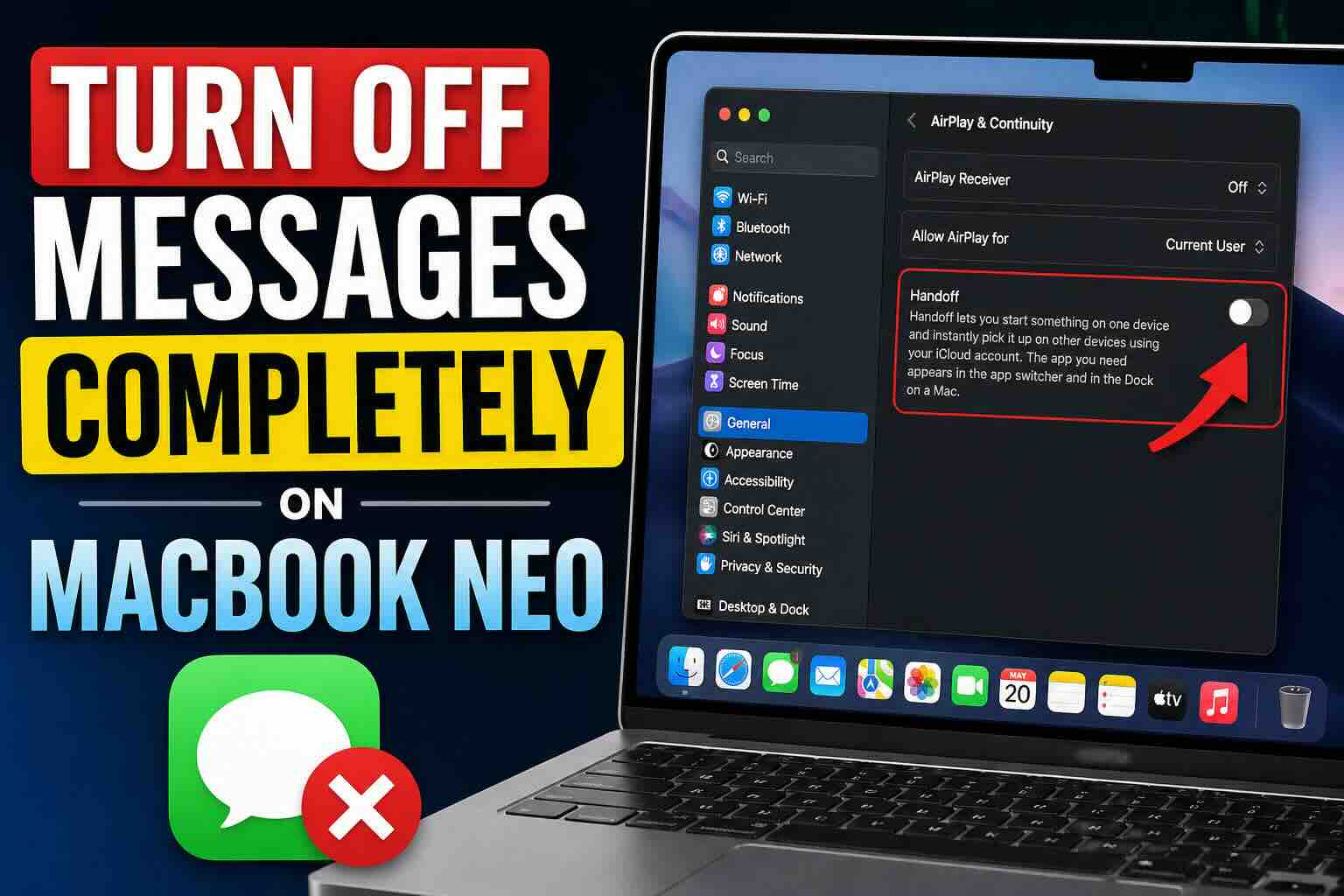
if you don’t want to use the Messages app on your MacBook Neo and keep seeing it open or show up in the Dock — even after logging out — you’re not alone.
Many users face this issue where the Messages app keeps appearing with a small iPhone badge or prompts to sign in, especially when they open messages on their iPhone.
Here’s how to completely stop it.
Why Messages Still Shows Up on Mac
Even if you:
- Sign out of iMessage on your Mac
- Turn off message forwarding on your iPhone
Your Mac can still try to sync because of Apple’s continuity features, especially something called Handoff.
This feature connects your iPhone and Mac so apps can continue across devices — including Messages.
The Real Fix (Most Important Step)
If Messages keeps appearing on your Mac Dock, this is what you need to do:
Go to:
- Click on Apple logo on top-left menu bar.
- choose System Settings
- click on General
- Select AirPlay & Continuity
- overhear, Turn OFF Handoff.
Once you disable Handoff, your Mac will stop picking up activity from your iPhone — including Messages.
This is usually the main reason the Messages app keeps opening or showing notifications even when you’re not signed in.
Extra Steps to Fully Disable Messages
To make sure everything is completely off, you can also check these:
1. Sign Out of Messages on Mac
Open the Messages app → Settings → iMessage → Sign Out
2. Remove Notifications
Go to Settings → Notifications → Messages → Turn off notifications
3. Remove Messages from Dock
Right-click the Messages app → Options → Remove from Dock
What About Seeing Messages in Background?
Some users notice they can still see messages faintly or in the background.
This usually happens because macOS cached previous data or is trying to sync via Handoff.
Once Handoff is turned off, this behavior should stop.
Final Thoughts
If you don’t want Messages on your Mac at all, simply signing out is not enough.
👉 The key step is turning off Handoff
Once you do that, your Mac and iPhone stop sharing message activity, and the Messages app will no longer appear automatically.






