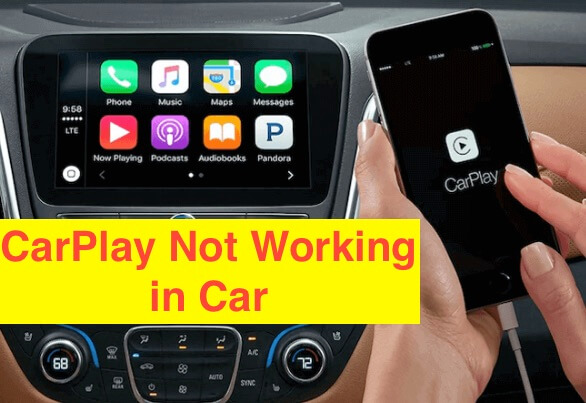
After updating to the latest iOS version, many iPhone users face issues with Bluetooth connectivity, especially when trying to pair their device with a car stereo. Common problems include iPhone not connecting, frequent disconnections, or Bluetooth pairing failures. This article covers key solutions to fix iPhone Bluetooth not working with car stereo, including troubleshooting steps, reset options, and tips to ensure a stable and seamless wireless connection.
Why is iPhone Not Connecting to the Car Stereo
Error Messages: Why won’t iPhone work with a Car Stereo?
You might be dealing with pop-ups showing error messages listed below
- Network error
- Can’t connect
- iPhone stopped
- Latest Software Glitch
Solution 1: Refresh Bluetooth Connection
The primary mode of connection between the iPhone and the Car Stereo is Bluetooth. For easy pairing, both the iPhone and the Car Stereo should be actively working, not affected by bugs or glitches. If either of the devices is not functioning properly, then iPhone won’t connect to Car Stereo. For the first step, you should refresh the Bluetooth connections of the iPhone and Car Stereo.
- To do so, navigate to the Settings App on the iPhone.
- Tap Bluetooth and disable/enable it several times.
- Also, do the same in the Car Stereo.
Once you have finished refreshing the Bluetooth, try connecting again. If it doesn’t work, then jump to the next solution.
Solution 2: Reboot iPhone & Car Stereo
You probably already know that rebooting electronic devices resolves minor issues, and iPhone is one of them. We have witnessed a couple of times, force restarting the iPhone fixed even buddy system settings. The process to force restart iPhone varies, so here’s how to do it.
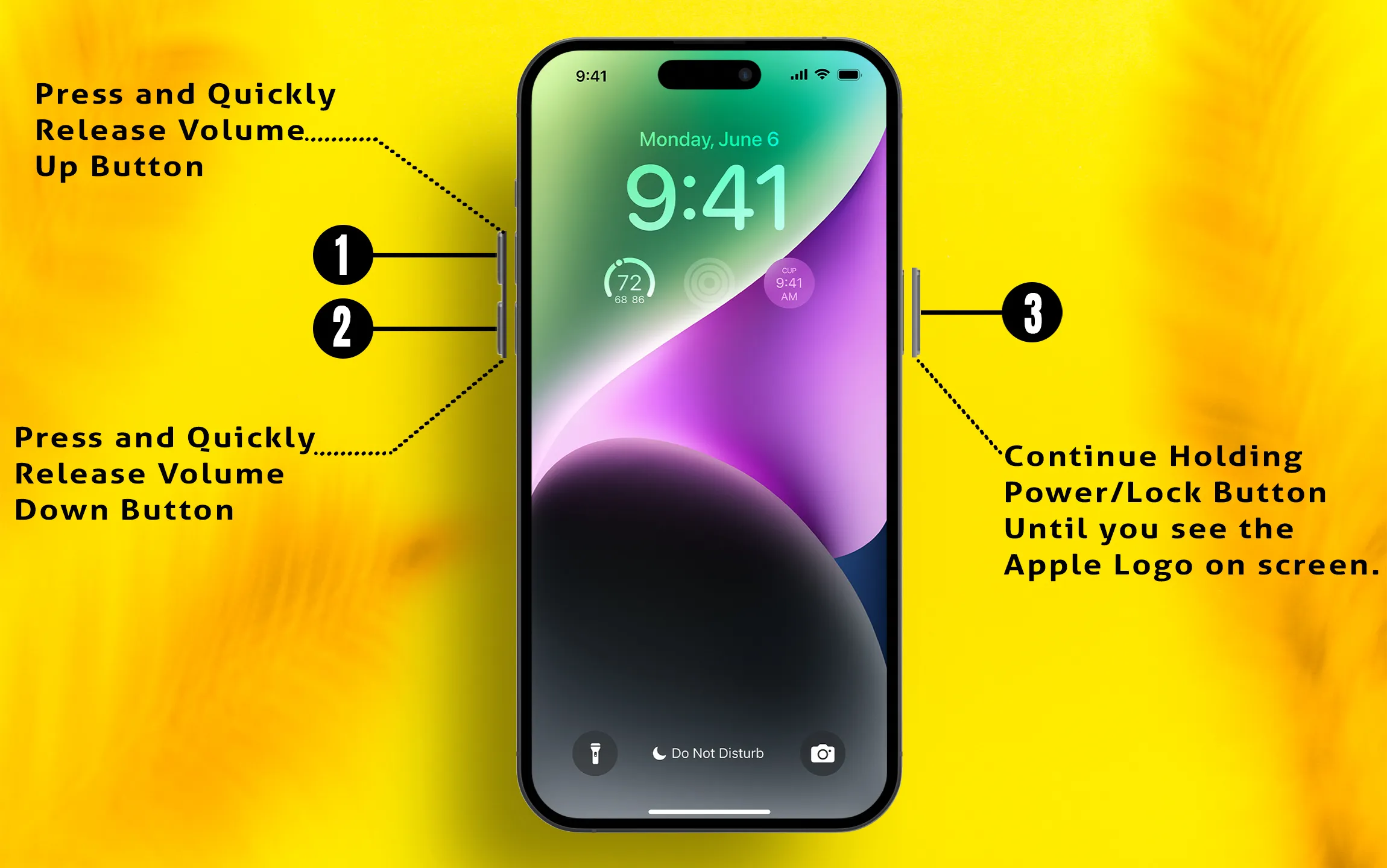
- Press and quickly release the Volume Up button.
- Press and quickly release the Volume Down button.
- Press and hold the Side button until the Apple logo appears.
I guess you know how to restart the Car Stereo, so I’ll that up to you.
Solution 3: Remove Car Stereo from iPhone Bluetooth Settings
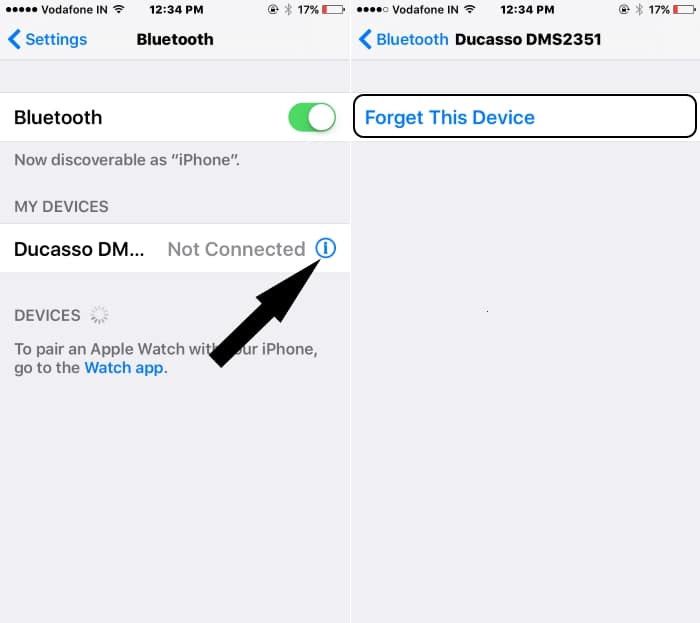
Do you remember how we do “Forget This Device” to remove the Bluetooth devices from the iPhone’s Bluetooth Settings when we are done with that Bluetooth accessory? That’s what you should do to remove the Car Stereo from iPhone.
Though the Car Stereo will only appear when it was earlier connected to the iPhone. If you are pairing the Car Stereo for the first time with an iPhone, then it may not appear in the Bluetooth Settings of the iPhone.
- Navigate to the Settings App.
- Tap Bluetooth.
- Tap on (i) next to the Car Stereo.
- Select Forget This Device.
Solution 4: Reset Network Settings
Alternatively, Reset the Network Settings of the iPhone. This will remove the saved Wi-Fi Networks, APN Settings, however, there are good chances that it will fix iPhone not connecting to Car Stereo.
Step #1: Open up “Settings”.
Step #2: Open “General” and then tap “Transfer or Reset iPhone”.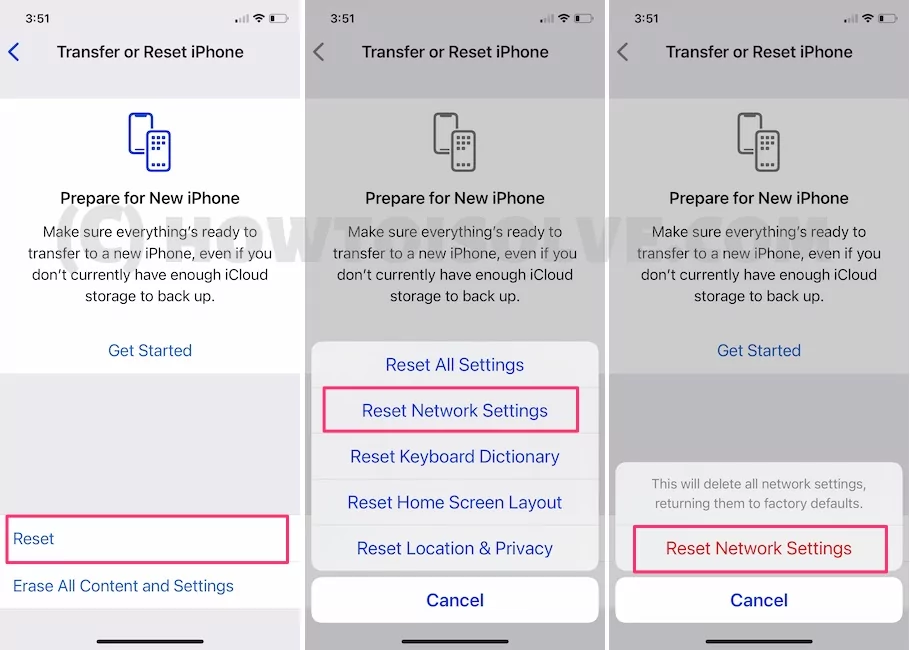
Step #3: Lastly, tap “Reset” > “Reset Network Settings” > Enter your iPhone Lock passcode and Try after Reboot once. This Process won’t erase other important settings, Media, Messages, and more.
Solution 5: Update iPhone Firmware
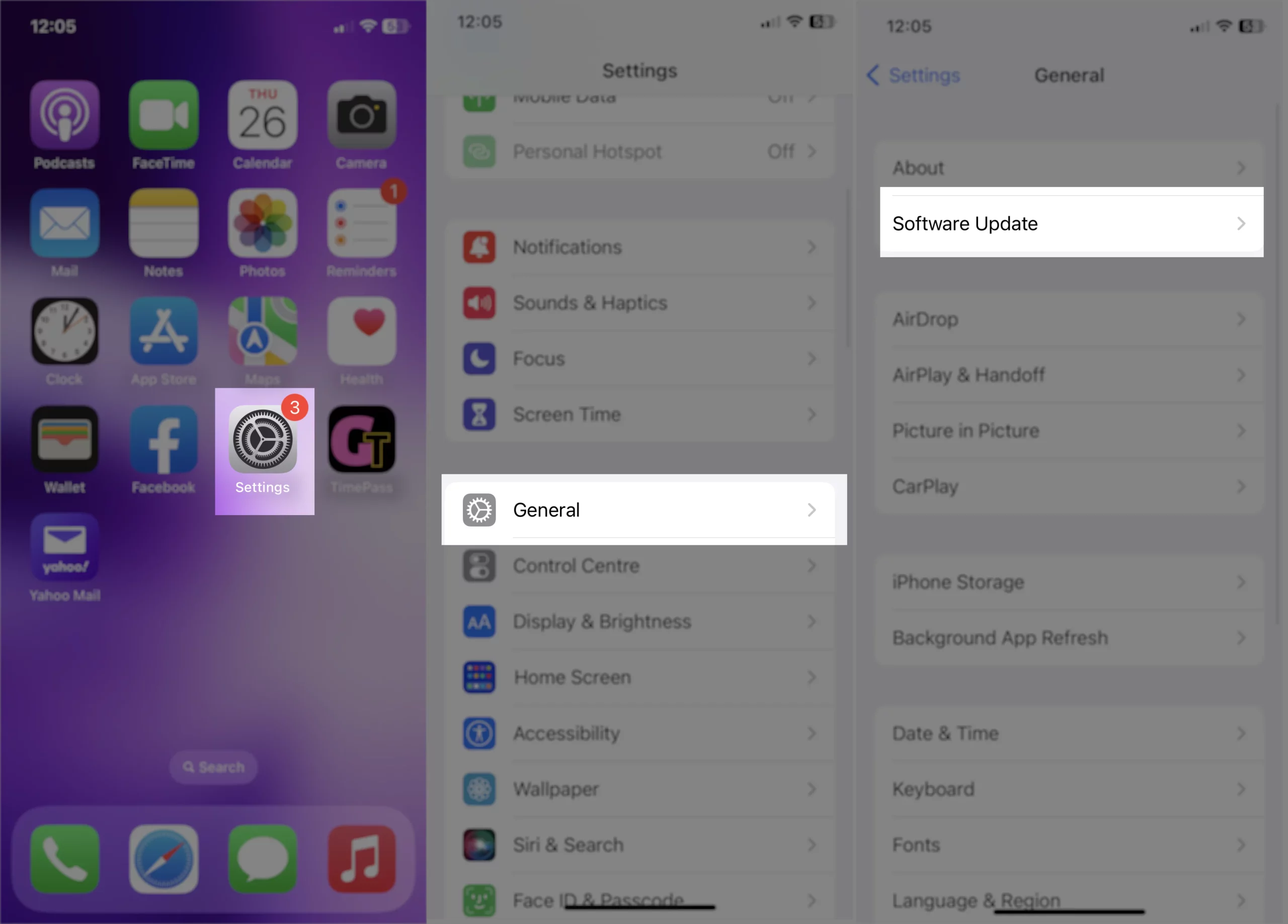
Some people reported that iPhone won’t connect to Car Stereo after the iOS update, it is not a widely popular issue, but though, Apple will always look forward to fixing problems, like this. All you have to do is, connect the iPhone to the Wi-Fi and check for the updates (Settings app > General > Software Update), and install the updates if available.
Furthermore, your Car Stereo might also have a pending software update, follow the steps depending upon your Car’s Stereo and update it.
Solution 6: Try connecting an Alternate iPhone or iPad to the Same Car Stereo
If you can connect Android phones to the same Car Stereo, but iPhone can’t connect to the Audio system, then it might be possible your iPhone is dealing with serious connectivity problems. Just to make sure, why not bother pairing alternate iPad or iPhone to the Car Stereo and verify the cause behind this.
Did other devices worked perfectly with Car Stereo, then it’s time to book a reservation at the Apple Store. Refer to the next section.
Solution 7: Contact Apple Support/Car Stereo Manufacturer
Visit the nearest Apple Store and let them analyze the iPhone. Additionally, you should also contact the Audio system manufacturer, just in case there is an issue with it.