

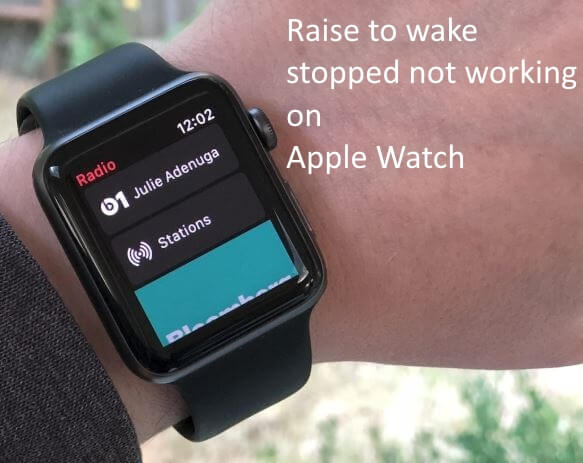
Do you have an issue with your Apple Watch not activating when you raise your wrist? Wondering why it doesn’t turn on? Here are some possible solutions. The Apple Watch is one of the best small smart wearable devices in the history of technology. Apple continuously enhances the user experience through improved functionality, advanced sensor technology, and easy access to various data, keeping you connected to the real world via WiFi or cellular data.
If your Apple Watch screen no longer turns on when you flick your wrist, here are some potential things to check and fix it:
Raise To Wake Not Working Apple Watch (Fixed)
Solution 1. Make Sure Wake on Wrist Raise is Enabled
Wake on Wrist Raise is a feature that automatically turns on your Apple Watch screen when you lift or flick your wrist to check the time or notifications. If this is turned off, you’ll need to tap the screen or press a button to wake it up manually.
Open the Watch app on your iPhone, then tap Display & Brightness. Make sure “Wake on Wrist Raise” is turned on.
If it is already enabled, please disable it and then re-enable it. After that, check if the feature starts to work or not.
Solution 2. Check Theater Mode
Theater Mode is a feature that prevents your Apple Watch screen from turning on automatically when you raise or flick your wrist. Please turn theater mode off.
- Swipe up on your Apple Watch to open Control Center.
- If you see two theater masks icon, it’s in Theater Mode – tap to turn it off.
Solution 3. Check Do Not Disturb / Focus
- In Control Center, make sure Do Not Disturb or Focus isn’t active. These can prevent screen wake.
Solution 4. Restart Your Apple Watch
Restarting Apple Watch is like giving your watch a quick refresh, similar to restarting your iPhone or computer to clear temporary issues.
- Press and hold the side button, then swipe Power Off.
- Wait a few seconds and turn it back on.
Solution 5. Update watchOS
Updating watchOS is important because it can Fix bugs and glitches (like Wake on Wrist Raise not working)
- Improves performance and battery life
- Adds new features and watch faces
- On your iPhone, open the Watch app > General > Software Update and install if available.
Solution 6. Check Orientation & Wrist Detection
Watch Orientation tells your Apple Watch which wrist you wear it on (left or right) and which side the Digital Crown is on.
- Go to Watch app > General:
- Make sure Wrist Detection is ON.
- Check Watch Orientation is set to the correct wrist.
If it still doesn’t work after all that, there could be a hardware issue – contact Apple Support or visit a service center.





