


On iPhone running the latest iOS version, WhatsApp allows you to schedule Video or Voice calls, which you can configure as a reminder for essential calls with friends and family without separately sending a calendar or emails. When you schedule a WhatsApp call on the calendar app, you’ll receive notifications, and the best part is that all the participants in the scheduled WhatsApp call will be notified regarding it. However, being new, many users aren’t familiar with it; if that’s what’s with you, here is a complete guide on how to schedule a group call on WhatsApp on your iPhone.
How to schedule a meeting on WhatsApp
Below is the complete procedure for scheduling a group call on WhatsApp on an iPhone running the latest iOS version.
Steps to schedule group WhatsApp Video call in the Calendar App on iPhone
Let’s begin with the steps to schedule a WhatsApp video call using the calendar app on your iPhone. This aspect of the application eliminates the reason to download video conferencing applications, such as Google Meet, Zoom, etc. To schedule it, follow the steps below.
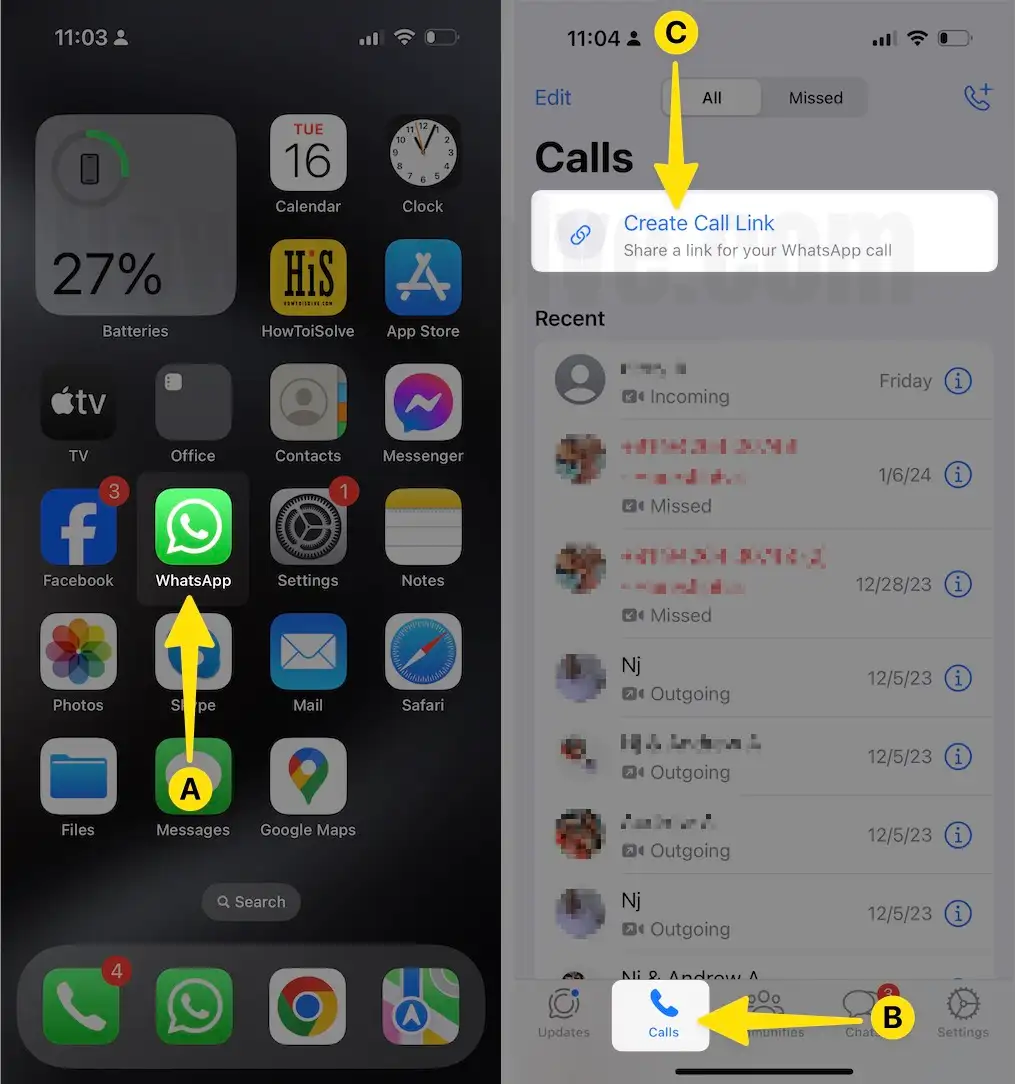
Step 1: Access WhatsApp on your iPhone > Tap on the Calls from the bottom Menu > Select Create Call Link from the top.
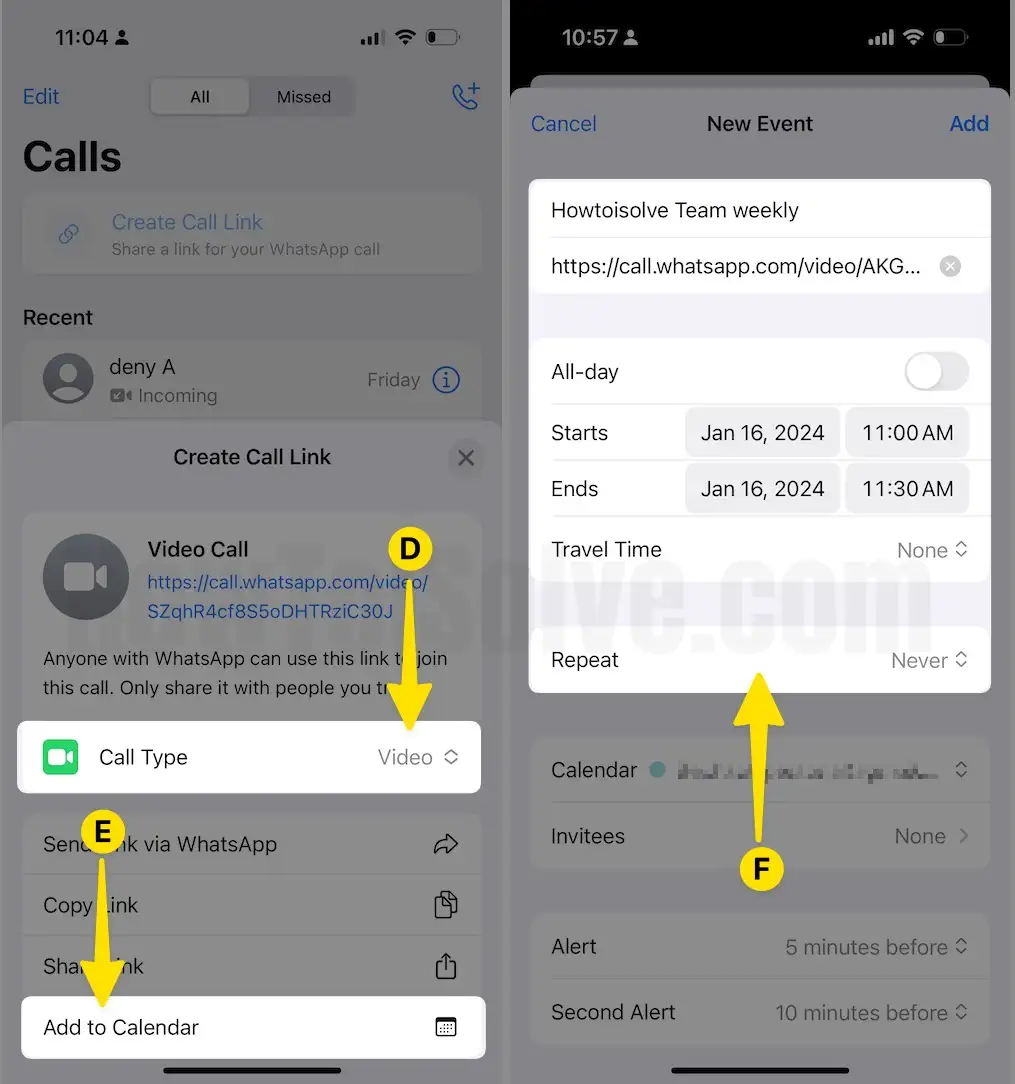
Step 2: As soon as you do so, the Call Link prompt appears on the screen. From there, Tap the drop-down next to the Call Type and Select Video > Tap on Add To Calendar > Enter the following details.
- Title: Enter Subject means tell the participants what you are going to talk about.
- All-day: Enable the toggle next to All Day if you want to schedule a WhatsApp call every day.
- Starts: Configure the starting date and time of the WhatsApp Video Call.
- End: Configure the ending date and time of the WhatsApp Video Call.
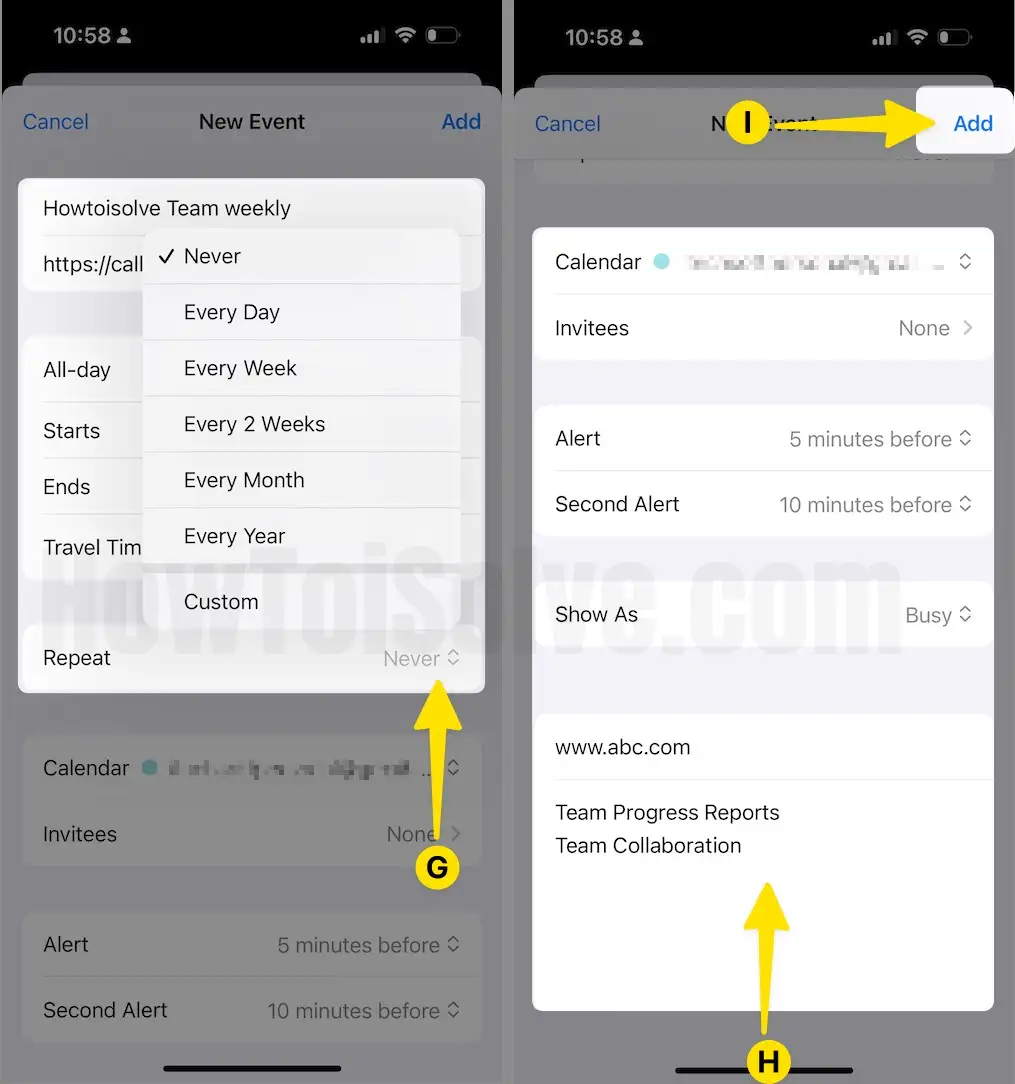
- Repeat: If you want to repeat WhatsApp video calls, Every Day, Every Week, Every 2 Weeks, Every Month, or Every Year. If you don’t want to repeat, let it be to never.
- Calendar: Select the desired from the following options.
- Invitees: Select it, and tap on + Icon. Doing so will move you to the Contacts list from their pick-up contact to send an invitation for a scheduled WhatsApp Call. Atlast, tap on Done.
- Alert: The device will alert you on the specific time you want to be notified to schedule a WhatsApp call.
- Notes: Add an attachment to never miss out on something important during WhatsApp calls.
Step 3: Once you have filled in all the asked details, Tap on the Add option situated at the top right corner of the screen.
Step 4: After you Exit WhatsApp > Launch the Calendar App, and there you’ll see the WhatsApp Call link added for your preferred slot and time.

Steps to schedule group WhatsApp Voice Call in Calendar App on iPhone
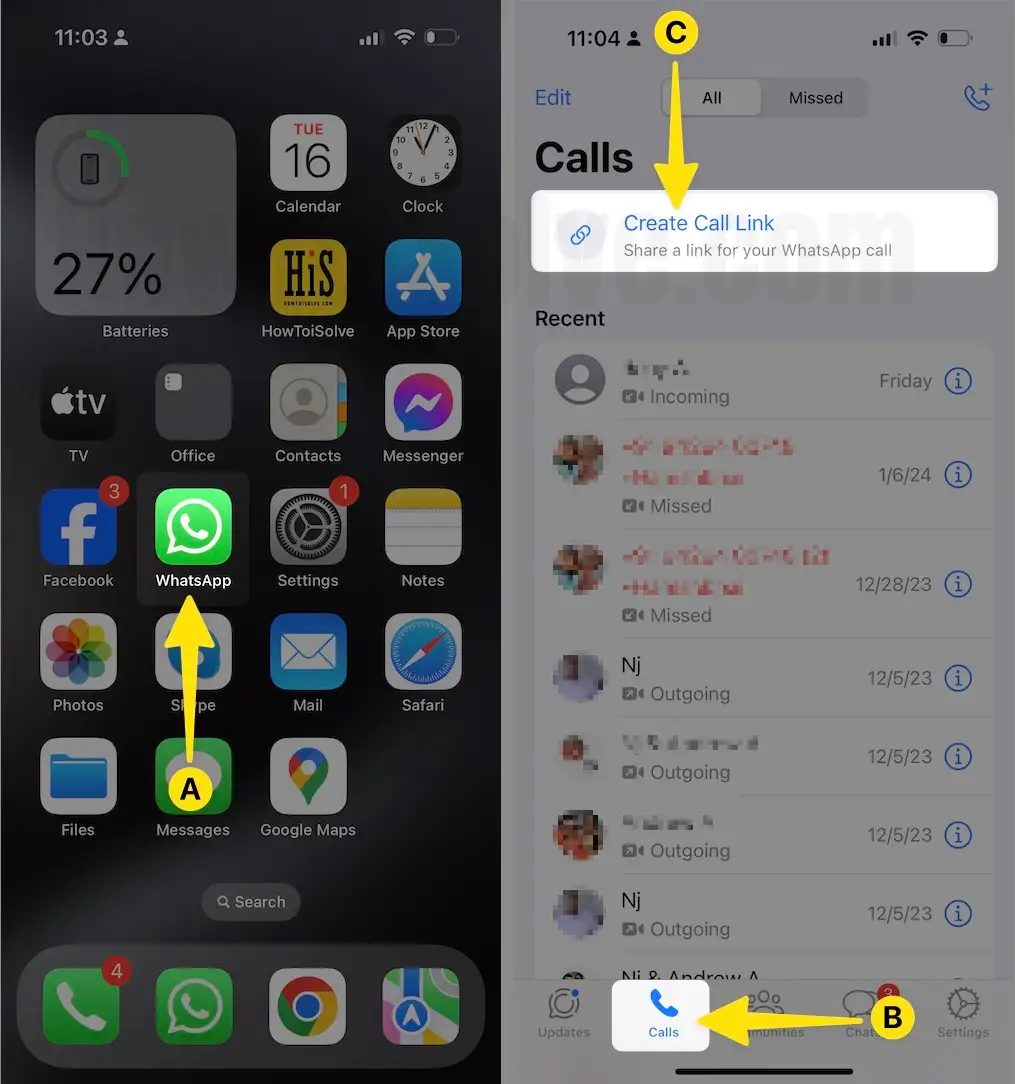
Step 1: Access WhatsApp on your iPhone > Tap on the Calls from the bottom Menu > Select Create Call Link from the top.
Step 2: As soon as you do so, the Call Link prompt appears on the screen. From there, Tap the drop-down next to the Call Type and Select Voice > Tap on Add To Calendar > Enter the following details.
- Title: Enter Subject means tell the participants what you are going to talk about.
- All-day: Enable the toggle next to All Day if you want to schedule a WhatsApp call every day.
- Starts: Configure the starting date and time of WhatsApp Voice Call.
- End: Configure the ending date and time of WhatsApp Voice Call.
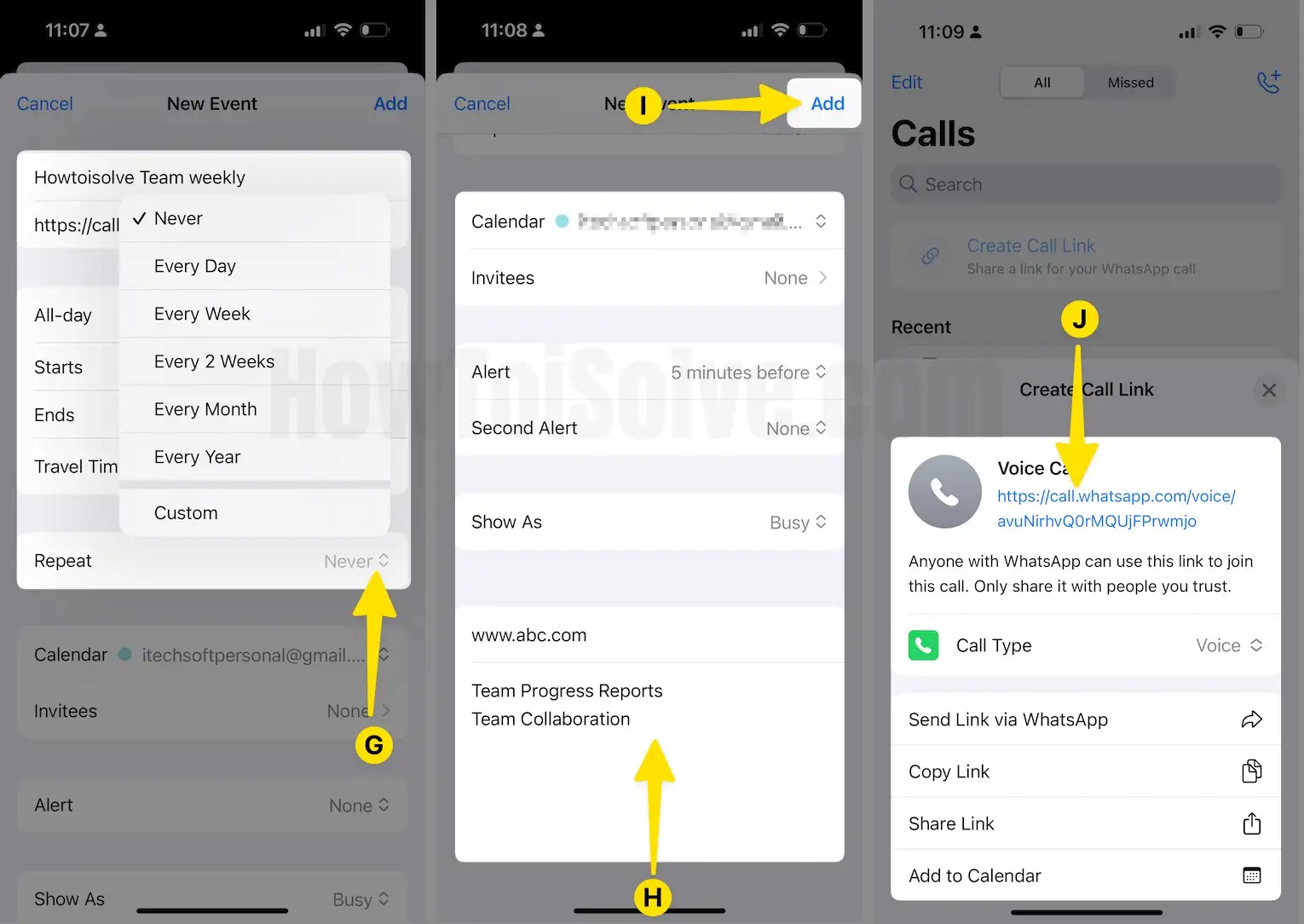
- Repeat: If you want to repeat WhatsApp voice calls Every Day, Every Week, Every 2 Weeks, Every Month, or Every Year. If you don’t want to repeat, let it be to never.
- Calendar: Select the desired from the following options.
- Invitees: Select it, and tap on + Icon. Doing so will move you to the Contacts list from their pick-up contact to send an invitation for a scheduled WhatsApp Call. Atlast, tap on Done.
- Alert: The device will alert you on the specific time you want to be notified to schedule a WhatsApp call.
- Attachment: Add an attachment to never miss out on something important during WhatsApp calls.
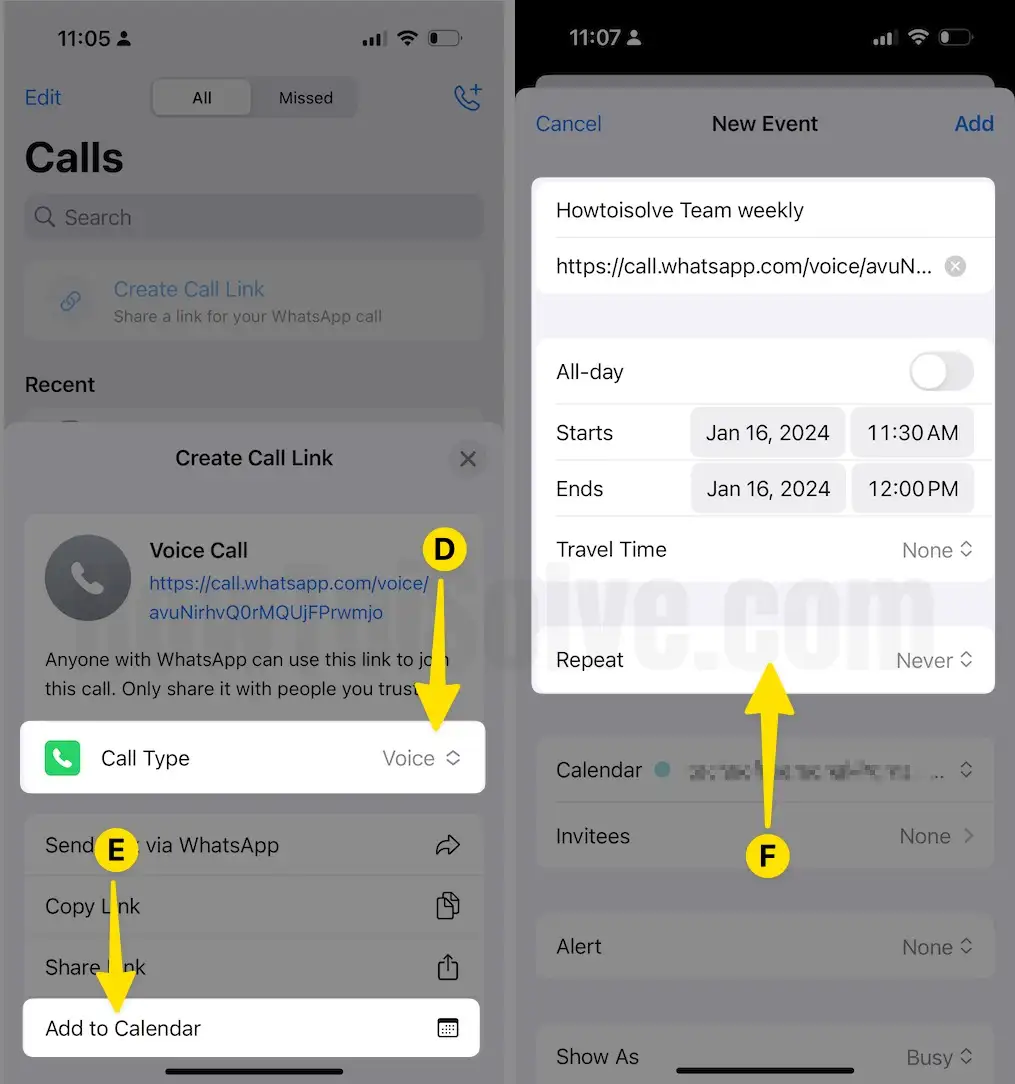
Step 3: Once you have filled in all the asked details, Tap on the Add option situated at the top right corner of the screen.
Steps to Edit or Delete Schedule WhatsApp Calls on iPhone
If you want to modify your scheduled WhatsApp calls, follow the steps below.
Step 1: Launch the Calendar App on your iPhone > Hit on the Scheduled date and time configured for the WhatsApp Call.
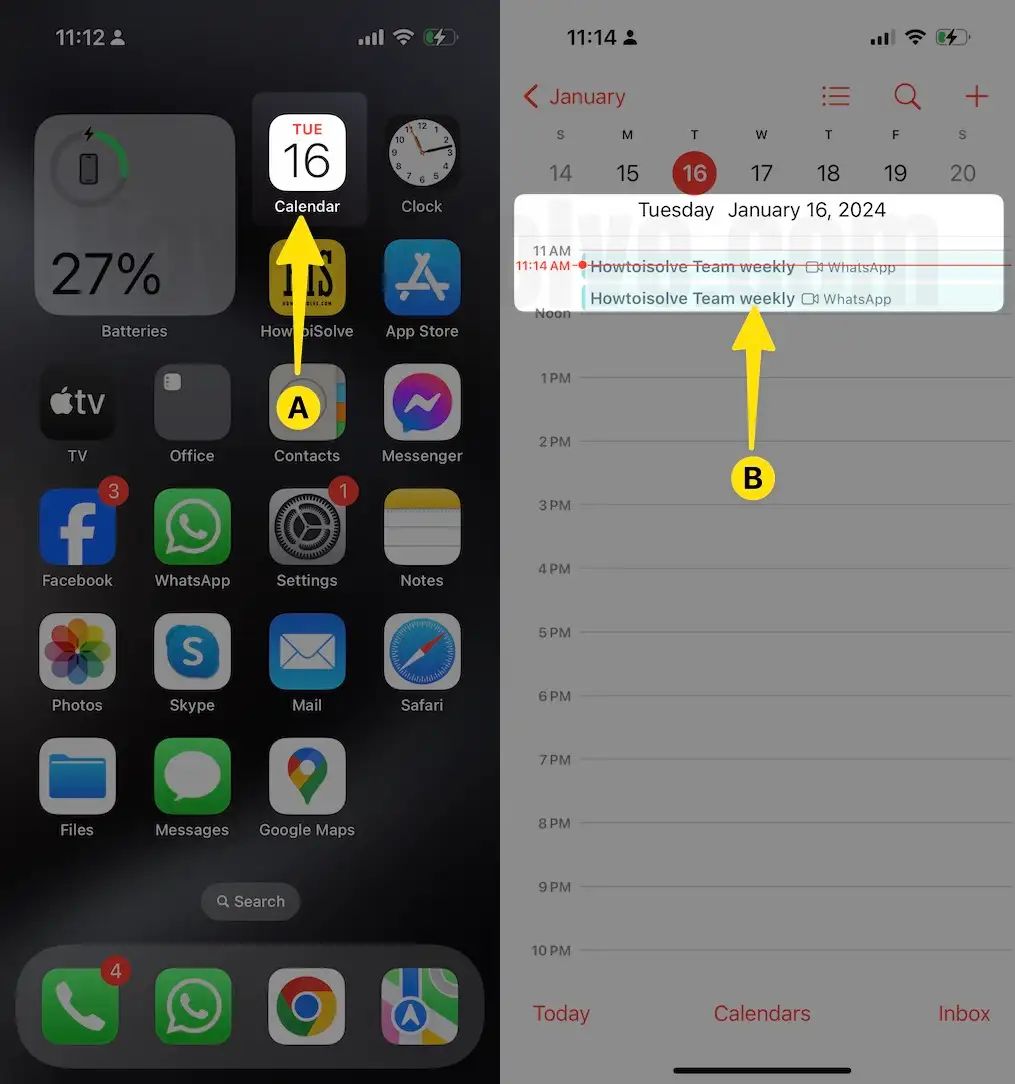
Step 2: Tap on the Edit Button at the top right corner of the screen > Edit the changes you want for WhatsApp Call and Click on Done to save changes.
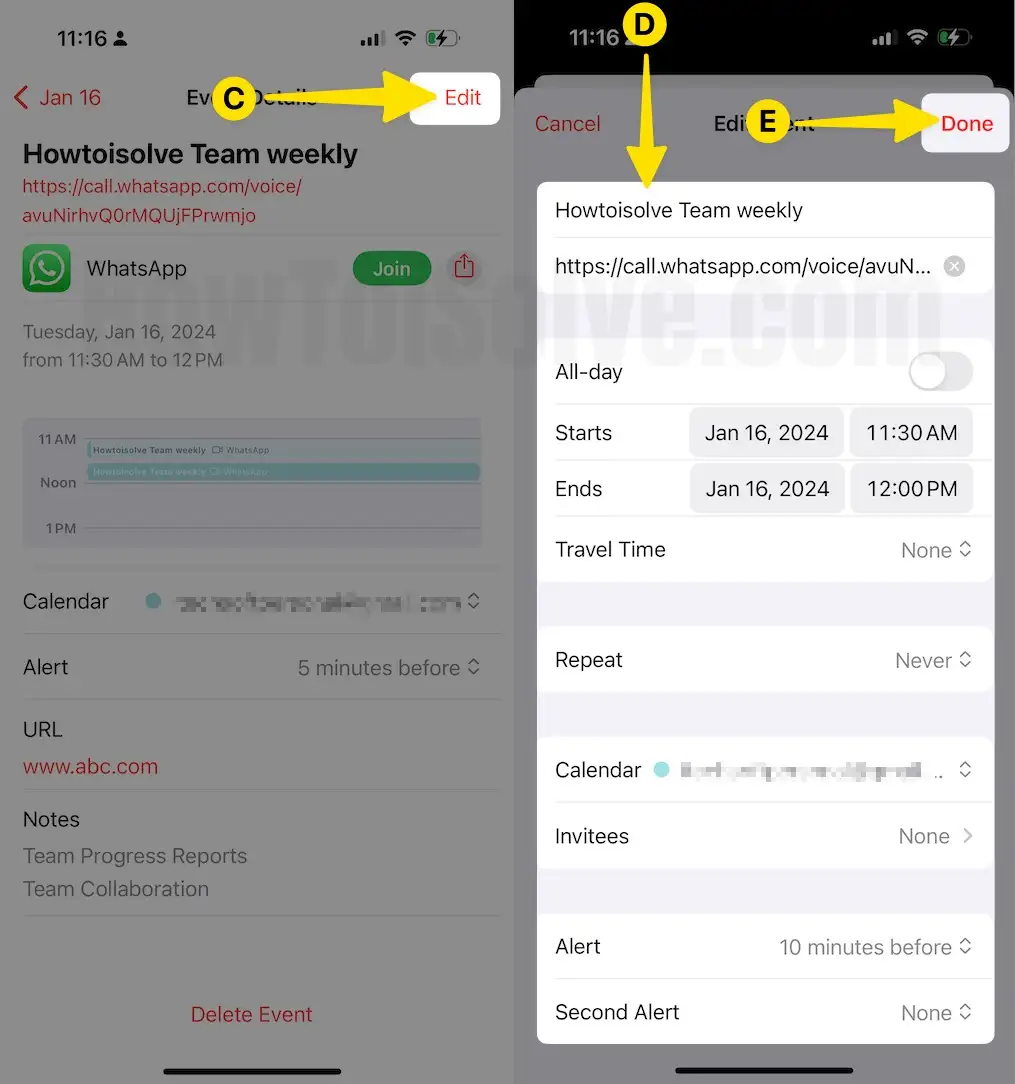
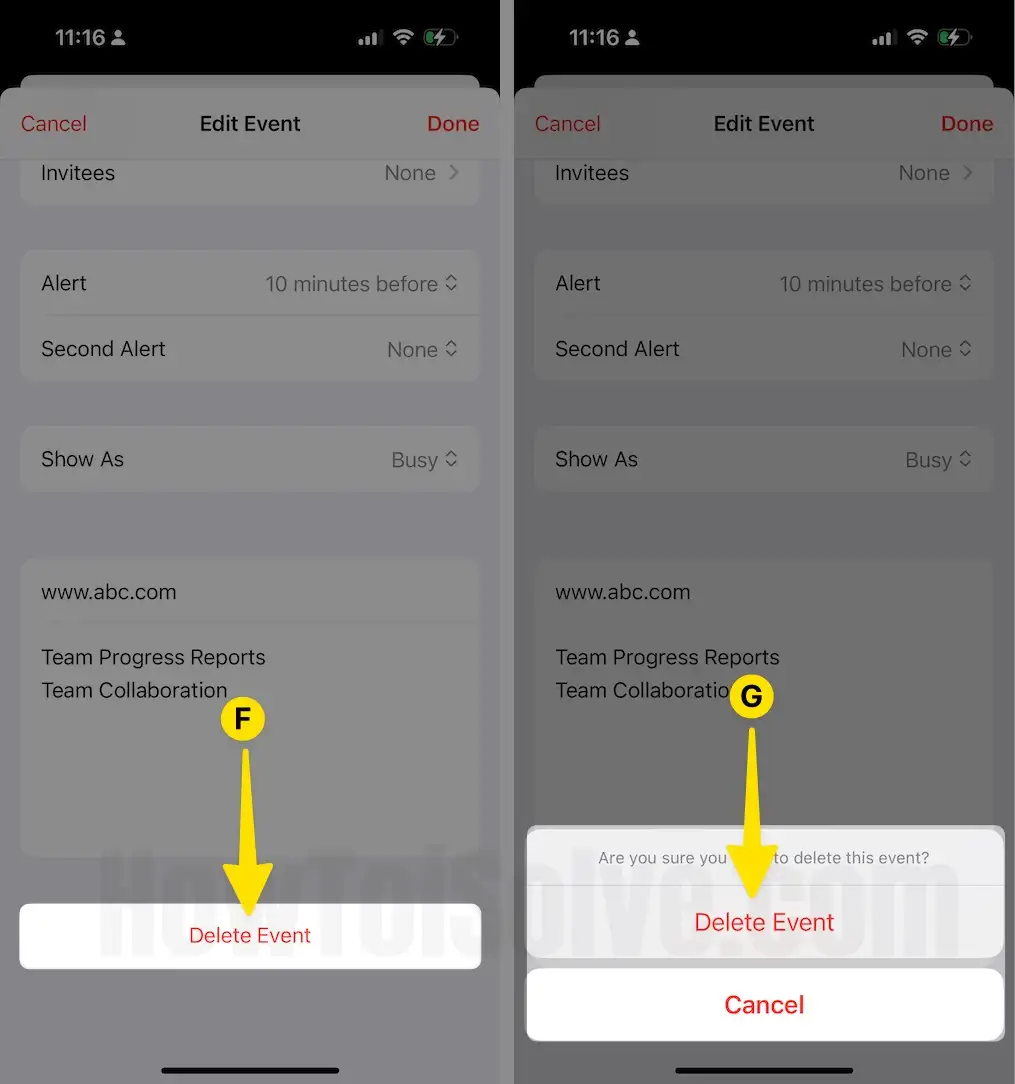
Step 3: If you want to Delete a Scheduled WhatsApp Call, Tap on Delete Event, and from the pop-up, Select Delete Event for confirmation.
Final Verdict!
That’s It! This is how you can schedule a group call on WhatsApp on your iPhone. But if you have a query regarding the topic, feel free to drop it in the below comment box. Besides this, remember to read our article on different ways to make video calls on iPhone.






