Apple first introduced this audio mode, which seems to be the game changer in the surround audio world. Now and forever, the user always appreciates it, as they are piqued with something they desire in the dream. But over time, many of the users encountered spatial audio grayed out on the Mac computer. And that footing leads them to remain a stunt as they never consider such issues.
If you are one of those users, going through spatial audio shows “not playing” even when playing supportable audio on Mac or any other related problem too. Here are some of the troubleshooting procedures that you should definitely try on your Mac computer.
How To Fix Spatial Audio Mode Not Working On the Mac Computer
In this article, we’ve covered everything you need to know about the requirements for Spatial Audio and why it might be grayed out on your Mac.
For iPhone, iPad: Spatial Audio Not Working on AirPods on iPhone
Requirements
Unfortunately, this Audio Mode On Mac was launched with some limitations. I mean that the feature is compatible with limited Apple gadgets. So let’s check what other media player apps and Apple Music spatial audio-supported devices there are. Before moving ahead to any further steps!
List Of Spatial Audio Compatible Macs and AirPods
If you have an Intel-based Mac, you’ll need to skip this feature—now and in the future—because Apple only made it available on Macs with Apple Silicon chips. Here’s a list of Macs that support it.
Tip: If you want to check whether your Mac has an Apple Silicon chip, click the Apple icon > About This Mac. If you see something like “Chip: Apple M1,” that means your Mac is powered by Apple Silicon.
Spatial Audio Supported Mac,
| Mac – M2 chip (2023) | iMac (24-Inch, M1, 2021) |
| Mac Studio (2020) | Mac mini (M1, 2020) |
| MacBook Pro (14-Inch, 2021) | MacBook Air (M1, 2020) |
| MacBook Pro (14-Inch, 2021) | MacBook Pro (13-Inch, M1, 2020) |
Spatial Audio Supported Airpods & Third-Party Headphones
| AirPods Pro (1st and 2nd generation) | AirPods Max |
| AirPods (3rd and 4th generation) | Beats Studio Pro |
| Beats Fit Pro, Beats Solo 3 & 4 | Powerbeats Pro 2 |
| Beats Flex | BeatsX |
Before using Spatial Audio on any Apple device, demonstrate the list above. If your device appears in the list, it’s time to know more about Spatial Audio.
Spatial Audio Compatible macOS Versions
The same goes with the macOS versions, as limited devices are compatible with this mode. Apple highlights the hint that Spatial Audio is now available only for macOS Monterey and macOS Ventura later versions. Considering this, here are the steps to update the macOS version.
Step 1: Select the Apple Logo > System Preferences (Here, you have to select System Settings… for macOS Ventura and later.)
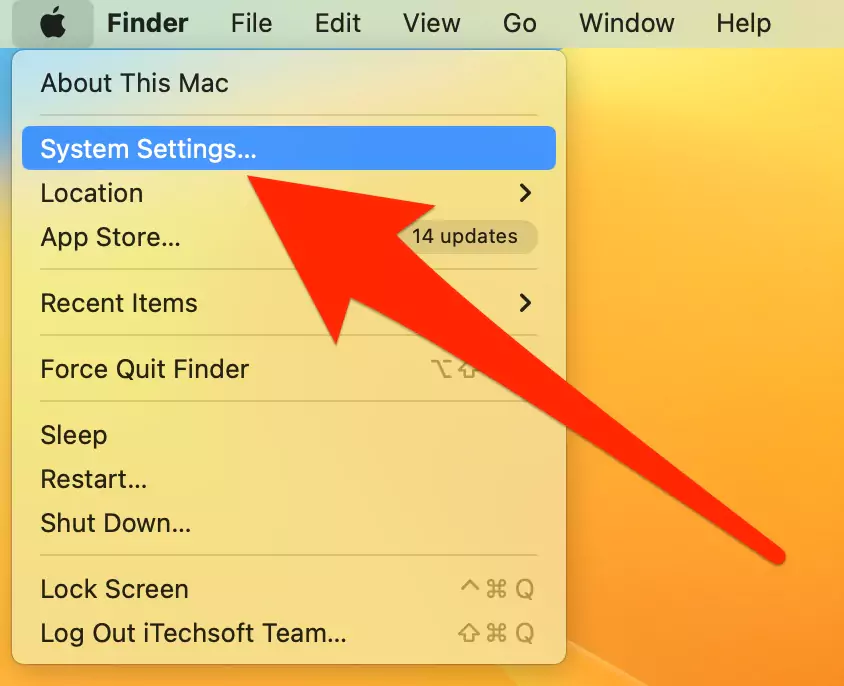
Step 2: Choose (General in macOS Ventura) > Software Update > Choose Update Now or Upgrade Now.


With these simple steps, you can upgrade the macOS version and grab the new interesting feature of macOS. After knowing deeply about Spatial Audio compatibility, now it’s time to fix the issue.
Why is Spatial Audio Greyed Out?
Solution 1: Update macOS
Currently, the most common problem that users usually go through when they encounter spatial audio not working is outdated macOS versions. As I have mentioned above, this audio is only compatible with macOS Monterey and above versions. So check if your device consumes the latest version of the software. If not, immediately update and check whether the greyed-out issue is solved or not.
Step 1: Go to the Apple icon present in the Apple menu bar.
Step 2: Select System Preferences… (Here, you have to select System Settings… for macOS Ventura) > About This Mac.
On the next screen, your Mac will represent the name of macOS; if the device consumes an older version, update it by following the steps below.
Step 1: Go to Apple Icon > System Settings (choose System Preferences… in case of macOS Monterey and earlier)
Step 2: Choose General > Software Update > Choose Update Now or Upgrade Now. Doing so will begin the update procedure.
After completing the update procedure, check if spatial audio head tracking is not working. If not, move to the next solution.
Solution 2: Active Subscription Of Apple Music
If you are always on Apple Music but suddenly got to know spatial Audio not with Apple Music Not working on macOS is one of the frustrating issues. The common logic behind the issue is you have an inactive Apple Music subscription plan. In this case, you have to subscribe to Apple Music.
Note: Always try to pay for the Apple Music subscription plan on time, because being late will vanish the songs that you have downloaded in the library of Apple Music.
Step 1: Go to the Apple Music app > For You or Listen Now.
Step 2: Choose a Trial Offer. (single trial for Family or individual)

There are four types of subscriptions to Apple Music, but the most commonly used are the Individual Plan ($9.99/month) and the Family Plan for up to 5 users ($14.99/month). At the same point, it allows you to cancel your Apple Music subscription plan if you are not convinced by the plan you have bought.
Step 3: Sign in with Apple ID. In case you don’t have Apple ID, create one
Step 4: Re-check the billing credential and cast the appropriate payment mode.
Step 5: Select Join.
Solution 3: Turn On Dolby Atmos Not Showing

Note: Before turning on Dolby Atmos for Apple Music, make sure your Apple Music subscription is on and you are logged in with the correct Apple ID.
Sudden tweaks in the device or Apple Music settings can result in the Dolby Atmos icon not showing. In this case, there are two preferences to be played, so go with any of them as per your need.
Choose Quality Dolby Atmos (Spatial) Quality Preference
Step 1: In the Apple Music app, go to Music > Settings/Preferences in macOS Ventura from the top menu.
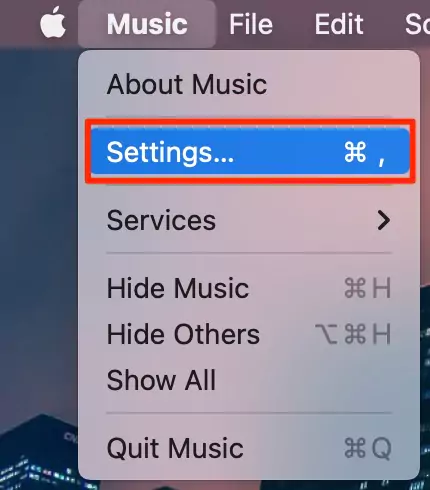
Step 2: Perform any of the following:
Play Compatible Music in a Dolby Atmos Audio Format: Select Playback and then select any options from the pop-up of Dolby Atmos to Automatic or Always On.
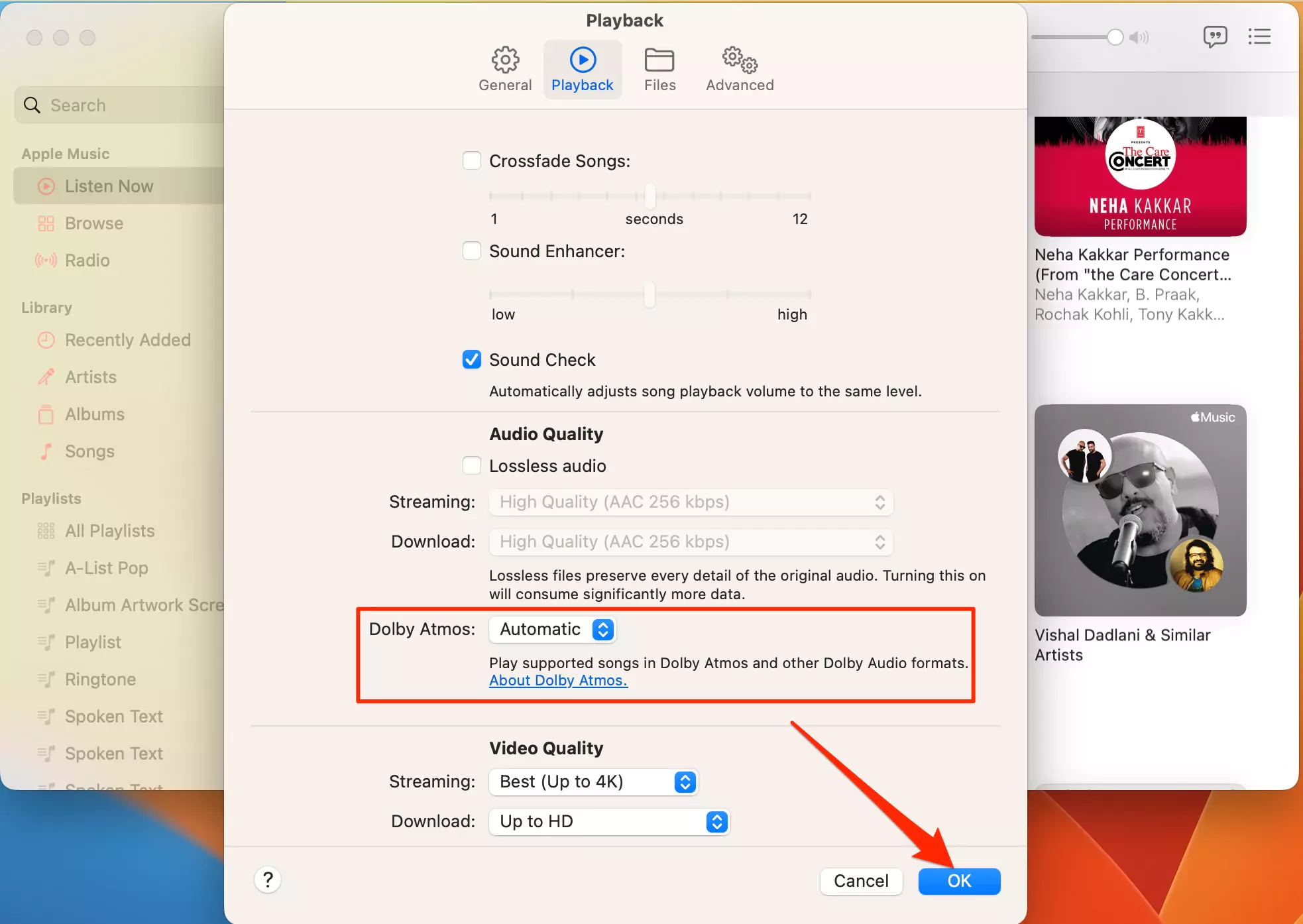
Select Dolby Atmos Audio Quality. When Downloading Songs: Choose General > check the box present next to the Download Dolby Atmos.

Playing around with these settings will fix any issue related to the Dolby Atmos; moreover, if you need something new, this feature will go through the following solutions.
Change the Dolby Atmos (spatial) audio quality for a song
Step 1: Go to Apple Music on the Mac device. The songs need to be in playing mode before altering the desired settings.
Step 2: Choose the Dolby icon present in the Playback Control to enable or disable the spatial audio.

Here we end up with the simple steps to fix Dolby Atmos (Spatial) greyed out on Apple Music.
Solution 4: List Of Spatial Audio Compatible Services & Apps
Disastrously, Spatial Audio is not universally supported by all third-party apps for Mac. So to save your golden time and to prevent you from scrolling through the internet to get the wrong information. Nevertheless, we have listed some of the popular apps that are compatible with this audio mode.
- Netflix
- Hulu
- Apple TV’s App
- Disney +
- Foxtel (Australia)
- HBO
- Air Video HD (Enable Surround From Audio Settings)
- Peacock
- Discovery+
- Paramount+
- Vudu
- Plex (Turn On Old video Player From Settings)
- Some TIDAL Songs
- Apple Music (Paid Version)
- Safari
- Youtube (Safari)
- FE File Explorer (DTS 5.1 Incompatible)
That’s over and above; out of this list, Spatial Audio is not compatible with any of the third-party applications. So if you are using any services and applications out of this array, it will definitely result in My Mac Spatial Audio being greyed out.
Solution 5: How To Enable Spatial Audio On Mac
I bought the latest Mac and want to experience spatial audio. But I don’t know how to turn on Spatial Audio. Here are the steps to enable it on all macOS versions.
But before using, you should use spatially compatible applications and services. If you are not familiar with those, go through the above-mentioned list.
Step 1: Go to Control Center > Sound > Spatialize Stereo.

Click on Down Arrow to see the “Spatial Audio” Settings > “Head Tracked” (the Head Tracked option is not showing; enable spatial audio to follow head movements, given in the next solution). Ensure both the AirPods (left and right) are in your ears and working. If it’s not charged any of them or won’t turn on, then try after resetting it.
On the next screen, you will encounter three different options.
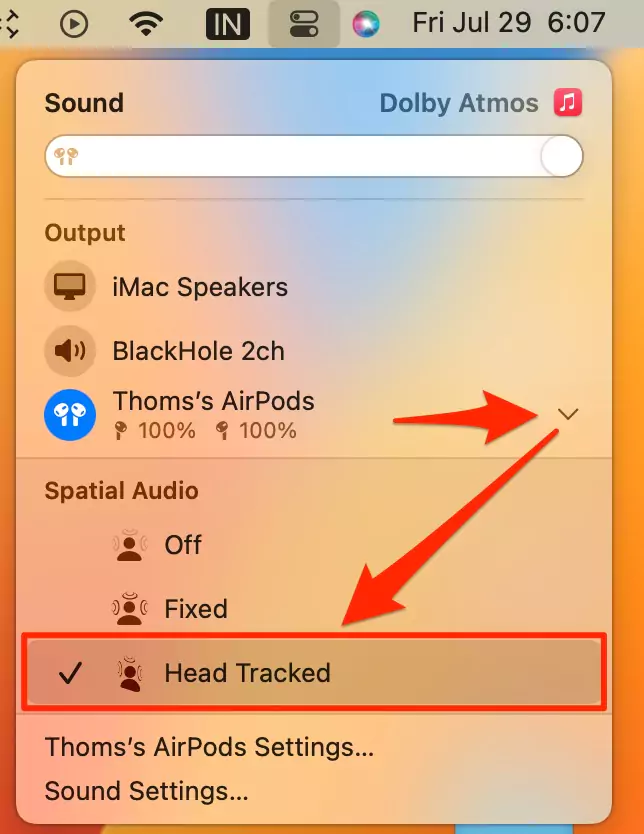
- Off: Choosing this option will disable the Spatialize Stereo on your Mac computer.
- Fixed: Configuring the Spatialize Stereo Audio using this option will offer you the virtual direction audio. This means it will not change according to the head movement.
- Head Tracked: Spatial audio with unique head tracking offers surround sound from the video or series you’re watching; it makes you feel like you’re watching the movie in a theater.
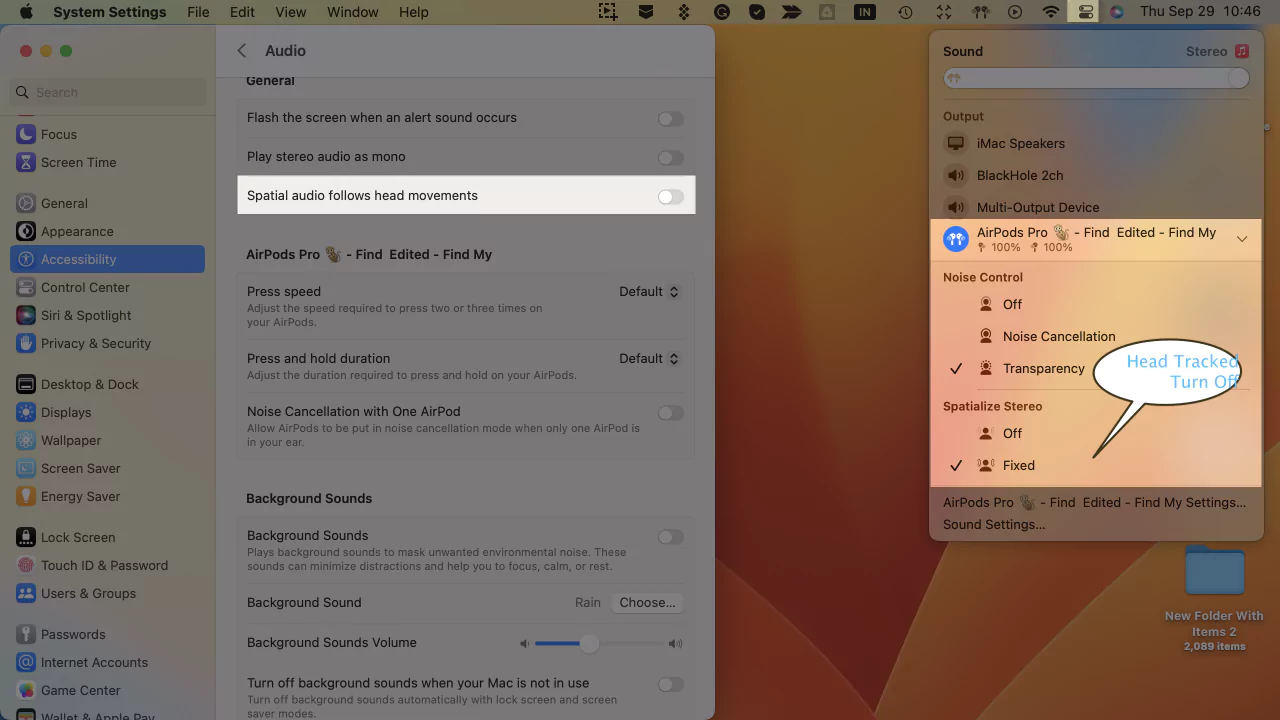
Solution 5: Head Tracking Option Not Showing up in Spatial Audio on AirPods Pro on Mac
Dynamic Head Tracking Option Not showing up under the Spatialize Stereo (Spatial Audio) section on Mac. That means “Spatial audio follows head movements” is turned off on Mac under the AirPods Pro audio settings. Follow the below steps to turn on following head movements on Mac… (For Supported Macs listed above)
Step 1: Click on the Apple logo in the top menu and select System Settings.
Step 2: Scroll to Accessibility > Audio.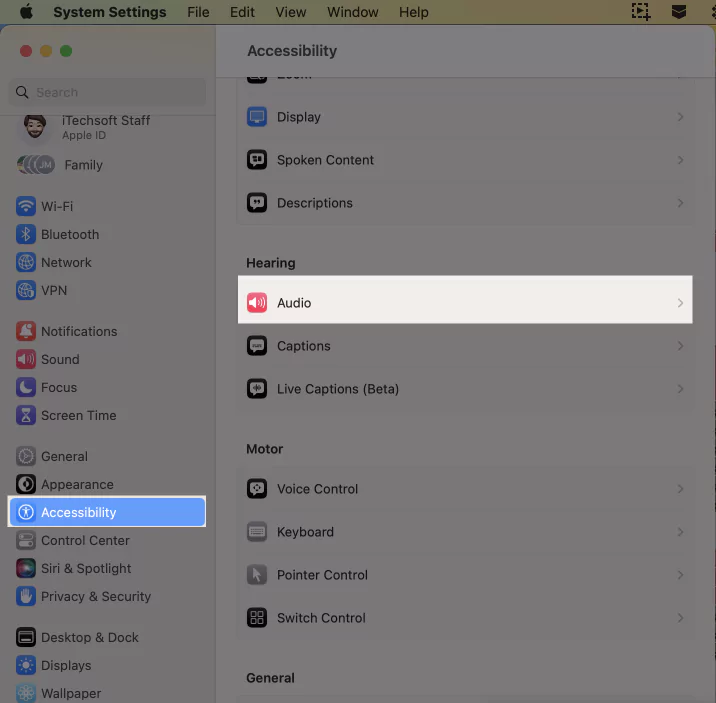
Step 3: Under the General Section, spatial audio follows head movements; enable the toggle.

Step 4: Currently, the option “Head Tracked” is visible in the Spatial Audio section—please refer to the screen below.

Step 5: To stop head tracking, turn off the “Spatial audio follows head movements” option, and “Head Tracked” will not be available.
That’s it.
For iPhone and iPad users: Enable Head Tracking on AirPods Pro for iPhone
ENJOY SPATIAL AUDIO ALL DAY!
Enjoying the spatial audio is like a theater experience at home. In this guide, all your doubts regarding why spatial audio may not be working or is greyed out on Mac will be addressed and clarified.
FAQs
Is Spatial Audio Compatible With Apple TV?
Well, the spatial audio isn’t compatible with the Apple TV, but the application launched in the Apple TV supports the spatial audio.
Does Intel Mac support spatial audio?
As mentioned above, the Intel Mac computers are incompatible with this audio. Apple introduced this feature only to Mac computers equipped with the Apple Silicon Chipset.
Dolby Atmos Format Settings Missing?
Your Apple Music subscription may have expired, or there could be a sudden change in the app settings. In the second case, we mentioned the tips and tricks for fixing it in this article.
Does spatial audio work with any headphones?
Not all headphones only work with Beats Fit Pro.
Does Spatial Audio Work on YouTube?
Unfortunately, using YouTube through Google Chrome doesn’t support spatial audio. However, you can only enjoy spatial audio on YouTube when using Safari. Also, there are many other applications in an array that support spatial audio. Please review the line-up mentioned above.
Does Spatial Audio Work on a MacBook?
Yes, but only MacBook has the Apple Silicon Chipset (M1, M2).
Does Spatial Audio Work With AirPods?
Unlike the MacBook, the spatial audio is only compatible with limited AirPods, such as AirPods Pro (3rd generation), AirPods Max, and AirPods Pro.
Does Spatial Audio Work With Netflix?
Yes, this audio is compatible with Netflix.
Does Spatial Audio Work With Apple Music?
Yes, the spatial audio works with the active Apple Music plan and with the Dolby Atmos option [just turn it on as shown in the steps in this article].
Does spatial audio work in Spotify?
If you want to enjoy spatial audio, choose Apple Music, but you must have an active plan.