


Older iPhone and iPad models may get stuck while downloading, updating, or installing apps. Based on my personal experience and feedback from readers, I propose a potential solution to address this issue. You can prioritize downloading your app first, without waiting for it to be stuck on “Downloading” or “Installing” under the app icon on your home screen.
Possible Fix and Solved Solution for Stuck App on iPhone, iPad
Note – Low internet speed one of the most hesitating reasons behind stop app download from the app store. So measure Mobile data/ WiFi internet speed on the Speed test checker app. Available for all Apple devices and Platforms. (I am not talking about WiFi signal strength, Sometimes full signal strength loses data packet).
1) Enable Prioritise Download: Multiple Apps are Downloading and Updating
Accidentally or urgently, you are downloading or updating multiple apps on your iPhone from the App Store. Then you have to wait a lot more because all the Apps are downloading from the internet and installing at once. Apple provides the option to enable or set the Priority for the app you want to download and install on your iPhone initially. In any status, whether waiting, downloading, or installing, we can prioritize an app.
- Touch and hold the App icon until the pop-up option appears on the iPhone screen.
- Next, tap the “Prioritise Download” option.

2) Slow Internet and Stop Downloading The App From App Store
Based on Experience, I recommend trying with multiple networks. Some private networks in the office or public places do not allow downloading files from the Apple server due to slow internet speeds. Or, in some cases, your Wi-Fi disconnects or stops during the download. So you have to wait for it. The large application requires more time on a slow-speed internet connection. Also, we can use our mobile data for big applications, Disable Low Data mode for over 200 MB app.
- Reset Network Settings
- Disabling VPN is also part of these network issues. Let’s check in the next step.
3) Not Enough Free Space on iPhone
It depends on the use of your iPhone, iPad. Some users getting surprised while checking the free space on His/Her iPhone, iPad. Here are the steps to check free space and download a new app on your iPhone, if you are stuck due to the Not enough space on your iOS/iPadOS.
- Settings app on iPhone/iPad > General > About > Available [See free space in GBs or MBs].
4) Sign in again: Verification Required
It might be an Apple server connection failure, and you need to re-login to create a new login session. So, sign out from your device completely, Settings > iTunes & App Stores > Tap on Apple ID > Sign Out
Next, sign in again with your Existing Apple ID and Password from the above setting path.
5) Hard Reboot
Once Reboot your device by Restart or Force Restart iPhone, iPad, and iPod. (Press and Hold Sleep/ Wake button for restart or Press and hold Sleep/ Wake button + Home button at once)
6) Delete App and Reinstall From App Store
Different Apple ID use earlier for downloading the app, and You have changed Apple ID, so, Unable to verify. Additionally, in some cases, your app may become stuck and unable to initiate the download. So I recommend deleting the app and reinstalling it from the App Store on iPhone/iPad.
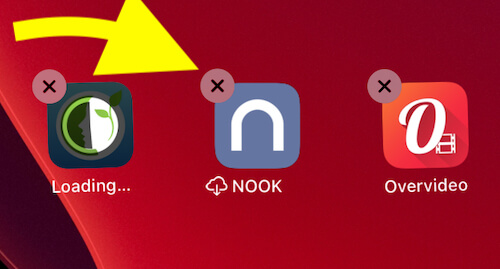
- Unlock your iPhone or iPad, then move to the Home screen. Touch and hold the app icon.
- Next, On the App popup icon, Tap on the Edit Home screen. Your iPhone/iPad home screen app icon will jiggle with the cross button to delete the app.

7) Reset Network Settings
Resetting network settings will resolve all network-related issues; however, resetting network settings erases all Network settings, including passwords, WiFi History, and more. For example, re-enable WiFi and set up with the password.
- In iOS 16 & Later: Go to the Settings app > General > Transfer or Reset iPhone > Reset > Reset > Reset Network Settings.
- In iOS 14 & Earlier: Go to the Settings app on iPhone > Reset > Reset Network Settings > Enter Passcode and Wait for Reboot.
- That’s it.
8) Remove or Uninstall VPN
A VPN compromises device security, so your iPhone’s functionality is compromised. That’s the reason you can’t download the app from the App Store.
- Go to the Settings app on iPhone > Scroll to General > VPN > Disable the VPN toggle and Delete The VPN profile also.
- Also, Delete the VPN app from the iPhone home screen.
9) Update your iPhone to the Latest Version
- Go to the Settings app on iPhone > General > Software Update > Download and Install Software on your iPhone.
10) Erase the Device to Factory Settings and Restore
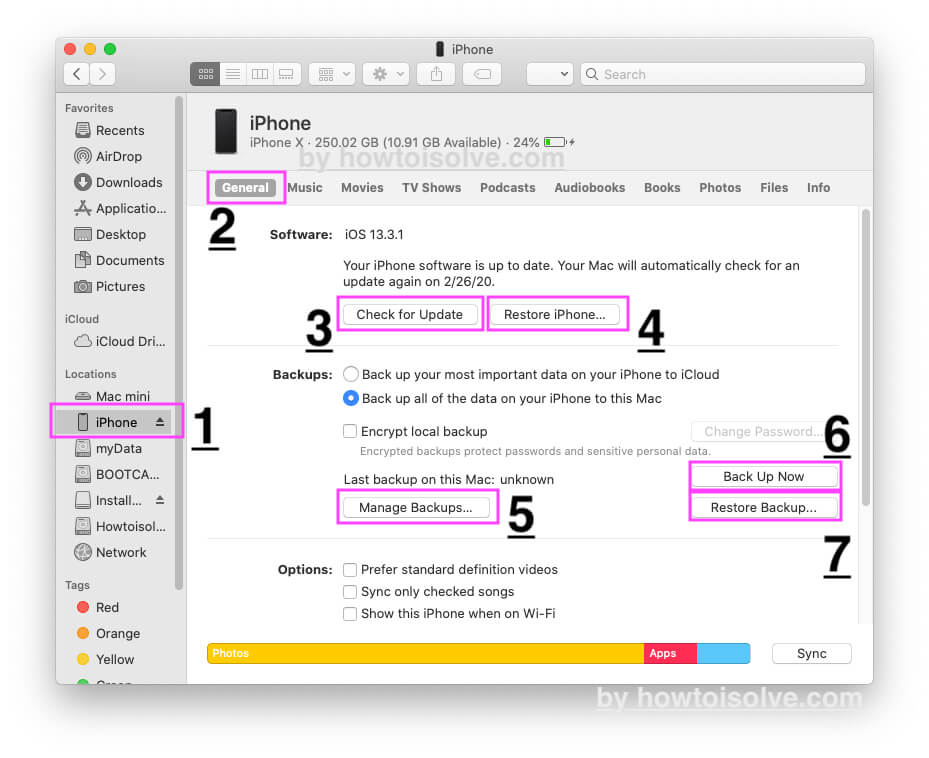
Fix the software bug by erasing the device on your iPhone, iPad. Before that, you have to back up your iPhone on Finder/iTunes on Mac/PC.
Note: MacOS Catalina or later macOS users can use Finder instead of iTunes. macOS High Sierra or Earlier macOS and Windows users can use iTunes for Restore.
Erase the Device: Settings app on iPhone/iPad > General > Reset > Erase All Content and Settings option > Enter passcode to erase the device.
- Connect your iPhone to Finder/iTunes on Mac/PC.
- Now, open the iPhone/iPad device summary page from the Finder sidebar or at the top left corner of iTunes.
Insufficient storage space means that the free space should be greater than your app’s size. Navigate to check current free space Settings > General > Storage & iCloud Usage > Under Storage section (Available storage is the free space for installing app or saving files)
Learn how to Free Up Space using a Storage device on iPhone, iPad, and iPod Touch. Remove Documents and Data on iPhone, Other data manually for optimizing large space.
The solutions mentioned are the most helpful on the Stuck app for iPhone, iPad, or iPod Touch running on iOS or later.





