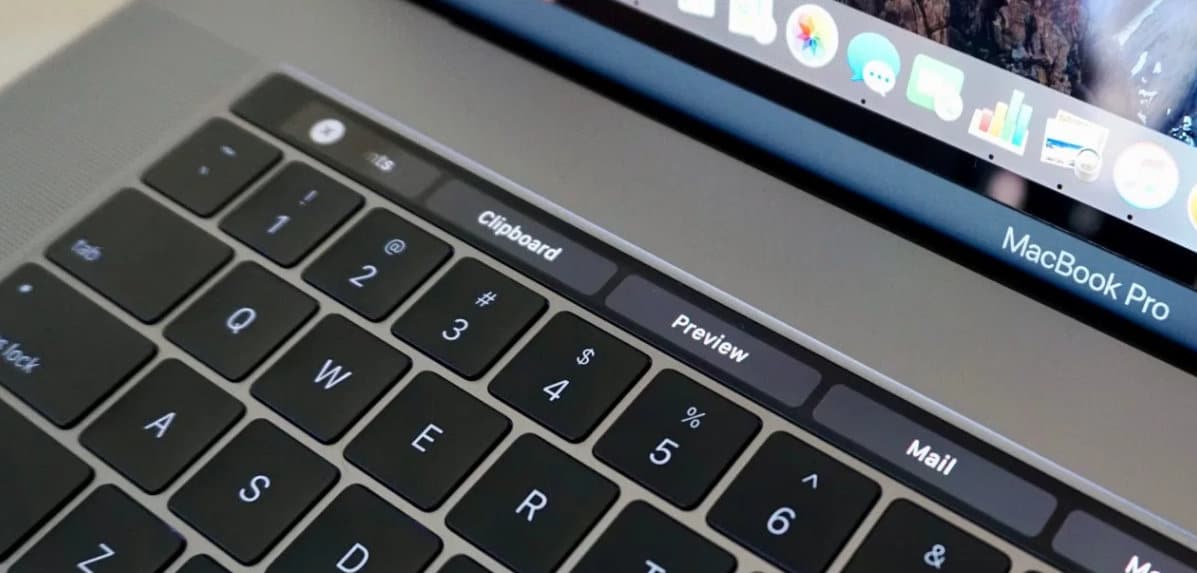
Apple’s new MacBook Pro ships with an integrated touch bar instead of Functions Keys. The touch bar offers a better experience, allowing you to handle apps directly using the Control Strip for supported apps. The multi-touch touch bar is located above the physical keyboard. You can now take a screenshot of the touch bar using a new system command.
Command to Screen Print or take a screenshot of the Touch Bar on MacBook Pro
To do Screenprint Touch bar – Press Shift-Command-6 keys on the physical touchpad.
How to Add a Screenshot Button to the Touch Bar
In the following steps, I’ll show you how to create a Touch-Bar Screenshot on a MacBook Pro. Here you go. After adding the Screenshot button on the Touch-Bar, it would be really easy to capture screenshots with a single tap.
- Click on the Apple logo and select System Settings.
- Choose Keyboard.
- Locate and click on Customize Control Strip.
- Drag the Screenshot icon onto the Touch Bar.
- If the Touch Bar is occupied then extend the area and place the Screenshot button.
How to Screenshot Bootcamp Windows 10 MacBook Pro Touch Bar
The simplest way to screenshot on Windows 10 installed on MacBook Pro, MacBook, is by using the Snipping Tool of the Windows 10. Assuming you’re logged in to Windows 10 on MacBook Pro, search the Snipping Tool from the search bar.
Click on the Mode, select from different Snipping Modes like Free-form, Rectangular, Windows, and Full-Snip modes, and start taking snips of the screen.
That’s it.
Where to find the touch bar screenshot? Yes, it’s a fantastic question. Does anyone else have anything in mind after taking a screenshot? You will find the .png file on your MacBook Pro with Touch Bar. You can get the touch bar screenshot image. By default, the screenshot is saved as named ‘Screenshot date at time.png’ on the desktop screen.
If you would like to change the screenshot save location to the Clipboard instead of the desktop, press Control-shift-command-6. Just add the control key to the above-given command.
Luckily, there’s an excellent tip for using XCode or other third-party tools, simulators, and for any purpose. Customizing the Touch Bar is also helpful to add a screenshot button, allowing you to quickly screen print without a command.
Don’t miss this trick to add a tool on the control strip to Switch between Apps with Touch Bar on MacBook Pro.
Do you find it difficult to take a screenshot of the Touch Bar MacBook Pro? Let us know in the comments. We’ll reply as soon as possible. Please like us on Facebook and follow us on Twitter to get the latest news.