


If FaceTime automatically starts up every time you boot your Mac, it can be frustrating. Many Reddit users have faced this issue after an update or system reset. In this article, we’ll explore simple methods to stop FaceTime from loading at startup, ensuring a smoother and more efficient startup experience.
How to Prevent FaceTime from Opening on Startup Automatically
Hint #1. Remove FaceTime From Startup Apps
Startup Apps are the programs that automatically launch upon rebooting the system. In macOS, they are known by the name Login Items. So if accidentally, FaceTime is added to the Login Items in your Mac, then FaceTime will automatically open itself on startup without any manual intervention. Make sure to remove FaceTime from login items.
1. Click on the Apple logo and Select System Settings/Preferences.
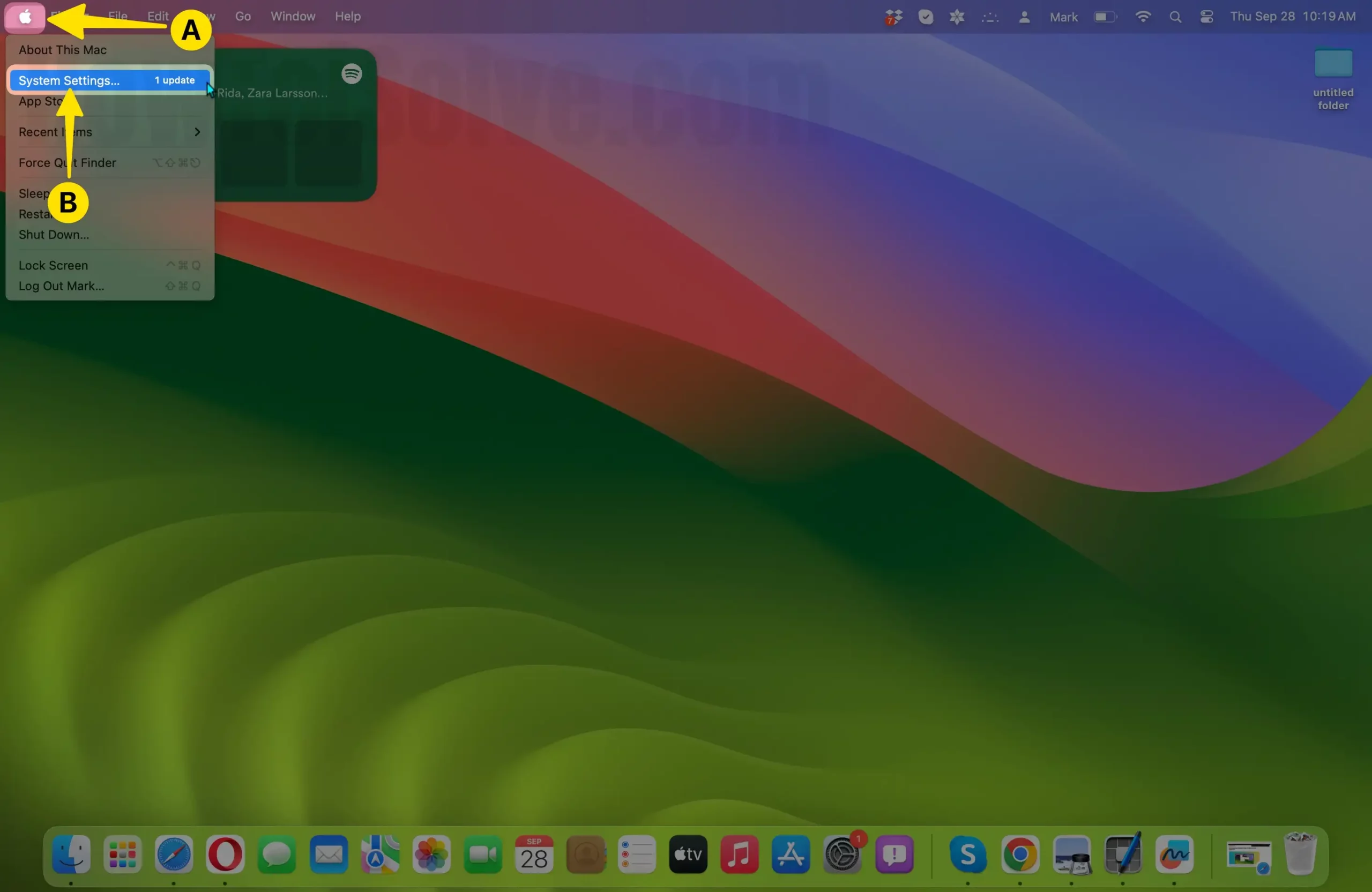
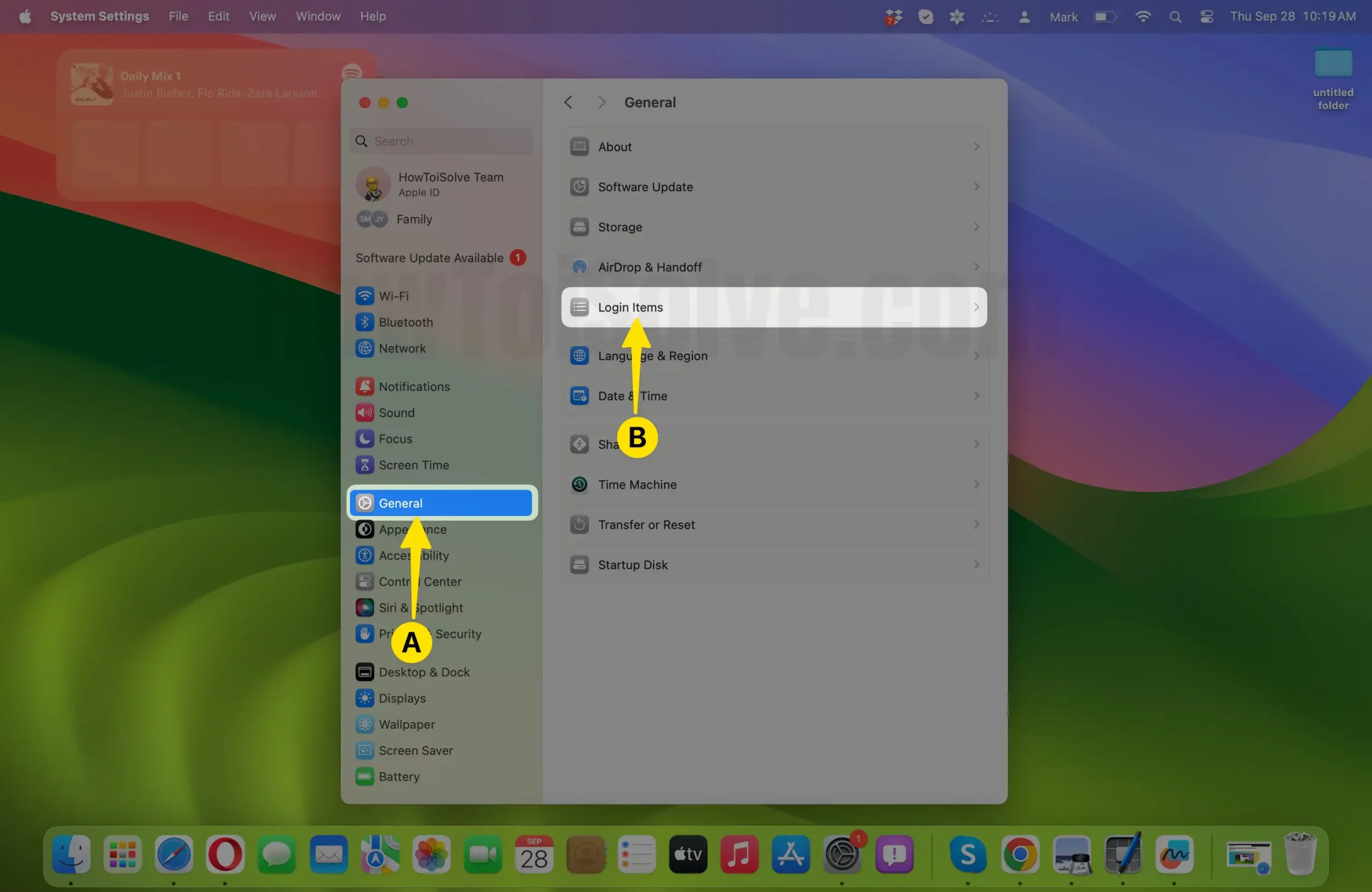
2. Select the General Tab and choose Login Items.
3. Click on FaceTime, and then click on the Minus (-) button. You can remove FaceTime from this list to disable it from opening on startup.
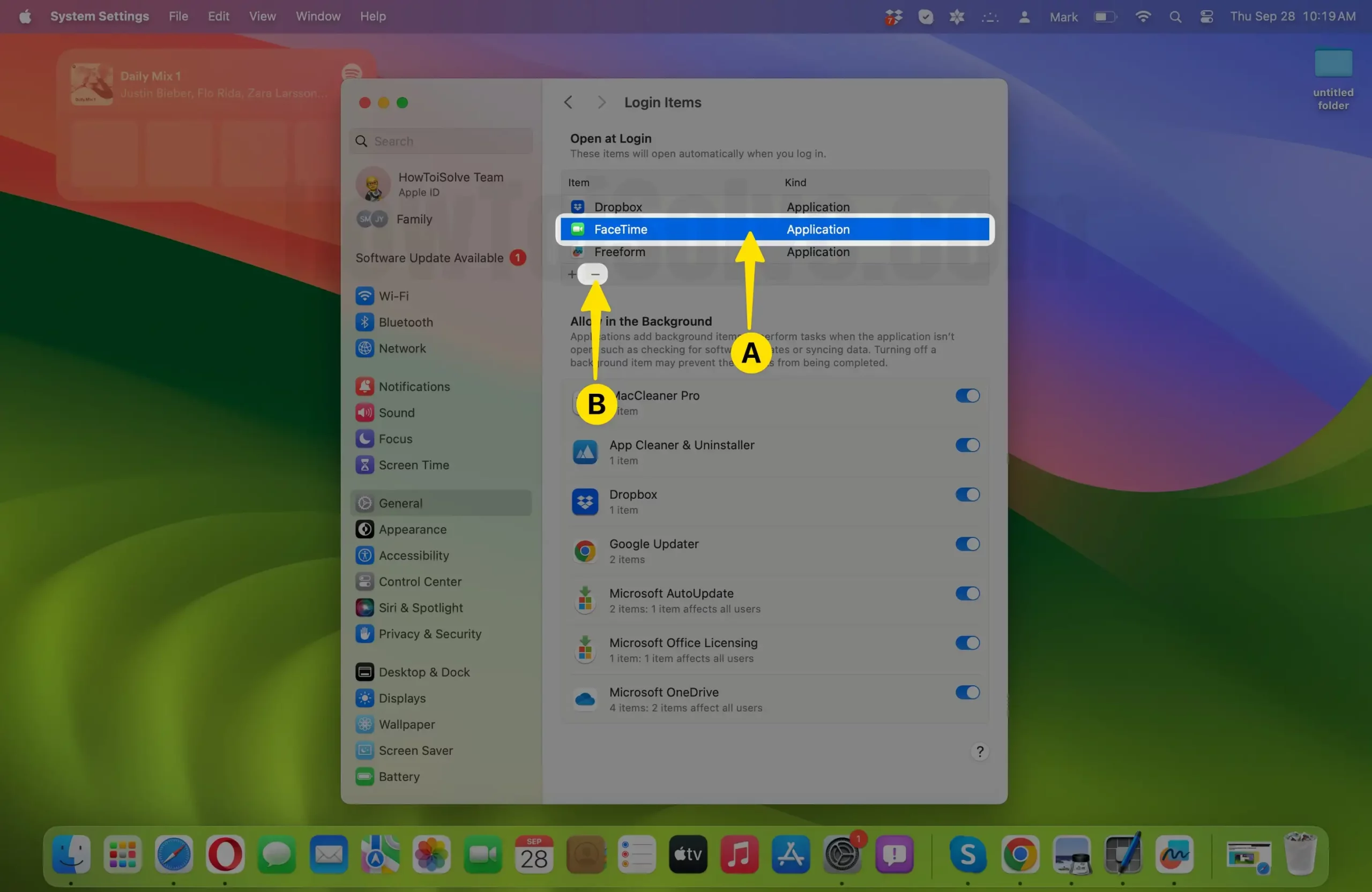
That’s it.
Now restart your Mac. Did FaceTime open itself on startup now? If yes, then jump to the next solution. Besides, if FaceTime was not there under Login Items, try the second method to fix the issue.
Hint #2. Delete FaceTime Preferences Files
This one is an alternate method of hint number one that we have shown above. Removing the corrupted preferences files from the system clears the FaceTime bugs and errors from the Mac. Don’t worry; deleting preference files from the system won’t affect the personal data; it’s supportive files that will automatically appear after you open FaceTime.
- Open Finder
- Click Go,
- Go to Folder… on Mac.
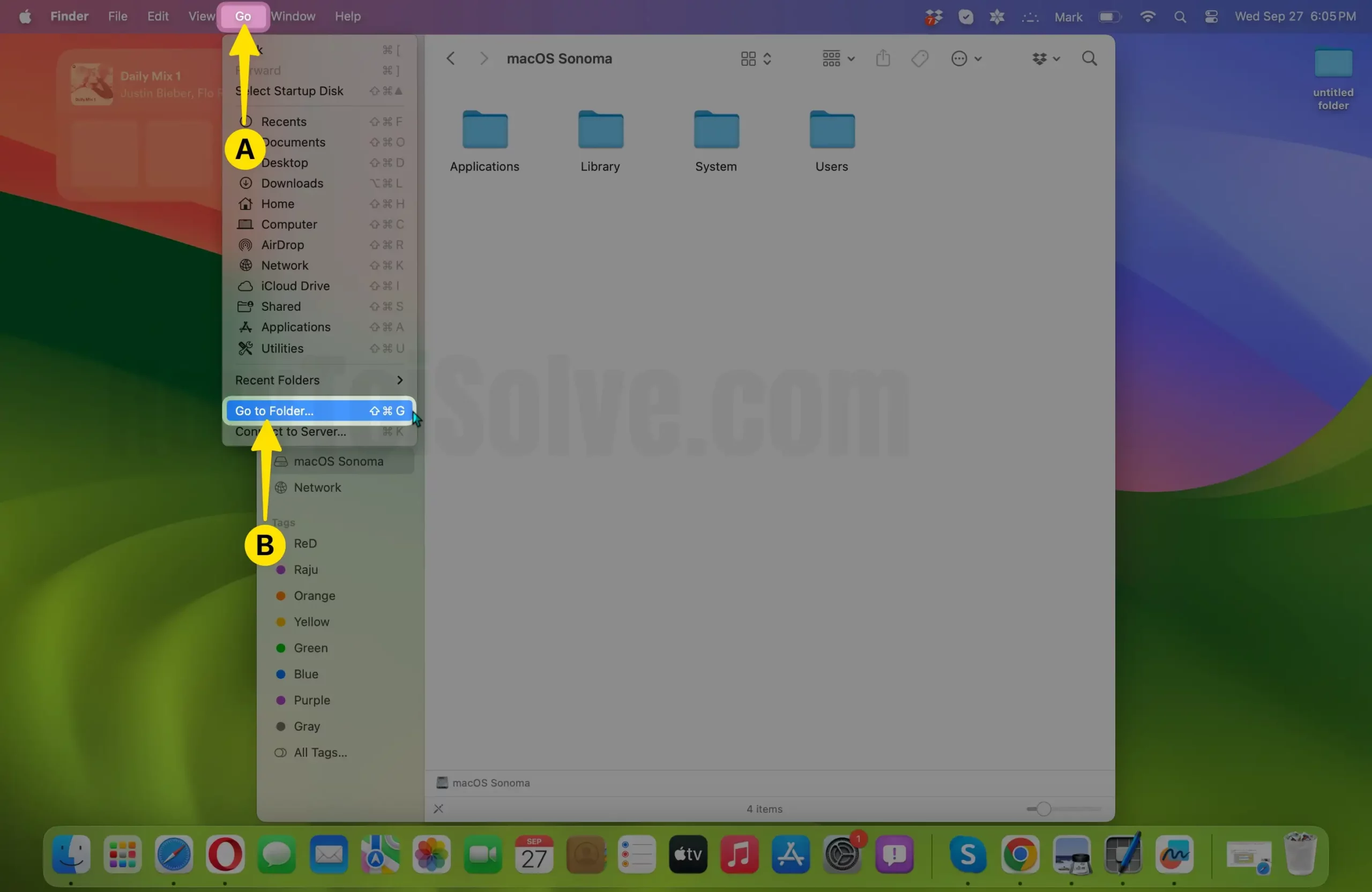
- Copy the command.
~/Library/Preferences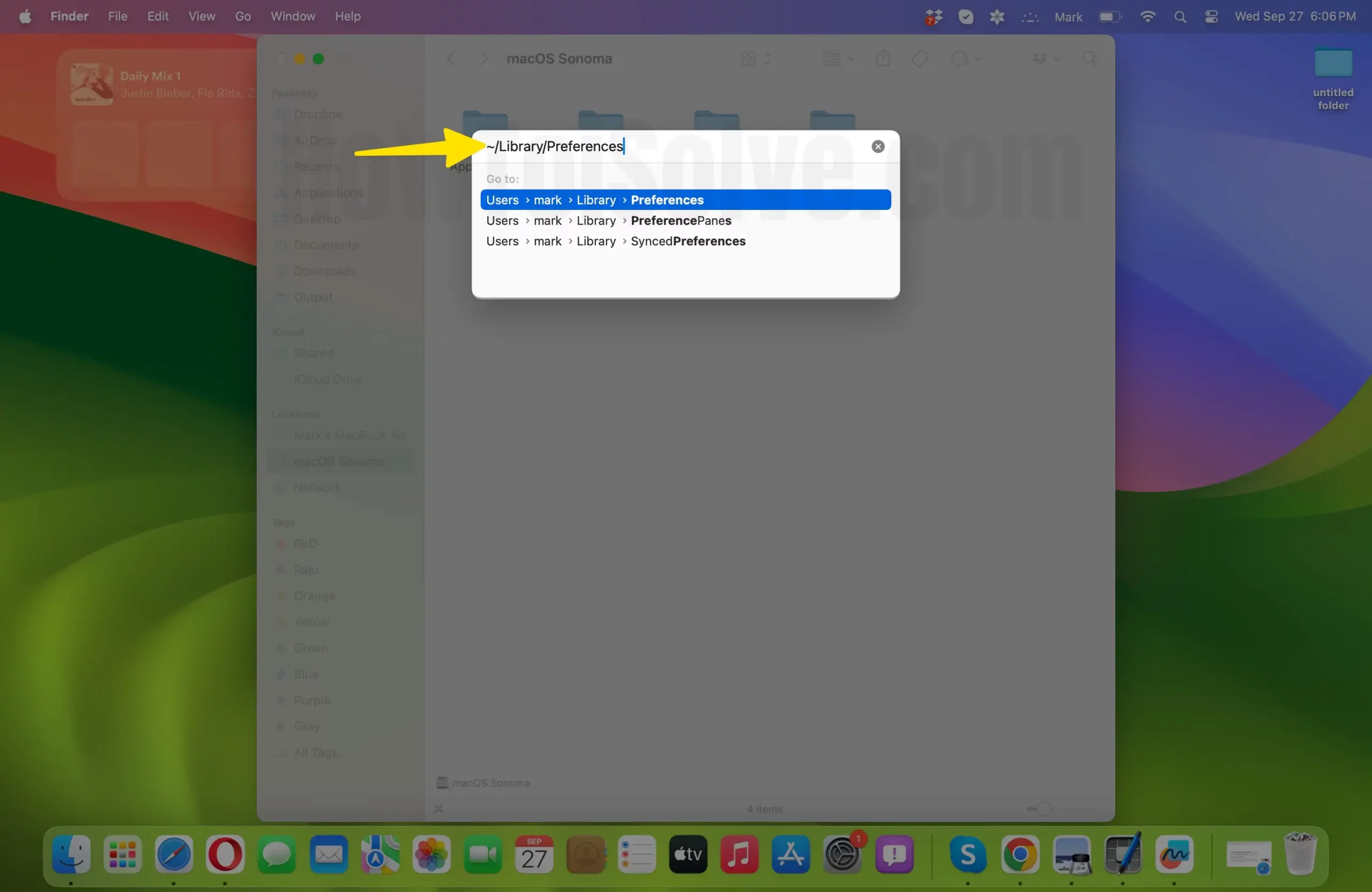
- Select the file, then right-click and choose Move to Trash.
- Doing this will open the Library folder. Go to the Preferences folder.
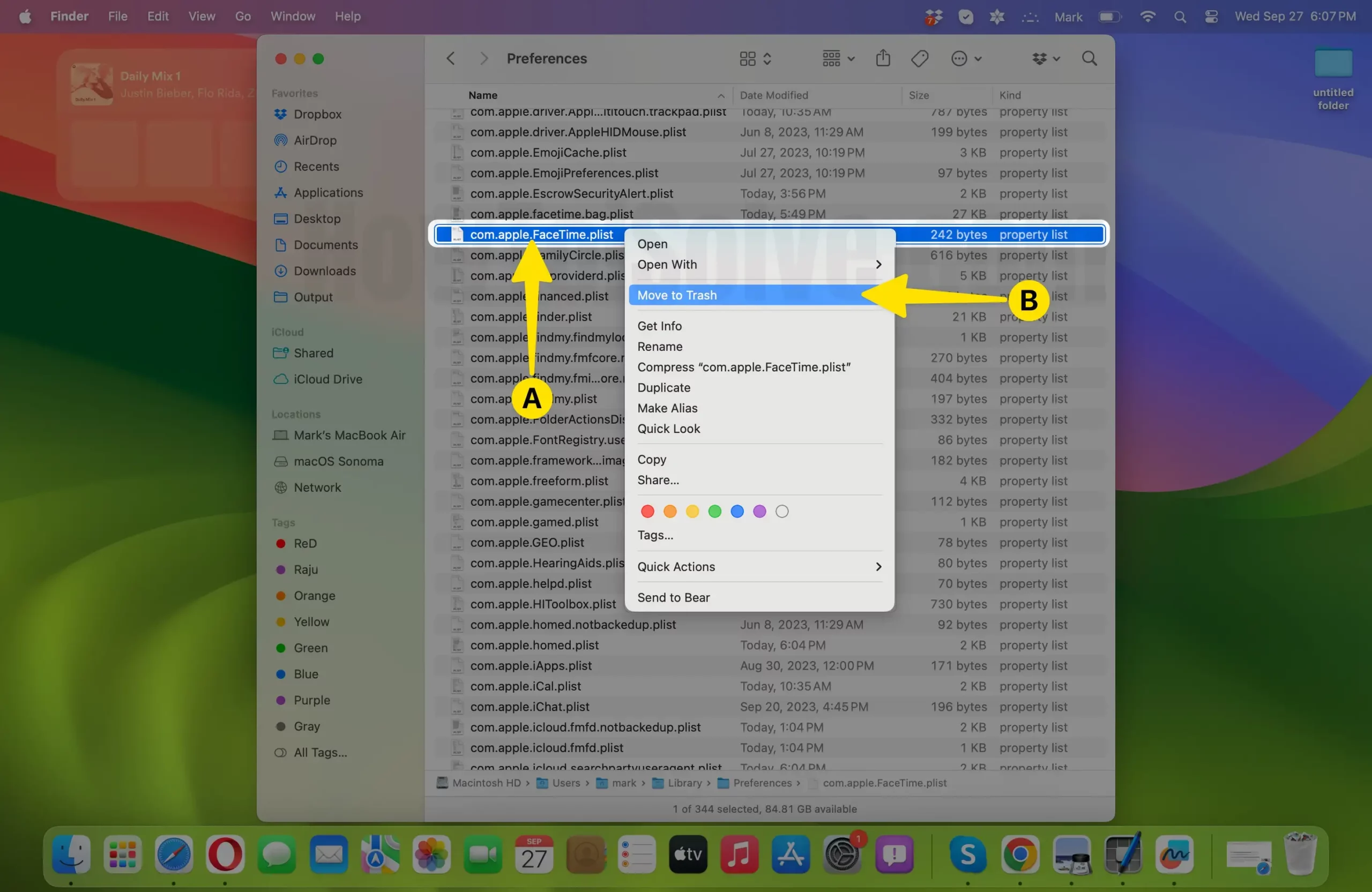
That’s it.
Restart the Mac to ensure FaceTime is not launching on Startup after moving the Preferences file from the Preferences folder.
What happens if I delete the FaceTime Plist File on my Mac?
By deleting the FaceTime list file, the Apple video chat app should no longer launch automatically. However, FaceTime will still function normally if you want to use it. Simply click on the application icon in the Applications folder to open it.
This will impact certain settings, but you can readjust them later. If the issue is resolved, you can return the list file to its original location or delete it.






