Facebook Pictures Not Loading on iOS or Android? It can be easily eliminated if you go through this tutorial. Facebook loads slowly occasionally; it happens due to a software bug or system glitch. However, in many cases, the Facebook server goes down, and users panic: why Facebook isn’t working on their iPhones. There is nothing to worry about; all you have to do is wait for 15-20minutes, and Facebook will work as usual.
But if the problem is with your Facebook app only, then you have to follow this troubleshooting to fix Facebook carefully won’t load images. Then, head over to get rid of Facebook issues on the iPhone.
Fix Facebook Won’t load Images on iPhone
Fix 1: Is Facebook Down?
Officially, there is a way to check Facebook server status like an Apple. So, you have to go with some online website down detector sites. If everything is fine, follow the below procedure to fix the Facebook App bug or iOS Bug.
Fix 2: Force Close Facebook App
Facebook won’t load pictures on iPhone, or any Android could be occurring due to excessive load on the iPhone. Sometimes we forget to close the Recently used apps, which results in Facebook’s slow loading on iPhone. The best practice is to Force close all the recently used applications regularly and, if possible, restart your device once a week.
Fix 3: Force Restart iPhone
The above solution was likely to fix minor app-related issues. Still, Facebook is taking too long to load images, then restart your iPhone. Force rebooting the iPhone will refresh the iPhone system, which will gradually increase the speed of devices and applications.
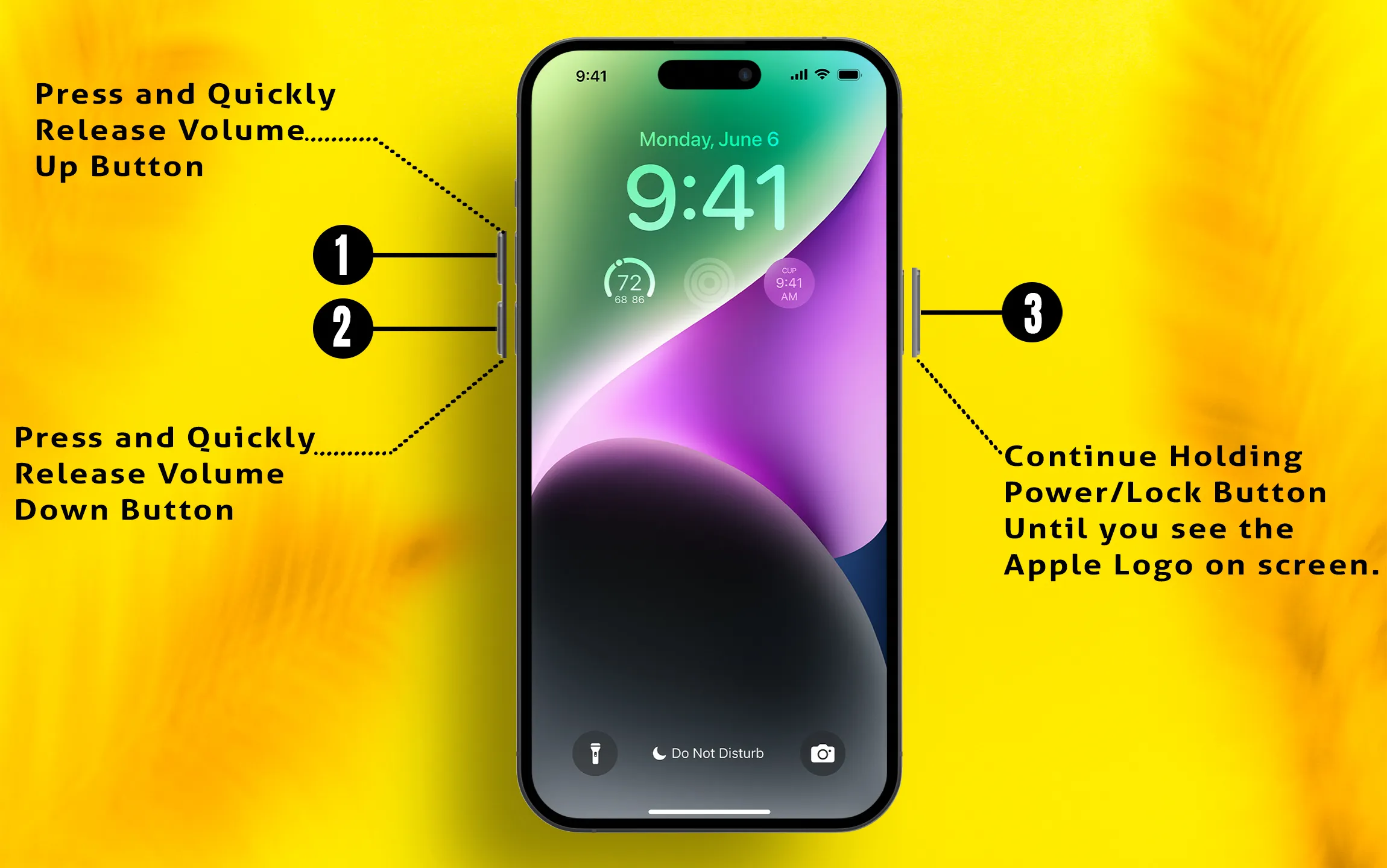
For iPhone 8 or later,
- Press and quickly release the Volume Up key.
- Press and quickly release the Volume Down key.
- Lastly, hold down the Side button until you see the Apple logo on the screen.
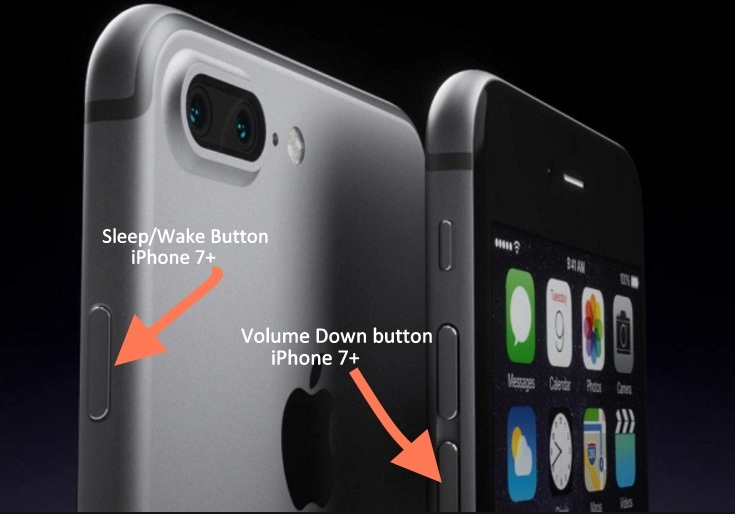
For iPhone 7/7+,
- Press and hold the Volume Down key and Power button until the Apple logo appears on display.
For iPhone 6S or earlier and iPad,
- Press and hold the Home button and sleep/wake button until the Apple logo comes on the screen.
Fix 4: Check the Network Connection
Earlier, Facebook was much lighter, and I used Facebook on the 2G network. But now, Facebook loads very slowly on the iPhone, even on the 4G connection. The reason behind this is that the developers are constantly improving the app; however, it requires a strong internet network. So what I want to say is, make sure your iPhone is connected to an active internet or Wi-Fi connection to avoid slow-loading images on the iPhone. If possible, then switch the Wi-Fi network and use Facebook.
Fix 5: Clear Cache/Browsing Data
Still, Facebook pictures are loading slowly on iPhones and iPads. Are you using the Facebook app for months without deleting the app or clearing browsing data? If yes, then it is the only reason why the Facebook app is loading slowly on iPhone. It is recommended to clear Cache/Browsing data periodically. Here’s how to delete cache/browsing data of Facebook app on iPhone,
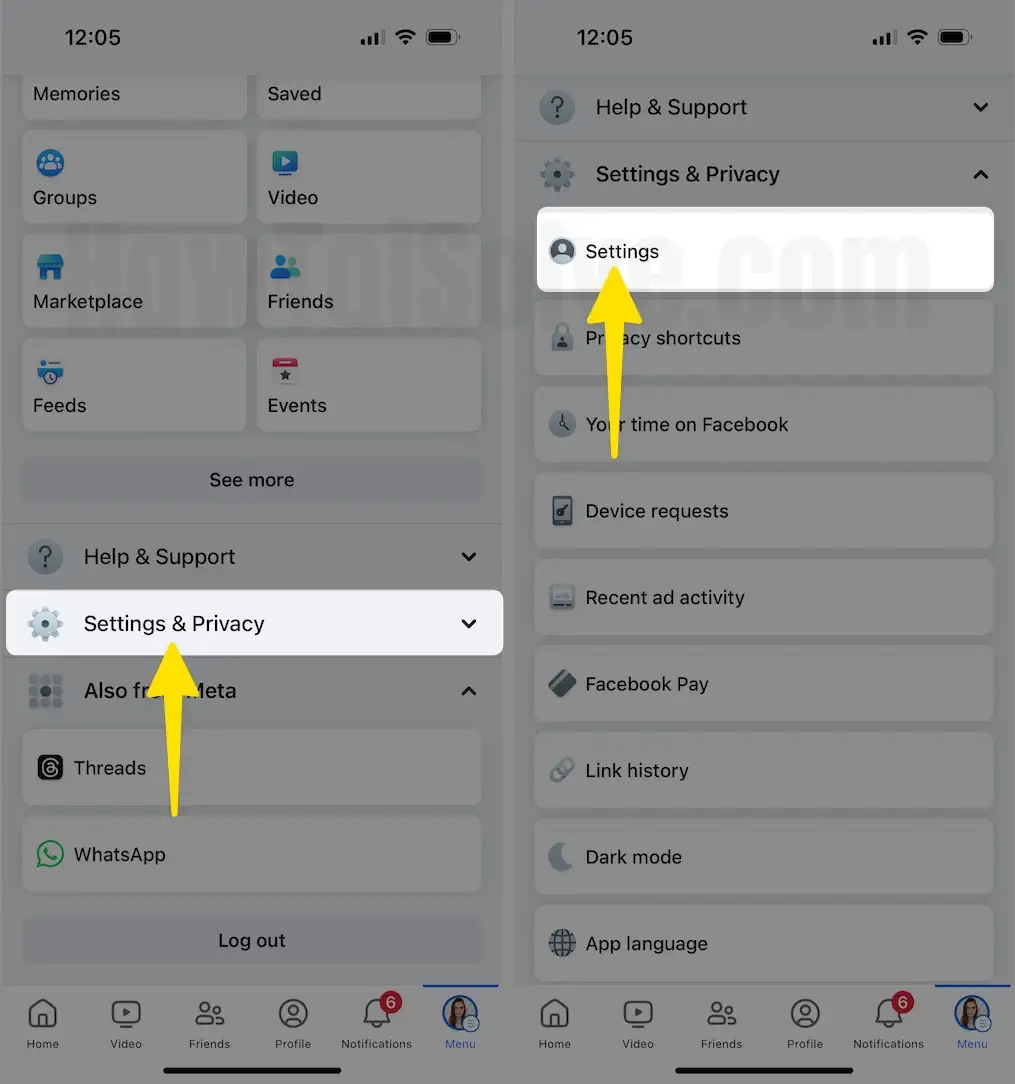
Step 1: Navigate to the Facebook app on your iPhone > Tap on Profile Menu From the Bottom Right Corner.
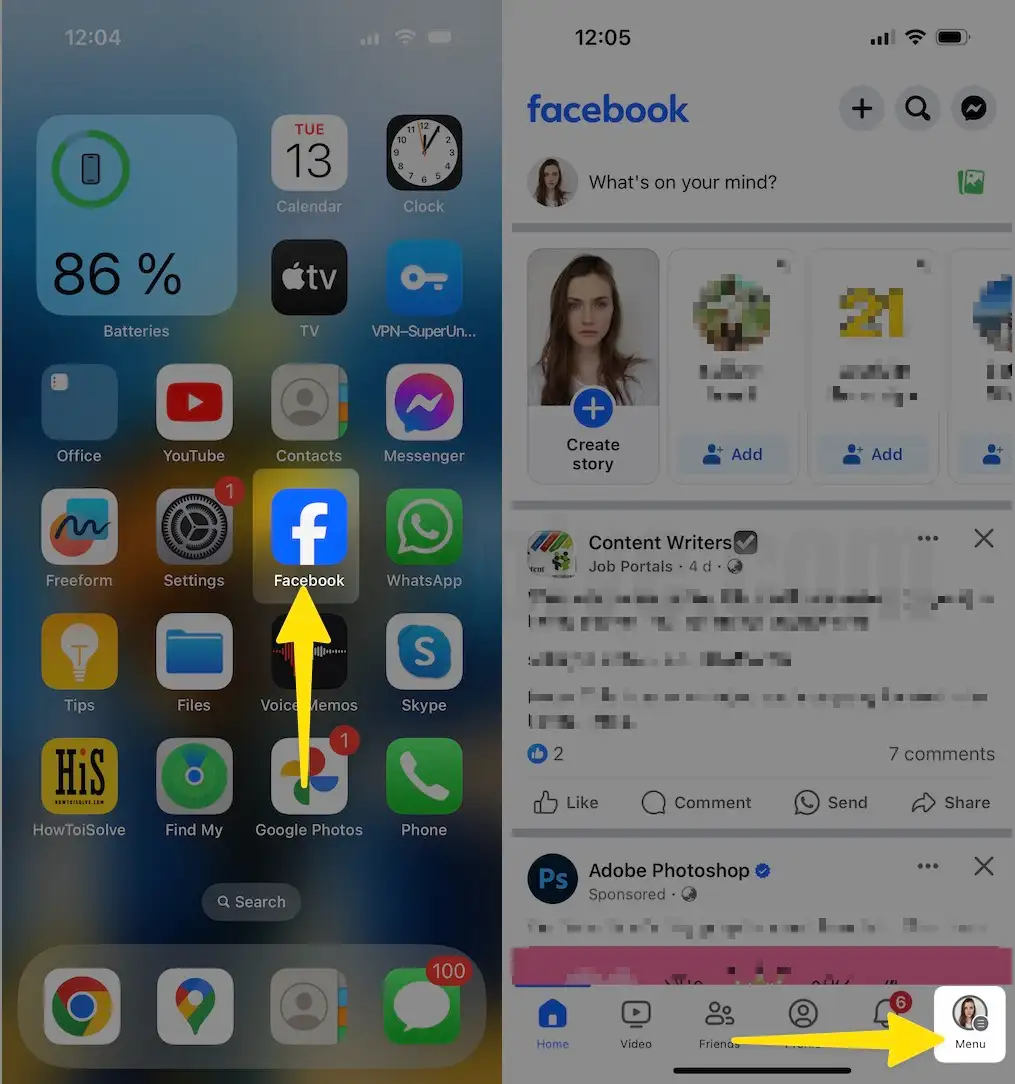
Step 2: Tap on Settings & Privacy > Select Settings.
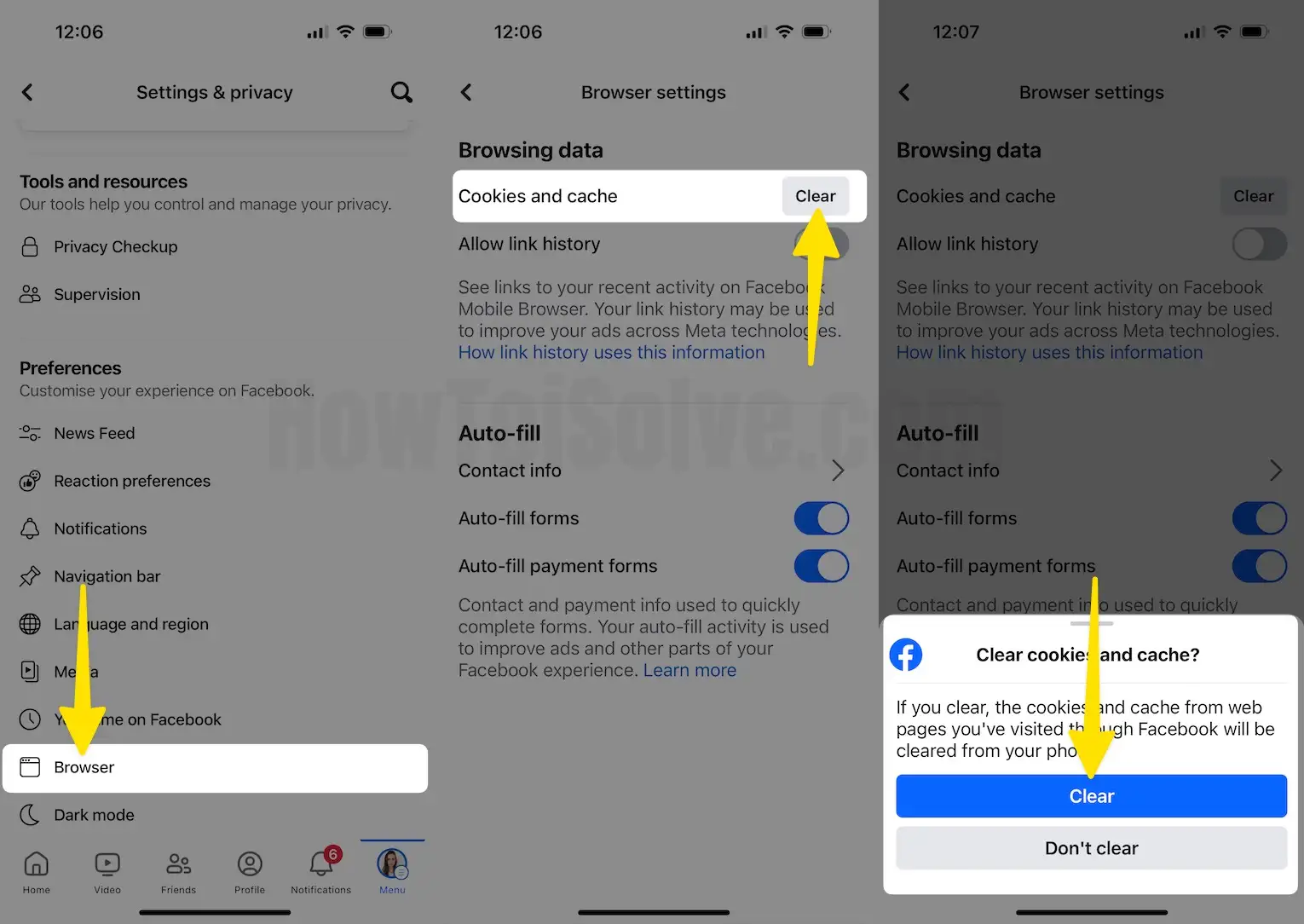
Step 3: Select Browser > Tap on Clear next to the Cookies & Cache under the Browsing Data > Click on Clear Cookies and Cache for Confirmation.
Fix 6: Update Facebook App
For the smooth functioning of any app, the app should be updated to the latest available version. The Facebook developers release updates twice or thrice a month for better stability and new features. However, if you forget to download updates for Facebook, the app will notify you to update the outdated Facebook app. Also, the latest iOS brings a few changes to the App Store. So the method to update Apps in iOS is changed. So read on and update the app.
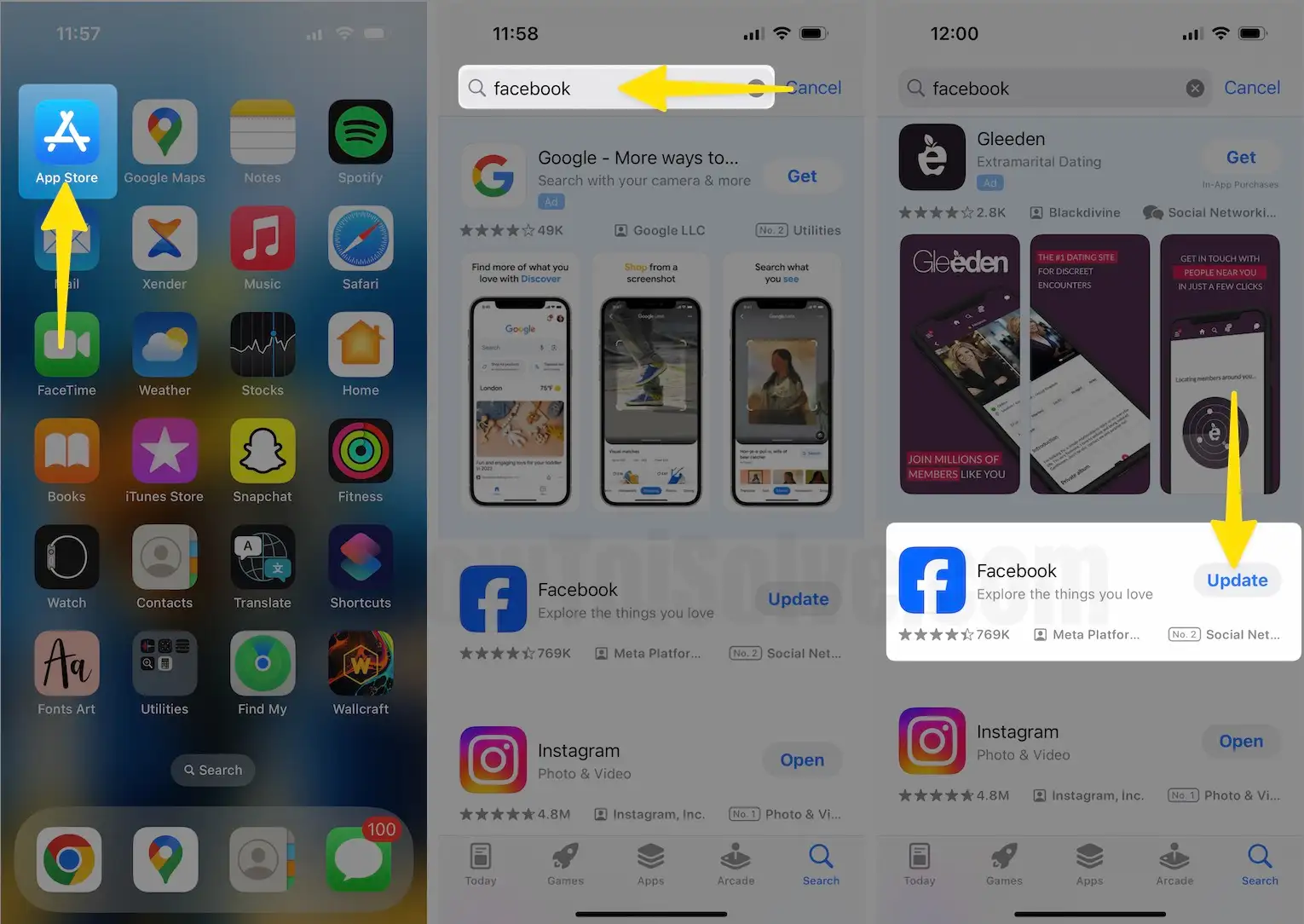
Launch the App Store on your iPhone > Search Facebook App in the Search Box > Tap on Update next to the Facebook App.
Fix 7: Use FaceBook on Mobile Browser
Don’t wait for the Facebook app update if the app is not compatible with the latest iOS update. For example, some users reported after the iOS 15.3 update, the Facebook app is not loading pictures.
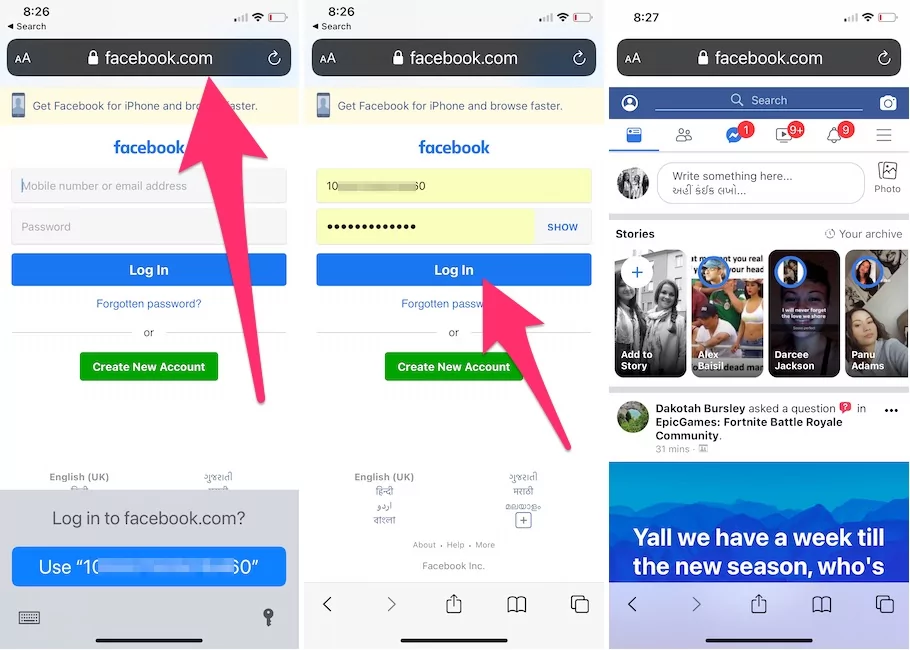
This trick is beneficial when you try to access your Facebook account with some error on the FB app. Use your Phone’s Browser [Safari] or Any Other Best iPhone Browser, and the Facebook User interface is the same as the App UI. So, that’s pretty convenient to use Facebook even in Browser. Also, you can quickly log in to your Facebook account if your FB password is saved on Keychain.
Fix 8: Reset All Settings
Any mistaken change in the settings app can affect the Facebook app. The ultimate way to restore all settings to default is to Reset All Settings of the iPhone. Don’t worry; it will not remove any data; the settings will be restored to default. Later you can customize them as per your convenience.
Step 1: Launch the Settings App on your iPhone > Tap on General.
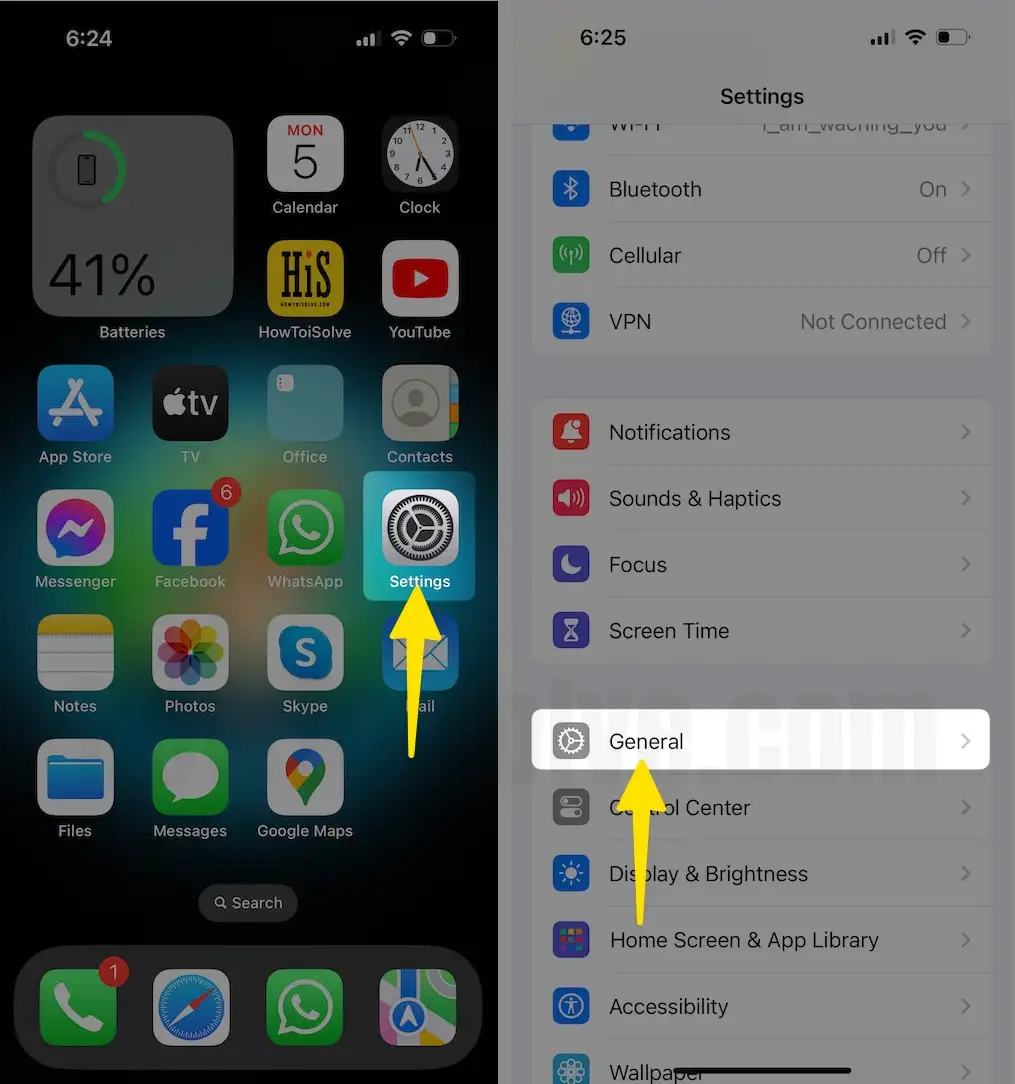
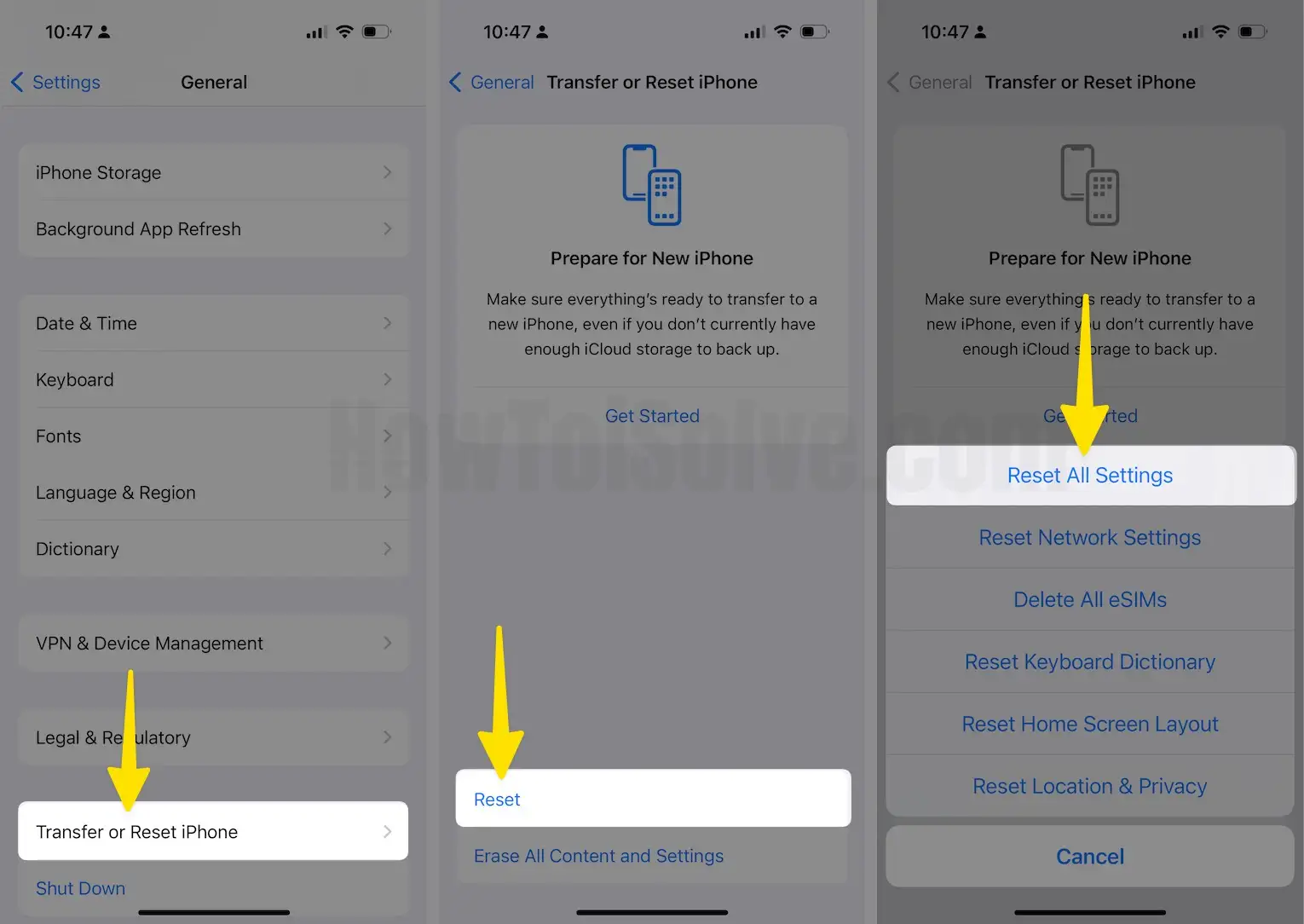
Step 2: Tap on Transfer or Reset > Select Reset > Choose Reset All Settings.
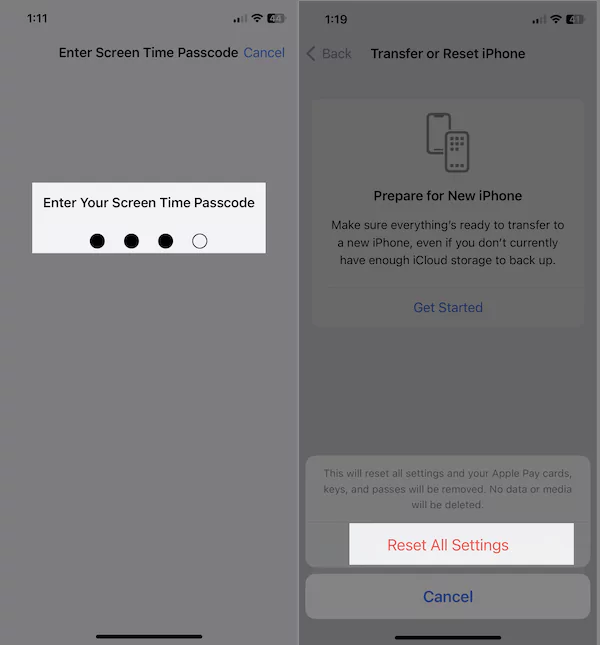
Step 3: Enter your phone unlock passcode > Finally, a pop-up asks you to Click on Reset all settings for the Confirmation.
Fix 9: Re-install Facebook App
Re-installing the Facebook app will delete all the temporary data and cache files from your iPhone. If you fail to clear cache and browsing data, or it didn’t work to fix, Facebook won’t load images after the update and then delete the app. To delete the Facebook app, press and hold the Facebook icon until (X) appears on the Facebook icon. Next, Tap on it to delete the app. Next, visit the App Store and download the Facebook app.
Fix 10: Update iPhone
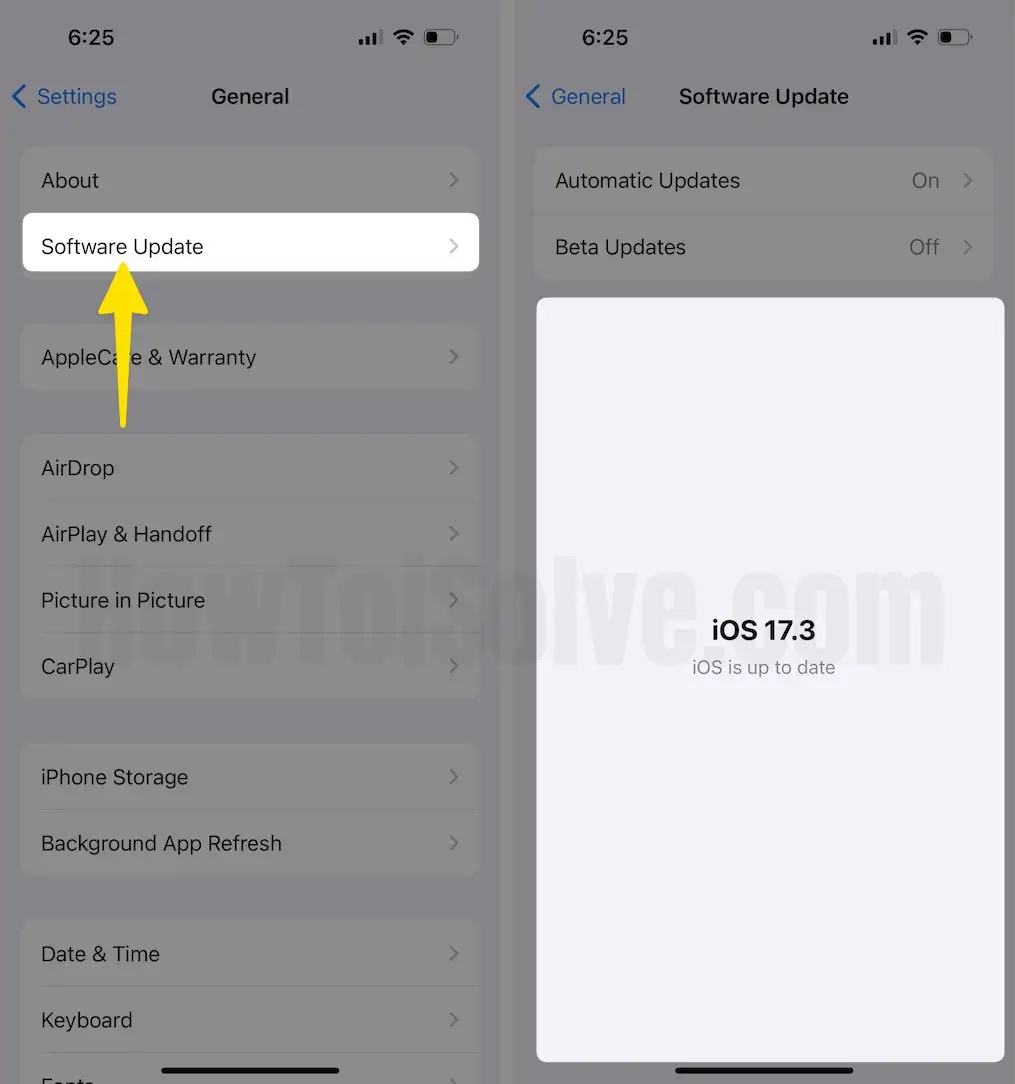
Unfamiliar with the iOS version? There is nothing to worry about; you can check the updates from the Settings app of the iPhone.
Step 1: Launch the Settings app on your iPhone > Tap on General.
Step 2: Select Software Update > Now, Download and Install the update if available To fix Facebook issues.