

What we know!
- Stuck on preparing update in iOS 26? From Find & Delete old iOS File, Re-Download iOS File, Quickly check & freeing up storage to force restart.
- This guide swiftly tackles the issue, ensuring a smooth update process for your iPhone.
- Please take a moment to go through the Preinstallation Frequently Asked Questions (FAQs) and be patient while doing so.
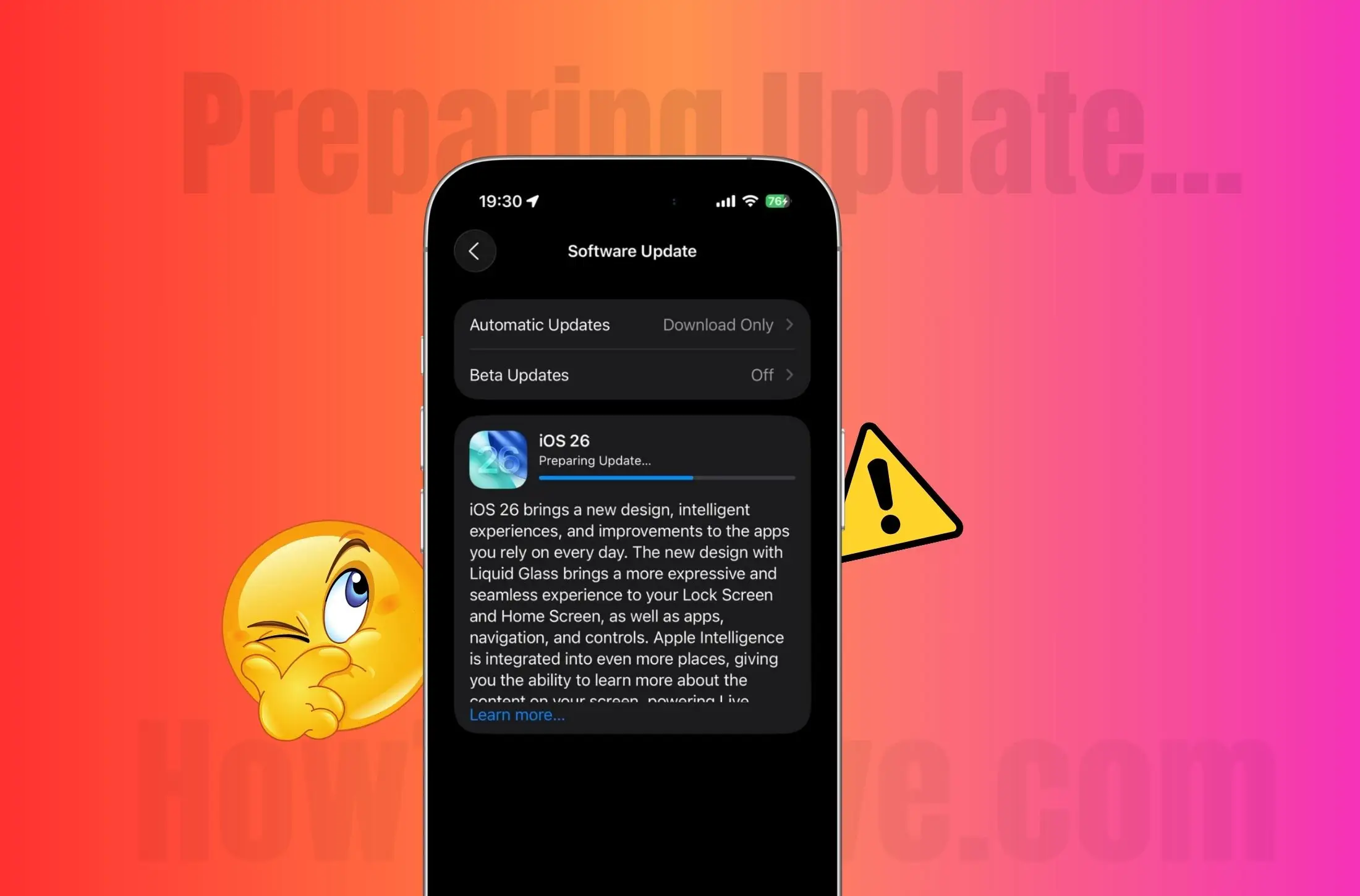
In this blog post, I’ll give you the reason and solution why the New iOS 26 stuck on Preparing Update Error Screen. iPhone is stuck on preparing update during setup. How long does preparing update take iOS 26? Here the time arrives when you can get the updated version of iOS on your iPhone. After using the same functions for one year, you may be bored and look for exceptional and improved updates in the old iOS version. Unfortunately, while downloading the iOS 26 update, if your iPhone is stuck on preparing updates, it is very disappointing.
When an iOS update is stuck on the “Preparing Update” stage on an iPhone, it can be frustrating. Here are some common solutions presented in a table format to help resolve this issue:
| Solution | Steps |
|---|---|
| Check Network Connection | Ensure your Wi-Fi connection is stable. Try resetting your router or switching to another network. |
| Restart Your iPhone | Turn off your iPhone and then turn it back on. This can sometimes resolve the issue by refreshing the system processes. |
| Increase Storage Space | Free up storage space by deleting unnecessary files or apps. The update may be stuck due to insufficient space to download and prepare the update. |
| Delete the Update and Redownload | Go to Settings > General > iPhone Storage. Find the iOS update in the list, tap it, and then delete it. Afterwards, go back to Settings > General > Software Update to download and install the update again. |
| Reset Network Settings | Go to Settings > General > Reset > Reset Network Settings. This will not erase your personal data but will reset Wi-Fi networks and passwords, cellular settings, and VPN and APN settings. |
| Update via iTunes or Finder | Connect your iPhone to a computer and use iTunes (on Windows or macOS Mojave and earlier) or Finder (on macOS Catalina and later) to check for updates and install the iOS update. |
| Contact Apple Support | If none of the above solutions work, there may be a more complex issue with your device. Contact Apple Support for professional assistance. |
If you are waiting for the update to be resumed automatically, it isn’t going to happen. The people who hold the developer’s Apple ID will get the iOS 26 version before it is released publically. Therefore, you have to go through the recovery process so that you can get most of the iOS beta version before the release of an official version of iOS. Here we cover the solutions for what we should do for developer/Beta Users.
You might be stuck on Download iOS Update, Stuck on installing iOS update or installation won’t complete. All the problems have a solution, so you can submit this help form to reach us via mail.
[Fixed] iPhone Stuck on Preparing Update iOS 26
Fix 1→ iPhone/ iPad has not enough storage. Check available Storage. Go to the Settings app > General > About [Find Available and Storage in Gigabytes]. Yearly iOS/iPadOS updates require 5 to 6 Gigabytes of storage. Storage is more than enough for a re-download of the iOS/iPadOS setup file.
Fix 2→ To Redownload iOS/iPadOS on iPhone/iPad, First Delete the Downloaded Setup file, Go to Settings > General > iPhone Storage > Scroll to iOS 26 file > Tap on it and Delete the setup file. Go back up and again check for a new software update. Settings > General > Software Update. (for more ideas watch the given video at the bottom of this article)
To fix iOS stuck on preparing updates you need to delete the OTA file from the iPhone, and after that, the updating process will reinitiate.
- Launch the “Settings.”
- Tap on “General” and open “iPhone Storage.”
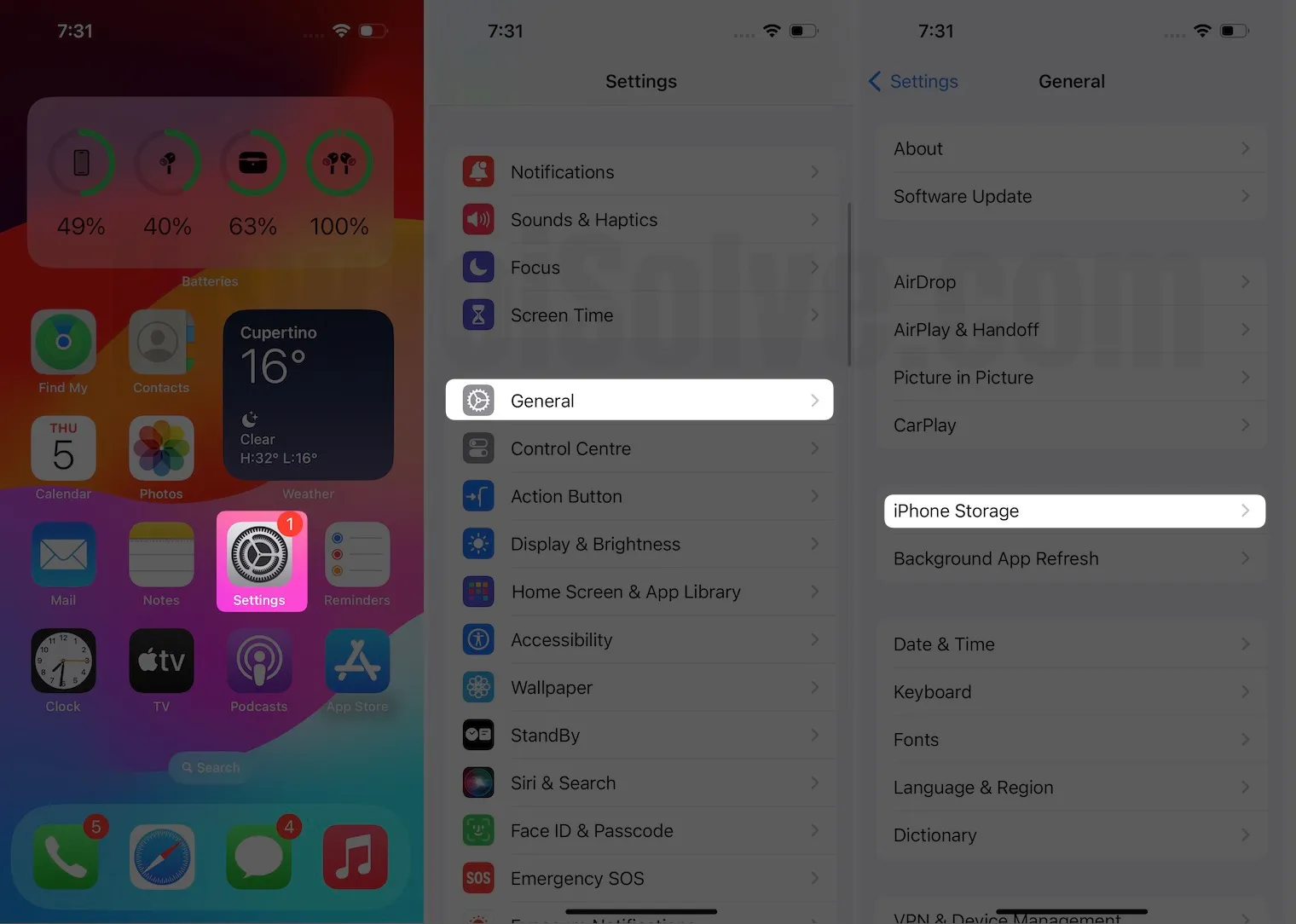
- It will show the entire list of apps and files occupying the iPhone storage. Find and tap on the “OTA” (Over The Air) iOS 26 file and then delete it.
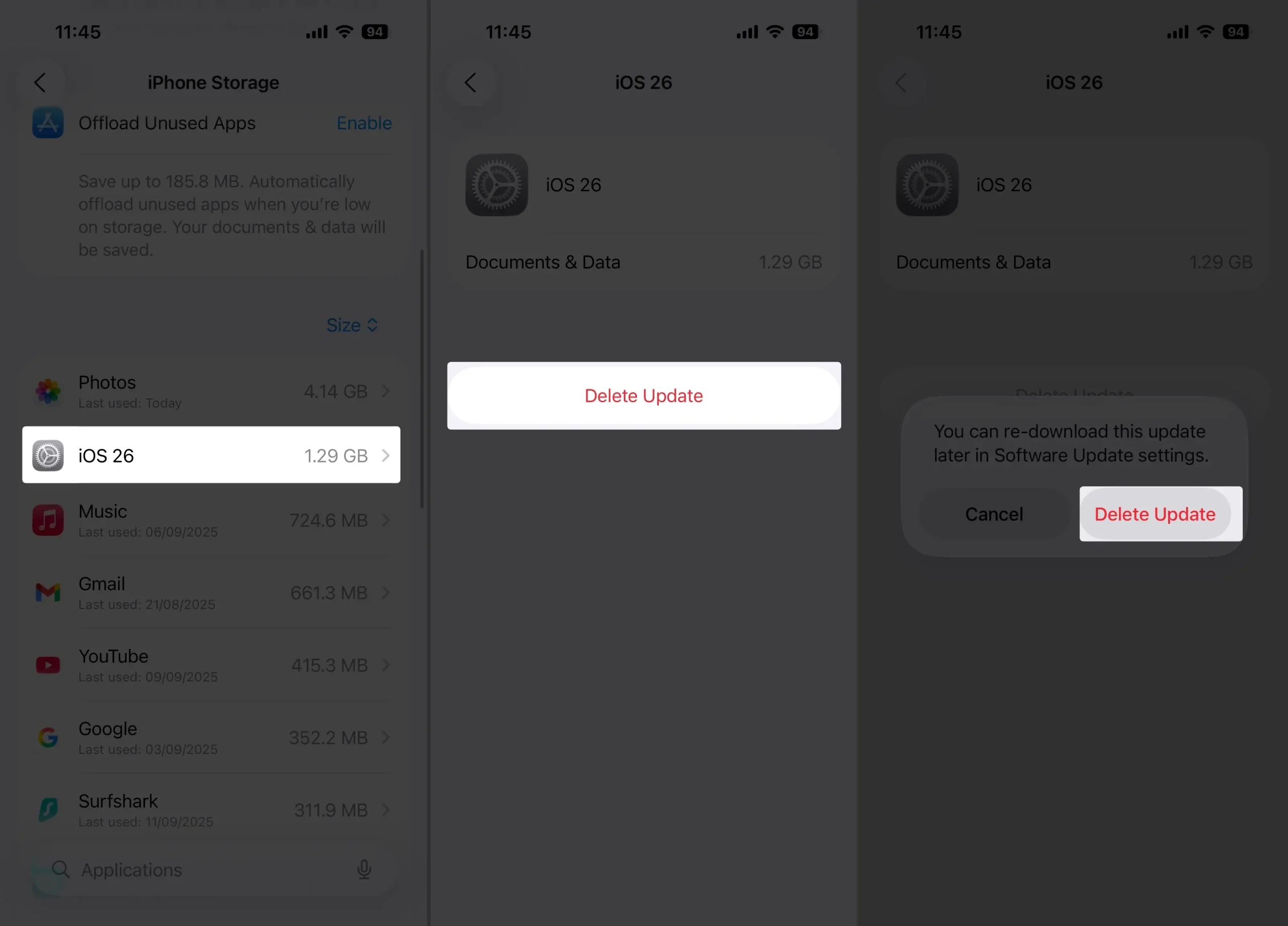
- Now the corrupted file is gone from iPhone, you can install the iOS 26 without errors.
- To do so, open “Settings” and click on “General” and then “Software Update”. This will search for the update, and if an update will be available then it will be downloaded.
- Now the update will be processed and normally installed on the iPhone.
Hopefully, the updates will be successfully installed on the iPhone. There are a few parameters to be noticed while updating the iPhone.
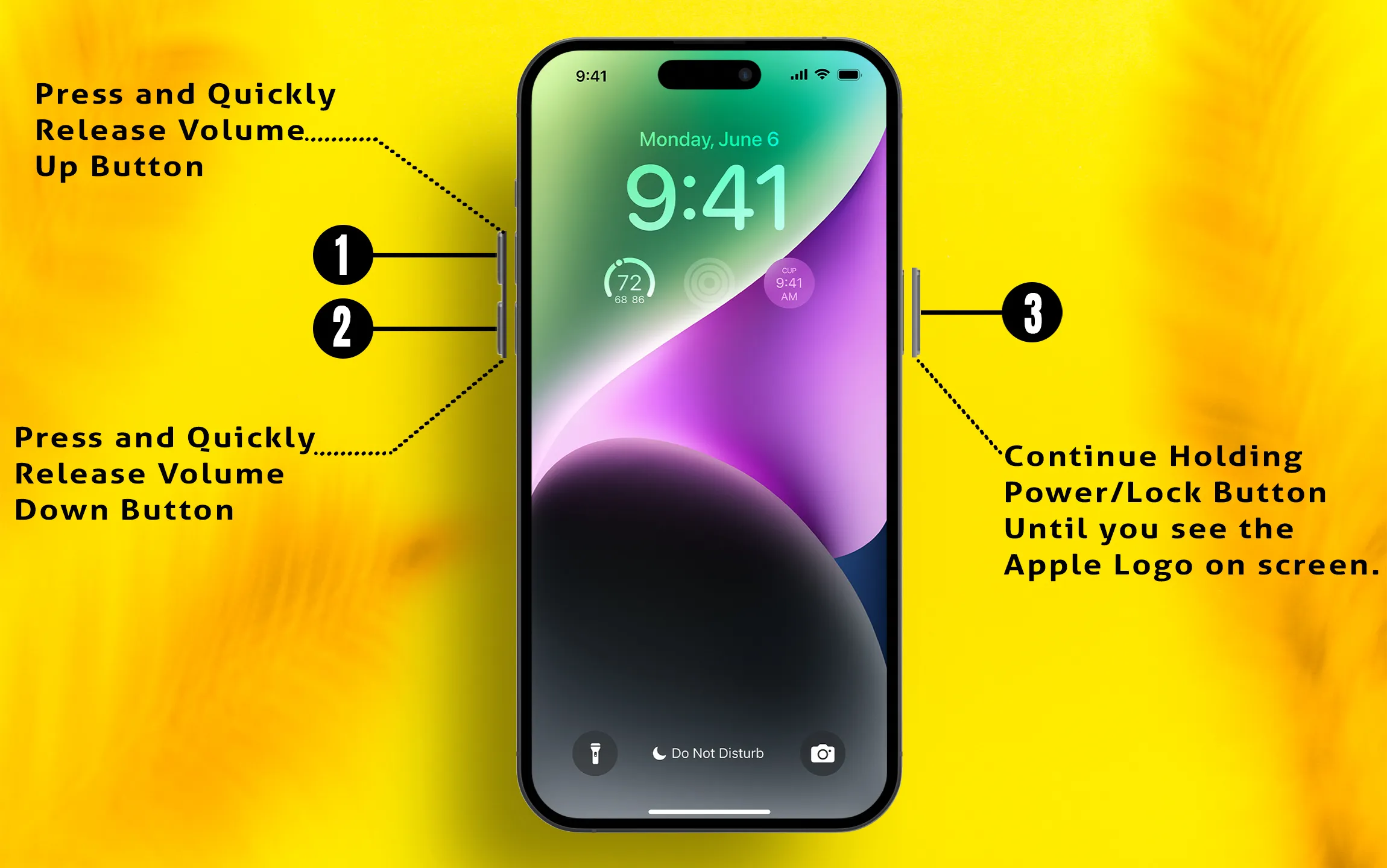
Fix 3→ Hard Reboot your iPhone/iPad.
Fix 4→ Remove Beta Profile and Soft reboot your iPhone/iPad. After removing the beta profile, Request a new public Software Update. Check it again for the software update. Settings > General > Profile > Tap on Profile and Delete profile.
Fix 5→ First, Check Your WiFi connection is Reliable. And it’s connected to your home network. Because some private companies and Public WiFi blocked Apple Server’s request. Open Safari Webpage, and Try to access some Apple services like iCloud or video.
Fix 6→ Remove VPN Setup or App. That might lose your device’s security against Apple’s privacy. Open the Settings app; next to the Personal hotspot new VPN toggle option is available if installed.
Fix 7→ Force Close the Settings app and Relaunch the app. This is because of if Setting up new iPhone stuck on preparing update. Force close the app will help you. Use the double-press home button on your iPhone. No Home button iPhone users can Swipe up their finger from a bottom horizontal bar and put their iPhone in the app switcher. Force close the app by swiping up the app up from the app switcher screen. You have to check it first that your iPhone/iPad settings app stuck on the screen and not updating the message after checking for the update. That’s why a “Preparing update” message is on the screen.
Fix 8→ Reset the network settings, Your WiFi connection is dropping itself. Reset network settings to erase all the saved WiFi passwords, So you must know the wifi password before removing it. After resetting and rebooting iPhone/iPad, Manually connect the WiFi. Go to the Settings app > General > Transfer & Reset iPhone > Reset > Reset Network Settings. here’s how to reset network settings
Fix 9→ You have a problem with the current version of the iOS installation. Install iOS Using Finder/iTunes to the previous or Public version. Again Try after some time or once your iPhone behaves like normal, try to update with the latest version or Public.
Fix 10→ Apple Server goes down in your Country because of the traffic jam at the apple server. Because millions of update requests crack the system, your turn is in a long queue. So this time you have to wait for a longer time compared to regular update installation. Also, we can check the Apple server status page, if the red mark is on a page in front of the service, then we should have to wait for apple service to go up and become normal.
Also, Try Force Restart iPhone.
Way to Avoid iPhone Stuck on Preparing Update Screen iOS 26
You can get rid of iOS 26 stuck on preparing the update by updating with iTunes. To avoid errors, please use the latest iTunes to process to install iOS 26 on your iPhone and iPad.
Your Mac is iOS 26 preparing to update the Software on this iPhone
if you update your iPhone using Finder on Mac then your Mac screen is stuck that your mac is preparing to update the software update iOS 26 with macOS Ventura, Big Sur or Catalina mac machine (MacBook Pro, MacBook Air (M1), iMac, M1 Mac Mini). So, what should you do? Nothing else is reliable and wait to update your smartphone.
FAQs
Q1. iOS 26 preparing update taking forever
The latest iOS 26 Beta is now released and available to download, loaded with tones of new features. At the same time, many users have reported that the iOS 26 preparing update is taking forever and won’t update the iPhone. That’s something serious since it won’t allow you to use the device.
To fix stuck on preparing update iOS, it takes a few minutes to get rid of it. So let’s start with the basics.
First of all, make sure your iPhone is connected to the stable Wi-Fi network, as it plays a vital role in downloading and updating the device.
Next, check the Apple Server Status page for any service outage; due to the excessive load on Updating Servers, it might crash and fail to respond. When the Apple Server is down for new updates, it won’t let you update the iOS.
Force restart iPhone; still, iOS 26 preparing on updates, reboot the iPhone. In case the iPhone firmware is crashing in the background, it will be resolved by force restarting the iPhone.
Q2. How long does preparing the update take iOS 26?
Usually, when everything is aligned, and your device has met all the requirements to update the software, like battery should be at least 50% charged, the device must be connected to the Wi-Fi, and your device must be compatible with newly available updates. When these prerequisites are fulfilled, it should not take more than 30 minutes to prepare for updates. It should take around 10 to 30 minutes to prepare for updates.
Q3. How long should Preparing update take iOS 26?
As my Recent experience with the installation of iOS 26 on My brand new iPhone, I suggest you wait for at least 30 to 35 Minutes. If you feel that something is doubtful, then Try to install using Finder on Mac or iTunes. macOS 10.15 or later is required Finder for Update Apple Devices [iPhone and iPad], Else use iTunes With Earlier macOS and Windows.
Connect your iPhone to your Mac, Unlock your iPhone screen, Now, Open Finder and See your iPhone will appear on the sidebar. Click on the iPhone name and Click on check for update.
Q4. Brand New iPhone Stuck on Preparing Update
It doesn’t matter, your iPhone is brand new or old; if iPhone is stuck on preparing for updates, then the workarounds remains common, like restarting the device, checking the Apple Server Status page, the battery level should be at least 50%, and of course, the iPhone must be connected to the Wi-Fi. After trying all these, still, if your iPhone is stuck on updates, contact Apple Support.
Q5. iPhone Preparing Update How Long?
It varies from device to device and how stable your internet connection can fetch the update from the Apple Server. It doesn’t take more than 5 minutes for some iPhone users, while sometimes it is stuck for 30 minutes or forever. So if you feel like you’ve waited much and can’t waste more time, then try our workarounds to get rid of preparing an update screen on iPhone and if it doesn’t work, contact Apple Support.
Q6. iPhone stuck on preparing update 2025
There could be a plethora of reasons behind the iPhone is stuck on preparing update 2025, like insufficient storage, unstable Wi-Fi, Apple Server Outage, Software crashed, and more. You can close the current update by force restarting the device and changing the internet connection before putting the device on update. If that doesn’t work, then you can try our solutions and fix them.
Q7. Why is it taking so long to prepare update iOS 26?
iOS 26 is a newly released update in Beta for iPhone users, and hype for iOS 26 is up to the next level. That’s the primary reason you and only face issues while updating the iPhone to iOS 26. In another case, if iOS 26 is already in the market for a few days, and still it is taking forever and stuck on preparing update, you might have to try a few workarounds to get rid of the issue.
Keep calm because all-time iPhone users felt that “Why is my iOS update taking so long to prepare?”.
Q8. How long should Preparing update take iOS 26?
To prevent iOS 26 from preparing for updates, ensure to fulfill all the essential pre-requisites like battery charging, strong internet connection, and of course, your iPhone must be compatible with iOS 26. If all these conditions are fulfilled, it shouldn’t take more than 10 minutes to prepare for an update.
Q9. What happens after preparing the update?
You will get the screen for Download Option that is your Available software Update after checking and authorizing your Device by the Apple server. During this time, keep your iPhone connected with the charging cable, because installation requires at least 50% charge and must be charging on.
If your iPhone won’t start the installation, delete the downloaded iOS 26 firmware file from iPhone storage [Settings > General> iPhone Storage> Scroll to the file name iOS 26 > Tap on iOS 26 Update File and Delete it] and re-download under the software update.
Q10. Can you skip the new iPhone software update?
Yes, you can opt out of new software updates; however, it’s not recommended at all, since later on, it could cause your iPhone to malfunction with viruses, bugs, and might compromise security too. That’s why you should always keep the iPhone up to date.
The most important thing is that you should have a good internet connection, and the other thing is that the device must have enough storage.





