


Syncing Outlook with an iPhone lets you instantly view and respond to scheduled tasks. However, if the iPhone calendar is not syncing with Outlook, you may miss important meetings as a professional, which can result in a significant loss.
Well, as of now and forever, you have come to the right spot! This article mentions many possible reasons and troubleshooting steps to get rid of Outlook calendar not syncing.
Why Is Outlook Cal Not Syncing With iPhone Calendar App?
Users usually get stuck wondering why Outlook calendar does not work on iPhone. Well, certain possibilities vary from device to device.
Most Common Symptoms:
- Outdated Outlook.
- Outlook is not connected correctly with the iPhone.
- The default calendar in iOS is not configured accurately.
- Unstable internet.
Fix iPhone Calendar Not Syncing With Outlook
Here are some steps to fix Outlook calendar not syncing with iPhone. We suggest performing them step-by-step without missing any of them to identify the leading cause and get rid of it effectively and efficiently.
Remove & Re-add Outlook Account on iPhone…
#1. Check Internet
There should always be an active and stable internet connection to sync any task between an application or device. Outlook calendar not syncing with iPhone can be due to two cases; Internet Not Working On iPhone or Wi-Fi Not Working on iPhone.
Note: Try resetting the network setting on iPhone, as there might be sudden tweak in the network settings causing the issue.
However, in the first case check the cellular setting for the calendar (Settings > Cellular > Enable the toggle of present next to the Calendar App) and in the second case, connect to the alternate Wi-Fi, if available, or else troubleshoot Wi-Fi on iPhone.

#2. Check iCloud Server Status
Low Server Status! Yes, you heard right; their chances were the iCloud Calendar is low right now due to which outlook calendar not syncing with iPhone keeps continuously popping up.

#3. Disable Airplane Mode
Accidental touch to Airplane Mode feature can completely neglect the data sync feature because your device cannot connect with the server. So verify if the Airplane Mode is disabled on your iPhone.

#4. Close Background Running App
There are chances where the application in your device catches the bug and the most sturdy way to fix it is to force stop the application. To do so, simply swipe from the bottom of the Home screen to open all applications, then swipe up every application to force close.
#5. Background App Refresh
To auto-sync any app in the background on your iPhone, From Settings, you must enable Background app refresh for the Outlook app or For all apps installed on your iPhone.
- Open the Settings app on iPhone
- Tap General.
- Scroll to Background App Refresh Option
- Make sure Background app refresh is on for WiFi or Wi-Fi & Cellular Data.
- Please double-check the data toggle turn it on next to the Outlook setting. For a better understand, check the below figure.
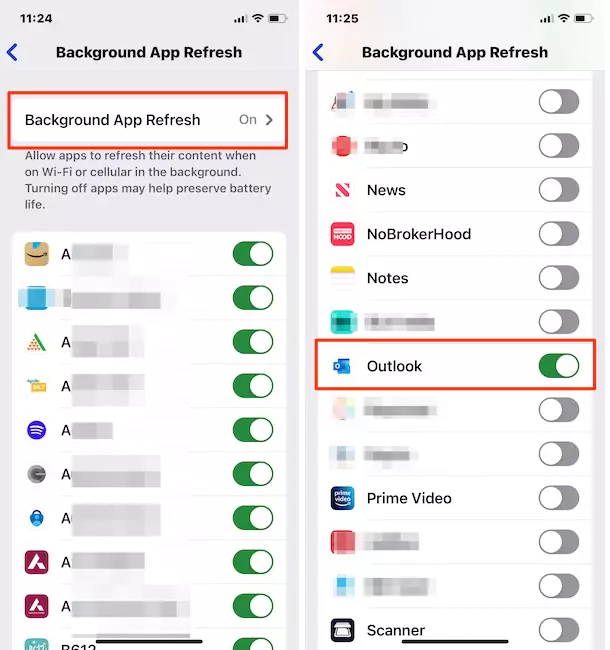
Now, Your Outlook Calendar auto-sync in the background and Always sync with the Ready to see update.
Note: Background app refresh consumes more battery, so Use custom settings and Disable the other apps.
Helpful: How to Fix iPhone’s Battery Drain issues
#6. Reset account for Account in Outlook App
Are you facing a Sync issue on the Outlook iOS or macOS App? Resetting your account within the app will help you fix the problem. Follow the steps below on your Outlook app.
Note: This account reset process doesn’t affect your Outlook account’s data. It clears the old app cache and bug, but the data will re-sync after rebooting the app.
Step 1→ Open the Outlook app > Click on the Home icon in the top right corner.
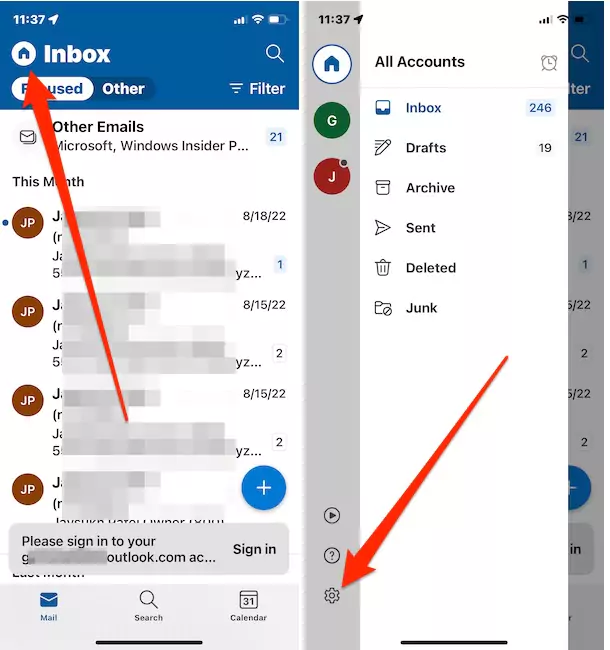
Step 2→ See the Settings option > Select the Mail account with the issue.

Again, scroll to the screen, and tap on the Reset Account Option. Now, App Restart Required. Because an app restart is required to reset this account. Would you like to continue?
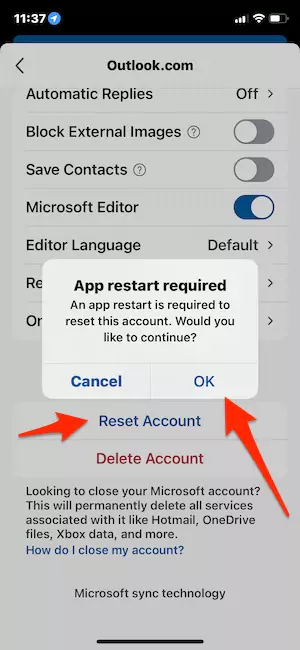
Click on Ok to restart the app and get a fix for the iPhone calendar that is not syncing with Outlook. The same settings are also available on the Android Outlook app.
#7. Restart Your iPhone
Unlike the applications, there are chances that bugs and glitches have made their way to the device. Ultimately, those bugs can be the reason for the iPhone Outlook calendar not syncing; however, restarting the iPhone works wonderfully to get rid of them.
Note: Restarting an iPhone varies depending on the model, so go through the restart steps accordingly.
Restart iPhone X, 11, 12, Or 13
Step 1 → Press any Volume Button and Side Button until the Power-Off Slider highlights on the screen.
Step 2 → Drag the slider to the right, then hold for 30 Seconds until the procedure finishes off.
Step 3 → If your device screen turns black, then turn it back ON by pressing the Right Side Button of the iPhone until the Apple Logo appears.
Restart iPhone SE (2nd Third & 3rd Generation)
Step 1 → Press the Power Button until the Power-Off Window Appear on the screen.
Step 2 → Drag the slider, and then wait for a while(20-30 Seconds). Turn it back on, by pressing the Side Key.
#8. Update iOS
As we all know, outdated versions of iOS don’t work well at all, and those are most probably launched to fix various issues like iPhone Keeps Misbehaving. Well, considering the same reason for the iPhone calendar not synching with Office 365, check if your device consumes the latest version of iOS.
#9. Verify If You Have Logged-In Into Correct Outlook Account
Do you have multiple accounts? If yes, there is a chance that you might have logged in to the wrong accounts. Considering this, we suggest you verify if this is not why iPhone Calendar Does Not Sync All Entries in Outlook. Here are the steps to do so.
Step 1 → Go to Settings > scroll to Calendar > choose Accounts
Step 2 → Now in the list, check for a correct Outlook account. If not, select Add Account.
If this is not the cause of the issue, simply move to the following troubleshooting steps.
#10. Re-sync Outlook With iPhone
Resync refreshes the connection between Outlook and iPhone. So let’s try out this workaround.
- Go to Settings > Calendars > Accounts.
- Select Outlook > Delete Account > Delete My Account From iPhone.
- Hit on the Account present at the top right.
After completion of the procedure, try reestablishing the connection to begin the syncing process.
#11. Verify Outlook Permission
The permission is the most necessary feature that needs to be configured correctly, and if this is not so, it can limit the features of the iPhone to perform efficiently. However, even after logging in with an accurate Outlook account, if the directive permission is not given, it can cause iCloud calendar not to sync with Outlook. Here are the steps to provide permission.
- Go to Settings > Calendar > Accounts.
- Choose Outlook > enable the toggle present to the Calendar.
After verifying if the iPhone still doesn’t sync with Outlook, try turning it off and on. Doing so will display the pop-up saying, “Are You Sure You Want To Continue? All Exchange Calendars Will Be Removed From iPhone.” Tap Delete My Account from iPhone. Then, re-enable it to refresh the feature.
#12. Disable Low Power Mode
The low power mode is a valuable feature to prevent Battery Draining issues on the iPhone, but it can stop pushing frequent updates in this case. So, to experience instant data syncing between Outlook and iPhone, the low power mode should be disabled.
- Head to the Settings
- Tap Battery
- Turn toggle off Low Power Mode.
Here we end up with a simple step to disable Lower Power Mode On iPhone.
#13. Disable Low Data Mode
Unlike the low power mode, the low data mode is sometimes helpful. As of now, if your device reaches the maximum limit, it can pause the syncing between Outlook and iPhone, and as I mentioned earlier, your device should have unrestricted or stable internet for instant syncing. You must disable the Low Data Mode (Settings > Cellular > Cellular Data Options> Disable Low Data Mode) on the iPhone if it’s enabled.
There might be chances that you are using a dual SIM on the phone. As of now, every device after iPhone 11 comes with a dual SIM feature. To turn off Do Not Disturb mode for any of the SIMs, follow the below steps.
- Go to Settings
- Choose Cellular Data or Mobile Data
- Select your numbers and disable Low Data Mode.
#14. Check iPhone’s Default Calendar
Multiple Outlook calendars will be listed in the array with various categories. The calendar with the tick next to it will be featured on the iPhone. Ensure that the desired calendar (Settings > Calendar Default Calendar) is present under such settings.
#15. Manual Sync It Using iTunes
Why my outlook calendar is not syncing with my iPhone calendar> is still the most significant issue because the problem doesn’t go off even after trying the possible workaround, the problem doesn’t go off. Well, let’s cut the cake by manually syncing it using iTunes.
Firstly, connect the iPhone to the PC using the cable, and then navigate to iTunes on your PC.
- Choose Devices > iPhone.
- Select Info > Calendars > Sync Calendars From.
- Tap Outlook > All Calendars > Apply.
Conclusion
In the end, there will be no such issue with Outlook not syncing only if you have gone through a complete guide. However, if it doesn’t go off, try contacting the Outlook Support Team.
FAQs→
To get Outlook sync with an iPhone, you manually use iTunes, as mentioned above in this article.
Ensure you have signed in to iCloud with the same Apple ID on your devices. At the same time, verify that you have enabled Calendars, Contacts, and Reminders in the iCloud settings. For more convenience, confirm the date and time settings are perfectly configured.
First, try to check the internet connection, then restart the phone. If, in both cases, the issue doesn’t go off, go through the above-mentioned complete guide to fix the Outlook not syncing with iPhone.





