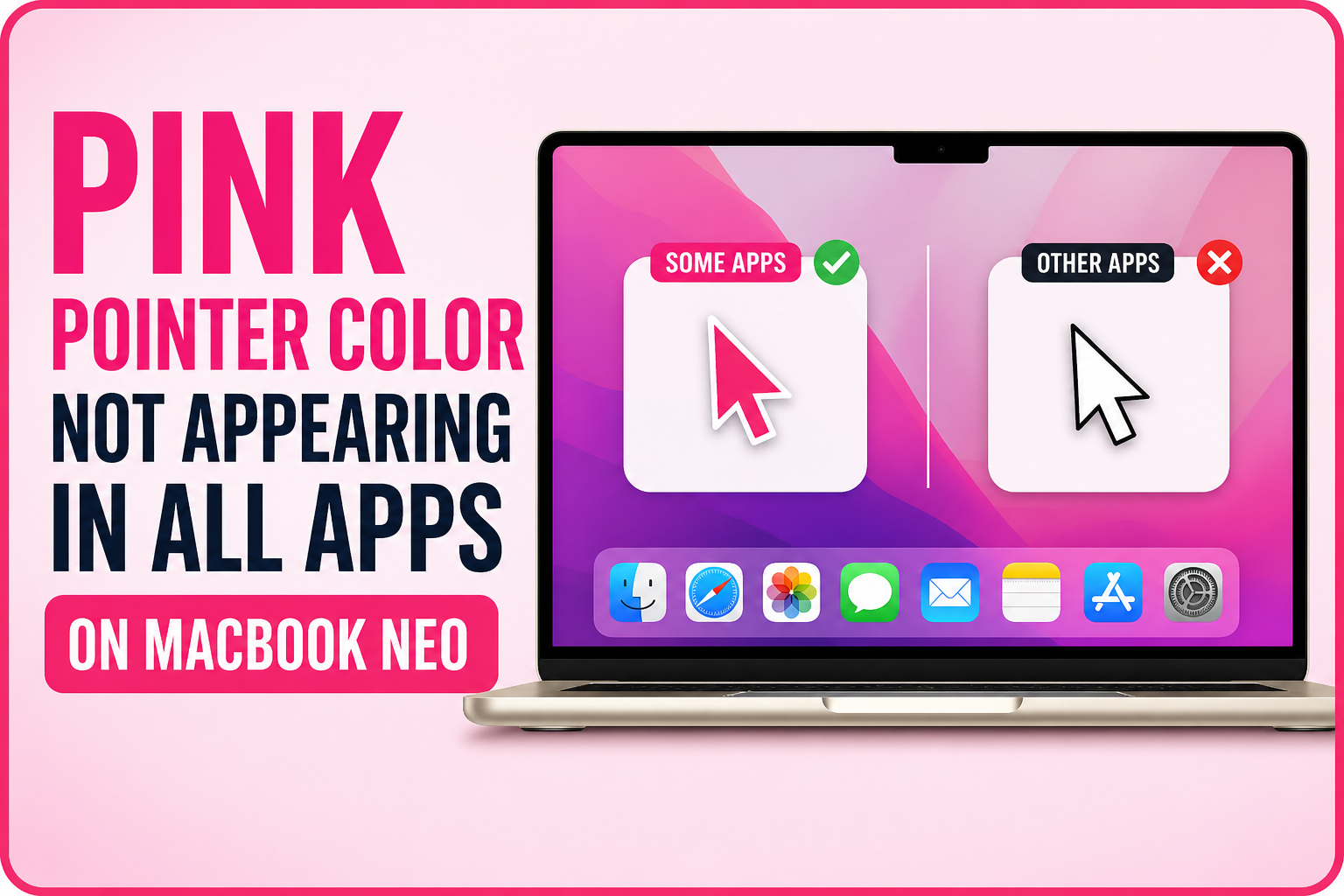
If you’ve customized your pointer to a pink color on your MacBook Neo but notice it doesn’t show up in every app, you’re not alone. This usually isn’t a hardware problem—it’s more about how macOS and certain apps handle cursor rendering.
Why this happens – Pink Pointer Color Not Appearing in All Apps on MacBook Neo
On macOS, the pointer color you set in Accessibility settings works system-wide, but not every app fully respects it. Some apps—especially older ones or certain third-party tools—use their own cursor style instead of the system default. This means your pink pointer might revert to the standard white or black in those apps.
It can also happen in apps that use custom graphics engines, like design tools, games, or remote desktop apps. In these cases, the app overrides macOS settings entirely.
Simple fixes to try
1. Reapply the pointer color
Go to System Settings > Accessibility > Display > Pointer and adjust the color again. Sometimes toggling it resets the behavior across apps.
2. Restart your Mac
It sounds basic, but a restart often fixes small UI glitches where settings don’t apply consistently.
3. Check app-specific settings
Some apps (like browsers or design software) may have their own cursor settings. Look inside the app’s preferences to see if it overrides the system pointer.
4. Update macOS and apps
Make sure your MacBook Neo is running the latest macOS version. Apple occasionally fixes these inconsistencies in updates. Also update the apps where the issue happens.
5. Test in Safe Mode
Booting into Safe Mode can help you check if a third-party extension or app is causing the issue. If the pink pointer works there, something you installed might be interfering.
When it’s normal behavior
If the pink pointer works in most places but not in a few apps, that’s usually expected. Some apps are simply not designed to follow system-wide pointer customization.
Final thoughts
The pink pointer feature is great for visibility and personalization, but it isn’t perfectly consistent across all apps yet. In most cases, a quick reset, update, or restart solves it—but for certain apps, it’s just a limitation of how they’re built.
If the issue is happening everywhere, then it’s worth digging deeper. Otherwise, it’s likely just an app compatibility quirk rather than a serious problem.