

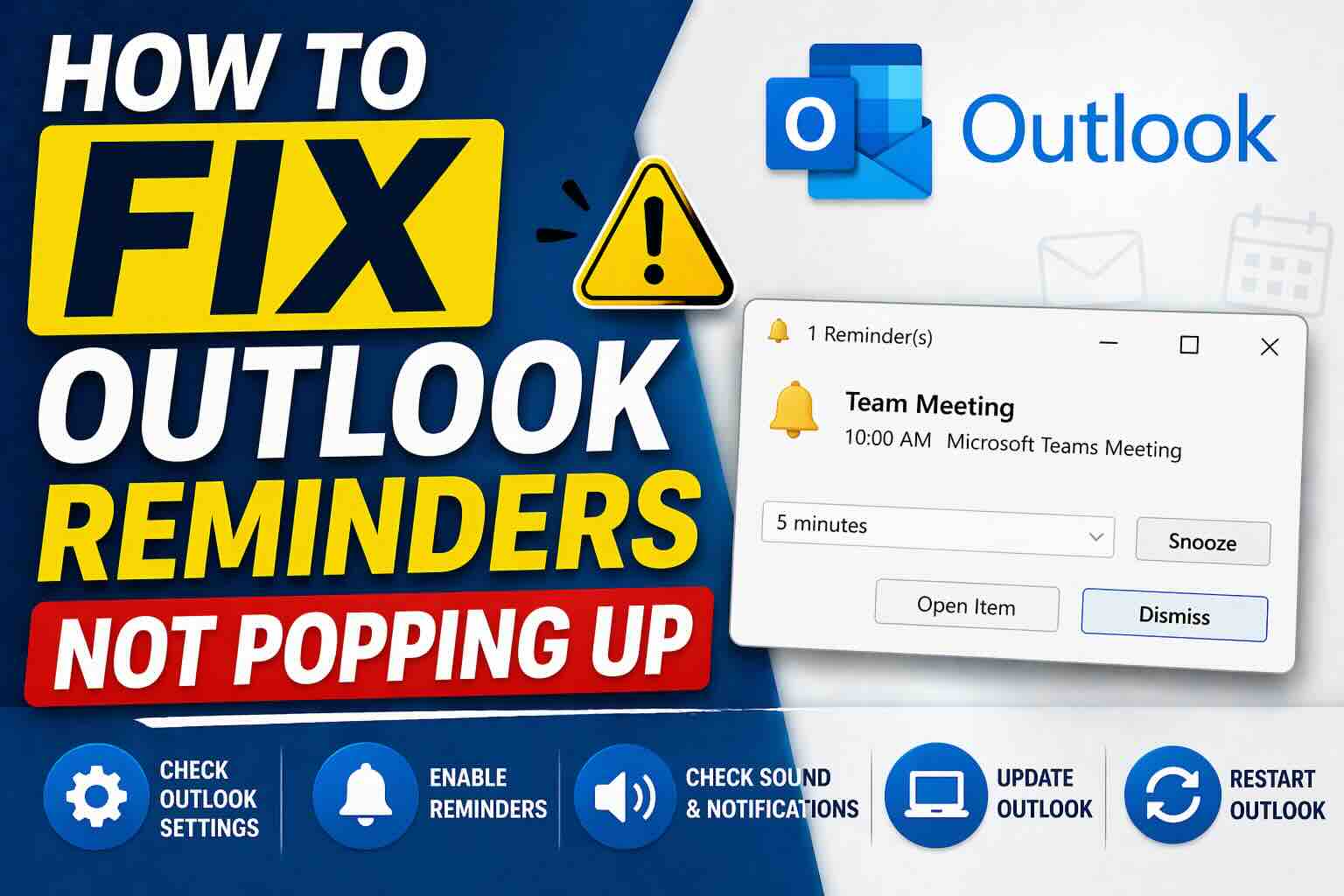
If your Outlook reminders are not popping up, you might miss important meetings, tasks, or deadlines. This issue is more common than you think and is usually caused by disabled settings, Windows notification restrictions, or minor system glitches.
In this guide, we’ll walk through easy to advanced fixes, ensuring you can restore reminders quickly and reliably.
Why Outlook Reminders Are Not Showing
Before jumping into solutions, here are the most common reasons:
- Reminders are disabled in Outlook settings
- Windows notifications are turned off
- Focus Assist / Do Not Disturb is enabled
- Corrupted reminders folder
- Add-ins interfering with Outlook
- Reminder window stuck off-screen
1. Enable Reminders in Outlook Settings (Fix Rate: 90%)
This is the most common cause.
For Classic Outlook (2010–2021 / Microsoft 365):
- Go to File
- Click Options
- Select Advanced
- Under Reminders, check Show reminders
For New Outlook (Windows):
- Click Settings (⚙️ icon)
- Go to General → Notifications
- Expand Calendar
- Set notification style to Reminder
📌 If this is off, Outlook won’t show any pop-ups.
2. Check Windows Notification Settings (Fix Rate: 85%)
Even if Outlook is set correctly, Windows can block alerts.
Enable Notifications:
- Go to Start → Settings → System → Notifications
- Turn ON Notifications
- Scroll down and ensure Outlook is allowed
Turn Off Focus / Do Not Disturb:
- Disable Focus Assist / Do Not Disturb
⚠️ These modes silence all pop-ups, including reminders.
3. Reset the Reminders Folder (Fix Rate: 80%)
If reminders still don’t appear, the internal system may be corrupted.
Steps:
- Close Outlook completely
- Press Windows + R
- Type: outlook.exe /cleanreminders
- Press Enter
Alternative Fix:
If the above doesn’t work:
outlook.exe /resetfolders
This restores missing or broken folders.
4. Disable Add-ins (Fix Rate: 70%)
Third-party add-ins can interfere with reminders.
Steps:
- Go to File → Options → Add-ins
- Click Go (next to COM Add-ins)
- Uncheck all add-ins
- Restart Outlook
📌 Then re-enable one by one to find the culprit.
5. Check Reminder Window Position (Fix Rate: 65%)
Sometimes the reminder is open but hidden off-screen.
Fix:
- Hover over Outlook icon in taskbar
- Look for reminder preview
- Right-click → Select Move
- Use arrow keys to bring it back
6. Repair Microsoft Office (Fix Rate: 85%)
If nothing works, repair Outlook itself.
Steps:
- Go to Control Panel → Programs & Features
- Find Microsoft Office
- Click Change
- Select Quick Repair
This fixes most deep system issues.
Best Fix Order (Recommended)
For fastest results, follow this order:
- Enable reminders in Outlook
- Check Windows notifications
- Turn off Focus Assist
- Reset reminders folder
- Disable add-ins
- Repair Office
Pro Tips
- Keep Outlook updated
- Avoid too many add-ins
- Restart Outlook occasionally
- Use consistent notification settings
FAQ
Check notification sound settings in both Outlook and Windows.
No, Outlook must be running for reminders to appear.
System lag, background apps, or sync delays can cause this.
Conclusion
Outlook reminders not popping up is usually a simple settings issue or minor glitch. In most cases, enabling reminders and checking Windows notifications will fix the problem instantly. If not, advanced steps like resetting reminders or repairing Office will resolve it completely.






