
Follow the instructions for how to activate dark mode on Facebook messenger in iOS along with the latest Update Process and Very simple but Facebook tried unique ways to get Dark mode options on your app settings. For that, you need to share or discuss the Dark mode in any FB chat conversation. After that, you will receive or turn on Dark Mode on Facebook Messenger.
Once you activate this Dark mode settings on your account, you can quickly disable and enable dark mode from account settings. Now there are two ways first is turn toggle of Dark mode in FB messenger App, and second turn System-wide dark mode on iPhone and later running iPhones. [Still, system-wide dark mode is not supported by FB Messenger app, so you will have to wait for a future Fb Messenger Update]
Simple and Easy Way to Enable Dark Mode on FB Messenger iOS app on iPhone and iPad
Open the App Store app on your iPhone and Search “Facebook Messenger app” in the app store search box.
If you are not getting any updates, use these ways Check Installed app version on your iPhone. This feature is included in the FB messenger app Version.
Activate Dark Mode Settings on your Messenger App
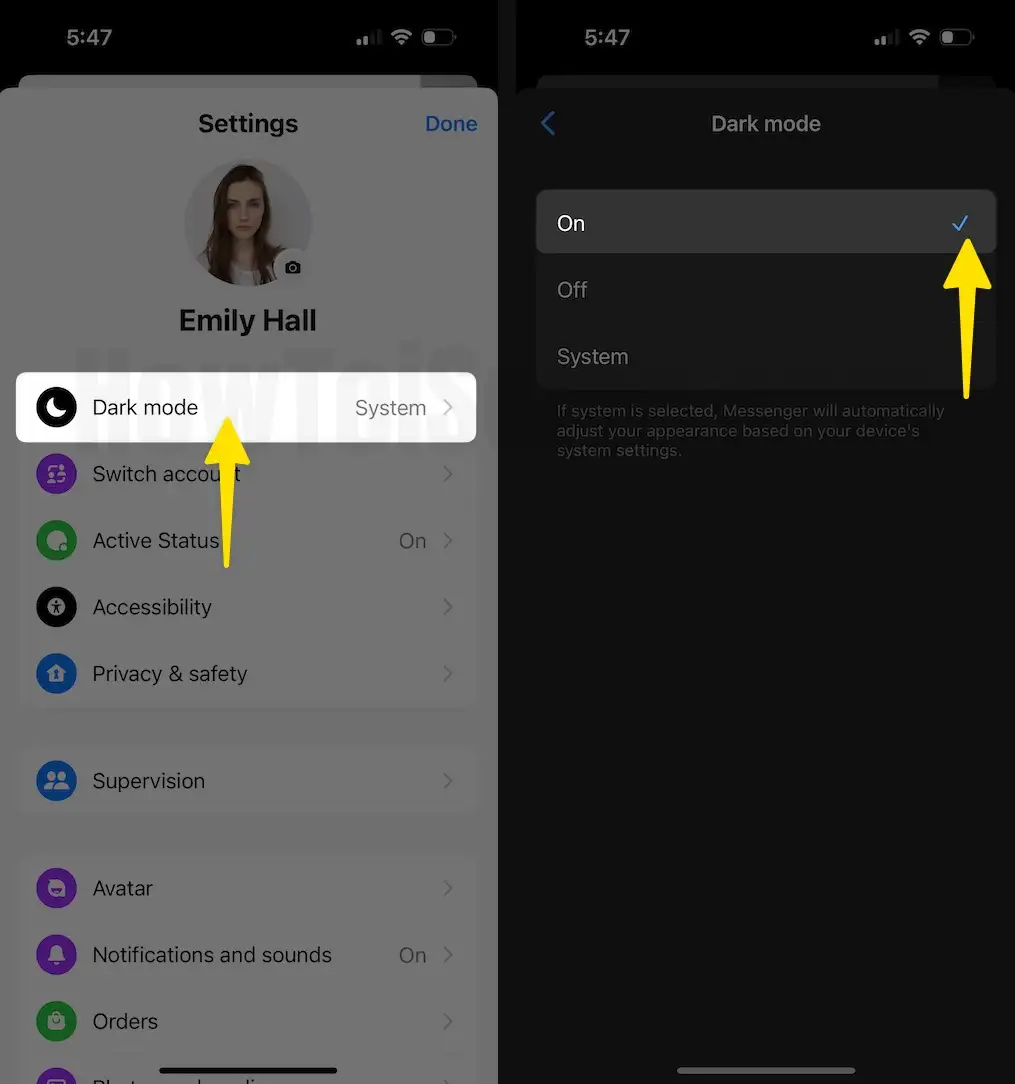
Step 1: Open the Messenger app on your iPhone. Next, select the Three Lines menu (Hamburger menu) from the Top left corner of the screen, Tap on the Profile icon on your iPhone.

2. Find and Tap on the Dark mode option, Select the option from On, Off, and Use System Setting (Use your device’s system appearance setting for light mode, dark mode or Automatic mode).
3. Go back to save (Move Back Arrow icon) and Apply Dark mode on the FaceBook Messenger app on your iPhone.
That’s it.
Won’t Turn on New Dark Mode Settings on iPhone: Troubleshooting
Step 1: First, Update your Messenger App from the iPhone App Store, Find the app name, and Tap on Update.
Step 2: Force Close app, and Re-Launch Messenger app.

Wait for a Few Minutes or wait for a New Update to come to your iOS device.
That’s it.
Disable Dark mode on Facebook Messenger on iPhone
In the previous Messenger app version on iOS, follow the steps below.
Step 1: Open the Messenger app and choose the Three Lines icon (Hamburger menu), then Select Settings (Gear icon) on your iPhone.
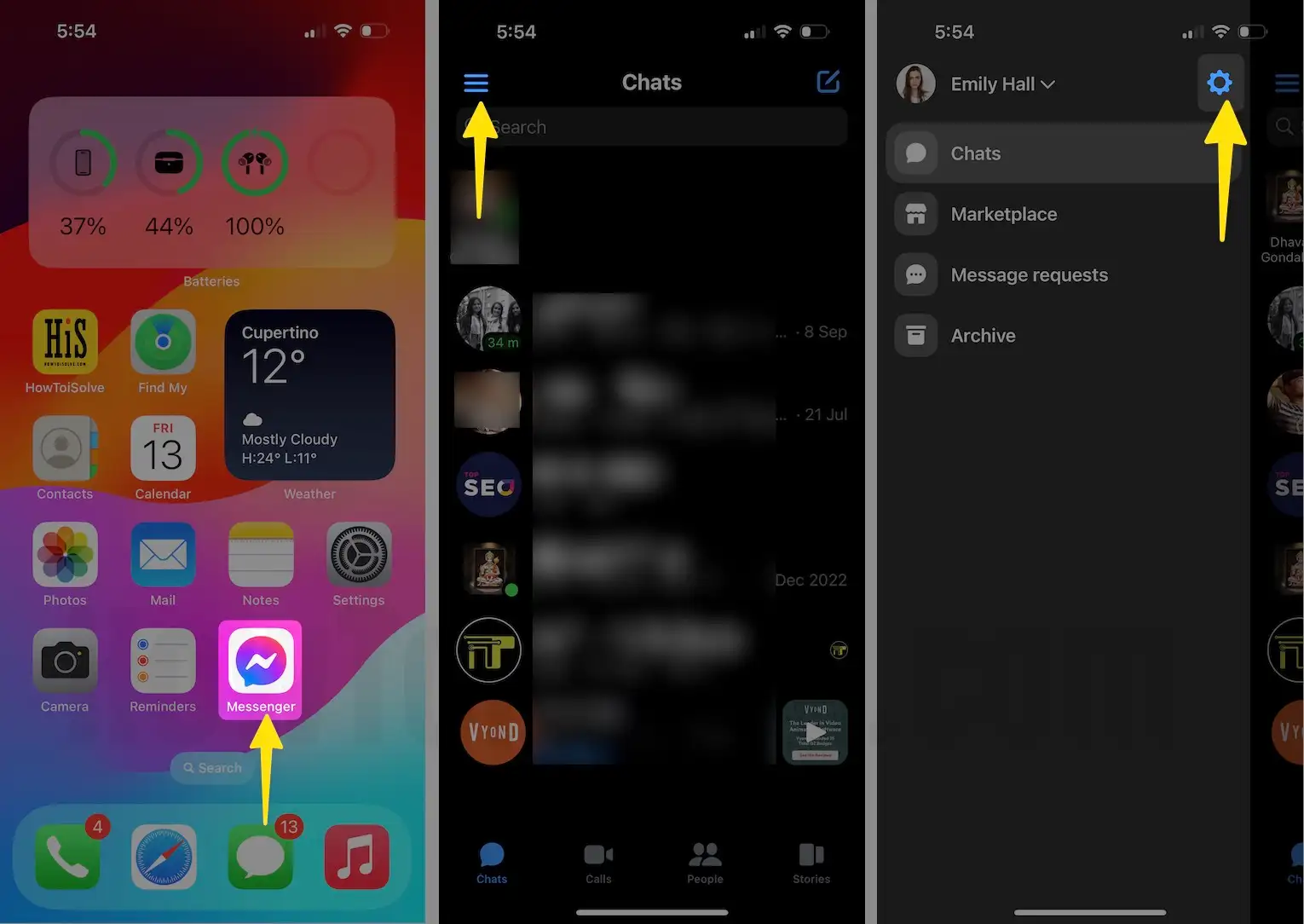
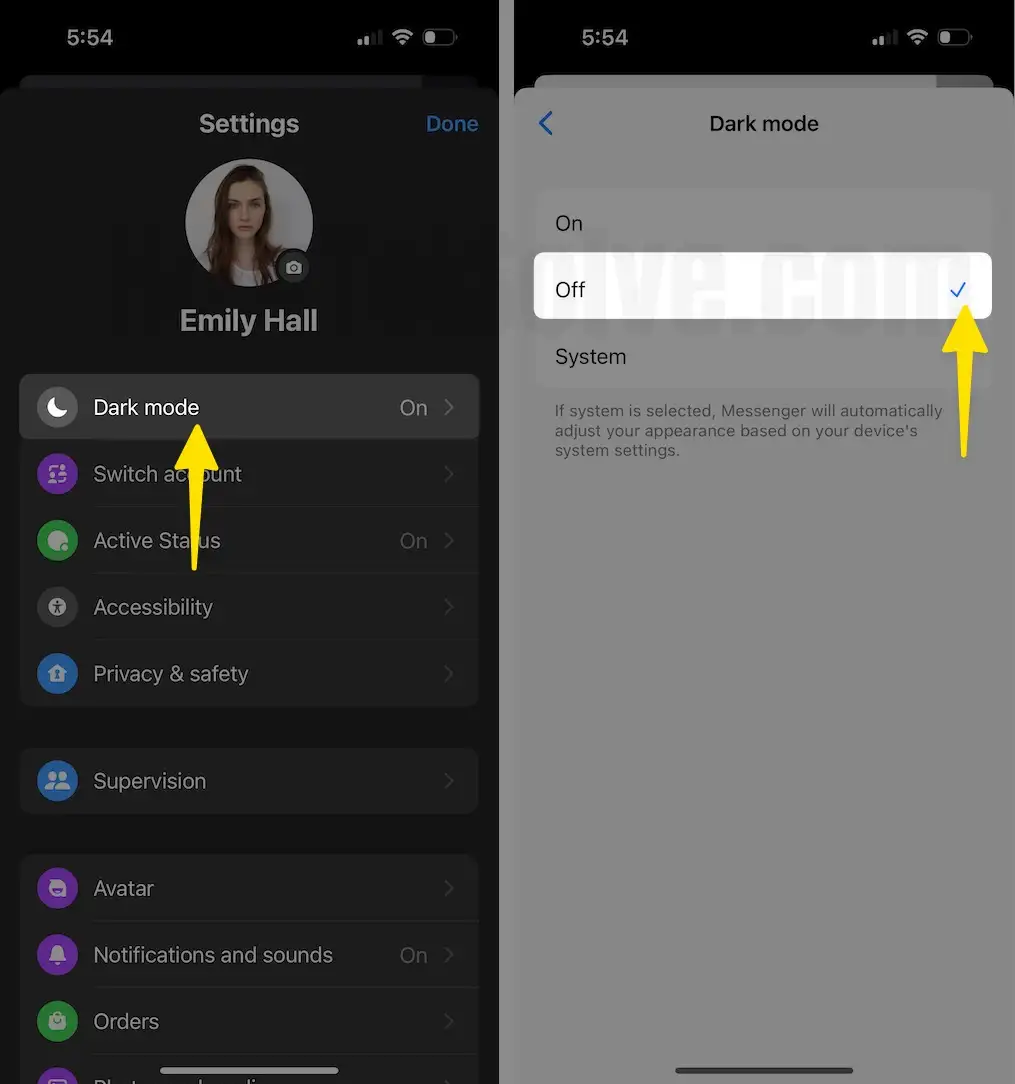
Step 2: Tap on the Dark mode option and toggle to disable to turn off the dark screen or Dark view.
Hope you enjoyed my tips. Don’t miss out on subscribing to my YouTube Channel and following me on Facebook, Twitter, and Instagram to get more updates from here.
This option is not limited to the Selected iPhone models, You can Enable Dark mode on the iPhone.