Having said that, Sharing is Caring! Following the same tradition, we often share our Netflix account with friends, colleagues, and cousins, with good intentions, but in return, what if they keep using your Netflix profile shamelessly? No Offense, but this behavior is not acceptable. Thanks to Netflix, you can remotely sign out of all the devices right from your profile. In addition, it’s pretty great to buy a four-screen plan of Netflix, as all of your family members can watch Netflix titles individually without interfering in others’ profiles.
But if you regret sharing a Netflix account and hesitating to tell someone to stop using it, a quick solution to that problem is mentioned in this tutorial, which lets you kick someone off Netflix. A word of advice, changing Netflix password after signing out is recommended as after you kick off from your Netflix profile, that person won’t be able to sign in again.
How to Kick Someone from Netflix Account
Way 1: If you follow this, one can Sign back using the same password again
By signing out of Netflix, you can revoke the Netflix profile’s access from all the devices using your Account.
1. Go to the Netflix on your PC.
2. Log in to Netflix; ignore if you already did that.
3. Move the cursor towards the Profile icon at the top-right corner.
4. When the menu expands, click on Account.

5. In the Settings section, select Sign Out of All Devices.
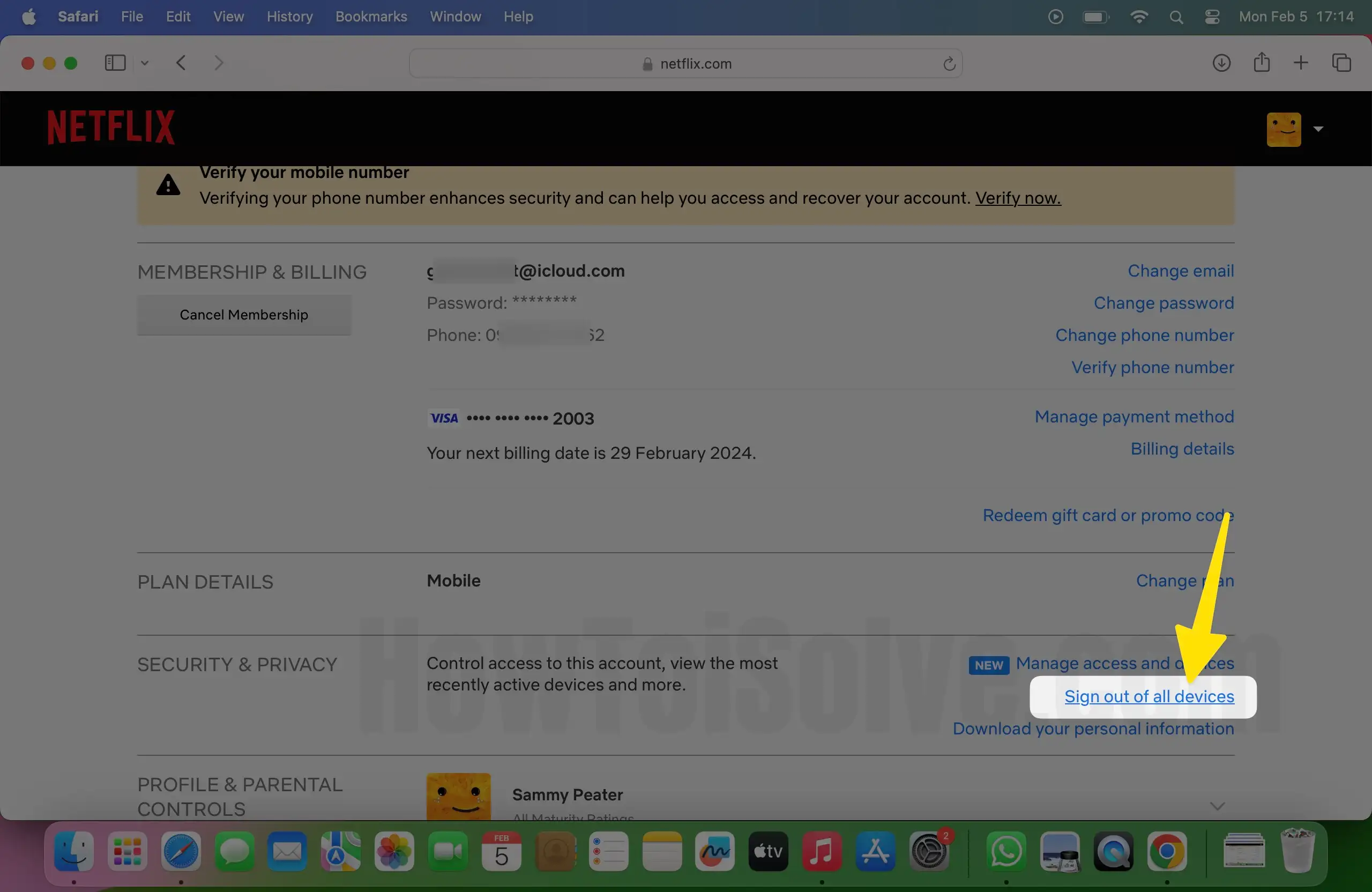
6. The next screen will ask you to confirm Sign Out of All Devices; click Sign Out.

That All! You’ve successfully signed out of all the devices. Unfortunately, though, it’ll take up to 8 hours to sign out of all devices.
Way 2: Change Netflix Password
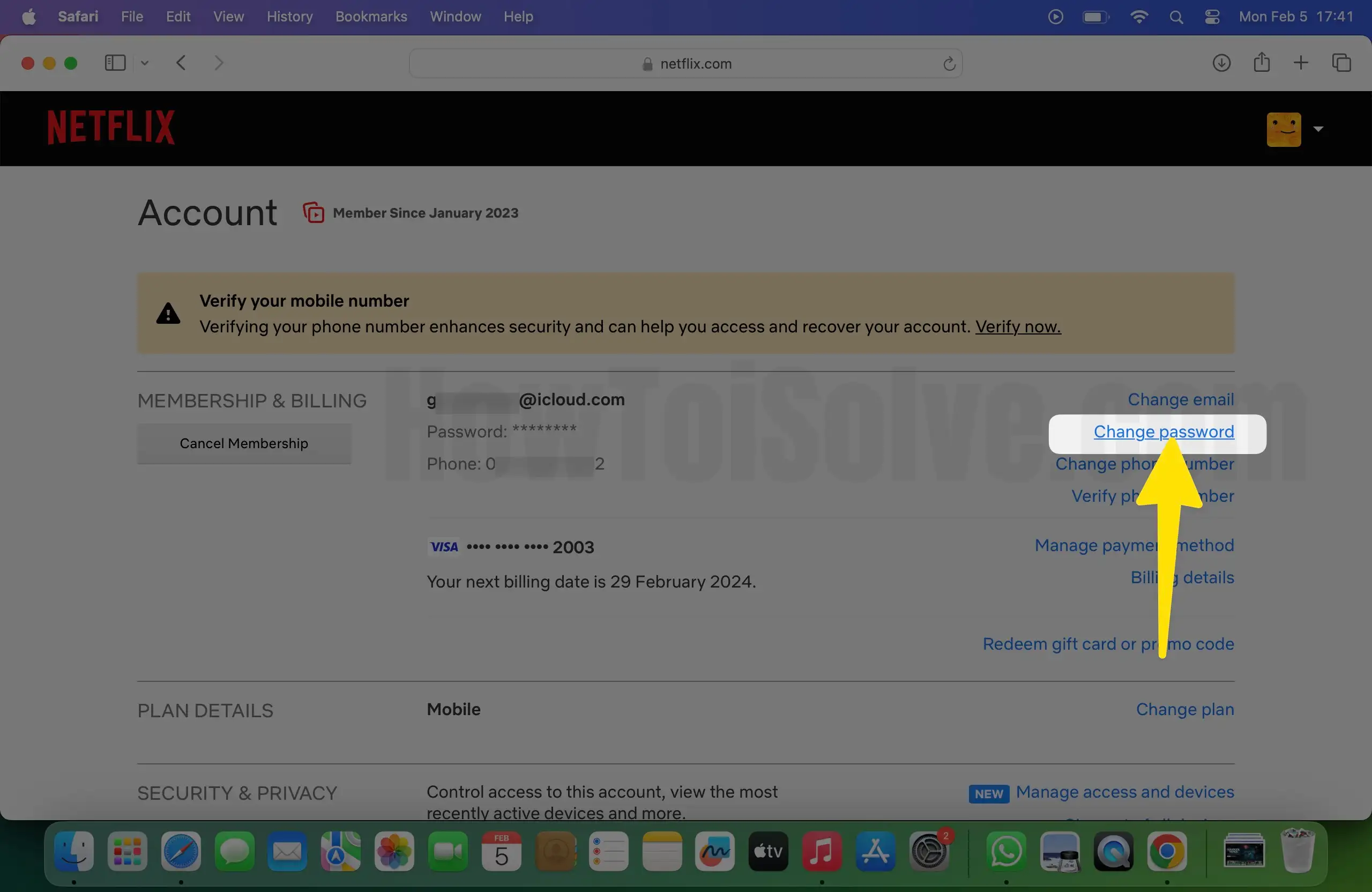
Follow the below steps to change the Netflix password. First, you will be asked to enter the current password and new password. After changing the password, all the devices where you’ve logged in to Netflix will be logged out, and you’ve to re-enter the password.
- Login to the Netflix
- Again go to the Account; to do so, hover the cursor on the profile icon.
- Click on the Change password, in the Membership and Billing category.