Locked out of your Windows 11 PC because you forgot your password or PIN? Don’t worry—you don’t need to log in to factory reset your computer. Whether you’re preparing to sell your PC, fixing a software problem, or simply can’t access your account, Windows 11 includes built-in recovery tools that let you reset your device without signing in.
In this guide, you’ll learn three different methods to factory reset Windows 11 from the sign-in screen.
Before You Reset Windows 11
A factory reset can remove all your personal files, installed applications, and settings. So, keep these points in mind: Using the Windows Recovery Environment (WinRE), you can restore your PC, choose whether to keep your personal files or remove everything, connect your computer to a power source, back up important files, and choose whether to keep or remove everything.
Method 1: Factory Reset from Sign-in Screen
This method is easy if you can access the Windows login screen.
Step 1: Open Recovery Options
1. Turn on your Windows PC and stay on the sign-in screen.
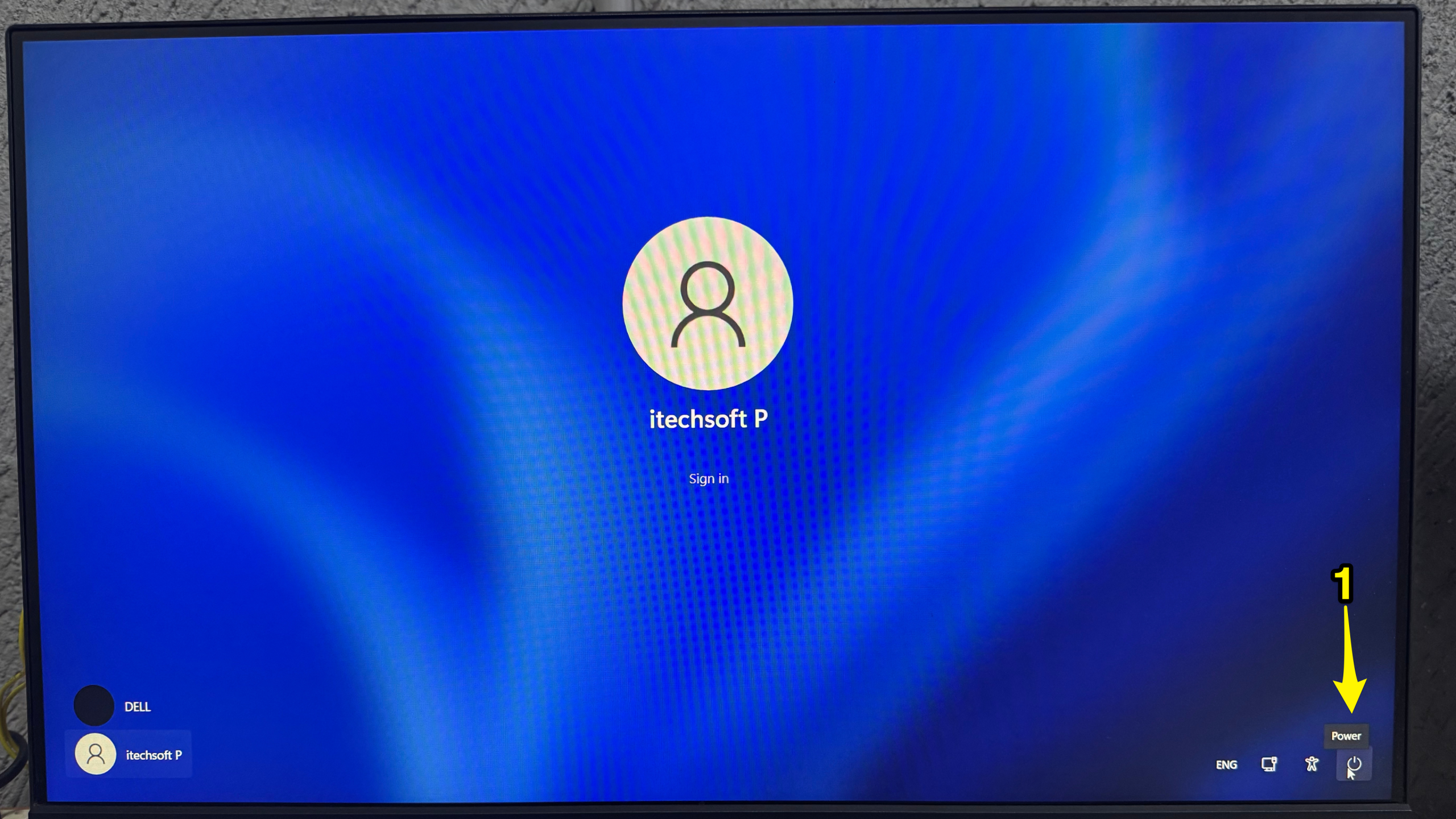
2. Now, click the power icon in the bottom right corner and press & hold the Shift key.
3. While holding the Shift key, click on the Restart option.
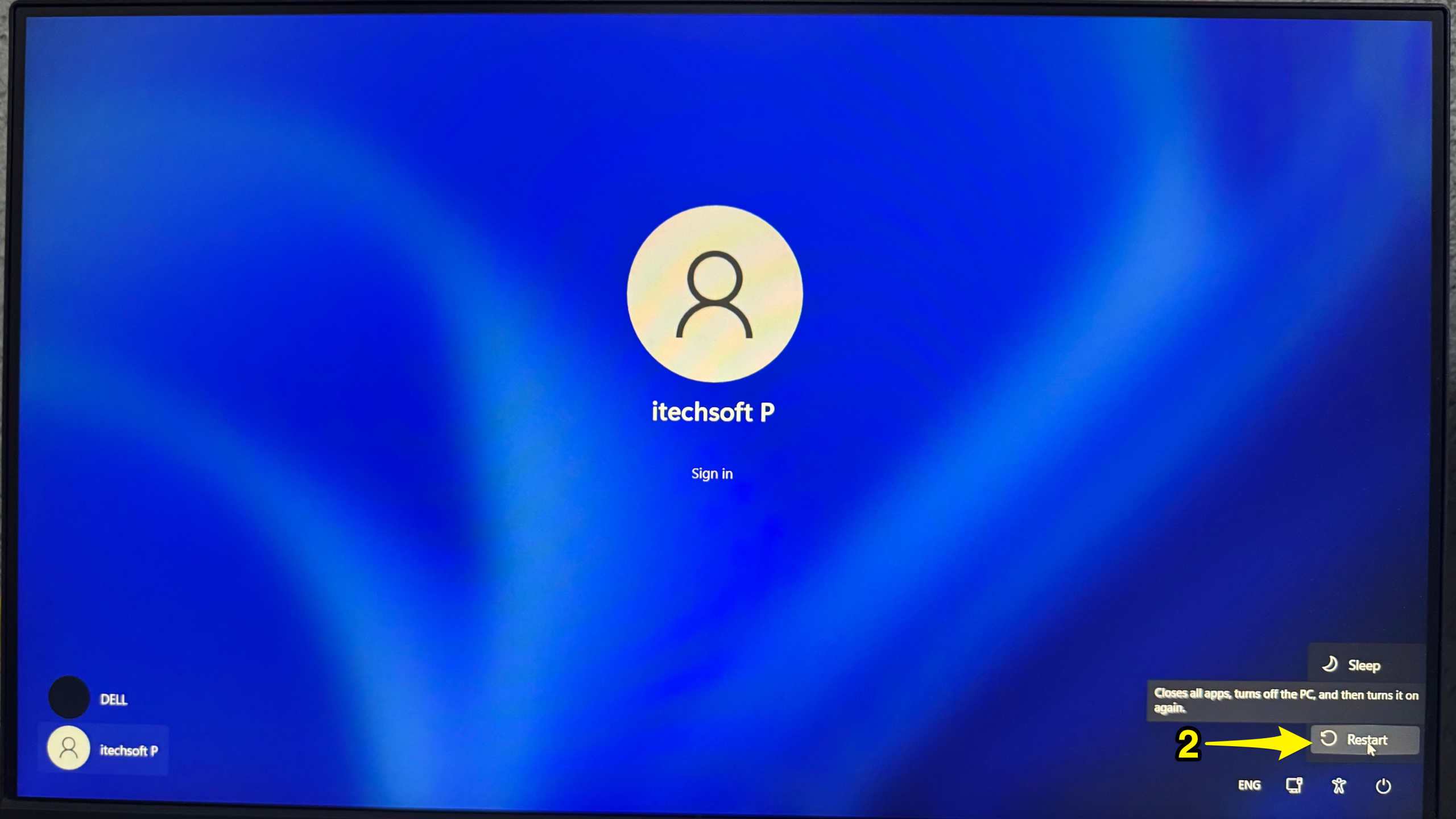
Don’t release the shift key until you see the recovery screen. Your PC will open the Windows Recovery Environment.
Step 2: Open Reset This PC
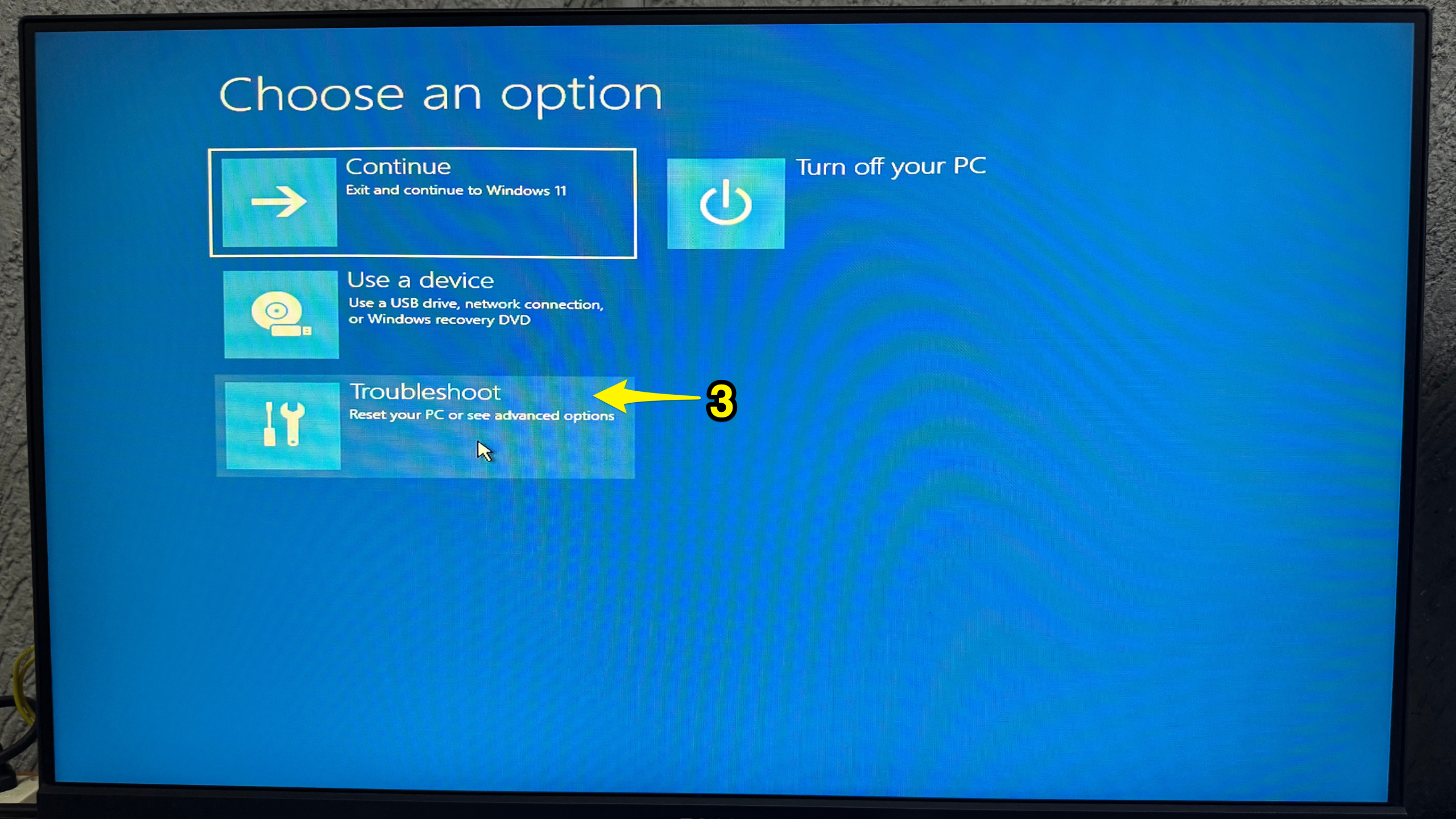
4. On the blue recovery screen, select Troubleshoot.
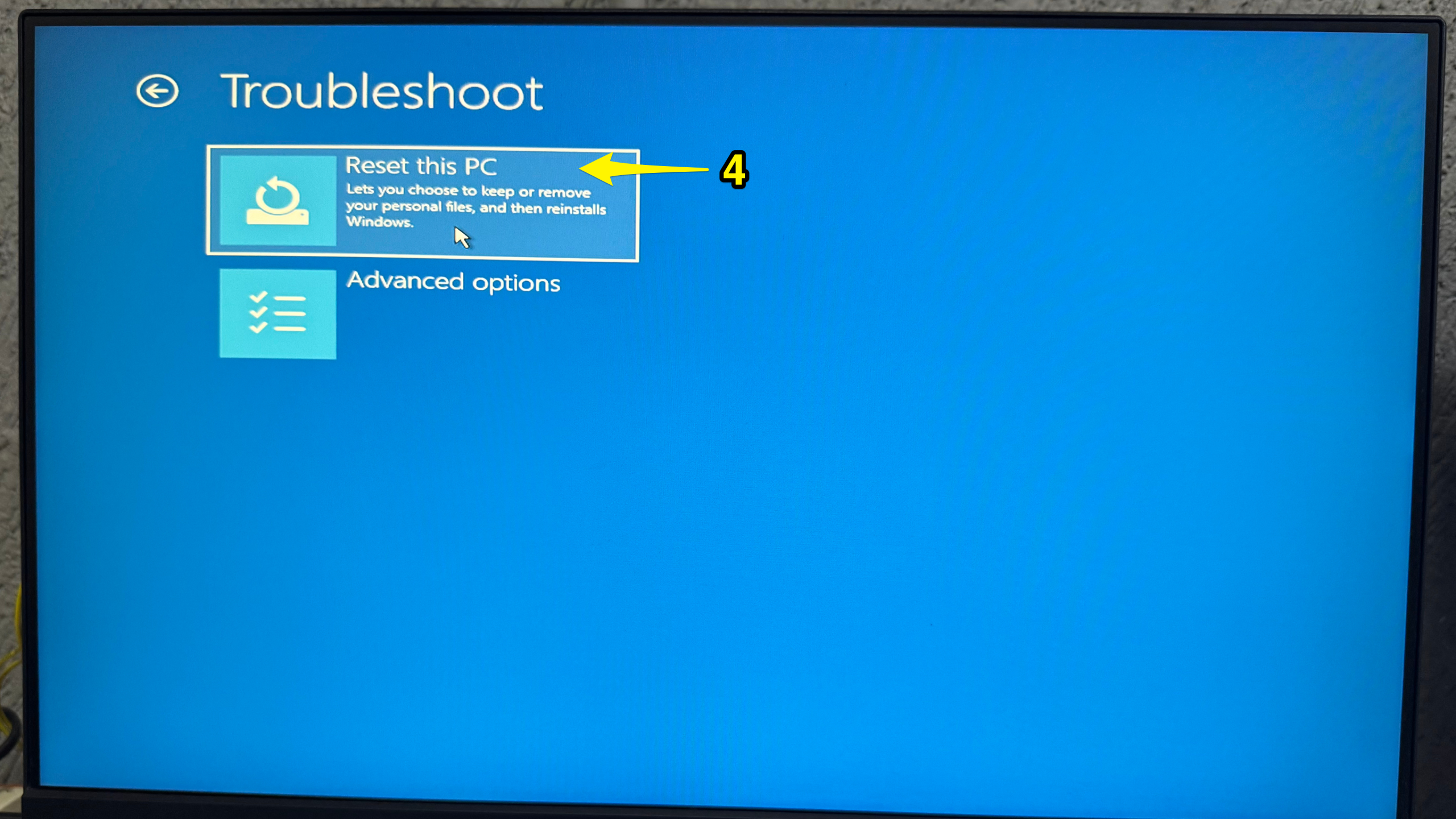
5. Then select Reset this PC.
Step 3: Choose a Reset option.
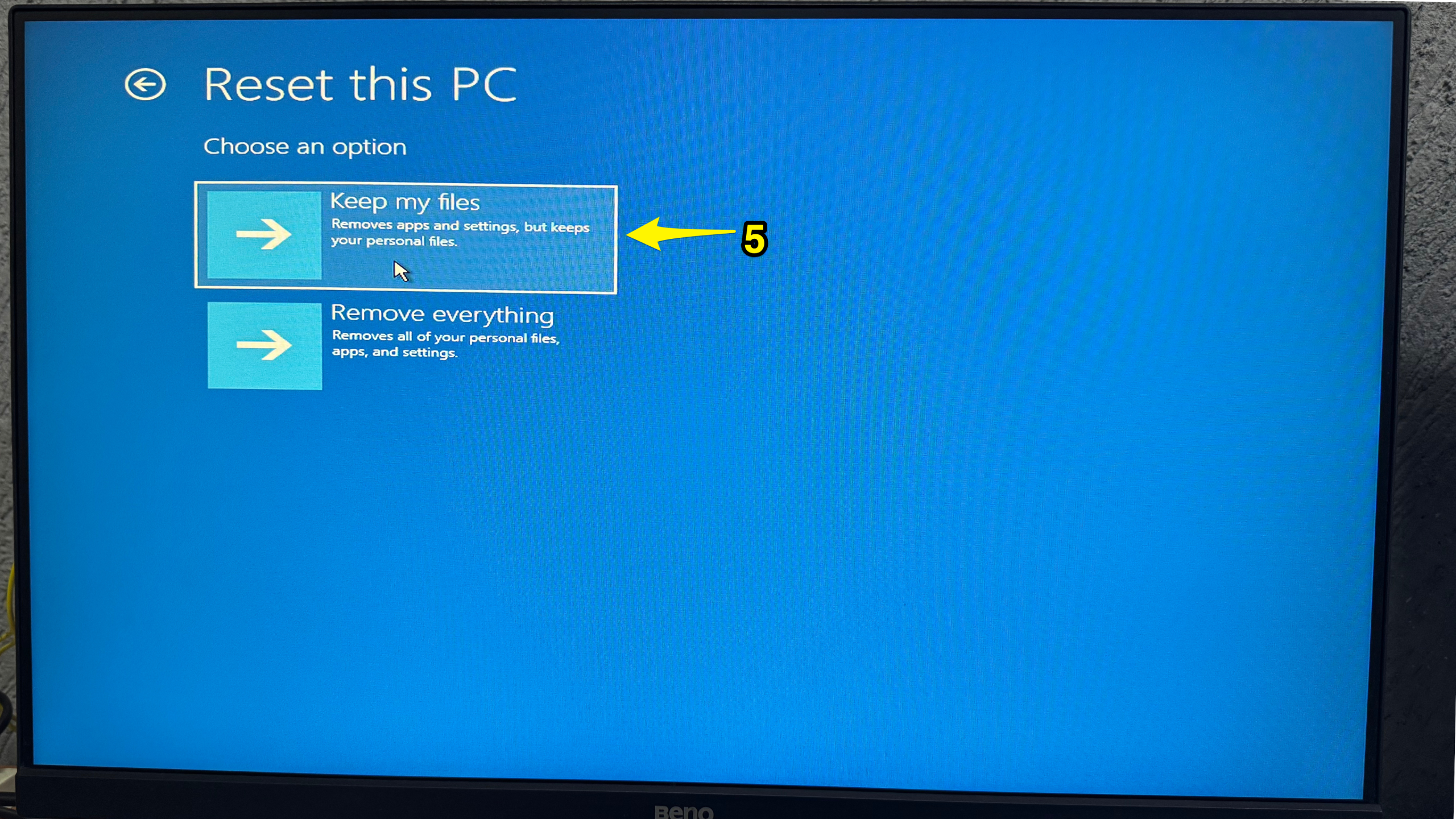
Two options appear on your PC screen.
Keep my files: It keeps your personal files and removes installed apps, programs, and settings.
Remove everything: It deletes all files, installed apps, and settings. If you’re planning to sell or give away your computer, this option is ideal.
5. To reset your PC without deleting your personal files, select the “Keep my files” option.
Step 4: Choose Reinstallation Method
6. You may be asked to select the reinstallation method. Select one of them.
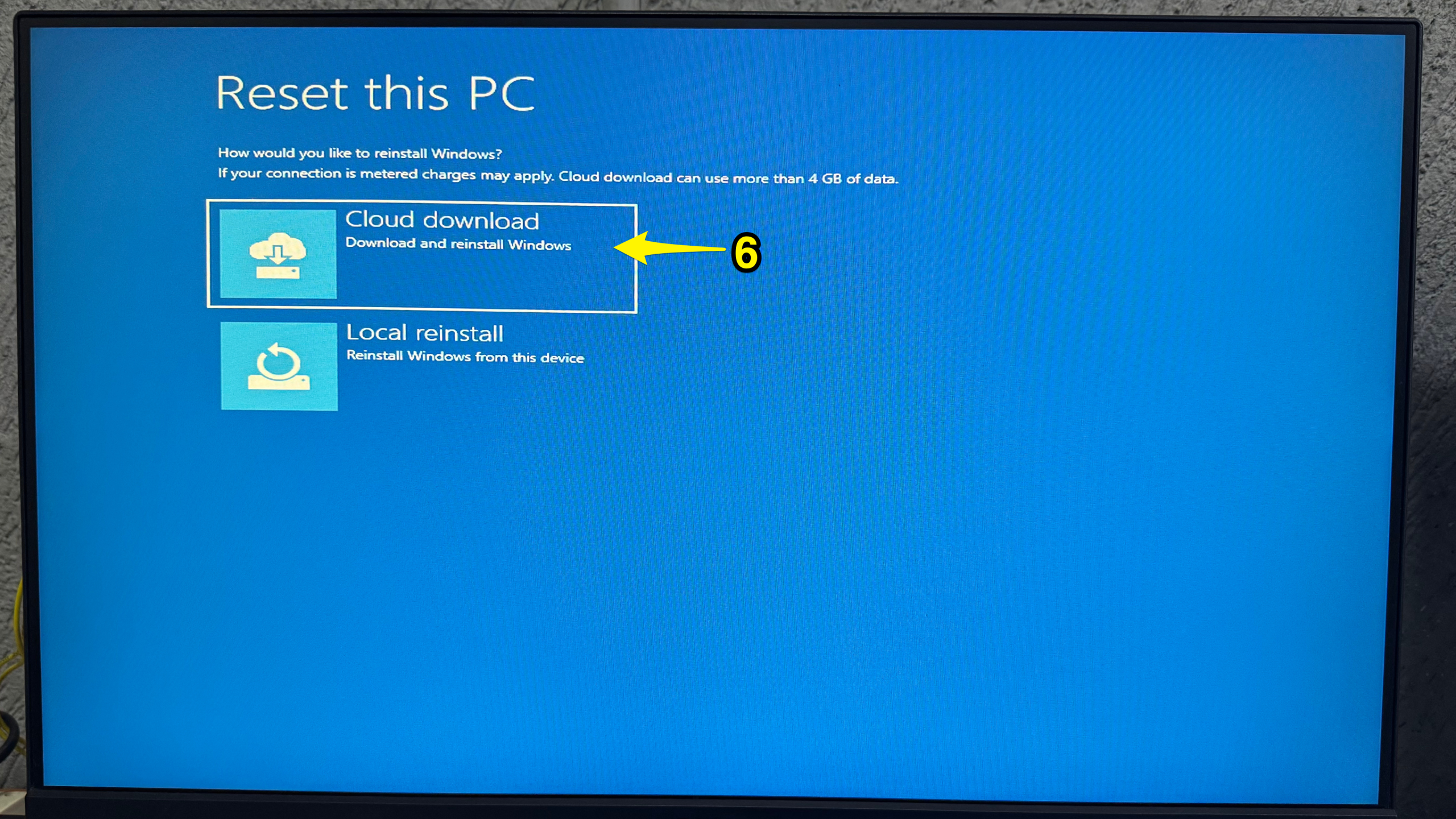
Cloud Download: If you select this option, your device downloads the latest version of Windows from Microsoft.
Local Reinstall: Uses files already stored on your PC.
Step 5: Start the Reset
7. Check & review the settings. Then, confirm the reset button.
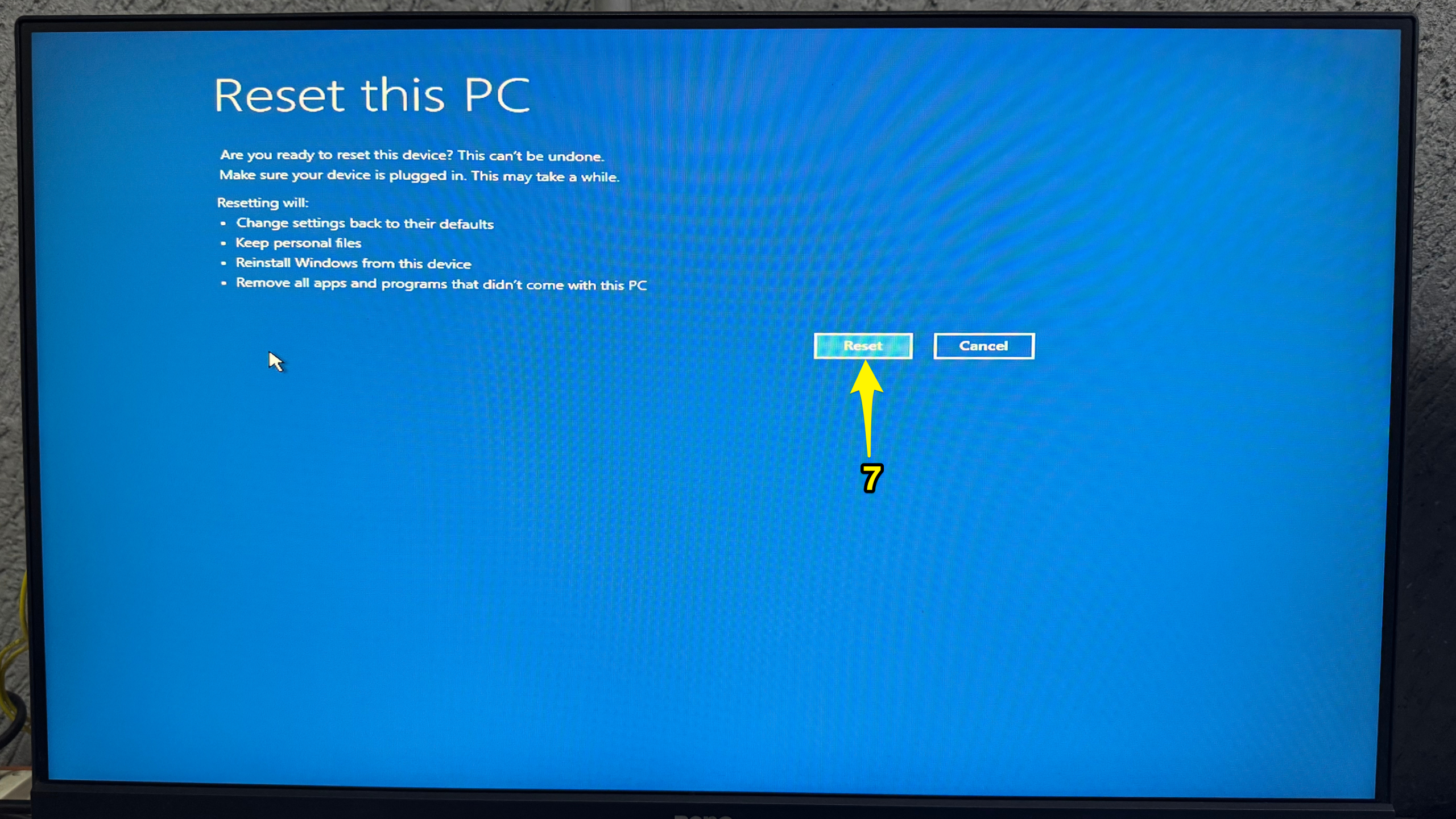
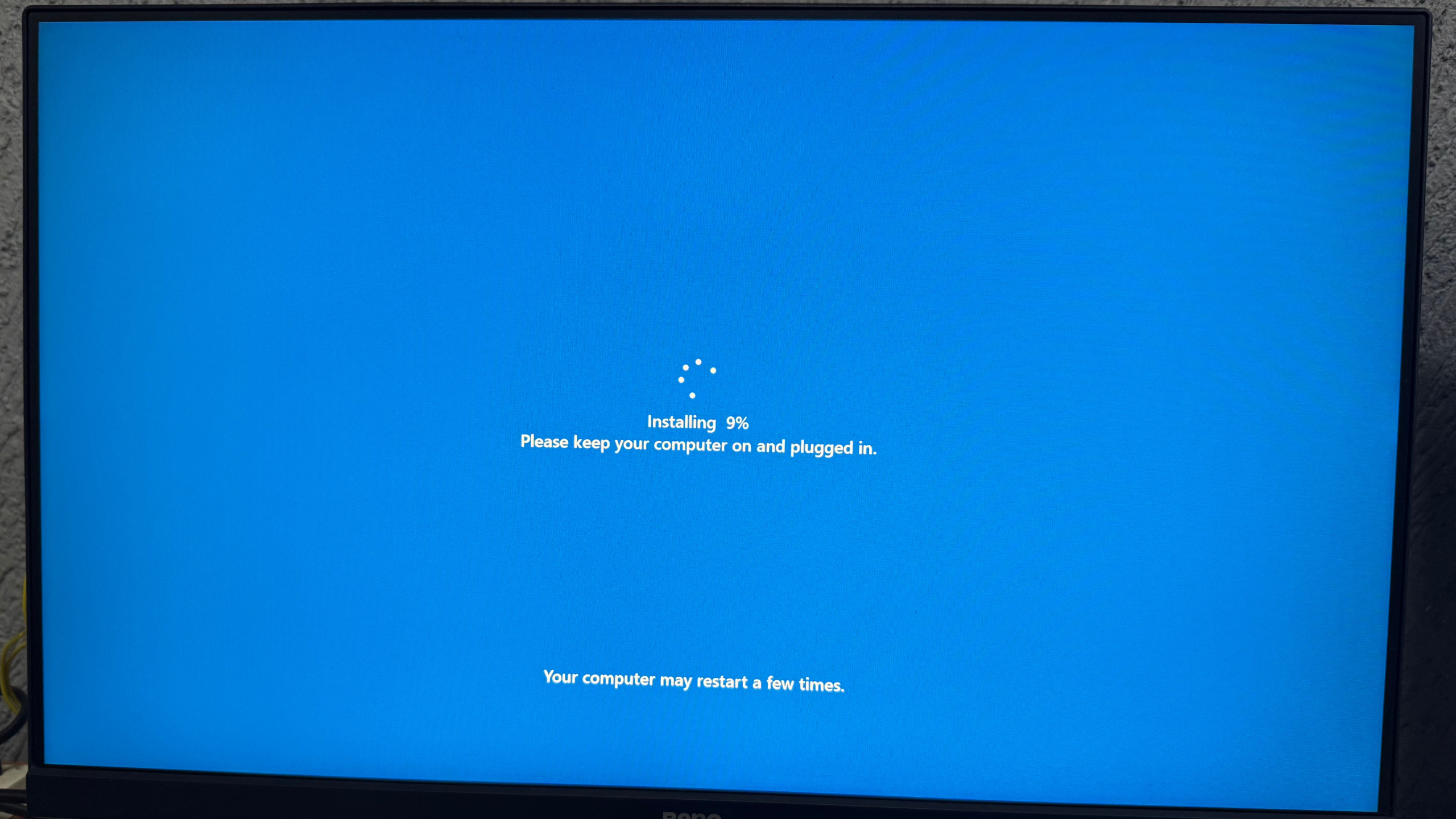
8. Wait for Windows 11 to reinstall.
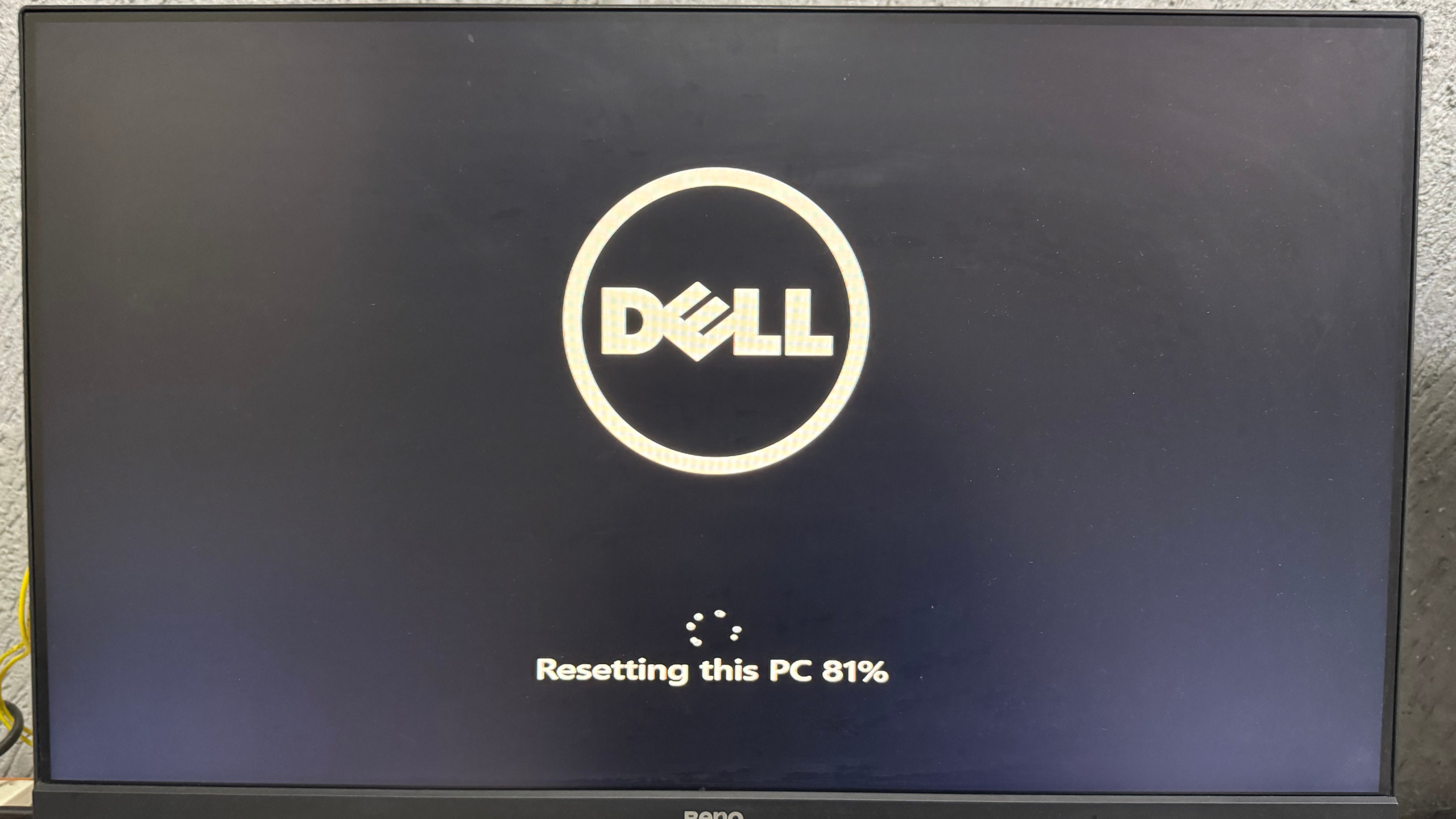
The process may take up to 30 minutes or a few hours, depending on your computer and internet speed.
Method 2: Use Automatic Repair Mode
If you don’t reach the login screen on your computer, you can manually access the recovery mode.
Step 1: Turn on your Windows computer.
Step 2: When you see the Windows logo, press and hold the power button to force a shutdown.
Step 3: Repeat this process three times.
Step 4: Your Windows will open the Automatic Repair screen.
Step 5: Select the advanced options.
Step 6: Then, click the Troubleshoot option.
Step 7. Choose Reset this PC.
Follow the on-screen instructions.
Method 3: Reset Windows 11 using a Bootable USB
If recovery mode doesn’t work, try resetting Windows using a bootable USB. For this process, you’ll need another working PC, a USB flash drive with at least 8 GB of storage, and an internet connection.
Step 1: Create a Bootable USB
1. Connect the USB drive to your computer. Then, launch a browser and go to Microsoft’s Windows Download page. Then, download the Media Creation Tool.
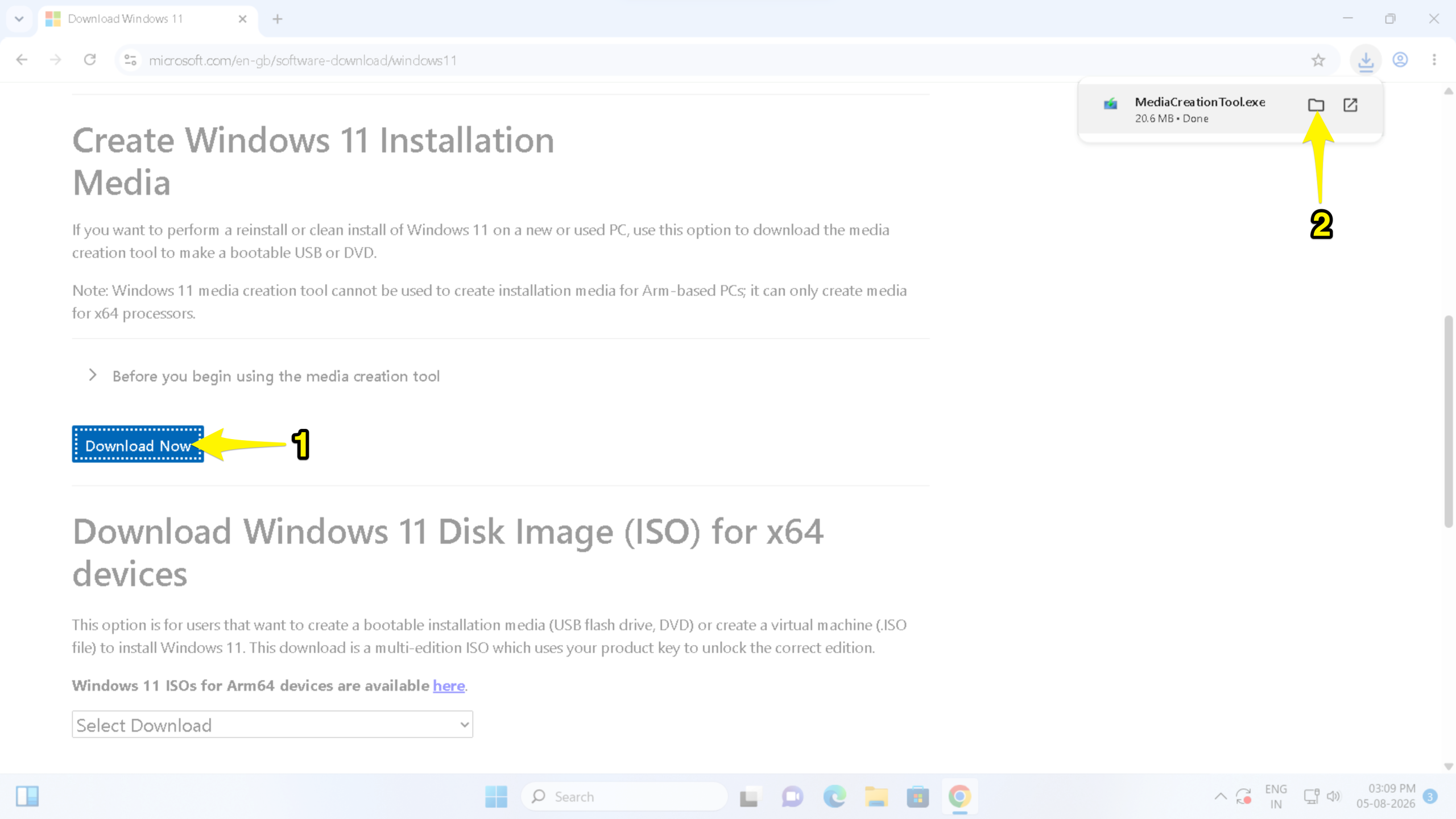
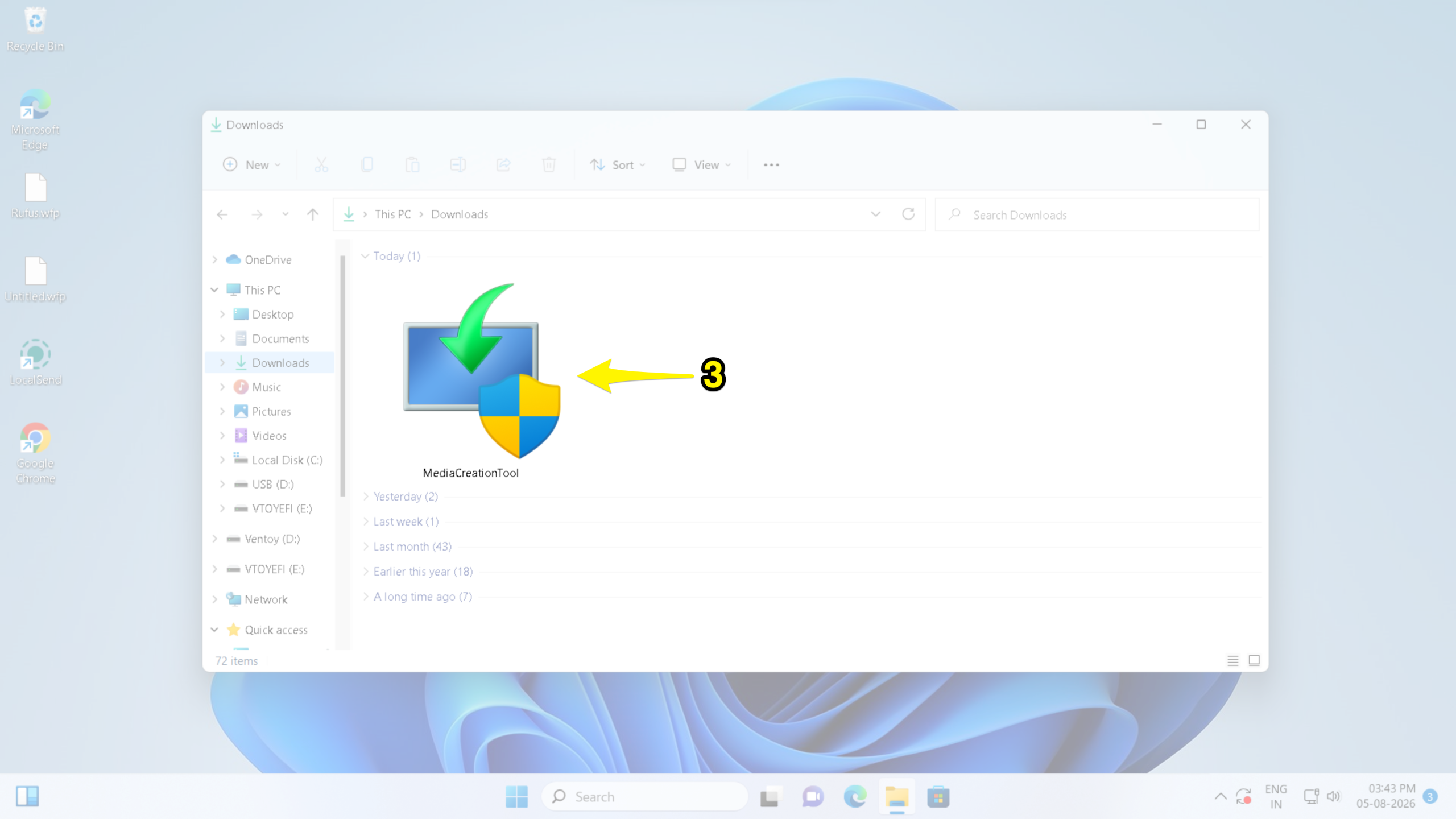
2. Open the downloaded file, then click accept.
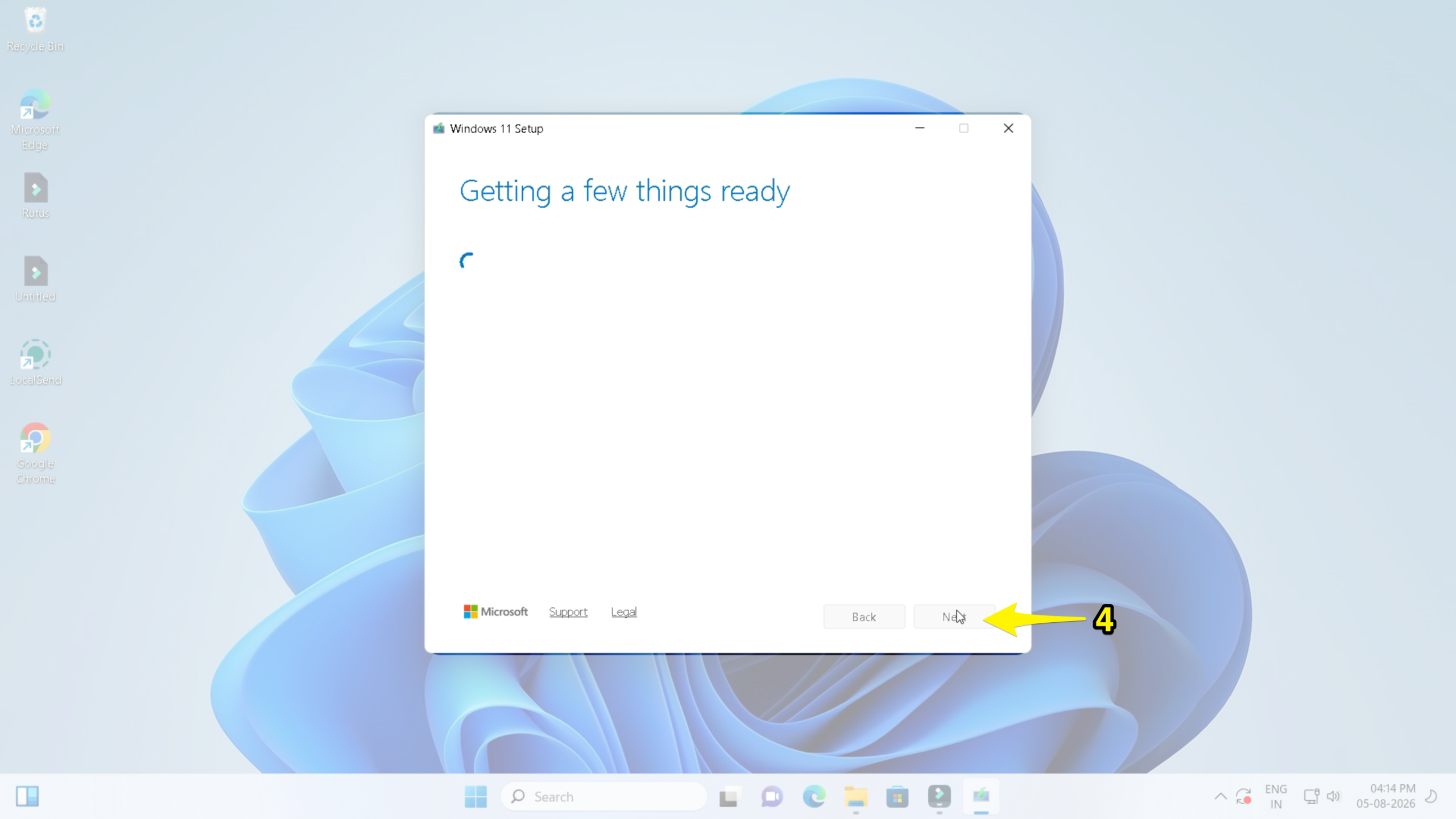
3. Select Create installation media for another PC and click Next.
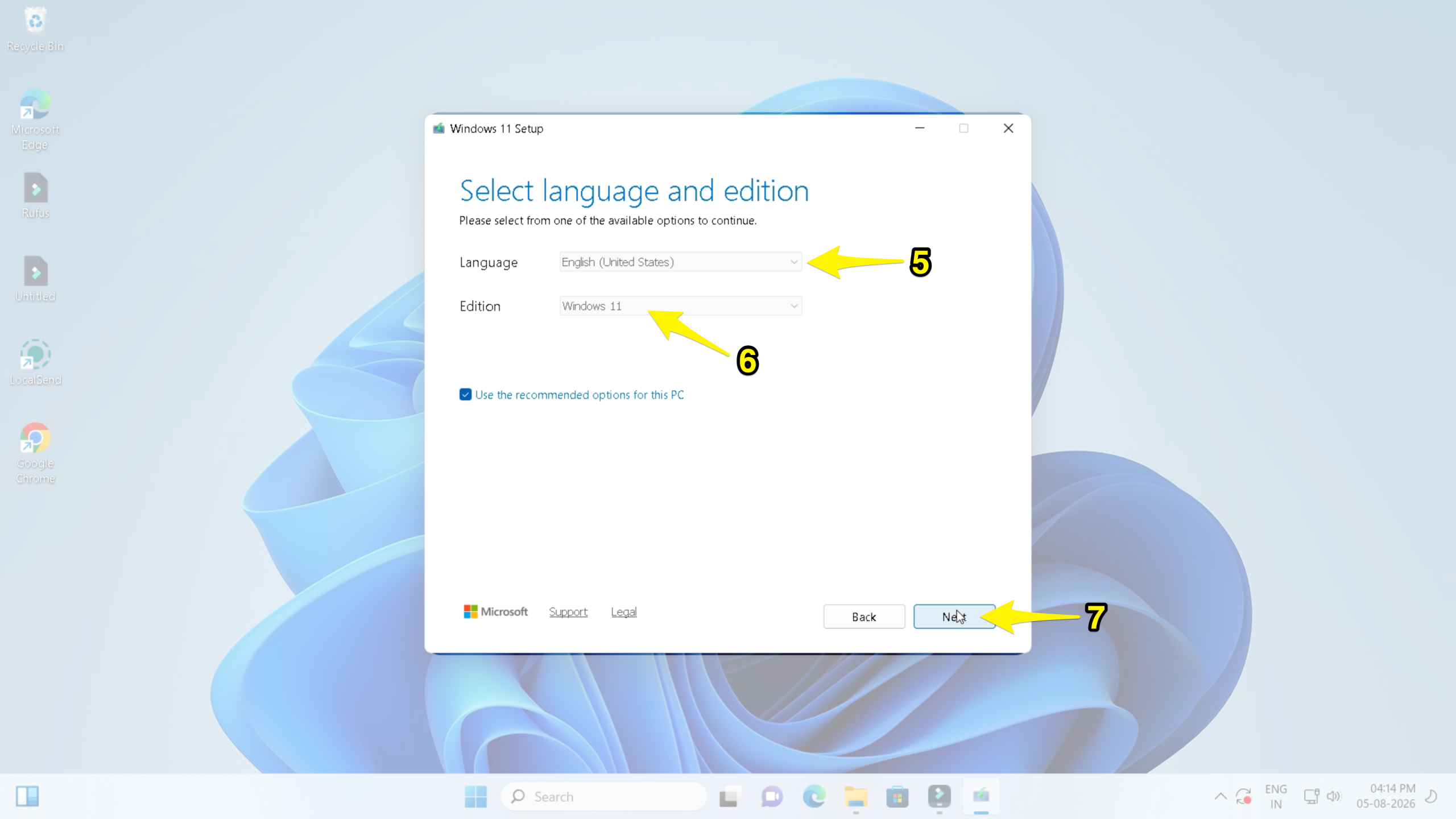
4. Select your language from the dropdown menu and select the Windows edition. Then, click the Next button.
5. Now, select your USB drive from the list and hit the next button.
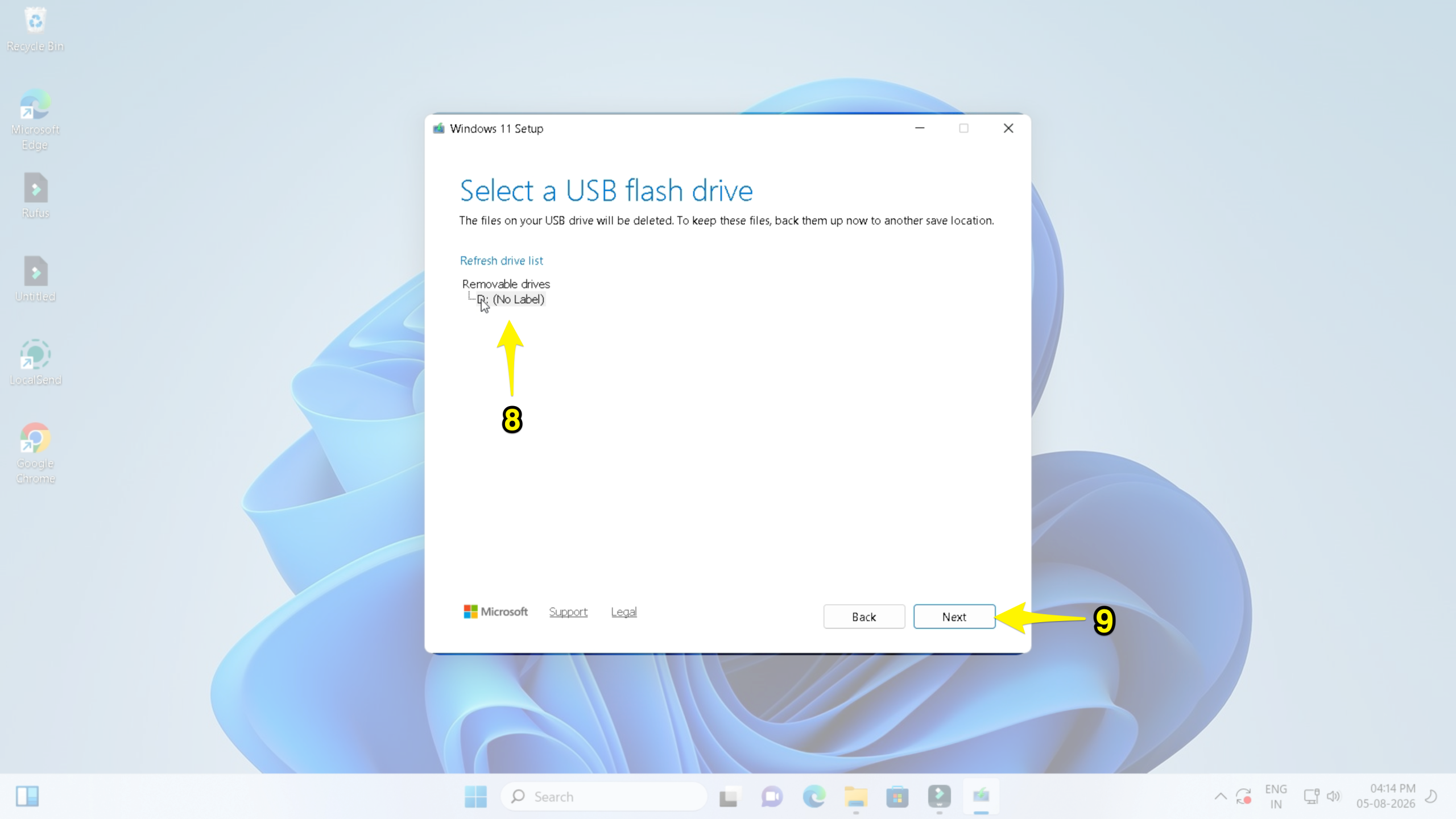
6. Afterward, wait for Windows to download the required files.
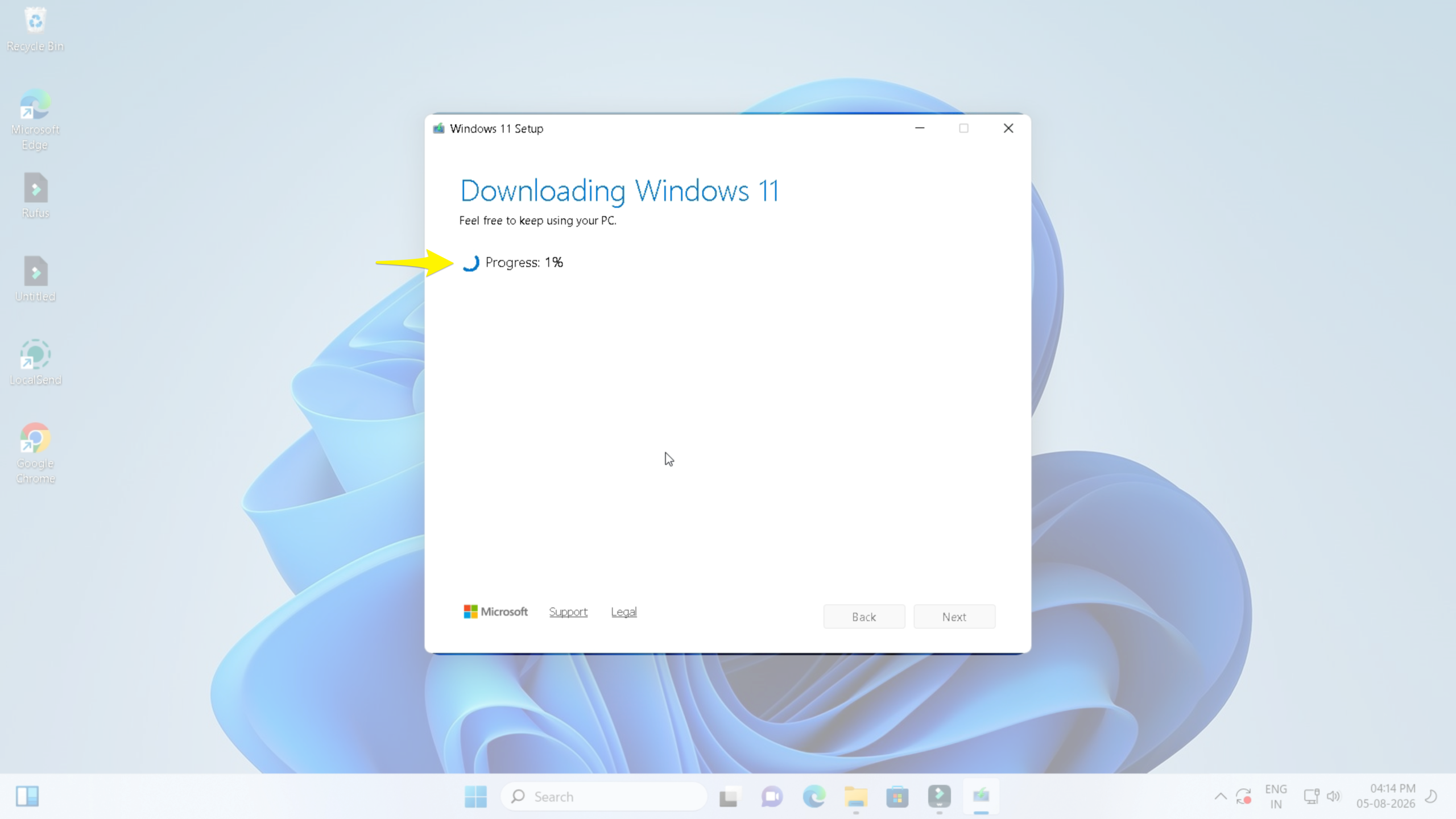
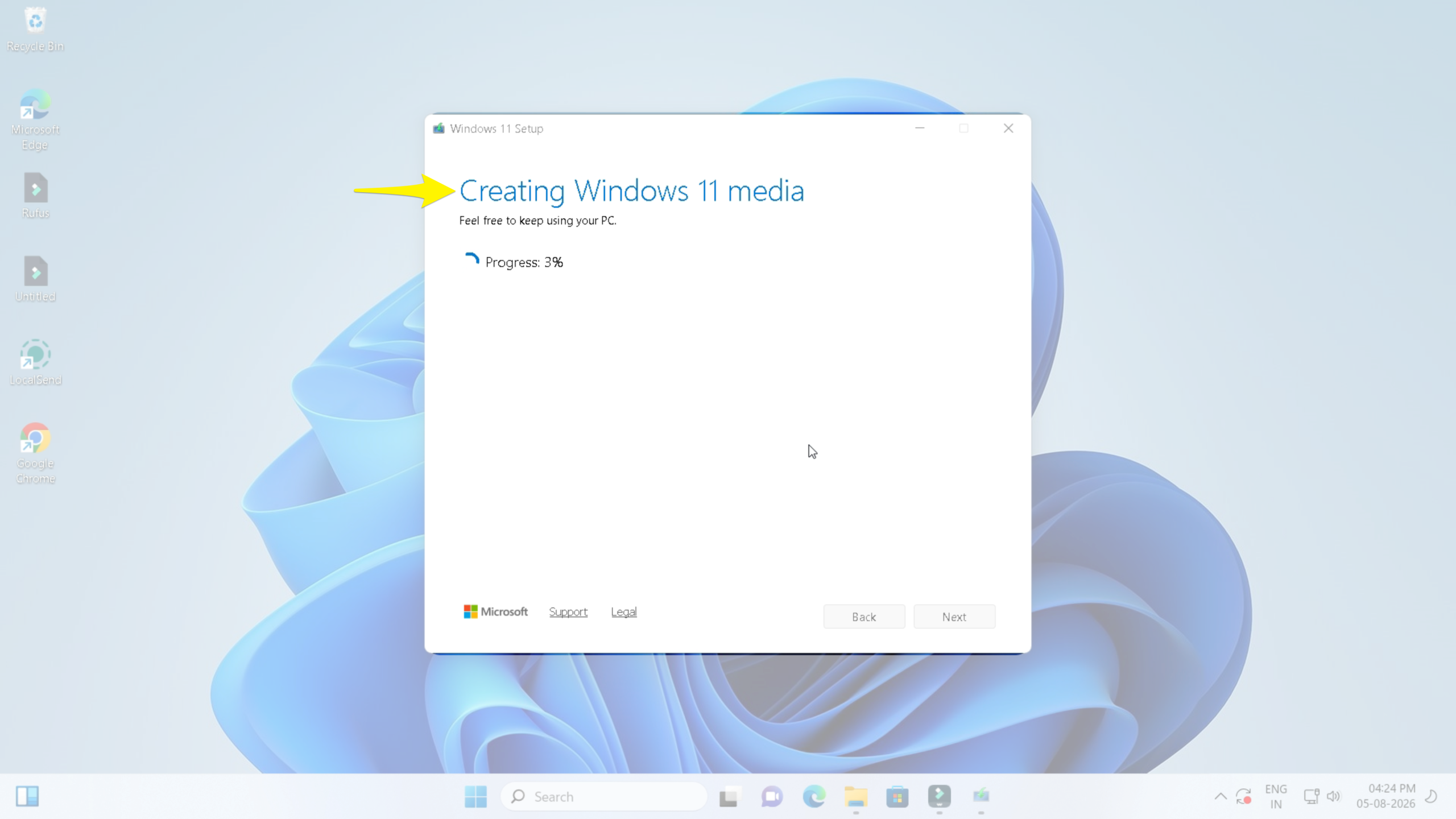
This process may take some time. Please wait until your PC creates the bootable USB.
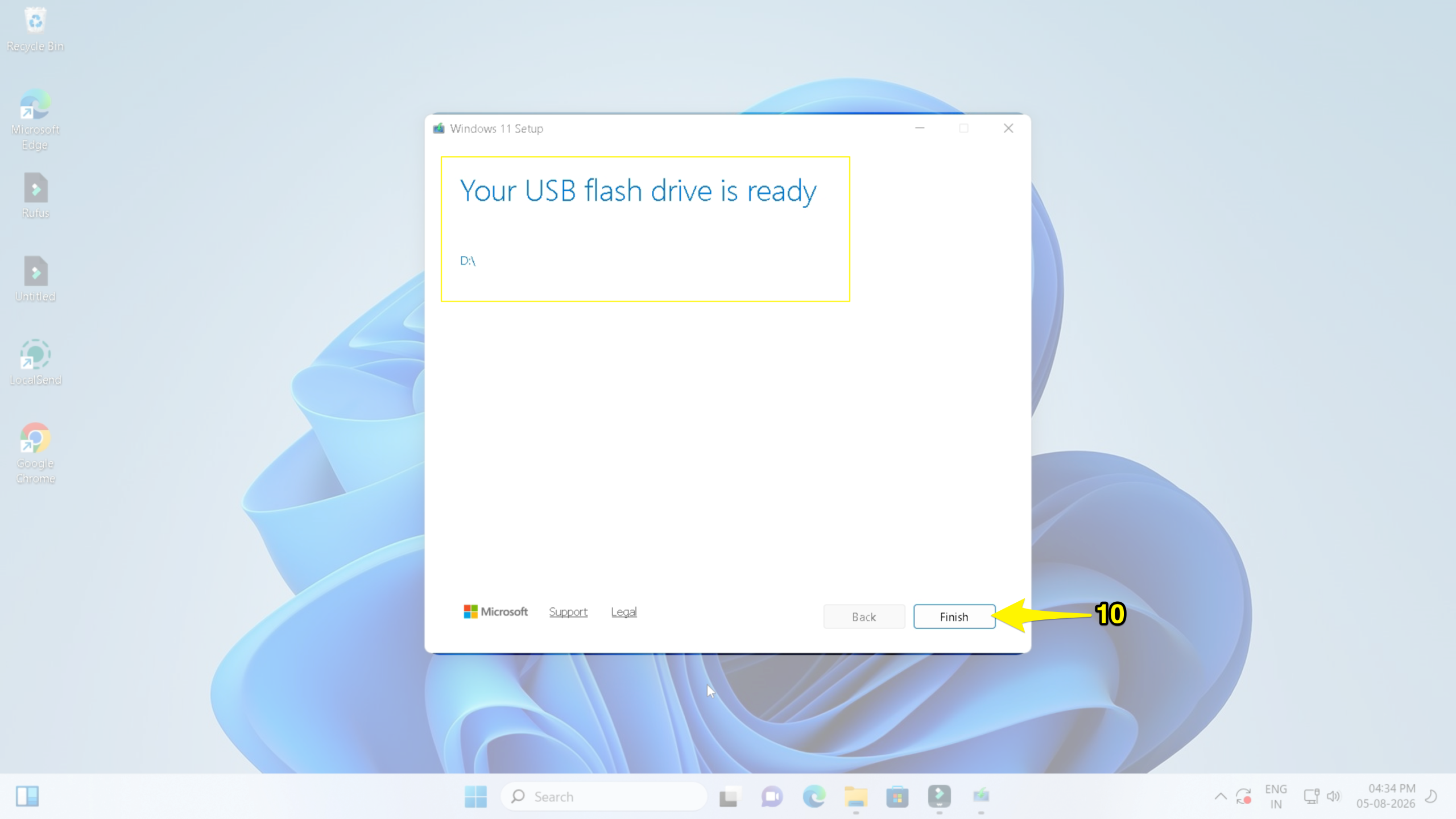
Once the process is complete, click the finish button and safely remove the USB drive.
Step 2: Boot from the USB drive.
1. Insert the USB drive into your locked computer.
2. Then, restart your PC.
3. Open the boot menu by pressing F12, F9, Esc, or Del.
4. Then, select your USB drive.
Step 3: Reset the Windows Computer.
1. Click “Repair your computer” and select the Troubleshoot option.
2. Then, click on Reset this PC.
3. Choose any one option from “Keep Your Files” or “Remove Everything.”
4. At last, complete the reset process.
What Happens After a Factory Reset?
After a factory reset, all installed applications are removed, and Windows is reinstalled. Your device settings return to their default value. You may need to sign in to your Microsoft account to access your account. Also, download drivers and updates if available.
Troubleshooting Tips
Reset process stuck
Restart your computer and reset again using the iCloud download.
Forgot Microsoft account password
Go through the Microsoft account recovery page and reset your password. Then, set up Windows.
Frequently Asked Questions
Does a factory reset delete everything on my PC?
It depends on the option you choose. Select Keep My Files to save your personal data and files.
Will a factory reset remove viruses?
Yes. Choosing “Remove everything” deletes all installed applications and files, which can remove most malware and viruses.
How long does a Windows 11 factory reset take?
A Windows 11 factory reset usually takes 30 minutes or more for a local reinstall. A cloud download may take 2 to 3 hours.
Does “Keep my files” really keep everything?
No. It keeps files stored in your user folders, such as pictures and documents, but removes the installed apps and resets Windows settings. So, create a backup before resetting your PC.
Which option is better: cloud download or local reinstall?
If your system files are corrupted, choose cloud download. It downloads fresh Windows files from Microsoft. The local reinstall is fast, and it doesn’t require an internet connection.
Final Thoughts
If you’re locked out of Windows 11 and can’t access your account, you can still factory reset your computer using the built-in recovery options. Whether you choose to keep your personal files or remove everything, the Windows Recovery Environment will restore your computer without logging in.
If built-in recovery tools don’t work, use a bootable Windows 11 USB drive to reinstall the operating system. Make sure you have taken a backup of your important data. After the reset, Windows 11 will be like new and ask you to set it up from scratch.